AdGuard rolls out in Japanese schools to tackle online distractions and improve safety
Ad blocking is often seen as a convenience, as something that strips away annoying banners, makes websites load faster, and cleans up the screen. But in schools, it can be much more than that. At Shotoku Gakuen Junior and Senior High School in Musashino City, Tokyo, ad blocking has become a tool for improving not just the browsing experience, but also the quality of teaching, digital safety, and student focus in the classroom.
Advertising: more than just annoyance, a real security threat
The motivation behind this initiative came from a real problem: teachers were frequently interrupted during lessons by distracting or even dangerous ads. Some of them were just annoying, like pre-roll video banners that would consume time that teachers could have dedicated to classroom activities. Others, however, were phishing attempts disguised as fake virus alerts, trying to lure users into clicking malicious links.
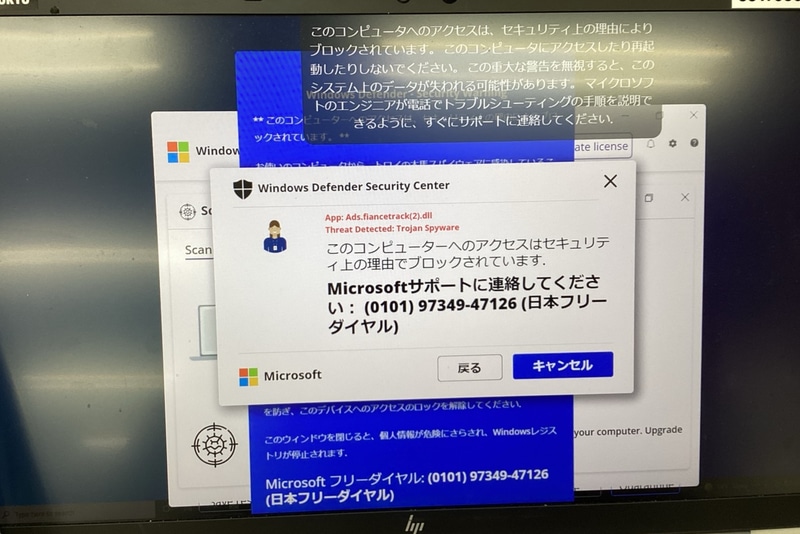
A pop-up window pretending to be the Windows Defender Security Center appeared on staff members' screens, trying to trick them into clicking on it.
This created a two-fold issue: a risk to cybersecurity and a disruption to the learning environment.
Yuichiro Tsuruoka, Director of Information Systems at Shotoku Gakuen, recognized this as a problem, and although he encouraged the staff to follow digital hygiene rules, he realized that relying solely on teachers always making the right choice is an unreasonable expectation.
“I think when those kinds of screens pop up, it’s quite common to be taken by surprise and click on them,” Tsuruoka said. “But fortunately, the faculty and staff at Shotoku Gakuen have always reached out to me first, so there hasn’t been any actual damage so far. We also provide staff-oriented training on how to recognize and avoid fraudulent sites. But there’s a limit to how much you can rely on human attention alone — and even a single mistake could lead to a serious problem. That’s why I felt it was necessary to have a dedicated system in place to block those threats.”
The consequences of a single mistake could’ve been indeed devastating. Schools handle a huge amount of personal information, including students’, and often rely on older authentication systems that aren’t exactly built with modern security threats in mind.
Reasons for AdGuard DNS adoption: clean interface, easy setup
That’s where AdGuard DNS came in. The school began piloting it on student devices in December 2024, first testing on a small scale, then launching it in 2025 across all teacher devices such as tablets and PCs.

iPad without AdGuard DNS installed (left) shows ads, but ads are hidden on the iPad with AdGuard DNS running on it (right)
Explaining the choice to go with AdGuard DNS as opposed to some other program or a different ad blocker, Tsuruoka said that it was important for him that AdGuard DNS is a comprehensive solution not limited to one browser. AdGuard DNS works on a DNS level, which means it can block unwanted ads, trackers, and malicious domains across all apps and browsers without relying on individual browser extensions or requiring complicated software installs. Another factor was the AdGuard DNS dashboard: it’s clean, straightforward, and makes it easy to see what’s being blocked and how often, without digging through a bunch of confusing data.
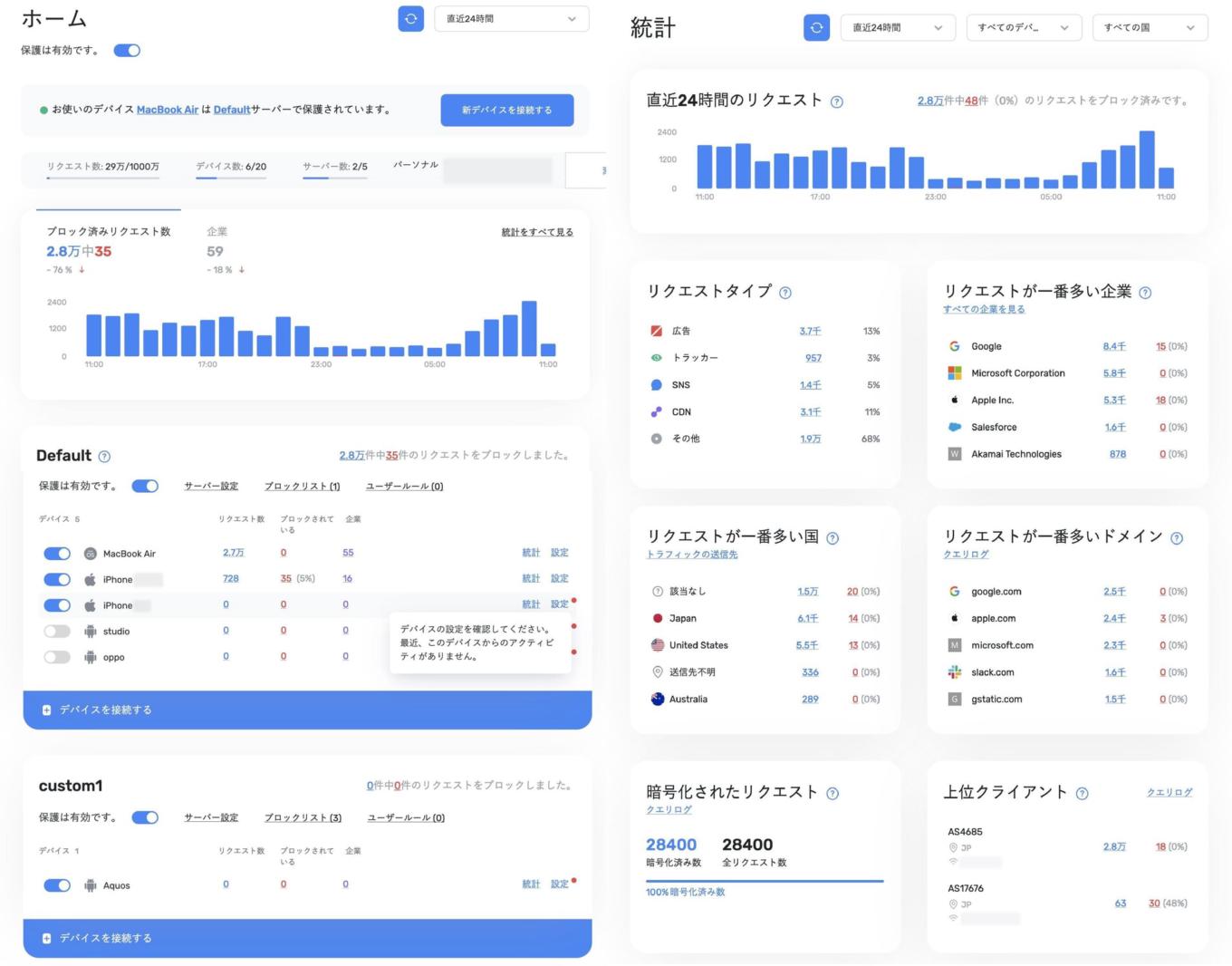
AdGuard DNS dashboard set to Japanese
As for setup, Tsuruoka said it was smooth and painless: “I didn’t have any particular trouble because I only had to scan the QR code.” Tsuruoka noted that while some might assume it’s tedious to set up each device one by one, adding a DNS configuration profile was “quick and easy.”
Tangible results: 12% decrease in junk web traffic
By filtering content before it even reaches the device, Shotoku Gakuen has been able to reduce risk and cut down on unnecessary background traffic. Overall, around 12% of all web traffic is being blocked, Tsuruoka said. This includes everything from display ads to tracking scripts to background app connections.
The school also found that the benefits extended to pedagogy itself. Previously, when teachers wanted to show students a web page during a lesson, they often took screenshots to avoid displaying inappropriate or distracting ads. Now, with ads no longer pulling all the attention onto themselves, teachers can be more flexible: they don’t have to prepare screenshots in advance and can simply guide students to the relevant web page directly.
Following the success with teacher devices, Shotoku Gakuen is now preparing to roll out AdGuard DNS to student devices as well. This time, however, they’re using a Mobile Device Management (MDM) platform to apply the DNS profiles. This ensures that even tech-savvy students can’t easily remove the protections, since MDM can lock certain settings and prevent users from deleting installed profiles.
It’s more than just one school or one software solution
The school’s approach highlights an important shift in how educational institutions think about digital infrastructure. Blocking ads isn’t just about aesthetics or speed. It’s about safeguarding the classroom, protecting users from threats, and keeping students focused on learning. As schools around the world struggle with slow networks, growing cyber threats, and the challenge of managing thousands of devices, Shotoku Gakuen’s decision to adopt AdGuard DNS shows what’s possible when schools embrace new tech.
We’re proud to say that Shotoku Gakuen is the first of what we expect will be many Japanese schools adopting AdGuard DNS to protect both teachers and students from the risks that come with online ads and tracking. We believe this is just the beginning of a broader movement, and a stepping stone toward large-scale adoption of AdGuard DNS across Japan in the coming years. We’re already working towards a more widespread adoption of AdGuard DNS in Japanese schools, and in the future, we hope to see more schools — not just in Japan, but around the world — adopt DNS-based solutions like this to boost security and cut down on digital clutter.


















































