Other features and options
This article is about AdGuard Browser Extension, which safeguards only your browser. To protect your entire device, download the AdGuard app
Apart from the main settings of AdGuard Browser Extension, there are several more specific features that can be configured in the General and Additional settings tabs.
General
The General tab contains the main extension settings and lets you control its basic filtering behavior. Here you can allow search ads and self‑promotion on websites, enable automatic activation of language-specific filters, set the update interval for the filters, and turn on protection against phishing and malicious websites.
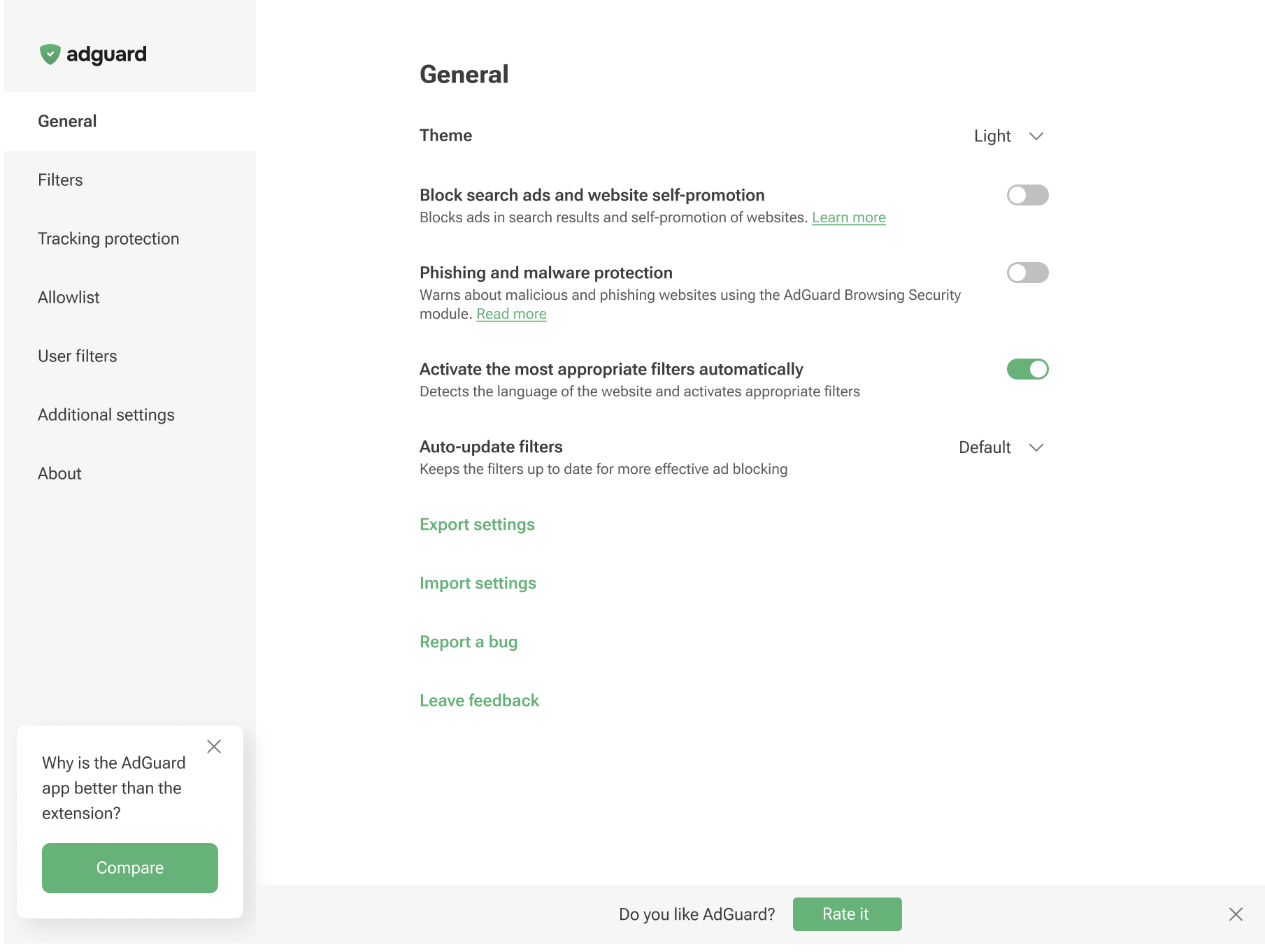
You can also save your current configuration and quickly apply it to another browser or device. To do this, click Share settings: the extension will generate a special link and a QR code that contain your current settings. You can either copy the link and open it in a browser, or scan the QR code on a device with AdGuard to open the link directly in the app. You will then see a prompt to apply the shared configuration so that you can restore the same setup after reinstalling your browser or on a new device.
If needed, you can also share this link with other people or attach it to a support request so the team can see your exact configuration.
In addition, you can still export your settings to a .json file by clicking Export settings and import them via the Import settings option. This makes it easy to switch between different configuration profiles or move them between browsers.
Additional settings
The Additional settings section contains various settings that are related to the ad-blocking process and usability.
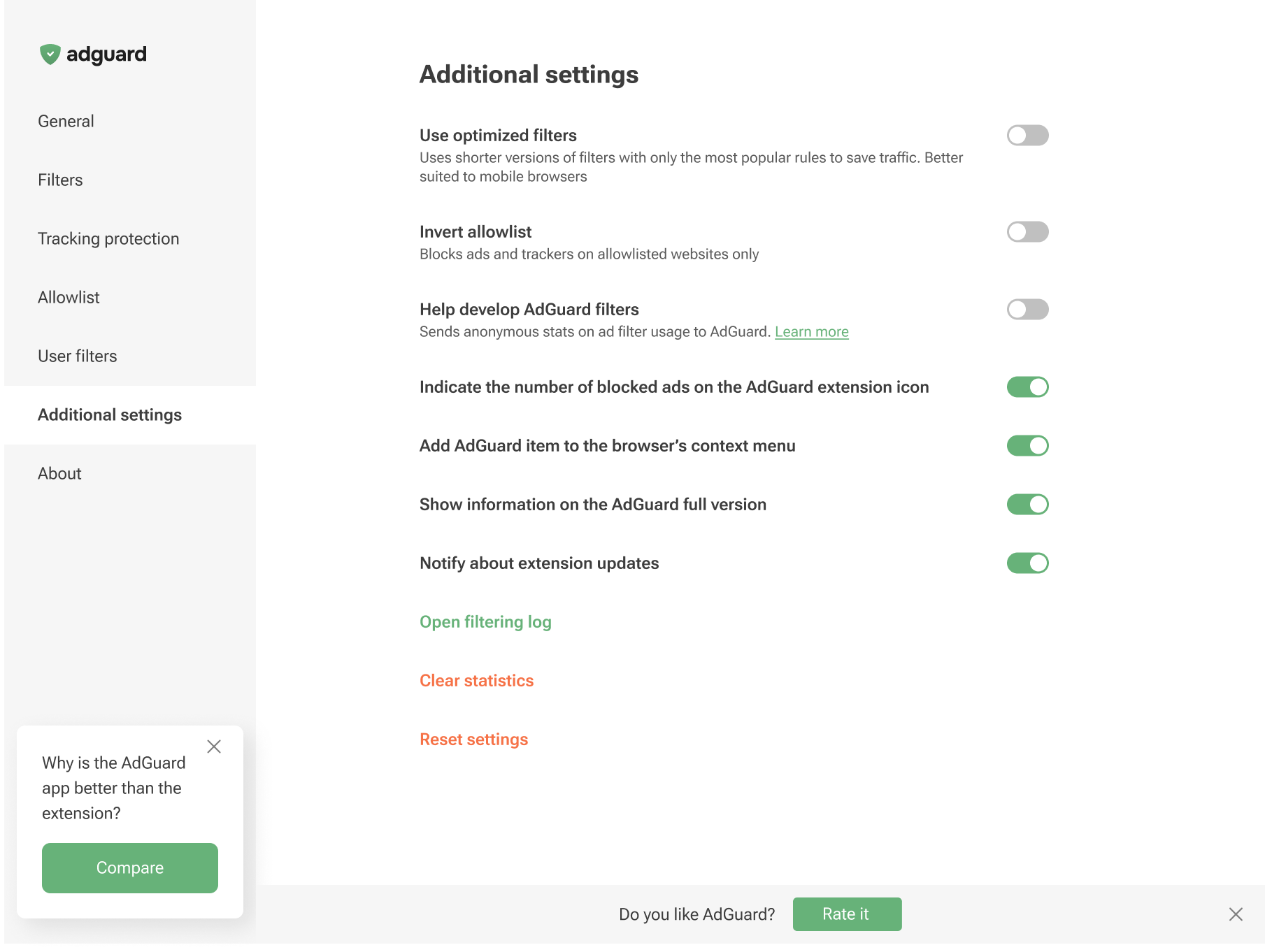
Enabling Use optimized filters activates lightweight versions of the ad-blocking rules. It focuses only on the most popular filters to save internet traffic and system memory, which is ideal for mobile browsing.
You can invert the Allowlist will unblock ads on all websites by default, except for the specific domains you manually add to your list
You can also add the AdGuard item to the browser’s context menu, enable the display of the number of blocked ads on the AdGuard icon, and toggle notifications about extension updates.
Additionally, this section lets you enable notifications about the AdGuard app, open the Filtering log, clear the statistics of blocked ads and trackers, or reset the settings.
Besides, you can opt to help us with the development of filters by sending the statistics on applied rules: which ones are triggered, on which websites, and how often. This option is disabled by default as we do not collect user data without consent. Yet, if you enable it, all data will be strictly anonymized.
You can also choose to help us improve the extension by sending us anonymized usage data. This includes the names of the screens you interact with, the names of the buttons you click, and session identifiers. These insights help us understand where users run into friction, refine the experience, and make the extension faster and easier to use. The Send anonymized usage data option is disabled by default. If you enable it, all data will be strictly anonymized and used only internally. It will never be shared with third parties.
The Send anonymized usage data option can also be enabled on the post-installation page in Chromium-based browsers.
About
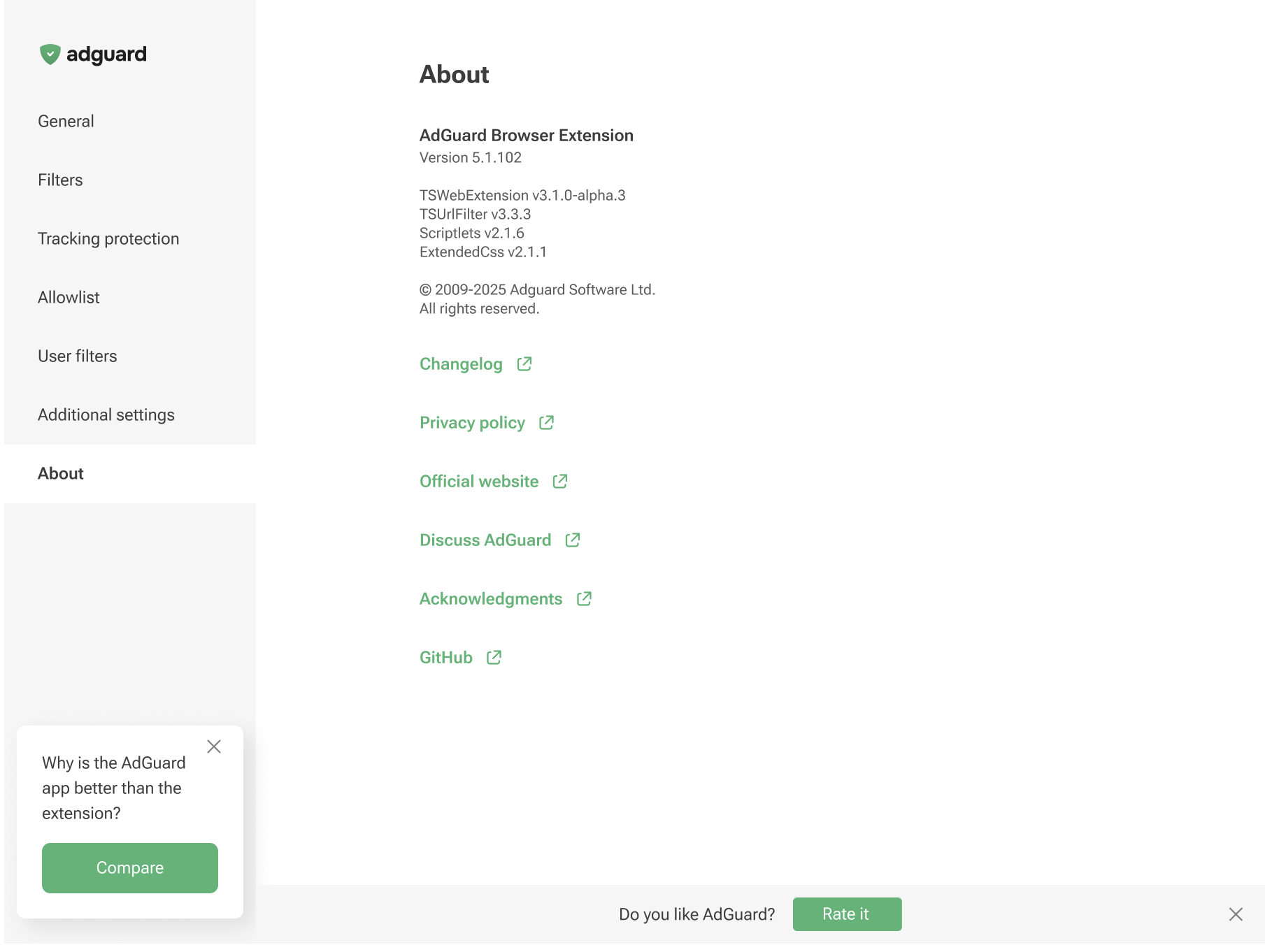
In the About section, you can find information about the current version, links to the Privacy policy, and a link to the repository of the Browser Extension on GitHub.