Installation
This article is about AdGuard Browser Extension, which safeguards only your browser. To protect your entire device, download the AdGuard app
How to install AdGuard Browser Extension in different browsers
Chrome and Chromium-based browsers
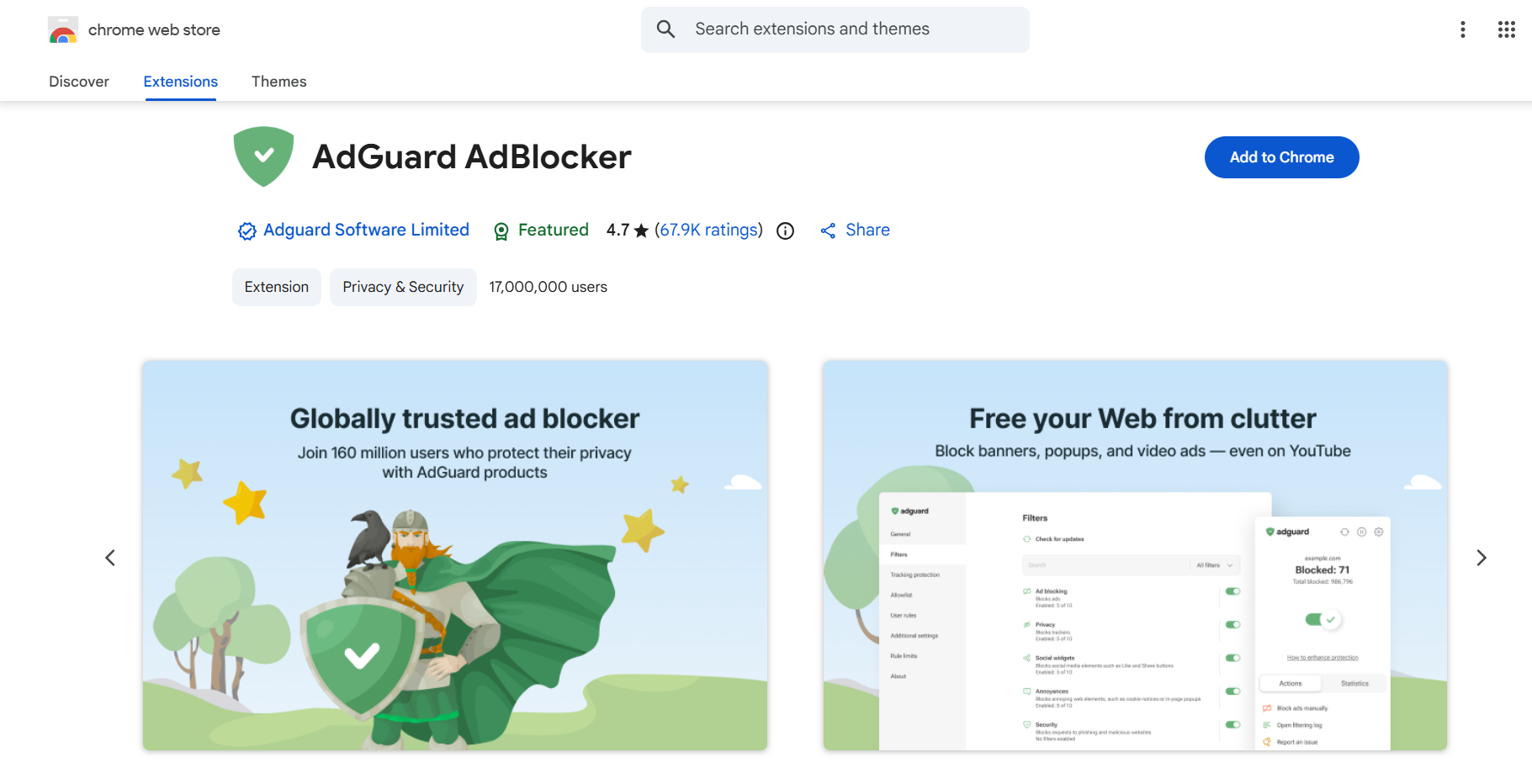
Open the extension’s page in the Chrome Web Store and click Add to Chrome.
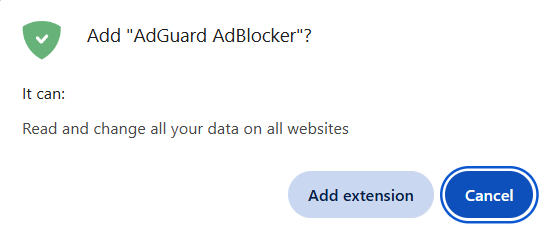
In the opened dialog, click Add extension.
Opera
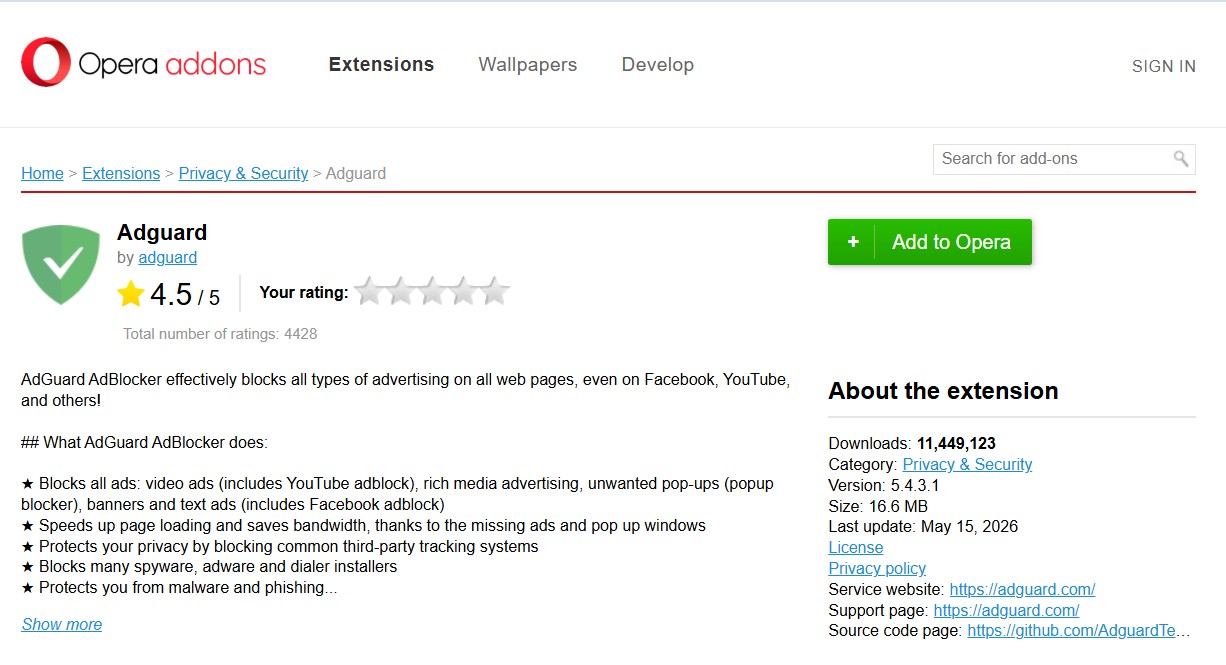
Open the page addons.opera.com and click Add to Opera.
Firefox
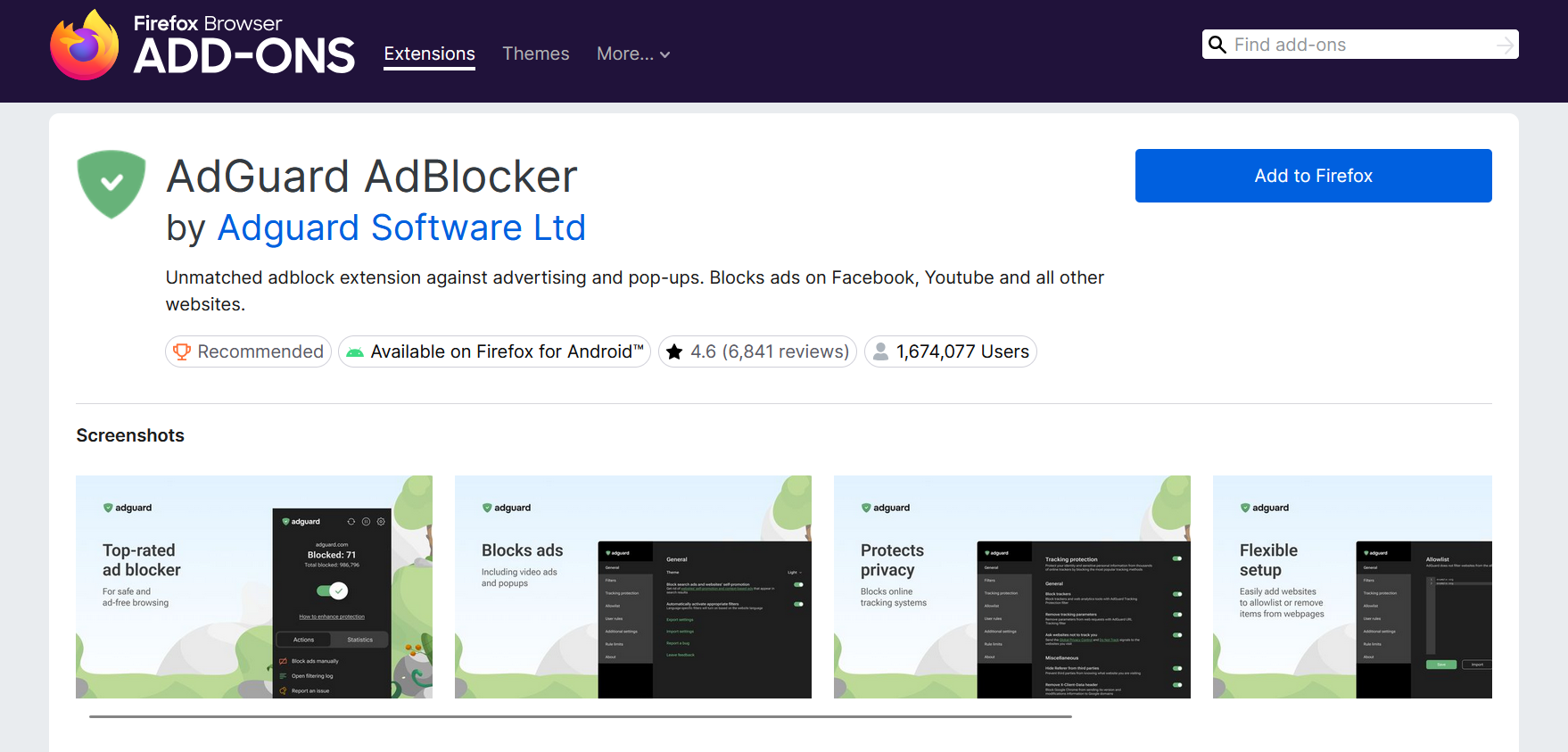
Open the page addons.mozilla.org and click Add to Firefox.
Yandex Browser
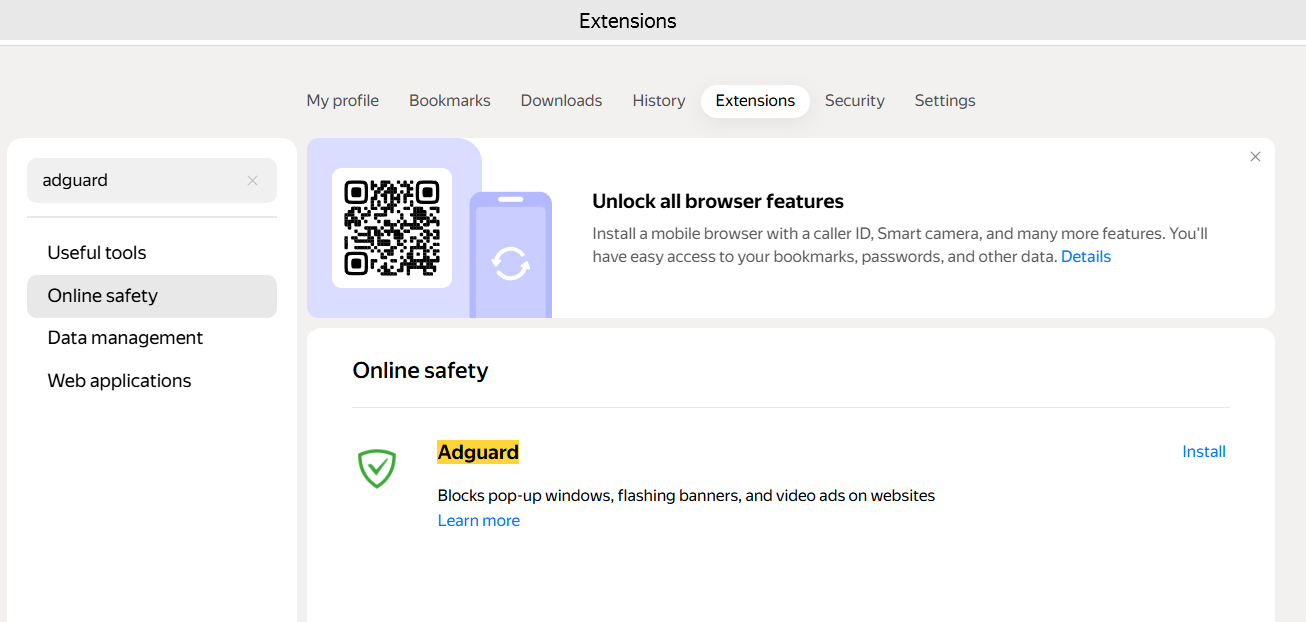
Click the browser settings button in the upper right corner of the browser, choose Extensions → Online safety, find AdGuard, and click Install.
Microsoft Edge
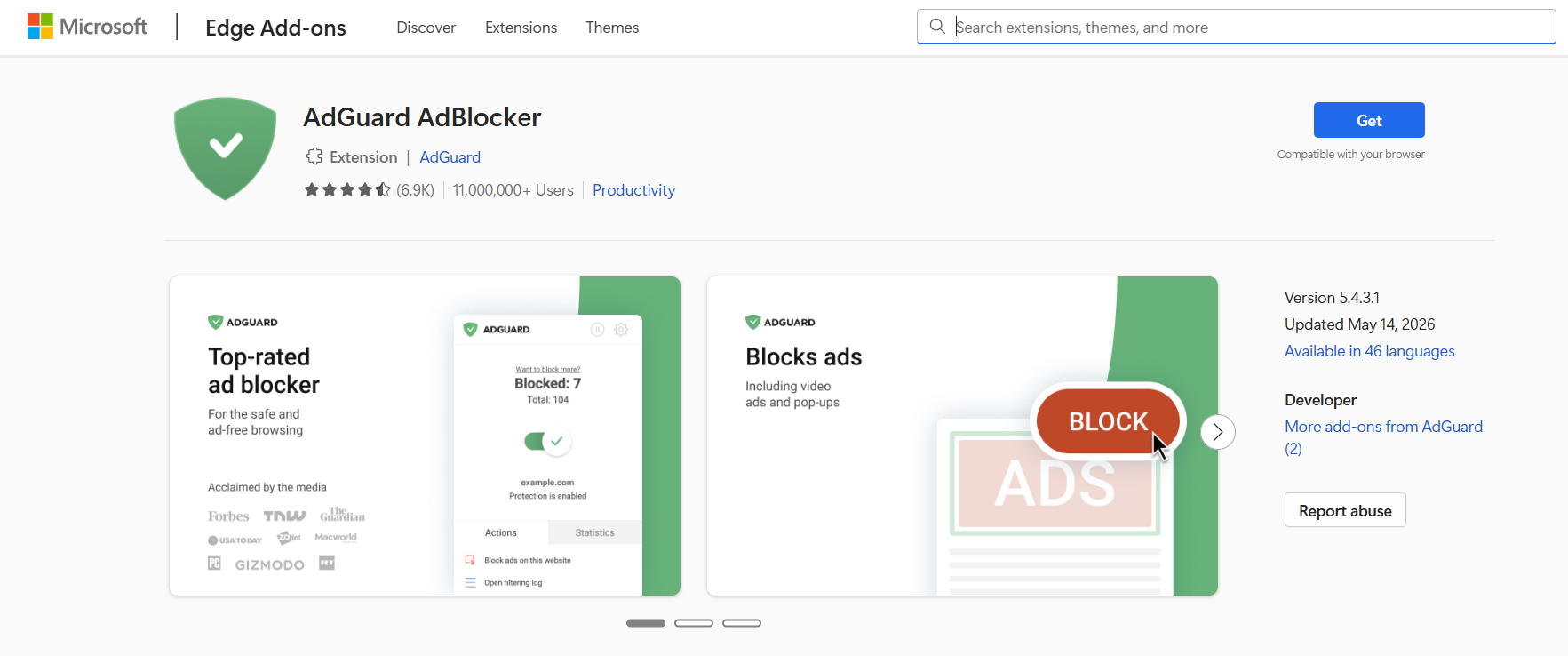
Go to the Edge Add-ons store page and click Get.
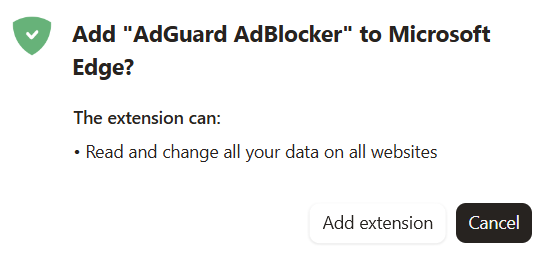
In the opened dialog window, click Add extension.
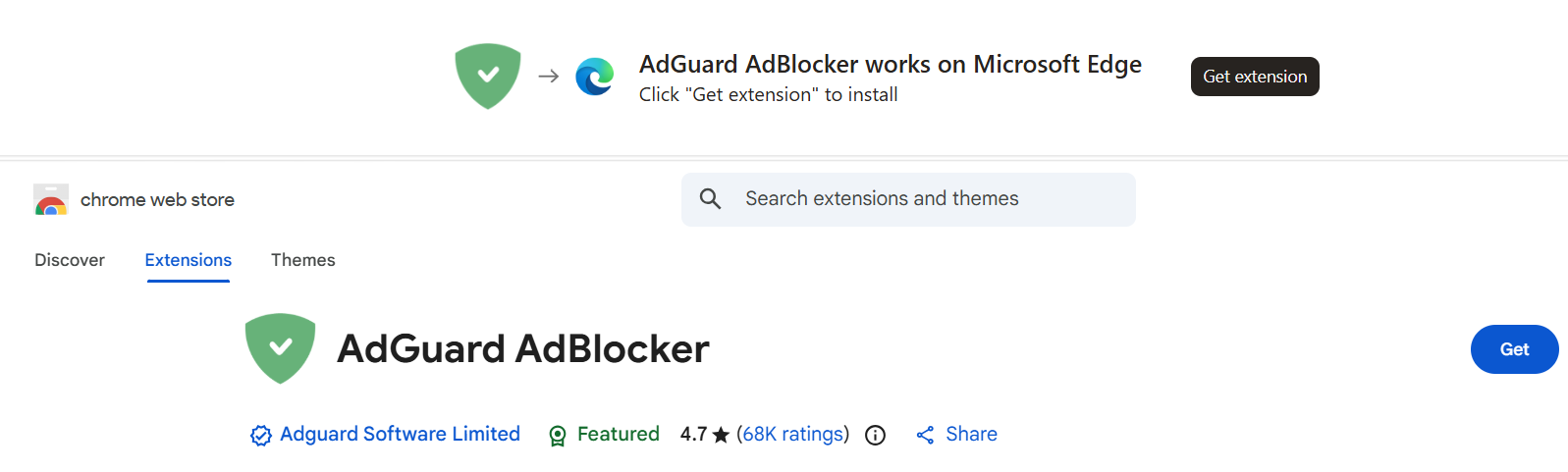
Alternatively, you can install AdGuard Browser Extension for Edge from the Chrome Web Store. Open its webpage in your Edge browser and click Get extension.
In the opened dialog, click Add extension.
Safari
AdGuard Mini for Mac (formerly AdGuard for Safari) is not a traditional browser extension. It was specifically built to comply with Apple’s strict content blocking limitations. For more details, you can read the dedicated article. Or you can download AdGuard Mini for Mac directly from this page.