Why AdGuard appears in Full Disk Access on macOS
This article is about AdGuard for Mac. To see how they work, download the AdGuard app
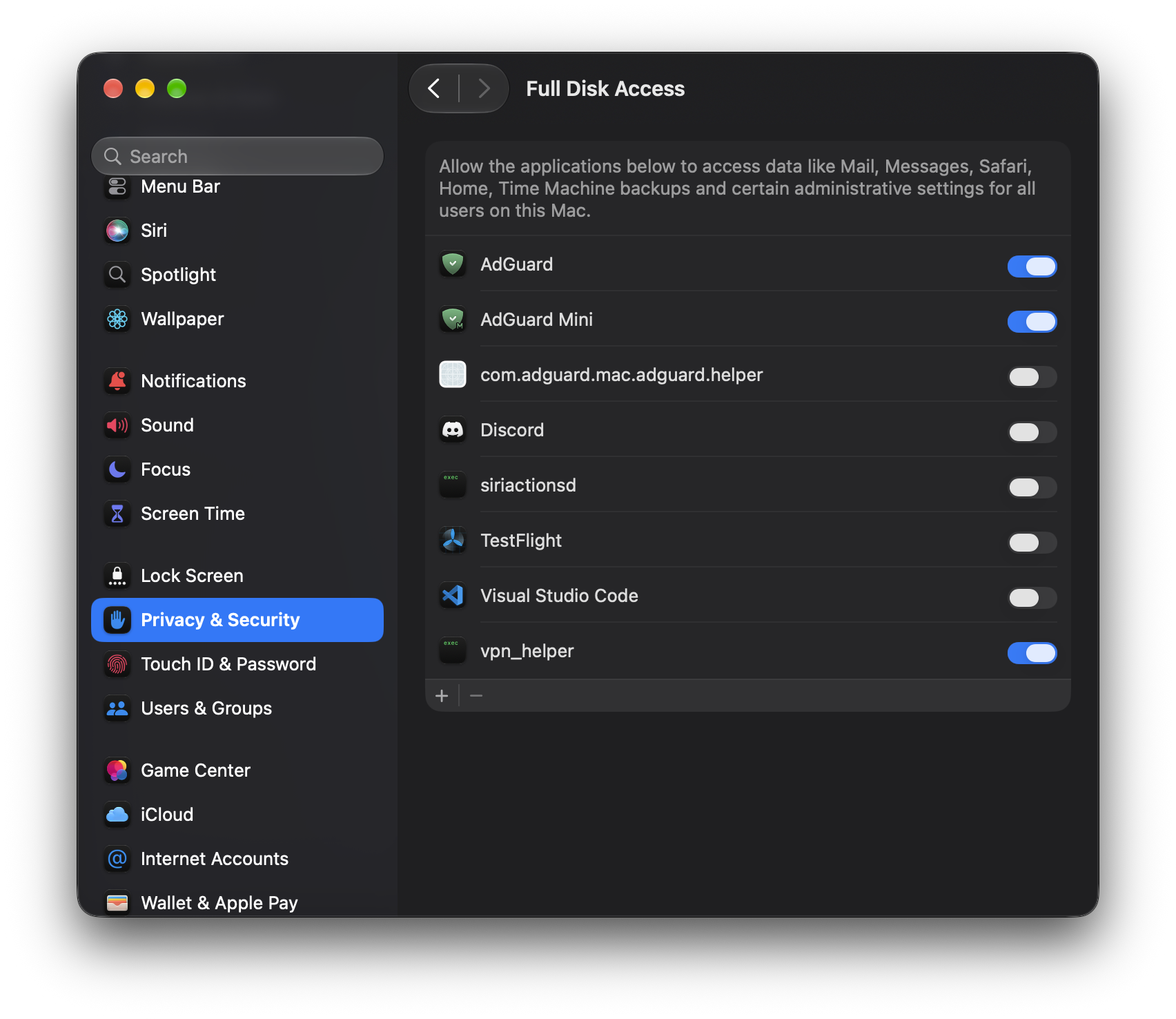
AdGuard for Mac may appear in System Settings → Privacy & Security → Full Disk Access. An entry there doesn’t mean AdGuard asked for Full Disk Access or received it: macOS adds entries itself, and the switch stays off. No dialog appears when it does.
Why the entry appears
No app can add or remove its own entry in Full Disk Access or enable its own switch. macOS creates the entry when an app accesses data that the system protects, such as files belonging to other apps.
The list of protected data depends on the macOS version. Apple changes these rules between releases, so an action that added nothing on an older version may add an entry on a newer one. Starting with macOS 27, the folders where some apps, including popular browsers, store their data are protected. Accessing such a folder, even just to read it, adds the app to the list; on macOS 26 and earlier, the same action added nothing.
macOS also keeps entries after an app is deleted and after macOS is updated. An entry you see today may have been created years ago by an earlier version of the app.
AdGuard for Mac
AdGuard for Mac writes a Native Messaging manifest for Browser Assistant, a browser extension. The manifest tells the browser where to find AdGuard, and the browser uses it to pass messages between the extension and AdGuard. This is what lets Browser Assistant show how AdGuard filtered the current page and manage blocking without opening the app.
AdGuard stores the manifest in the browser’s folder inside your user Library. On macOS 27 that folder is protected, so the attempt to write the manifest adds AdGuard to the Full Disk Access list.
Don’t turn this toggle on without a reason. Full Disk Access gives the app access to almost all your data, including documents, browser data, mail, messages, and other apps’ files. AdGuard works without it.
If Browser Assistant can’t connect to AdGuard, start with the narrower option: Browser Assistant doesn’t work on macOS 27 shows how to grant access to the browser folder alone. Use Full Disk Access only if those steps don’t help.
How to remove the entry
The entry itself gives AdGuard no access to your files. Ad blocking works with the switch off, so you can leave the entry in place.
To remove it:
- Go to System Settings → Privacy & Security → Full Disk Access.
- Turn the switch off.
- Select the AdGuard entry and click −.
If you granted Full Disk Access to AdGuard for Mac for Browser Assistant, removing the entry takes that access away. Ad blocking is not affected.
To reset the record from Terminal, run the command from Apple’s guide to resetting access to protected resources:
tccutil reset SystemPolicyAllFiles com.adguard.mac.adguard
If tccutil reset didn’t work, try to restart your Mac.
Without sudo, the command resets the record for your user account. With sudo, for all accounts on the Mac.
A Full Disk Access record sometimes stays after tccutil reset. Removing the entry in System Settings is more reliable.
The entry may appear again
macOS adds the entry back the next time the app accesses a protected folder, for example when AdGuard for Mac writes the browser manifest again. macOS adds the entry on its own, it doesn’t mean the app requested access.