Installation
Dieser Artikel behandelt AdGuard für Windows, einem multifunktionalen Werbeblocker, der Ihr Gerät auf Systemebene schützt. Um zu sehen, wie es funktioniert, laden Sie die AdGuard-App herunter
Systemanforderungen
Operating system: Microsoft Windows 11, 10, 8.1, 8.
RAM: at least 1 GB.
Free disk space: 150 Mbytes.
Browsers: Microsoft Edge, Microsoft Internet Explorer (all versions), Opera, Google Chrome, Yandex.Browser, Mozilla Firefox, and many other browsers.
AdGuard installieren
Um AdGuard auf einem PC oder Tablet zu installieren, gehen Sie wie folgt vor:
-
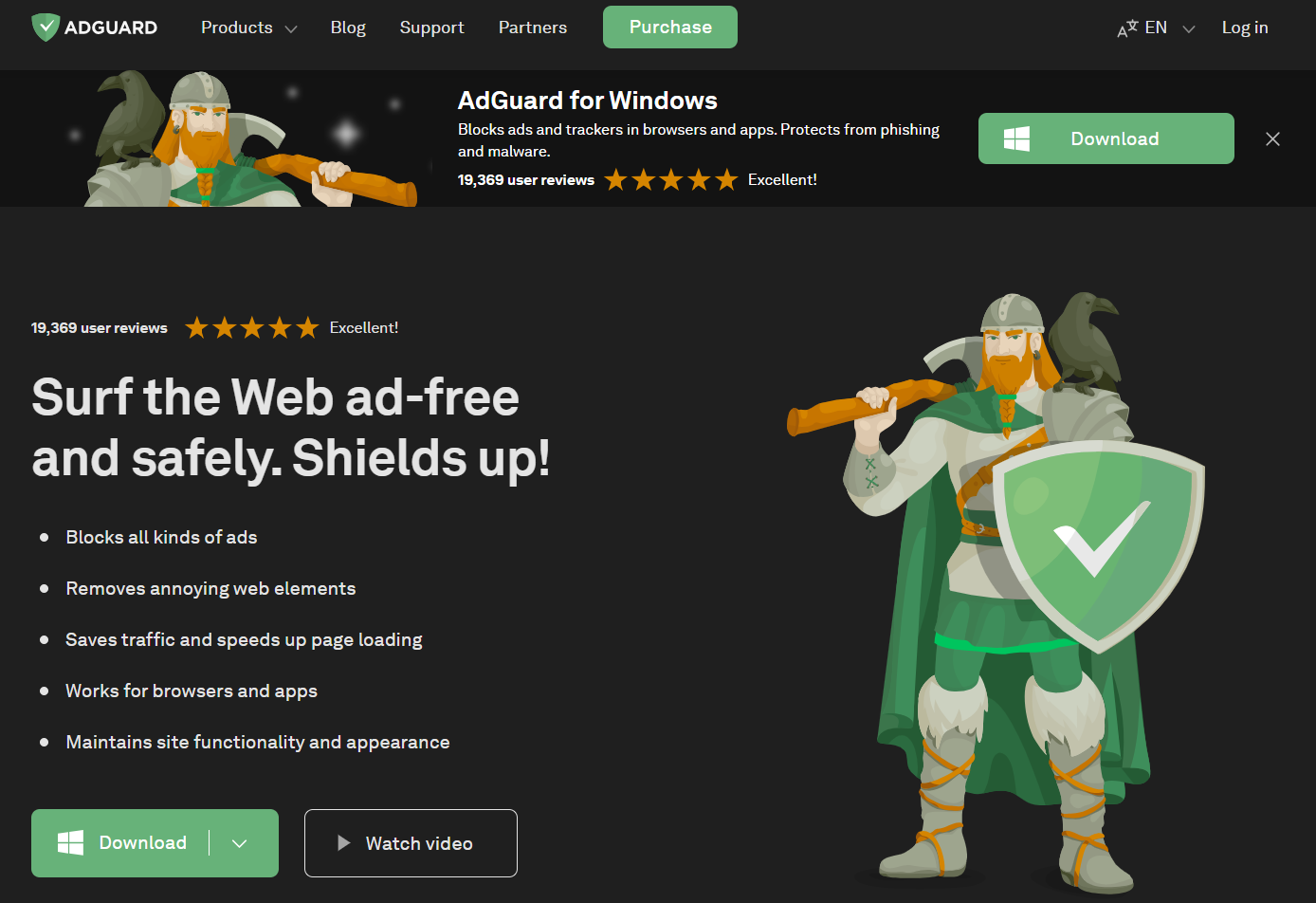
Go to the AdGuard website and click Download. You can also get the installation program from the download page — the download will start automatically.
-
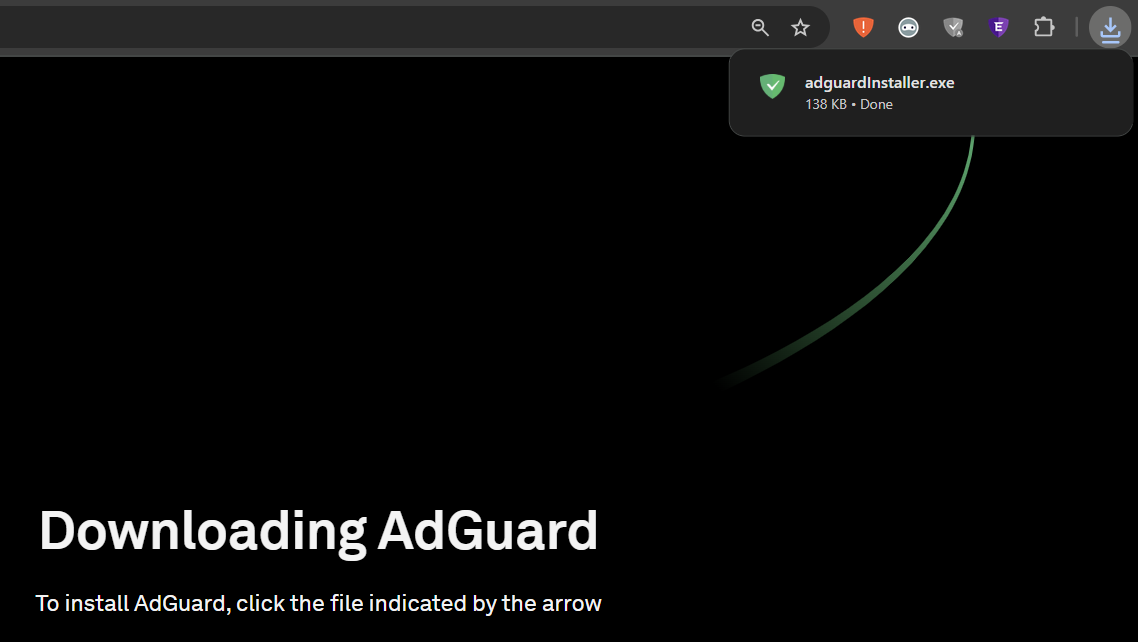
Once the download is complete, open the file adguardInstaller.exe.
-
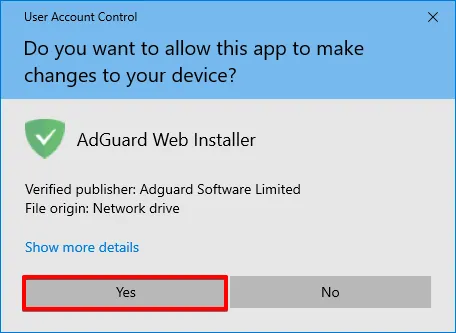
Es wird das Dialogfeld der Benutzerkontensteuerung angezeigt, in dem Sie aufgefordert werden, der App zu erlauben, Änderungen an Ihrem PC vorzunehmen. Click Yes.
-
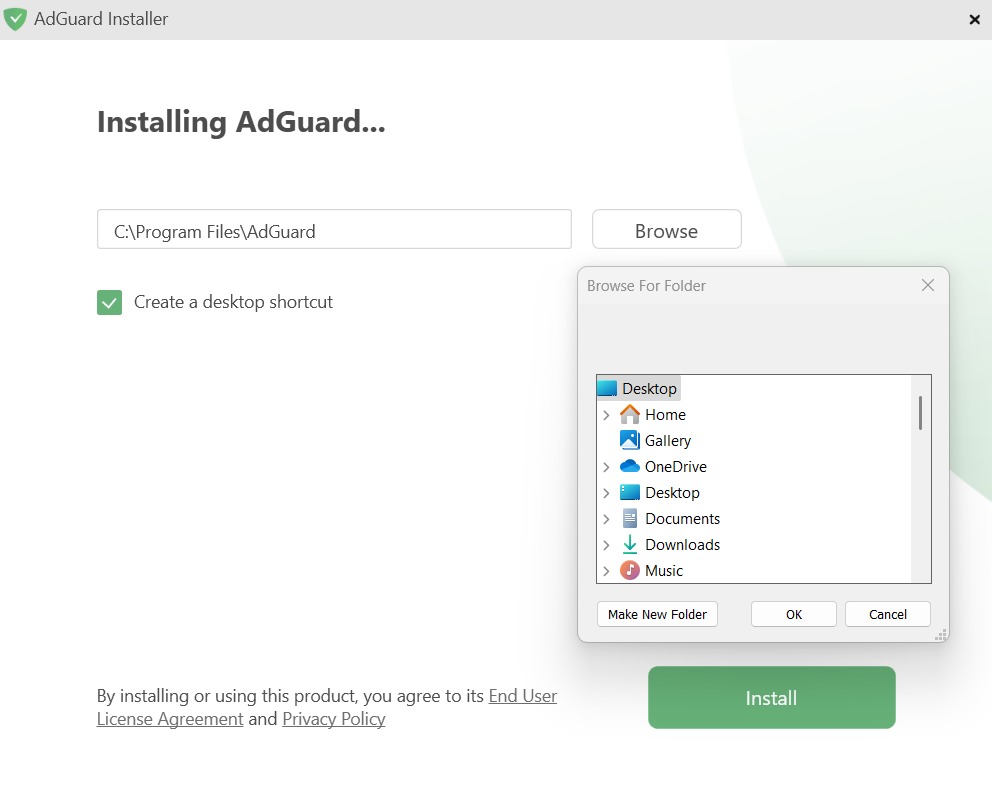
Wählen Sie den Ordner, in dem AdGuard installiert werden soll.
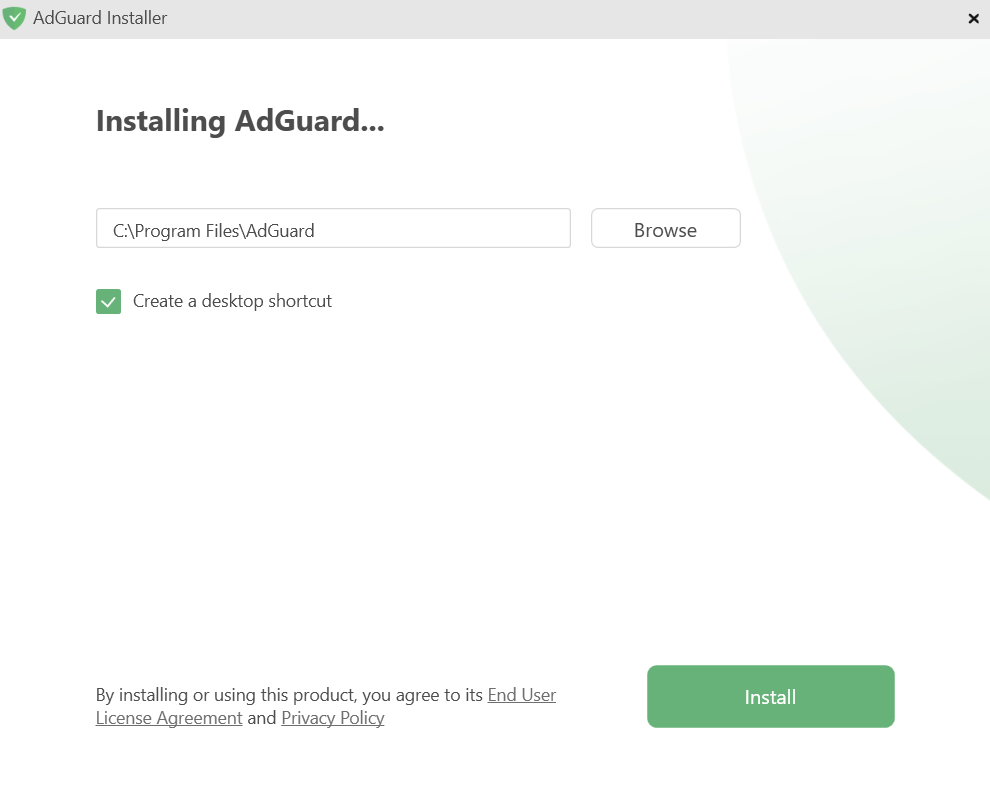
If you want to select a different location, click Browse, choose the folder, and click OK. You can also create a new folder by clicking Make New Folder and naming it. If you’d like a desktop shortcut, check the box Create a desktop shortcut. Then click Install to start the installation.
-
Wait for the installation to complete and click Finish.
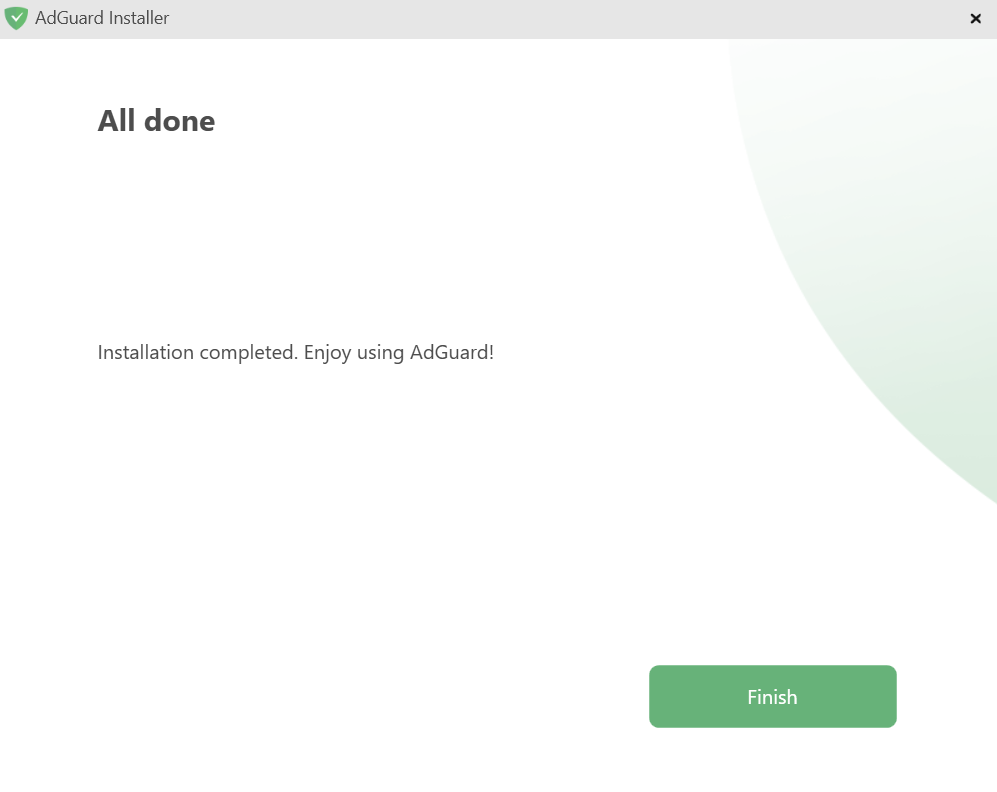
Glückwunsch! AdGuard has been successfully installed. Sie werden dann aufgefordert, den Schutz nach Ihren Wünschen einzurichten.
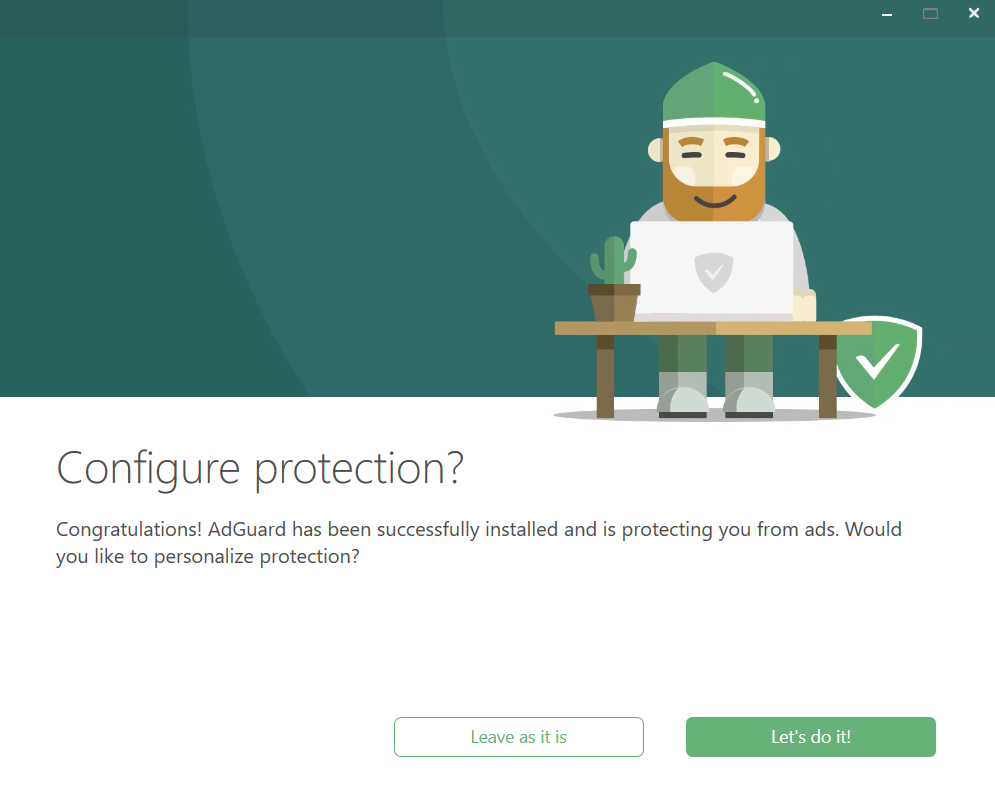
Daraufhin öffnet sich das Hauptfenster, in dem Sie die Einstellungen der App festlegen können.
How to uninstall AdGuard for Windows
Reguläre Methode
If you need to uninstall or reinstall AdGuard, do the following:
-
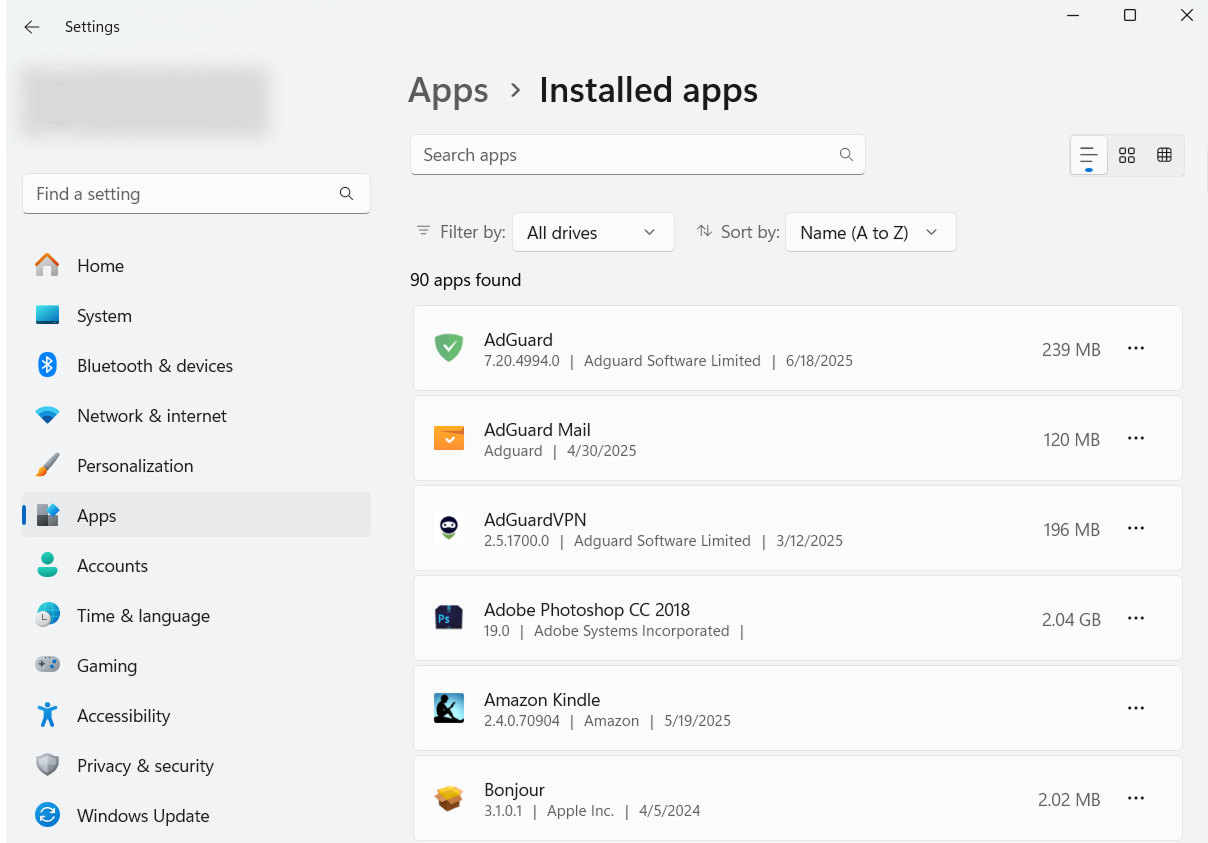
For Microsoft Windows 10 & 11: Open the Start Menu by clicking Start, then select Settings. In the window that opens, click Apps → Installed apps. Select AdGuard from the list of your installed apps, click the three-dot menu, and select Uninstall.
-
For Microsoft Windows 8: Right-click the empty space in the lower left corner of the task bar and select Control Panel. Click Uninstall a program in the Programs section, then select AdGuard from the list of installed apps and press the Uninstall button located right above the list. Confirm the action by clicking Uninstall AdGuard in the window that opens.
-
For Microsoft Windows 8.1: Right-click the Start button and select Control Panel. Click Uninstall a program in the Programs section, then select AdGuard from the list of installed apps and press the Uninstall button located right above the list. Confirm the action by clicking Uninstall AdGuard in the window that opens.
-
For Microsoft Windows 7: Open Start Menu. In the search box, type Control Panel. Click Uninstall a program in the Programs section, then select AdGuard from the list of installed apps and press the Uninstall button located right above the list. Confirm the action by clicking Uninstall AdGuard in the window that opens.
Advanced method
Falls die reguläre Deinstallation aus irgendeinem Grund nicht funktioniert, können Sie versuchen, eine erweiterte Methode zu verwenden. First of all, you need to download the uninstaller tool created by our developers. Extract the archive to any folder on your PC and run the Adguard.UninstallUtility.exe file, and allow the app to make changes to your device. Befolgen Sie anschließend die nachstehenden Anweisungen:
-
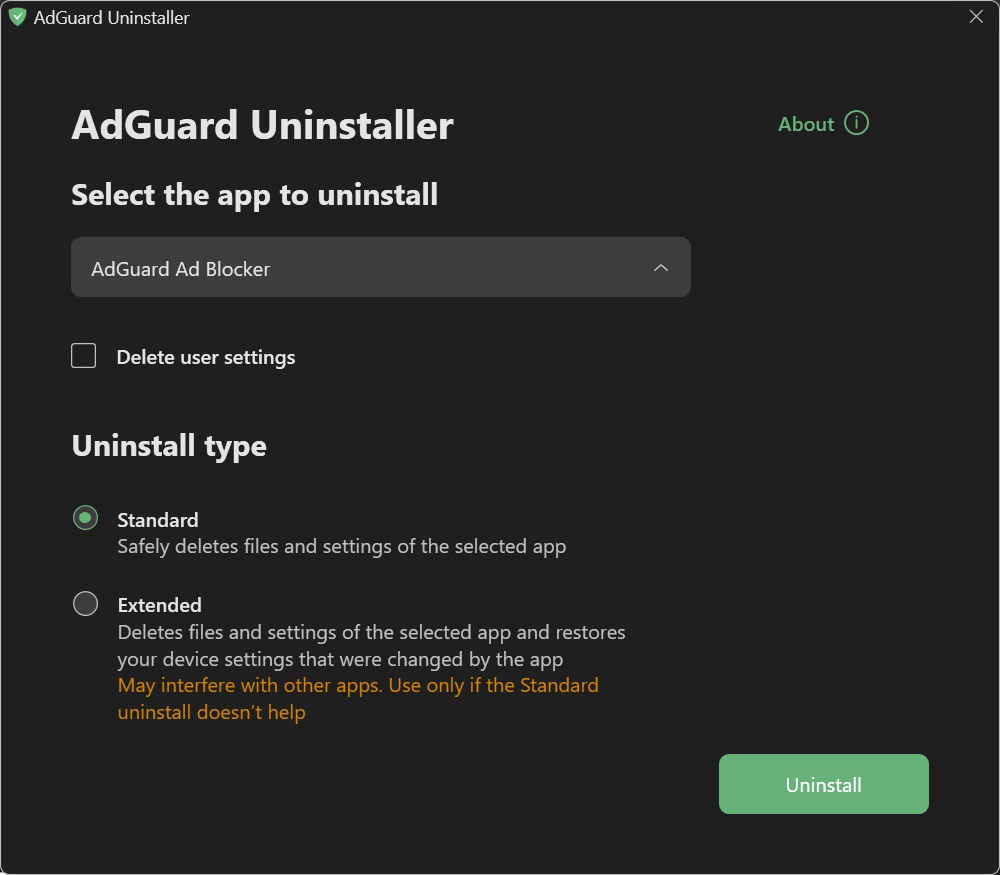
Select AdGuard Ad Blocker and Standard uninstall type, then click Uninstall.
-
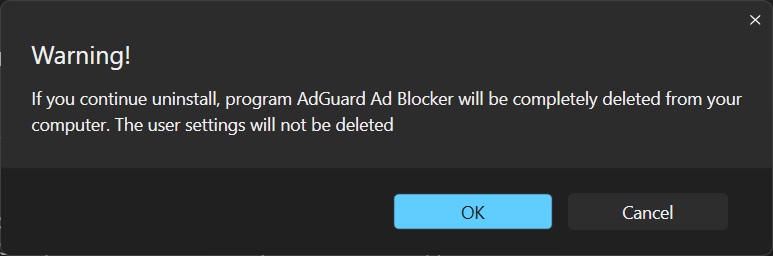
Click OK once the warning window pops up:
-
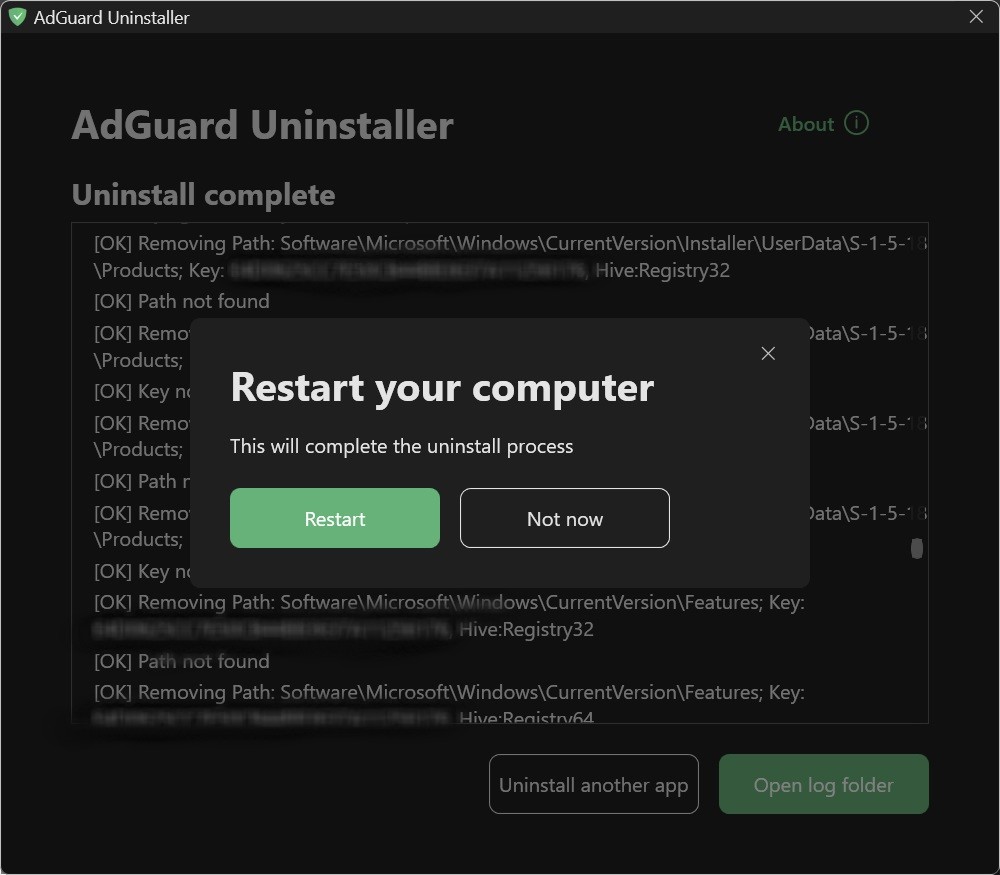
Wait until uninstall is finished — there will be a phrase Uninstall complete and a prompt to restart your computer:
Führen Sie die nächsten Schritte nur aus, wenn die ersten beiden Schritte aus irgendeinem Grund nicht ausreichend waren. Wir empfehlen dringend, unseren Support zu kontaktieren, bevor Sie die Schritte 3-4 der erweiterten Deinstallationsanweisung ausführen.
-
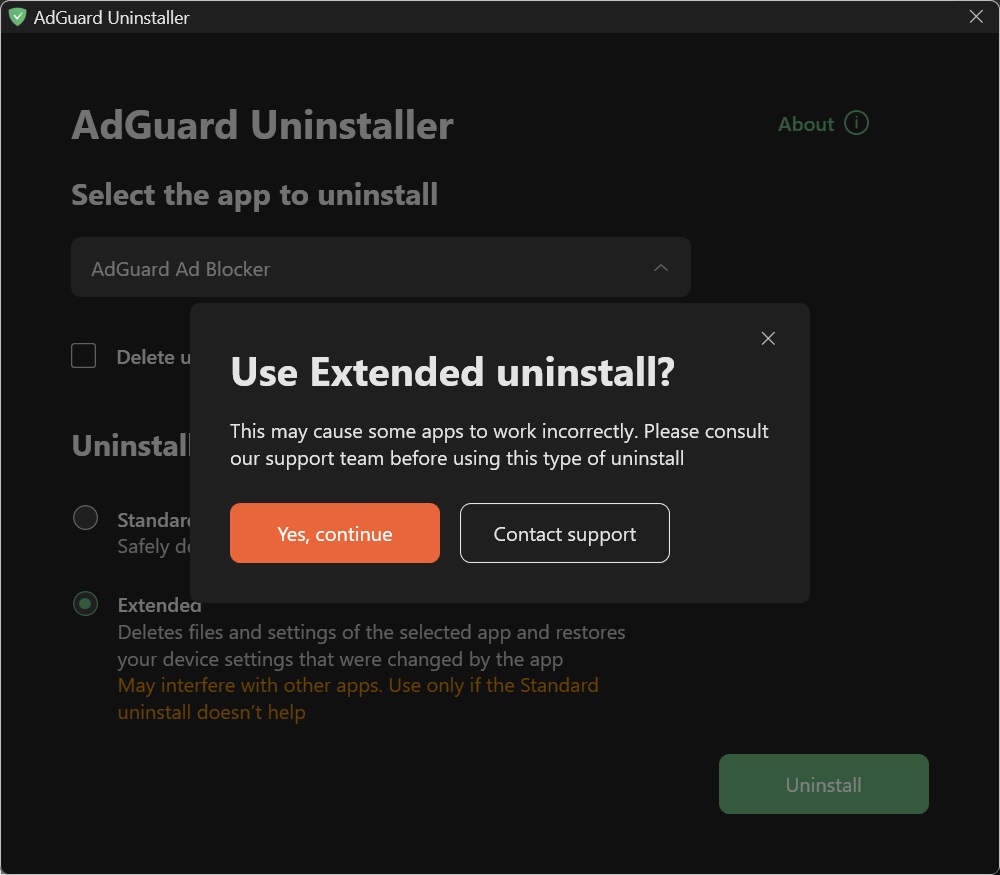
Select AdGuard Ad Blocker and Extended uninstall type, then click Uninstall. Click Yes, continue in the window prompt.
-
Click OK once the warning window pops up:
-
Wait until uninstall is finished — there will be a phrase Uninstall complete and a prompt to restart your computer:
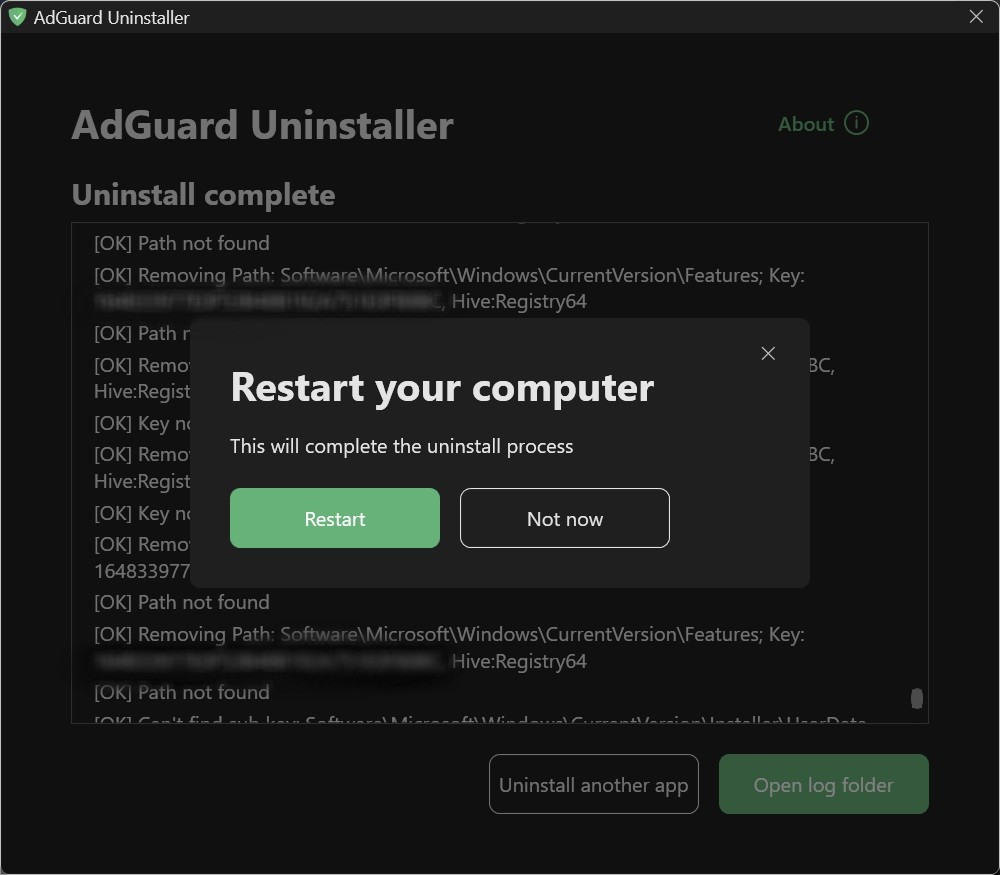
AdGuard wurde erfolgreich deinstalliert!
Running the uninstaller in console mode
Neben der Ausführung des erweiterten Deinstallationsprogramms im benutzerinteraktiven Modus können Sie auch Befehlszeilenargumente verwenden, um AdGuard für Windows zu deinstallieren. Folgen Sie dazu den nachstehenden Anweisungen:
-
Open Command Prompt by typing cmd from the Start menu.
-
Use
/consoleto run the uninstaller in console mode, without the interactive UI. All the command-line parameters below will be ignored if the/consolemode is not activated. -
Use
/adblockerto uninstall AdGuard for Windows. Es sollte wie folgt aussehen:Adguard.UninstallUtility.exe /console /adblocker -
You can also use
/advancedto force the uninstaller to run in Advanced mode and/settingsto force the uninstaller to remove user settings along with the application.
The use of the parameters /console and /adblocker is necessary for a successful uninstall. The parameters /advanced and /settings are optional.