Problemas relacionados con los certificados
Este artículo trata sobre AdGuard para Windows, un bloqueador de anuncios multifuncional que protege tu dispositivo a nivel de sistema. Para ver cómo funciona, descarga la app de AdGuard
Para poder filtrar el tráfico HTTPS y bloquear anuncios y rastreadores de manera eficiente, AdGuard genera un certificado root especial (y único) y lo instala en el almacenamiento del sistema. You can learn more about why a certificate is required by reading this article.
Normalmente, los navegadores confían en el certificado AdGuard una vez que se agrega al almacenamiento de certificados del sistema durante el proceso de instalación. Pero, en algunos casos, esto no es suficiente y es posible que te encuentres con advertencias o errores. Esto sucede con mayor frecuencia en navegadores basados en Firefox como Mozilla Firefox, PaleMoon, Waterfox, etc., o en Yandex.Browser.
Here are some common issues:
- Potential Security Risk error in Firefox-based browsers
- Yandex.Browser certificate warning
- Non-official add-ons don’t update in Firefox-based browsers
Potential Security Risk error in Firefox-based browsers
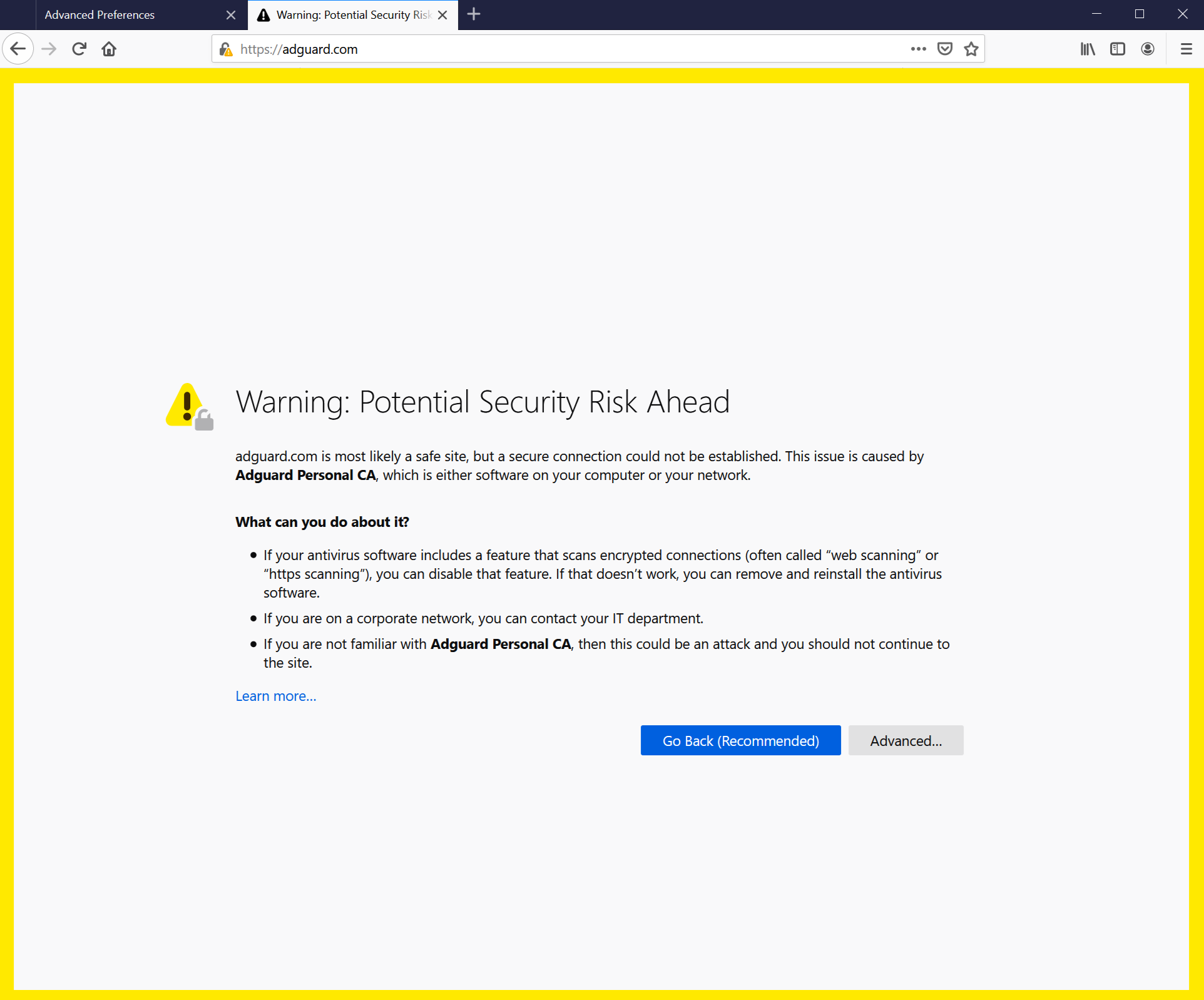
Las versiones antiguas de Firefox, así como los navegadores basados en ellas, no confían en los certificados del almacenamiento del sistema, sino sólo en los del almacenamiento local. Desde la v68, Firefox confía en los certificados del sistema, pero aún puedes enfrentar el error "La conexión no es de confianza". If something like this happens, first try to click the Reinstall Certificate button — you will find it in the Network tab.
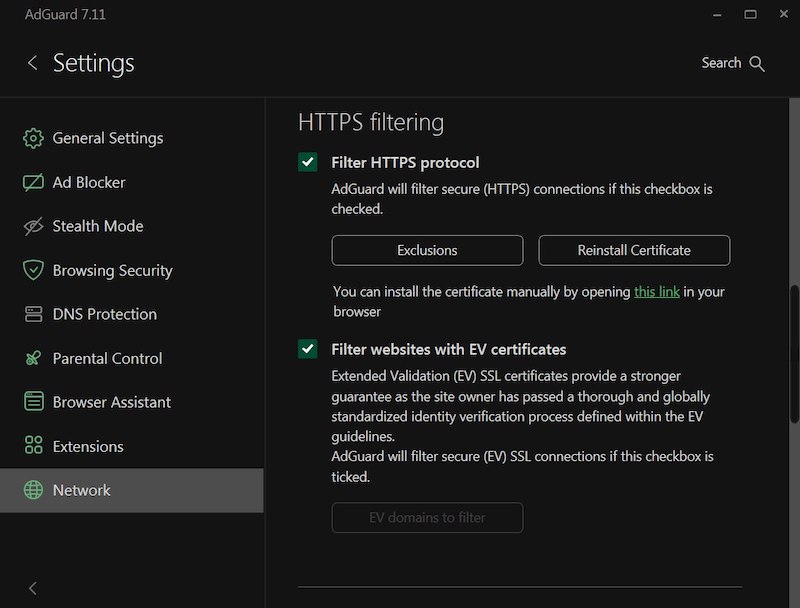
Si eso no ayuda, sigue las instrucciones para agregar manualmente el certificado AdGuard al almacenamiento de Firefox.
Esta instrucción es para el navegador Firefox. Los nombres de los botones y elementos del menú pueden diferir en otros navegadores basados en Firefox.
-
Ejecutar AdGuard.
-
Go to https://local.adguard.org/cert and click the Download button. The browser should start downloading cert.cer file.
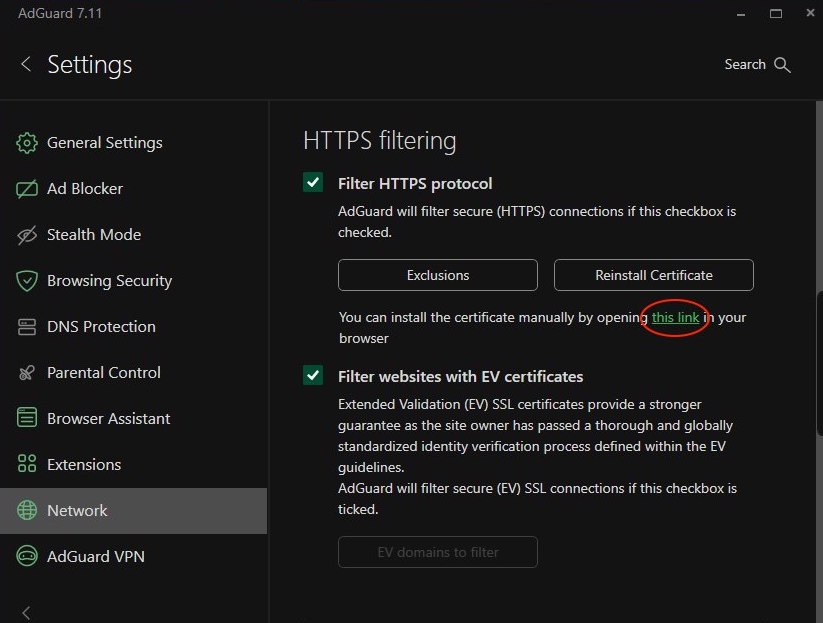
notaYou can also open the download page by clicking the link via the AdGuard app at Settings → Network → HTTPS filtering.
-
Open your browser and then open Settings.
-
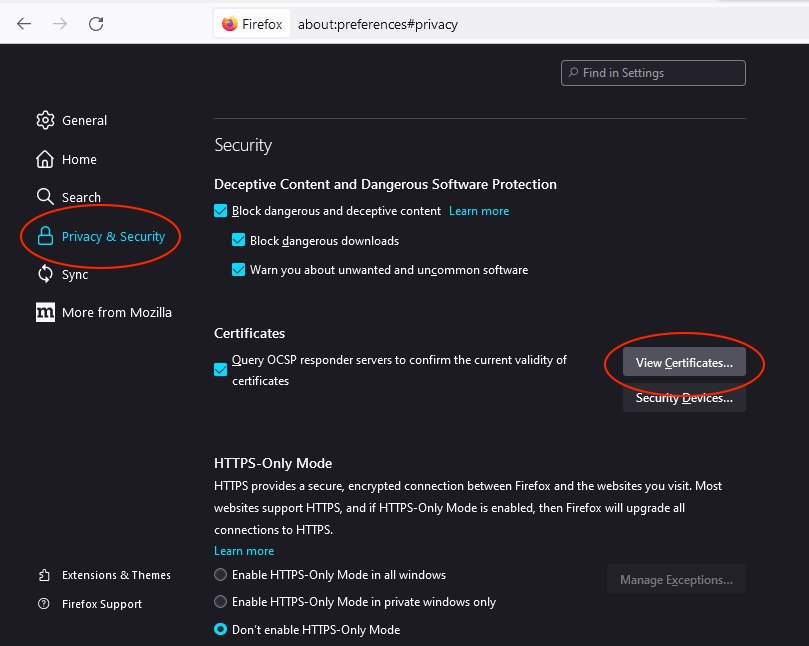
Go to Privacy & Security tab.
-
Scroll down to Certificates and click the View Certificates button.
-
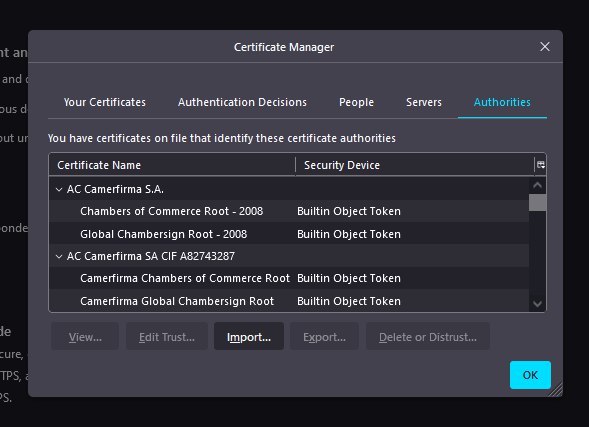
Select Authorities tab.
-
Click Import....
-
Browse the downloaded cert.cer file and click Open.
-
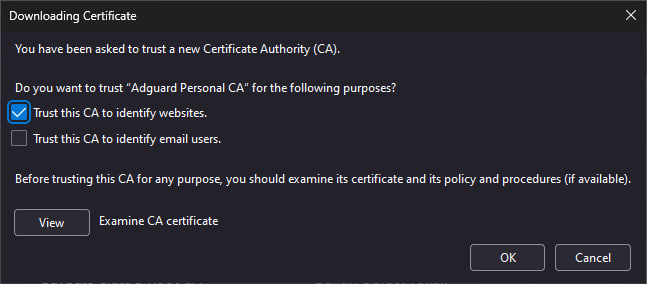
Check the Trust this CA to identify websites box and then click OK.
Has instalado correctamente el certificado de AdGuard. Reinicia el navegador y el error debe desaparecer.
Advertencia de certificado de Yandex.Browser
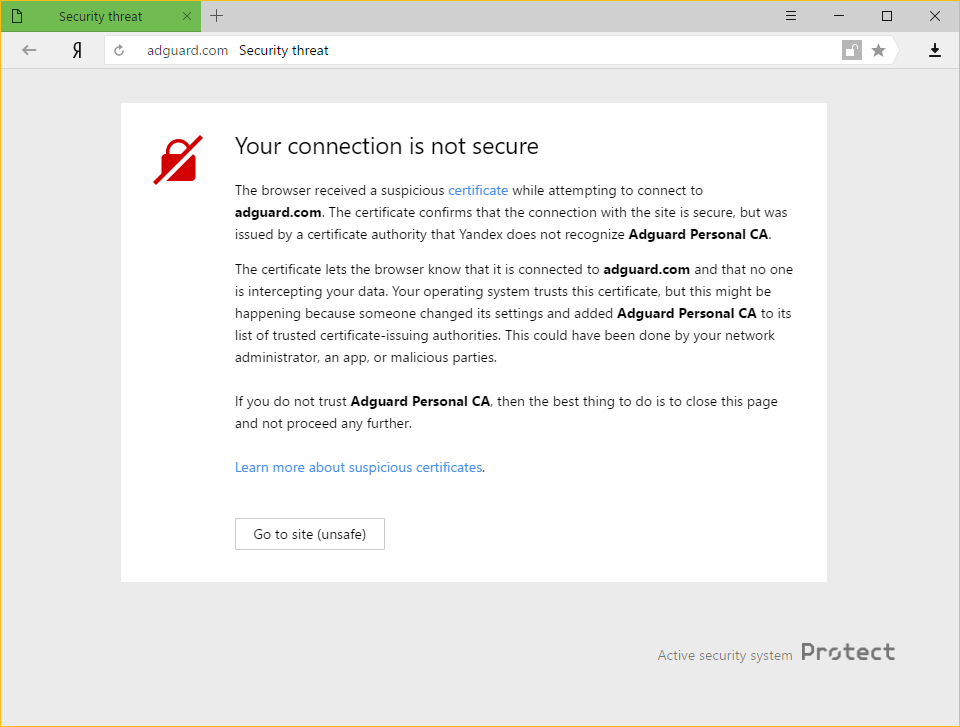
Si eres usuario de AdGuard para Windows y Yandex.Browser, es posible que hayas encontrado esta advertencia:
Por qué sucede esto
Tanto AdGuard como Yandex se toman muy en serio la seguridad de los usuarios en Internet. La política actual de Yandex es advertir a sus usuarios sobre cualquier certificado que no sea reconocido por el navegador. Esto no carece de fundamento, porque a veces las aplicaciones maliciosas pueden inyectar sus propios certificados y utilizarlos para dañar el sistema y robar datos privados.
Sin embargo, AdGuard también añade su certificado a los de confianza. Esto lleva al mensaje de advertencia que has encontrado.
Como resolver el problema
The easiest way is to click the Go to site button. Esto le indicará a Yandex.Browser que recuerde el certificado AdGuard como confiable, al menos por un tiempo. Normalmente, ya no tendrás que ver este mensaje, pero no está fuera de la posibilidad que aparezca ocasionalmente, por cualquier motivo. In such cases, simply press the same button again (make sure it is AdGuard's certificate!).
Disabling the HTTPS filtering in AdGuard will also prevent Yandex.Browser from showing this message again, but it comes with a big price: all ads that are loaded by HTTPS (including Yandex's own ads) will show up — on such websites as YouTube, Facebook, Instagram, and many more. Le recomendamos encarecidamente que no lo hagas si deseas mantener la alta calidad del bloqueo de anuncios.
Non-official add-ons don’t update in Firefox-based browsers
If you use Firefox-based browsers and have add-ons that aren’t from Mozilla’s official catalog — and HTTPS filtering is enabled in AdGuard — those add-ons won’t be able to update. Here’s why.
To update add-ons, Firefox checks whether the connection to the update server is secured with a certificate issued by a trusted certificate authority (CA). Firefox-based browsers only trust certificates from CAs included in Mozilla’s built-in list — it’s a security measure to block potentially unsafe updates.
AdGuard’s certificate, although secure, isn’t on that list. That is why Mozilla domains are excluded from HTTPS filtering in AdGuard.
However, non-official add-ons use third-party servers for updates, and those are not excluded from HTTPS filtering by default. So when Firefox checks the connection, it sees AdGuard’s certificate instead of the original one — and blocks the update.
If you need to check for updates for such add-ons, consider temporarily disabling AdGuard.