How to fix ad blocking in apps on iOS 27
This article is about AdGuard for iOS, a multifunctional ad blocker that protects your device at the system level. To see how it works firsthand, download the AdGuard app.
Even with DNS protection enabled, you may sometimes encounter ads in apps and browsers other than Safari. On devices running iOS 27 or later with AdGuard DNS implementation in Split-Tunnel mode, the system feature Connectivity Assist can interfere with DNS protection.
Because this is a known issue, AdGuard proactively displays a one-time warning dialog — Connectivity Assist may affect ad blocking — when all of the following conditions are met:
- The device runs iOS 27 or later
- DNS protection is enabled
- DNS implementation is set to AdGuard
- Tunnel mode is set to Split
- The warning has not been shown or dismissed before
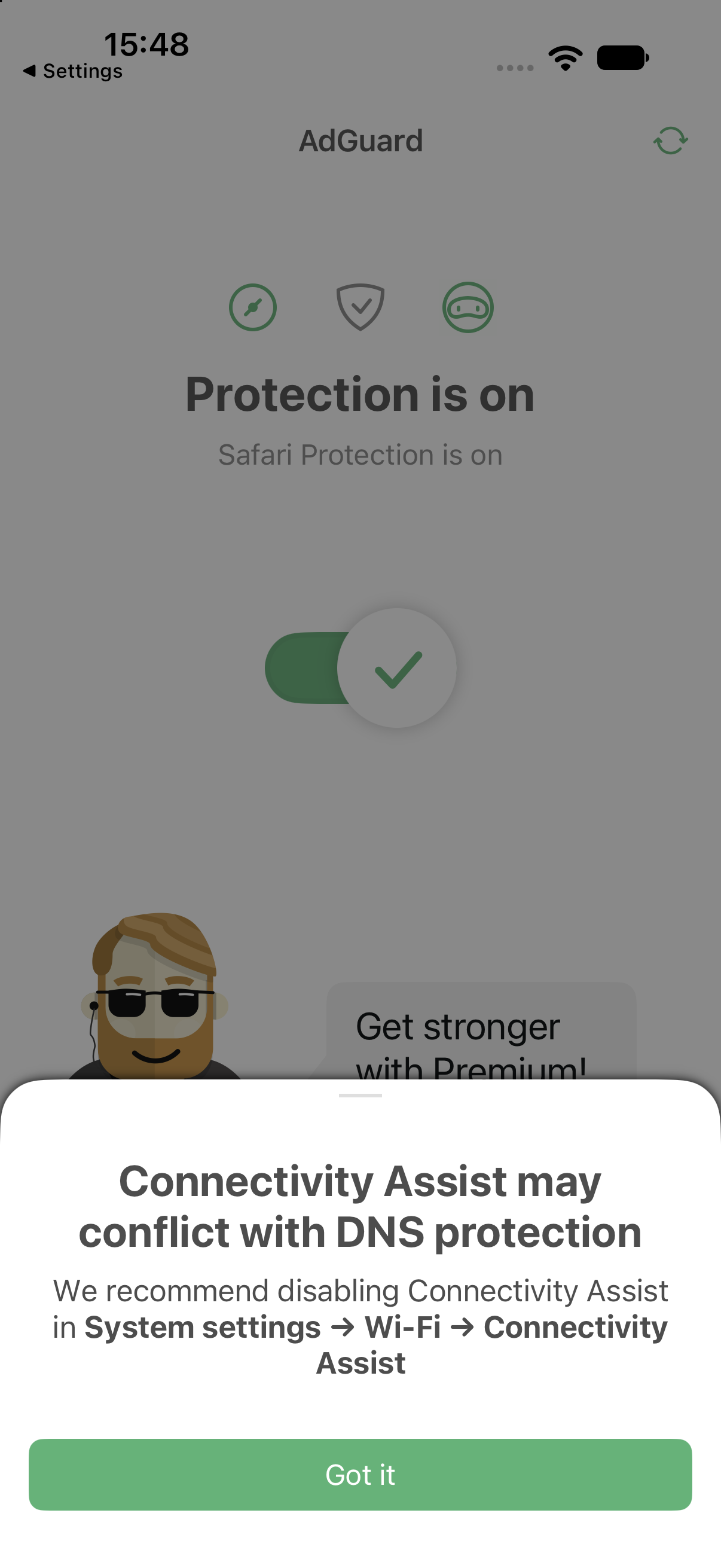
This alert can appear on the main screen, the Protection screen, or the DNS protection screen. It points only to a potential conflict: iOS restricts third-party apps from reading system toggles, so AdGuard cannot detect whether Connectivity Assist is actually turned on. If you have already dismissed the dialog, it will not appear again.
Ad blocking in Safari may continue working normally even when ads appear in other apps. Safari uses content blocking rules directly inside the browser, which operate independently of DNS protection and are unaffected by network routing.
What is Connectivity Assist and why it matters
In iOS 27, Apple renamed Wi-Fi Assist to Connectivity Assist and moved it to Settings → Wi-Fi. When turned on, it allows your device to use mobile data to supplement Wi-Fi whenever the wireless connection is slow or unstable.
This mechanism directly conflicts with DNS protection. When an app requests an ad domain over Wi-Fi, the query reaches AdGuard’s local tunnel and is blocked as expected. However, because no valid response is returned, iOS misinterprets the block as a network resolution failure on Wi-Fi. Connectivity Assist then intervenes and automatically repeats the exact same DNS request over the cellular network. In Split-Tunnel mode, this cellular fallback bypasses AdGuard’s local VPN tunnel completely. As a result, the ad domain resolves unfiltered over mobile data, and ads slip through.
How to fix this issue
- Open the iOS Settings app.
- Tap Wi-Fi and make sure Wi-Fi is turned on.
- Scroll down to Connectivity Assist and turn it off. If this option is not visible, make sure Mobile Data (or Cellular) is turned on in Settings for the toggle to appear.
- Verify the result: open the apps or websites where ads previously appeared to confirm they no longer load.
Do not use the Activity screen to verify the fix. AdGuard records blocked DNS queries on the Wi-Fi interface regardless of whether iOS subsequently circumvents the tunnel via cellular. As a result, the Activity log will show blocked requests even when ads are actively loading on your device.
If ads still get through after you turn Connectivity Assist off, contact us at support@adguard.com so we can diagnose your setup.
Alternatives and their limitations
If you prefer not to disable Connectivity Assist, two other configurations are sometimes used. These are workarounds with trade-offs, not a fix, and neither is an equal-value replacement for turning it off.
Native implementation
With DNS implementation set to Native, the DNS server is configured directly by iOS rather than AdGuard. In this mode, AdGuard does not establish a local VPN tunnel, which can reduce the possibility of DNS requests being diverted by the system.
However, you lose core features of AdGuard’s DNS protection:
- No local DNS filtering
- No custom DNS rules
- No statistics on DNS requests in AdGuard
Additionally, the Native implementation does not work while a VPN is active.
Full tunnel
In Full-Tunnel mode, all DNS traffic is routed through AdGuard rather than filtered selectively. While this can prevent traffic from bypassing the tunnel, it comes with significant caveats:
- Full tunnel mode cannot run alongside other VPN apps — no other personal VPN can run at the same time.
- It may cause connection problems: if the chosen DNS server does not respond, internet access will stop working entirely.
- It can negatively affect certain apps and services, such as FaceTime.