인증서 관련 문제
본 문서는 시스템 수준에서 기기를 보호하는 다기능 광고 차단기인 Windows용 AdGuard에 대해 다룹니다. 이용하고자 한다면 AdGuard 앱을 다운로드해 보세요.
HTTPS 트래픽을 필터링하고 광고 및 추적기를 효율적으로 차단할 수 있도록 AdGuard는 특수한 (고유한) 루트 인증서를 생성하여 시스템 저장소에 설치합니다. You can learn more about why a certificate is required by reading this article.
일반적으로 브라우저는 설치 프로세스 중에 시스템 인증서 저장소에 추가되면 AdGuard 인증서를 신뢰합니다. 그러나 경우에 따라서는 이것만으로는 충분하지 않고 경고나 오류가 발생할 수 있습니다. 이는 Mozilla Firefox, PaleMoon, Waterfox 등과 같은 Firefox 기반 브라우저 또는 Yandex.Browser에서 가장 자주 발생합니다.
Here are some common issues:
- Potential Security Risk error in Firefox-based browsers
- Yandex.Browser certificate warning
- Non-official add-ons don’t update in Firefox-based browsers
Potential Security Risk error in Firefox-based browsers
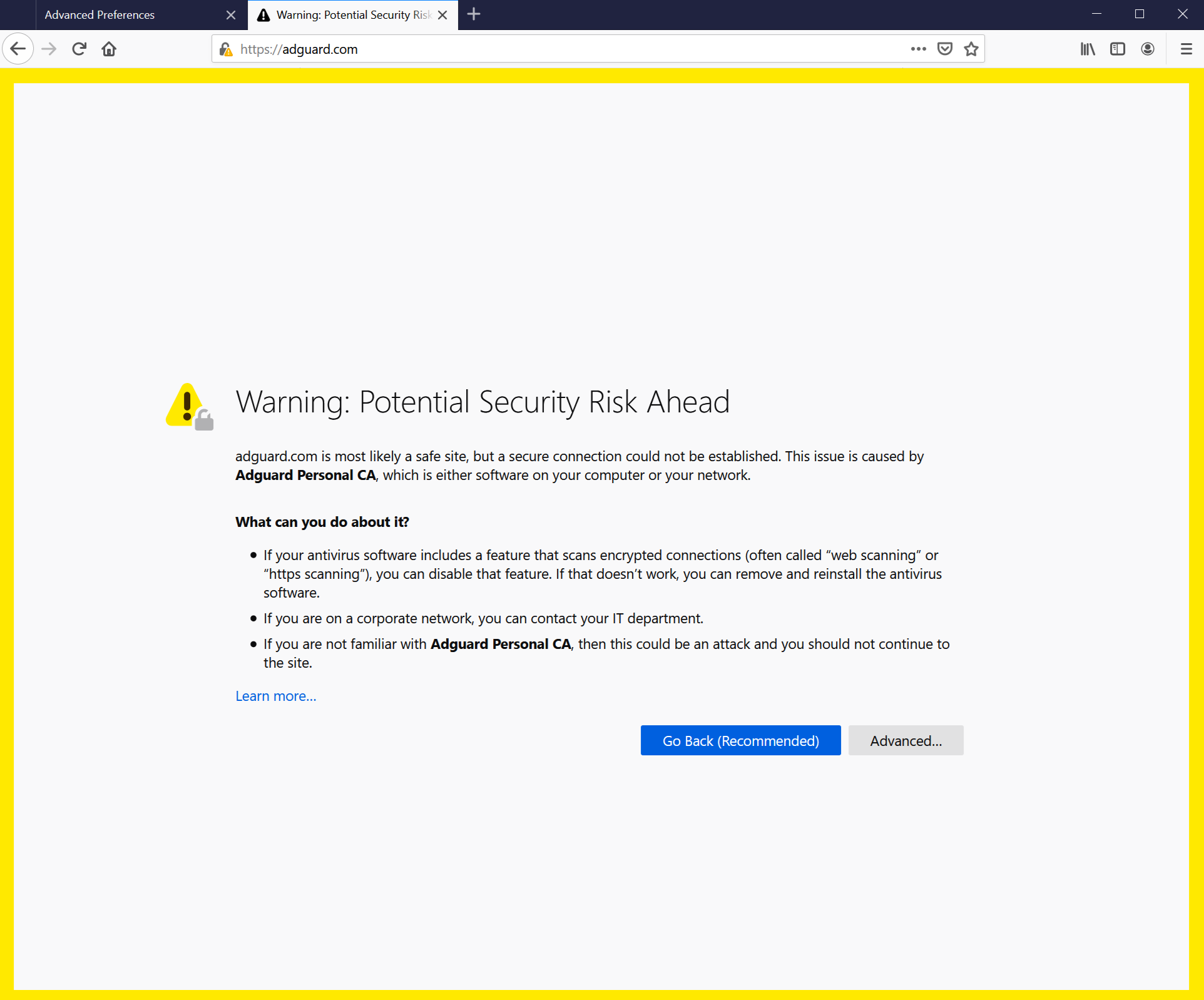
이전 FireFox 버전과 이를 기반으로 하는 브라우저는 시스템 저장소의 인증서를 신뢰하지 않고 로컬 저장소에 있는 인증서만 신뢰합니다. v68부터 FireFox는 시스템 인증서를 신뢰하지만 여전히 '연결이 신뢰할 수 없음' 오류가 발생할 수 있습니다. If something like this happens, first try to click the Reinstall Certificate button — you will find it in the Network tab.
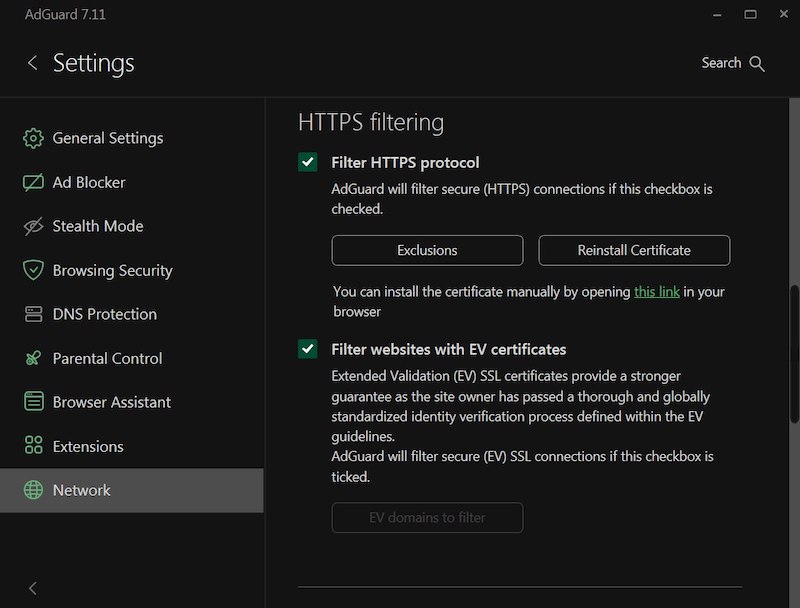
그래도 문제가 해결되지 않는 경우, 수동으로 AdGuard 인증서를 FireFox 저장소에 추가하는 지침을 따르세요.
이 지침은 Firefox 브라우저용입니다. 버튼 및 메뉴 항목의 이름은 다른 Firefox 기반 브라우저에서 다를 수 있습니다.
-
AdGuard를 실행합니다.
-
Go to https://local.adguard.org/cert and click the Download button. The browser should start downloading cert.cer file.
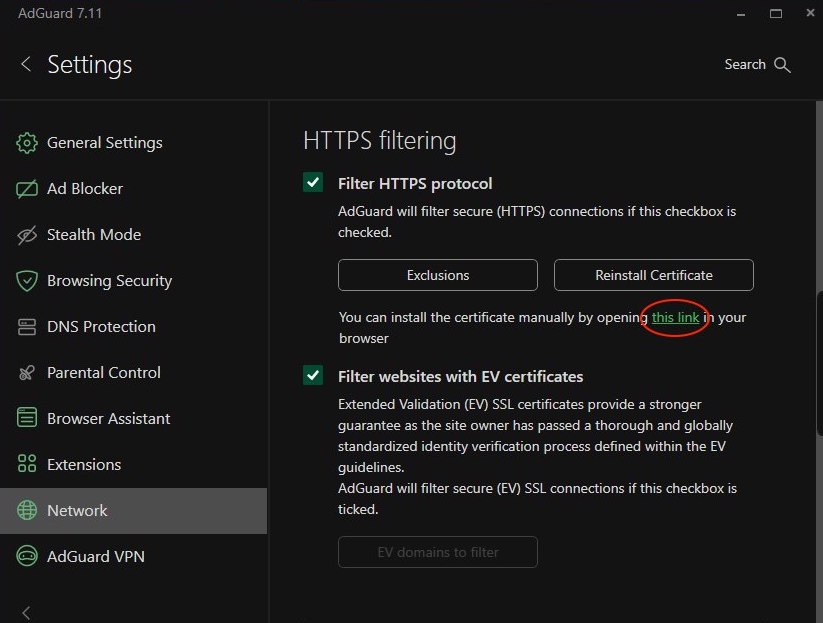
noteYou can also open the download page by clicking the link via the AdGuard app at Settings → Network → HTTPS filtering.
-
Open your browser and then open Settings.
-
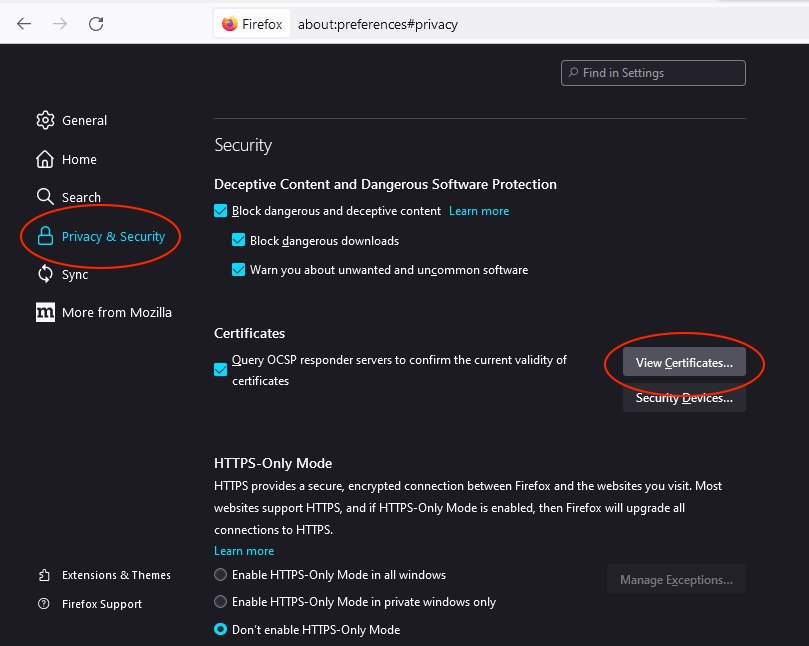
Go to Privacy & Security tab.
-
Scroll down to Certificates and click the View Certificates button.
-
Select Authorities tab.
-
Click Import....

-
Browse the downloaded cert.cer file and click Open.
-
Check the Trust this CA to identify websites box and then click OK.
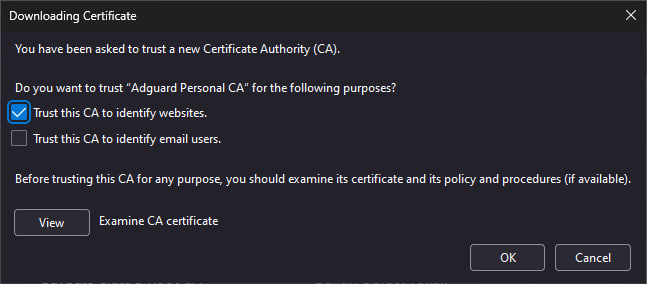
AdGuard 인증서를 성공적으로 설치했습니다. 브라우저를 다시 시작하면 오류가 사라집니다.
Yandex.Browser 인증서 경고
Windows용 AdGuard와 Yandex.Browser를 모두 사용하는 경우 이 경고가 표시될 수 있습니다:
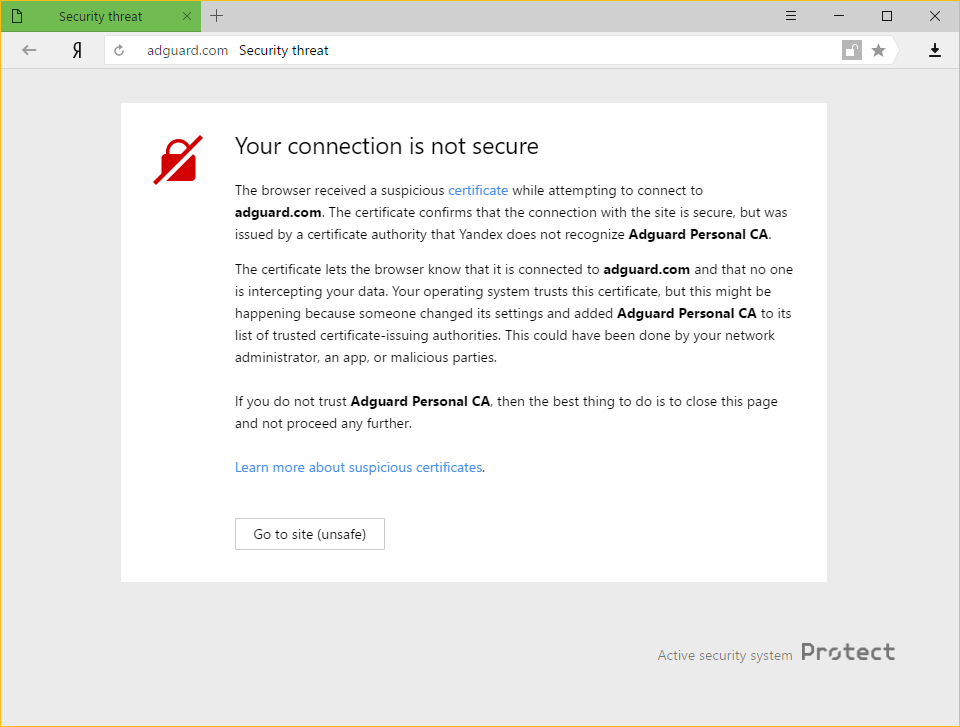
이런 일이 발생하는 이유
AdGuard와 Yandex는 모두 인터넷에서 사용자의 보안을 매우 중요하게 생각합니다. 현재 Yandex 정책은 브라우저에서 인식하지 못하는 인증서에 대해 사용자에게 경고하는 것입니다. 때로는 악성 앱이 자체 인증서를 삽입하고 이를 사용하여 시스템을 손상시키고 개인 데이터를 훔칠 수 있기 때문에 이는 근거가 없는 것은 아닙니다.
그러나 AdGuard는 신뢰할 수 있는 인증서에 인증서를 추가합니다. 이렇게 하면 경고 메시지가 표시됩니다.
문제 해결 방법
The easiest way is to click the Go to site button. 이렇게 하면 Yandex.Browser가 적어도 한동안은 AdGuard 인증서를 신뢰할 수 있는 인증서로 기억하도록 지시합니다. 일반적으로 이 메시지는 더 이상 표시되지 않지만, 어떤 이유로든 가끔씩 표시될 가능성이 전혀 없는 것은 아닙니다. In such cases, simply press the same button again (make sure it is AdGuard's certificate!).
Disabling the HTTPS filtering in AdGuard will also prevent Yandex.Browser from showing this message again, but it comes with a big price: all ads that are loaded by HTTPS (including Yandex's own ads) will show up — on such websites as YouTube, Facebook, Instagram, and many more. 광고 차단 품질을 높게 유지하려면 이 기능을 사용하지 않는 것이 좋습니다.
Non-official add-ons don’t update in Firefox-based browsers
If you use Firefox-based browsers and have add-ons that aren’t from Mozilla’s official catalog — and HTTPS filtering is enabled in AdGuard — those add-ons won’t be able to update. Here’s why.
To update add-ons, Firefox checks whether the connection to the update server is secured with a certificate issued by a trusted certificate authority (CA). Firefox-based browsers only trust certificates from CAs included in Mozilla’s built-in list — it’s a security measure to block potentially unsafe updates.
AdGuard’s certificate, although secure, isn’t on that list. That is why Mozilla domains are excluded from HTTPS filtering in AdGuard.
However, non-official add-ons use third-party servers for updates, and those are not excluded from HTTPS filtering by default. So when Firefox checks the connection, it sees AdGuard’s certificate instead of the original one — and blocks the update.
If you need to check for updates for such add-ons, consider temporarily disabling AdGuard.