跟踪保护
许多网站会收集访客数据,包括 IP 地址、浏览器与操作系统信息、屏幕分辨率,甚至您来自哪个页面。 Cookie 可用于识别您的浏览器、记住您的偏好,或在您再次访问时认出您。跟踪保护功能可阻止此类系统收集个人数据。了解更多,请参阅关于 AdGuard 中跟踪保护的文章。
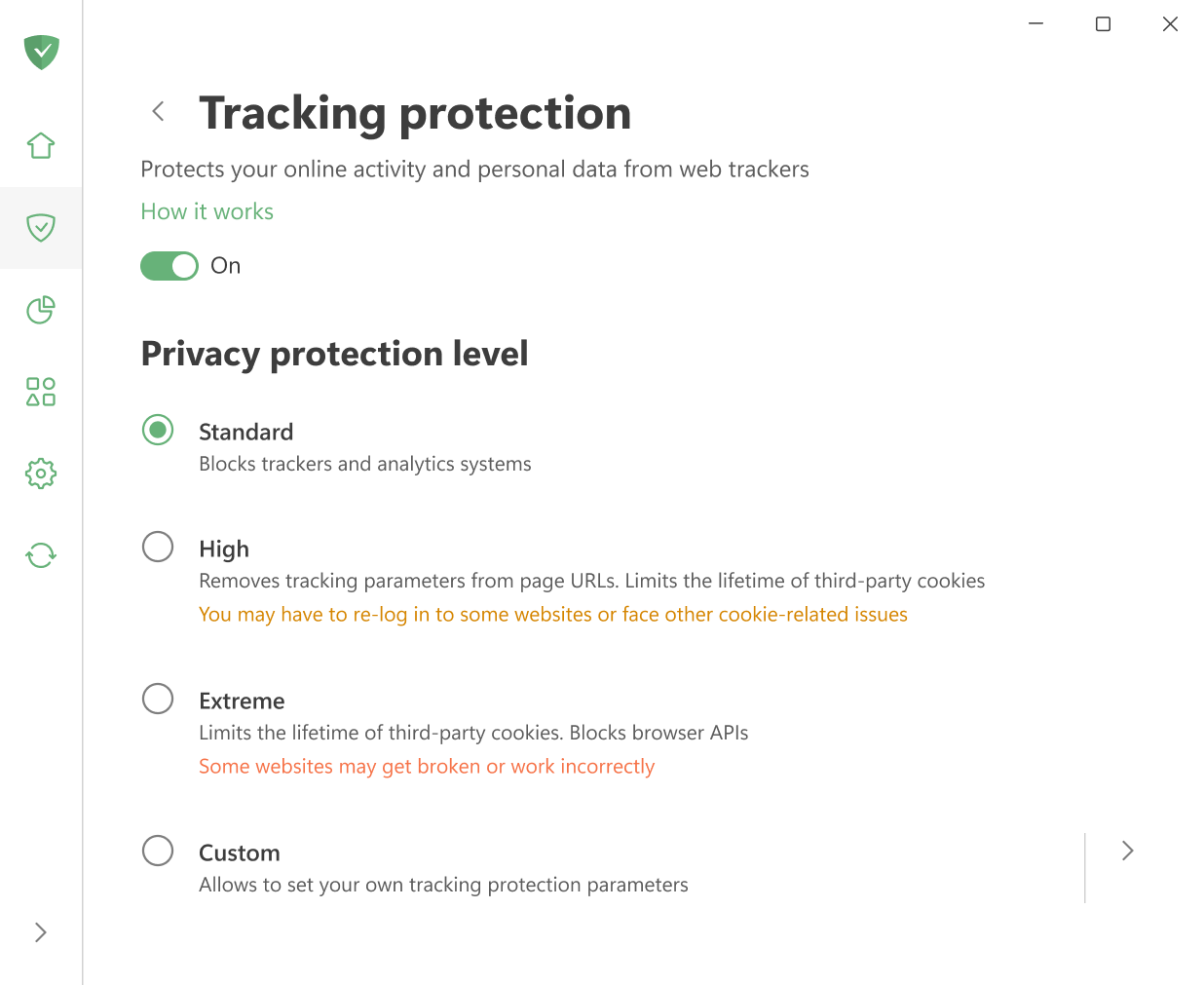
如果您不想手动调整过滤器,可以直接选择以下预设保护级别之一:
- 标准:默认启用,为日常浏览提供可靠保护。
- 高:移除页面 URL 中的跟踪参数,并拦截第三方 Cookie。您可能需要重新登录某些网站,或遇到其他与 Cookie 相关的问题。
- 极限:限制第三方 Cookie 的生命周期,并屏蔽某些浏览器 API。部分网站可能无法正常工作。
如需最大灵活性,请选择「自定义」并手动调整各项设置。其中的设置分为五类:
常规设置
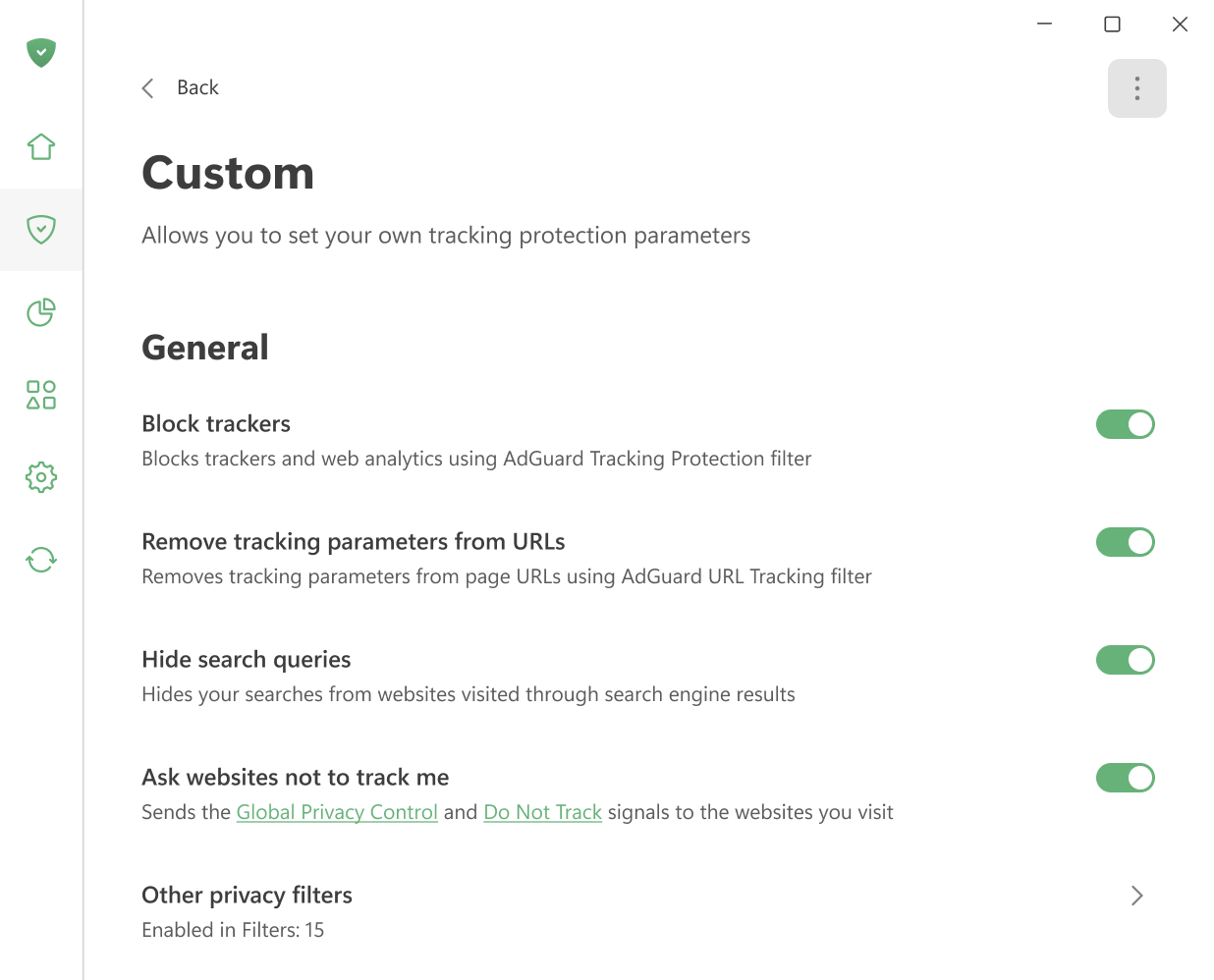
拦截跟踪器
使用「AdGuard 跟踪保护」过滤器拦截跟踪器和网站分析工具。
从 URL 中删除跟踪参数
使用「AdGuard URL 跟踪」过滤器去掉页面 URL 中的 utm_*、fb_ref 等跟踪参数。
隐藏搜索查询
隐藏从搜索引擎访问网站时使用的搜索词。当您从 Google、Yahoo 或其他搜索引擎跳转到某个网站时,此选项会隐藏您用来查找该网站的搜索查询。
要求网站不跟踪
向您访问的网站发送 Global Privacy Control 和 Do Not Track 信号。
其他隐私过滤器
Applies a set of additional privacy protection filters. The number next to Enabled in Filters shows how many filters are currently active.
跟踪方式
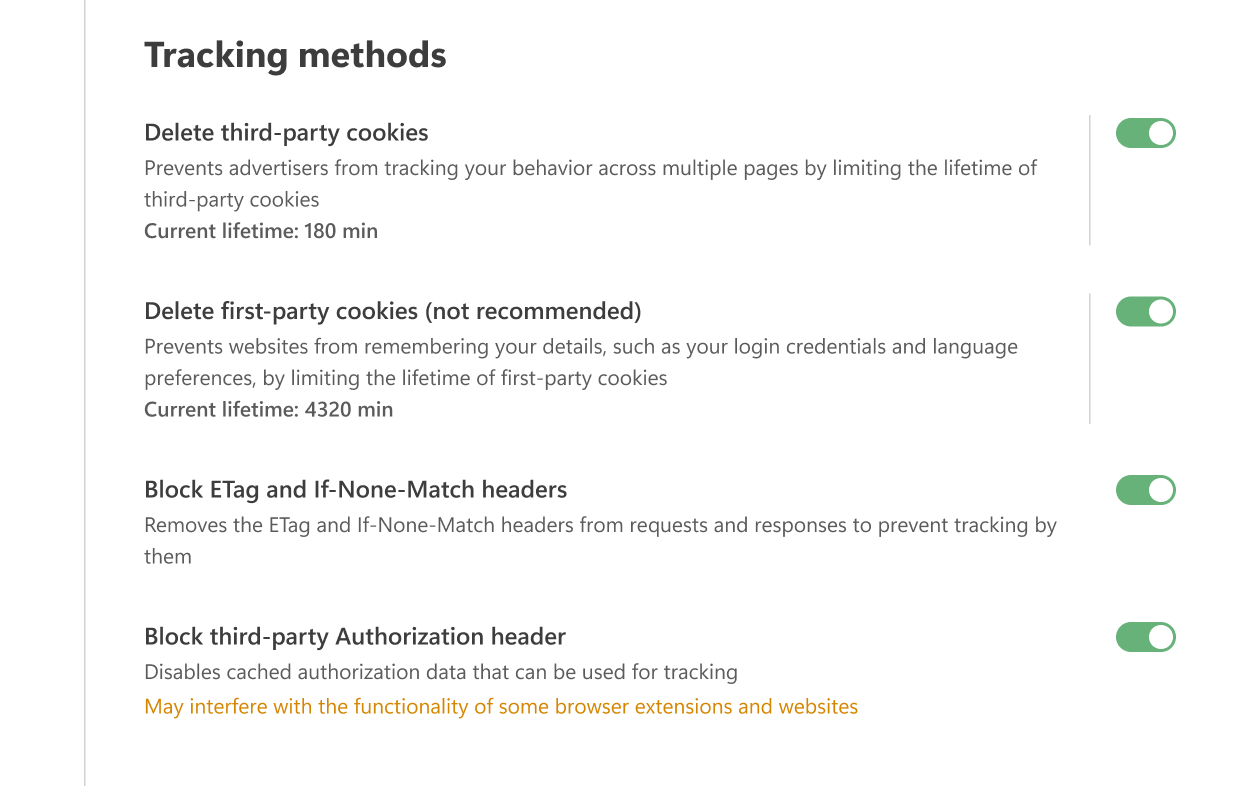
删除第三方 Cookie
网站使用 Cookie 存储您的偏好(例如您选择的语言、位置或购物车中的商品)。当您再次访问时,浏览器会将这些 Cookie 发回,以便网站识别您。
第三方 Cookie 的工作原理类似,但它们由您当前访问域名之外的域名创建。例如,cnn.com 可能包含一个 Facebook 的「赞」按钮,该按钮会设置一个 Cookie,随后 Facebook 可以读取。广告商经常利用此类 Cookie 跟踪您访问了哪些其他网站。
通过此选项,用户可以设置一个时间限制(以分钟为单位),之后所有第三方 Cookie 将被删除。如果将计时器设为 0,此类 Cookie 将被完全拦截。
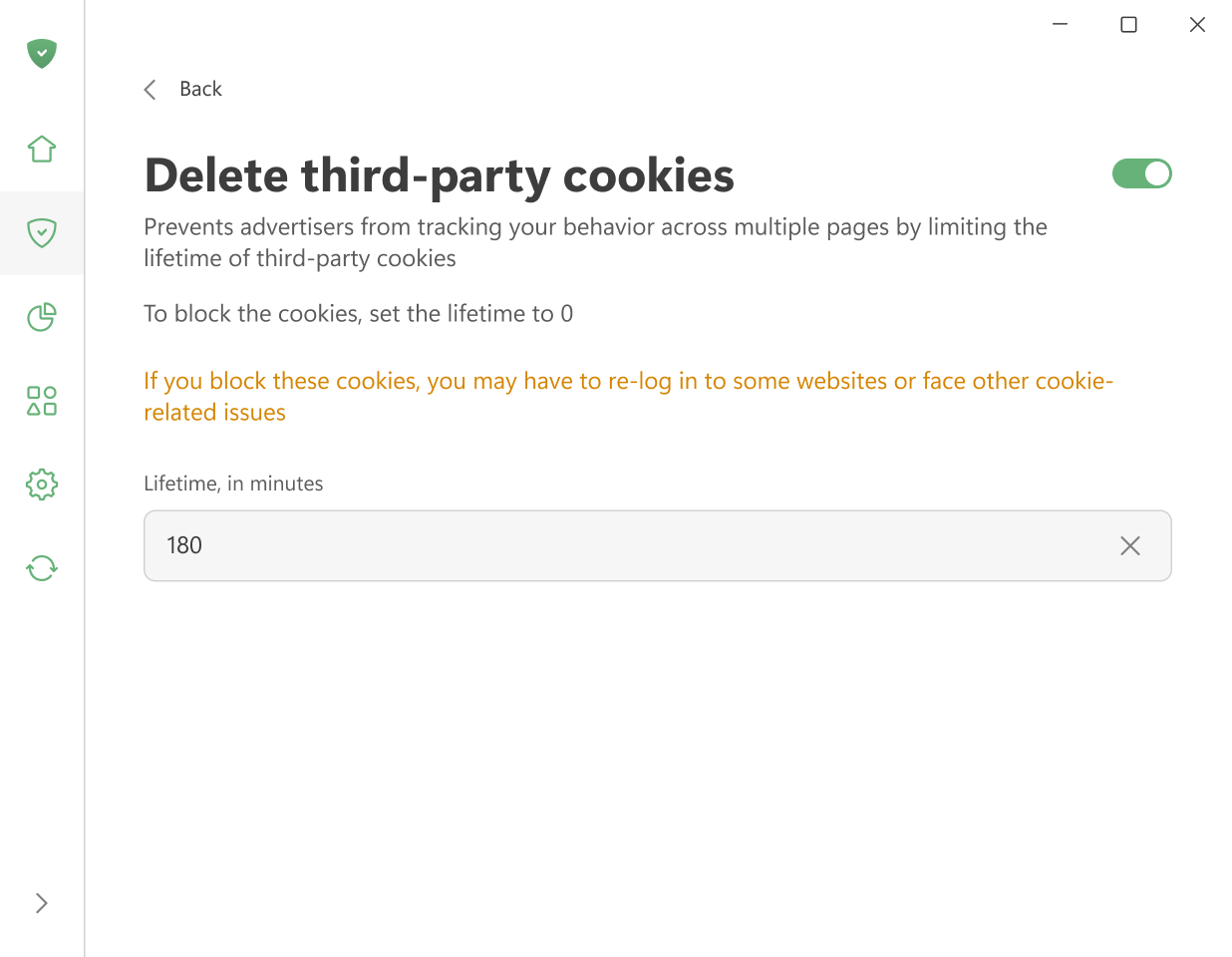
请注意,此设置会删除所有第三方 Cookie,包括用于通过社交网络或其他外部服务登录的 Cookie。这意味着您可能需要不时重新登录,或遇到其他与 Cookie 相关的问题。如果仅需拦截跟踪型 Cookie,请使用 AdGuard 跟踪保护过滤器。
删除第一方 Cookie(不推荐)
此选项会在设定的时间(以分钟为单位)后删除当前访问网站设置的 Cookie。计时器结束时,所有此类 Cookie 将被删除。将计时器设为 0 可完全拦截它们。
我们不推荐您开启此项,因为它可能会严重干扰某些网站的工作。
拦截 ETag 和 If-None-Match 标头
从请求和响应中移除 ETag 和 If-None-Match 标头,防止网站利用它们进行跟踪。
当浏览器请求一个页面时,服务器会为其分配一个 ETag,用于缓存页面内容的唯一标识符。在后续访问中,浏览器会将相同的 ETag 发回服务器,从而使服务器能够识别访客。只要缓存的文件存在,ETag 就会随每次请求发送。如果页面还包含来自其他服务器的嵌入元素(如图片或 iframe),这些服务器也可以利用 ETag 在您不知情的情况下跟踪您的活动。
拦截第三方 Authorization 标头
禁用可能用于跟踪目的的已缓存授权数据。注意:启用此功能可能会影响部分浏览器扩展和网站的正常使用。
Authorization 标头的值会被浏览器缓存,并随每次对同一域名的请求自动发送。由于它伴随每个请求,因此可以像 Cookie 一样用于识别和跟踪您。
浏览器 API
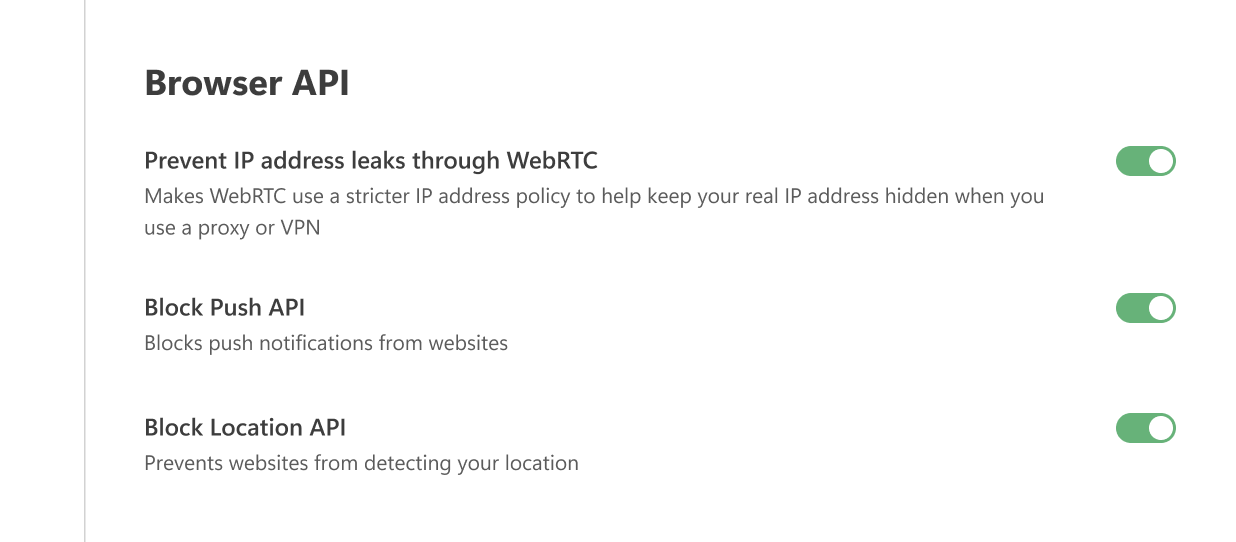
Prevent IP address leaks through WebRTC
Makes WebRTC use a stricter IP address policy to prevent your real IP address from being exposed, even if you use a proxy or VPN.
WebRTC(Web 实时通信)是一种允许浏览器和应用之间直接传输数据流的技术。 By default, it can reveal your true IP address even when a proxy or VPN is active. This option enforces a stricter IP address policy instead of blocking WebRTC entirely, so browser applications such as messengers, chats, and games are less likely to be affected.
拦截 Push API
Push API 允许服务器向 Web 应用发送消息,无论您的浏览器是否处于活动状态。这就是为什么即使浏览器隐藏在系统托盘中或未启动,您也可能收到来自网站的通知。启用此选项将完全拦截 Push API。
拦截 Location API
启用此选项后,浏览器将不再向网站发送 GPS 数据。这可以防止网站确定您的位置、改变搜索结果或根据您的位置定制内容。
Windows 跟踪
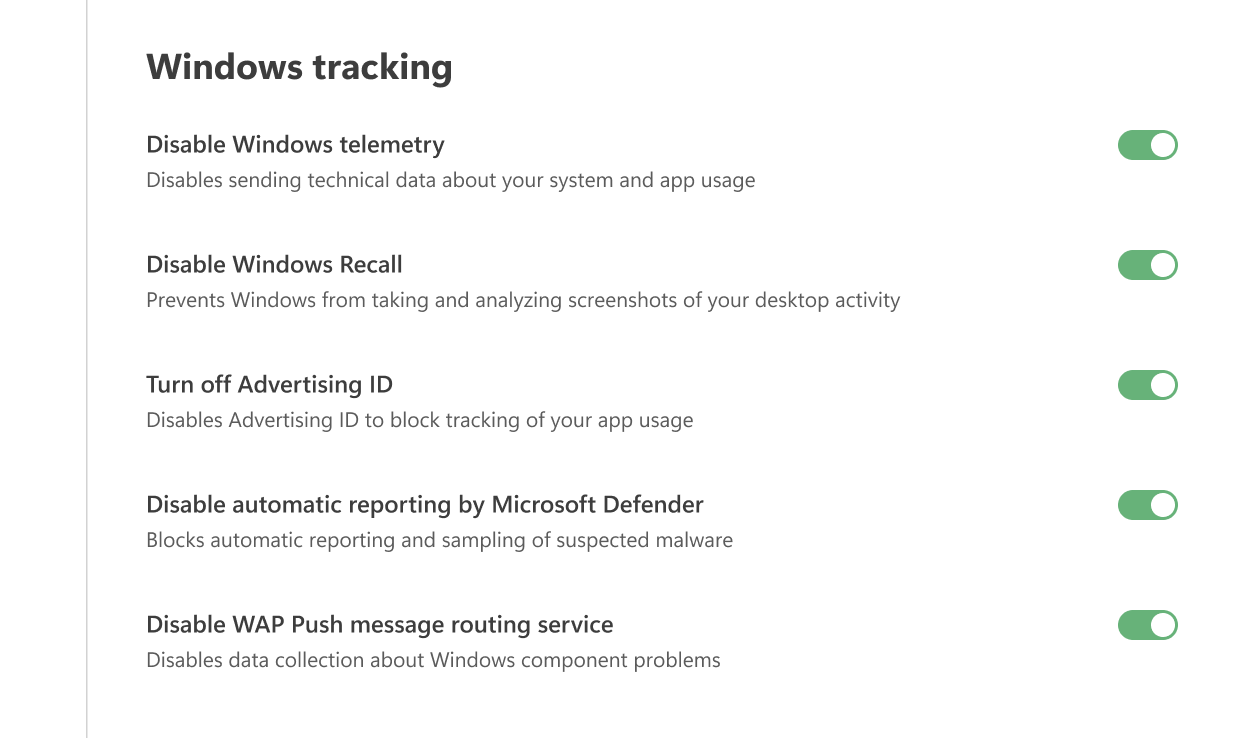
禁用 Windows 遥测
禁止发送有关系统和应用使用情况的技术数据。
禁用 Windows Recall
Disables the Windows Recall feature, which periodically takes snapshots of your screen and stores them locally. This prevents sensitive information visible on your screen from being captured and saved.
关闭广告 ID
禁用广告 ID,以阻止对您应用使用情况的跟踪。
禁用 Microsoft Defender 自动报告
拦截对可疑恶意软件的自动报告和样本提交。
禁用 WAP 推送消息路由服务
Disables data collection about Windows component problems.
其它
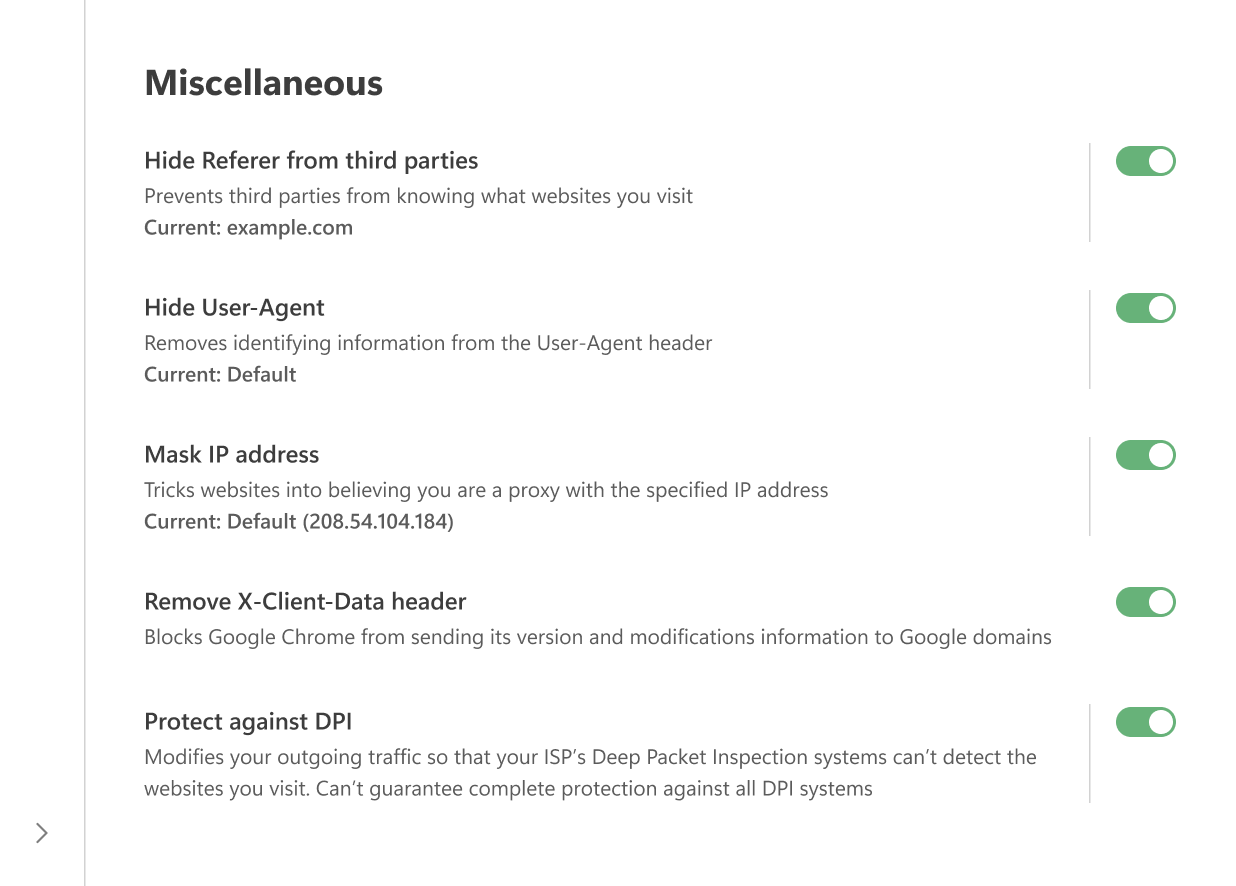
隐藏第三方 Referer
Referer 是一个包含在浏览器到服务器请求中的 HTTP 标头。其包含请求源的 URL。当您在各网页间导航时,Referer 会保存初始页的 URL。托管目标网页的服务器通常具备解析 Referer 的软件,并从中提取各种信息。
Enabling the Hide Referer from third parties option prevents third-party websites from seeing this information by altering or removing the header.
您也可以在「自定义 Referer」字段中输入自定义值。要使用默认 Referer,置空此字段即可。
请注意,为了能够过滤流量,AdGuard 应用会拦截浏览器到服务器的请求。向广告、追踪及钓鱼服务器的请求可能会在发送至目标服务器前被修改,或遭到完全拦截。
「向第三方隐藏 Referer」选项也是如此:为了过滤流量,AdGuard 会拦截 HTTP(S) 请求,并可能在请求到达服务器之前对其进行修改或拦截。这种修改仅在请求离开您的浏览器之后发生。因此,如果您在浏览器内部检查标头(例如使用 Chrome 开发者工具),您仍然会看到原始的 Referer。要确认其已被修改,您可以使用 Fiddler 等外部工具。
隐藏 User-Agent
当您访问一个网站时,您的浏览器会发送一个名为 User-Agent 的标头作为 HTTP 请求的一部分。它看起来像一行以「User-Agent:」开头的文本。这行通常包含浏览器名称和版本、操作系统以及语言设置等信息。
启用此选项后,AdGuard 会从 User-Agent 中移除身份识别信息,使广告商和跟踪器无法利用它来描绘您的画像。如果您愿意,可以在「自定义 User-Agent」字段中输入自定义值。要保持默认值,只需将该字段留空。
隐藏 IP 地址
AdGuard 无法完全隐藏您的真实 IP 地址,但可以用另一个 IP 地址替换它,使网站认为您的连接是通过代理进行的。在某些情况下,这有助于掩盖您的真实 IP。
您可以在相应字段中输入任何您希望使用的 IP 地址。要使用默认 IP 地址,置空此字段即可。
删除 X-Client-Data 标头
阻止 Google Chrome 向 Google 域名(包括 DoubleClick 和 Google Analytics 等服务)发送有关其版本和修改的信息。
保护免受 DPI 影响
Deep Packet Inspection (DPI) is a technology that allows ISPs to analyze and filter traffic based on packet content. With this option enabled, AdGuard modifies outgoing packet data to make it harder for DPI systems to identify and analyze your traffic, helping protect your connection privacy.
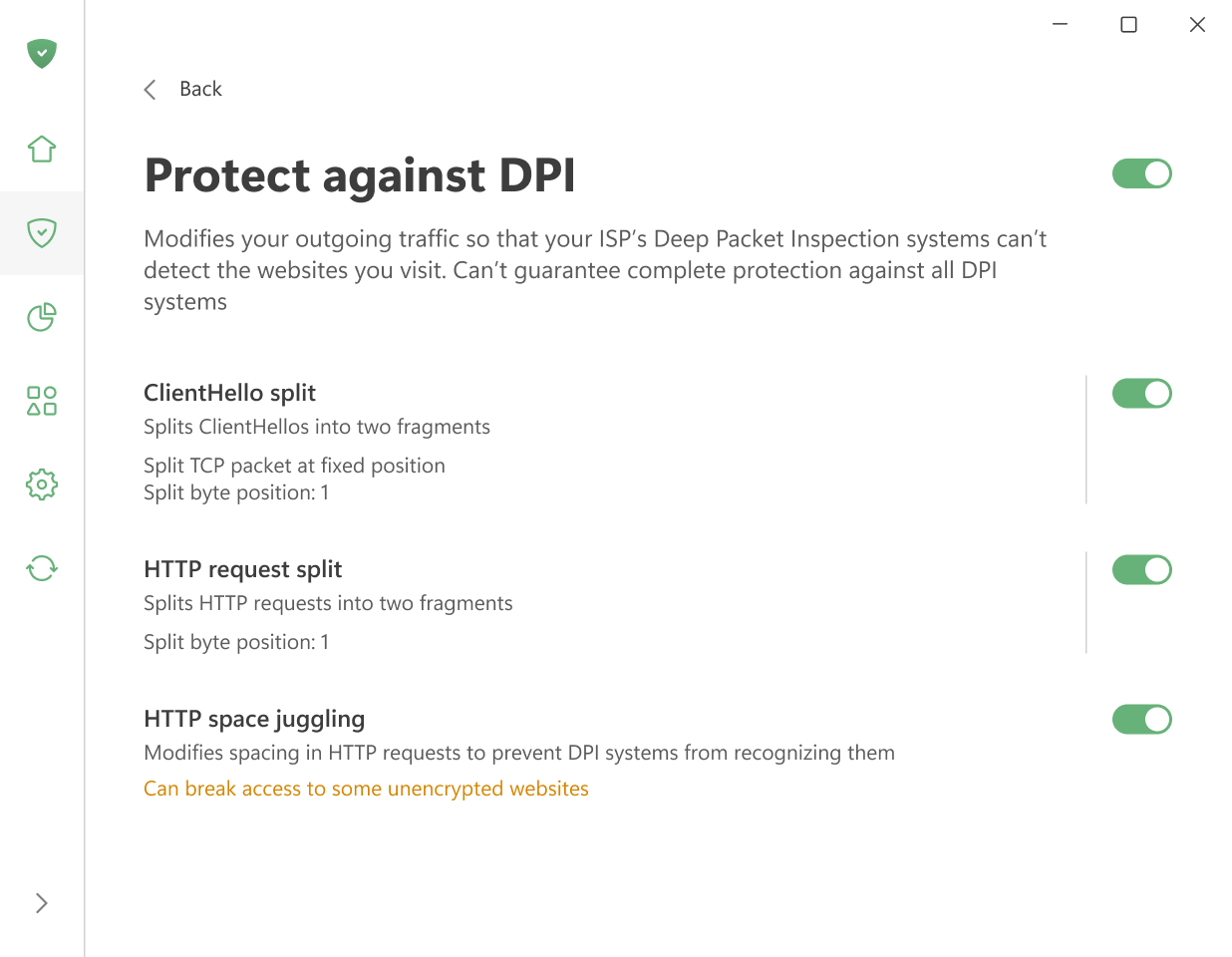
When you click on Protect against DPI, a separate screen opens with three groups of settings:
ClientHello split — modifies the TLS ClientHello message to make it harder for DPI systems to detect and block encrypted connections. The following strategies are available:
- Split TCP packet at fixed position — splits the ClientHello TCP packet at a specified byte position.
- Split TLS record at fixed position — splits the TLS record containing the ClientHello at a specified byte position.
- Split TLS before SNI — splits the ClientHello before the Server Name Indication field.
- Split TLS after SNI — splits the ClientHello after the Server Name Indication field.
- Split TLS in the middle of SNI — splits the ClientHello in the middle of the Server Name Indication field.
- Split TLS randomly within SNI — splits the ClientHello at a random position within the Server Name Indication field.
When using a fixed-position strategy, set the Split byte position (1–1500) to specify where the split occurs.
HTTP request split — splits HTTP requests into multiple TCP packets to bypass DPI systems that rely on inspecting complete HTTP requests.
HTTP space juggling — manipulates whitespace in HTTP requests to confuse DPI systems that parse HTTP headers, making it harder for them to identify and block specific traffic.
This feature can break access to some unencrypted websites. If this feature is enabled in AdGuard for Windows, it may also interfere with the ESET antivirus — ESET will not be able to filter traffic, leaving some malicious or blocked websites accessible.