如何收集 AdGuard 日志记录
本文适用于 Windows 版的 AdGuard,它是一种多功能广告拦截器,可在系统级别保护用户的设备。要了解其工作原理,请下载 AdGuard 应用程序
Data and/or files provided in logs are processed in accordance with the AdGuard Privacy Policy.
要分析和诊断可能潜在的问题,AdGuard 技术人员可能需要 AdGuard 日志记录文件。这些文件包含本软件发生的错误记录和其它事件。下面是简短的说明,描述获取日志文件的方法,并在必要时将其发送给支持服务。
AdGuard 致力于保护用户的个人隐私。 We strictly follow our Privacy Policy and do not collect any private information about users. 请注意:在将您的日志记录发送给客户支持团队之前,请检查文件,因为它会包含您不想分享的附加信息。如果其中包含此类个人信息,我们建议您先将其删除。
Debug logs
-
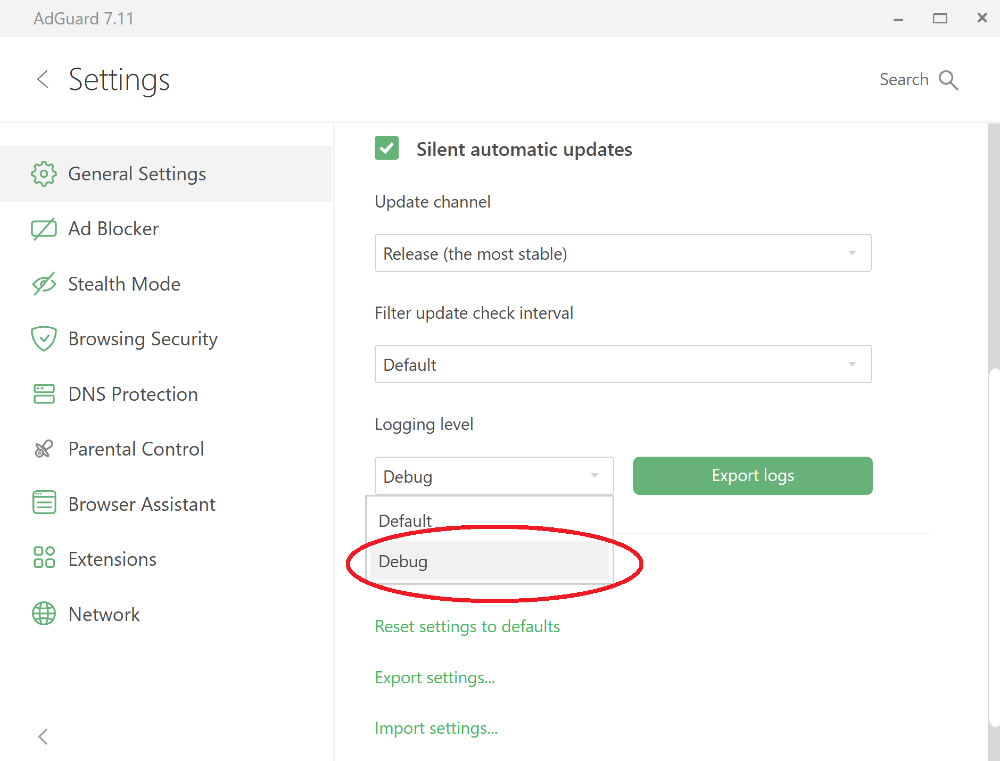
打开 AdGuard 设置。 Go to the General Settings section, scroll down to the bottom of the screen, and switch the Logging Level to Debug.
-
复现问题。
我们强烈建议用户记录问题重现的确切时间:这将有助于我们的支持团队找到相关日志条目并更快地解决问题。
-
Export the collected logs using the Export Logs button.
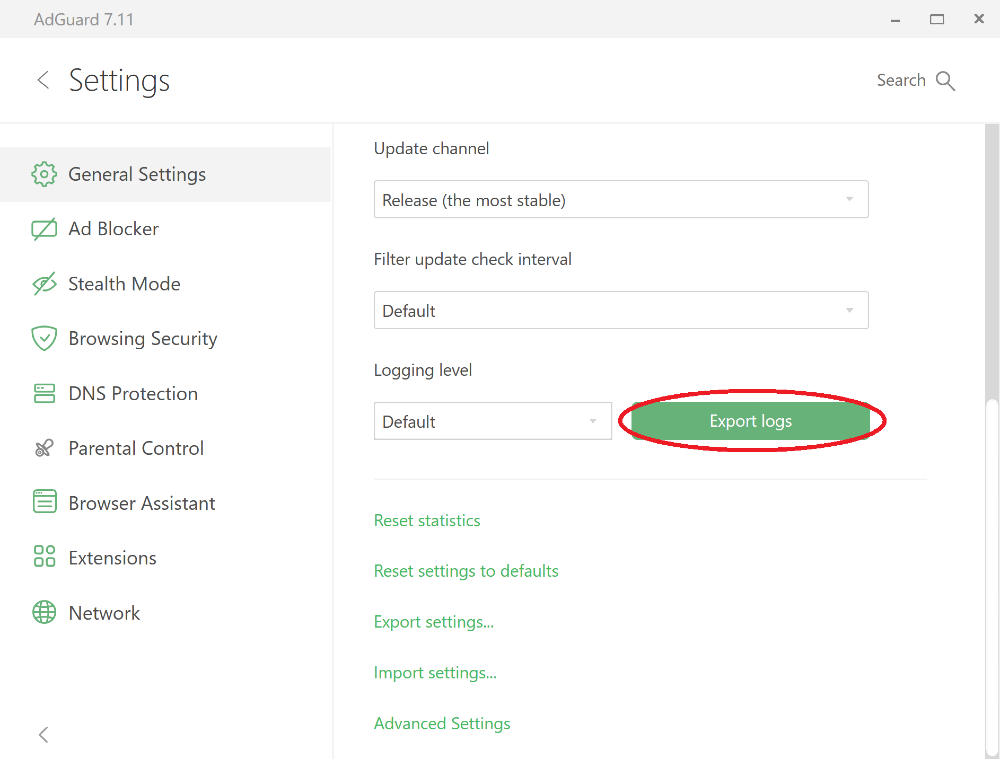
将存档保存到任意文件夹。
-
Important: after exporting the logs, set the logging level back to Default. Debug logging level will slow down the application.
-
Send the archive to the AdGuard support service at support@adguard.com, describe the problem and don't forget to mention the time when you reproduced the issue.
Trace logs
Sometimes support team members may ask you to send trace logs. 要发送跟踪日志,请执行以下操作:
-
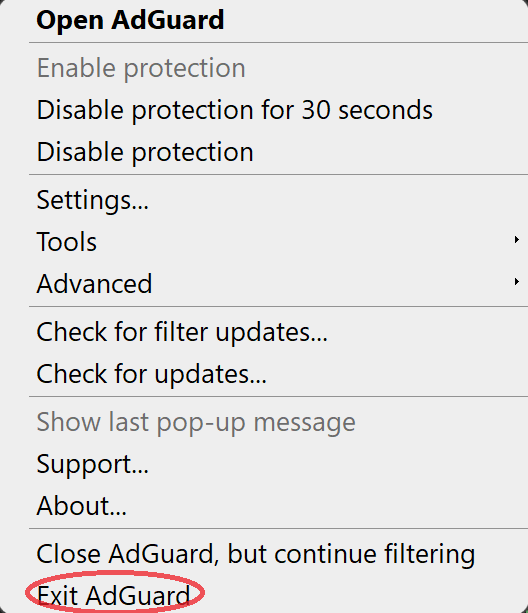
Stop AdGuard by right-clicking the AdGuard icon in the tray menu and choosing Exit AdGuard:
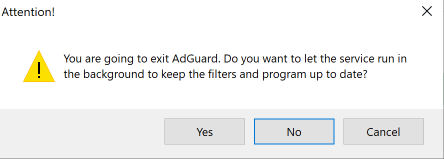
请不要让服务继续运行:
-
Open the console (type
cmdin the start panel). -
Run the application with the command
C:\"Program Files"\Adguard\Adguard.exe /traceregardless of Windows bitness if you have installed AdGuard for Windows v7.16 or later.
如果您有旧版本的 AdGuard for Windows:如您使用的是 64 位 Windows,则请使用命令 "C:\Program Files (x86)\Adguard\Adguard.exe /trace" 运行程序;如您使用的是 32 位 Windows,则请使用命令 "C:\Program Files\Adguard\Adguard.exe /trace"。
-
复现问题。
我们强烈建议用户记录问题重现的确切时间:这将有助于我们的支持团队找到相关日志条目并更快地解决问题。
-
Export the collected logs using the Export Logs button.
用户无需担心日志文件大小。我们需要了解尽可能多的细节来解决您的问题。