How to set up your own proxy and use it with AdGuard

In our day and age, it is becoming increasingly important to have access to any online resources that you need, at any time. This is not always convenient or even possible at all — take such example as using a network with overly restrictive firewall. What will help you be 100% sure you can access any website is setting up your own proxy. Not to mention proxy will hide your IP and let you access geo-blocked websites.

In this article, we will walk together all the way from renting our own server to configuring proxy on a mobile device or in a browser.

Renting your own server

For starters, we'll need to rent a server. You can choose any web hosting service you prefer, I will be using Vultr as an example.

I emphasize that I don't try to advertise or distinguish this service, it was only chosen as an example. Among other possible solutions are HostGator, 1&1, Cloudways, Bytemark, Digital Ocean and many, many more.

Alright, let's get to it. I start by opening vultr.com and signing up there ("Create Account" button in the top right corner).
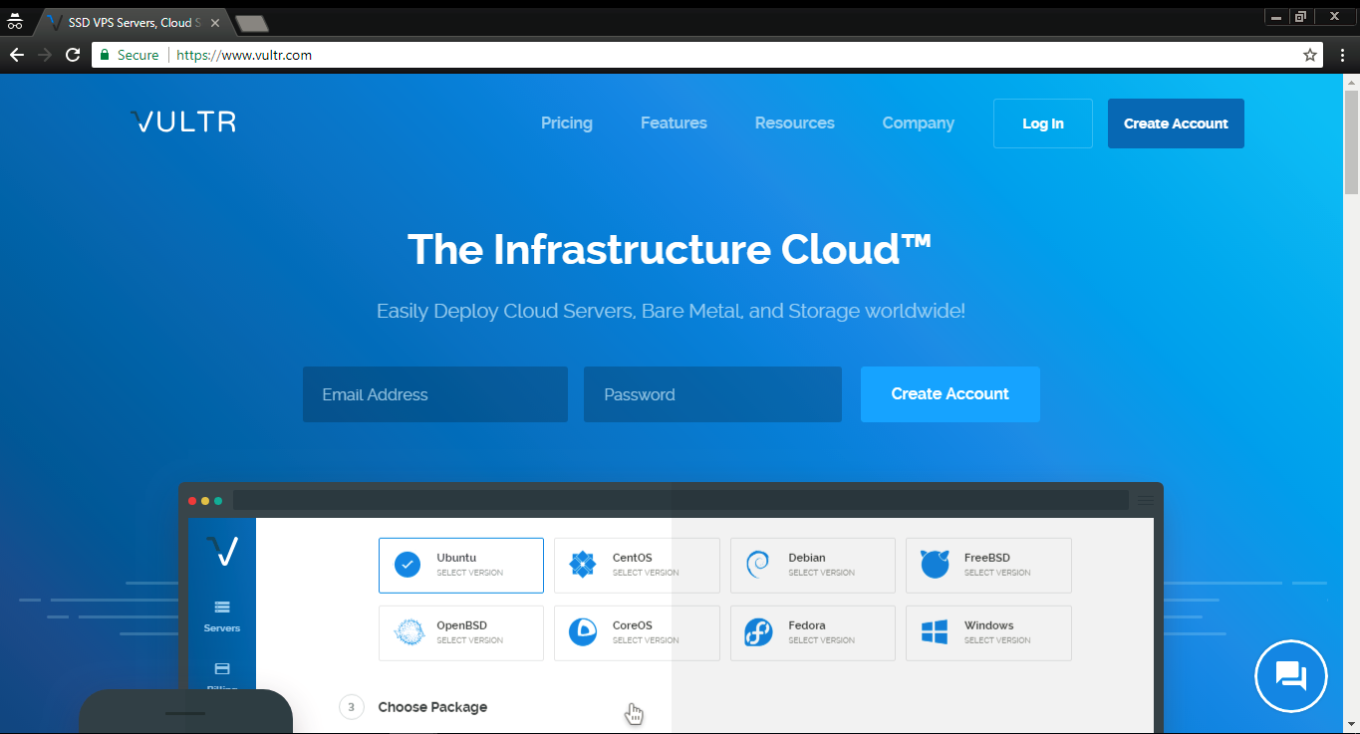
If you did the same, you'll receive an email with a link to confirm your registration. Once you do it and log in, you'll be asked to choose a payment method. I selected Credit card, but you are free to use any other, obviously.
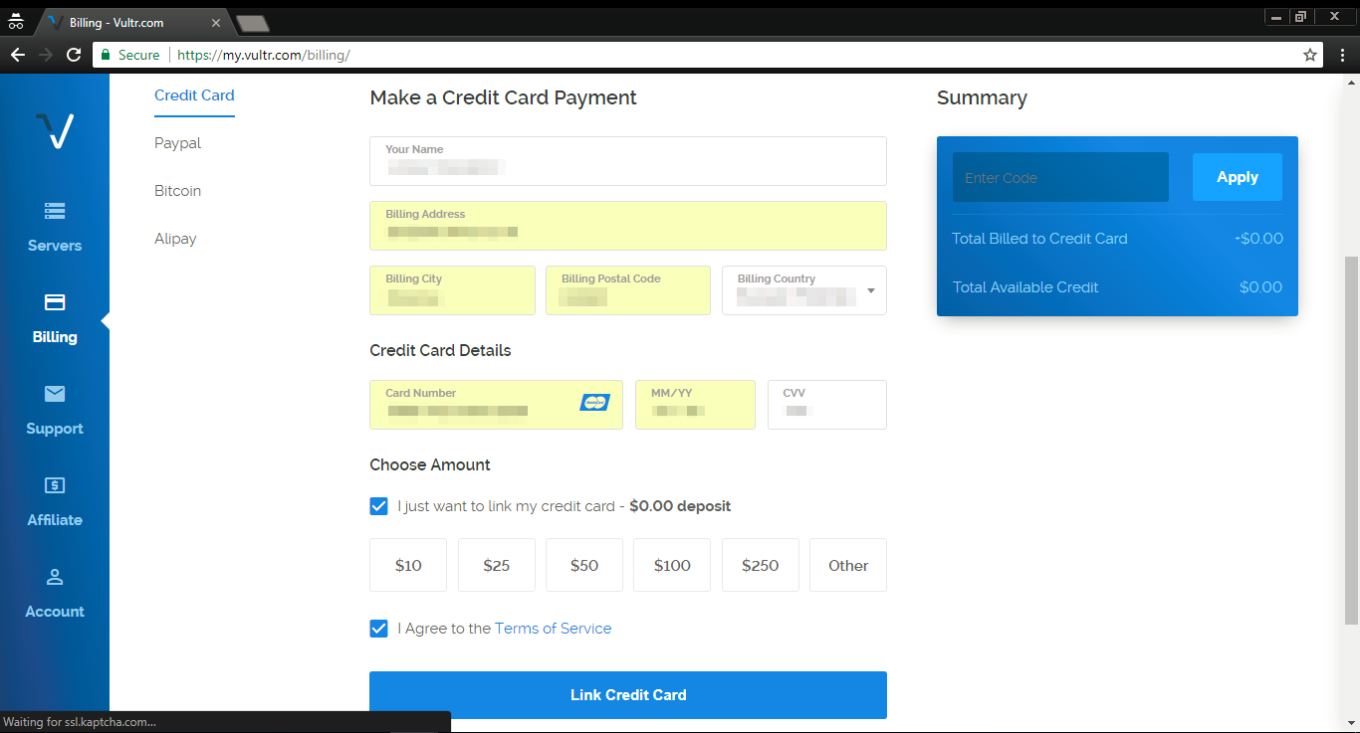
Important — if you are choosing credit card as your payment method, tick the "I just want to link my credit card" checkbox, otherwise, you will be charged immediately.

After you've linked your card, click on the "Servers" tab on the left, and then choose "Deploy New Server" (a button with a "plus" symbol).
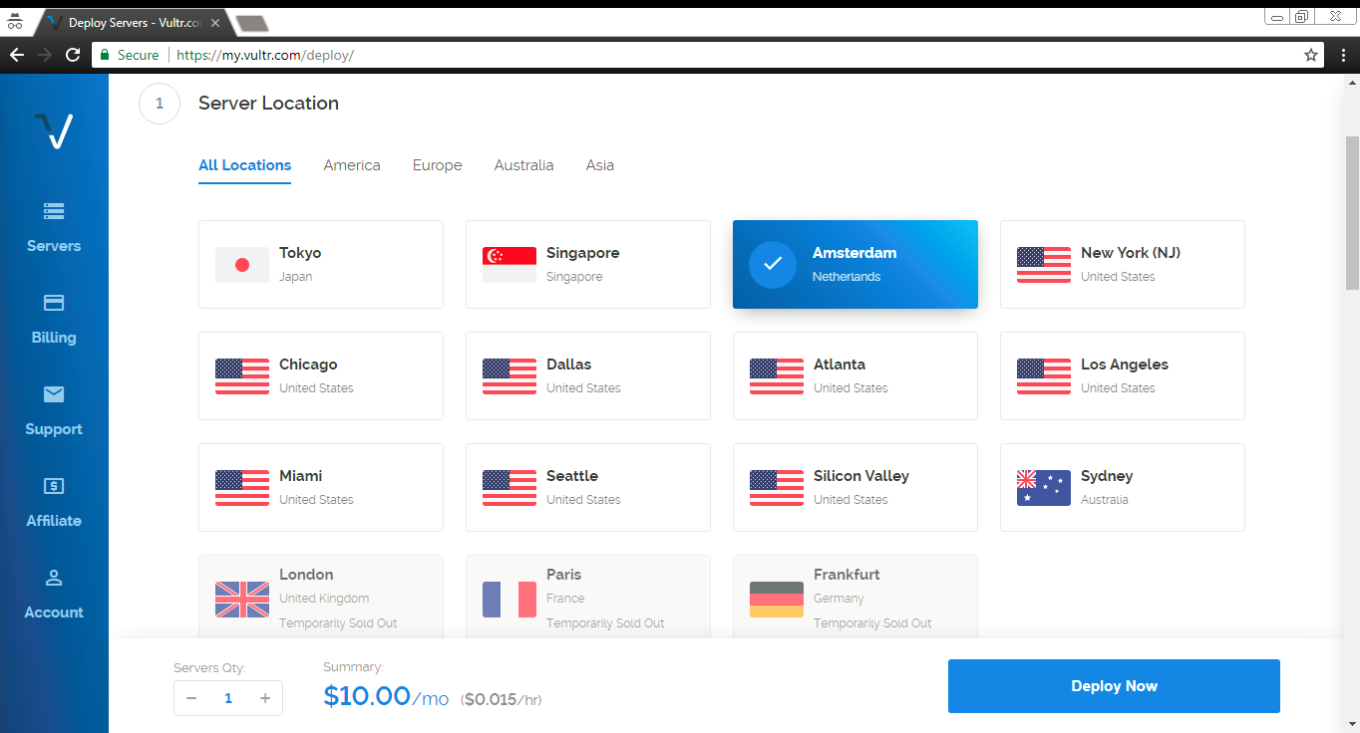
Ok, time to make a decision where our new server will be located. I've chosen one in Amsterdam, you can (and probably should, unless you have a specific reason) choose something relatively close to your geographical location.
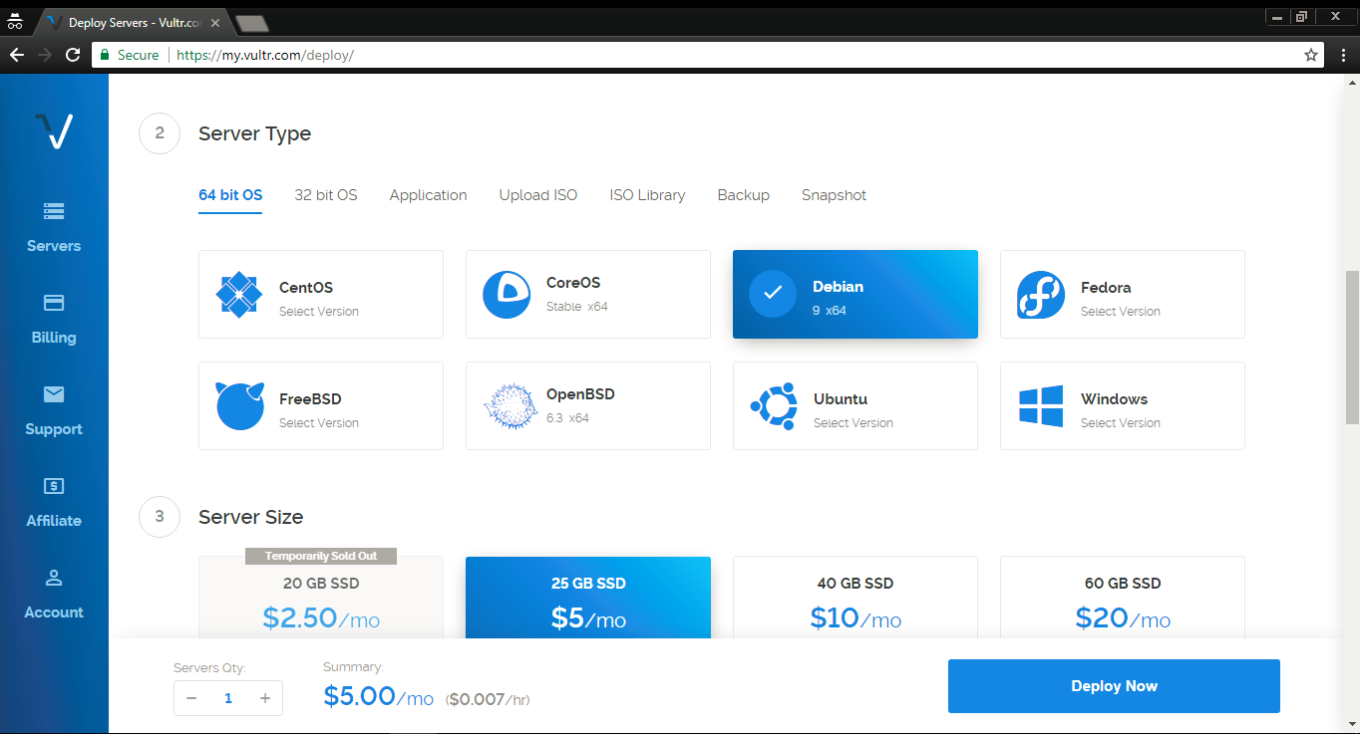
In the "Server type" tab select Debian 9 (x64) — this is very important!
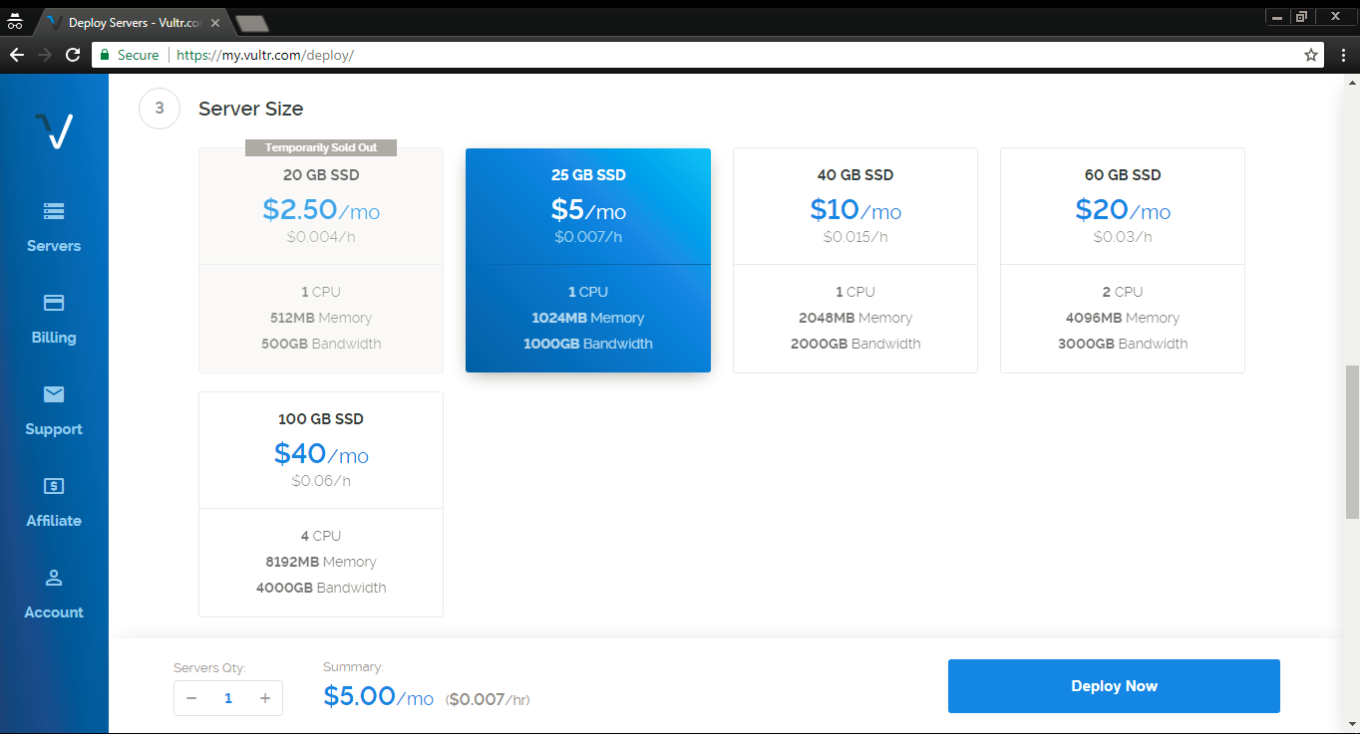
The third step is to select the server size, it depends solely on your needs and your budget. Most users will find 1 TB for $5/mo or 500 GB for $2.5/mo sufficient.
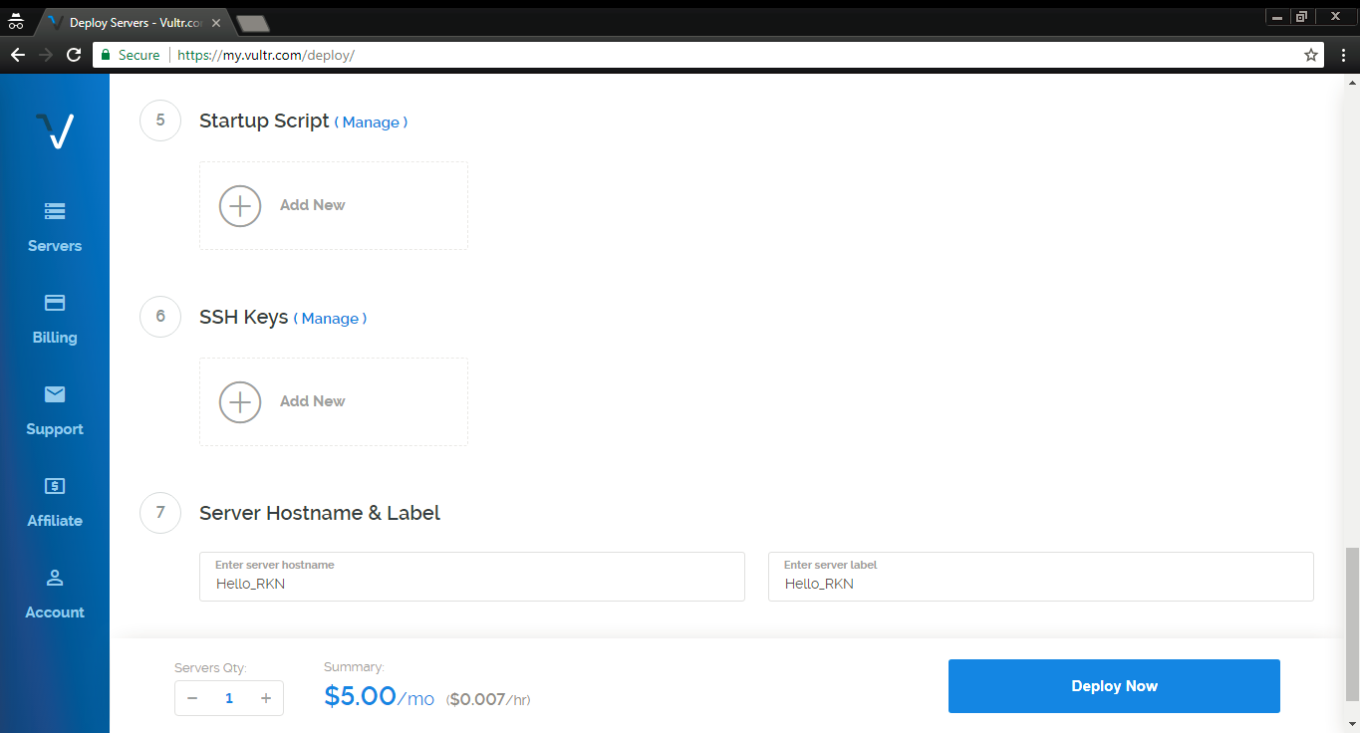
At steps 5 and 6 there's no need to change anything. At step 7 choose a hostname and a label for your server, any will do.

Aaaaand done! Smash the Deploy Now button to finish the process. You'll get another email to confirm that the server has been deployed — you'll need it later.

Installing PuTTY (for Windows users)

Now we have to install and set up a proxy on our freshly acquired server. Windows users can use the PuTTY tool, which can be downloaded here. Click on the .msi build under the "MSI (Windows Installer)" section. Mind if your OS is 32-bit or 64-bit when downloading the installer (if you are not sure, this article will help you determine it).
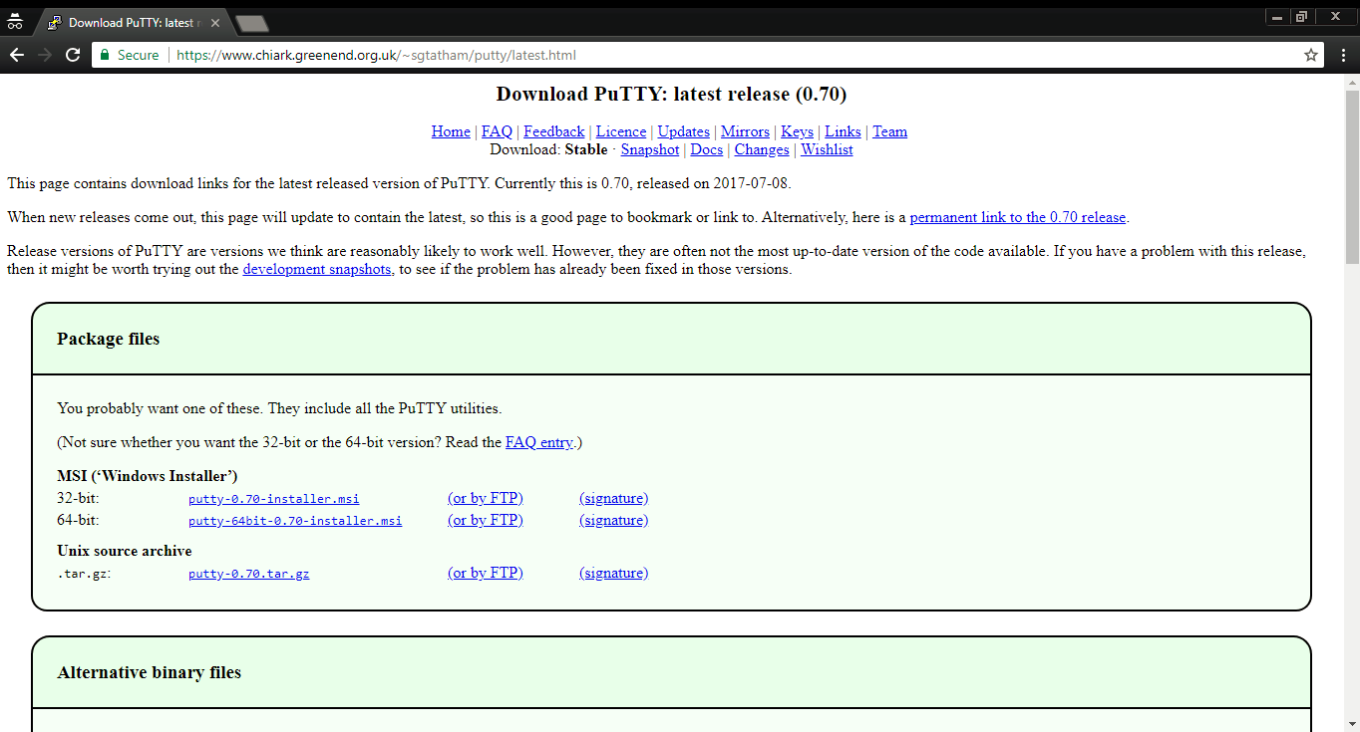
Open the .msi file and install PuTTY by following the wizard's instructions, and then run the tool.
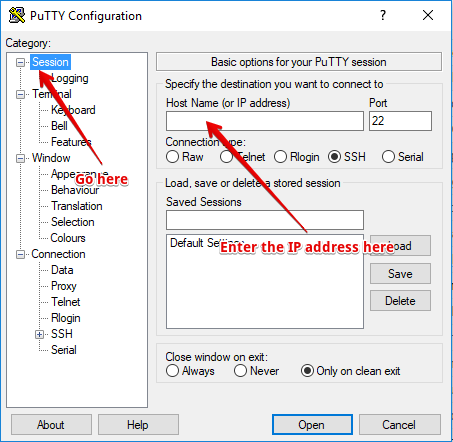
This is what you'll be faced with — don't get scared at the number of tabs and settings there, we'll basically only need one. Open the very first tab (Session) and enter the IP address you got in that confirmation email from Vultr.

Done? Then click the "Open" button located at the bottom. You'll see the console asking you to enter login and password (during the first launch there will be a warning pop-up — don't worry, it's fine, just press OK).
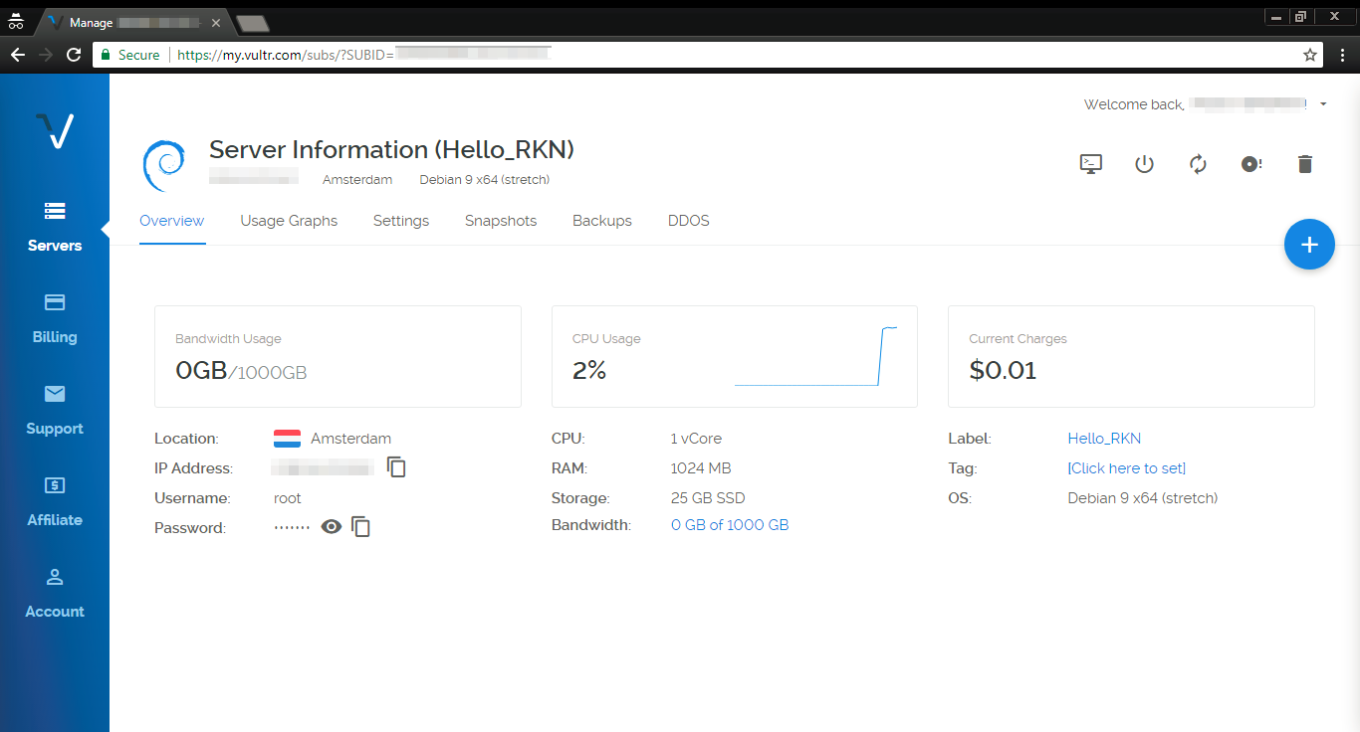
This data can be found in the Overview tab of your Vultr servers screen. The username will be root by default, and the password, of course, randomized (you can change it while you are at it). Ok, you've successfully entered login and password, which takes us to the next step — installing a proxy.

If you are a Mac user, you don't need to install putty or any other utility. All you have to do is open the Terminal and proceed to install and configure a proxy.

Setting up and configuring a proxy

For this purpose, we will use a special script by AdGuard that will perform all required actions. If everything has been going well so far, you should be seeing PuTTY console on your screen.
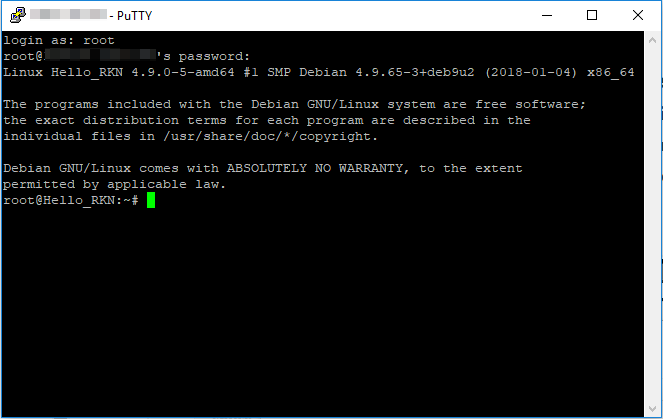
Subsequently execute the following commands in there (press Enter after each command):

apt-get update

The console should look somewhat like this:
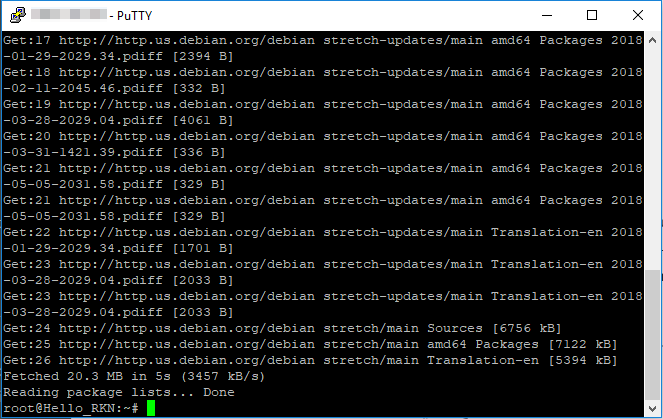
apt-get install curl -y

This is what you'll be seeing after executing this command:
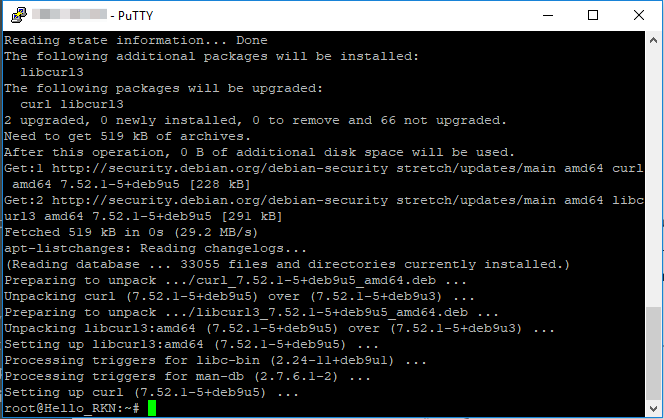
bash <(curl -s "https://raw.githubusercontent.com/AdguardTeam/ProxiesSetup/master/setup.sh")

At the 3rd step, the script will ask you for a username/password pair for your future proxy. You are free to choose any, but make sure to remember them, or even write them down. What it will look like:
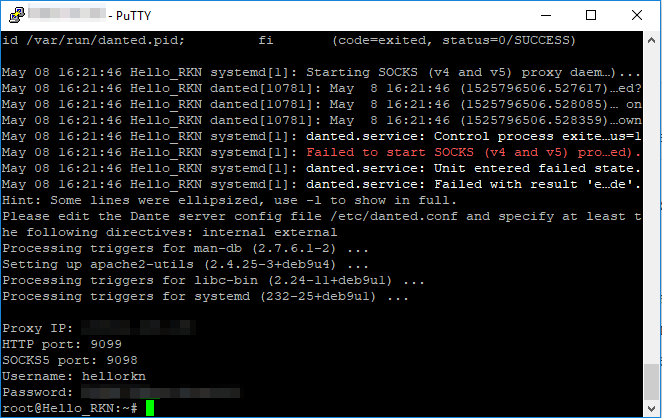
In the console, you will see the IP address of your proxy, HTTP port, SOCKS5 port, username and password. This information has to be entered whenever you want to configure your device/browser to use this proxy. Let's now have a look at a couple of specific examples.

Very important! SOCKS5 is not ideal in terms of security. Try not to use SOCKS5 proxy in public and unprotected networks. In one of the next articles, we'll tell about more secure solutions like Shadowsocks.

In case your server has restarted, you will need to reenable the danted service. To do so, run this command line in the console:

systemctl enable danted.service

Configuring proxy in AdGuard for Mac

Setting up a SOCKS5 proxy in AdGuard for Mac is pretty easy, especially since the proxy settings have been moved from the Advanced settings to the Network tab. Click the gear icon and select Preferences.
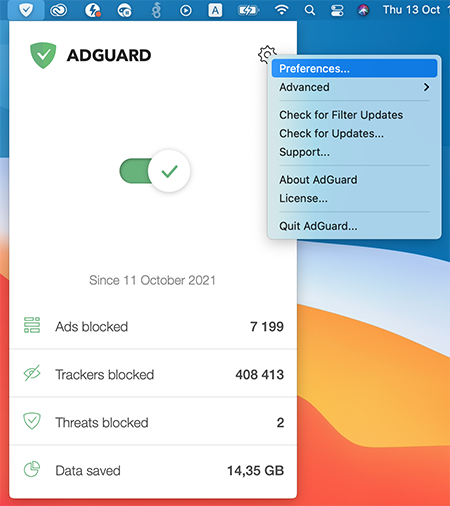
Settings_1

Now go to the Network tab, and then to the Outbound proxy tab. In the drop-down menu on the right, select SOCKS5. Fill in all the fields, using the data you have just seen in Terminal. To complete the setup, check the Outbound proxy box.
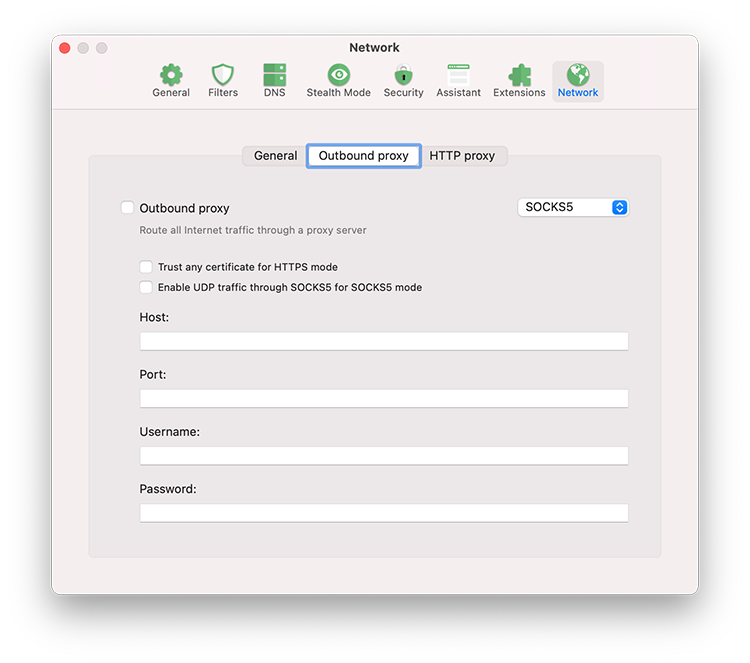
Settings_2

If you want to use AdGuard for Mac as an HTTP proxy to filter traffic on devices in your local network, go to the HTTP proxy tab and check the box Use AdGuard as an HTTP proxy.
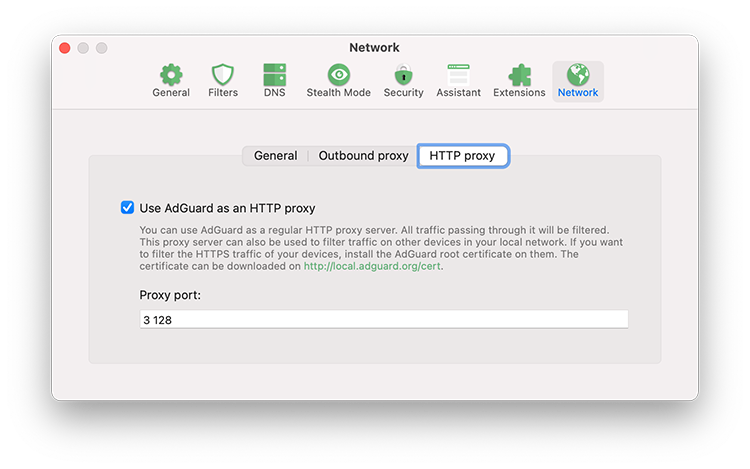
Settings_3

Configuring proxy in AdGuard for Android

There's no trickery here, we will be configuring our SOCKS5 proxy (since we need the authorization) just like we would configure any other proxy. Open the side menu of AdGuard app, go to "Settings - Proxy settings".
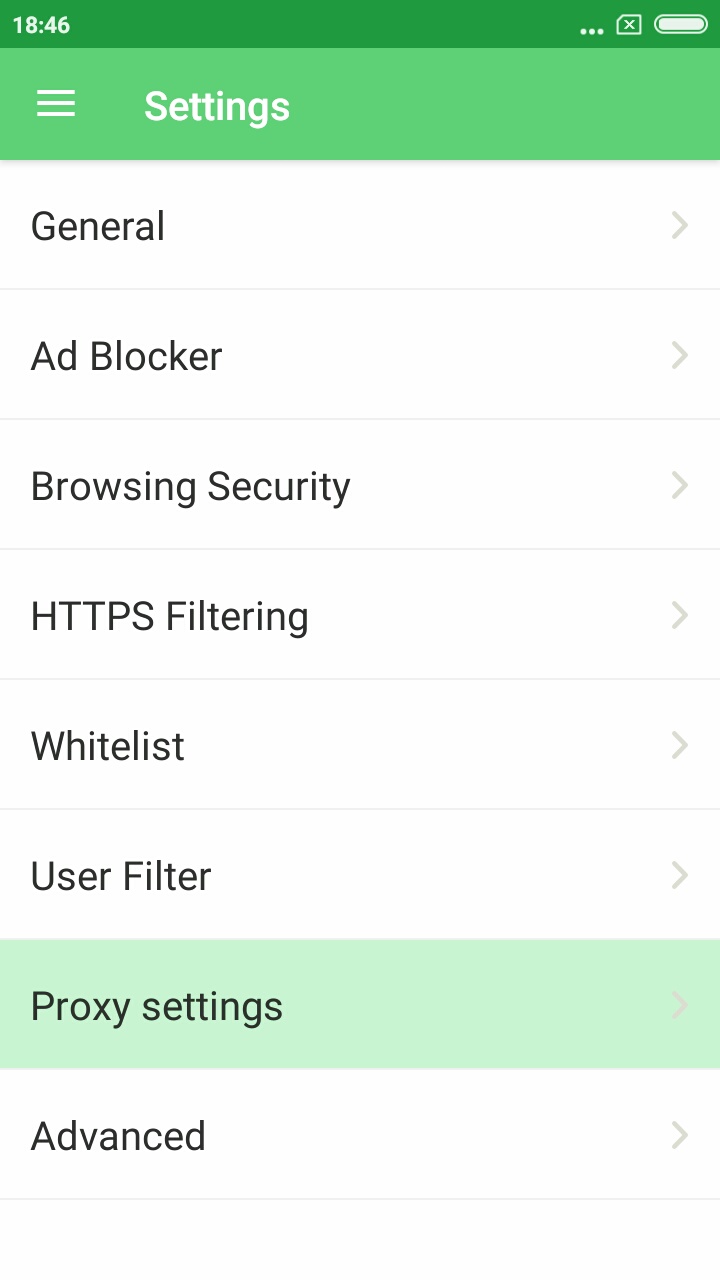
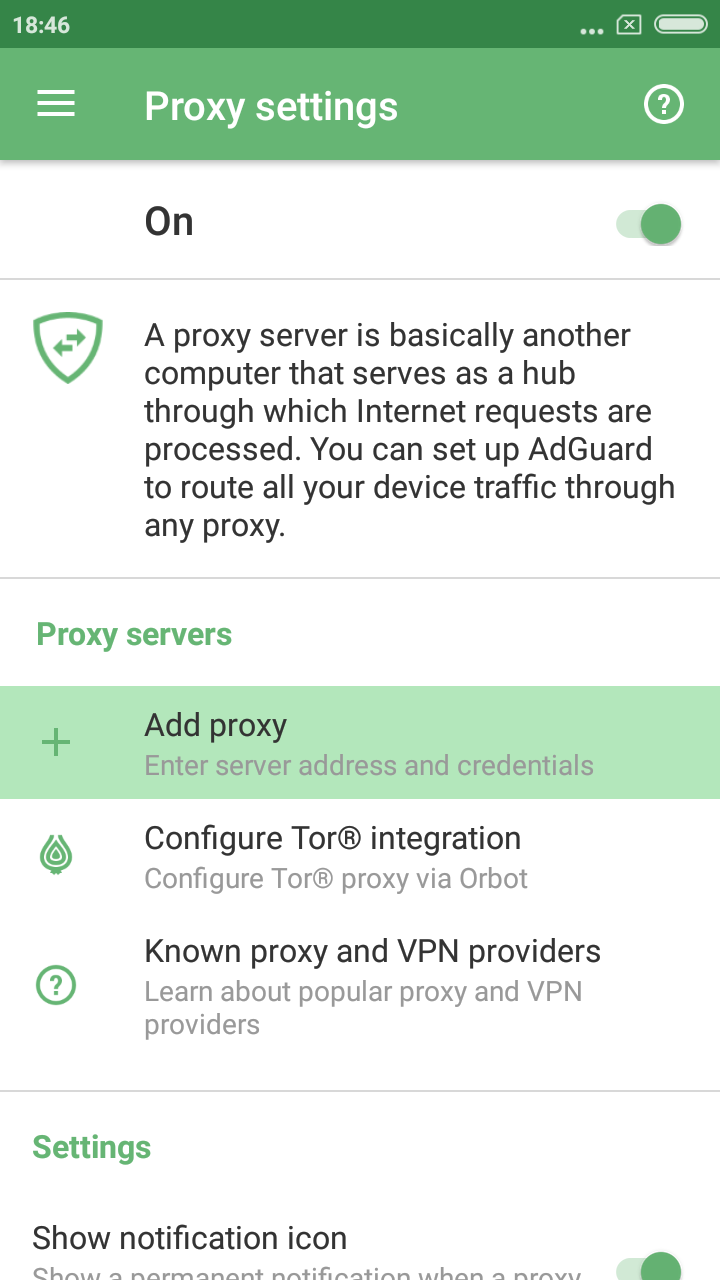
Don't forget to toggle the main switch in the top right corner on, then tap the "Add proxy" button.
Fill out all the fields using data from PuTTY console. You can enter anything under "Proxy name". Also, enable the "Default proxy" option if you plan to mainly use this proxy.
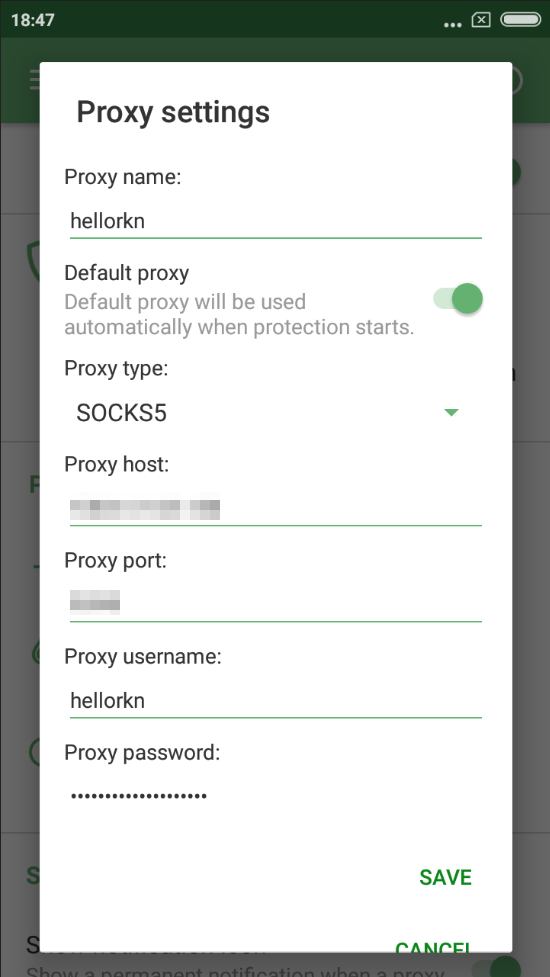
Excellent! Tap Save, now all traffic filtered by AdGuard will be routed through your proxy. And by the way, you can still disable AdGuard filtering for any app(s) via "Apps management", it will prevent its traffic from being routed through the proxy.
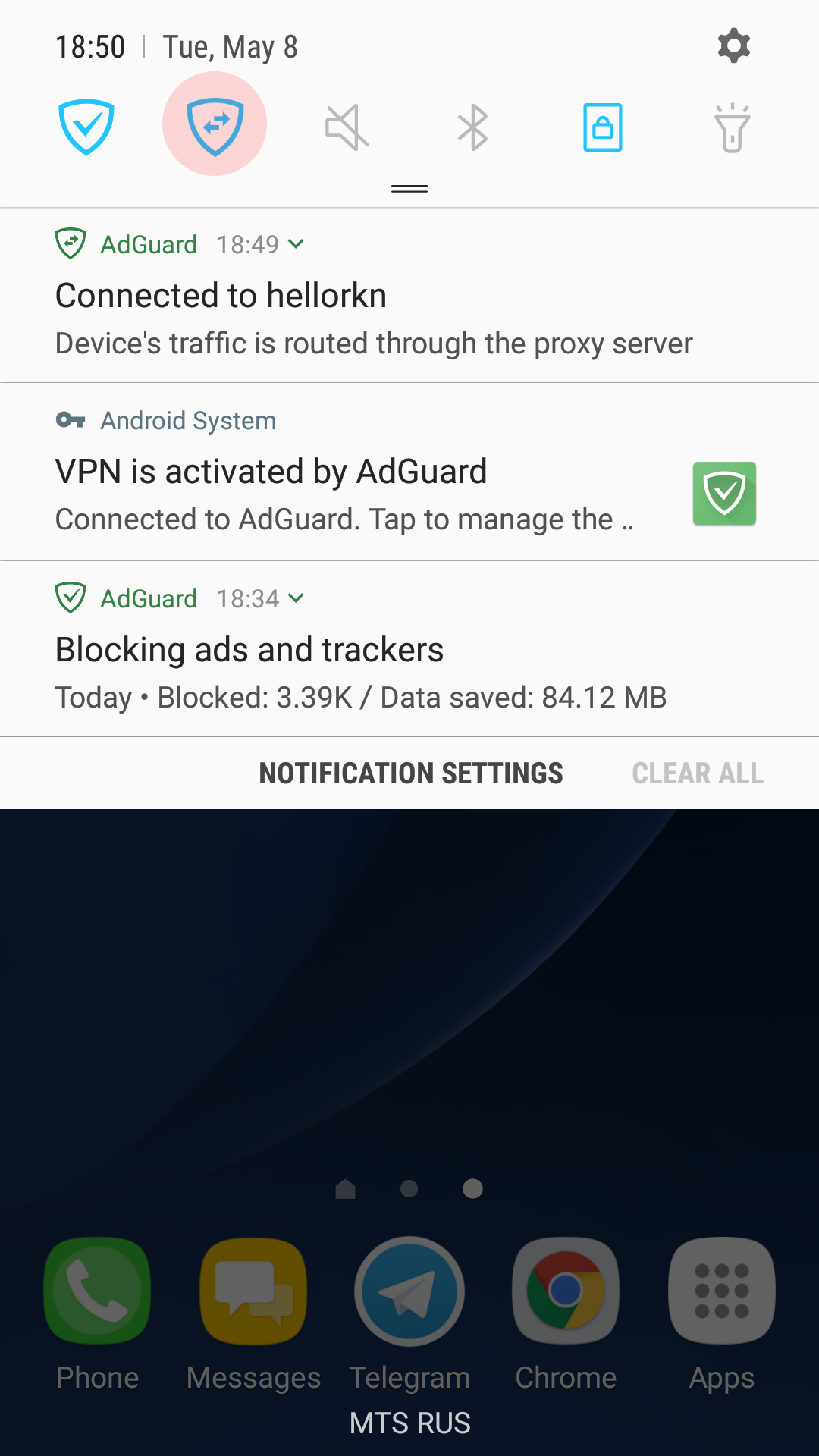
There's one trick that will allow you to instantly switch between enabling and disabling the proxy — you can add a specific tile to the quick access panel. Note there's a new notification in the notification bar, telling that your traffic is routed through the proxy server. Tapping on it will also take you to the "Proxy settings" screen in AdGuard.

Configuring proxy in Chrome/Firefox browsers

For this purpose, we advise using the SwitchyOmega browser extension. I use Chrome, so I'll be downloading it from the Chrome Store, Firefox users will find it among Firefox add-ons. Its unique trait is that it allows you to set up a proxy to be used on specific domains only, or, vice versa, to exclude specific domains.
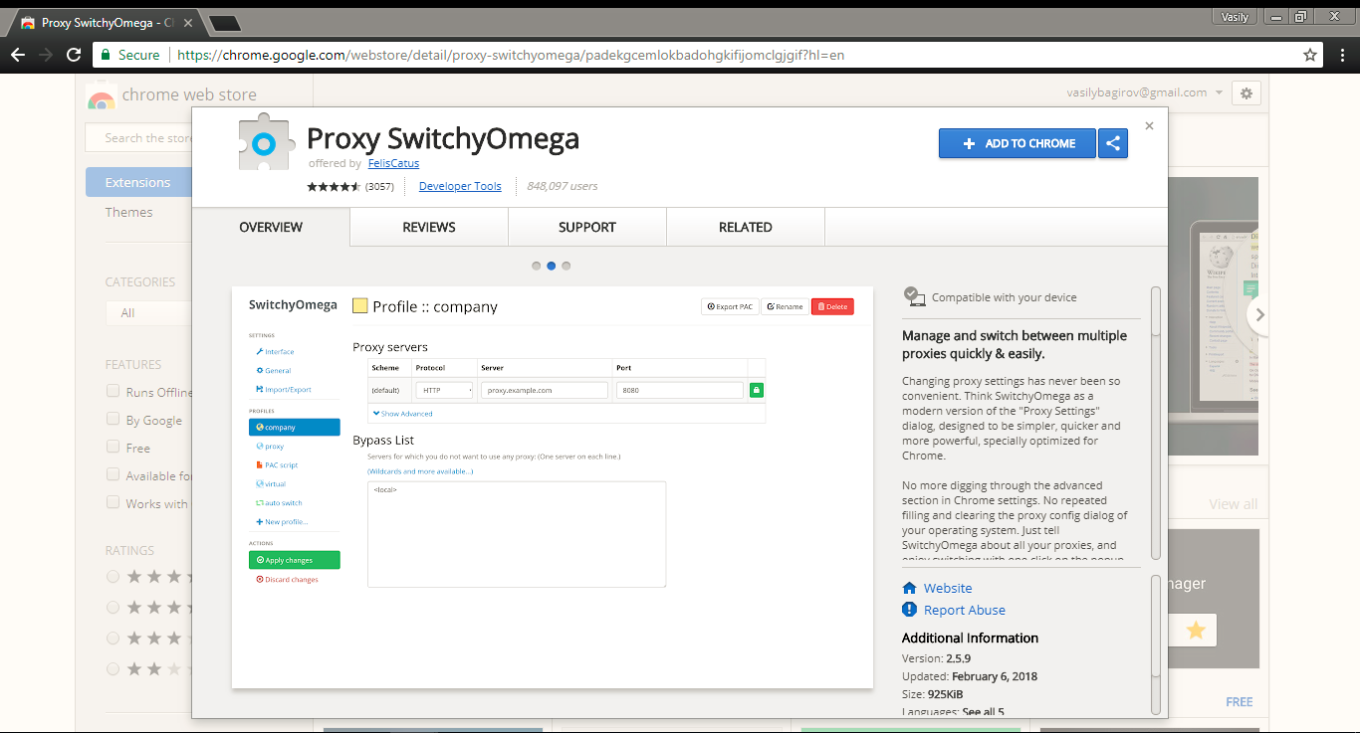
Configuring SwitchyOmega is very simple. Add a new profile ("+New profile") in the Profiles tab on the left. We need to choose HTTP protocol, since SOCKS5 does not support authorization here. Again, fill out the fields according to previously received information. Remember to apply changes by clicking the button on the left!

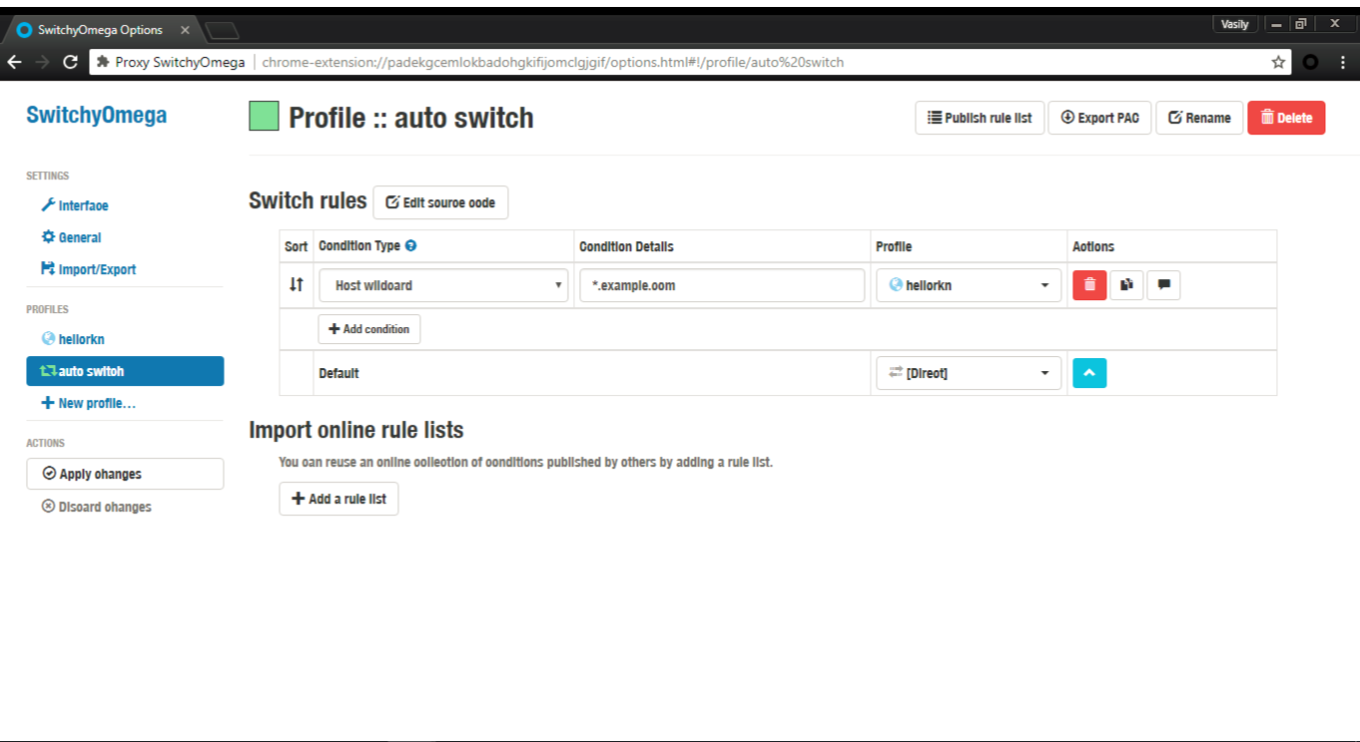
To make your browser use this proxy by default, in the "Auto switch" tab select the freshly added proxy in the Default drop-down menu.

In case you want your proxy to be used for specific websites or IP addresses only, set up respective switch rules. A tooltip will help you with the syntax.
And here's one small "lifehack" (please don't kill me for using this word): on any page you can quickly access proxy settings by clicking the SwitchyOmega extension icon. Manage proxy in respect to the current website, or change global proxy settings — everything is within a couple of clicks.
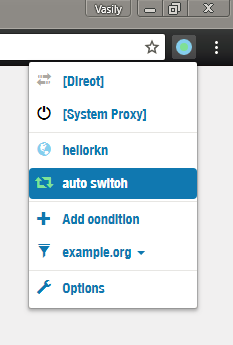
Color indicator also helps determining if the proxy is being used currently or not.

Summarizing

We've done it! If everything went according to plan, you should have your own server with a working proxy installed there, and respective settings on your phone/browser. Not so bad for 10 minutes spent on reading this article :)

Should you encounter any difficulties along the way, or if you just have any questions — let me know in the comments, and I (or some other team member) will help you get through! Good luck!


این پست را دوست داشتید؟
AdGuard VPN AdGuard DNS AdGuard Mail AdGuard Wallet
صفحه اصلی AdGuard برای Windows
صفحه محافظت AdGuard برای Windows که ویژگی‌ها و تنظيمات محافظت را نشان می‌دهد
صفحه آمار AdGuard برای Windows که آمار تبلیغات و رَدیاب‌های مسدود شده را نشان می‌دهد
صفحه مدیریت برنامه AdGuard برای Windows که گزینه‌های مدیریت محافظت برای برنامک‌های نصب‌شده روی دستگاه را نشان می‌دهد
۲۰٬۴۴۲ 20442 بررسی
بسیار عالی!

AdGuard برای Windows: مسدودکننده تبلیغات برای رایانه شخصی

AdGuard برای ویندوز چیزی فراتر از یک مسدودکننده تبلیغات است. این یک ابزار چندمنظوره است که تبلیغات را مسدود می‌کند، دسترسی به سایت‌های خطرناک را کنترل می‌کند، بارگذاری صفحات را سریع‌تر می‌کند و از کودکان در برابر محتوای نامناسب محافظت می‌کند
با دانلود برنامه شما شرایط توافقنامه مجوز را قبول می کنید
Microsoft Store
با دانلود برنامه شما شرایط توافقنامه مجوز را قبول می کنید
AdGuard برای Windows v8.0، دوره آزمایشی 14روزه
صفحه اصلی AdGuard برای Mac
صفحه حالت نهان AdGuard برای Mac
۲۰٬۴۴۲ 20442 بررسی
بسیار عالی!

AdGuard برای مک: مسدودکنندهٔ تبلیغات در سطح سیستم

AdGuard برای Mac یک مسدودکنندهٔ تبلیغات منحصربه‌فرد است که با در نظر گرفتن macOS طراحی شده است. علاوه بر محافظت از شما در برابر تبلیغات آزاردهنده در مرورگرها و برنامه‌ها، شما را در برابر ردیابی، فیشینگ و کلاهبرداری نیز محافظت می‌کند
با دانلود برنامه شما شرایط توافقنامه مجوز را قبول می کنید
بیشتر بخوانید
AdGuard برای Mac v2.19، دوره آزمایشی 14روزه
صفحه اصلی AdGuard برای Android
صفحه حفاظت در برابر ردیابی AdGuard برای Android
صفحه مدیریت برنامه AdGuard برای Android که گزینه‌های مدیریت محافظت برای برنامک‌های نصب‌شده روی دستگاه را نشان می‌دهد
صفحه آمار AdGuard برای Android که آمار تبلیغات و رَدیاب‌های مسدود شده را نشان می‌دهد
صفحه اصلی مرورگر خصوصی AdGuard برای Android
کد QR برای بارگیری AdGuard برای Android
۲۰٬۴۴۲ 20442 بررسی
بسیار عالی!

ادگارد برای اندروید: مسدودکنندهٔ تبلیغات برای همهٔ برنامه‌ها

تبلیغات و ردیاب‌ها را در همه مرورگرها، بازی‌ها و سایر برنامه‌ها مسدود می‌کند. از حریم خصوصی شما محافظت می‌کند و به شما امکان می‌دهد کنترل کنید برنامه‌هایتان چگونه از اینترنت استفاده می‌کنند. از طریق APK نصب می‌شود
با دانلود برنامه شما شرایط توافقنامه مجوز را قبول می کنید
بیشتر بخوانید
اسکن برای دانلود
استفاده از هر کد خوان QR موجود در دستگاه شما
AdGuard برای اندروید v4.14، دوره آزمایشی 14روزه
صفحه اصلی AdGuard برای iOS
صفحه محافظت AdGuard برای iOS که ویژگی‌ها و تنظيمات محافظت را نشان می‌دهد
صفحه آمار AdGuard برای iOS که آمار تبلیغات و رَدیاب‌های مسدود شده را نشان می‌دهد
کد QR برای بارگیری AdGuard برای iOS
۲۰٬۴۴۲ 20442 بررسی
بسیار عالی!

AdGuard برای iOS: مسدودکنندهٔ تبلیغات فراتر از Safari

بهترین مسدودکننده تبلیغات iOS برای iPhone و iPad. AdGuard همه انواع تبلیغات و ردیاب‌ها را در Safari حذف می‌کند و از حریم خصوصی شما در همه برنامه‌ها در سطح DNS محافظت می‌کند
با دانلود برنامه شما شرایط توافقنامه مجوز را قبول می کنید
بیشتر بخوانید
اسکن برای دانلود
استفاده از هر کد خوان QR موجود در دستگاه شما
AdGuard برای iOS نسخه 4.5
صفحه اصلی AdGuard Content Blocker
صفحه فیلترها در AdGuard Content Blocker
صفحه تنظيمات در AdGuard Content Blocker
۲۰٬۴۴۲ 20442 بررسی
بسیار عالی!

مسدودساز محتوای AdGuard

AdGuard Content Blocker انواع تبلیغات را در مرورگرهای تلفن همراه که از فناوری مسدود کردن محتوا پشتیبانی می کنند حذف می کند - یعنی اینترنت سامسونگ و مرورگر Yandex. ویژگی های آن در مقایسه با AdGuard برای اندروید محدود است، اما رایگان، نصب آسان و کارآمد است
با دانلود برنامه شما شرایط توافقنامه مجوز را قبول می کنید
بیشتر بخوانید
مسدودساز محتوای AdGuard نسخه 2.8
صفحه اصلی افزونه مرورگر AdGuard
صفحه حفاظت در برابر ردیابی افزونه مرورگر AdGuard
۲۰٬۴۴۲ 20442 بررسی
بسیار عالی!

افزونه مرورگر AdGuard

AdGuard سریع ترین و سبک ترین افزونه ای است که انواع تبلیغات را در صفحات وب مسدود می کند! AdGuard را برای مرورگری که میخواهید انتخاب کنید و وب گردی امن و سریع را تجربه کنید.
نصب
با دانلود برنامه شما شرایط توافقنامه مجوز را قبول می کنید
نصب
با دانلود برنامه شما شرایط توافقنامه مجوز را قبول می کنید
نصب
با دانلود برنامه شما شرایط توافقنامه مجوز را قبول می کنید
نصب
با دانلود برنامه شما شرایط توافقنامه مجوز را قبول می کنید
نصب
با دانلود برنامه شما شرایط توافقنامه مجوز را قبول می کنید
بیشتر بخوانید
نصب
با دانلود برنامه شما شرایط توافقنامه مجوز را قبول می کنید
بیشتر بخوانید
افزونه مرورگر AdGuard نسخه 5.5
صفحه اصلی AdGuard Assistant
۲۰٬۴۴۲ 20442 بررسی
بسیار عالی!

AdGuard دستیار

افزونه مرورگر همراه برای برنامه های دسکتاپ AdGuard. این امکان را به شما می دهد که آیتم های سفارشی را در وب سایت ها مسدود کنید، وب سایت ها را به لیست مجاز اضافه کنید و گزارش ها را مستقیما از مرورگر خود ارسال کنید
AdGuard دستیار نسخه 1.4
۲۰٬۴۴۲ 20442 بررسی
بسیار عالی!

AdGuard Home

AdGuard Home یک راه حل مبتنی بر شبکه برای مسدود کردن تبلیغات و ردیاب ها است. آن را یک بار روی روتر خود نصب کنید تا همه دستگاه های موجود در شبکه خانگی خود را پوشش دهید - بدون نیاز به نرم افزار مشتری اضافی. این امر به ویژه برای دستگاه های مختلف اینترنت اشیا که اغلب حریم خصوصی شما را تهدید می کنند بسیار مهم است
AdGuard Home نسخه 0.107
صفحه اصلی AdGuard Pro برای iOS
صفحه محافظت AdGuard Pro برای iOS که قابلیت‌ها و تنظيمات محافظت را نشان می‌دهد
صفحه آمار AdGuard Pro برای iOS که آمار تبلیغات و رَدیاب‌های مسدود شده را نشان می‌دهد
۲۰٬۴۴۲ 20442 بررسی
بسیار عالی!

AdGuard Pro برای iOS

AdGuard Pro برای iOS با تمام ویژگی‌های پیشرفته محافظت در برابر مسدود کردن تبلیغات ارائه می‌شود. این نسخه همان ابزارهای نسخه پولی AdGuard برای iOS را ارائه می‌دهد. این نسخه در مسدود کردن تبلیغات در سافاری عالی عمل می‌کند و به شما امکان می‌دهد تنظیمات DNS را برای محافظت متناسب با نیاز خود سفارشی کنید. این نسخه تبلیغات را در مرورگرها و برنامه‌ها مسدود می‌کند، از فرزندان شما در برابر محتوای نامناسب محافظت می‌کند و اطلاعات شخصی شما را ایمن نگه می‌دارد.
با دانلود برنامه شما شرایط توافقنامه مجوز را قبول می کنید
بیشتر بخوانید
AdGuard Pro برای iOS نسخه 4.5
صفحه اصلی AdGuard Mini برای Mac
صفحه محافظت Safari در AdGuard Mini برای Mac
صفحه ایجاد رویه در AdGuard Mini برای Mac
۲۰٬۴۴۲ 20442 بررسی
بسیار عالی!

AdGuard Mini برای Mac — مسدود کننده تبلیغات Safari

AdGuard Mini برای Mac یک مسدودکنندهٔ قدرتمند تبلیغات برای Safari است. این برنامک سبک، تبلیغات را حذف می‌کند، ردیاب‌ها را مسدود می‌کند و بارگذاری صفحه را سریع‌تر می‌کند. این ابزار به شما کمک می‌کند تا بدون حواس‌پرتی در Safari گشت‌و‌گذار کنید و داده‌های خود را خصوصی نگه دارید
نصب
با دانلود برنامه شما شرایط توافقنامه مجوز را قبول می کنید
بیشتر بخوانید
AdGuard Mini برای Mac نسخه 2.3
صفحه اصلی AdGuard برای Android TV با محافظت فعال شده
صفحه مسدودسازی تبلیغات AdGuard برای Android TV که ویژگی‌ها و تنظيمات آن را نشان می‌دهد
صفحه تنظيمات AdGuard برای Android TV
صفحه مدیریت برنامه AdGuard برای Android TV که برنامک‌هایی را نشان می‌دهد که در آن‌ها تبلیغات و رَدیاب‌ها مسدود شده‌اند
۲۰٬۴۴۲ 20442 بررسی
بسیار عالی!

AdGuard برای Android TV

AdGuard برای Android TV تنها برنامه‌ای است که تبلیغات را مسدود می‌کند، از حریم خصوصی شما محافظت کرده و همانند یک دیوار آتش برای تلویزیون هوشمند شما عمل می‌کند. در مورد تهدیدات وب هشدار دریافت کنید، از DNS ایمن استفاده کرده و از انتقال داده اینترنتی رمزگذاری شده بهره‌مند شوید. آرامش داشته باشید و غرق نمایش‌های مورد علاقه خود با امنیت عالی و تبلیغات صفر شوید!
AdGuard برای Android TV v4.14، دوره آزمایشی 14روزه
نماد AdGuard، Agnar، در حالی که پنگوئن Linux را در دست دارد
۲۰٬۴۴۲ 20442 بررسی
بسیار عالی!

AdGuard برای لینوکس

AdGuard برای لینوکس اولین مسدود کننده تبلیغات لینوکس در سراسر جهان است. تبلیغات و ردیاب‌ها را در سطح دستگاه مسدود کنید، از بین فیلترهای از پیش نصب شده انتخاب کنید یا فیلترهای خود را اضافه کنید - همه از طریق رابط خط فرمان
AdGuard برای لینوکس نسخه 1.4
۲۰٬۴۴۲ 20442 بررسی
بسیار عالی!

AdGuard Temp Mail

یک تولید‌کننده رایانشانی موقت رایگان که شما را ناشناس نگه می‌دارد و از حریم خصوصی شما محافظت می‌کند. هرزنامه‌ای در صندوق ورودی اصلی شما در کار نخواهد بود!
۲۰٬۴۴۲ 20442 بررسی
بسیار عالی!

AdGuard VPN

75 محل در سرتاسر جهان

دسترسی به هر محتوا

رمزگذاری قوی

سیاست عدم ذخیره وقایع

سریعترین اتصال

24/7 پشتیبانی

ارزیابی رایگان
با دانلود برنامه شما شرایط توافقنامه مجوز را قبول می کنید
بیشتر بخوانید
۲۰٬۴۴۲ 20442 بررسی
بسیار عالی!

AdGuard DNS

AdGuard DNS راه حلی جایگزین برای مسدودسازی تبلیغات، حفاظت حریم خصوصی و نظارت والدین است. راه اندازی آسان و استفاده رایگان، آن حداقل حفاظت لازم در برابر تبلیغات آنلاین،ردیاب ها و فیشینگ ها را میدهد،و در همه سیستم عامل ها و دستگاه ها کار می کند.
۲۰٬۴۴۲ 20442 بررسی
بسیار عالی!

AdGuard Mail

از هویت خود محافظت کنید، از هرزنامه دوری نمایید و صندوق ورودی خود را با نام‌های مستعار و رایانشانی‌های موقت ما امن نگه دارید. از خدمت رایگان فوروارد رایانامه و برنامک‌های ما برای همه سامانه‌عامل‌ها لذت ببرید
۲۰٬۴۴۲ 20442 بررسی
بسیار عالی!

AdGuard Wallet

یک کیف پول ارز دیجیتال امن و خصوصی که به شما امکان کنترل کامل بر دارایی‌هایتان را می‌دهد. چندین کیف پول را مدیریت کنید و هزاران ارز دیجیتال را برای ذخیره، ارسال و مبادله کشف کنید.
در حال بارگیری AdGuard برای نصب AdGuard، روی پرونده نشان داده شده توسط پیکان کلیک کنید گزینه "بازکردن " را انتخاب و روی "تایید" کلیک کنید — برای دانلود فایل منتظر بمانید. در پنجره باز شده، آیکون AdGuard را به پوشه "برنامه ها" بکشید.بابت انتخاب AdGuard متشکریم! گزینه "بازکردن " را انتخاب و روی "تایید" کلیک کنید — برای دانلود فایل منتظر بمانید. در پنجره باز شده روی "نصب" کلیک کنید.بابت انتخاب AdGuard متشکریم!
AdGuard را روی دستگاه تلفن همراه خود نصب کنید