AdGuard for Mac: an in-depth overview
AdGuard for Mac, as one of our main staples, merits a full how-to guide. We decided to help new users out and to highlight some finer, but less obvious points that even seasoned AdGuard for Mac fans might have been missing.
Getting started
Home panel
General preferences
Filters
User rules
Stealth Mode
Browsing Security
Extensions
- Integration Mode
Network Filtering
Others
- License Management
- Support
- Updates check
Getting started
AdGuard for Mac currently is the only existing standalone ad blocker program for Mac computers. Why is it so important to press this point every time we start talking AdGuard for Mac? Mainly because we wish to bring your attention to our software being a full-fledged program instead of a browser extension — which gives it more weight and power. And, of course, you as a user get more freedom to decide how to run it and get the best of what features AdGuard for Mac has to offer.
Let us walk you through the features available.
Home panel
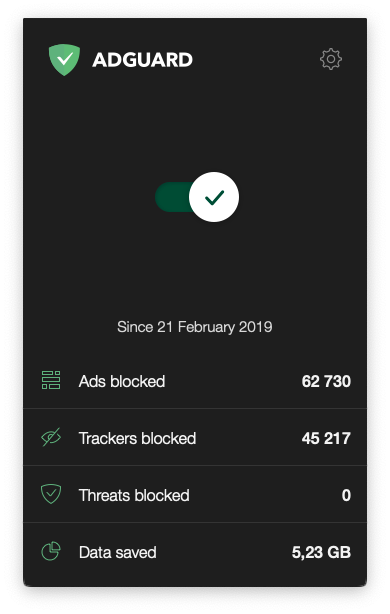
AdGuard for Mac: home panel
The first thing you see upon startup will be a screen with a big On/Off switch. Here you will see the main stats of what AdGuard has achieved to date (counting since it’s been installed and switched on): the number of trackers, threats and ads blocked, as well as the amount of data saved will be on display. The best proof that AdGuard knows its stuff ;)
To start configuring your newly installed AdGuard for Mac you will need to tap the gear in the upper right corner of the window and select “Preferences”.
General Preferences
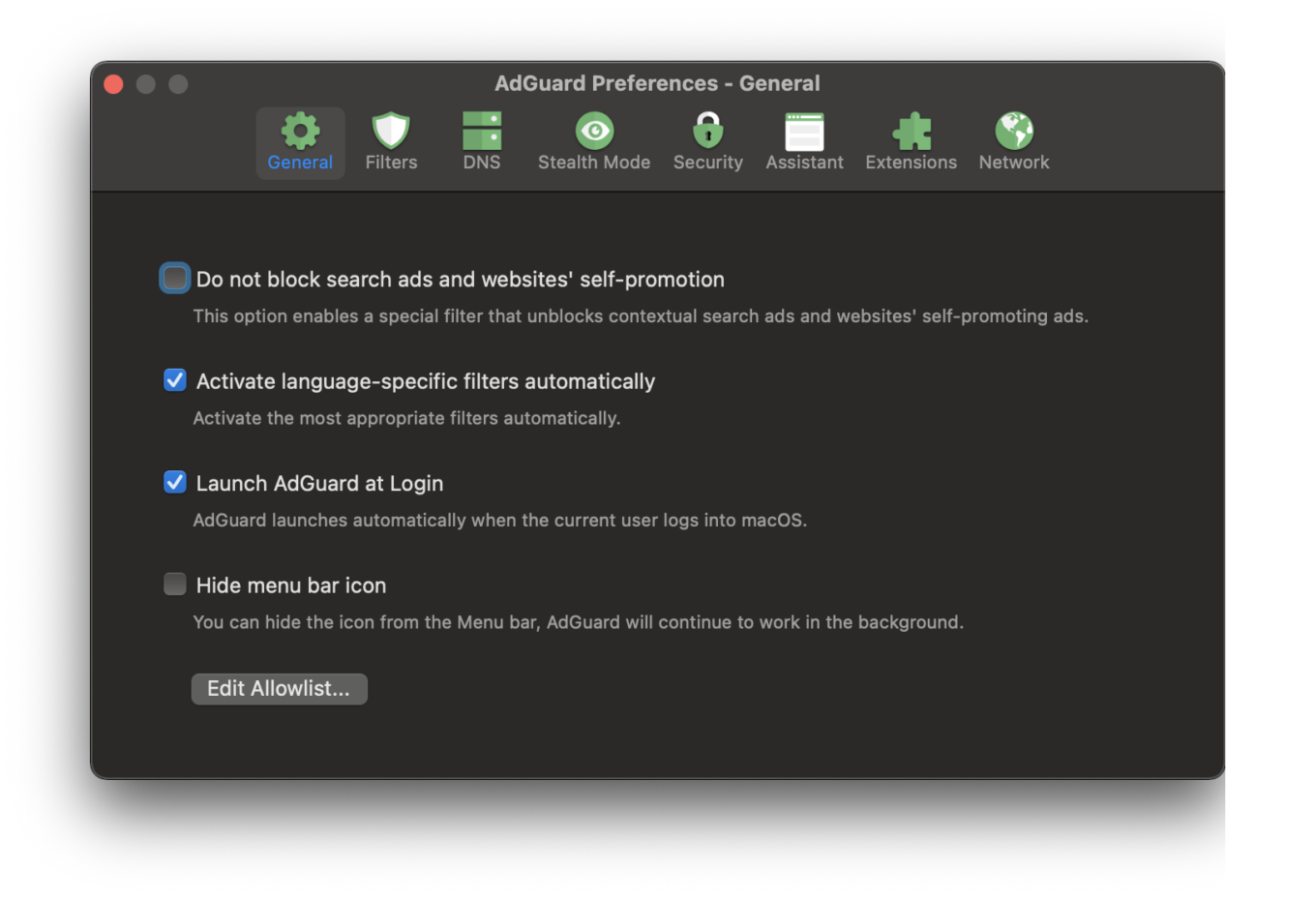
General Preferences window
A window will open with General preferences. Here you can activate such features as automatic language-specific filtering of web pages — that way you won't have to go and manually choose all the filters, saving yourself some time. You can also activate the automatic launch of AdGuard upon start-up. The third option available here will be useful to online shoppers: instead of whitelisting all your favourite e-shops and sites, you can simply exclude self-promos and search ads from filtering. AdGuard will automatically detect those and let them be, while ruthlessly zapping everything else ad-like.
From this same window you can access the abovementioned Whitelist, to which you can add websites you do NOT wish AdGuard to filter. Just tap the corresponding button located at the bottom of the window.
Filters
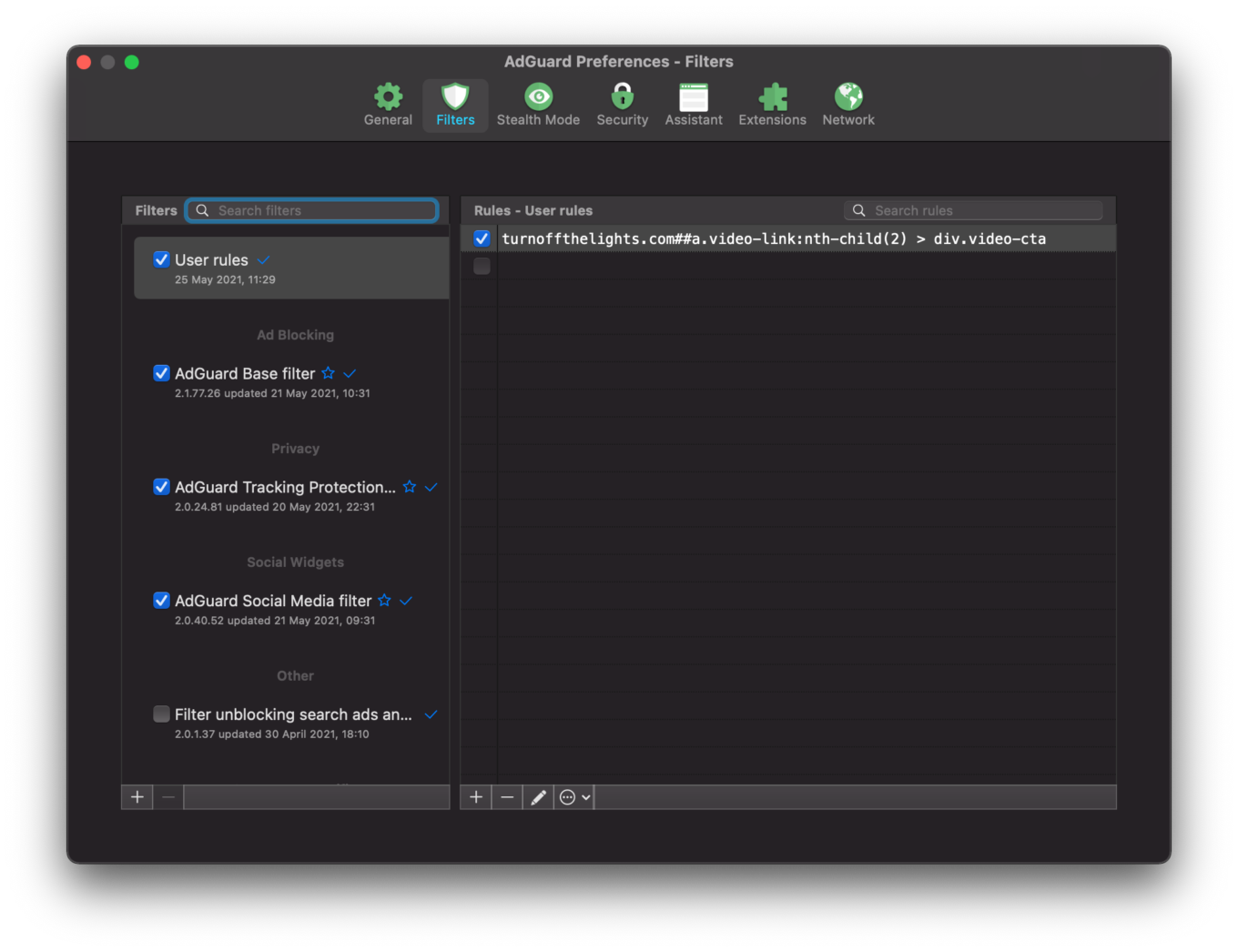
Filters tab
Next we have Filters panel. Filters are the main driving force behind the Ad blocker module, AdGuard’s energy source, if you will. Looking through our big comprehensive article will help in understanding how this process is done. But in essence, filter lists are sets of rules written in a special language — and your ad blocker is an interpreter of these rules who then implements them. And as a result you stop seeing ads on your webpages and life gets lots better.
Some filter lists (AdGuard’s Base filter, Annoyances filter, EasyList etc) are pre-installed, while other specific ones, adapted to your preferences, can be downloaded additionally and added to your program.
Aside from the more general and universally-applicable filters (like Base filter), AdGuard provides an extensive quantity of filters for every occasion. There are filters aimed solely at tracking (like Tracking Protection filter), language-specific ad filters that block content in a select language, Social media filter (bye-bye, “like” buttons), Annoyances filter for cookie warnings, in-page pop-ups and others of the same ilk, and even a filter that unblocks some ads instead of blocking them — Filter for search ads and self-promotions.
Filters receive automatic updates from AdGuard servers. Our specialists create them all manually based on user feedback received. You can always help other AdGuard users (and yourself, in perspective) by sending us reports right from the app's Assistant (it's really handy, we'll tell you more about the Assistant further on), or from the website. If you wish to know more about filters, here is some info.
User rules
User rules
Another vital part of the Ad Blocker module are its User rules (formerly known as user filter). If you have some experience in coding, and wish to create your own rules that would be a better custom fit than the standard filters already available, then you can try your hand at this. The syntax AdGuard uses for its filtering rules is based on that of any other ad blocking extension, but with considerable additions, extending its possibilities. The whole process of rule-writing in all its nuances is described in these comprehensive instructions, so if you want to write some custom rules and check how much of a coder you are, just follow the steps we described here.
Stealth Mode
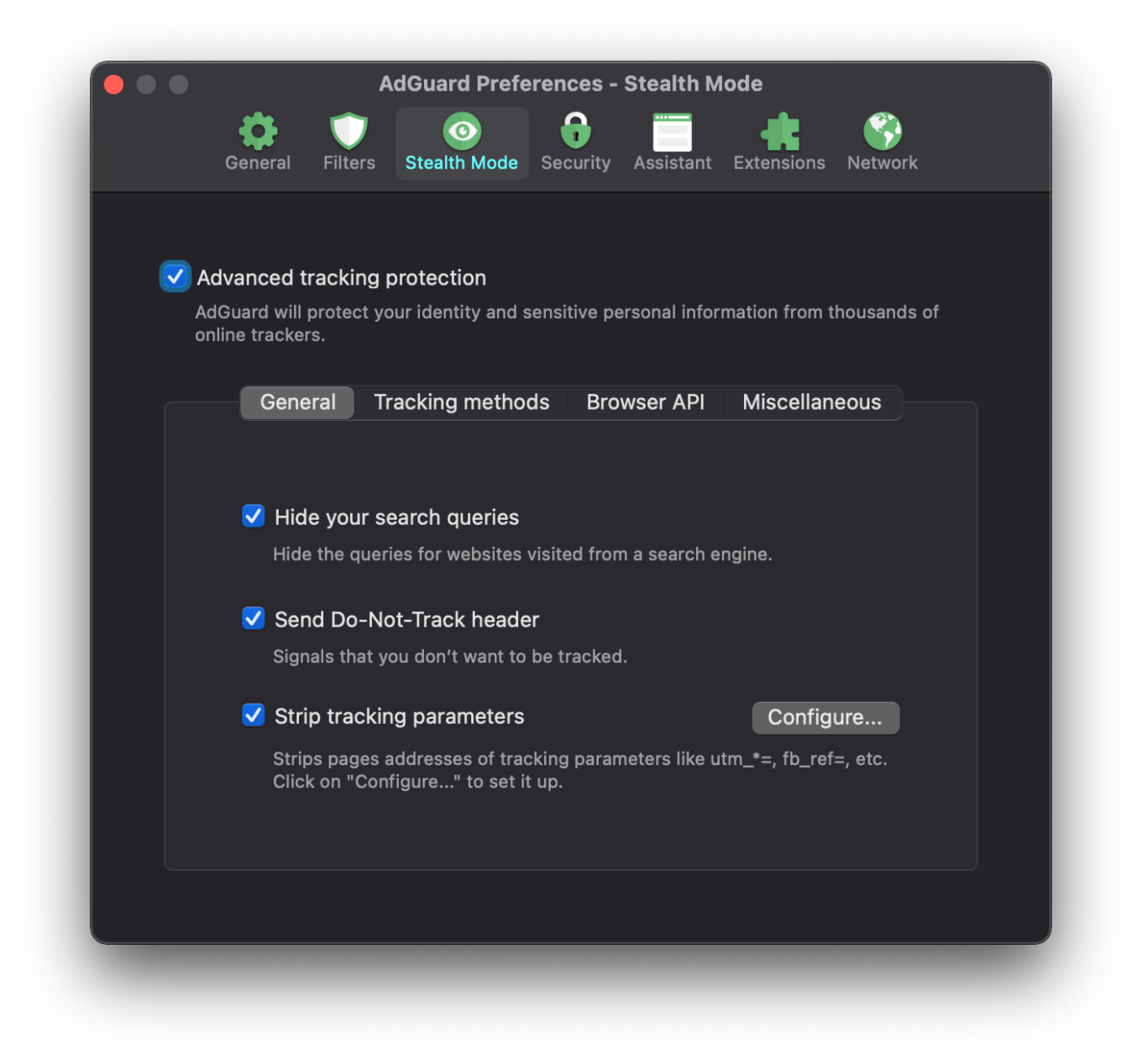
Next panel of the menu shows Stealth Mode. This module is a very useful tool that will help you maintain your privacy from websites that try to retain such info about you as your IP address, computer parameters, browser settings and even the initial page from which you were redirected, not to mention cart contents if we speak of web stores. If this list of info potentially to be shared with shady third parties doesn't make you think twice, then might we add that in most cases they will also get such (quite private) data as your age, yearly income, medical history, physical adress and your kids' names. Eliminating such things as unwanted cookies or clandestine insertion of tracking parameters into your browser is what Stealth Mode does best.
Stealth Mode contains a wide range of options, which ensure its flexible configuration. They are divided into several categories, and for an unprepared user many of them will seem confusing and maybe even complicated. We provided each option with a hint to make up for the deficiency — hints appear when you hover over the icon with a question mark. If you still wish to know more about the whole concept, we encourage you to proceed to this Knowledge Base article like a true privacy geek probably would.
Browsing Security
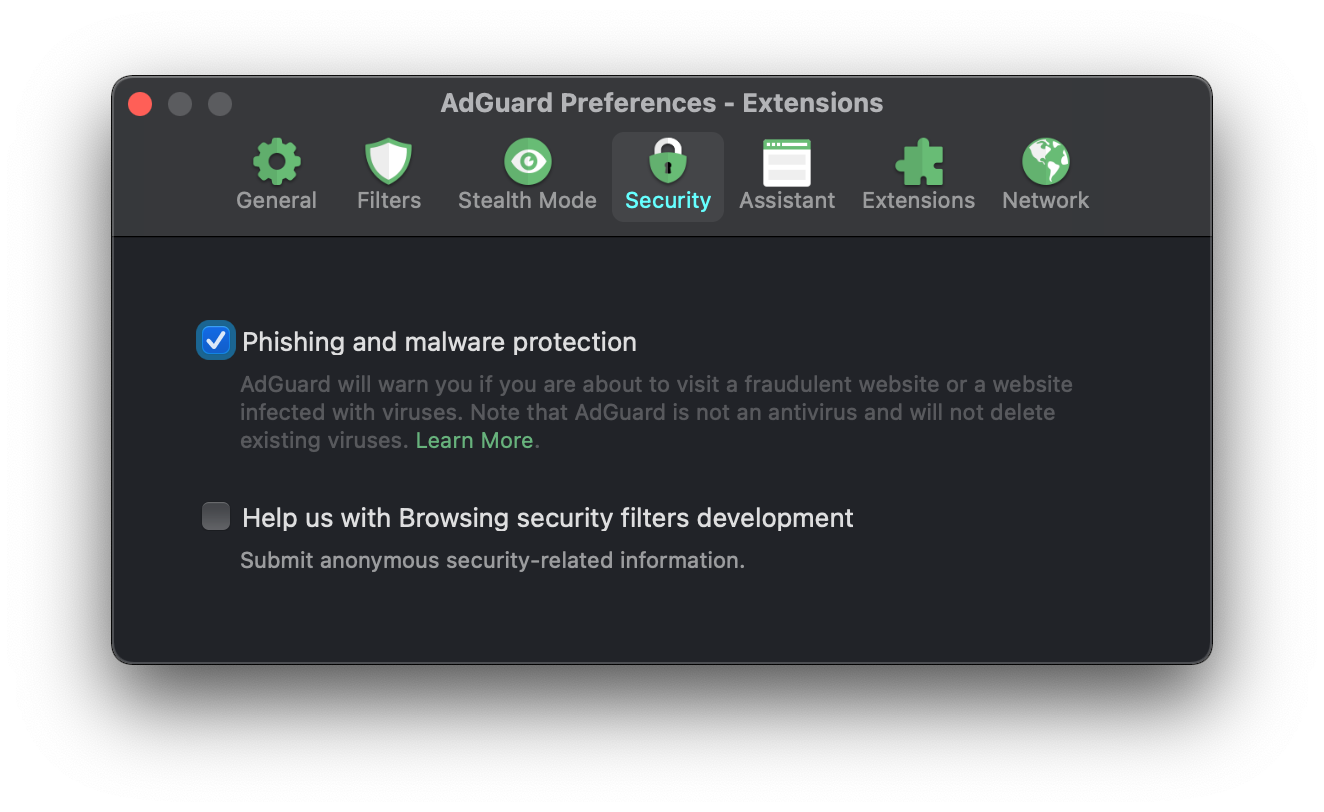
Browsing Security panel
Next we have the Security panel, where a module also known as Browsing Security is located. What it does is protection from malware and phishing websites. In essence, it is designed not to let you install malware and protect you from web frauds such as the infamous phishing. And, as always, we can't omit the warning that AdGuard is not an antivirus, but an entirely different program. It will show you a warning if you are about to go onto an infected domain, but cannot otherwise stop you from downloading anything suspicious.
Phishing is a very common web fraud aimed at stealing personal data (passwords, bank account details, etc.). It is carried out using fake web pages mimicking popular websites or real services, such as web stores or social networks. Many phishing websites have URLs that only differ from the real ones in just a few symbols to put you off your guard. If a user enters their details on such a website, they’ll definitely end up in the wrong hands.
Browsing Security gives strong protection against such incidents. At the same time, the user’s personal information is not transferred anywhere, and AdGuard servers do not know which websites the user is visiting, because the security check is not performed via open web address (URL) but through hash prefixes (hash is a certain data structure that renders each address added to the base unambiguous).
Some web pages are not malicious themselves, but they may contain elements built into their structure by other websites. Unlike browser plug-ins, Browsing Security module checks each object built into any web page, ensuring maximum protection.
If you wish to help us in perfecting this module, you can check the lower box on the panel near the “Help us with Browsing Security filters development” phrase. This will enable your computer to send us pertinent info on fraudulent websites you might stumble upon while surfing the web — and our developers will make sure they end up locked at the bottom of your ban list.
Extensions
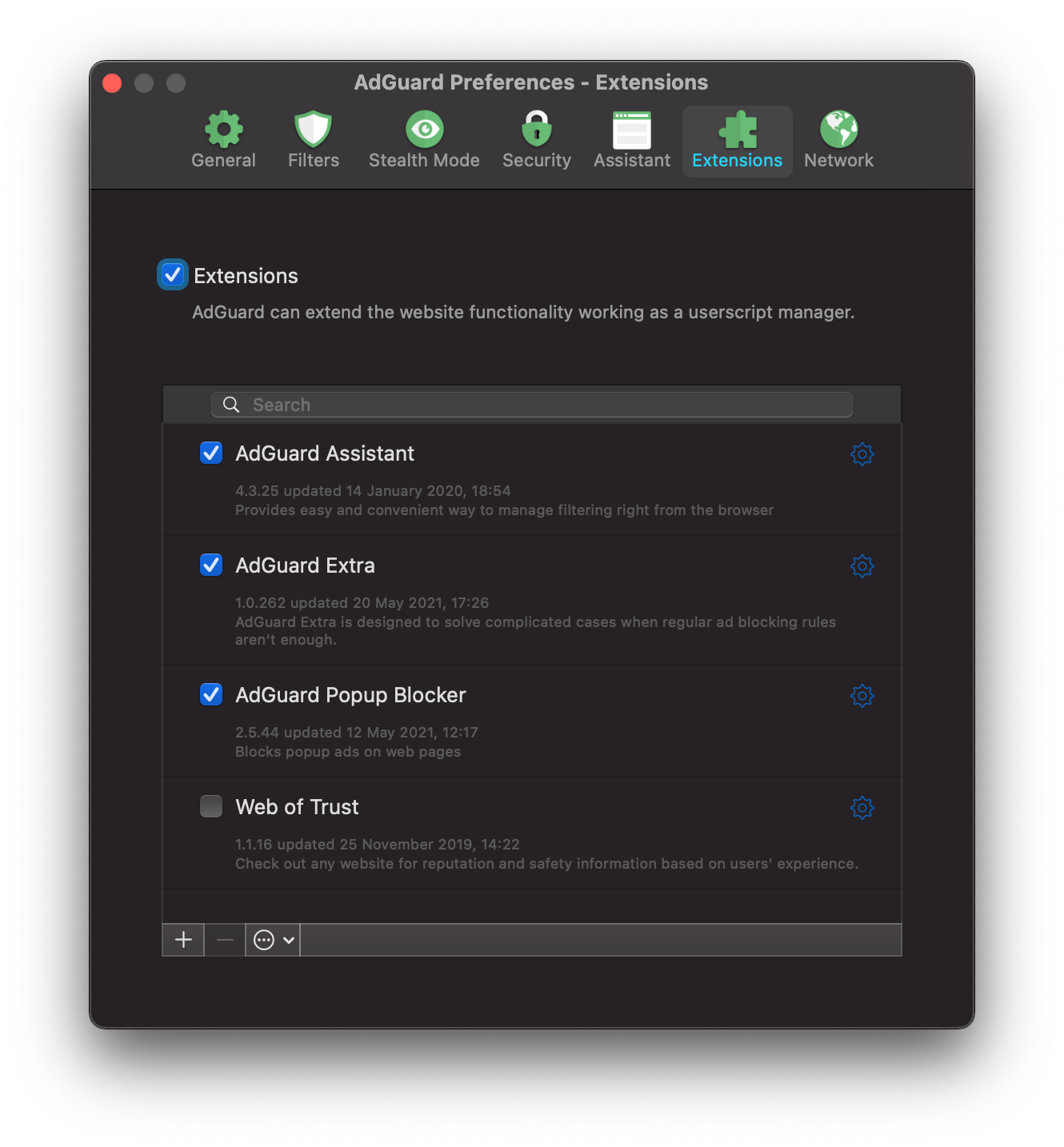
Extensions panel
First things first: extensions are small programs that do exactly what their name implies — they extend functionality. And AdGuard uses several extensions of its own, also called userscripts, to broaden its functions range:
1. AdGuard Assistant
The name of this extension is deliberate: it assists the user in changing basic AdGuard settings within the browser, without the need to open the app itself. AdGuard Assistant works with all macOS compatible browsers. Thanks to this little tool you can do several things without having to leave the browser: add a certain webpage to the “do not block” list, choose and block an especially annoying element of the page, report the website if it still manages to get ads through to you.
2. AdGuard Extra
This extension is used to solve the more complicated ad blocking cases you might encounter. We would recommend you to always keep it switched on, unless you have a serious reason not to.
3. AdGuard Popup Blocker
Prevents all these annoying popup windows from opening when you view webpages. Blocks popup ads on web pages.
One of the important features of AdGuard for Mac is that the application can work as a cross-browser userscript manager. You can easily add any scripts you like and manage existing ones without having to switch browsers every time.
And since we are talking about AdGuard Assistant, it will be wrong not to mention Integration mode. To keep it brief, Integration mode is a symbiosis of AdGuard’s browser extension and the full desktop program, if you have both of them installed on your computer. We have it nicely explained in a Knowledge Base article but nonetheless we should provide a very brief overview here too.
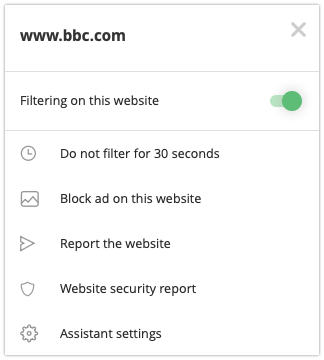
AdGuard Assistant: your options
In short, if you already have an AdGuard browser extension and then install the full desktop AdGuard program, the two of them will have to redistribute functions among themselves. The full AdGuard program takes the lead, which means that even with the extension in place and active, the full program settings will prevail anyhow. The browser extension takes on the role of AdGuard Assistant, letting you tweak some settings on the go and use the report feature. Clicking on the AdGuard extension icon in your browser window will open a dropdown menu, where you will be able to:
- disable filtering on said website
- disable filtering for 30 minutes
- block a certain ad on the website (you can select the area to block right there)
- report the website
- see the security report on this website
- adjust the settings of AdGuard Assistant
Lots of features, and all of them are accessible without having to leave the browser!
Network Filtering
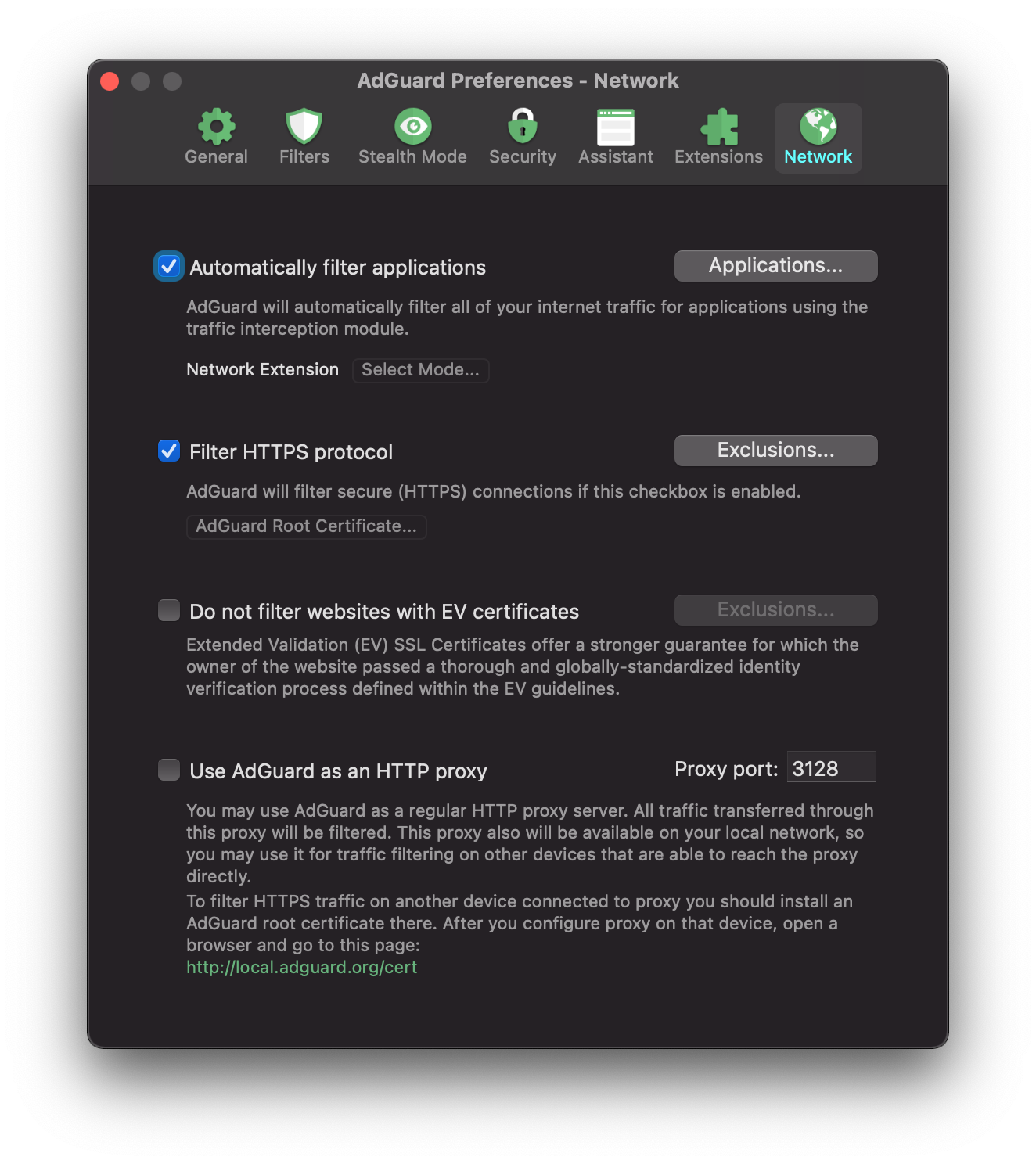
Network Filtering panel
This last panel is dedicated to Network filtering, and you will find extra functionalities here. We do recommend to enable HTTPS filtering and automatic filtering of applications. Those are very self-explanatory and are an important added precaution to better filter your web space.
There are also the options of "Do not filter websites with EV certificates" and "Use AdGuard as an HTTP Proxy".
They are both pretty self-explanatory, we will just precise that Extended Validation (EV) SSL Certificates offer a stronger safety guarantee; owners of such websites have to pass a thorough and globally standardised identity verification process defined by EV guidelines. Which is the reason why some users trust websites with such certificates and prefer not to filter them.
As for the second option — well, yes, in fact you can use AdGuard as a regular HTTP proxy server. All traffic coming through it will be filtered. This proxy will also be available on your local network, so you may use it for traffic filtering on other devices that are able to reach the proxy directly. To filter traffic on another device connected to proxy you will need to install an AdGuard root certificate there. After you configure proxy, open your browser and go to this page.
Others
There are other useful AdGuard options that shouldn't go unnoticed in this article, since they add much to user experience.
First, there's the License management tab which you can open from the dropdown main menu (the one that opens once you click on the gear icon on the upper right of the main window). From this tab you can see which license type you are using, check its status and validity period.
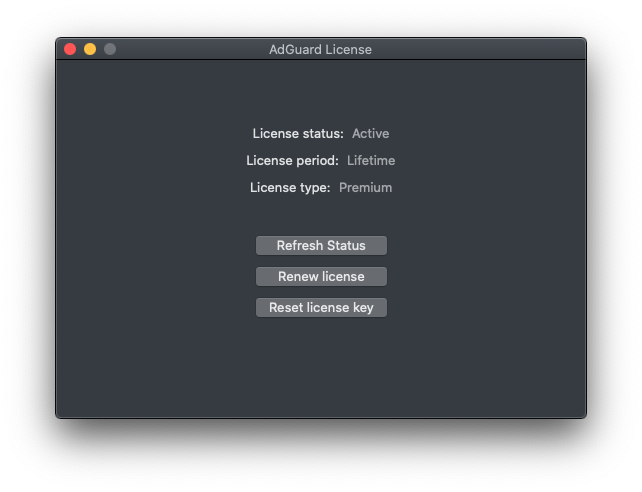
Manage your license
In this same tab you can refresh your license status, renew your license or reset the license key using the corresponding buttons.
Another "must-have" option that seems so evident but often gets overlooked would be the Support tool. Click on the gear in the upper right corner, select "Support", and you will be able to send a Bug Report, Feature request, or any other type of message to our Technical Support team. Be sure to add your real actual email though, because without it the message won't be sent.
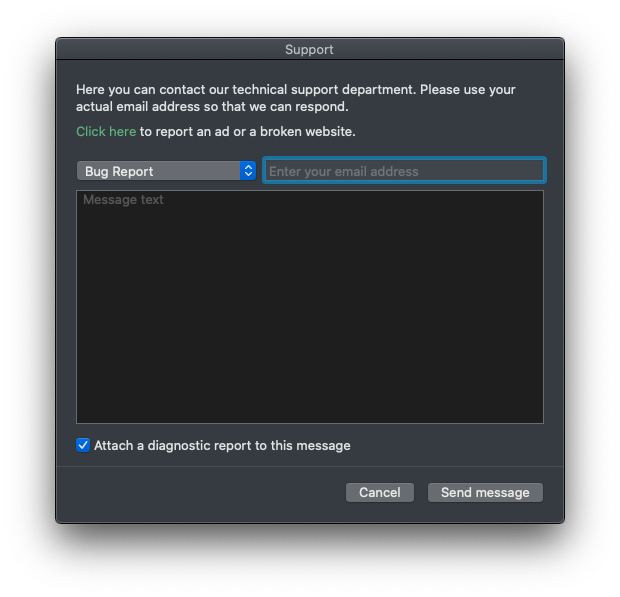
Contact Support right from the app
To report a missed ad or a broken website, please follow the link above the message window, we use a separate reporting tool for those types of issues.
It is possible to attach a diagnostic report to your message, you only need to check the box in the lower part of the tab.
And, last but not least — you can check for Filters updates and Program updates by simply clicking on the corresponding menu options in the dropdown menu (tap on the gear icon, and you'll see it).
Well, this is it then, everything you need to know about AdGuard for Mac. Hopefully, we have touched all the topics of popular demand — but if not, feel free to send us your thoughts and suggestions by email, via our social media accounts, or in the comments section below this article. Cheers!