Incognito mode is a sham: it makes you feel safe while failing to protect your data

What does it mean to “go incognito”? According to the authoritative Collins dictionary, it means “using a false name or wearing a disguise, in order to avoid being recognized or identified.”

Given that, it’s quite tempting and natural to think that when you open an “incognito” window in the Google Chrome browser, you’re doing just that: hiding your identity and sailing anonymously across the Web (all while donning a stylish fedora hat and those circular Windsor glasses).

A survey by the University of Chicago found that many people vastly overestimate the benefits offered by private browsing modes, even after reading the fine print in the disclaimers. For example, the majority of the respondents believed that their search history was not recorded by Google, even if they were logged in their Google account. While some 27 percent wrongly thought that private mode protects them against viruses and malware.

To dispel these and other misunderstandings about private modes, we will zero in on the most popular of them — Chrome’s incognito mode.

How it works and what it is used for

Let’s start with what Incognito mode can really do for you. In a nutshell, it hides your browsing habits from other users of the same PC, or laptop, or phone — or any device for that matter. In more technical terms, when you’re in incognito mode, neither your search nor your browsing history is stored locally on your device. So it can be quite useful if you are looking for a surprise gift for your partner with whom you happen to share a laptop or a tablet. And if that was what people actually used the mode for, we would have no problem with it.
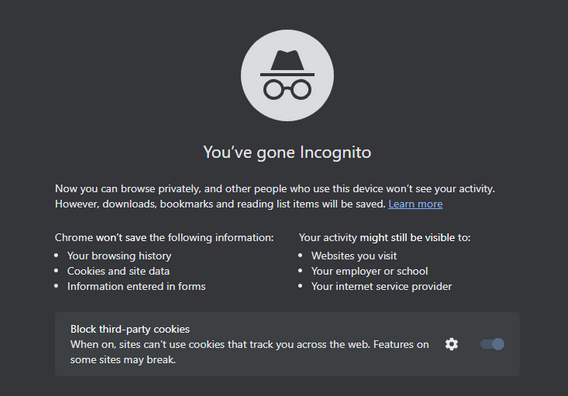
Chrome_Incognito_Mode

However, this is far from being the case. A February 2023 survey conducted in the UK showed that every second person who used private browsing or incognito mode primarily did it to protect their personal information from scammers and criminals. Around 40% would toggle it on in order to stop advertisers from tracking them across the Web.

While Chrome’s incognito mode blocks third-party cookies (tracking codes planted by the websites other than the one you’re visiting in your browser) by default, it still collects cookies and site data during the session. They are stored in a temporary folder and are not deleted at least until you close all incognito windows.

Moreover, a lawsuit filed against Google by the users of incognito mode in 2020 claims that Google “stores users’ regular and private browsing data in the same logs.” It then “uses those mixed logs to send users personalized ads,” and even if individual data points are “anonymized,” Google is able to “uniquely identify a user with a high probability of success” when these data points are pooled.

What Google admits about Incognito mode

Chrome’s incognito mode disclaimer states that your activity will still be visible to three parties: the websites you visit, your employer or school, and your internet service provider.

It means that the analytic tools of the websites you visit can still capture some data about your on-site activity. This data will be anonymized but only to a degree.
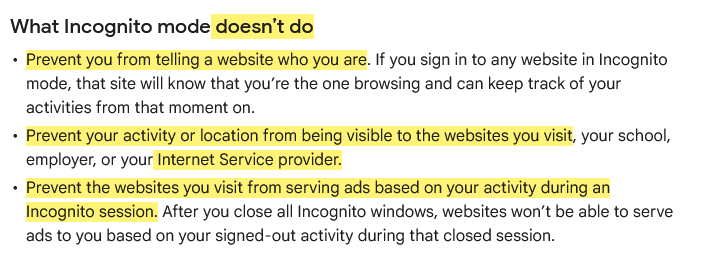
This is what Google says about Incognito mode

Source: Google

To give you the taste of browsing in an ‘incognito mode,’ we visited the CBC.ca website while using the AdGuard browser extension and took a screenshot of what it detected…
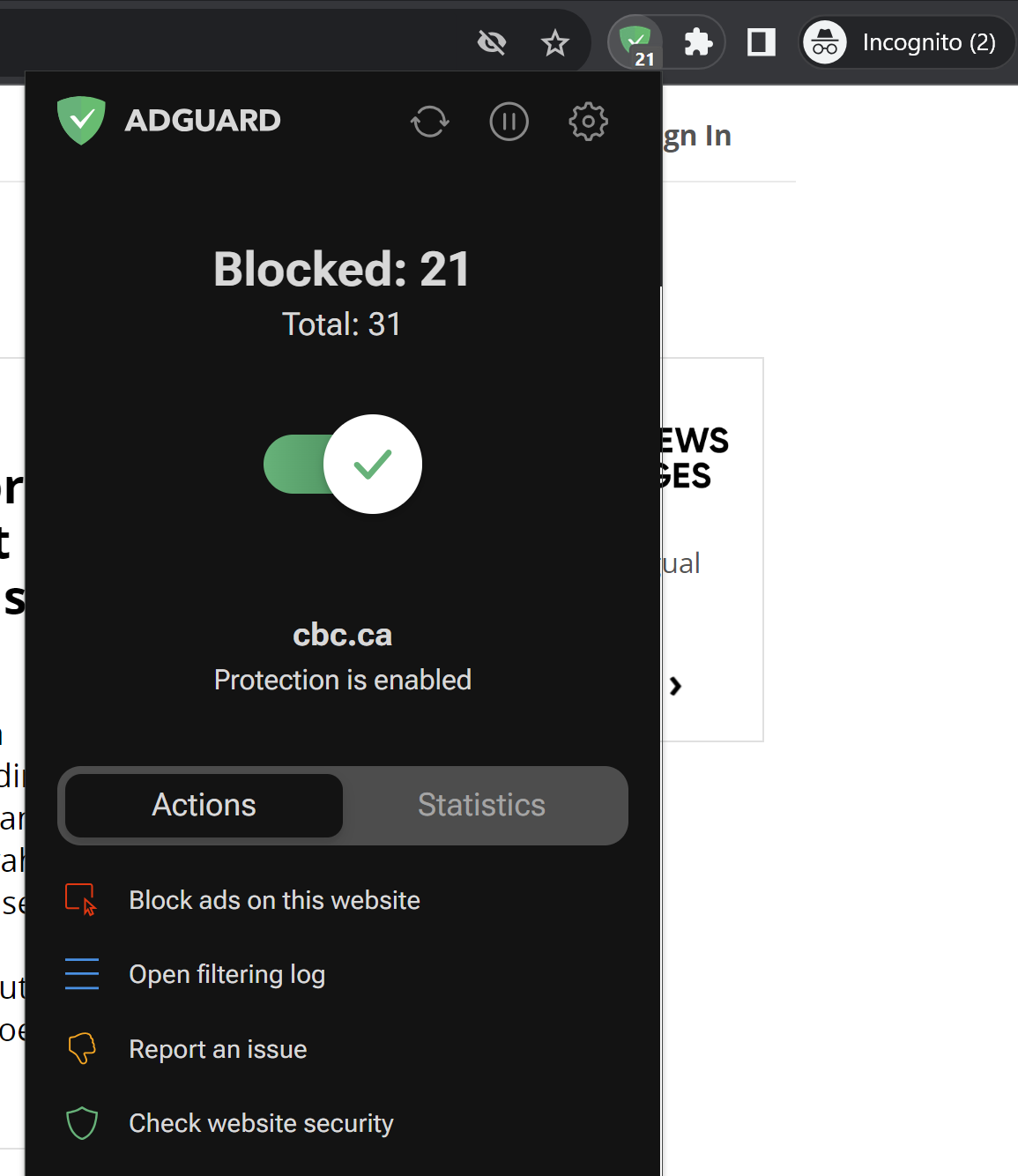
AdGuard Browser Extension has detected trackers in incognito mode

Note that we did not include third-party cookies in this test, because they are already blocked by default in Chrome’s incognito mode. But even without them, you can see how much tracking is going on behind the scenes. Almost every line you can see in the screenshot below is a failed attempt by a tracking tool to send some information about your online identity to a third party.
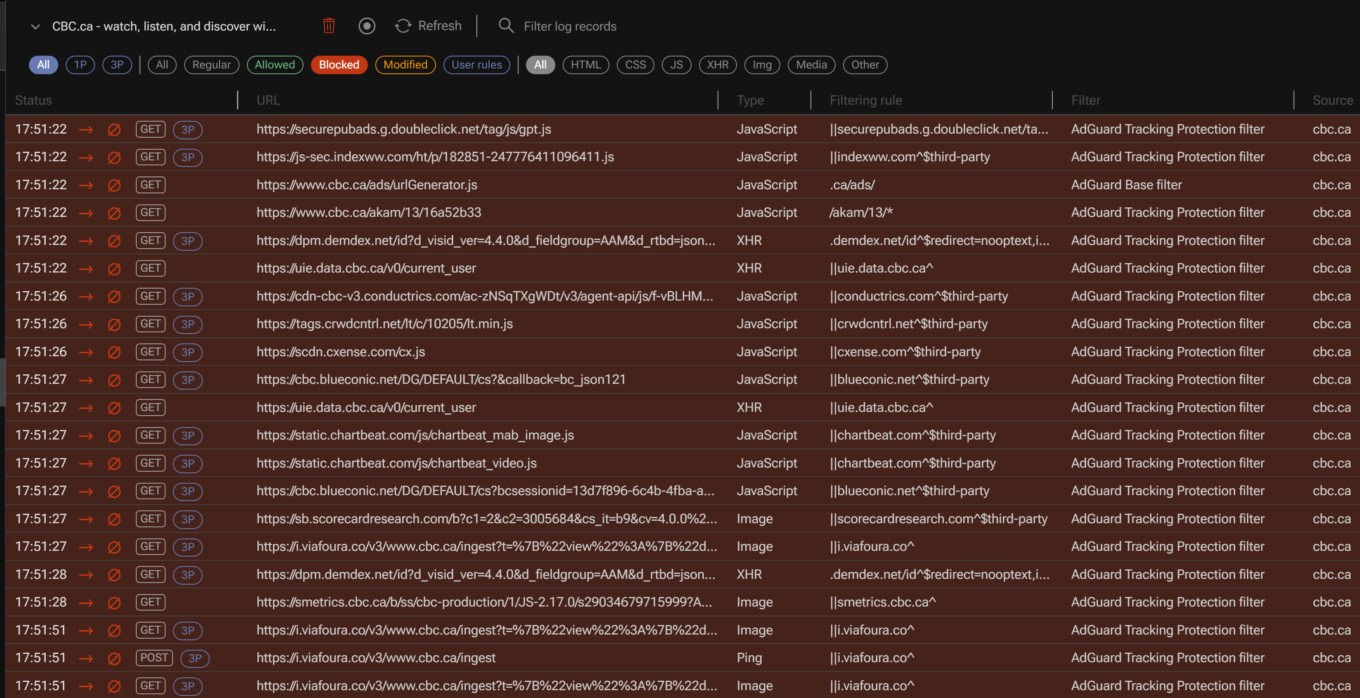
AdGuard filtering log

For example, one of such attempted requests was to Chartbeat, a provider of real-time website analytics. Chartbeat helps websites monitor their traffic, user engagement, and other important metrics. The request URL contains a tracking pixel (a tiny image embedded in web pages that is used to track user activity) and various parameters that send data to Chartbeat, such as host name, page URL, user ID, device type, screen resolution, and more.
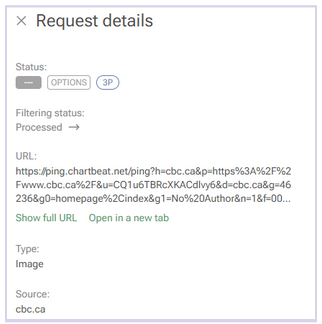
A request to a tracking company detected by AdGuard

Websites will be able to use this data to serve you ads during the session.

Incognito mode also does not hide your browsing activity from your IT department or your school network administrators, if you are using a work or a school network. In short, if you’re not the administrator of the network — for example, if you’re browsing the web using the Wi-Fi in a coffee shop — then you should consider your online activity to be out in the open, incognito mode or not.

In the same vein, regardless of whether you’re using incognito mode, your Internet Service Provider (ISP) will still be able to trace your IP address and see your activity.

And if you sign in to the site with your password and login, the little protection that incognito mode gives you from trackers will naturally be gone. “The site will know that you’re the one browsing and can keep track of your activities from that moment on,”Google says. So, if you sign in on YouTube, for example, while in incognito mode, it will record your activity and serve you recommendations based on it.

It’s probably even worse than that

There are things Google tells users about incognito mode — like the fact that it only helps keep your browsing history private from your partner or child — but there are some things it does not tell. The 2020 class-action lawsuit, that we’ve already mentioned, purports to reveal some of these things.

Remember that disclaimer that appears when you open an incognito mode window? Well, it does mention that third-party websites, your employer, and your school could see what you’re doing online. However, there is one important party that is not mentioned in the disclaimer: Google itself.

An excerpt from the lawsuit challenging incognito mode

Source: Lawsuit

According to the lawsuit, Google tracks and collects data from users even when they are in incognito mode. The plaintiffs claim that Google uses various methods to intercept and monitor users’ browsing data without their consent. The lawsuit explains how this works: “Whenever a user visits a website that is running Google Analytics, Ad Manager, or some similar Google service, Google’s software directs the user’s browser to send a separate communication to Google. This happens even when users are in private browsing mode, unbeknownst to website developers or the users themselves.”

The grand illusion of incognito mode

Incognito mode is like the emperor’s new clothes: it creates a false sense of security where there is none. In fact, its application is so narrow that you might be better off without it. If you want to clear your browsing history, cookies, and site data for a certain time period, there are other tools you can use. In Chrome, you can do this by selecting More Tools → Clear Browsing Data on the desktop version, or Settings → Privacy and security → Clear browsing data on the mobile version.
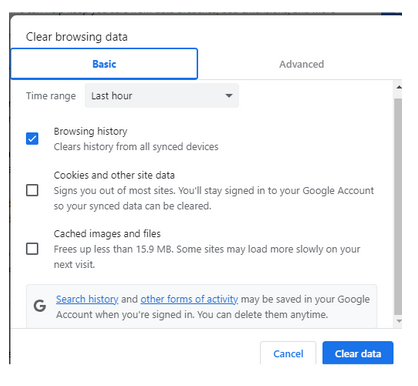
Google privacy controls allow to clear browsing history

However, if you want to truly protect your privacy and anonymity online, there are other, far better ways to do so.

One of them is using a VPN (Virtual Private Network), which is a service that encrypts your internet traffic and routes it through a remote server. This way, you can hide your IP address and location from your ISP, websites and third parties. There are many VPN providers available, but you should choose one that has a good reputation, a no-logs policy, and strong encryption. Generally, a VPN should not slow down your connection a lot, but it might be something you have to come to terms with in exchange for improved privacy.

Another way to go private online is using the Tor browser, which is a free software that allows you to browse the web anonymously. Tor works by bouncing your traffic through a network of volunteer nodes, called relays, that make it hard to trace your identity and location. Tor, however, has some drawbacks as well, such as (sometimes extremely) slow speed and serious compatibility issues.

Using a reliable ad blocker for Chrome will also go a long way in ensuring your browsing stays private. Almost every single one of them blocks trackers and not just ads; not to mention that the vast majority of ads serve as tracking tools, too.

When there are so many tools available to you to protect your privacy and keep your data private, there’s just no reason to resort to incognito mode… unless, of course, you’re looking for that gift for your SO.


Tetszett ez a bejegyzés?
AdGuard VPN AdGuard DNS AdGuard Mail AdGuard Wallet
Az AdGuard for Windows főképernyője
Az AdGuard for Windows Védelem képernyője, amely a védelem funkcióit és beállításait mutatja
Az AdGuard for Windows Statisztikák képernyője, amely a letiltott hirdetések és nyomkövetők statisztikáit mutatja
Az AdGuard for Windows Alkalmazáskezelés képernyője, amely az eszközre telepített alkalmazások védelemkezelési beállításait mutatja
20 409 20409 értékelések
Kiváló!

AdGuard: hirdetésblokkoló Windowshoz

Az AdGuard Windowsra több mint egy reklámblokkoló. Ez egy többcélú eszköz, amely blokkolja a hirdetéseket, szabályozza a hozzáférést a veszélyes webhelyekhez, felgyorsítja az oldalak betöltését, és megvédi a gyermekeket a nem megfelelő tartalmaktól

A program letöltésével elfogadja a licencszerződés feltételeit
Microsoft Store
A program letöltésével elfogadja a licencszerződés feltételeit
AdGuard Windowsra v8.0, 14-napos próbaidőszak
Az AdGuard for Mac főképernyője
Az AdGuard Mac-hez Lopakodó mód képernyője
20 409 20409 értékelések
Kiváló!

AdGuard: hirdetésblokkoló Mac-hez

Az AdGuard for Mac egy egyedi reklámblokkoló, amelyet kifejezetten a macOS-hez terveztek. Amellett, hogy megvéd a zavaró hirdetésektől a böngészőkben és az alkalmazásokban, védelmet nyújt a követés, az adathalászat és a csalás ellen
A program letöltésével elfogadja a licencszerződés feltételeit
Olvasson tovább
AdGuard Macre v2.19, 14-napos próbaidőszak
Az AdGuard for Android főképernyője
Az AdGuard for Android Követés elleni védelem képernyője
Az AdGuard for Android Alkalmazáskezelés képernyője, amely az eszközre telepített alkalmazások védelemkezelési beállításait mutatja
Az AdGuard for Android Statisztikák képernyője, amely a letiltott hirdetések és nyomkövetők statisztikáit mutatja
Az AdGuard privát böngészőjének főképernyője Androidon
QR-kód az AdGuard for Android letöltéséhez
20 409 20409 értékelések
Kiváló!

AdGuard: hirdetésblokkoló Androidra

Blokkolja a hirdetéseket és a nyomkövetőket minden böngészőben, játékban és egyéb alkalmazásban. Védi a magánszféráját, és lehetővé teszi, hogy szabályozza, hogyan használják az alkalmazásai az Internetet. APK-n keresztül telepítve
A program letöltésével elfogadja a licencszerződés feltételeit
Olvasson tovább
Letöltésre szolgáló szkennelés
Használjon a készüléken elérhető QR-kódolvasót
AdGuard Androidra v4.14, 14-napos próbaidőszak
Az AdGuard for iOS főképernyője
Az AdGuard for iOS Védelem képernyője, amely a védelem funkcióit és beállításait mutatja
Az AdGuard for iOS Statisztikák képernyője, amely a letiltott hirdetések és nyomkövetők statisztikáit mutatja
QR-kód az AdGuard for iOS letöltéséhez
20 409 20409 értékelések
Kiváló!

AdGuard: hirdetésblokkoló az iOS-hez

A legjobb iOS-es reklámblokkoló iPhone-hoz és iPadhez. Az AdGuard mindenféle hirdetést és követőt eltávolít a Safariban, és DNS-szinten védi az adatvédelmedet az összes alkalmazásban
A program letöltésével elfogadja a licencszerződés feltételeit
Olvasson tovább
Letöltésre szolgáló szkennelés
Használjon a készüléken elérhető QR-kódolvasót
AdGuard iOS-re v4.5
Az AdGuard Content Blocker főképernyője
Az AdGuard Content Blocker Szűrők képernyője
Az AdGuard Content Blocker Beállítások képernyője
20 409 20409 értékelések
Kiváló!

AdGuard Tartalomblokkoló

Az AdGuard Content Blocker kiküszöböli a mobilböngészők minden olyan hirdetését, amely támogatja a tartalomblokkoló technológiát — nevezetesen a Samsung Internet és a Yandex böngésző. Funkciói korlátozottak az AdGuard for Androidhoz képest, de ingyenes, könnyen telepíthető és hatékony
A program letöltésével elfogadja a licencszerződés feltételeit
Olvasson tovább
AdGuard Tartalomblokkoló v2.8
Az AdGuard Browser Extension főképernyője
Az AdGuard Browser Extension Követés elleni védelem képernyője
20 409 20409 értékelések
Kiváló!

AdGuard Böngészőkiegészítő

Az AdGuard a leggyorsabb és a legkönnyedebb hirdetésblokkoló bővítmény, amely hatékonyan blokkolja az összes hirdetéstípust az bármelyik weboldalon! Válassza az AdGuard lehetőséget az Ön által használt böngészőhöz, hogy hirdetésektől mentesen, gyorsan és biztonságosan böngészhessen.
Telepítés
A program letöltésével elfogadja a licencszerződés feltételeit
Telepítés
A program letöltésével elfogadja a licencszerződés feltételeit
Telepítés
A program letöltésével elfogadja a licencszerződés feltételeit
Telepítés
A program letöltésével elfogadja a licencszerződés feltételeit
Telepítés
A program letöltésével elfogadja a licencszerződés feltételeit
Olvasson tovább
AdGuard Böngészőkiegészítő v5.5
Az AdGuard Assistant főképernyője
20 409 20409 értékelések
Kiváló!

AdGuard Asszisztens

A [AdGuard asztali alkalmazások] böngészőbővítménye(https://adguard.com/products.html?_plc=hu). Lehetővé teszi a webhelyek egyéni elemeinek blokkolását, webhelyek hozzáadását az engedélyezési listához, és jelentések küldését közvetlenül a böngészőből
AdGuard Asszisztens v1.4
20 409 20409 értékelések
Kiváló!

AdGuard Home

Az AdGuard Home egy hálózati alapú megoldás a hirdetések és nyomkövetők blokkolására. Telepítse egyszer az útválasztóra, hogy lefedje az otthoni hálózat összes eszközét – nincs szükség további kliensszoftverre. Ez különösen fontos a különféle IoT-eszközök esetében, amelyek gyakran veszélyt jelentenek az Ön magánéletére
AdGuard Home v0.107
Az AdGuard Pro for iOS főképernyője
Az AdGuard Pro for iOS Védelem képernyője, amely a védelem funkcióit és beállításait mutatja
Az AdGuard Pro for iOS Statisztikák képernyője, amely a letiltott hirdetések és nyomkövetők statisztikáit mutatja
20 409 20409 értékelések
Kiváló!

AdGuard Pro iOS-re

Az AdGuard Pro iOS-hez verziója minden fejlett hirdetésblokkoló védelmi funkcióval rendelkezik. Ugyanazokat az eszközöket kínálja, mint az AdGuard iOS fizetős verziója. Kiválóan blokkolja a hirdetéseket a Safariban, és lehetővé teszi a DNS-beállítások testreszabását a védelem személyre szabásához. Blokkolja a hirdetéseket a böngészőkben és alkalmazásokban, megvédi gyermekeit a nem megfelelő tartalmaktól, és biztonságban tartja személyes adatait.
A program letöltésével elfogadja a licencszerződés feltételeit
Olvasson tovább
AdGuard Pro iOS-re v4.5
Az AdGuard Mini for Mac főképernyője
Az AdGuard Mini for Mac Safari védelem képernyője
Az AdGuard Mini for Mac Szabály létrehozása képernyője
20 409 20409 értékelések
Kiváló!

AdGuard Mini Mac-hez — Safari hirdetésblokkoló

Az AdGuard Mini Mac-re egy hatékony Safari hirdetésblokkoló. Ez a könnyű alkalmazás eltávolítja a hirdetéseket, blokkolja a nyomkövetőket, és felgyorsítja az oldalak betöltését. Segít zavaró tényezők nélkül böngészni a webet Safariban, és megőrzi az adataid privát jellegét
AdGuard Mini Mac-hez v2.3
Az AdGuard for Android TV főképernyője engedélyezett védelemmel
Az AdGuard for Android TV hirdetésblokkolás képernyője, amely a funkciókat és beállításokat mutatja
Az AdGuard for Android TV Beállítások képernyője
Az AdGuard for Android TV Alkalmazáskezelés képernyője, amely azokat az alkalmazásokat mutatja, ahol a hirdetések és nyomkövetők le vannak tiltva
20 409 20409 értékelések
Kiváló!

AdGuard Android TV-hez

Az Android TV-hez készült AdGuard az egyetlen alkalmazás, amely blokkolja a hirdetéseket, védi az Ön adatait, és tűzfalként működik a Smart TV-ben. Figyelmeztetéseket kaphat a webes fenyegetésekről, használjon biztonságos DNS-t, és élvezze a titkosított forgalom előnyeit. Pihenjen, és merüljön el kedvenc műsoraiban a csúcsminőségű biztonság és  zero  hirdetés!
AdGuard Android TV-hez v4.14, 14-napos próbaidőszak
Az AdGuard kabalája, Agnar, aki a Linux pingvint tartja
20 409 20409 értékelések
Kiváló!

AdGuard Linuxhoz

Az AdGuard for Linux a világ első rendszerszintű Linux-hirdetésblokkolója. Blokkolja a hirdetéseket és a nyomkövetőket eszközszinten, válasszon az előre telepített szűrők közül, vagy adja hozzá sajátját – mindezt a parancssori felületen keresztül
AdGuard Linuxhoz v1.4
20 409 20409 értékelések
Kiváló!

AdGuard Temp Mail

Ingyenes ideiglenes email címgenerátor, amely névtelenül tartja és védi magánéletét. Nincs spam a fő postaládájában!
20 409 20409 értékelések
Kiváló!

AdGuard VPN

75 végpont világszerte

Hozzáférés bármilyen tartalomhoz

Erős titkosítás

Nincs naplózás

Gyorsabb kapcsolódás

0-24 támogatás

20 409 20409 értékelések
Kiváló!

AdGuard DNS

Az AdGuard DNS egy bolondbiztos módszer az internetes hirdetések blokkolására, amely nem igényel alkalmazásokat. Könnyen használható, teljesen ingyenes, könnyen beállítható bármilyen eszközön, és csak minimálisan szükséges funkciókat biztosít a hirdetések, számlálók, rosszindulatú webhelyek és felnőtteknek szóló tartalmak blokkolásához.
20 409 20409 értékelések
Kiváló!

AdGuard Mail

Védje személyazonosságát, kerülje a kéretlen leveleket, és tartsa biztonságban postafiókját álneveinkkel és ideiglenes email címeinkkel. Élvezze ingyenes email továbbító szolgáltatásunk és alkalmazásaink előnyeit minden operációs rendszerre.
20 409 20409 értékelések
Kiváló!

AdGuard Wallet

Biztonságos és privát kriptopénztárca, amely teljes ellenőrzést biztosít eszközei felett. Kezeljen több pénztárcát, és fedezzen fel több ezer kriptovalutát tárolásra, küldésre és cserére
Az AdGuard letöltése megkezdődött Kattintson a nyíllal jelzett gombra a telepítés elindításához. Válassza a "Megnyitás" lehetőséget, és kattintson az "OK" gombra, majd várja meg a fájl letöltését. A megnyílt ablakban húzza az AdGuard ikont az "Alkalmazások" mappába. Köszönjük, hogy az AdGuardot választotta! Válassza a "Megnyitás" lehetőséget, és kattintson az "OK" gombra, majd várja meg a fájl letöltését. A megnyílt ablakban kattintson az "Telepítés" gombra. Köszönjük, hogy az AdGuardot választotta!
Telepítse az AdGuardot mobileszközökre is: