Top private web browsers and how to set them up for maximum protection: AdGuard guide
In the digital age, a privacy-friendly browser is your trusty sidekick — it guards your digital footprints against prying eyes and keeps pesky ads at bay. The problem is that all browser makers claim that their creations are the most secure, the most privacy-conscious, and the safest. Plus, when you’re trying to tinker with your browser’s settings to get the most out of them, it’s easy to get confused by too lenghty or too short feature descriptions and get lost in the panoply of “learn more” links.
To help you navigate the murky seas of seemingly endless browser choices and make the most of the privacy options available, we’ve picked our favorites and taken a look under their hood so you can configure them for maximum privacy.
Firefox
DuckDuckGo
Brave
Opera
Vivaldi
Tor
Safari
Firefox
Mozilla’s Firefox is one of the most popular not-for-profit alternatives to corporate heavyweights like Google’s Chrome and Microsoft’s Edge. With about 3% of the browser market, Firefox professes its commitment to privacy and security, and unlike some of its larger competitors, it puts its money where its mouth is. Firefox’s Standard Enhanced Tracking Protection setting blocks third-party tracking cookies, social media trackers, fingerprinters, and cryptominers by default. In addition, it blocks tracking content (trackers that are hidden in ads and other in-page content) in Private Windows. Firefox is built on the Quantum browser engine, which is compatible with a wide range of web standards and technologies. The added beneift is that Firefox is open-source. This is in contrast to Google Chrome, which, unlike Chromium, is not open source.
How to configure for maximum privacy
To configure Firefox for maximum privacy, follow these steps:
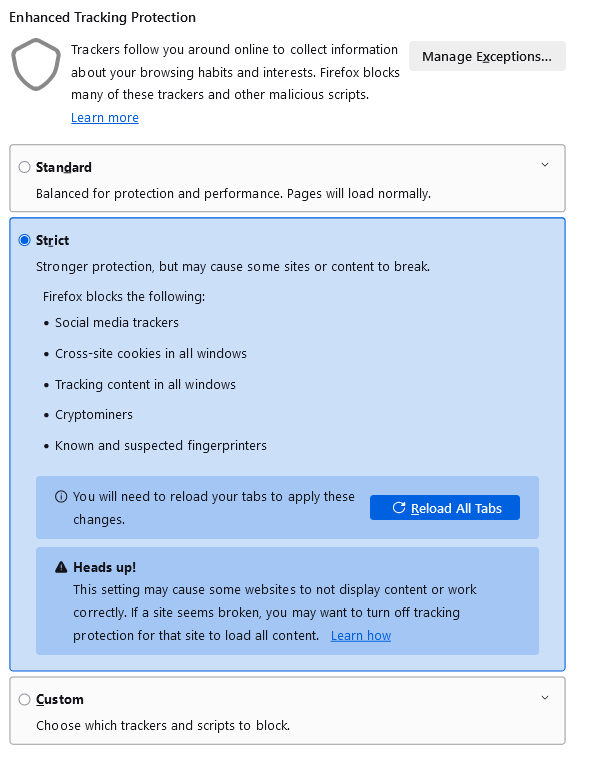
Go to Settings → Privacy & Security and set Enhanced Tracking Protection to “Strict” mode to block a wider range of trackers.
Still within Privacy & Security, enable the “Do Not Track” and “Global Privacy Control” signals to request websites not to track your browsing activity and sell your data.

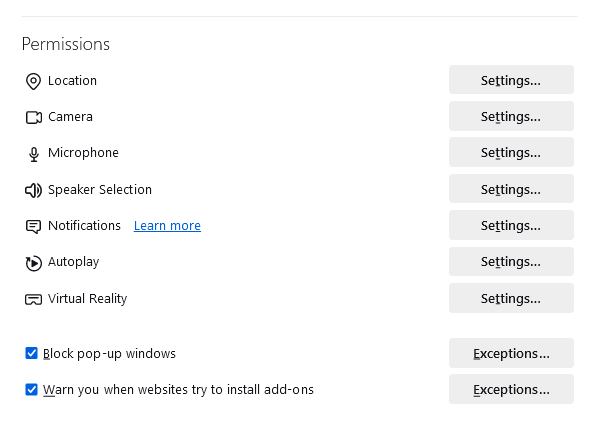
In the Privacy & Security settings adjust permissions for camera, microphone, and location, opting for stricter controls.
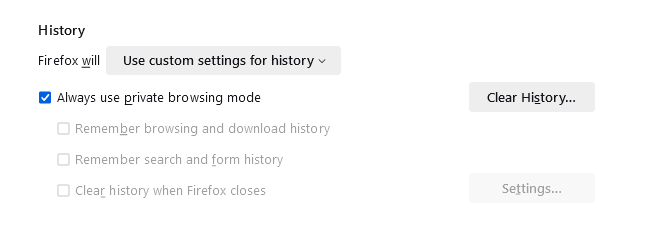
Use Private Browsing mode, which includes additional tracking protection and doesn’t save your browsing history.
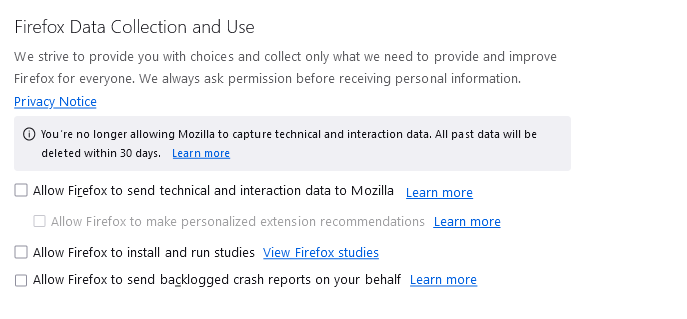
Disable Telemetry: opt out of sending technical and interaction data to Mozilla to further enhance your privacy.
Use Secure DNS, for example you can change your default DNS provider to AdGuard DNS. Enable DNS-over-HTTPS (DoH) to encrypt your DNS requests, preventing third parties from seeing what websites you visit.
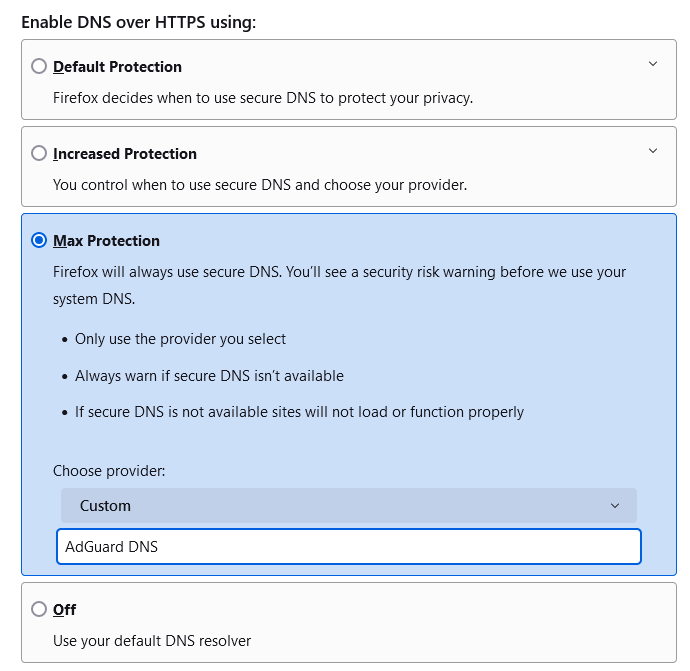
Strengths: Open-source, supports a wide range of web standards, implements strong privacy protections by default, such as Enhanced Tracking Protection (ETP), supports a vast library of privacy-preserving extensions, highly customizable.
Potential pitfalls: Firefox, although the largest of the more privacy-focused web browsers, still has a considerably smaller market share compared to Chrome, which means some developers are likely to prioritize Chrome compatibility over Firefox. As for privacy, some of the default Firefox settings may not be the most privacy-preserving, so a less tech-savvy user may be overwhelmed by the amount of options and not take advantage of them. It’s worth saying that Firefox also comes with Google Search as the default search engine, which carries privacy risks of its own.
DuckDuckGo
DuckDuckGo’s browser comes with the promise of “privacy by default.” Based on Chromium, it includes features like automatic cookie pop-up blocking, and a flame button, which lets you close all tabs and delete browsing data in one click. It also blocks most trackers before they load. In addition to that, it has built-in Email Protection, a free email forwarding service that removes many types of hidden email trackers. Its in-built Duck Player for YouTube allows users watching videos without the personalized ads served by Google. The desktop DuckDuckGo app is still in beta, so it will likely add more features.
How to configure for maximum privacy
To configure DuckDuckGo for maximum privacy:
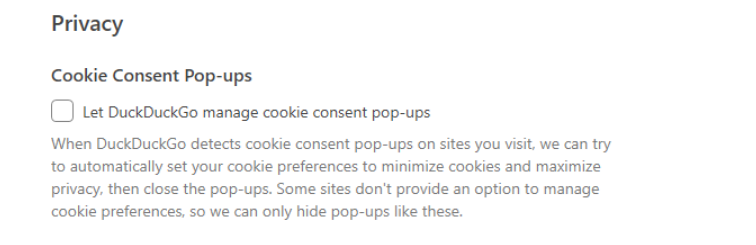
Let DuckDuckGo manage cookie consent pop-ups, so it can automatically set your cookie preferences to the minimum necessary for the site to function.
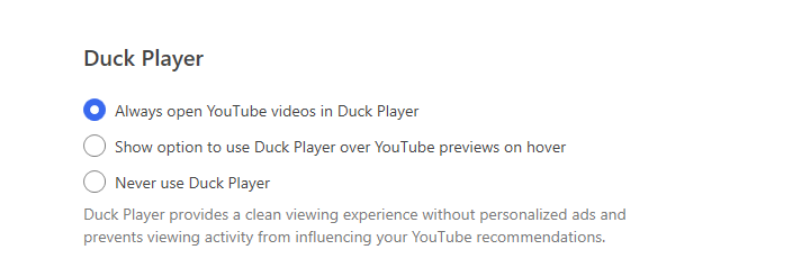
Select “Always open YouTube videos in Duck Player” so that you get a clean viewing experience without personalized ads.
Make frequent use of the Fire button to clear all tabs and browsing data quickly.

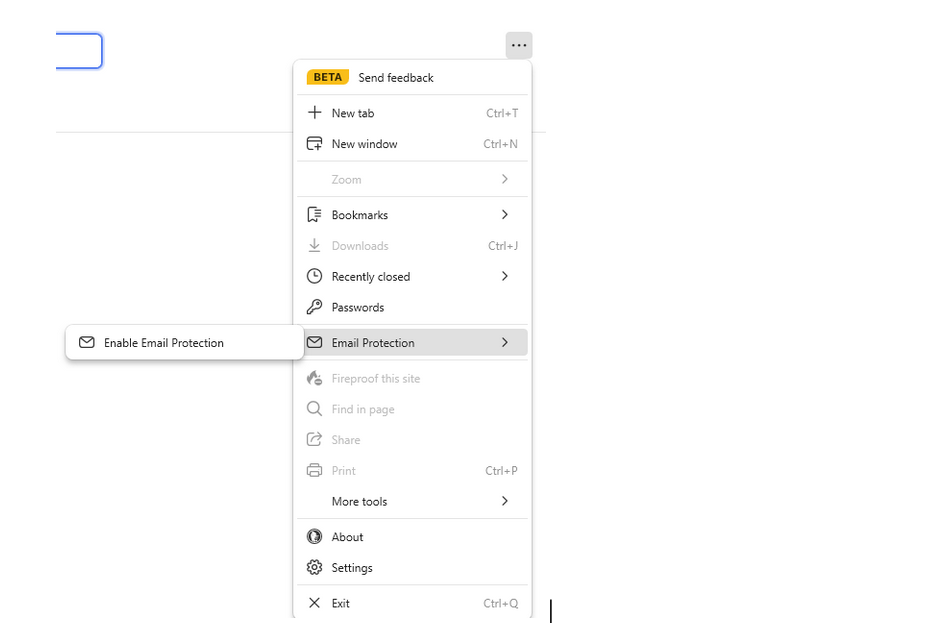
Enable email protection. This service will remove trackers from your emails before forwarding them to your regular inbox and allow you to create unique private email addresses for different websites.
Strengths: Does not profile users, uses its own privacy-focused DuckDuckGo search engine by default, allows you to watch YouTube without Google ads and tracking.
Potential pitfalls: As DuckDuckGo isn’t the most popular browser, it is possible to run into certain compatibility issues when using it. The more demanding users may find its functionality somewhat limited. DuckDuckGo also has an advertising deal with Microsoft, and prior to August 2022, this prevented DuckDuckGo from blocking Microsoft’s tracking scripts on third-party sites. Since then, DuckDuckGo has closed that loophole, and the current deal only covers ad serving and does not include user profiling. While the tracking deal is no longer in place, it may have left a bad taste in some people’s mouths.
Brave
Brave is yet another Chromium-based browser with a heavy focus on privacy, which includes ad blocking and protection from fingerprinting. Brave is distinguished from many other browsers by the plethora of privacy options it offers its users. It automatically blocks cross-site cookies, as well as most third-party ads and trackers in its Standard mode. Brave Shields, a core feature of the browser, offers further customization for blocking various elements on websites, such as cookies and fingerprinting scripts. As a bonus, Brave has its own privacy-focused search engine Brave as a default.
How to configure for maximum privacy
To configure Brave for maximum privacy:
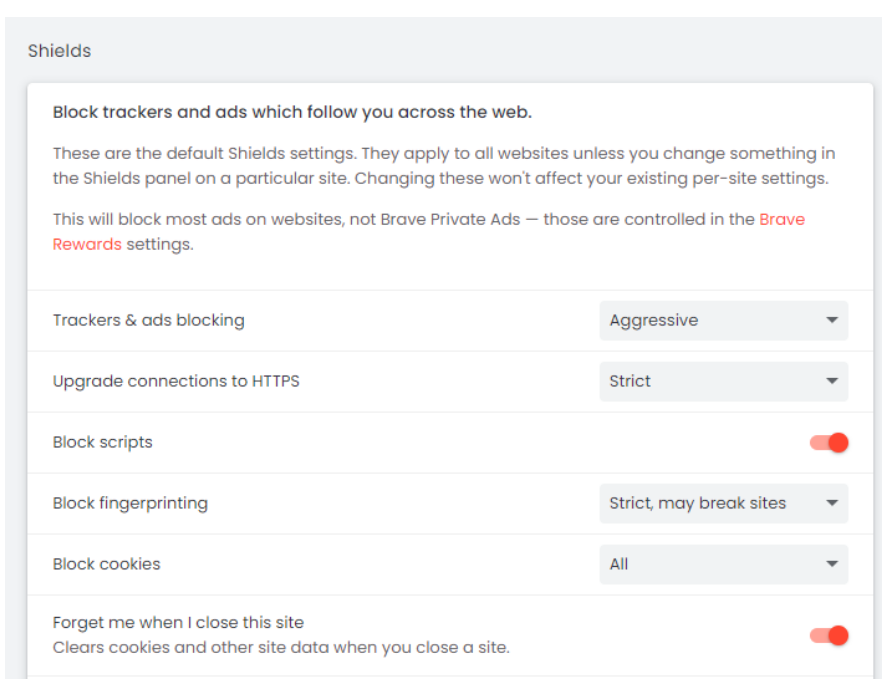
Go to Settings → Shields to enable all Brave Shields protections: this includes blocking all cookies, blocking all fingerprinting attempts, and setting the ad block to aggressive mode.
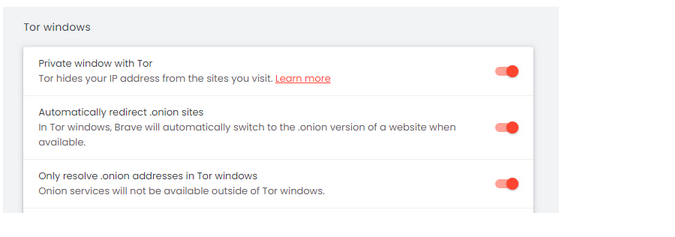
Use the Tor window for sensitive browsing: this provides an additional layer of anonymity by routing your browsing through the Tor network.
.png?mw=1360)
Make sure the Tor window is activated in the Privacy and security settings and all Tor settings are toggled on.
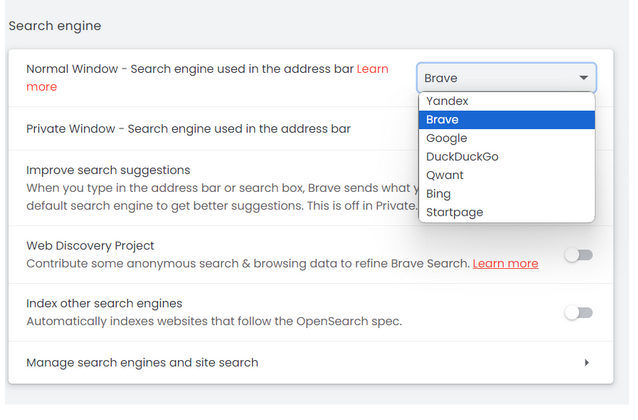
If Brave Search is not the default search engine in your location, change your default to a more privacy-focused browser, like Brave itself or DuckDuckGo.
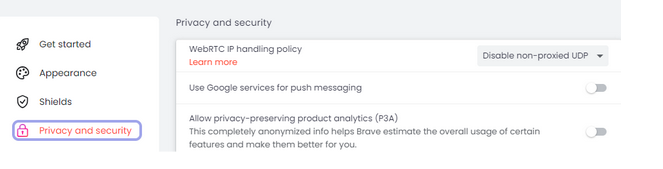
Disable WebRTC. WebRTC is a web browser capability that enables direct voice and video communication right from your browser. However, since it establishes a direct connection for these chats, it can also expose your IP address to the sites and individuals you are interacting with. To prevent potential leaks of your IP address, change this setting from “Default” to “Disable non-proxied UDP.” This way, it doesn’t expose any local or public IP addresses and provides the highest level of privacy.
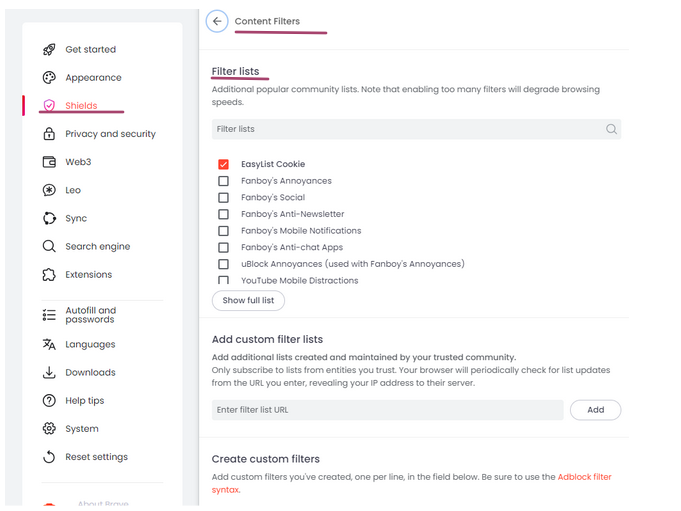
Utilize the built-in content filter. In Shields, go to Content Filters and enable the filter lists you want. You can also add custom filter lists) or create your own filters if necessary.
Consider using an in-built VPN. For users willing to pay for extra security, this feature adds an additional layer of protection, especially on public Wi-Fi networks.
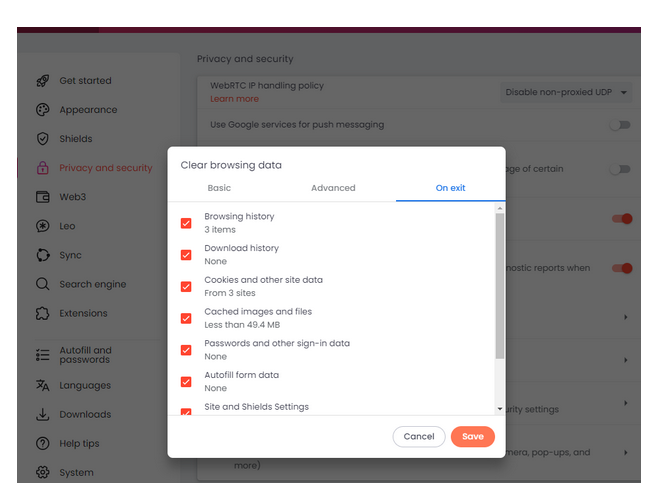
Set clear browsing data setting to “Clear on exit” — this will ensure that your browsing history, cookies, cache, and other site data are wiped clean after each session. Go to Privacy and Security → Clear Browsing Data → Clear on Exit. In the “On exit” tab check all the boxes next to the types of data you wish to clear automatically upon exiting Brave. You want to select everything for maximum privacy.
Strengths: Brave uses its own privacy-focused search engine and offers a wide range of privacy settings, many of which you won’t find in most other browsers. It also boasts a native ad blocker and an in-built VPN.
Potential pitfalls: Some websites may not function correctly with aggressive blocking enabled. Moreover, Brave blocks ads by default but offers its own privacy-respecting ads as part of its rewards program, which means it still derives revenue from ads as opposed to completely non-commercial privacy tools.
Opera
Opera is another web browser for which privacy is not just a word. It comes with a built-in proxy (though not a real VPN), a native ad blocker, and an option to block trackers. By default, however, Opera does not offer much in the way of privacy, so you will need to customize its privacy settings to minimize your online footprint.
How to configure for maximum privacy
To configure Opera for maximum privacy:
Enable the free proxy. Go to Settings → Privacy & security → Enable VPN. This will help anonymize your browsing by hiding your IP address for the traffic coming from your browser.
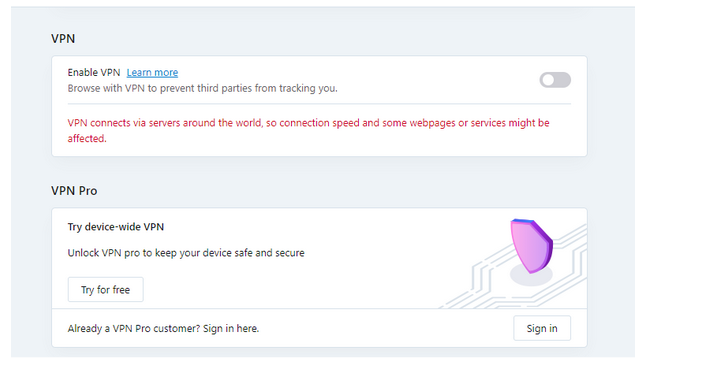
If you want to have a real VPN, which would apply to all of your computer traffic, you’ll have to pay extra for the device-wide VPN Pro.
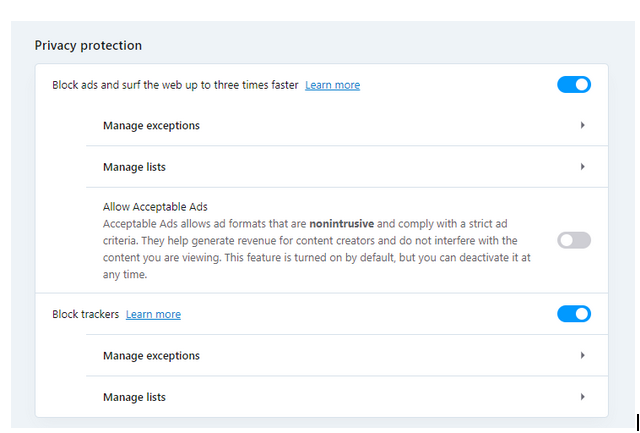
Activate protection against ads and trackers. In the same Privacy & security section, enable “Block ads” and “Block trackers” settings, and deactivate “Acceptable ads.”
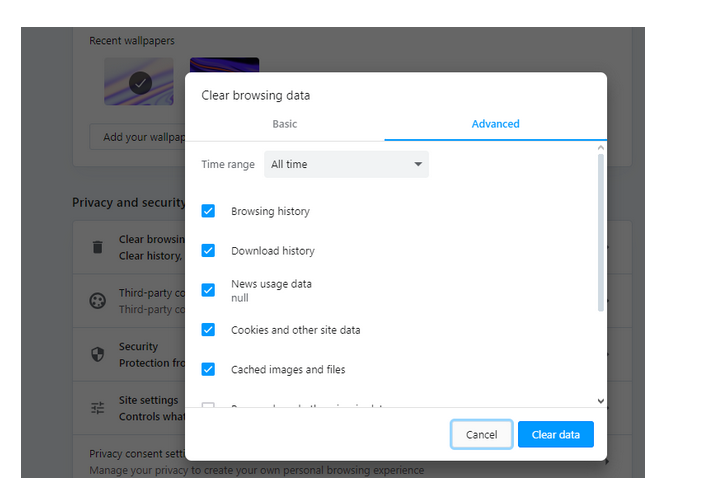
Regularly clear your browsing data. Unlike Brave, Opera does not allow clearing of all browsing data upon exit automatically. What it does allow is to select the time range for which you want to clear the data manually. For maximum privacy, you might want to select “All time” to instruct your browser to delete all types of data, such as cookies, browsing history, cached images and files, passwords, autofill form data, and site settings. To do this, locate the “Clear browsing data” tab in the Privacy & security settings, choose “Advanced” and select “All time” in the drop-down menu. For the highest level of privacy, tick all the available options.
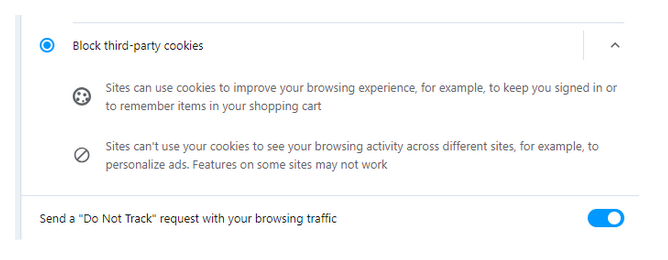
Block third-party cookies. By default, Opera blocks third-party cookies only in Incognito mode. To make sure they are blocked completely, enable “Block third-party cookies” in the Privacy & security settings.
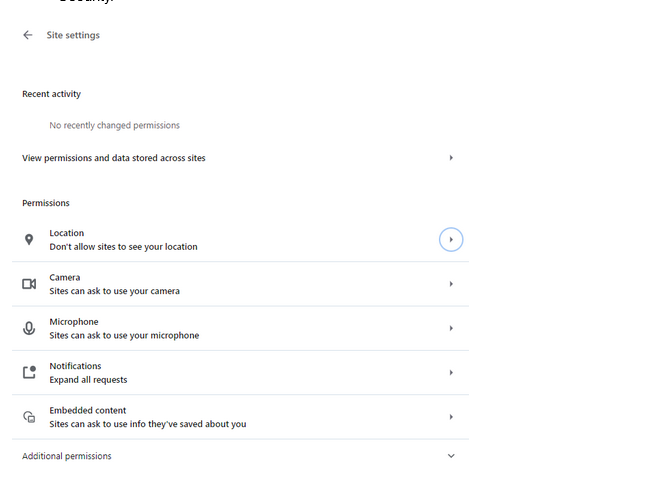
Enable Do Not Track. Still within Privacy & security, activate the “Send a ‘Do Not Track’ request with your browsing traffic” option to request websites not to track your browsing behavior.
Adjust permissions for location, camera, microphone, notifications, and embedded content, opting for stricter controls. To do that, go to Site settings within Privacy & security.
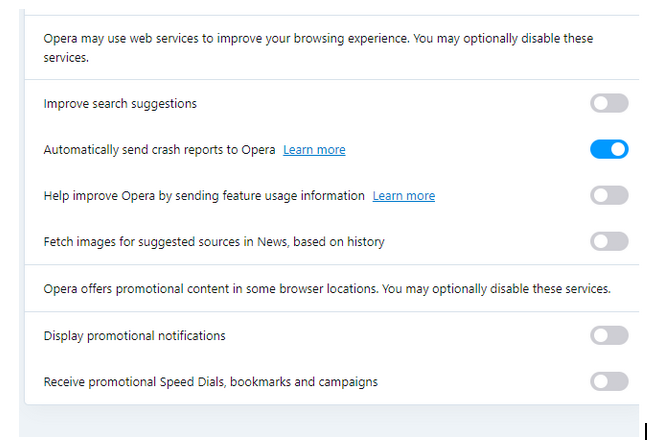
Disable promotional content from Opera itself.
Go to Privacy & security, then click on “Advanced” and look for the WebRTC setting. To prevent potential leaks of your IP address, change this setting from “Use any suitable network interface (recommended)” to “Disable non-proxied UDP.” This is the most restrictive setting that doesn’t expose any local or public IP addresses and provides the highest level of privacy.
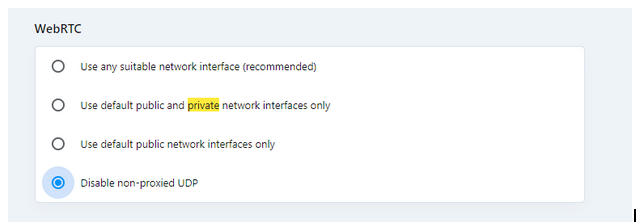
Strengths: Opera comes with an integrated free proxy, an ad blocker, and a tracker blocker, and is compatible with most websites and web applications, owing this to its use of the Chromium engine.
Potential pitfalls: First and foremost, Opera users should be aware of its VPN limitations. Opera’s built-in VPN does not encrypt traffic from other apps or services on your device; it only encrypts data within the browser itself. Opera lacks some features, such as clearing browser data on exit as some other browsers have, and it takes time to configure it to maximize its privacy protections since features such as blocking of all third-party cookies are not enabled by default.
Vivaldi
Vivaldi is a highly customizable browser that offers many features to protect user privacy. For example, it has a built-in ad blocker, a pop-up blocker and a tracker blocker. It also has a private browsing mode that does not store your browsing history or cookies. Vivaldi is based on Chromium, but it has made significant changes to it.
How to configure for maximum privacy
To configure Vivaldi for maximum privacy, follow these steps:
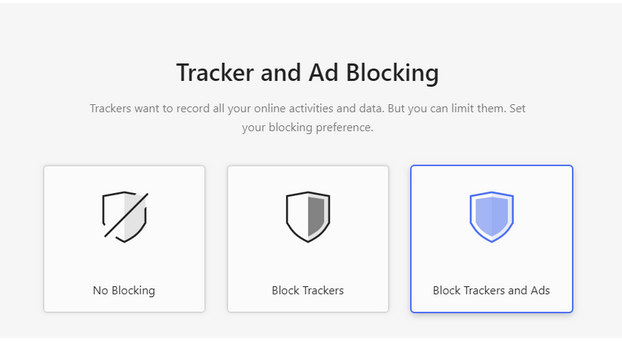
Go to Privacy and Security, and adjust the Tracker and Ad Blocking setting. Set to “Block Trackers and Ads” for the highest level of blocking.
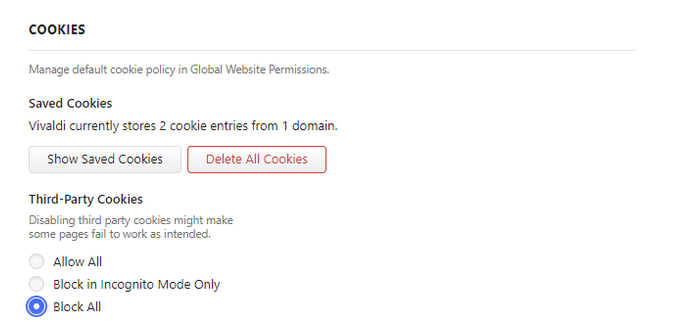
Cookies. Select “Block All Third-Party Cookies.” By default, Vivaldi blocks third-party cookies in Incognito mode only.
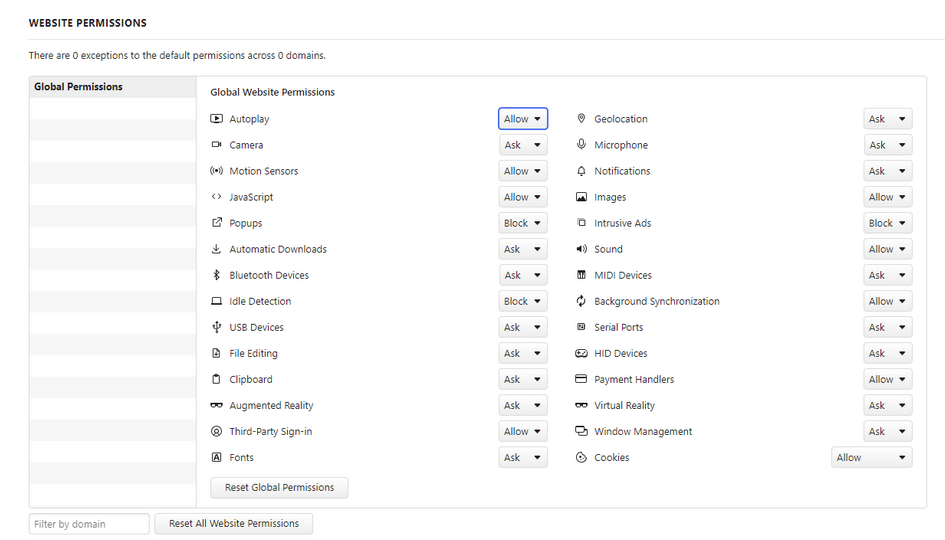
Go to Website Permissions. Adjust permissions for location, camera, microphone, and notifications to “Ask” or “Block.” Vivaldi automatically blocks pop-ups and intrusive ads. For additional privacy, consider blocking all cookies in global permissions
Choose a privacy-focused search engine as your default search engine. To do that, go to Search in the Settings sidebar and select the preferred private search engine (e.g. DuckDuckGo). Do not enable “Search Suggestions” in the address bar to minimize sending data to third-party services.
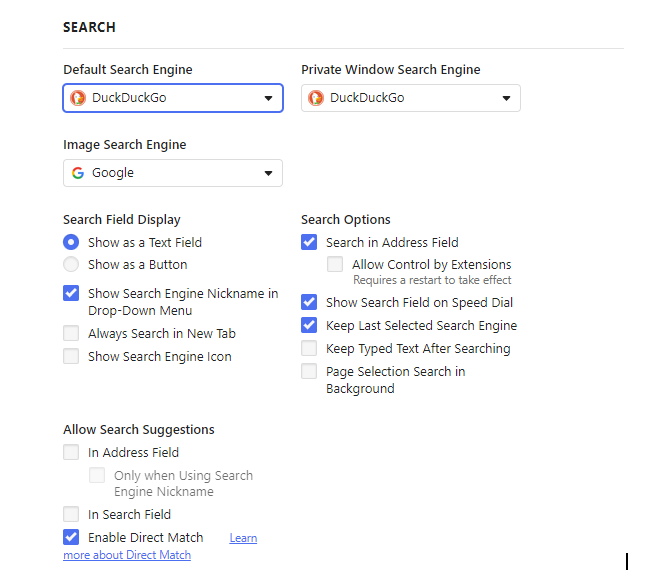
If you really want to go hard on privacy, you might want to also consider the following options:
Turn off “Autofill” to prevent Vivaldi from storing and automatically inputting your personal information into web forms.
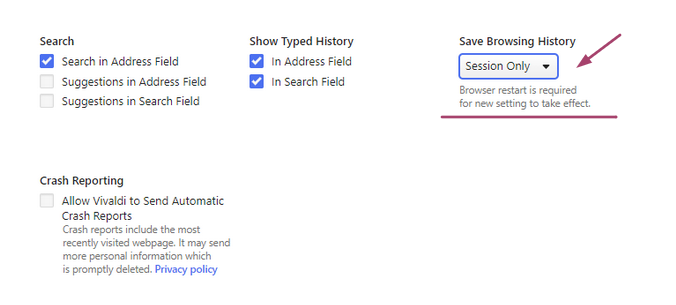
Disable the “Show Typed History” feature to prevent Vivaldi from displaying your typed history, enhancing privacy by not exposing past activity through address bar suggestions.
Set “Save Browsing History” to “session only” to ensure that Vivaldi does not retain a log of the websites you visit, which keeps your browsing sessions private.
Disable Google Services. While they offer protection from phishing and malware, they also communicate data to Google. Be aware, however, that this is a trade-off: disabling these features might reduce your protection against malicious websites.
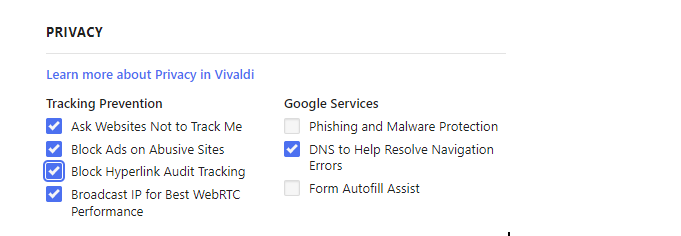
Strengths: Vivaldi offers a wide range of customization options, which allows users to fine-tune their privacy settings. Built-in ad and tracker blocker enhances privacy.
Potential pitfalls: While Vivaldi includes privacy-focused search engines like DuckDuckGo, it offers Google as a default search and picture search engine. It’s a lesser known browser, meaning some websites may not be optimized for it.
Tor
Tor is the most privacy-oriented browser among the ones we’ve reviewed for this article. It hides your traffic by sending it through at least three different nodes, making it the best browser for privacy. It uses DuckDuckGo, a search engine that respects your privacy, as its default. But if you want to increase your privacy in Tor, such as by turning off JavaScript, you will effectively lose access to a huge chunk of the Internet. The tradeoff between privacy and functionality has never been more obvious than with Tor.
How to configure for maximum privacy
To configure Tor for maximum privacy:
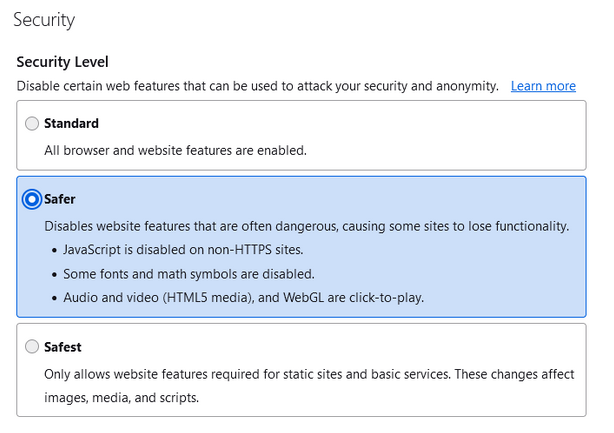
Adjust the security level from Standard to Safer or Safest, depending on your needs. Higher security levels disable certain web features that could be exploited to compromise your privacy.
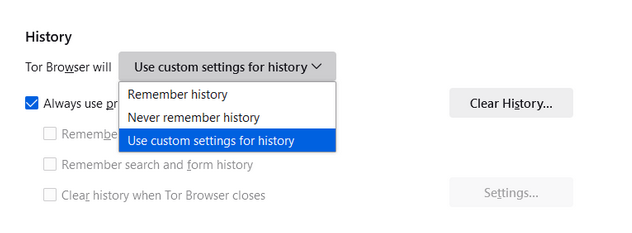
Set the Browser history setting to “never remember history.”
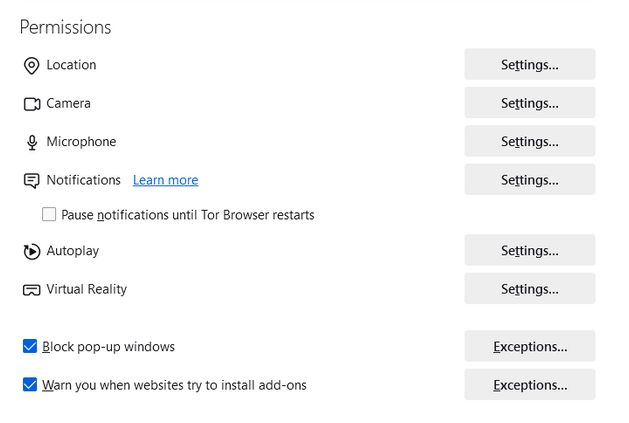
As with all other browsers, adjust your permissions for location, camera, and microphone.
Strengths: All in all, what Tor offers you is probably the most you can get from a web browser in terms of privacy.
Potential pitfalls: Considerably slower speeds, blocked by some websites and services, might attract unwanted attention from ISPs or government due to its reputation for being a tool to access dark web.
Safari
Safari, developed by Apple, is known for its strong privacy features and seamless integration with the iOS and macOS ecosystems. Privacy enhancements include Intelligent Tracking Prevention, which uses machine learning to block cross-site tracking and limit advertisers’ ability to track users across the web. Safari also offers sandboxing for websites, ensuring malicious sites can’t access your system, and secure browsing features that flag suspicious websites. iCloud+ subscribers can also enable the Private Relay feature, which would prevent websites and network providers from creating a detailed profile about you.
How to configure for maximum privacy
To configure Safari for maximum privacy:
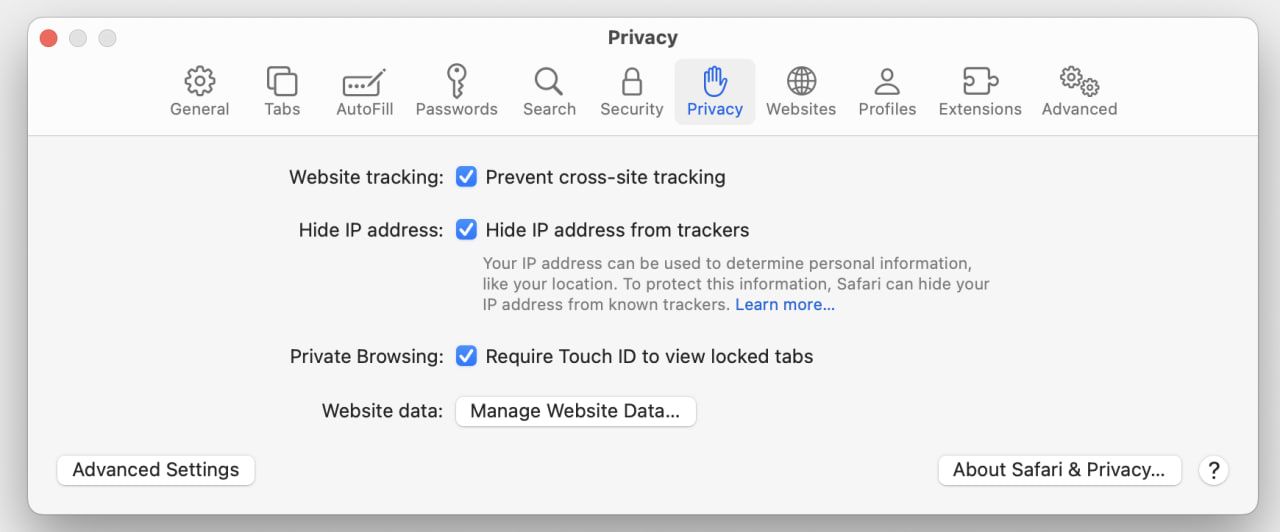
Make sure that Intelligent Tracking Prevention is enabled. Go to Preferences → Privacy → tick the “Prevent cross-site tracking” box.
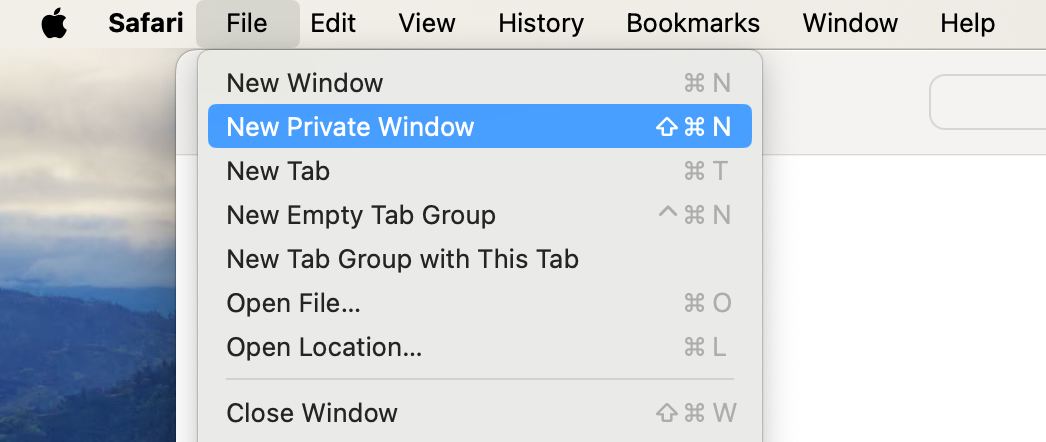
Use Private Browsing mode. This mode doesn’t save your browsing history, cookies, or site data. When in Private Browsing mode, browsing initiated in one tab is isolated from browsing initiated in other tabs, so websites can’t track browsing across multiple sessions.
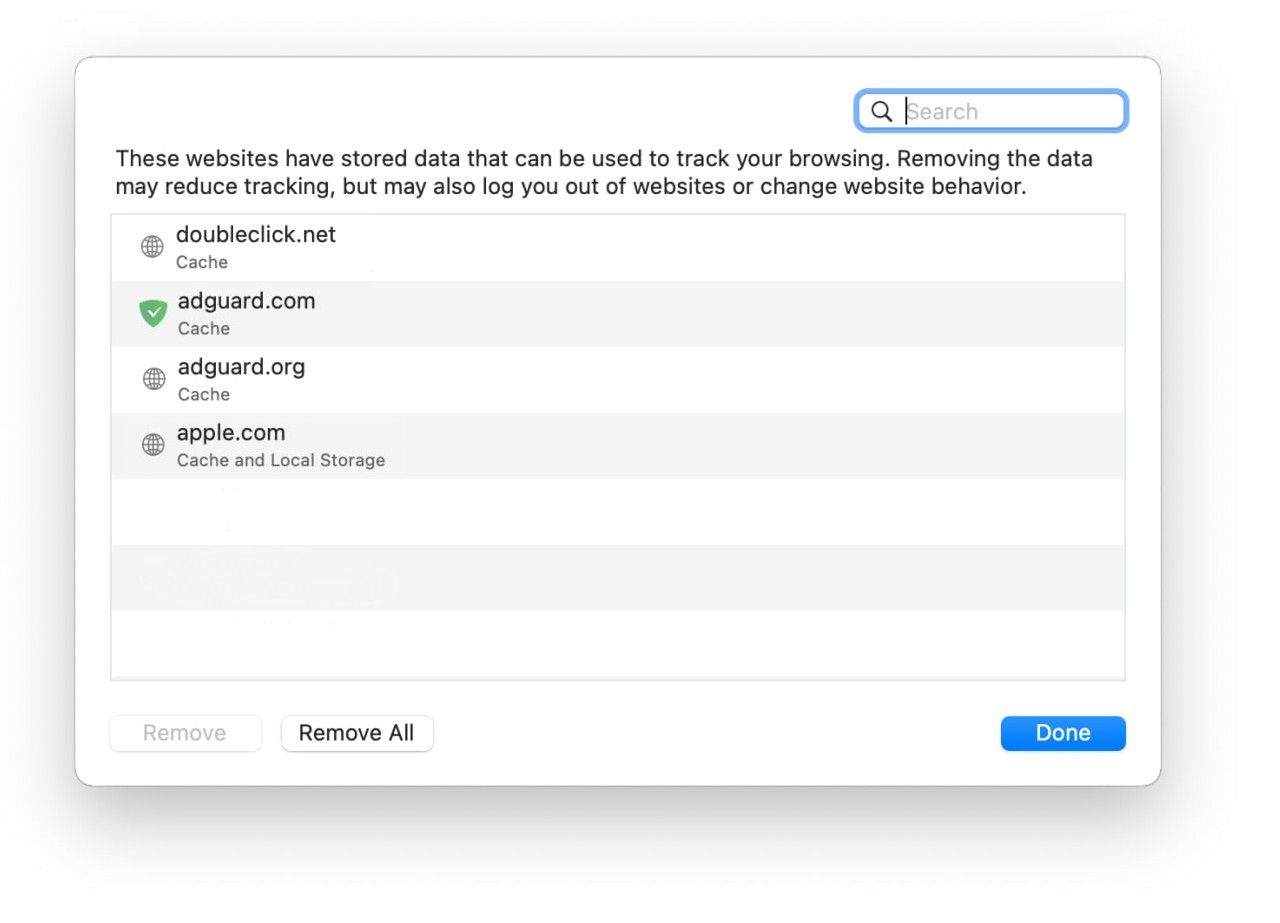
Manage website data and cookies. Regularly clear your website data and manage cookies under Safari → Preferences → Privacy.
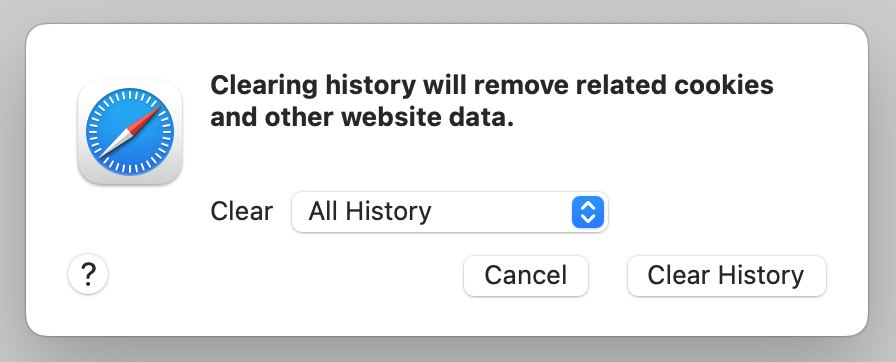
Regularly clear browsing history.
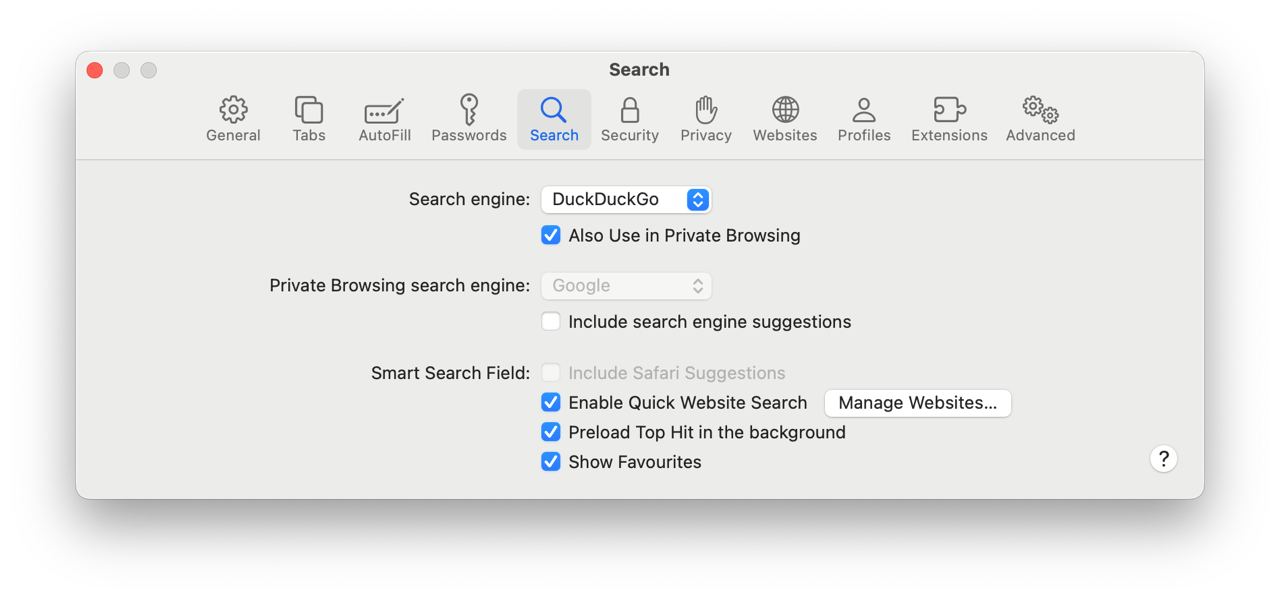
Use DuckDuckGo. Set DuckDuckGo as your default search engine for increased privacy, as it doesn’t track your searches. Disable search suggestions for the search engine and “Smart Search” fields if you don’t want your live search data being sent to Apple’s or to the default search engine’s company servers.
Strengths: Safari boasts a wide array of privacy-preserving features, such as Intelligent Tracking Protection and Private Browsing mode. If you’re willing to pay extra, Apple also offers a VPN-like feature, called Private Relay, which comes bundled with the iCloud+ subscription.
Potential pitfalls: Safari’s compatibility is limited only to Apple products. Moreover, although it offers a range of privacy settings, it still lags behind some other more privacy-oriented options, such as Brave or Vivaldi, in terms of customization.
And if you’re not ready to switch your current browser yet, you can still easily upgrade its defenses by installing a robust privacy browser extension to block ads and trackers on the fly.




















































