How to set up your own proxy and use it with AdGuard

In our day and age, it is becoming increasingly important to have access to any online resources that you need, at any time. This is not always convenient or even possible at all — take such example as using a network with overly restrictive firewall. What will help you be 100% sure you can access any website is setting up your own proxy. Not to mention proxy will hide your IP and let you access geo-blocked websites.

In this article, we will walk together all the way from renting our own server to configuring proxy on a mobile device or in a browser.

Renting your own server

For starters, we'll need to rent a server. You can choose any web hosting service you prefer, I will be using Vultr as an example.

I emphasize that I don't try to advertise or distinguish this service, it was only chosen as an example. Among other possible solutions are HostGator, 1&1, Cloudways, Bytemark, Digital Ocean and many, many more.

Alright, let's get to it. I start by opening vultr.com and signing up there ("Create Account" button in the top right corner).
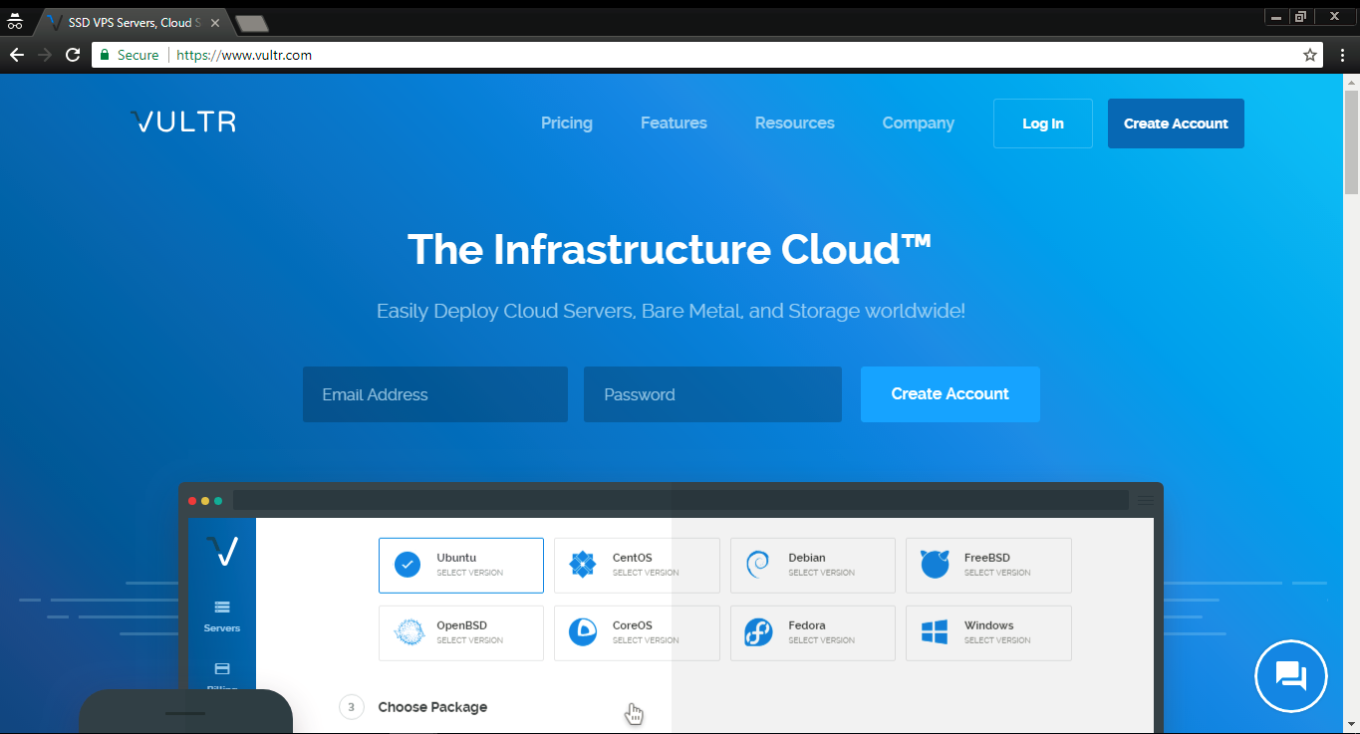
If you did the same, you'll receive an email with a link to confirm your registration. Once you do it and log in, you'll be asked to choose a payment method. I selected Credit card, but you are free to use any other, obviously.
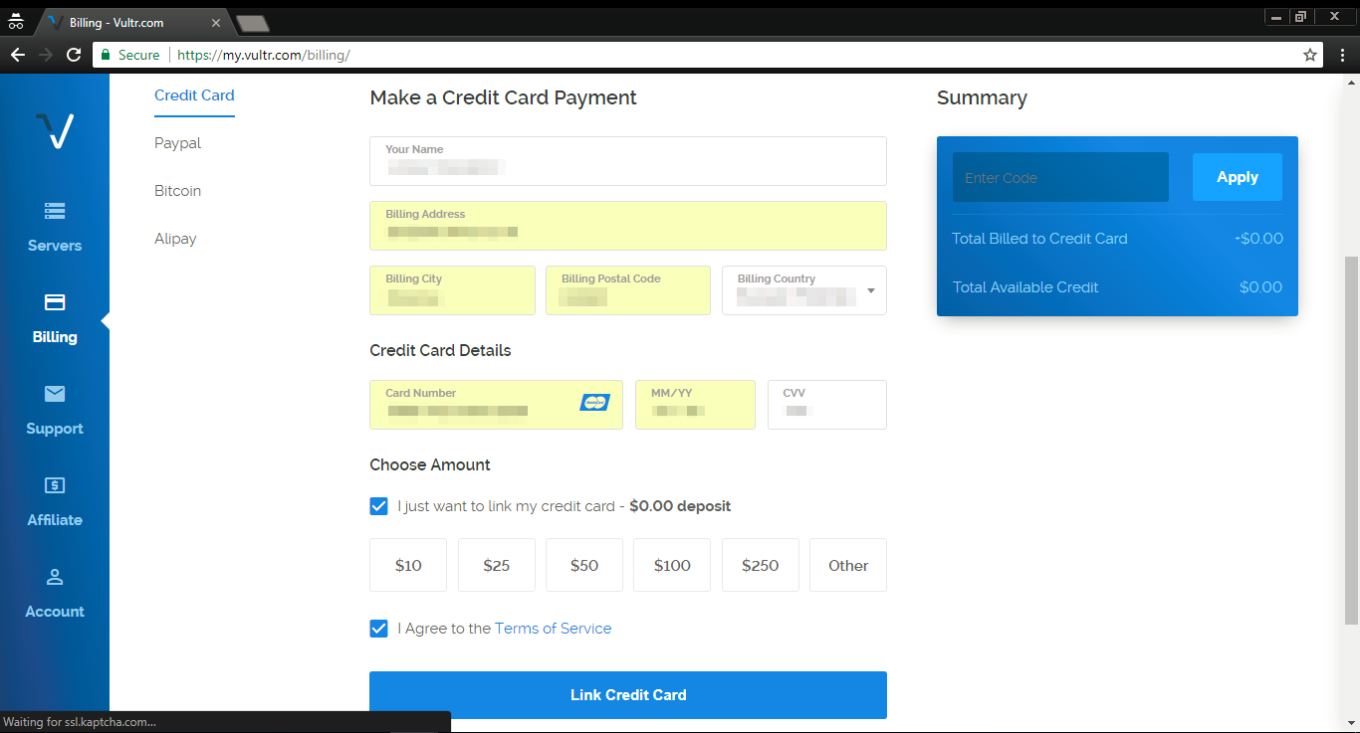
Important — if you are choosing credit card as your payment method, tick the "I just want to link my credit card" checkbox, otherwise, you will be charged immediately.

After you've linked your card, click on the "Servers" tab on the left, and then choose "Deploy New Server" (a button with a "plus" symbol).
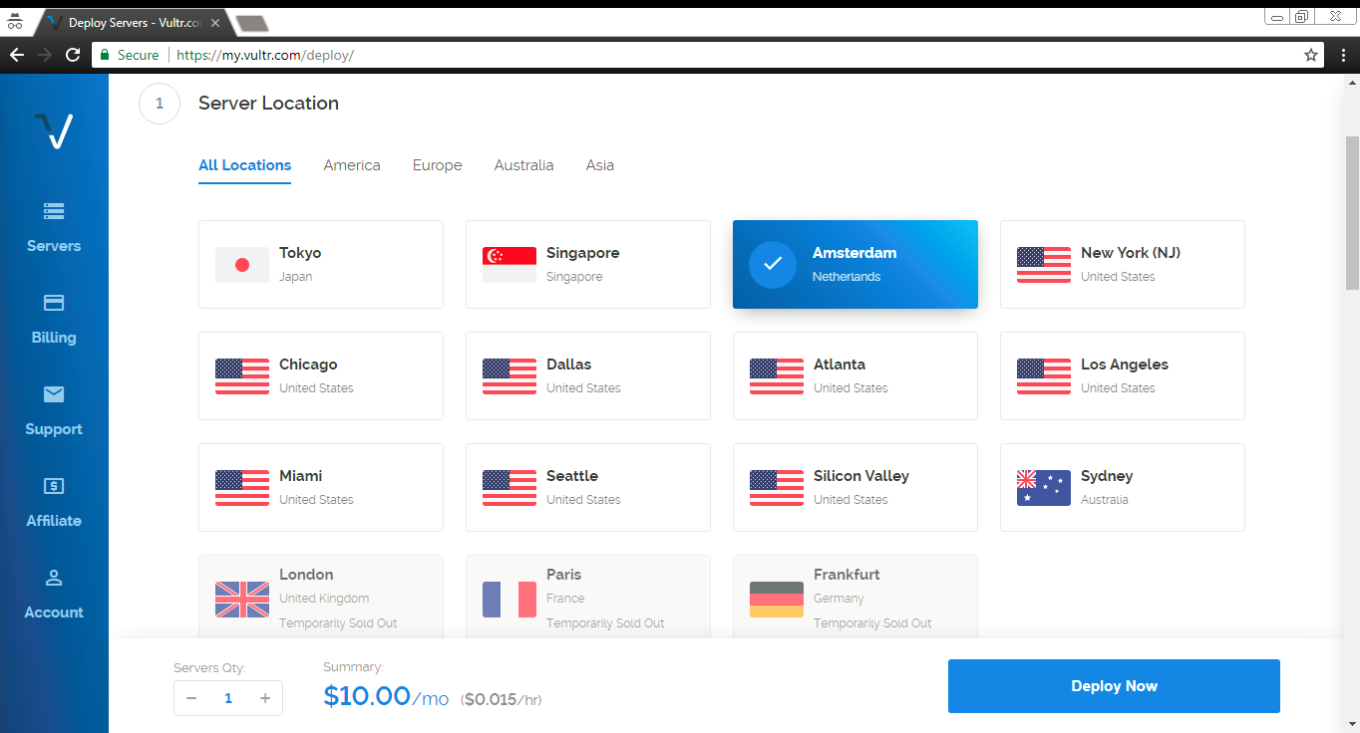
Ok, time to make a decision where our new server will be located. I've chosen one in Amsterdam, you can (and probably should, unless you have a specific reason) choose something relatively close to your geographical location.
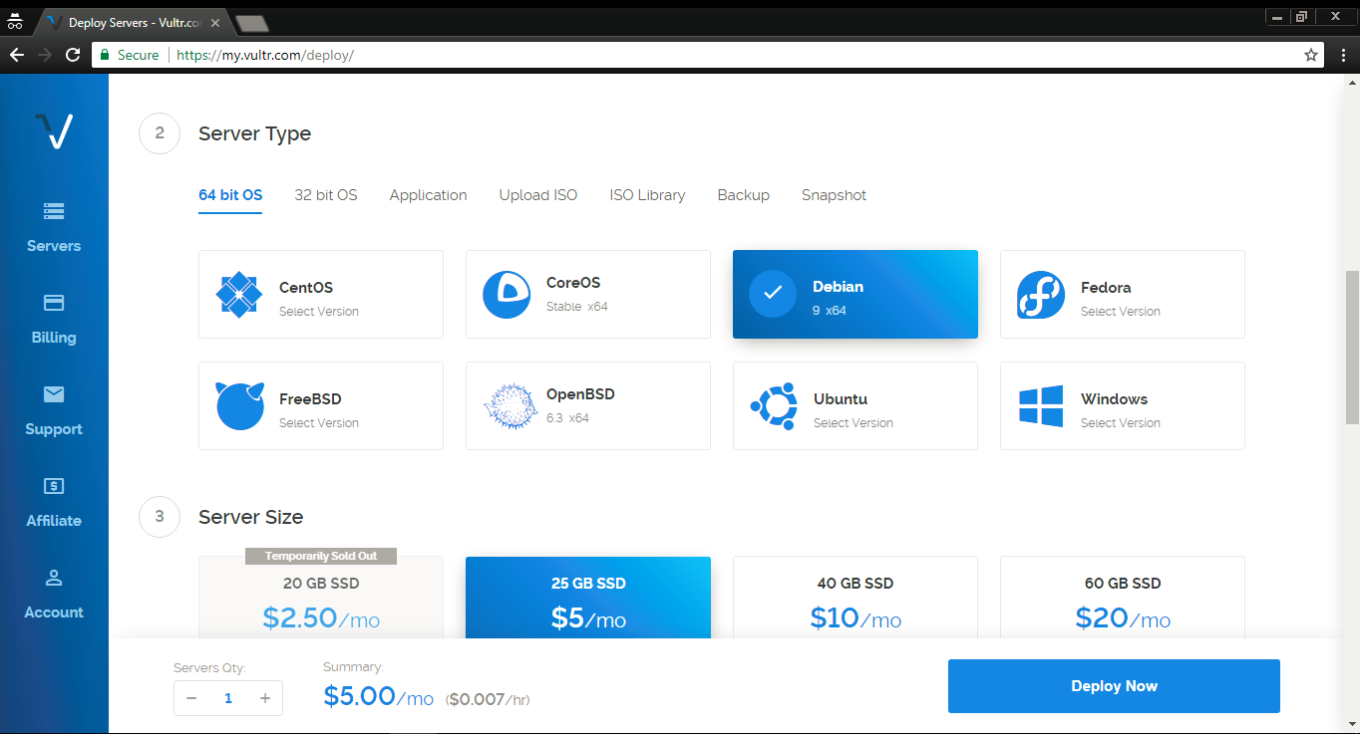
In the "Server type" tab select Debian 9 (x64) — this is very important!
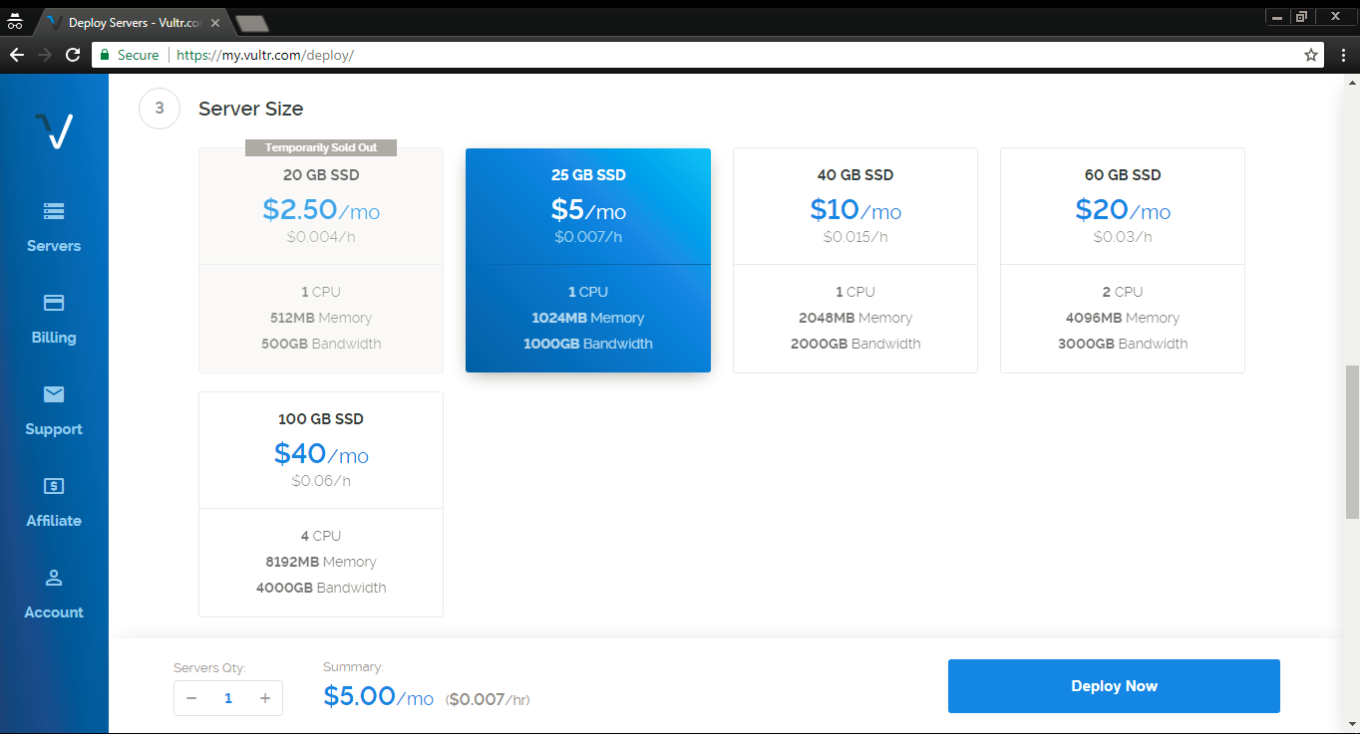
The third step is to select the server size, it depends solely on your needs and your budget. Most users will find 1 TB for $5/mo or 500 GB for $2.5/mo sufficient.
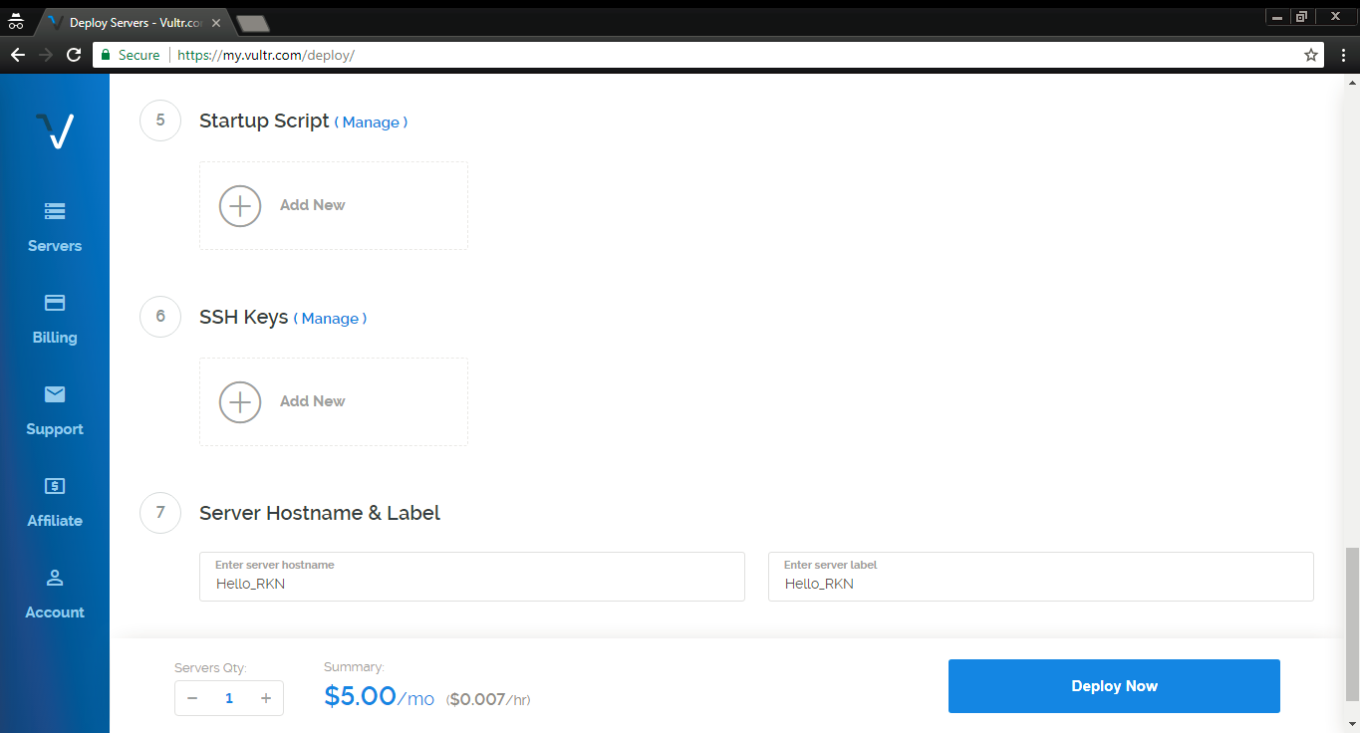
At steps 5 and 6 there's no need to change anything. At step 7 choose a hostname and a label for your server, any will do.

Aaaaand done! Smash the Deploy Now button to finish the process. You'll get another email to confirm that the server has been deployed — you'll need it later.

Installing PuTTY (for Windows users)

Now we have to install and set up a proxy on our freshly acquired server. Windows users can use the PuTTY tool, which can be downloaded here. Click on the .msi build under the "MSI (Windows Installer)" section. Mind if your OS is 32-bit or 64-bit when downloading the installer (if you are not sure, this article will help you determine it).
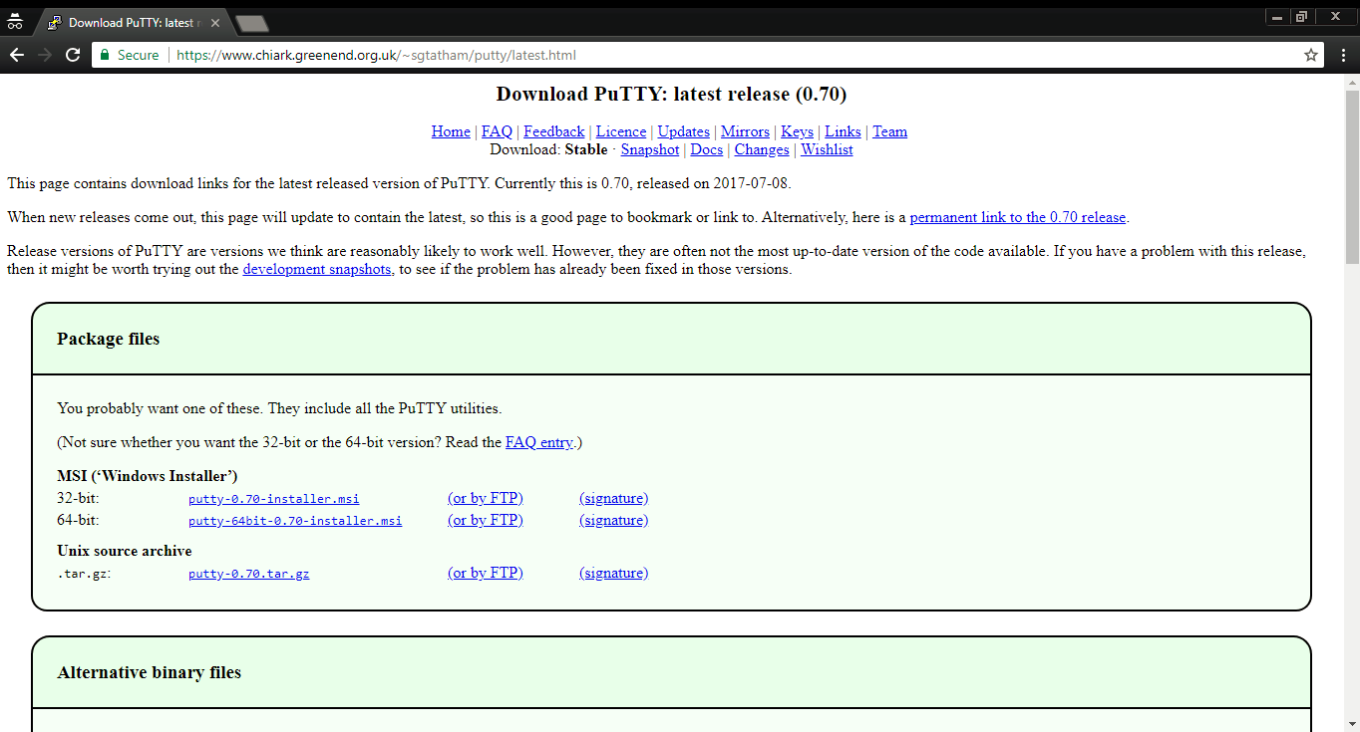
Open the .msi file and install PuTTY by following the wizard's instructions, and then run the tool.
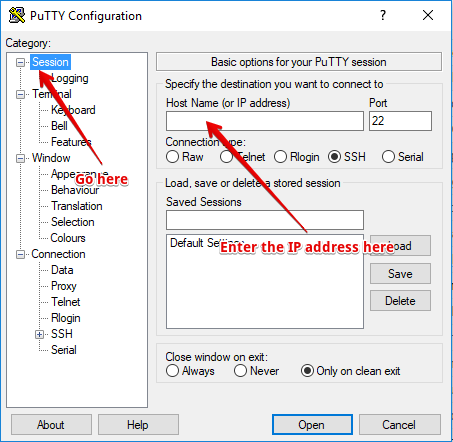
This is what you'll be faced with — don't get scared at the number of tabs and settings there, we'll basically only need one. Open the very first tab (Session) and enter the IP address you got in that confirmation email from Vultr.

Done? Then click the "Open" button located at the bottom. You'll see the console asking you to enter login and password (during the first launch there will be a warning pop-up — don't worry, it's fine, just press OK).
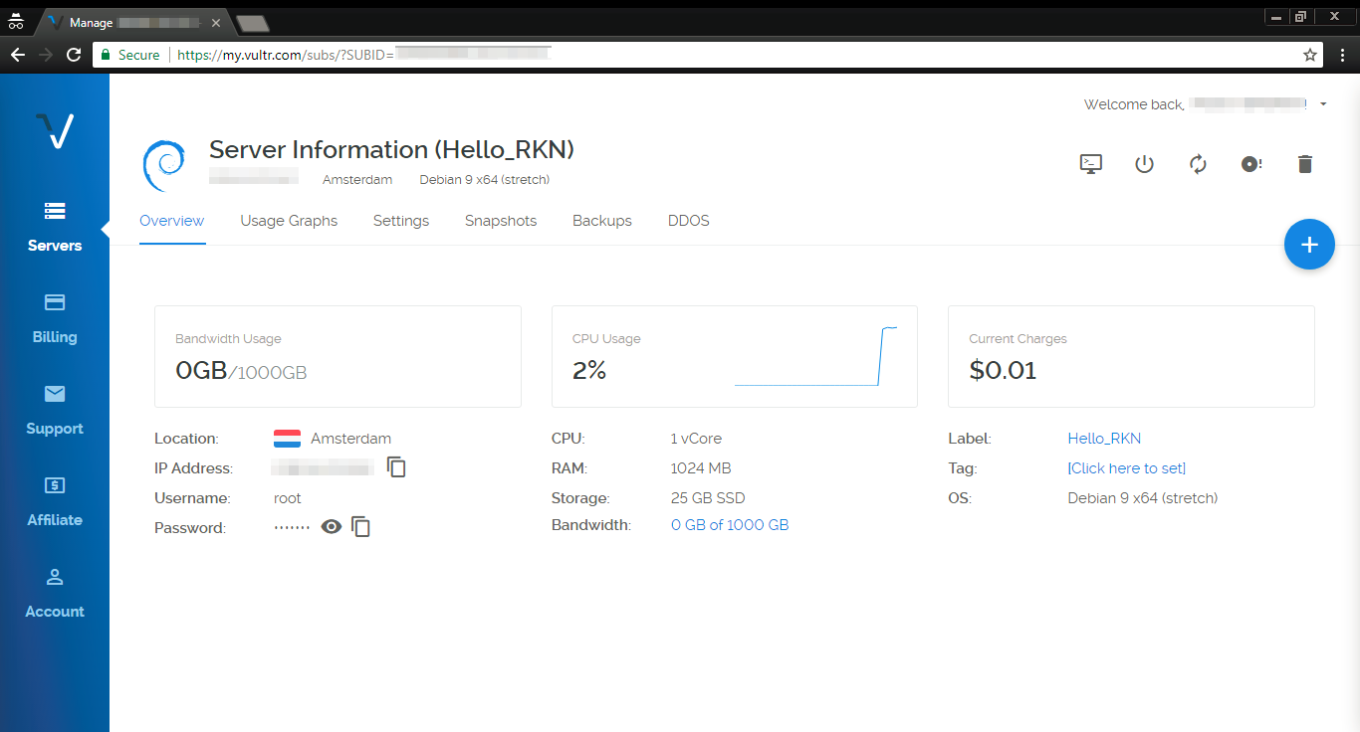
This data can be found in the Overview tab of your Vultr servers screen. The username will be root by default, and the password, of course, randomized (you can change it while you are at it). Ok, you've successfully entered login and password, which takes us to the next step — installing a proxy.

If you are a Mac user, you don't need to install putty or any other utility. All you have to do is open the Terminal and proceed to install and configure a proxy.

Setting up and configuring a proxy

For this purpose, we will use a special script by AdGuard that will perform all required actions. If everything has been going well so far, you should be seeing PuTTY console on your screen.
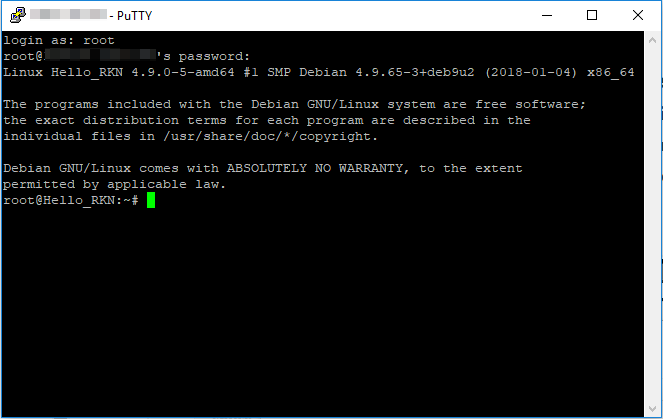
Subsequently execute the following commands in there (press Enter after each command):

apt-get update

The console should look somewhat like this:
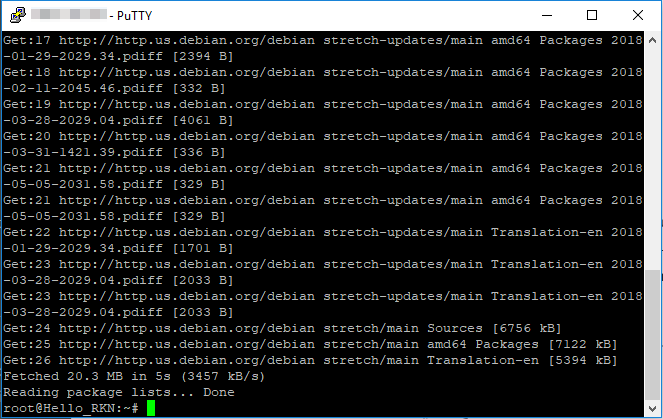
apt-get install curl -y

This is what you'll be seeing after executing this command:
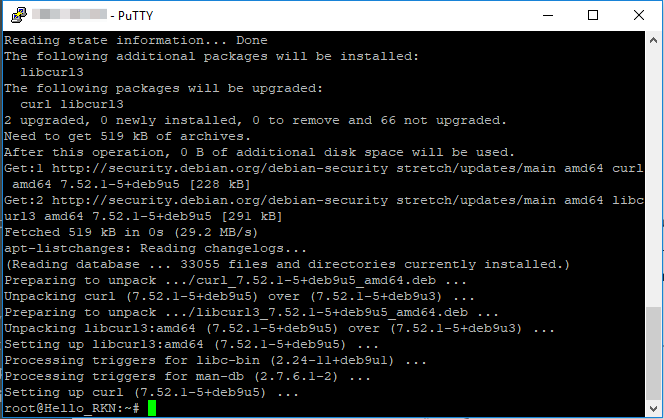
bash <(curl -s "https://raw.githubusercontent.com/AdguardTeam/ProxiesSetup/master/setup.sh")

At the 3rd step, the script will ask you for a username/password pair for your future proxy. You are free to choose any, but make sure to remember them, or even write them down. What it will look like:
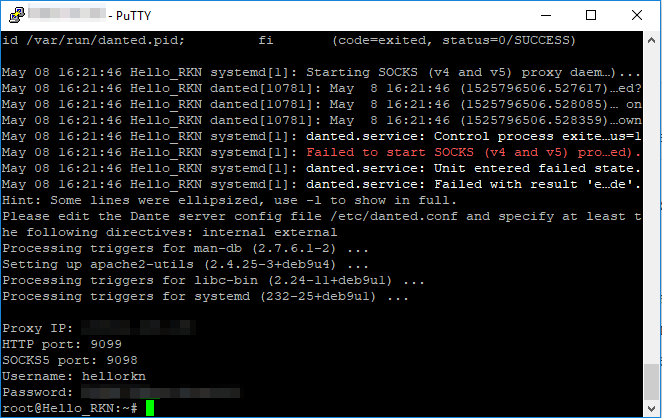
In the console, you will see the IP address of your proxy, HTTP port, SOCKS5 port, username and password. This information has to be entered whenever you want to configure your device/browser to use this proxy. Let's now have a look at a couple of specific examples.

Very important! SOCKS5 is not ideal in terms of security. Try not to use SOCKS5 proxy in public and unprotected networks. In one of the next articles, we'll tell about more secure solutions like Shadowsocks.

In case your server has restarted, you will need to reenable the danted service. To do so, run this command line in the console:

systemctl enable danted.service

Configuring proxy in AdGuard for Mac

Setting up a SOCKS5 proxy in AdGuard for Mac is pretty easy, especially since the proxy settings have been moved from the Advanced settings to the Network tab. Click the gear icon and select Preferences.
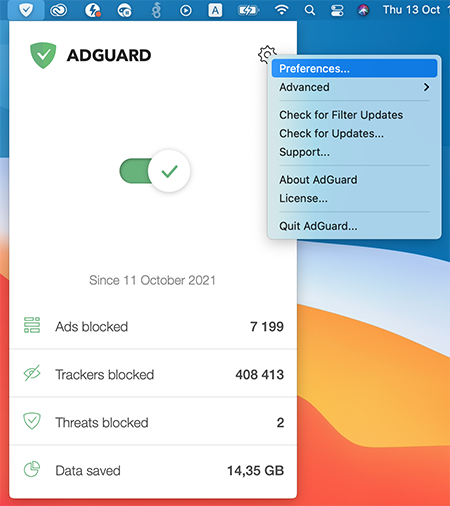
Settings_1

Now go to the Network tab, and then to the Outbound proxy tab. In the drop-down menu on the right, select SOCKS5. Fill in all the fields, using the data you have just seen in Terminal. To complete the setup, check the Outbound proxy box.
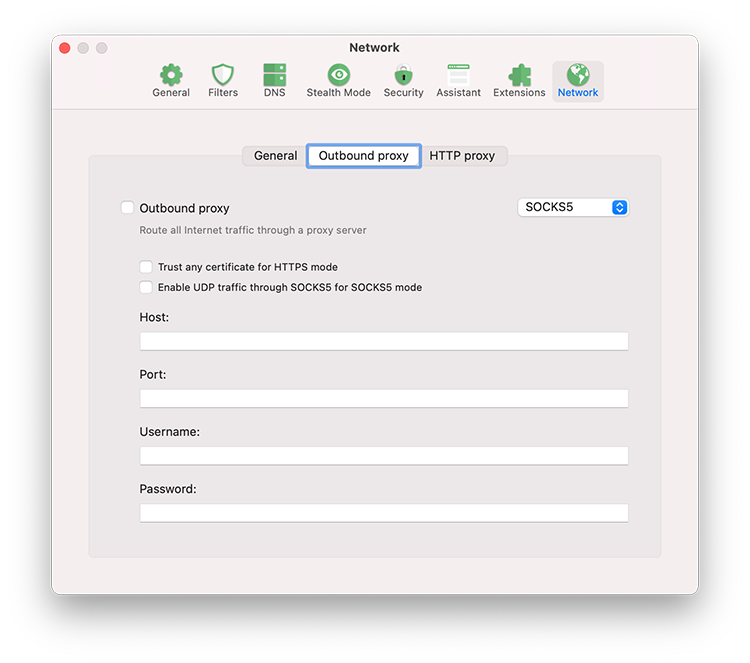
Settings_2

If you want to use AdGuard for Mac as an HTTP proxy to filter traffic on devices in your local network, go to the HTTP proxy tab and check the box Use AdGuard as an HTTP proxy.
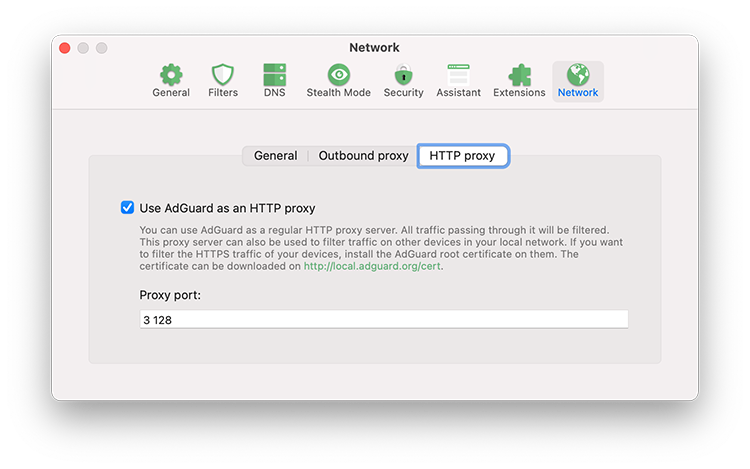
Settings_3

Configuring proxy in AdGuard for Android

There's no trickery here, we will be configuring our SOCKS5 proxy (since we need the authorization) just like we would configure any other proxy. Open the side menu of AdGuard app, go to "Settings - Proxy settings".
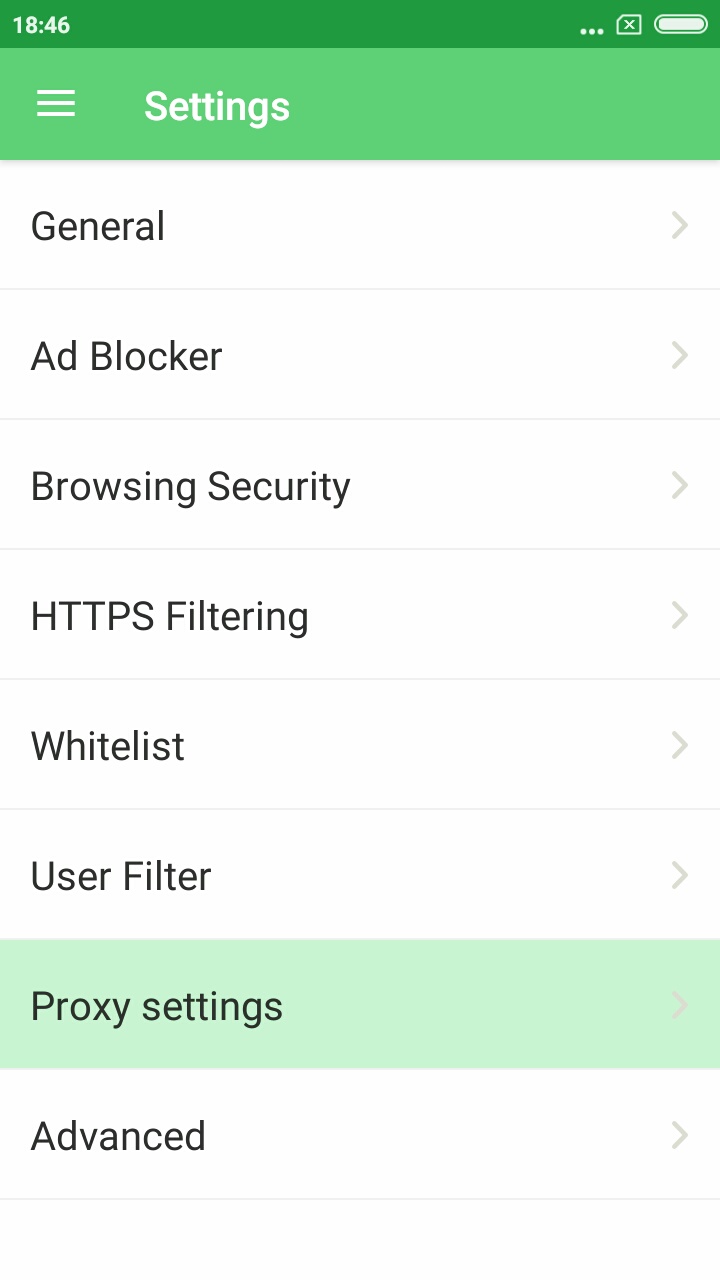
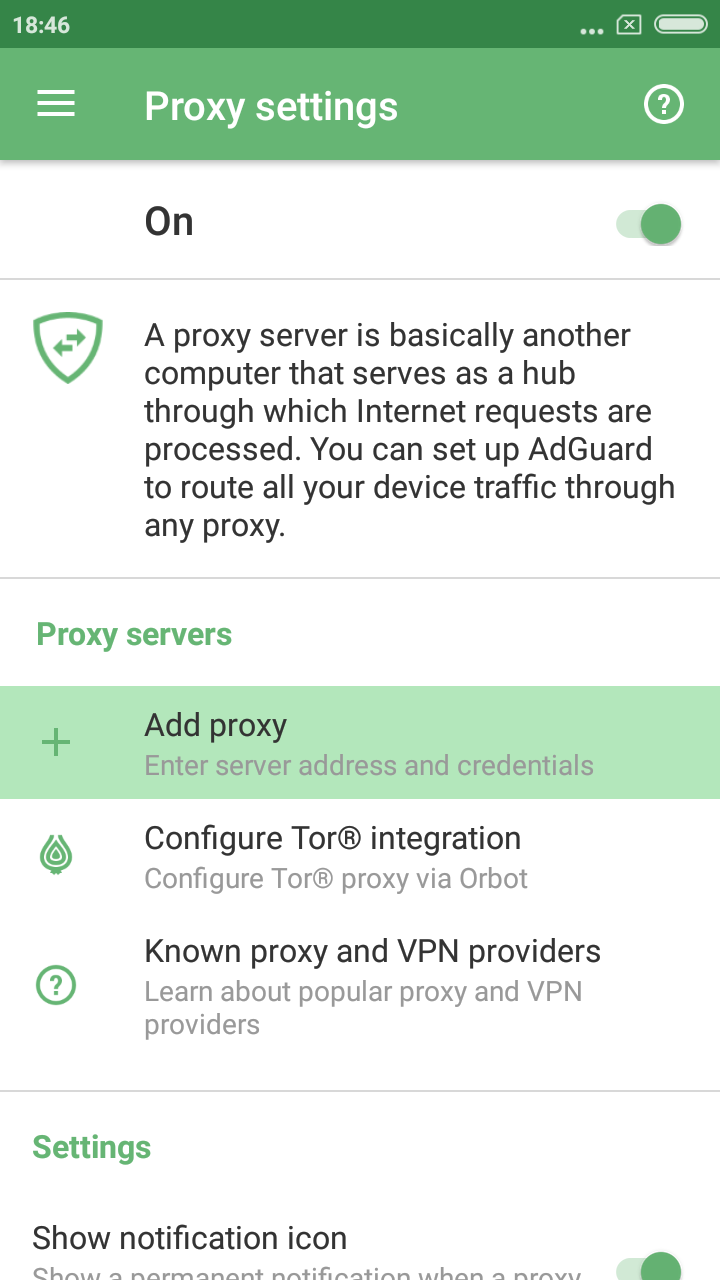
Don't forget to toggle the main switch in the top right corner on, then tap the "Add proxy" button.
Fill out all the fields using data from PuTTY console. You can enter anything under "Proxy name". Also, enable the "Default proxy" option if you plan to mainly use this proxy.
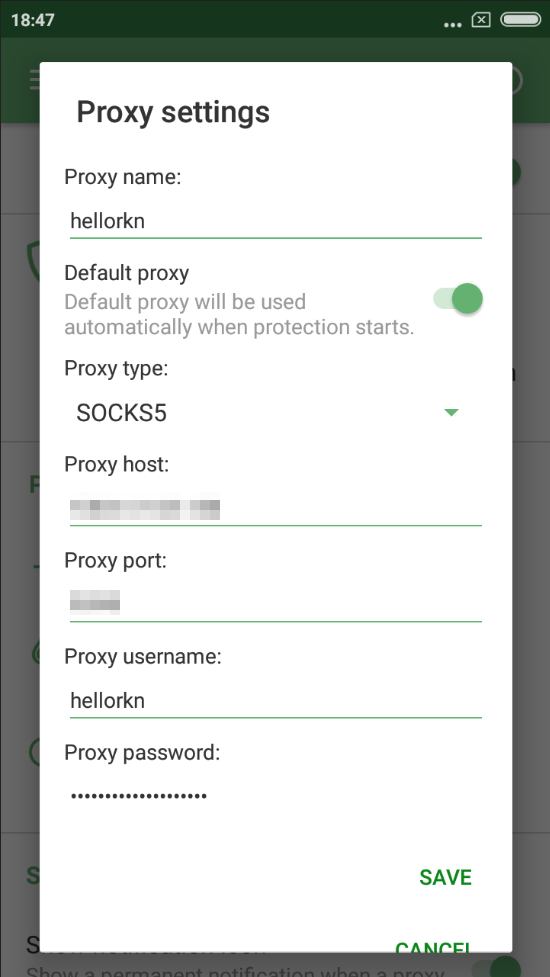
Excellent! Tap Save, now all traffic filtered by AdGuard will be routed through your proxy. And by the way, you can still disable AdGuard filtering for any app(s) via "Apps management", it will prevent its traffic from being routed through the proxy.
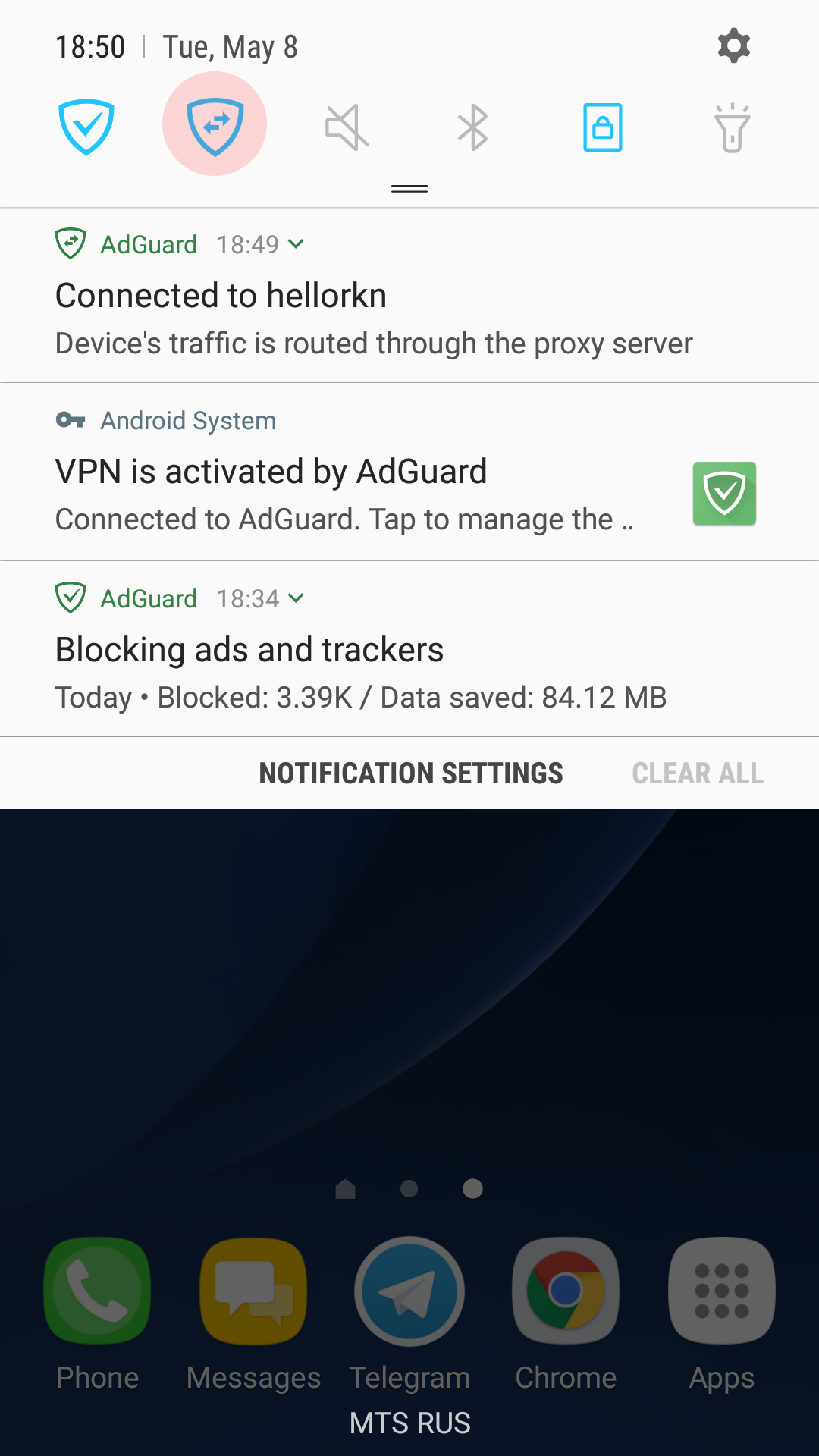
There's one trick that will allow you to instantly switch between enabling and disabling the proxy — you can add a specific tile to the quick access panel. Note there's a new notification in the notification bar, telling that your traffic is routed through the proxy server. Tapping on it will also take you to the "Proxy settings" screen in AdGuard.

Configuring proxy in Chrome/Firefox browsers

For this purpose, we advise using the SwitchyOmega browser extension. I use Chrome, so I'll be downloading it from the Chrome Store, Firefox users will find it among Firefox add-ons. Its unique trait is that it allows you to set up a proxy to be used on specific domains only, or, vice versa, to exclude specific domains.
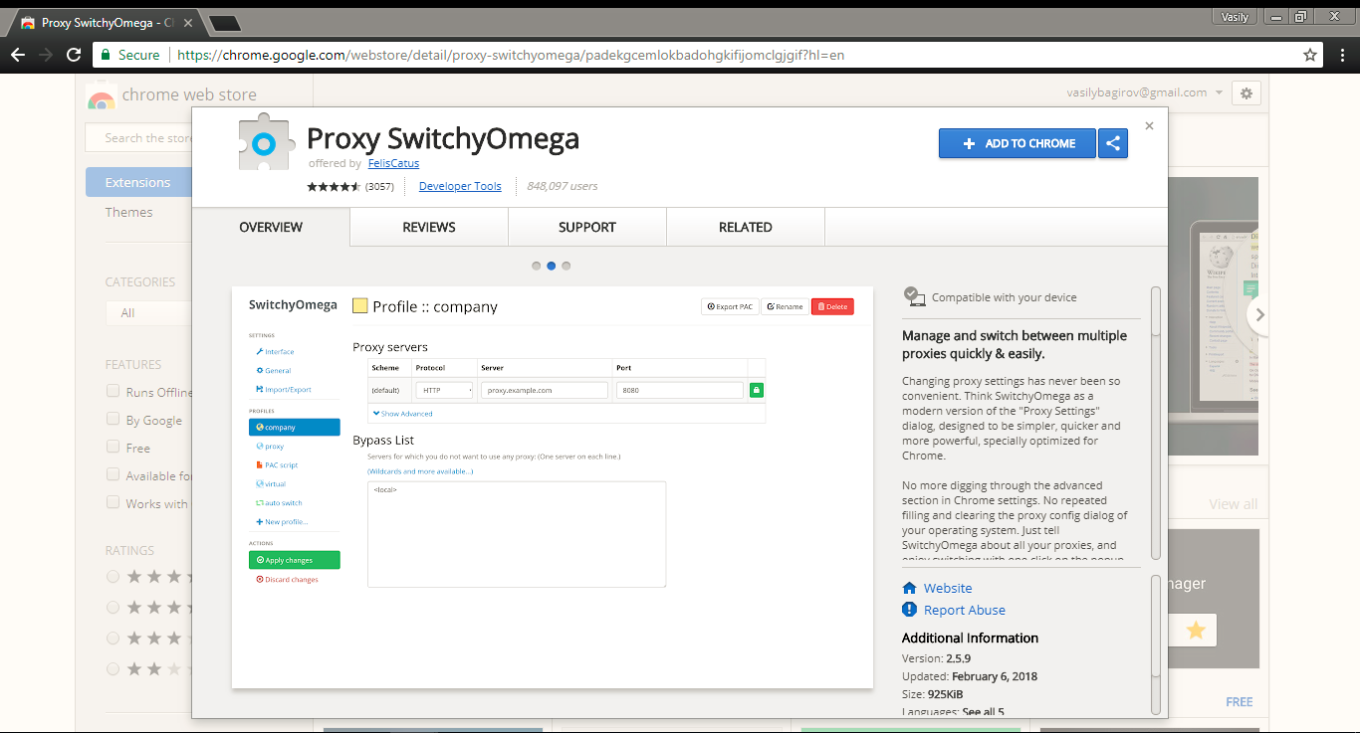
Configuring SwitchyOmega is very simple. Add a new profile ("+New profile") in the Profiles tab on the left. We need to choose HTTP protocol, since SOCKS5 does not support authorization here. Again, fill out the fields according to previously received information. Remember to apply changes by clicking the button on the left!

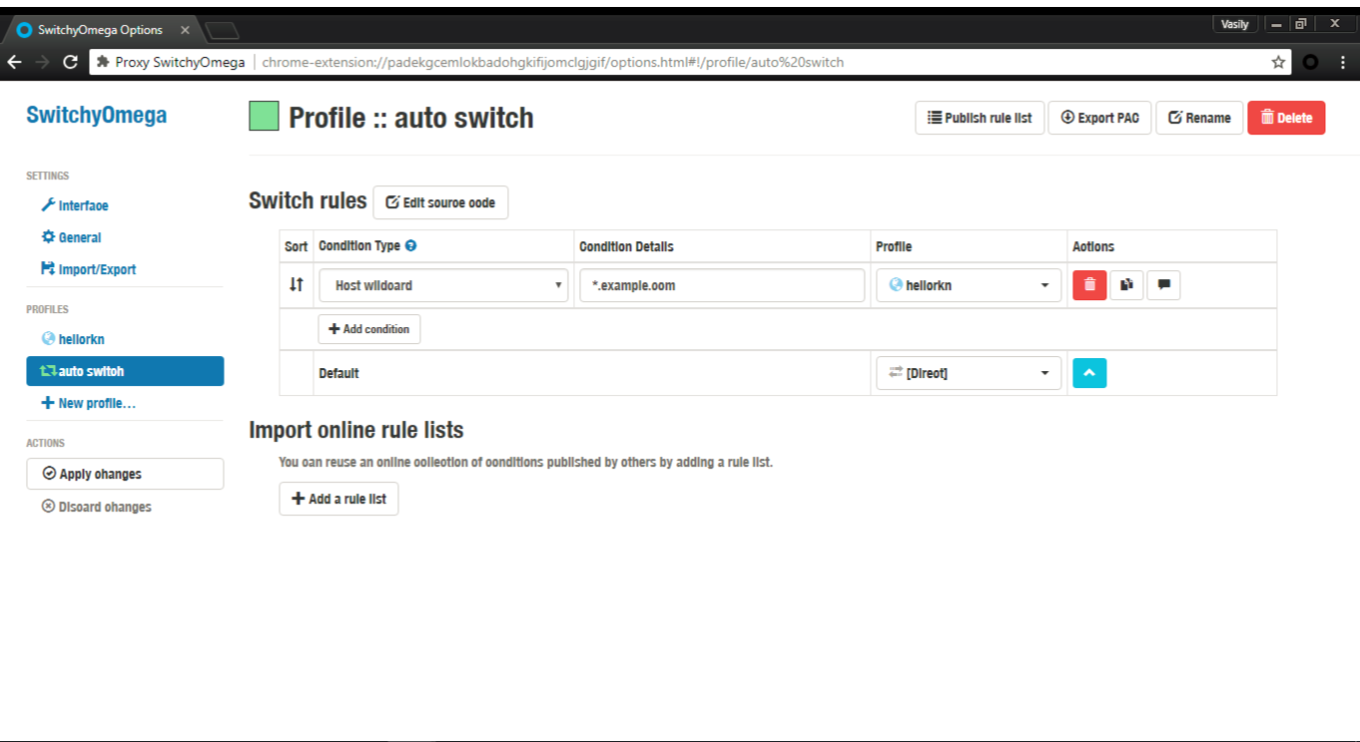
To make your browser use this proxy by default, in the "Auto switch" tab select the freshly added proxy in the Default drop-down menu.

In case you want your proxy to be used for specific websites or IP addresses only, set up respective switch rules. A tooltip will help you with the syntax.
And here's one small "lifehack" (please don't kill me for using this word): on any page you can quickly access proxy settings by clicking the SwitchyOmega extension icon. Manage proxy in respect to the current website, or change global proxy settings — everything is within a couple of clicks.
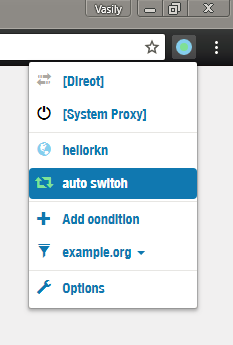
Color indicator also helps determining if the proxy is being used currently or not.

Summarizing

We've done it! If everything went according to plan, you should have your own server with a working proxy installed there, and respective settings on your phone/browser. Not so bad for 10 minutes spent on reading this article :)

Should you encounter any difficulties along the way, or if you just have any questions — let me know in the comments, and I (or some other team member) will help you get through! Good luck!


Suka postingan ini?
AdGuard VPN DNS AdGuard AdGuard Mail AdGuard Wallet
Layar utama AdGuard untuk Windows
Layar Perlindungan AdGuard untuk Windows, menampilkan fitur dan pengaturan perlindungan
Layar Statistik AdGuard untuk Windows, menampilkan statistik untuk iklan dan pelacak yang terblokir
Layar Pengelolaan aplikasi AdGuard untuk Windows, menampilkan opsi pengelolaan perlindungan untuk aplikasi yang terinstal di perangkat
20.534 20534 ulasan pengguna
Sempurna!

AdGuard untuk Windows — pemblokir iklan untuk PC Anda

AdGuard untuk Windows lebih dari sekadar pemblokir iklan. Ini adalah alat serbaguna yang memblokir iklan, mengontrol akses ke situs berbahaya, mempercepat pemuatan halaman, dan melindungi anak-anak dari konten yang tidak pantas
Dengan mengunduhnya Anda menerima ketentuan Perjanjian lisensi
Microsoft Store
Dengan mengunduhnya Anda menerima ketentuan Perjanjian lisensi
AdGuard untuk Windows v8.0, masa percobaan 14 hari
Layar utama AdGuard untuk Mac
Layar Mode Siluman AdGuard untuk Mac
20.534 20534 ulasan pengguna
Sempurna!

AdGuard untuk Mac — pemblokir iklan seluruh sistem

AdGuard untuk Mac adalah pemblokir iklan unik yang dirancang khusus untuk macOS. Selain melindungi Anda dari iklan yang mengganggu di browser dan aplikasi, ini juga melindungi Anda dari pelacakan, phishing, dan penipuan
Dengan mengunduhnya Anda menerima ketentuan Perjanjian lisensi
Pelajari lainnya
AdGuard untuk Mac v2.19, masa percobaan 14 hari
Layar utama AdGuard untuk Android
Layar Perlindungan pelacakan AdGuard untuk Android
Layar Pengelolaan aplikasi AdGuard untuk Android, menampilkan opsi pengelolaan perlindungan untuk aplikasi yang terinstal di perangkat
Layar Statistik AdGuard untuk Android, menampilkan statistik untuk iklan dan pelacak yang terblokir
Layar utama peramban privat AdGuard untuk Android
Kode QR untuk unduh AdGuard untuk Android
20.534 20534 ulasan pengguna
Sempurna!

AdGuard untuk Android: pemblokir iklan semua aplikasi

Memblokir iklan dan pelacak di semua browser, game, dan aplikasi lainnya. Melindungi privasi Anda dan memungkinkan Anda mengontrol bagaimana aplikasi Anda menggunakan internet. Diinstal melalui APK
Dengan mengunduhnya Anda menerima ketentuan Perjanjian lisensi
Pelajari lainnya
Pindai untuk mengunduh
Gunakan pembaca kode QR yang tersedia di perangkat Anda
AdGuard untuk Android v4.14, masa percobaan 14 hari
Layar utama AdGuard untuk iOS
Layar Perlindungan AdGuard untuk iOS, menampilkan fitur dan pengaturan perlindungan
Layar Statistik AdGuard untuk iOS, menampilkan statistik untuk iklan dan pelacak yang terblokir
Kode QR untuk unduh AdGuard untuk iOS
20.534 20534 ulasan pengguna
Sempurna!

AdGuard untuk iOS — pemblokir iklan di luar Safari

Pemblokir iklan iOS terbaik untuk iPhone dan iPad. AdGuard menghilangkan semua jenis iklan dan pelacak di Safari serta melindungi privasi Anda di semua aplikasi pada tingkat DNS
Dengan mengunduhnya Anda menerima ketentuan Perjanjian lisensi
Pelajari lainnya
Pindai untuk mengunduh
Gunakan pembaca kode QR yang tersedia di perangkat Anda
AdGuard untuk iOS versi 4.5
Layar utama AdGuard Content Blocker
Layar filter AdGuard Content Blocker
Layar pengaturan AdGuard Content Blocker
20.534 20534 ulasan pengguna
Sempurna!

Pemblokir Konten AdGuard

AdGuard Content Blocker menghilangkan semua jenis iklan di browser seluler yang mendukung teknologi pemblokiran konten — yaitu, Samsung Internet dan Yandex Browser. Fitur-fiturnya terbatas dibandingkan dengan AdGuard untuk Android, tetapi gratis, mudah dipasang, dan efisien
Dengan mengunduhnya Anda menerima ketentuan Perjanjian lisensi
Pelajari lainnya
Pemblokir Konten AdGuard versi 2.8
Layar utama AdGuard Browser Extension
Layar Perlindungan pelacakan AdGuard Browser Extension
20.534 20534 ulasan pengguna
Sempurna!

Ekstensi peramban AdGuard

AdGuard adalah ekstensi pemblokiran iklan tercepat dan paling ringan yang secara efektif memblokir semua jenis iklan di semua halaman web! Pilih AdGuard untuk browser yang Anda gunakan dan dapatkan penjelajahan bebas iklan, cepat, dan aman.
Pasang
Dengan mengunduhnya Anda menerima ketentuan Perjanjian lisensi
Pasang
Dengan mengunduhnya Anda menerima ketentuan Perjanjian lisensi
Pasang
Dengan mengunduhnya Anda menerima ketentuan Perjanjian lisensi
Pasang
Dengan mengunduhnya Anda menerima ketentuan Perjanjian lisensi
Pasang
Dengan mengunduhnya Anda menerima ketentuan Perjanjian lisensi
Pelajari lainnya
Pasang
Dengan mengunduhnya Anda menerima ketentuan Perjanjian lisensi
Pelajari lainnya
Ekstensi peramban AdGuard versi 5.5
Layar utama Asisten Peramban
20.534 20534 ulasan pengguna
Sempurna!

Asisten AdGuard

Sebuah ekstensi peramban pendamping untuk aplikasi AdGuard desktop. Ini mengizinkan Anda memblokir item kustom di situs web, menambahkan situs web ke daftar izinkan, dan mengirim laporan langsung dari peramban Anda
Asisten AdGuard versi 1.4
20.534 20534 ulasan pengguna
Sempurna!

AdGuard Home

AdGuard Home adalah solusi berbasis jaringan untuk memblokir iklan dan pelacak. Instal sekali di router Anda untuk mencakup semua perangkat di jaringan rumah Anda — tidak diperlukan perangkat lunak klien tambahan. Ini sangat penting untuk berbagai perangkat IoT yang sering menimbulkan ancaman bagi privasi Anda
AdGuard Home versi 0.107
Layar utama AdGuard Pro untuk iOS
Layar Perlindungan AdGuard Pro untuk iOS, menampilkan fitur dan pengaturan perlindungan
Layar statistik AdGuard Pro untuk iOS, menampilkan statistik untuk iklan dan pelacak yang terblokir
20.534 20534 ulasan pengguna
Sempurna!

AdGuard Pro untuk iOS

AdGuard Pro untuk iOS dilengkapi dengan semua fitur perlindungan pemblokiran iklan canggih. Aplikasi ini menawarkan fitur yang sama dengan versi berbayar AdGuard untuk iOS. Aplikasi ini unggul dalam memblokir iklan di Safari dan memungkinkan Anda menyesuaikan pengaturan DNS untuk perlindungan yang lebih baik. Aplikasi ini memblokir iklan di browser dan aplikasi, melindungi anak-anak Anda dari konten yang tidak pantas, dan menjaga keamanan data pribadi Anda.
Dengan mengunduhnya Anda menerima ketentuan Perjanjian lisensi
Pelajari lainnya
AdGuard Pro untuk iOS versi 4.5
Layar utama AdGuard Mini untuk Mac
Layar perlindungan Safari AdGuard Mini untuk Mac
Layar Buat aturan AdGuard Mini untuk Mac
20.534 20534 ulasan pengguna
Sempurna!

AdGuard Mini untuk Mac — pemblokir iklan Safari

AdGuard Mini untuk Mac adalah pemblokir iklan Safari yang kuat. Aplikasi ringan ini menghapus iklan, memblokir pelacak, dan mempercepat pemuatan halaman. Ini membantu Anda menjelajah Web di Safari tanpa gangguan dan menjaga data Anda tetap pribadi
Pasang
Dengan mengunduhnya Anda menerima ketentuan Perjanjian lisensi
Pelajari lainnya
AdGuard Mini untuk Mac versi 2.3
Layar utama AdGuard untuk Android TV dengan perlindungan diaktifkan
Layar pemblokiran iklan AdGuard untuk Android TV, menampilkan fitur dan pengaturannya
Layar pengaturan AdGuard untuk Android TV
Layar Pengelolaan aplikasi AdGuard untuk Android TV, menampilkan aplikasi tempat iklan dan pelacak terblokir
20.534 20534 ulasan pengguna
Sempurna!

AdGuard untuk Android TV

AdGuard untuk Android TV adalah satu-satunya aplikasi yang memblokir iklan, menjaga privasi Anda, dan bertindak sebagai firewall untuk Smart TV Anda. Dapatkan peringatan tentang ancaman web, gunakan DNS yang aman, dan dapatkan manfaatkan lalu lintas yang terenkripsi. Bersantailah dan selami acara favorit Anda dengan keamanan terbaik dan tanpa iklan!
AdGuard untuk Android TV v4.14, masa percobaan 14 hari
Maskot AdGuard, Agnar, memegang penguin Linux
20.534 20534 ulasan pengguna
Sempurna!

AdGuard untuk Linux

AdGuard untuk Linux adalah pemblokir iklan sistem luas pertama di dunia untuk Linux. Blokir iklan dan pelacak di tingkat perangkat, pilih dari filter yang sudah terinstal sebelumnya, atau tambahkan milikmu sendiri — semuanya melalui antar muka baris perintah
AdGuard untuk Linux versi 1.4
20.534 20534 ulasan pengguna
Sempurna!

AdGuard Temp Mail

Generator alamat e-mail sementara gratis yang membuat Anda tetap anonim dan melindungi privasi Anda. Tidak ada spam di kotak masuk utama Anda!
20.534 20534 ulasan pengguna
Sempurna!

AdGuard VPN

75 Lokasi Di Seluruh Dunia

Akses ke konten apa pun

Enkripsi yang kuat

Tanpa kebijakan log

Koneksi paling cepat

dukungan 24/7

Coba gratis
Dengan mengunduhnya Anda menerima ketentuan Perjanjian lisensi
Pelajari lainnya
20.534 20534 ulasan pengguna
Sempurna!

DNS AdGuard

AdGuard DNS adalah cara yang sangat andal untuk memblokir iklan internet tanpa perlu menginstal aplikasi apapun. Mudah digunakan, sepenuhnya gratis, mudah dipasang di perangkat mana saja, dan menyediakan fungsi minimal yang diperlukan untuk memblokir iklan, penghitung, situs web berbahaya, dan konten dewasa.
20.534 20534 ulasan pengguna
Sempurna!

AdGuard Mail

Lindungi identitas Anda, hindari spam, dan jaga keamanan kotak masuk Anda dengan alias dan alamat e-mail sementara kami. Nikmati layanan penerusan e-mail gratis serta aplikasi untuk semua sistem operasi.
20.534 20534 ulasan pengguna
Sempurna!

AdGuard Wallet

Dompet kripto yang aman dan pribadi yang memberi Anda kendali penuh atas aset Anda. Kelola beberapa dompet dan temukan ribuan mata uang kripto untuk disimpan, dikirim, dan ditukar
Mengunduh AdGuard Klik tombol yang ditujukkan oleh panah untuk memulai instalasi. Pilih "Buka" dan klik "OK", lalu tunggu file diunduh. Di jendela yang terbuka, seret ikon AdGuard ke folder "Aplikasi". Terima kasih telah memilih AdGuard! Pilih "Buka" dan klik "OK", lalu tunggu file diunduh. Di jendela yang terbuka, klik "Install". Terima kasih telah memilih AdGuard!
Instal AdGuard untuk perangkat ponsel juga

















































