How to set up your own proxy and use it with AdGuard

In our day and age, it is becoming increasingly important to have access to any online resources that you need, at any time. This is not always convenient or even possible at all — take such example as using a network with overly restrictive firewall. What will help you be 100% sure you can access any website is setting up your own proxy. Not to mention proxy will hide your IP and let you access geo-blocked websites.

In this article, we will walk together all the way from renting our own server to configuring proxy on a mobile device or in a browser.

Renting your own server

For starters, we'll need to rent a server. You can choose any web hosting service you prefer, I will be using Vultr as an example.

I emphasize that I don't try to advertise or distinguish this service, it was only chosen as an example. Among other possible solutions are HostGator, 1&1, Cloudways, Bytemark, Digital Ocean and many, many more.

Alright, let's get to it. I start by opening vultr.com and signing up there ("Create Account" button in the top right corner).
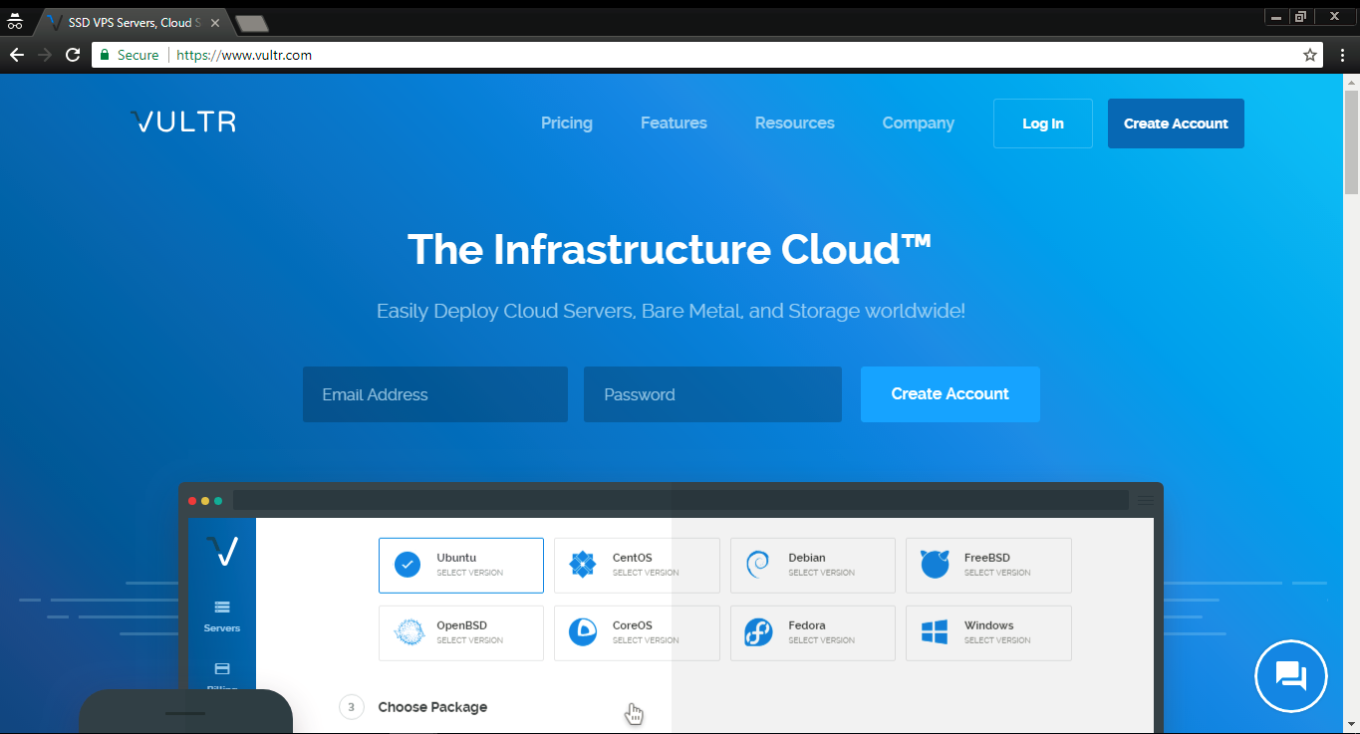
If you did the same, you'll receive an email with a link to confirm your registration. Once you do it and log in, you'll be asked to choose a payment method. I selected Credit card, but you are free to use any other, obviously.
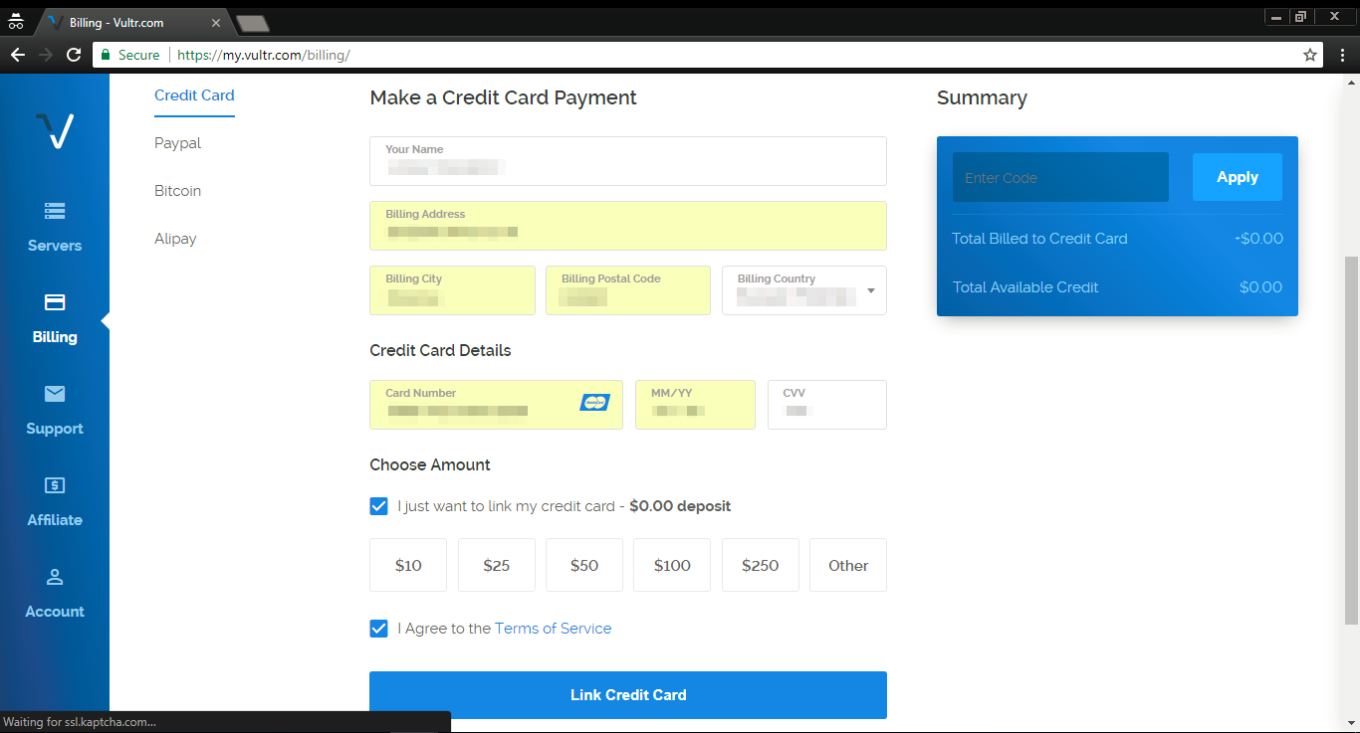
Important — if you are choosing credit card as your payment method, tick the "I just want to link my credit card" checkbox, otherwise, you will be charged immediately.

After you've linked your card, click on the "Servers" tab on the left, and then choose "Deploy New Server" (a button with a "plus" symbol).
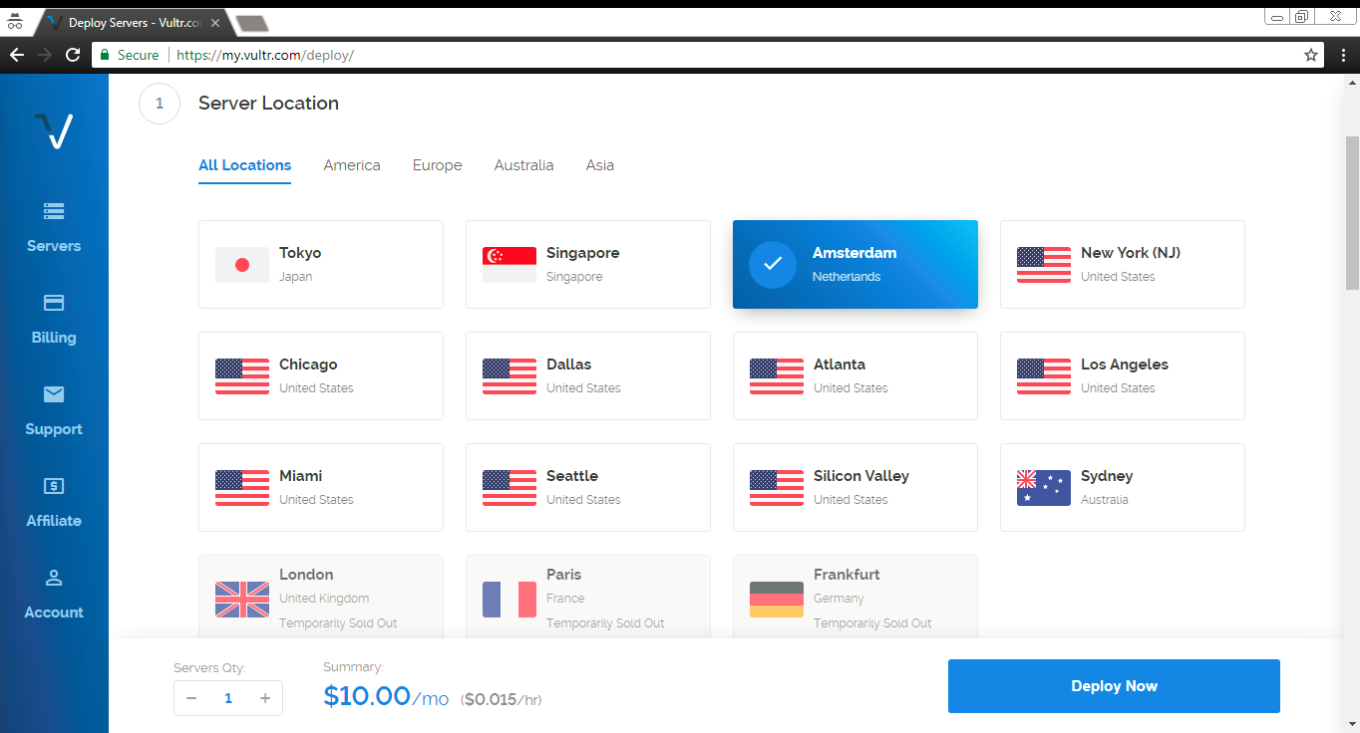
Ok, time to make a decision where our new server will be located. I've chosen one in Amsterdam, you can (and probably should, unless you have a specific reason) choose something relatively close to your geographical location.
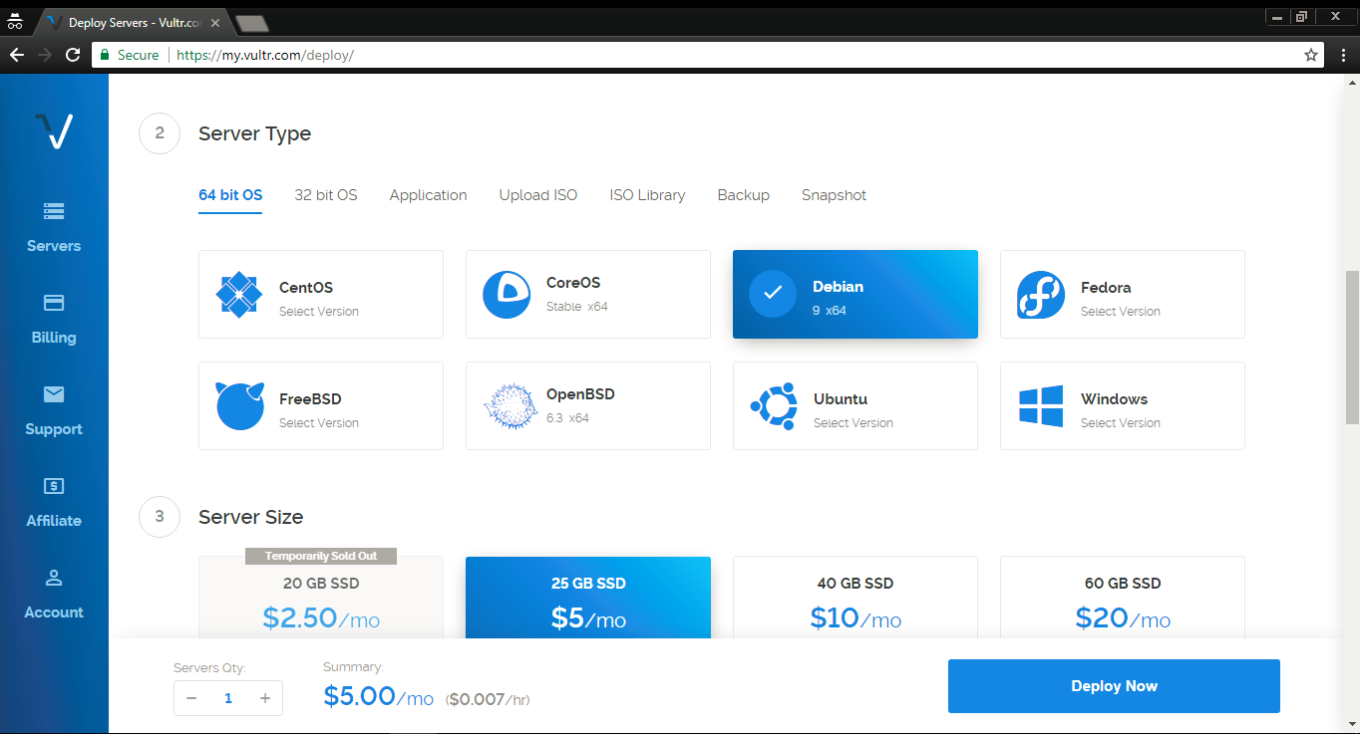
In the "Server type" tab select Debian 9 (x64) — this is very important!
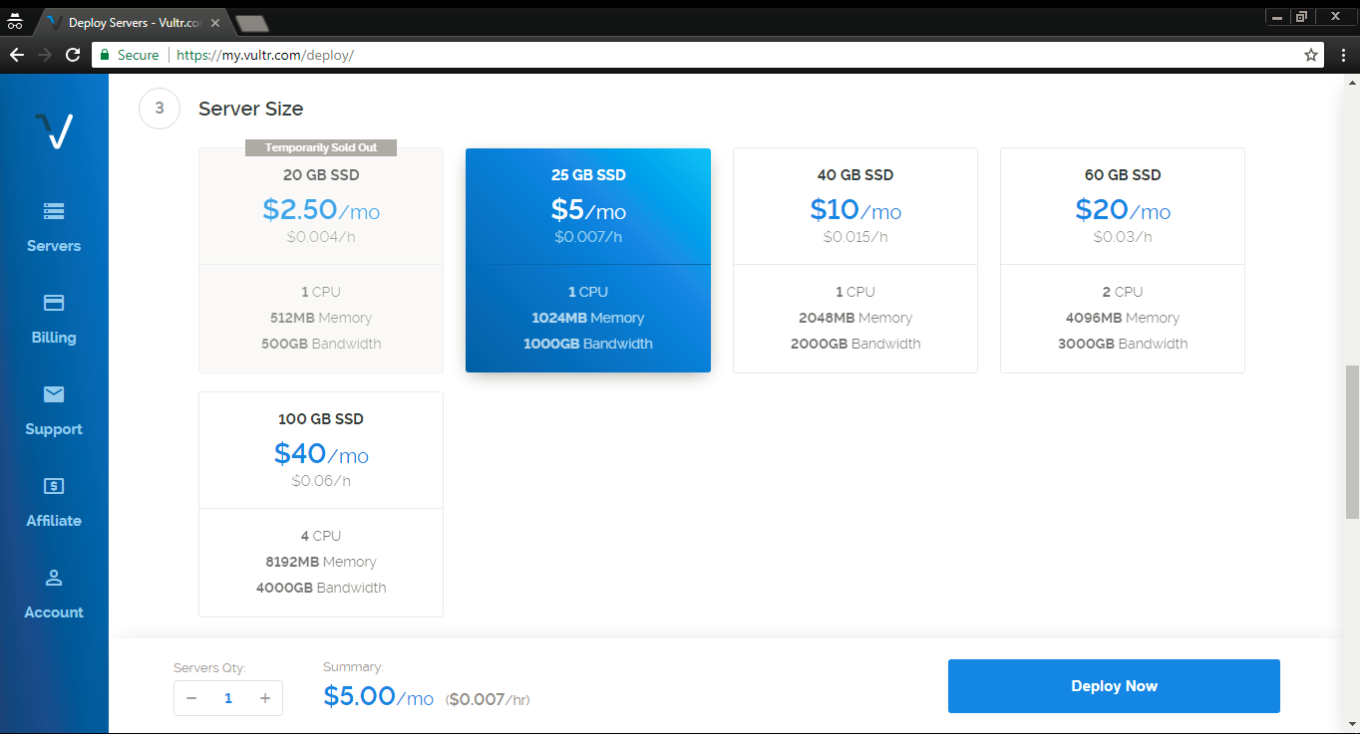
The third step is to select the server size, it depends solely on your needs and your budget. Most users will find 1 TB for $5/mo or 500 GB for $2.5/mo sufficient.
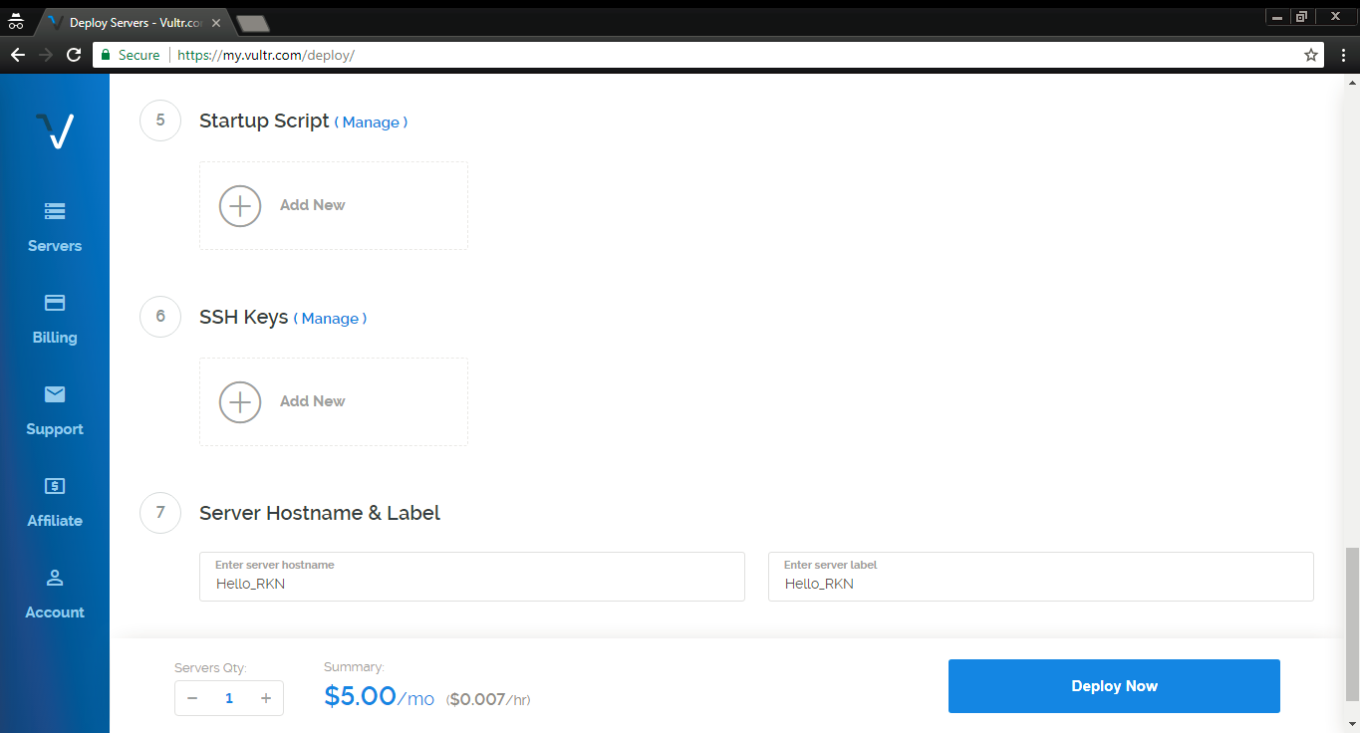
At steps 5 and 6 there's no need to change anything. At step 7 choose a hostname and a label for your server, any will do.

Aaaaand done! Smash the Deploy Now button to finish the process. You'll get another email to confirm that the server has been deployed — you'll need it later.

Installing PuTTY (for Windows users)

Now we have to install and set up a proxy on our freshly acquired server. Windows users can use the PuTTY tool, which can be downloaded here. Click on the .msi build under the "MSI (Windows Installer)" section. Mind if your OS is 32-bit or 64-bit when downloading the installer (if you are not sure, this article will help you determine it).
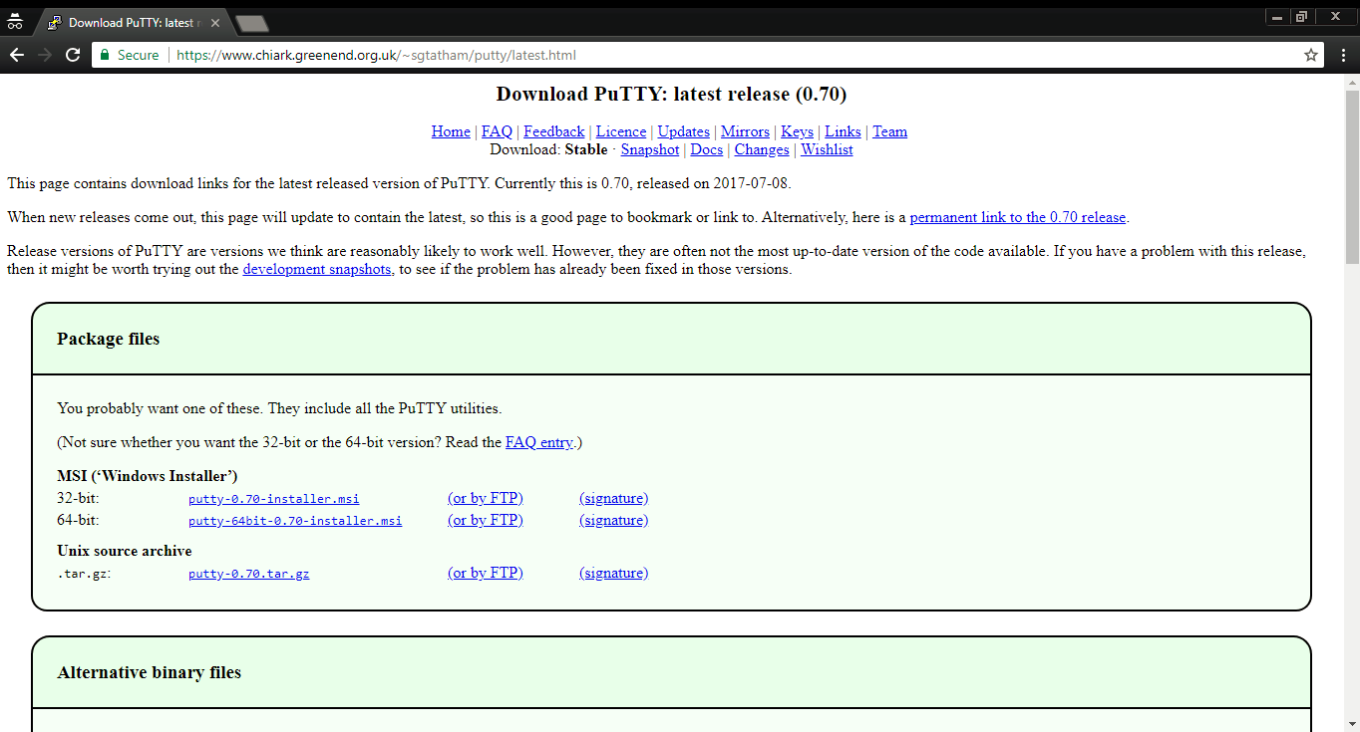
Open the .msi file and install PuTTY by following the wizard's instructions, and then run the tool.
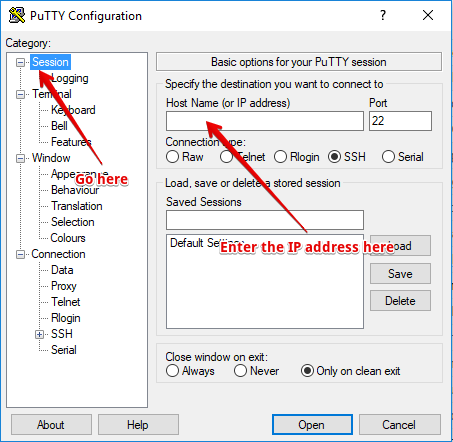
This is what you'll be faced with — don't get scared at the number of tabs and settings there, we'll basically only need one. Open the very first tab (Session) and enter the IP address you got in that confirmation email from Vultr.

Done? Then click the "Open" button located at the bottom. You'll see the console asking you to enter login and password (during the first launch there will be a warning pop-up — don't worry, it's fine, just press OK).
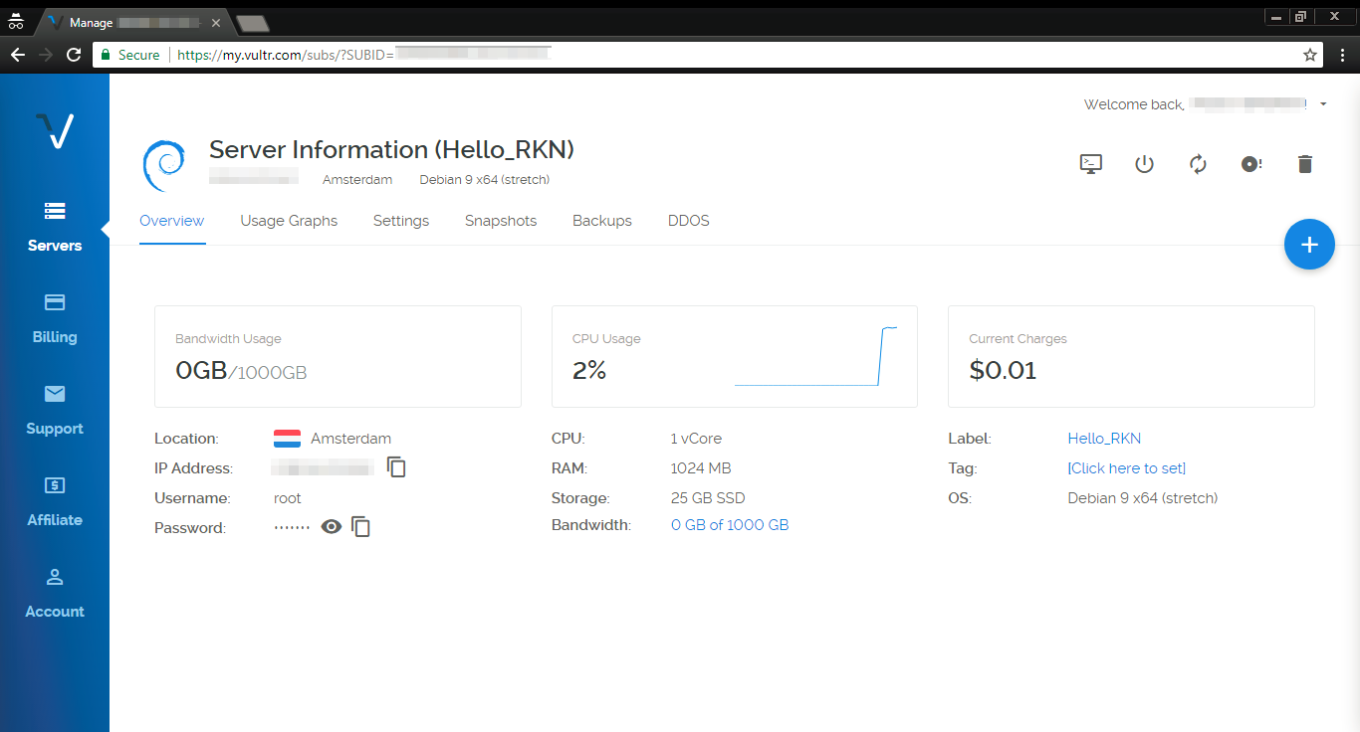
This data can be found in the Overview tab of your Vultr servers screen. The username will be root by default, and the password, of course, randomized (you can change it while you are at it). Ok, you've successfully entered login and password, which takes us to the next step — installing a proxy.

If you are a Mac user, you don't need to install putty or any other utility. All you have to do is open the Terminal and proceed to install and configure a proxy.

Setting up and configuring a proxy

For this purpose, we will use a special script by AdGuard that will perform all required actions. If everything has been going well so far, you should be seeing PuTTY console on your screen.
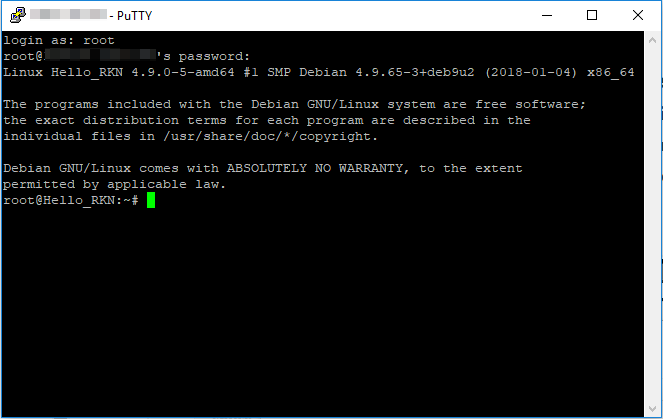
Subsequently execute the following commands in there (press Enter after each command):

apt-get update

The console should look somewhat like this:
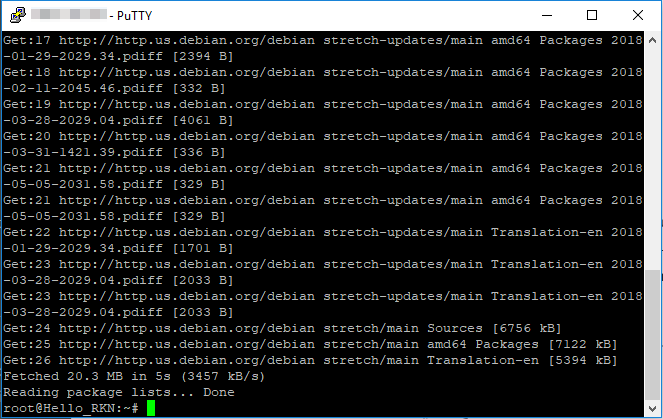
apt-get install curl -y

This is what you'll be seeing after executing this command:
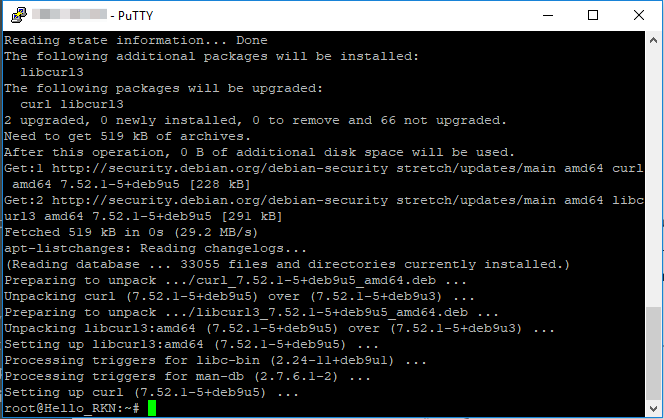
bash <(curl -s "https://raw.githubusercontent.com/AdguardTeam/ProxiesSetup/master/setup.sh")

At the 3rd step, the script will ask you for a username/password pair for your future proxy. You are free to choose any, but make sure to remember them, or even write them down. What it will look like:
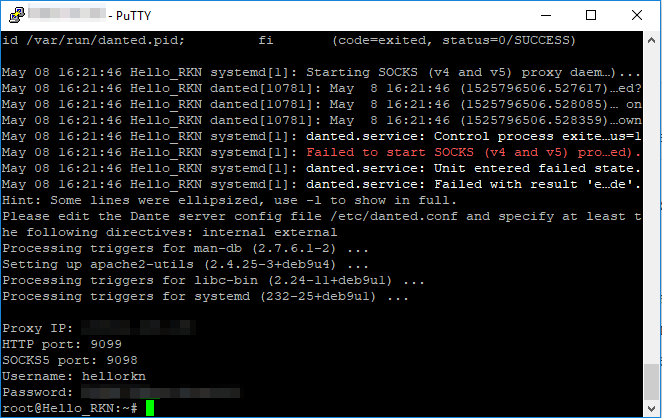
In the console, you will see the IP address of your proxy, HTTP port, SOCKS5 port, username and password. This information has to be entered whenever you want to configure your device/browser to use this proxy. Let's now have a look at a couple of specific examples.

Very important! SOCKS5 is not ideal in terms of security. Try not to use SOCKS5 proxy in public and unprotected networks. In one of the next articles, we'll tell about more secure solutions like Shadowsocks.

In case your server has restarted, you will need to reenable the danted service. To do so, run this command line in the console:

systemctl enable danted.service

Configuring proxy in AdGuard for Mac

Setting up a SOCKS5 proxy in AdGuard for Mac is pretty easy, especially since the proxy settings have been moved from the Advanced settings to the Network tab. Click the gear icon and select Preferences.
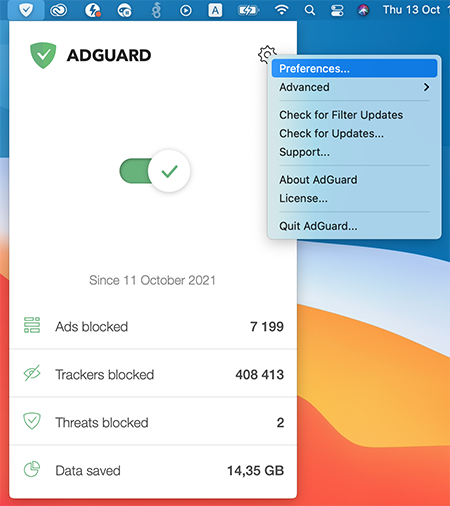
Settings_1

Now go to the Network tab, and then to the Outbound proxy tab. In the drop-down menu on the right, select SOCKS5. Fill in all the fields, using the data you have just seen in Terminal. To complete the setup, check the Outbound proxy box.
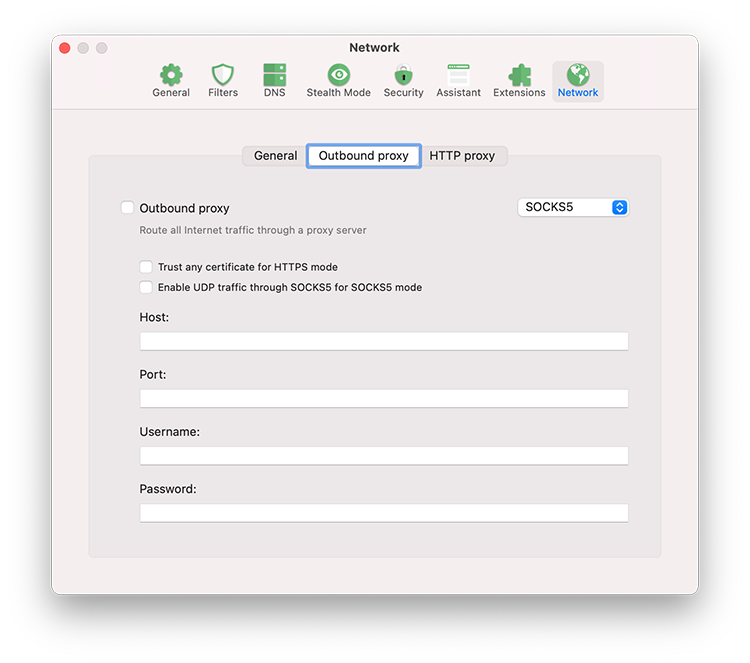
Settings_2

If you want to use AdGuard for Mac as an HTTP proxy to filter traffic on devices in your local network, go to the HTTP proxy tab and check the box Use AdGuard as an HTTP proxy.
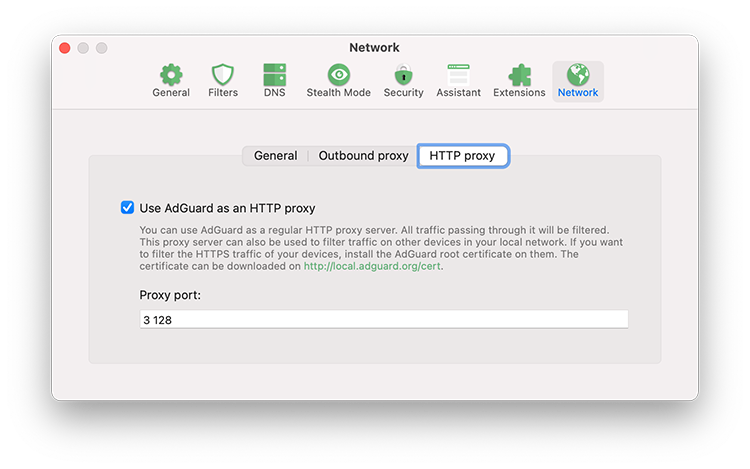
Settings_3

Configuring proxy in AdGuard for Android

There's no trickery here, we will be configuring our SOCKS5 proxy (since we need the authorization) just like we would configure any other proxy. Open the side menu of AdGuard app, go to "Settings - Proxy settings".
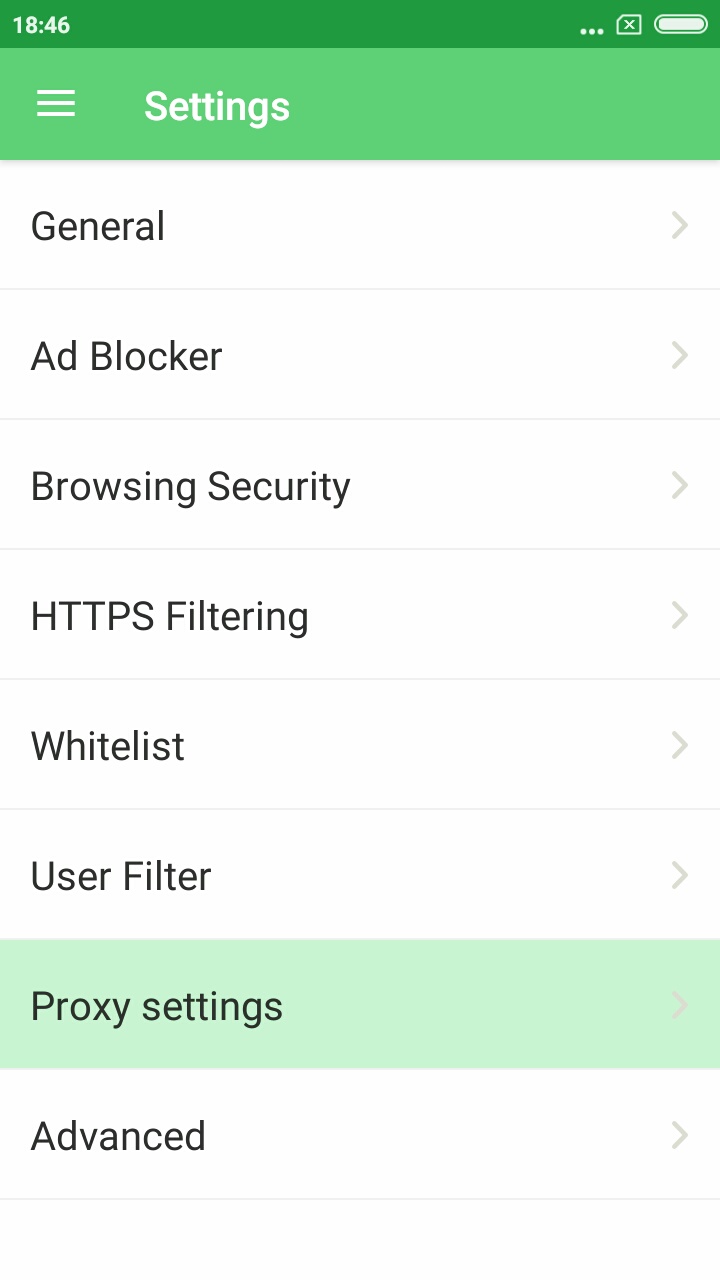
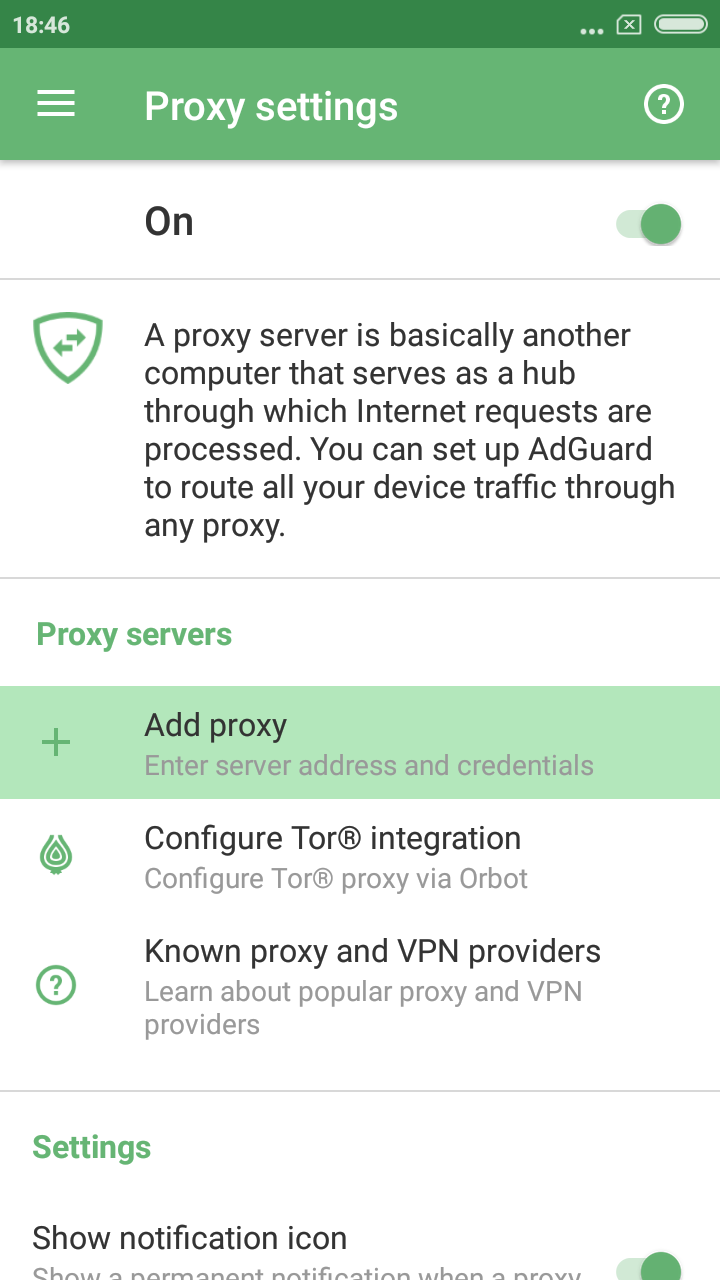
Don't forget to toggle the main switch in the top right corner on, then tap the "Add proxy" button.
Fill out all the fields using data from PuTTY console. You can enter anything under "Proxy name". Also, enable the "Default proxy" option if you plan to mainly use this proxy.
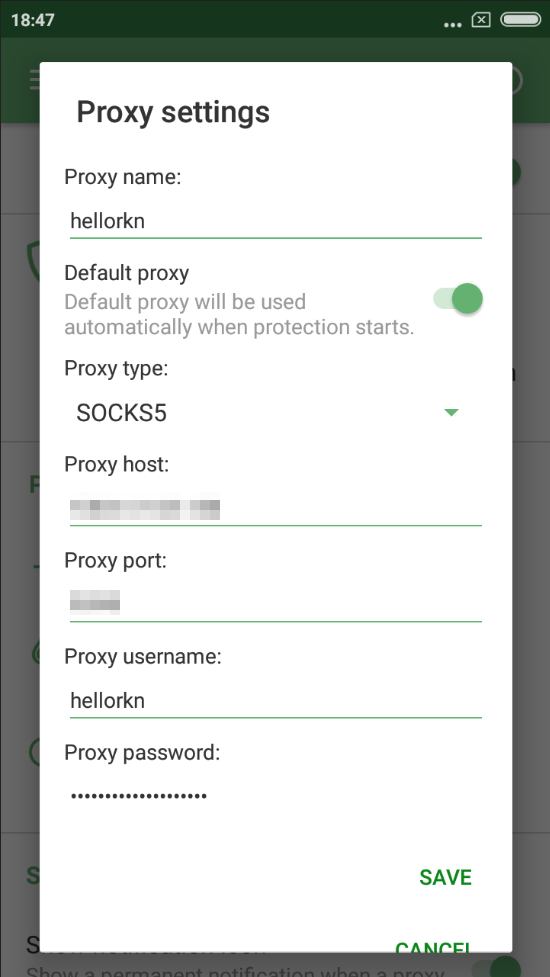
Excellent! Tap Save, now all traffic filtered by AdGuard will be routed through your proxy. And by the way, you can still disable AdGuard filtering for any app(s) via "Apps management", it will prevent its traffic from being routed through the proxy.
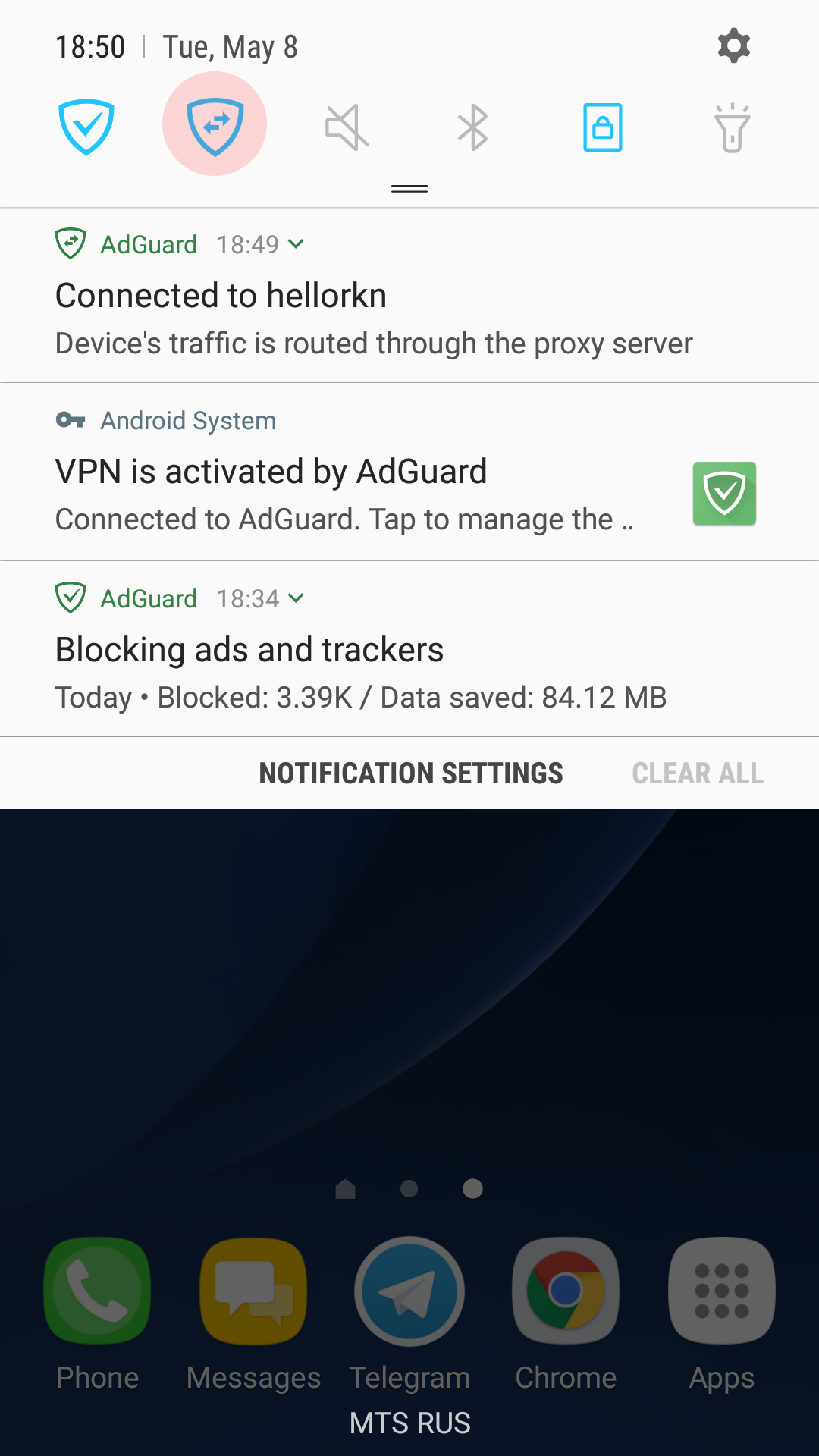
There's one trick that will allow you to instantly switch between enabling and disabling the proxy — you can add a specific tile to the quick access panel. Note there's a new notification in the notification bar, telling that your traffic is routed through the proxy server. Tapping on it will also take you to the "Proxy settings" screen in AdGuard.

Configuring proxy in Chrome/Firefox browsers

For this purpose, we advise using the SwitchyOmega browser extension. I use Chrome, so I'll be downloading it from the Chrome Store, Firefox users will find it among Firefox add-ons. Its unique trait is that it allows you to set up a proxy to be used on specific domains only, or, vice versa, to exclude specific domains.
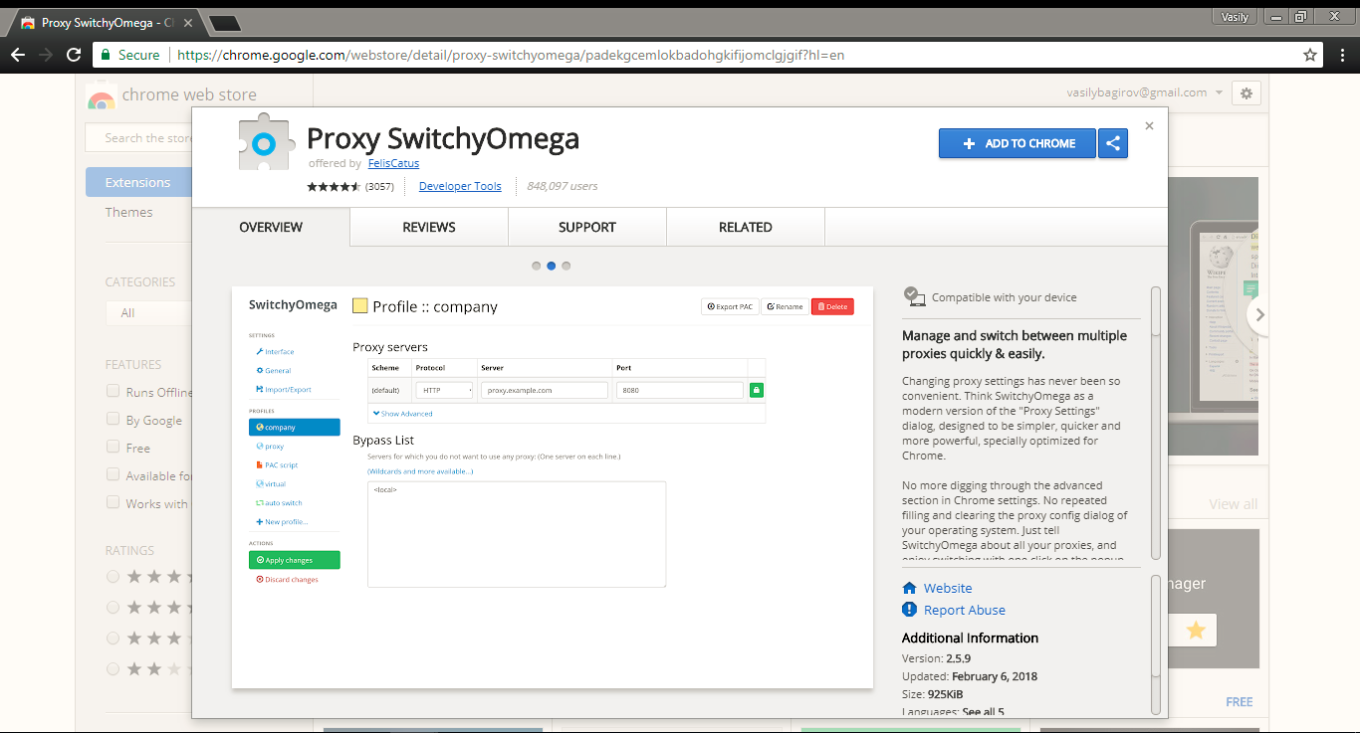
Configuring SwitchyOmega is very simple. Add a new profile ("+New profile") in the Profiles tab on the left. We need to choose HTTP protocol, since SOCKS5 does not support authorization here. Again, fill out the fields according to previously received information. Remember to apply changes by clicking the button on the left!

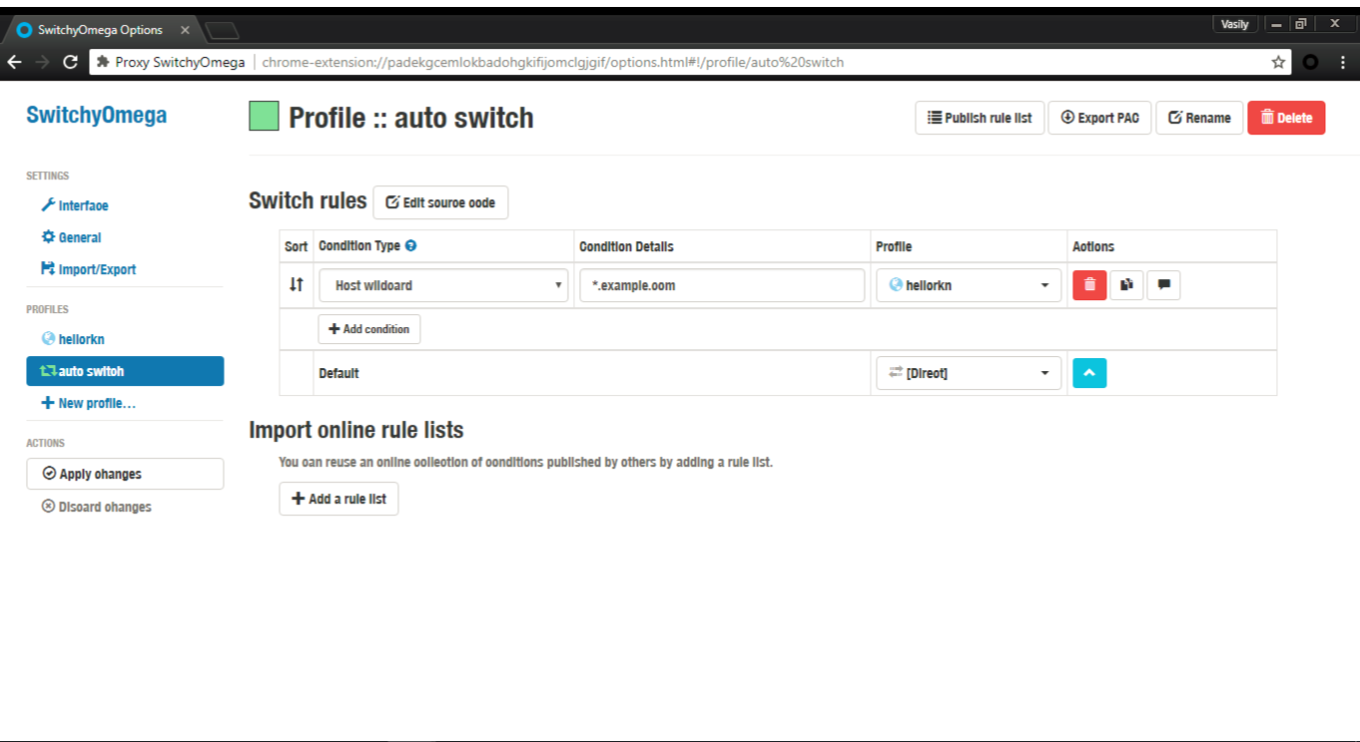
To make your browser use this proxy by default, in the "Auto switch" tab select the freshly added proxy in the Default drop-down menu.

In case you want your proxy to be used for specific websites or IP addresses only, set up respective switch rules. A tooltip will help you with the syntax.
And here's one small "lifehack" (please don't kill me for using this word): on any page you can quickly access proxy settings by clicking the SwitchyOmega extension icon. Manage proxy in respect to the current website, or change global proxy settings — everything is within a couple of clicks.
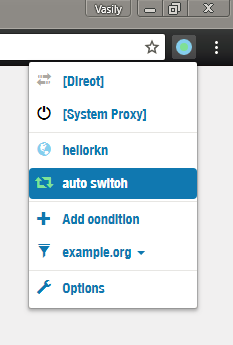
Color indicator also helps determining if the proxy is being used currently or not.

Summarizing

We've done it! If everything went according to plan, you should have your own server with a working proxy installed there, and respective settings on your phone/browser. Not so bad for 10 minutes spent on reading this article :)

Should you encounter any difficulties along the way, or if you just have any questions — let me know in the comments, and I (or some other team member) will help you get through! Good luck!


Vond je dit bericht leuk?
AdGuard VPN AdGuard DNS AdGuard Mail AdGuard Wallet
Het hoofdscherm van AdGuard voor Windows
Het beschermingsscherm van AdGuard voor Windows, met de beschermingsfuncties en -instellingen
Het statistiekenscherm van AdGuard voor Windows, met statistieken over geblokkeerde advertenties en volgers
Het appbeheerscherm van AdGuard voor Windows, met de opties voor beschermingsbeheer van apps die op het apparaat zijn geïnstalleerd
20.557 20557 gebruikersbeoordelingen
Uitstekend!

AdGuard voor Windows: advertentieblokker voor pc

AdGuard voor Windows is meer dan een advertentieblokker. Het is een multifunctioneel hulpmiddel dat advertenties blokkeert, de toegang tot gevaarlijke sites regelt, het laden van pagina's versnelt en kinderen beschermt tegen ongepaste inhoud
Door het programma te downloaden accepteer je de licentievoorwaarden
Microsoft Store
Door het programma te downloaden accepteer je de licentievoorwaarden
AdGuard voor Windows v8.0, 14 dagen proefperiode
Het hoofdscherm van AdGuard voor Mac
Het Incognitomodus-scherm van AdGuard voor Mac
20.557 20557 gebruikersbeoordelingen
Uitstekend!

AdGuard voor Mac: systeembrede advertentieblokker

AdGuard voor Mac is een unieke advertentieblokker die is ontworpen met macOS in gedachten. Het beschermt je niet alleen tegen vervelende advertenties in browsers en apps, maar beschermt je ook tegen volgen, phishing en fraude
Door het programma te downloaden accepteer je de licentievoorwaarden
Meer lezen
AdGuard voor Mac v2.19, 14 dagen proefperiode
Het hoofdscherm van AdGuard voor Android
Het scherm 'Bescherming tegen volgers' van AdGuard voor Android
Het appbeheerscherm van AdGuard voor Android, met de opties voor beschermingsbeheer voor apps die op het apparaat zijn geïnstalleerd
Het statistiekenscherm van AdGuard voor Android, met statistieken over geblokkeerde advertenties en volgers
Het hoofdscherm van de privébrowser van AdGuard voor Android
De QR-code om AdGuard voor Android te downloaden
20.557 20557 gebruikersbeoordelingen
Uitstekend!

AdGuard voor Android: advertentieblokker voor alle apps

Blokkeert advertenties en volgers in alle browsers, spellen en andere apps. Beschermt je privacy en geeft je controle over hoe jouw apps internet gebruiken. Geïnstalleerd via APK
Door het programma te downloaden accepteer je de licentievoorwaarden
Meer lezen
Scannen om te downloaden
Gebruik een QR-codelezer die beschikbaar is op je apparaat
AdGuard voor Android v4.14, 14 dagen proefperiode
Het hoofdscherm van AdGuard voor iOS
Het beschermingsscherm van AdGuard voor iOS, dat de beschermingsfuncties en -instellingen toont.
Het statistiekenscherm van AdGuard voor iOS, met statistieken over geblokkeerde advertenties en volgers
De QR-code om AdGuard voor iOS te downloaden
20.557 20557 gebruikersbeoordelingen
Uitstekend!

AdGuard: advertentieblokker voor iOS

De beste advertentieblokker voor iOS op iPhone en iPad. AdGuard verwijdert alle soorten advertenties en volgers in Safari en beschermt je privacy in alle apps op DNS-niveau
Door het programma te downloaden accepteer je de licentievoorwaarden
Meer lezen
Scannen om te downloaden
Gebruik een QR-codelezer die beschikbaar is op je apparaat
AdGuard voor iOS v4.5
Het hoofdscherm van AdGuard Inhoudsblokker
Het filterscherm van AdGuard Inhoudsblokker
Het instellingenscherm van AdGuard Inhoudsblokker
20.557 20557 gebruikersbeoordelingen
Uitstekend!

AdGuard Content Blocker

AdGuard Content Blocker elimineert allerlei soorten advertenties in mobiele browsers die technologie voor het blokkeren van inhoud ondersteunen, namelijk Samsung Internet en Yandex Browser. De functies zijn beperkt in vergelijking met AdGuard voor Android, maar het is gratis, eenvoudig te installeren en efficiënt
Door het programma te downloaden accepteer je de licentievoorwaarden
Meer lezen
AdGuard Content Blocker v2.8
Het hoofdscherm van de AdGuard-browseruitbreiding
Het scherm 'Bescherming tegen volgers' van AdGuard-browseruitbreiding
20.557 20557 gebruikersbeoordelingen
Uitstekend!

AdGuard Browserextensie

AdGuard is de snelste en lichtste advertentieblokkering uitbreiding die alle soorten advertenties op alle webpagina's effectief blokkeert! Kies AdGuard voor uw browser om advertentievrij, snel en veilig te surfen.
Installeren
Door het programma te downloaden accepteer je de licentievoorwaarden
Installeren
Door het programma te downloaden accepteer je de licentievoorwaarden
Installeren
Door het programma te downloaden accepteer je de licentievoorwaarden
Installeren
Door het programma te downloaden accepteer je de licentievoorwaarden
Installeren
Door het programma te downloaden accepteer je de licentievoorwaarden
Meer lezen
Installeren
Door het programma te downloaden accepteer je de licentievoorwaarden
Meer lezen
AdGuard Browserextensie v5.5
Het hoofdscherm van AdGuard Assistant
20.557 20557 gebruikersbeoordelingen
Uitstekend!

AdGuard Assistant

Een bijbehorende browseruitbreiding voor AdGuard desktop-apps. Het stelt je in staat om aangepaste items op websites te blokkeren, websites toe te voegen aan de toelatingslijst en rapporten rechtstreeks vanuit je browser te versturen
AdGuard Assistant v1.4
20.557 20557 gebruikersbeoordelingen
Uitstekend!

AdGuard Home

AdGuard Home is een netwerkgebaseerde oplossing voor het blokkeren van advertenties en volgers. Installeer het één keer op je router om alle apparaten in je thuisnetwerk te beschermen — geen extra clientsoftware vereist. Dit is vooral belangrijk voor verschillende IoT-apparaten die vaak een bedreiging vormen voor je privacy
AdGuard Home v0.107
Het hoofdscherm van AdGuard Pro voor iOS
Het beschermingsscherm van AdGuard Pro voor iOS, met de beschermingsfuncties en instellingen
Het statistiekenscherm van AdGuard Pro voor iOS, met statistieken over geblokkeerde advertenties en trackers
20.557 20557 gebruikersbeoordelingen
Uitstekend!

AdGuard Pro voor iOS

AdGuard Pro voor iOS wordt geleverd met alle geavanceerde beschermingsfuncties voor het blokkeren van advertenties. Het biedt dezelfde tools als de betaalde versie van AdGuard voor iOS. Het blinkt uit in het blokkeren van advertenties in Safari en laat je DNS-instellingen aanpassen om je bescherming aan te passen. Het blokkeert advertenties in browsers en apps, beschermt je kinderen tegen ongepaste inhoud en houdt je persoonlijke gegevens veilig
Door het programma te downloaden accepteer je de licentievoorwaarden
Meer lezen
AdGuard Pro voor iOS v4.5
Het hoofdscherm van AdGuard Mini voor Mac
Het Safari-beschermingsscherm van AdGuard Mini voor Mac
Het 'Regel aanmaken'-scherm van AdGuard Mini voor Mac
20.557 20557 gebruikersbeoordelingen
Uitstekend!

AdGuard Mini voor Mac — Safari-advertentieblokker

AdGuard Mini voor Mac is een krachtige Safari-advertentieblokker. Deze lichtgewicht app verwijdert advertenties, blokkeert volgers en versnelt het laden van pagina's. Het helpt je om in Safari zonder afleiding op het web te surfen en je gegevens privé te houden
Installeren
Door het programma te downloaden accepteer je de licentievoorwaarden
Meer lezen
AdGuard Mini voor Mac v2.3
Het hoofdscherm van AdGuard voor Android TV met ingeschakelde bescherming
Het advertentieblokkeringsscherm van AdGuard voor Android TV, met zijn functies en instellingen
Het instellingenscherm van AdGuard voor Android TV
Het appbeheer-scherm van AdGuard voor Android TV, waarop de apps worden getoond waar advertenties en volgers worden geblokkeerd
20.557 20557 gebruikersbeoordelingen
Uitstekend!

AdGuard voor Android TV

AdGuard voor Android TV is de enige app die advertenties blokkeert, jouw privacy bewaakt en fungeert als firewall voor je Smart TV. Ontvang waarschuwingen over webbedreigingen, gebruik veilige DNS en profiteer van gecodeerd verkeer. Ontspan en duik in je favoriete programma's met eersteklas beveiliging en zonder advertenties!
AdGuard voor Android TV v4.14, 14 dagen proefperiode
De AdGuard-mascotte, Agnar, houdt de Linux-pinguïn vast
20.557 20557 gebruikersbeoordelingen
Uitstekend!

AdGuard voor Linux

AdGuard voor Linux is 's werelds eerste systeem-brede AdGuard Advertentieblokker. Blokkeer advertenties en volgers op apparaatsniveau, kies uit vooraf geïnstalleerde filters, of voeg je eigen toe - allemaal via de interface
AdGuard voor Linux v1.4
20.557 20557 gebruikersbeoordelingen
Uitstekend!

AdGuard Temp Mail

Een gratis tijdelijke e-mailadresgenerator die je anoniem houdt en jouw privacy beschermt. Geen spam in je hoofdinbox!
20.557 20557 gebruikersbeoordelingen
Uitstekend!

AdGuard VPN

75 locaties wereldwijd

Toegang tot alle inhoud

Sterke versleuteling

Geen logboekregistratie

Snelste verbinding

24/7 ondersteuning

Gratis proberen
Door het programma te downloaden accepteer je de licentievoorwaarden
Meer lezen
20.557 20557 gebruikersbeoordelingen
Uitstekend!

AdGuard DNS

AdGuard DNS is een alternatieve oplossing voor advertentieblokkering, privacybescherming en ouderlijk toezicht. Het is eenvoudig in te stellen en gratis te gebruiken, biedt een minimum aan optimale bescherming tegen online advertenties, volgers en phishing, ongeacht welk platform en welk apparaat je gebruikt.
20.557 20557 gebruikersbeoordelingen
Uitstekend!

AdGuard Mail

Bescherm je identiteit, vermijd spam en houd je Postvak IN veilig met onze aliassen en tijdelijke e-mailadressen. Geniet van onze gratis service voor het doorsturen van e-mail en apps voor alle besturingssystemen
20.557 20557 gebruikersbeoordelingen
Uitstekend!

AdGuard Wallet

Een veilige en privé crypto-wallet die je volledige controle geeft over jouw activa. Beheer meerdere wallets en ontdek duizenden cryptocurrencies om op te slaan, te verzenden en te ruilen
Downloaden AdGuard Klik op het door de pijl aangegeven bestand om AdGuard te installeren. Selecteer "Open" en klik op "OK" - wacht even tot het bestand gedownload is. Sleep dan in het geopende venster het AdGuard icoontje naar de "Applications" map. Dank u dat u voor AdGuard gekozen heeft. Selecteer "Open" en klik op "OK" - wacht even tot het bestand gedownload is. Klik dan in het geopende venster op "Installeren". Dank u dat u voor AdGuard gekozen heeft.
AdGuard op je mobiele apparaat installeren

















































