In-depth features overview: AdGuard for Windows
In the modern world so many of us live and work under the constant deficit of time, so it's only natural that we often weigh our choice towards fast solutions to problems in almost every aspect. We use the same logic when we choose our apps, many of which have become an integral part of our everyday life. Apps that don't require our supervision or additional configuring and are capable of instantly performing their job from the get-go, have a serious edge over the competition.
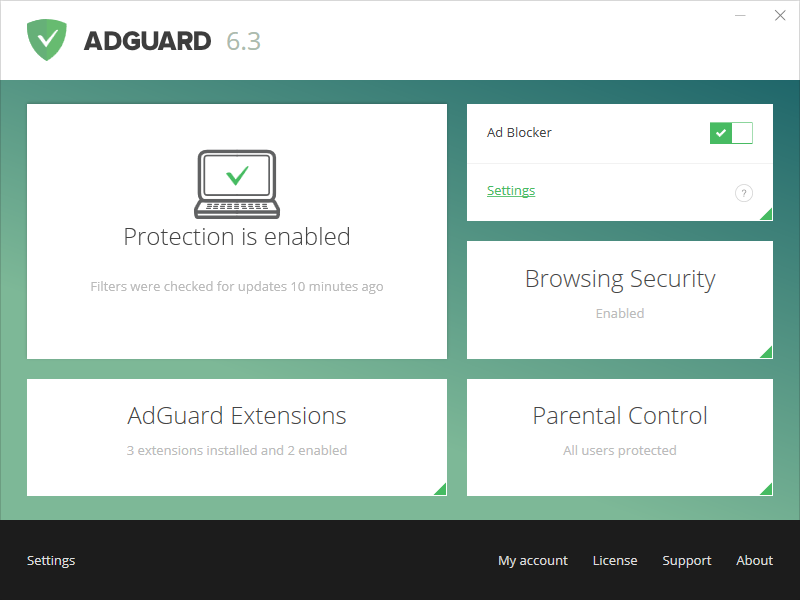
AdGuard for Windows app
AdGuard for Windows certainly can be this app. You install it and BAM, ads are gone immediately and your personal data is well protected.
But "Install and forget" is not always the best way to go, since app's capabilities aren't used to their full potential in this case and lots of useful and even necessary features may be left unnoticed.
In this article we conduct a review of all AdGuard for Windows features, and who knows, maybe one of them is exactly what you were looking for all this time and didn't know the solution was right here all along :)
Features
Ad Blocker
Filtered Apps
Stealth Mode
Browsing security
Parental Control
Extensions
Integration Mode
Other functions
AdGuard for Windows features
All AdGuard for Windows functions can be roughly divided into several groups (which correspond with items from AdGuard's settings menu):
- Ad Blocker — a module for blocking ads
- Browsing Security — a module to fight dangerous and fraud websites
- Stealth Mode — a module to prevent various attempts to track you and your actions online
- Parental Control — its name speaks for itself
and other. Further we will look at each of them more closely.
Ad Blocker
AdGuard's main job, without any doubt, is blocking ads, and responsible for this task is Ad Blocker module.
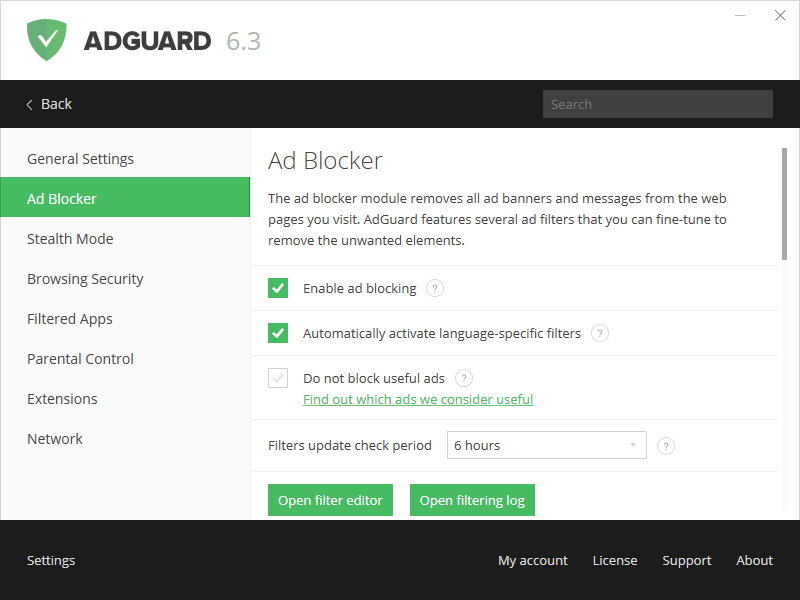
Ad Blocker module
It is a popular opinion that AdGuard uses magic to block ads, but it is, in fact, not true. Ad blocking is possible thanks to filters, which make up the "core" of ad blocker. Filters, in their turn, consist of lists of rules written in special syntax. These rules tell ad blocker what exactly and how to block.
AdGuard team develops and supports a range of own filters, but you also have an option to choose any from dozens of third-party filters available by default, or even add your own (we'll talk about it a bit later). In the Ad Blocker settings you can enable and disable any filters as you see fit.
On top of that there are more options available to you:
- Automatically detect language-specific filters (useful for when you visit pages in different languages)
- Allow "useful" ads (self-promotional and search ads)
We'd like to emphasize that we do not support any kinds of so-called "acceptable ads" programs. This is 100% optional and we have strict criteria for which ads fall under this definition — only search ads and self-promo ads. More detailed explanation is present in this article.
You'll also notice two buttons inside the Ad Blocker settings — "Filter editor" and "Filtering Log". What are they?
Filter Editor is a tool that allows to peek "under the hood" and work with filters on the individual rules level.
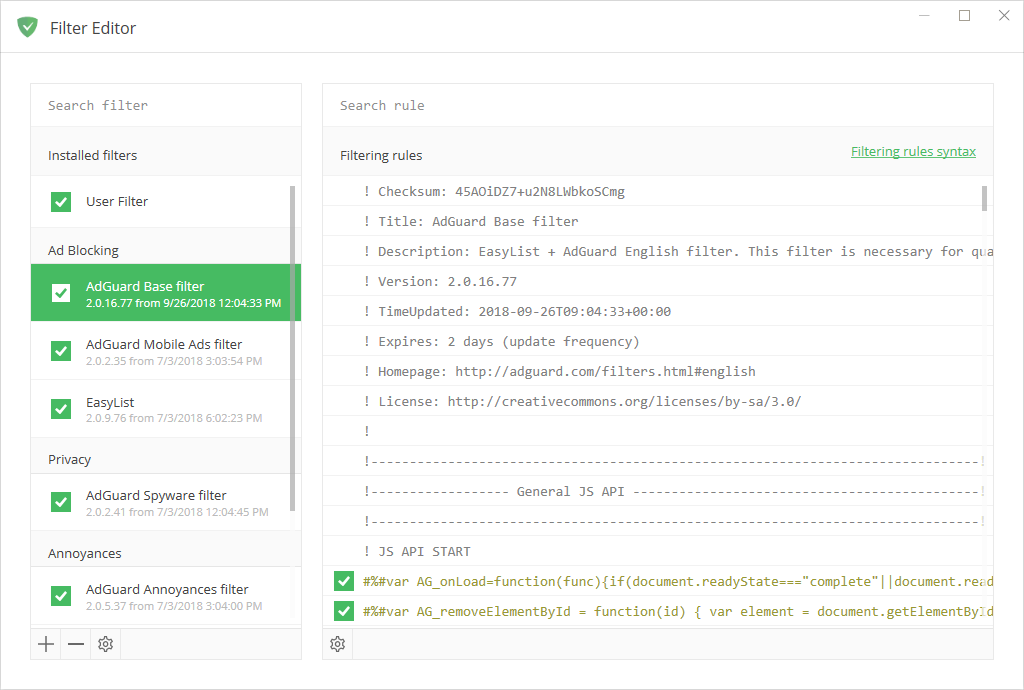
AdGuard Filter Editor
At the very top of the filter list you'll see a User filter. As it is clear from its name, this is a unique filter that provides an opportunity to add your own filtering rules. If you don't know how to create your own rules, or just want to refresh the knowledge, feel free to consult the KB article.
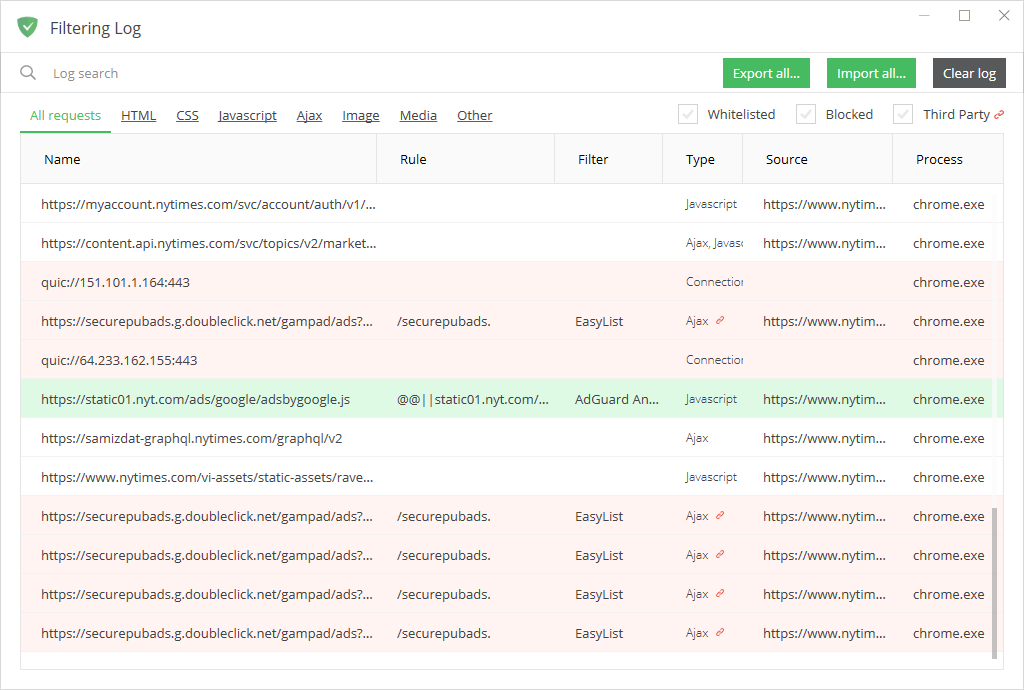
AdGuard Filtering Log
In the Filtering Log are displayed all web requests that go through AdGuard. For your convenience they are highlighted with different colors (for example, blocked requests are highlighted with red). This way, it's very easy to track what's been blocked and what's not. Filtering Log is essential to create your own rules and mostly exists to help advanced users.
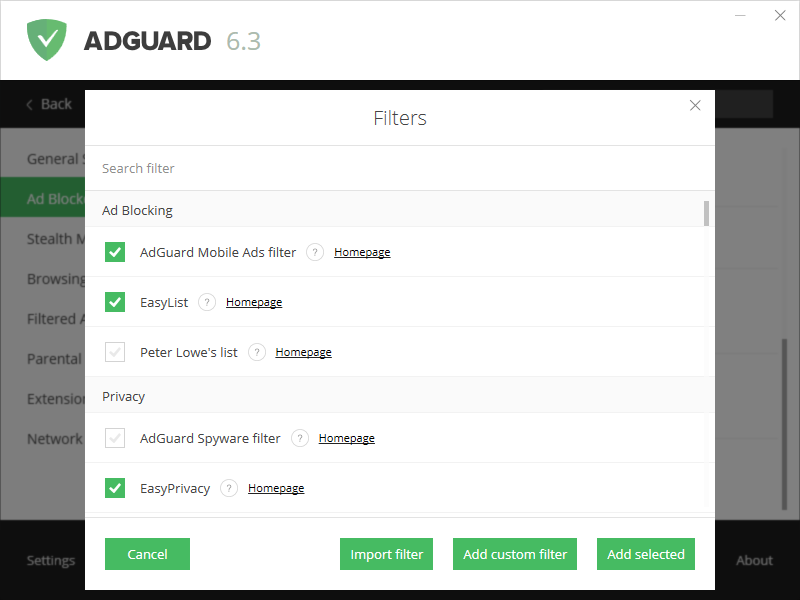
Adding a new filter
Finally, as it was promised, I'll briefly tell how to add your own filters. In the very bottom of the "Ad Blocker" settings screen there is an "Add filter" button. After pressing it, you will find not only a list of available filters, but also a button to add a filter from the web by URL (convenient if your favorite filter is not present in the default list). You can even create a new filter from scratch by clicking on the "Add custom" button!
Filtered Apps
One of the obvious advantages of AdGuard for Windows is that it blocks ads in all browsers. But did you know that it can also block ads and tracking in other apps? "Filtered Apps" section contains the list of almost all known browsers and some apps — all of them will be filtered by default. You can also add an executable (.exe) file of any other app to filter it too.
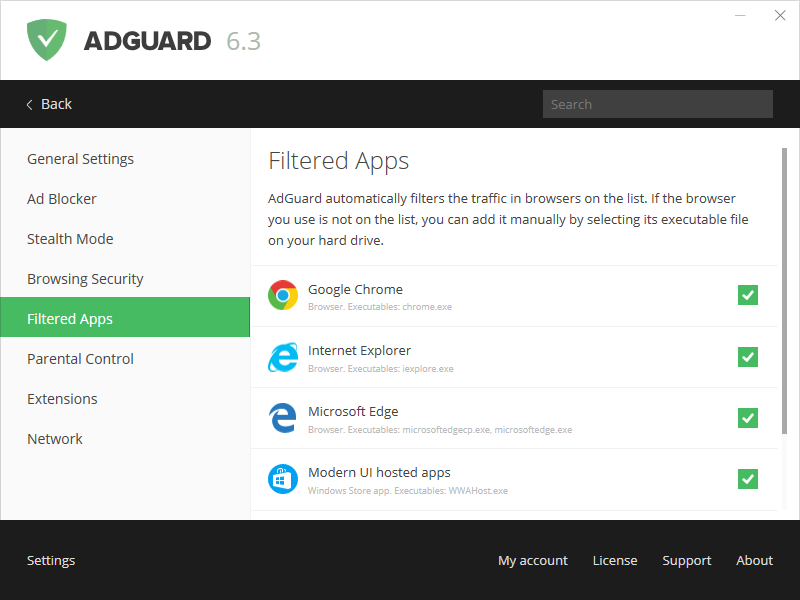
Filtered Apps
But be careful, there can be several executables for one app. Sometimes you need to add them all, and sometimes only one — really depends on the app. If in doubt, you can always consult us or other users in our Telegram chat. Also worth mentioning that some apps can be incompatible with AdGuard — in this case just remove the app's executable file from the "filtered apps".
Stealth Mode
The Stealth Mode module protects your personal data from numerous online trackers and analytical systems. On the screenshots of Ad Blocker you probably noticed the Spyware Filter. This filter is generally enough to protect yourself from online surveillance. However, the Stealth Mode module significantly expands the possibilities and takes your online privacy to a new level.
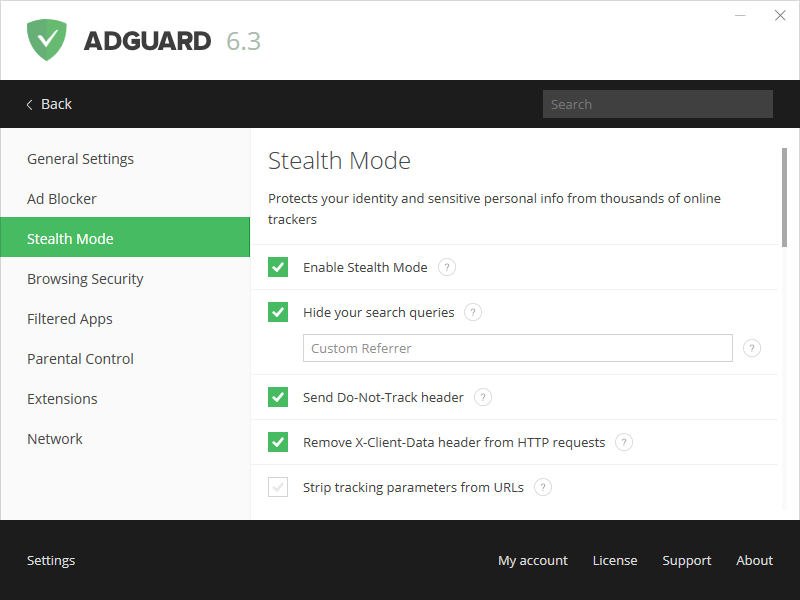
Stealth Mode Module
Stealth Mode's plentiful options allow its flexible configuration. They are divided into several categories, and for an unprepared user many of them will seem confusing. This is why we accompanied each option with a hint that appears when you hover over the icon with a question mark.
It is worth noting that turning on some of the Stealth Mode options can sometimes lead to the incorrect behavior of certain websites — this is the inevitable price for ensuring your privacy online.
Browsing security
Phishing is one of the most unpleasant and widespread types of online threats, the purpose of which is to gain access to confidential user data (logins and passwords, email addresses, etc.). To do this, scammers use fake web pages that mimic the design of popular sites or existing network services.
Fortunately, the Browsing Security module reliably protects you, not only from phishing threats, but also from potentially virus-infected pages.
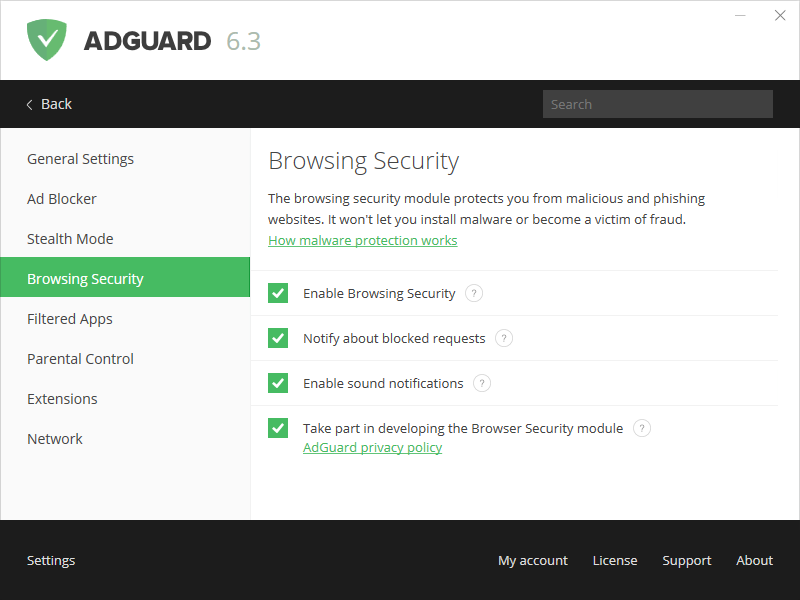
Browsing Security Module
Regularly updated databases ensure that all malicious resources will be recognized and the app will warn you in time if you try to access a dangerous site. Note that your personal information is not transmitted anywhere, and AdGuard servers do not know what sites you are visiting because we don't check websites' URLs, but rather their hash prefixes (hash is a definite data structure, uniquely identifying each address added to the database).
Unlike browser extensions, the Browsing Security module scans each embedded object on the web page, thereby providing the maximum degree of protection.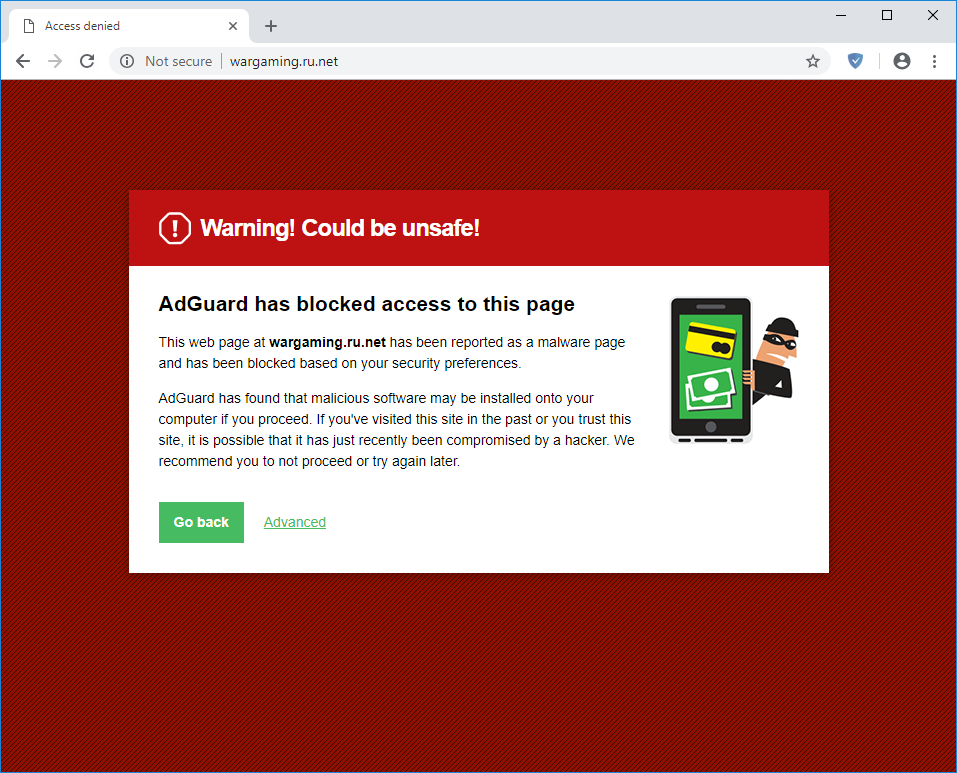
AdGuard blocked access to a dangerous page
In the settings of Browsing Security, you can enable or disable notifications about blocked requests, manage their sound notification, and choose to participate in the development of the Browsing Security module, if you'd like to.
However, it should be noted that the Browsing Security module is not a replacement for the antivirus programs. Despite the fact that it is able to prevent the access to potentially infected sites, it will not protect your computer from downloading viruses or delete the existing ones.
Parental control
The Parental Control module provides children with protection from adult content on the web.
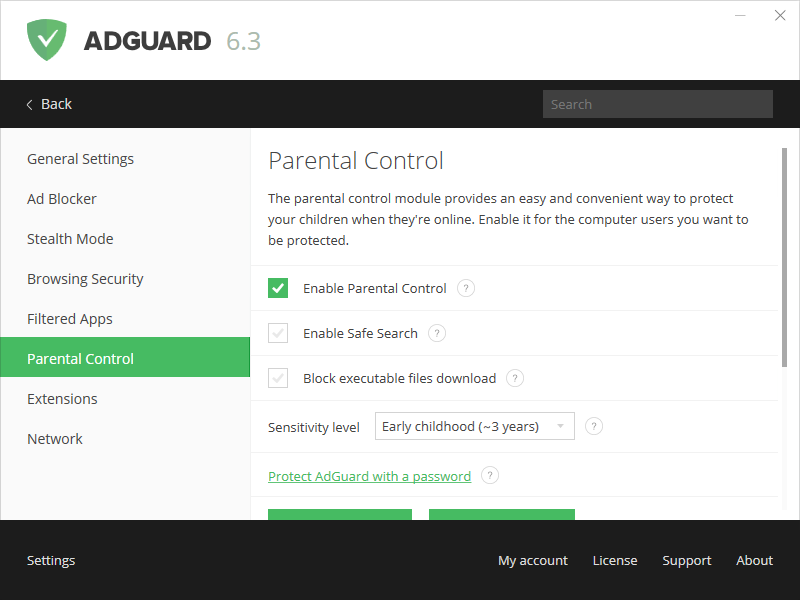
Parental Control
You can activate Safe Search, which will exclude adults websites and other inappropriate content from search results on all popular search engines such as Google, Bing and Yandex. You can also prohibit the loading of executable (.exe) files, this will prevent your kids from installing any potentially dangerous programs.
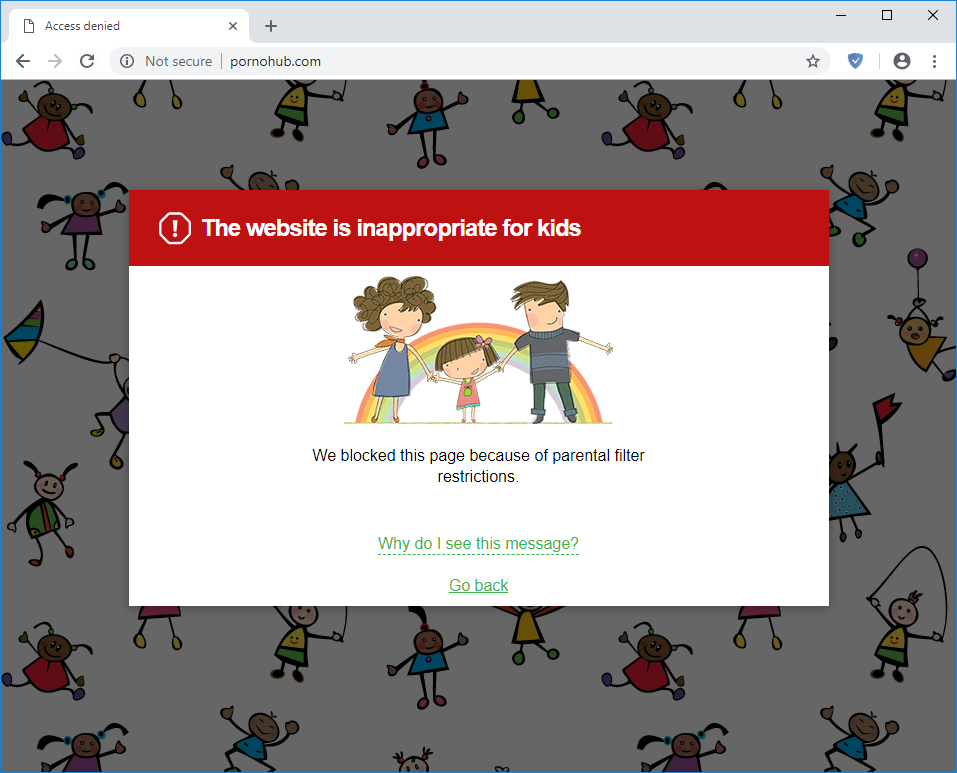
The site is not suitable for children
In the module settings, you can also set the appropriate sensitivity level, create a password to stop your child from accessing the settings or turning off the app, and configure black and/or white lists.
Extensions
The next on the menu is the "Extensions" section in which you can manage userscripts.
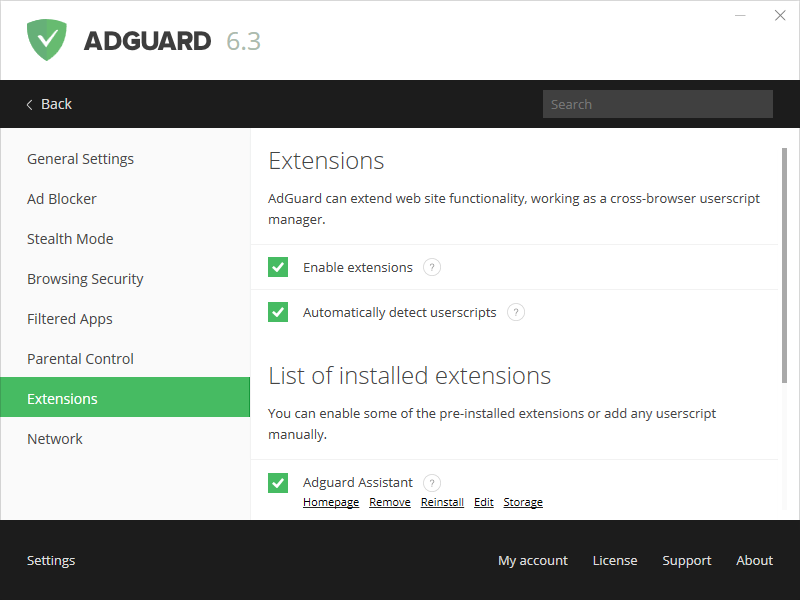
”Extensions” module
First, let's find out what a userscript is? Userscript is a script written in Javascript that extends the functionality of one or more websites. There is a great variety of different userscripts for every taste — some are able to change page design, add new elements to the page or remove the existing ones, some can detect trackers or add new tools etc. There are several popular userscript catalogues and some of them are listed in our Knowledge base article.
One of the important features of AdGuard for Windows is that the application can work as a cross-browser userscript manager. You can easily add any scripts you like and manage the existing ones. At the same time, AdGuard, as a userscript manager, has several significant advantages:
- AdGuard will automatically detect any running scripts and suggest you to install them (in case the Automatically detect userscripts option is enabled)
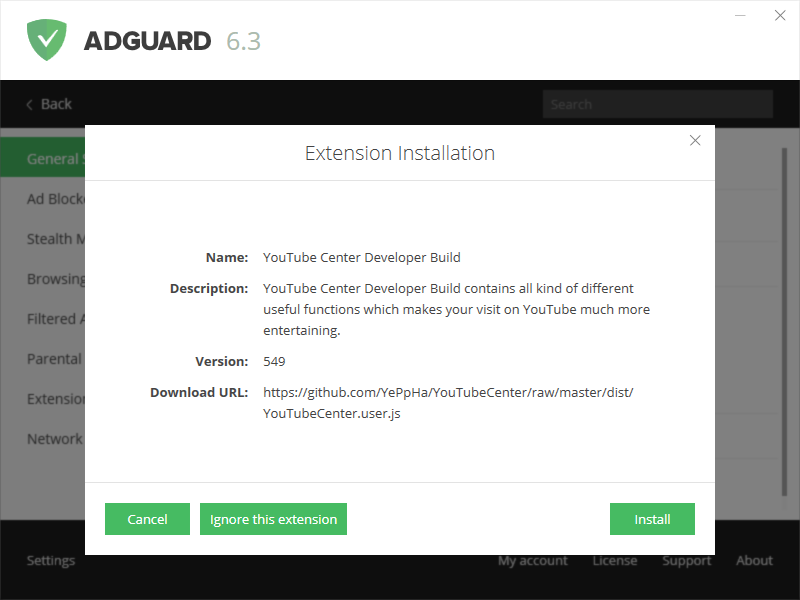
- unlike other popular script managers that work basically as browser extensions in one particular browser, AdGuard launches the installed userscripts in all browsers
Besides, AdGuard has its own extensions which can be activated in settings:
AdGuard Popup Blocker prevents popup windows from opening when you view web pages, and AdGuard Assistant helps users manage AdGuard right from the browser.
AdGuard Assistant works with all Microsoft Windows compatible browsers and is represented on all web pages by a little icon with a shield, except for few websites which are listed as exceptions (if there is a risk of incorrect content display).
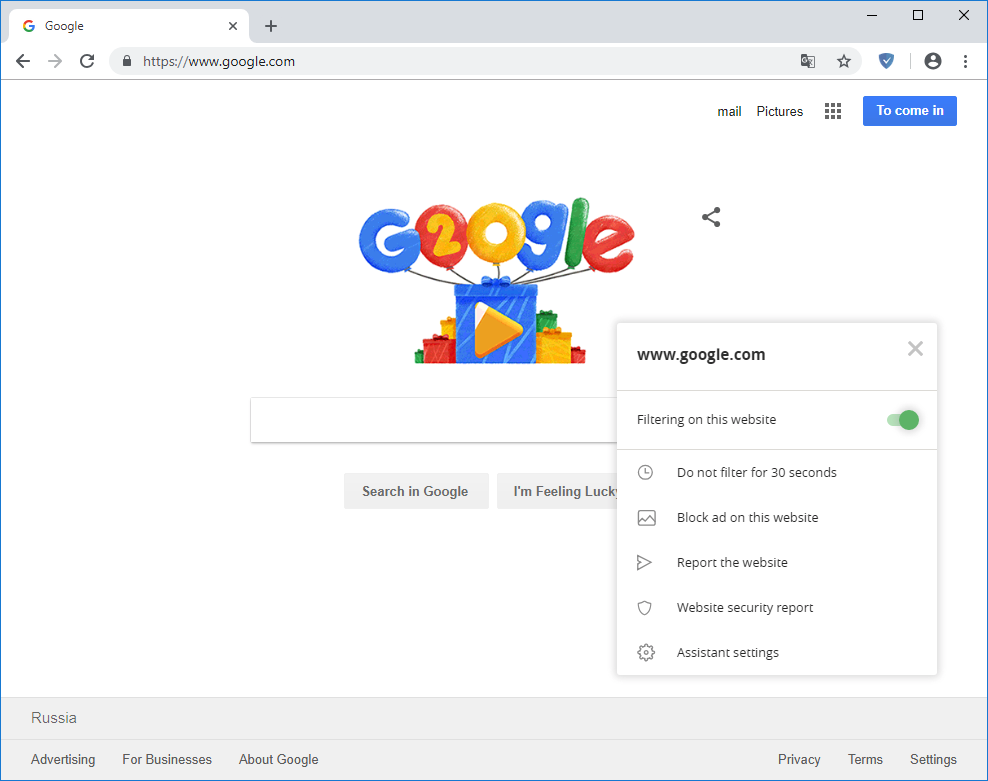
Assistant menu
With AdGuard Assistant you can choose enable or disable filtering on a site, manually block any element in a couple clicks, pause filtering for 30 seconds, check website security and/or report the website (e.g. missed ads).
Integration mode
Speaking about AdGuard Assistant, I would like to focus on one important point — the integration mode. So, what is that?
The Integration mode is automatically enabled when AdGuard for Windows works in conjunction with AdGuard browser extension.
How does AdGuard extension's work change in integration mode?
- Extension icon color changes to blue
- Browser extension doesn’t filter pages any more — now this function lays completely on desktop program
- Extension settings are ignored; instead, desktop program’s settings are used
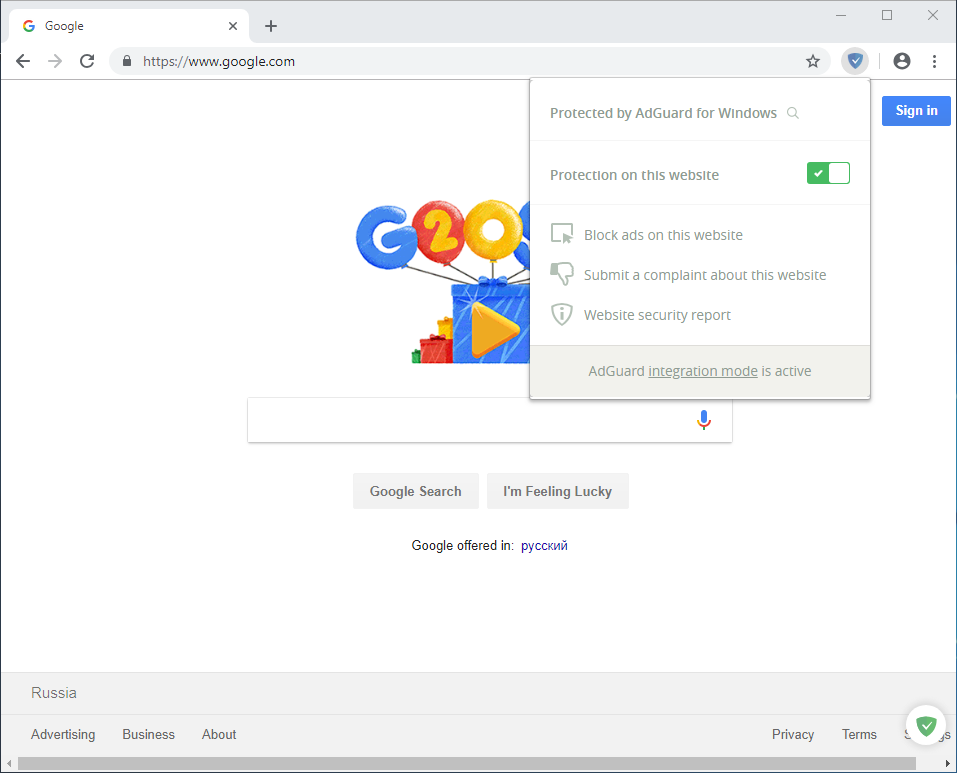
Extension in integration mode
AdGuard browser extension, while in integration mode, can serve as a very useful tool that can completely replace the Assistant (for example, if you don't like seeing the icon on the page but still would like to have access to its functions).
Other
In the AdGuard for Windows settings, you will also find the "Network" tab, which provides you with some advanced configuration options, including proxy settings. They are mostly intended for more advanced users and this is why we do not recommend you to change them if you are not completely sure what exactly you are doing.
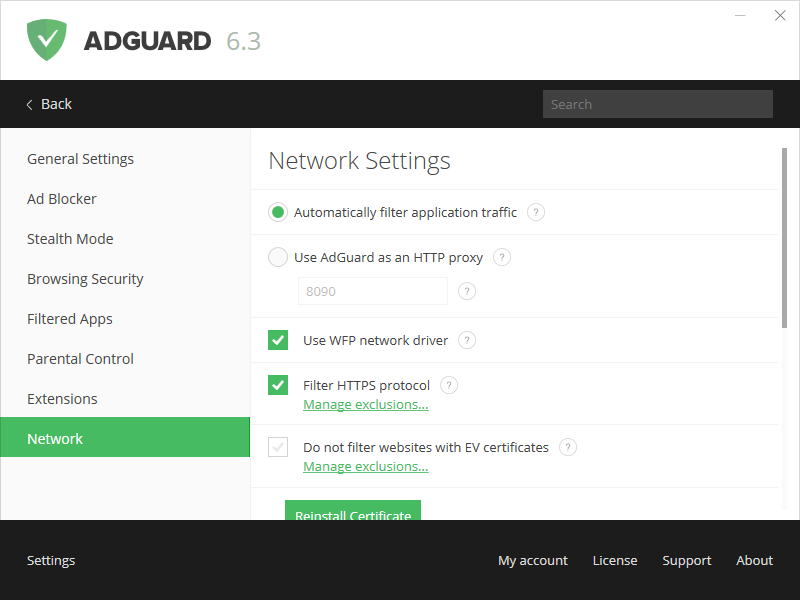
”Network” settings
Now let's go through some of the "General Settings" which can be found at the very top of the application settings list.
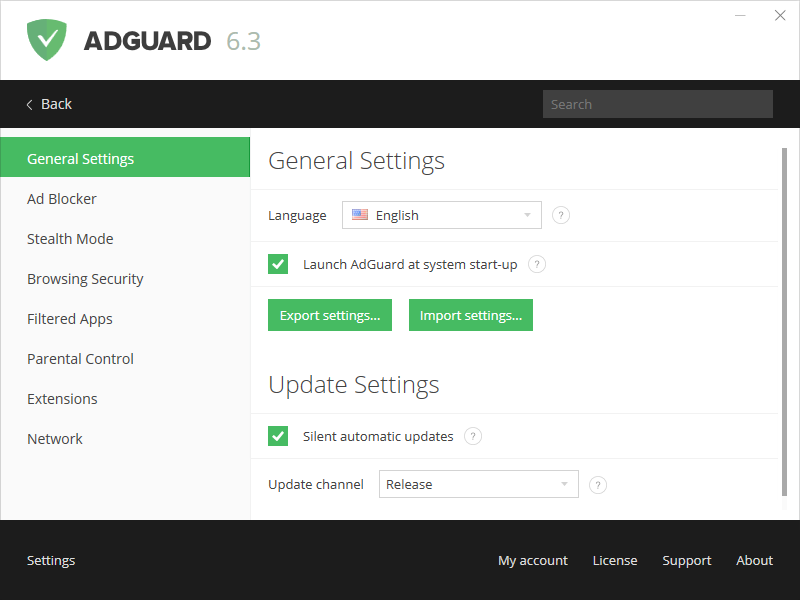
General settings
Here you can choose the app language, export or import AdGuard settings (for a faster switch between the settings profiles or to transfer your profile between the different computers), and also select an update channel, i.e. a mode in which the application receives its updates.
AdGuard for Windows provides three update channels to choose from:
- release, where only the most stable and tested builds make their way to
- beta, intended to test new features, but where you can sometimes stumble upon random bugs
- nightly, contains all the latest changes/fixes and gets updated nearly every three days, but is quite rich for various bugs
At the bottom of the AdGuard window, you will also find the License section where you can enter or renew your license key and check the license status, and the Support section which helps you to quickly contact the 24/7 helpdesk.
We really hope that this article will help you navigate through the AdGuard settings and customize the app in the best way for you :)