In-depth features overview: AdGuard Browser extension
As you know, AdGuard provides a range of software products that block ads and trackers on different platforms. One of the most popular AdGuard products is a free extension that is accessible for almost every browser. Although it cannot be compared with our full-featured desktop programs (AdGuard for Windows and AdGuard for Mac), we have specially made such a product so that basic and the most sufficient ad blocking features were available to everyone.
If you want to protect yourself online and fight ads and trackers in your browser quickly, reliably and without additional downloads and spending money, then AdGuard Browser Extension is exactly what you need, and in this article we’ll reveal to you all its features and useful options.
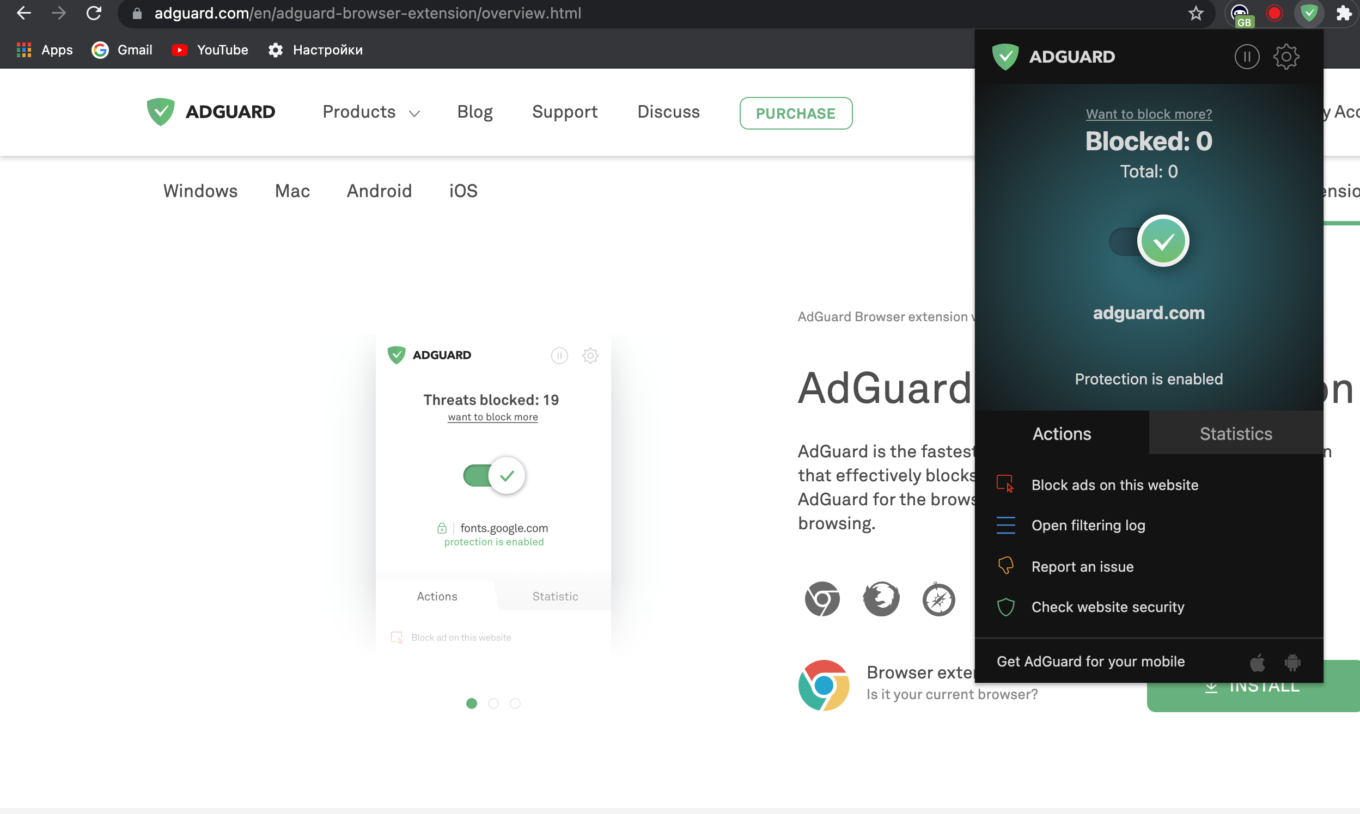
AdGuard Browser extension
If you're looking for some specific information, navigate directly to the appropriate item or read the entire article to learn more about all the important features of AdGuard browser extension.
- Ad Blocker module
- Stealth mode
- Other features and options
- Extension’s main menu
- AdGuard Browser extension — Availability
Ad Blocker module
Blocking ads is clearly the key functionality of any ad blocker, and AdGuard is not an exception. The extension will successfully block ads on any page in your browser. At the base of ad blocking lie so-called filter lists, or simply filters, that can be enabled or disabled in the AdGuard settings. You can adjust ad blocking according to your needs by activating specific filters.
Filters
All AdGuard filters are combined into different filter groups that are listed in the Filters tab of the extension settings.
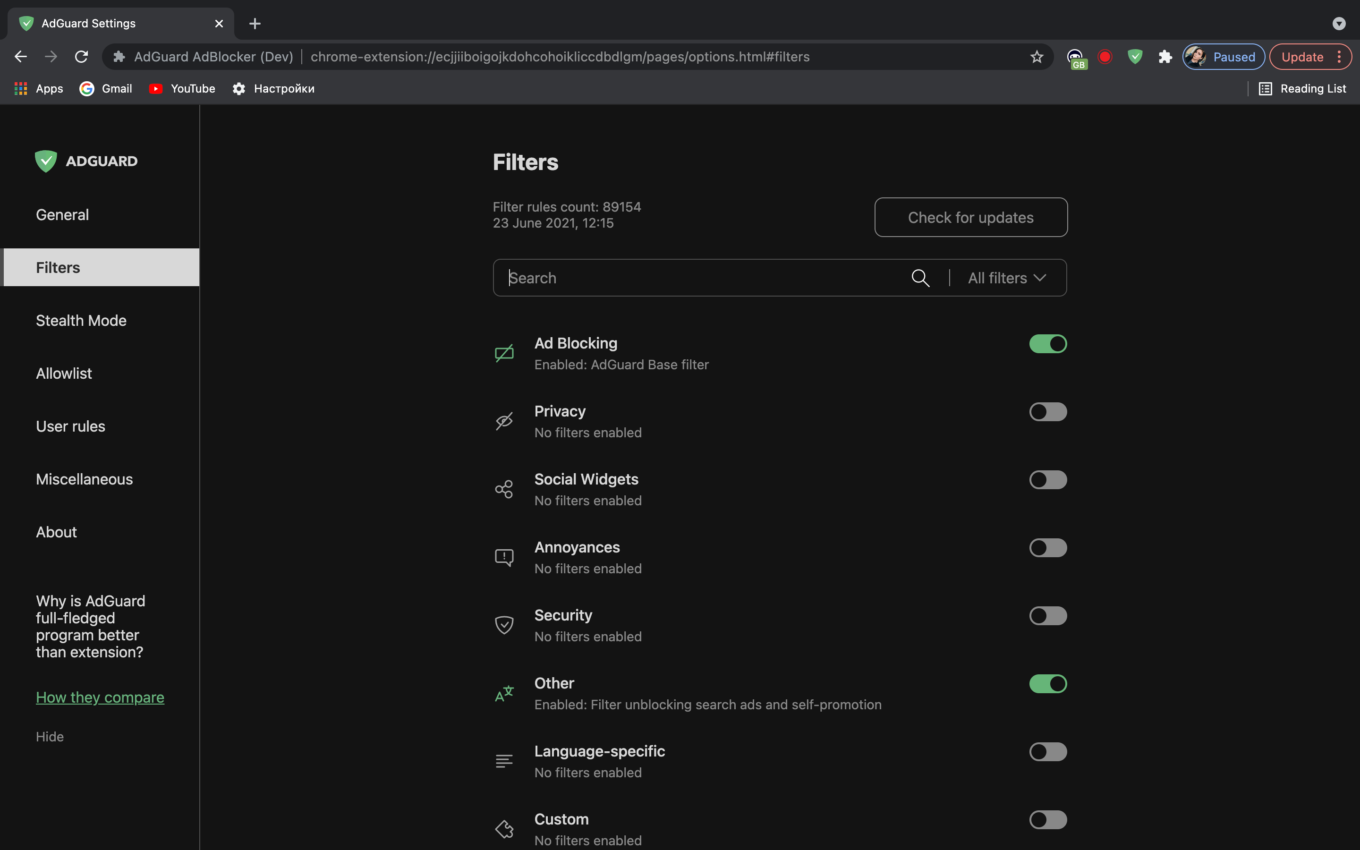
AdGuard filters
All filters are grouped according to their role. For example, there are categories for ad blocking filters, privacy protection filters, social media-related filters, etc.
You can enable either individual filters or the entire group at once.
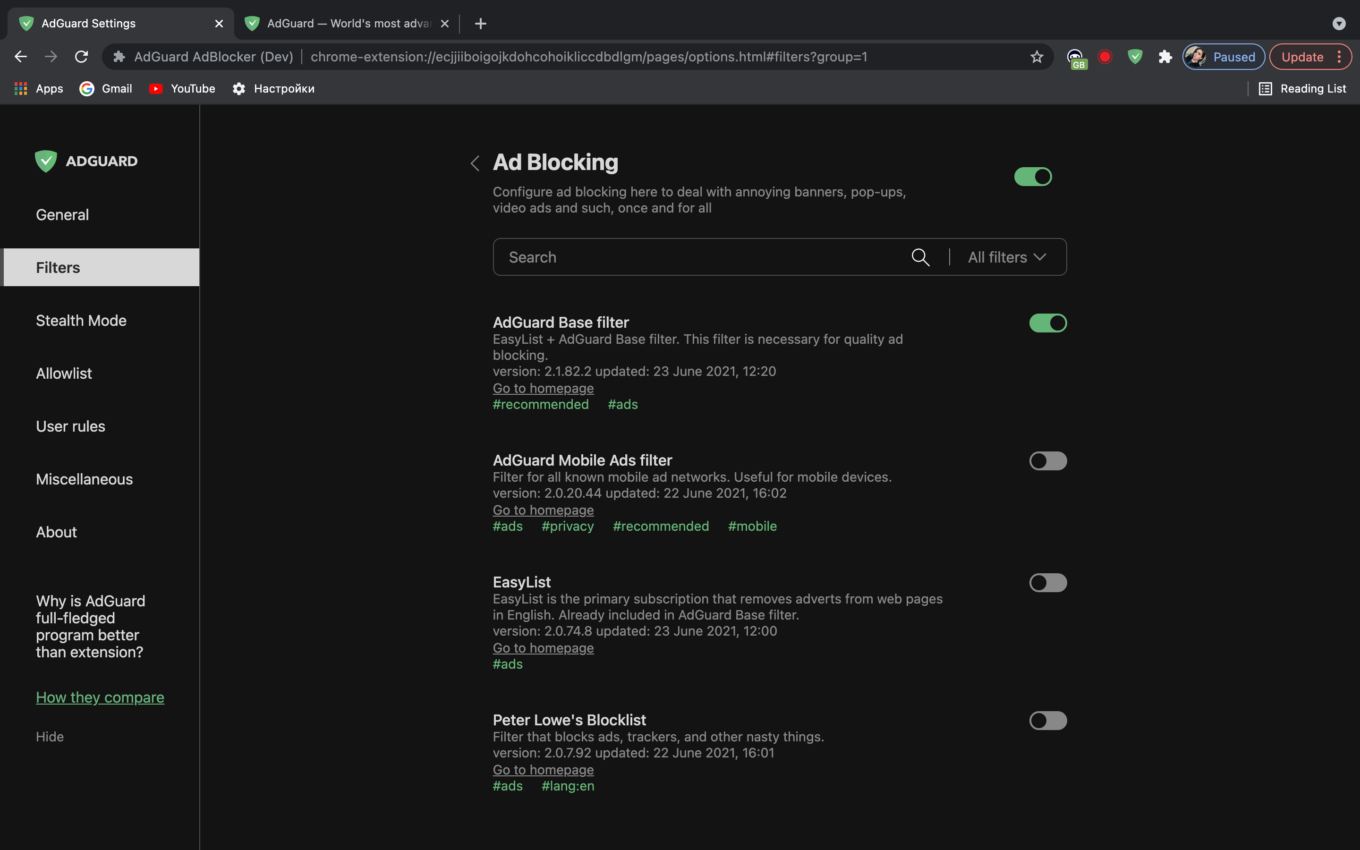
Ad blocking filters
Custom filters
While the features of other filter groups are more or less predictable, there is a group called Custom that may raise additional questions. Let's look at it more closely.
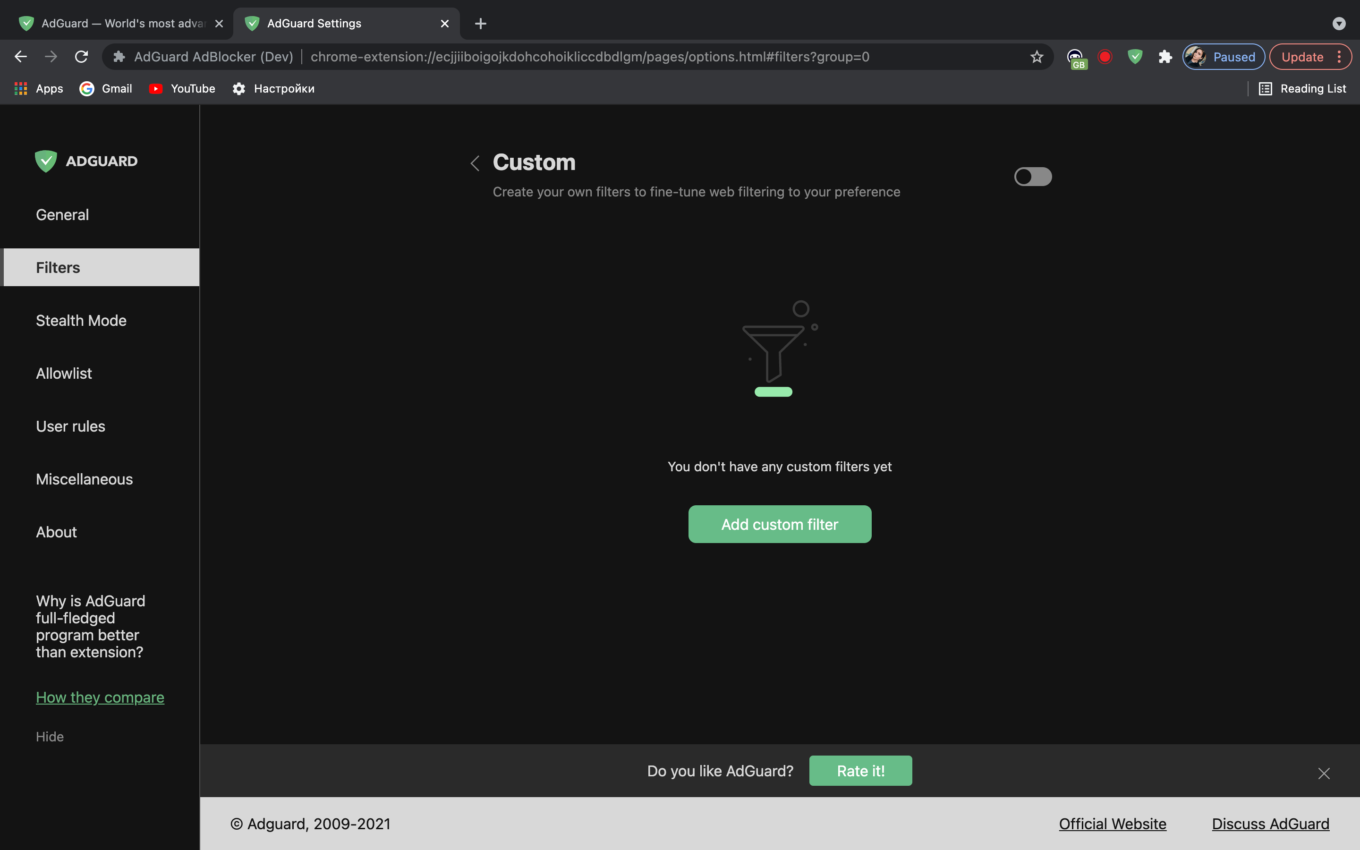
Custom filters
In the Custom tab you can add your own filters or upload any filters composed by others (there are a lot of them available on the Internet). In fact, you can have any set of filters and customize blocking in the way you like. To add a filter, just click the Add custom filter button and then enter the URL or the file path of the filter you want to be added, and then click the Next button.
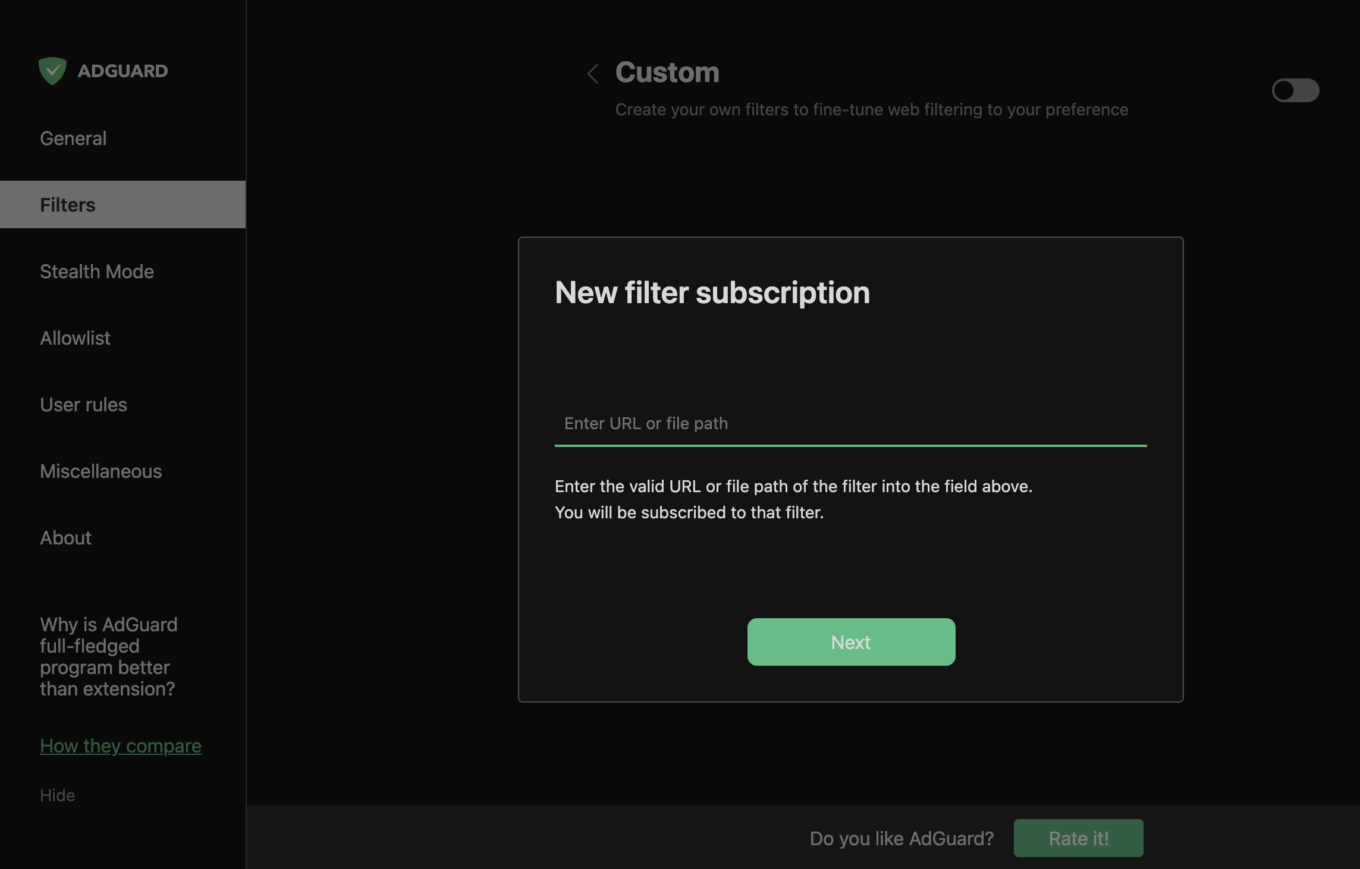
Adding a custom filter
User rules
Another curious thing is the User rules tab, which also helps you personalize protection by adjusting it in a preferable way.
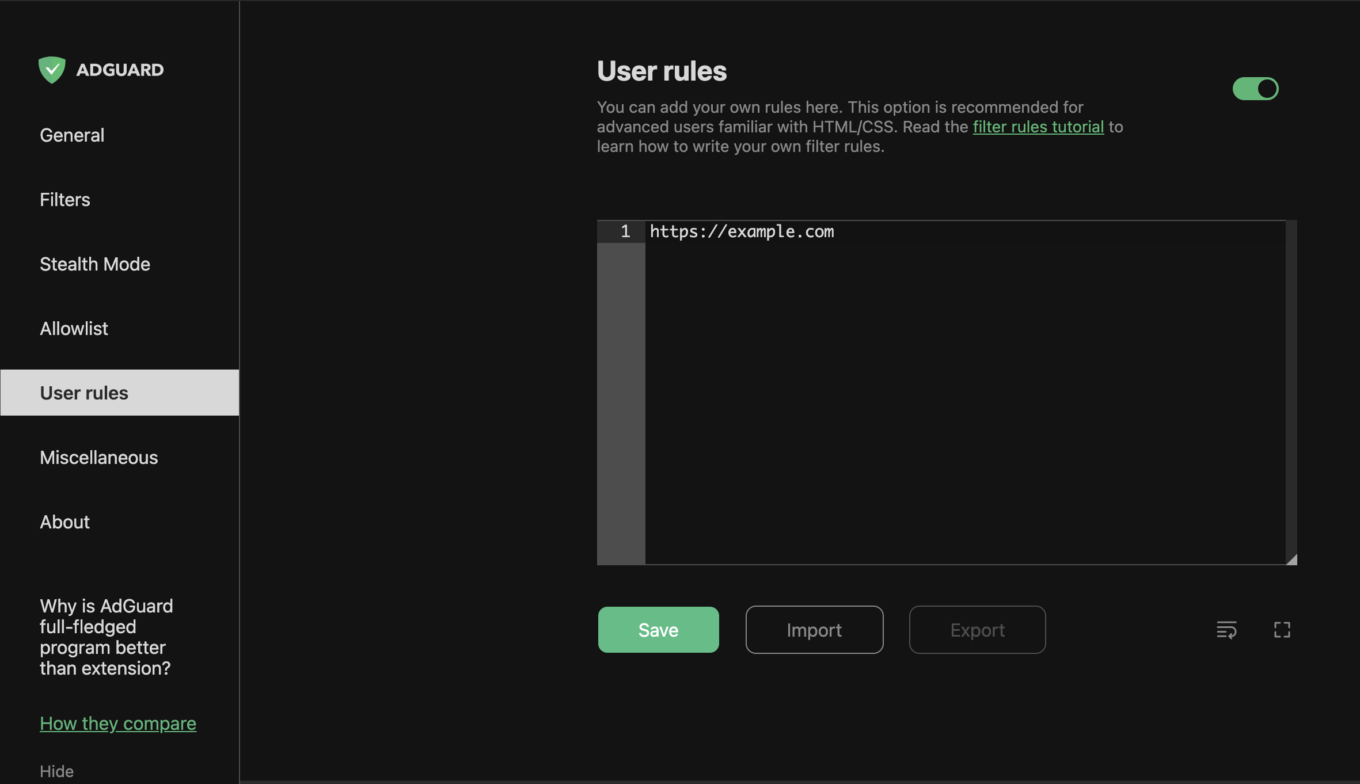
AdGuard User rules
In the User rules tab it is possible to create your own filtering rules. This means that if you have certain skills, you can write your own rules and apply them to the filtering process.
The rules you create will work exactly the same way as regular rules that you can find in AdGuard filters. There are several ways to add new rules. The most straightforward is to just type a rule in, but it requires some knowledge of the rule syntax. Everything written in the User rules field is automatically saved and applied (if relevant, of course).
Then, it's possible to import a ready-to-use filter list from a text file. Make sure that different rules are separated by line breaks. And of course, when you whitelist a website (more about it below) or use the Assistant tool for hiding an element on the page, a corresponding rule goes to User rules. One could say that it’s like a diary where your blocking actions are stored.
Whitelist
What should you do if you are generally satisfied with ad blocking in your browser but want to exclude certain websites from filtering? You might have already guessed — use the Whitelist option.
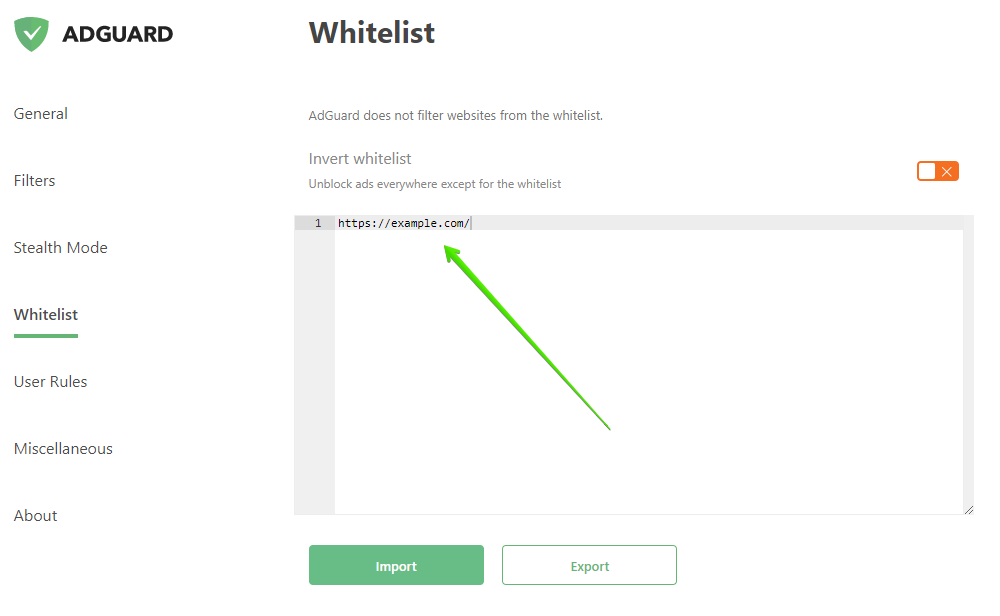
Whitelist
You can easily fine-tune ad filtering by adding particular websites to the list of exceptions, it will disable blocking for those trusted domains. Just put the websites you want to exclude into the Whitelist and the ad blocking rules won’t be applied to them.
The Whitelist can be inverted, too — you can unblock ads everywhere except the sites that you added to this list.
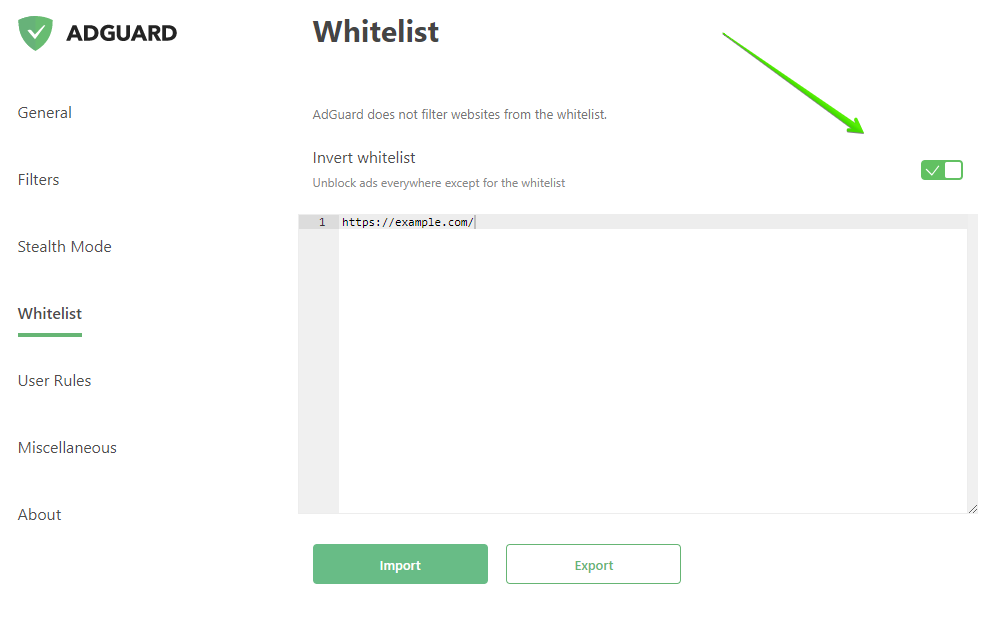
Inverted Whitelist
Also, you can either import or export already created lists of exclusions if needed. It is especially useful when you want to apply the same list of sites on other devices and you don’t want to spend time on its creation. The Whitelist can be configured just in a couple of clicks.
Stealth mode
The Stealth mode module aims to ensure the protection of sensitive personal information from online trackers and other fraudsters.
The Stealth mode can be flexibly adjusted — you can prohibit a website to receive the search requests you used to find it on the Internet, automatically delete both third-party and website’s own cookies, and so on.
In the Stealth mode tab there is a range of different privacy protection features that will help you adjust it to a level you feel comfortable with.
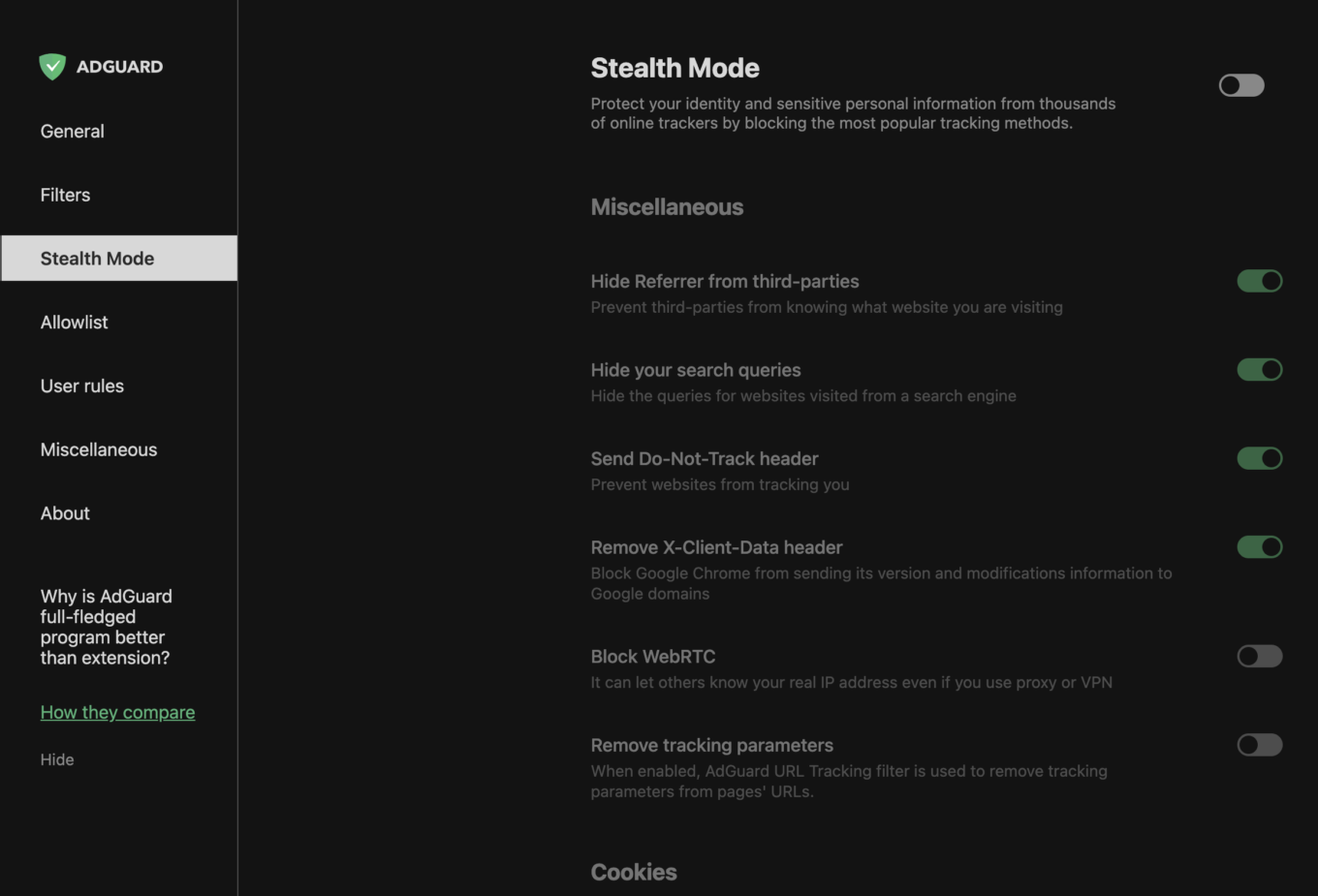
Stealth mode
If you enable Stealth mode, the following functions will be available to you. Let's take a closer look at them.
Cookies
Cookies help websites get information about you just by using the built-in capabilities of your browser. By disabling them (or restricting their lifespan), you'll prevent websites from stealing your personal information.
You can enable the self-destruction of both types of cookies (first- and third-party) and specify a lifetime limitation in minutes.
But be careful: while blocking third-party cookies can't cause more than just some minor inconvenience (e.g., you will have to manually enter your login/password), restricting the first-party cookies can break some websites.
In the Miscellaneous section of the Stealth mode settings there are some other features aimed at keeping your data secure.
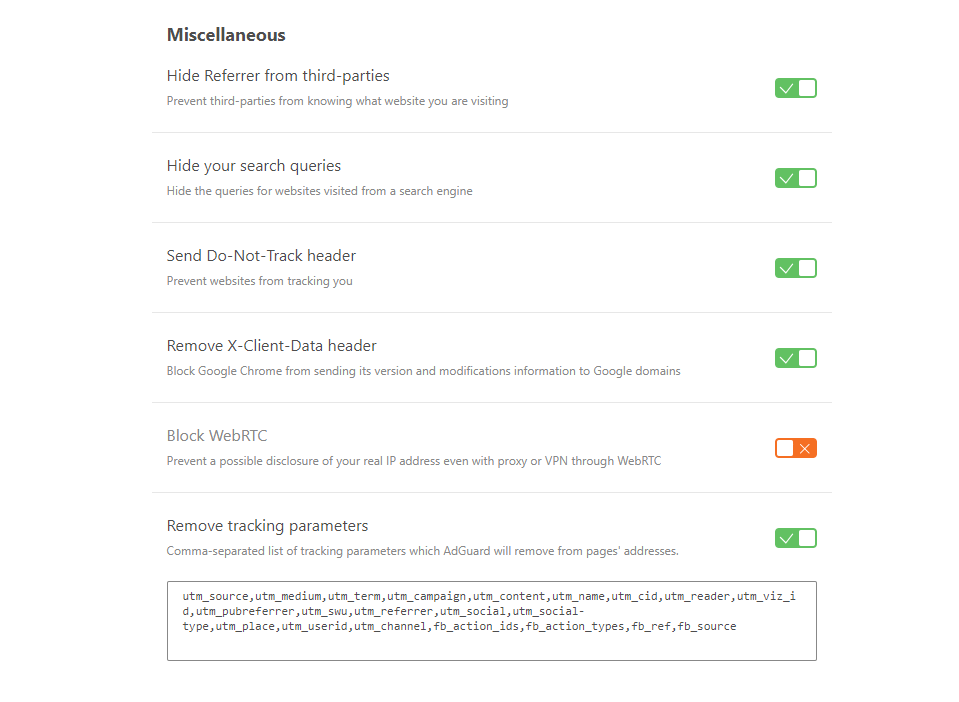
Other Stealth mode features
Hide Referrer from third-parties — websites you visit won’t know where you came from because the referrer will be hidden.
Hide search queries — the queries will be hidden so that a website you navigate to by clicking on a link from a search engine's results page won’t know what queries you made.
Send Do-Not-Track header — some websites will not track you if you ask them by sending this special header with your web requests.
Delete X-Client-Data header — this setting will prevent Chrome browser from sending information about itself to Google domains (unique to Chrome browser).
Block WebRTC — prevents possible disclosure of your real IP address as the technology that allows streaming of data directly between browsers and apps (WebRTC) will be blocked.
Important: Enabling this option can hamper the work of certain browser applications, such as messengers, chats, online cinemas, or games.
Remove tracking parameters — this option will remove the tracking parameters like utm_source and utm_content from the URLs. You can modify the list of these parameters in the settings.
Other features and options
Apart from the large key modules of AdGuard browser extension there are several more specific but no less useful features that can be configured in the General and Miscellaneous sections of the extension settings. They'll help you customize the extension according to your individual needs. Let’s consider them separately.
General
In the General settings you can allow search ads and the self-promotion of websites, enable/disable the automatic activation of the most appropriate filters and indicate the filters update interval, etc.
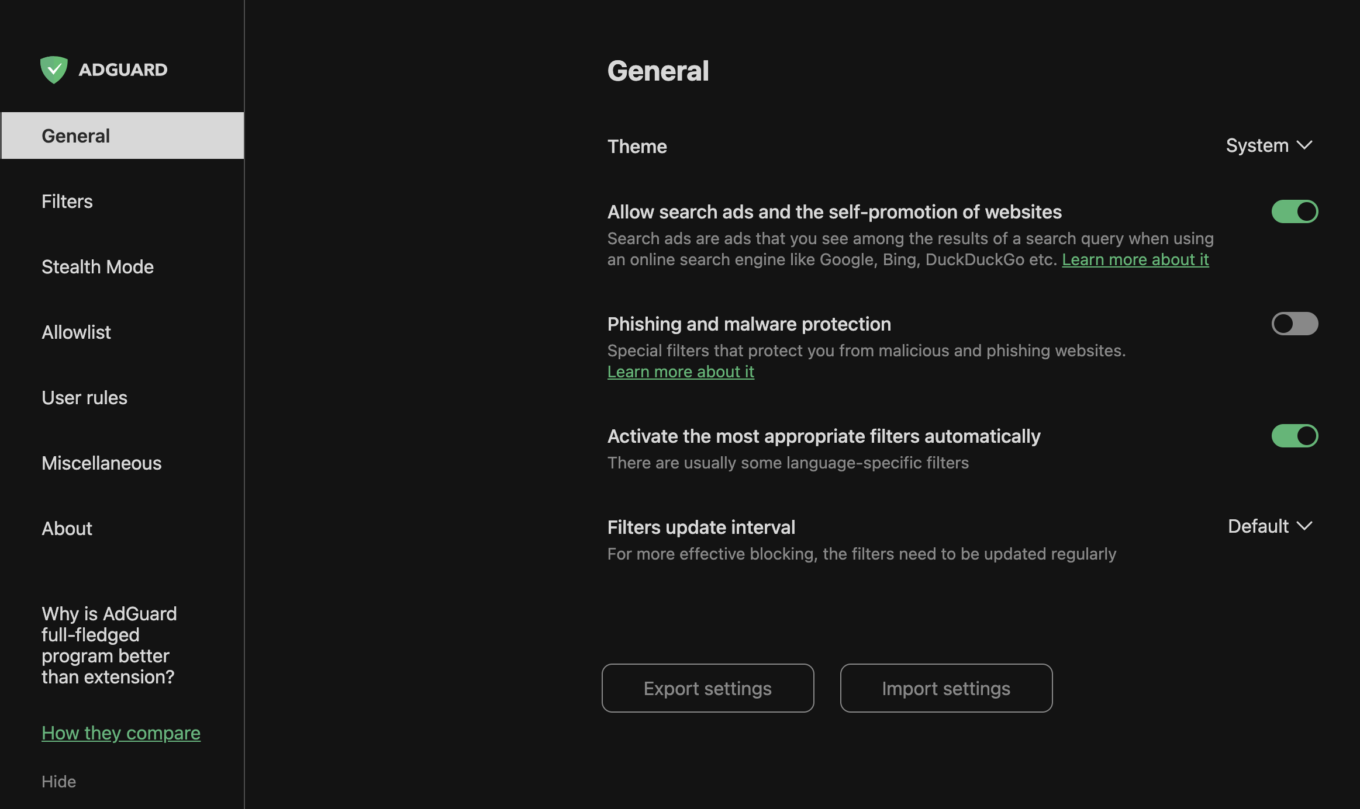
General settings
Besides, here you can manage the Browsing security module by enabling or disabling the Phishing and malware protection and also opt to help us in the development of the security filters by sending some anonymous security-related information.
In case you want to keep your settings configuration, you can use the Export settings option to save it in a file. And vice versa, use the Import settings button to upload settings from a previously stored settings file. You can even use to quickly switch between different settings profiles or even to transfer settings configurations between different browsers.
Miscellaneous
The Miscellaneous settings section contains a range of various settings that are related to the ad blocking process and application usability.
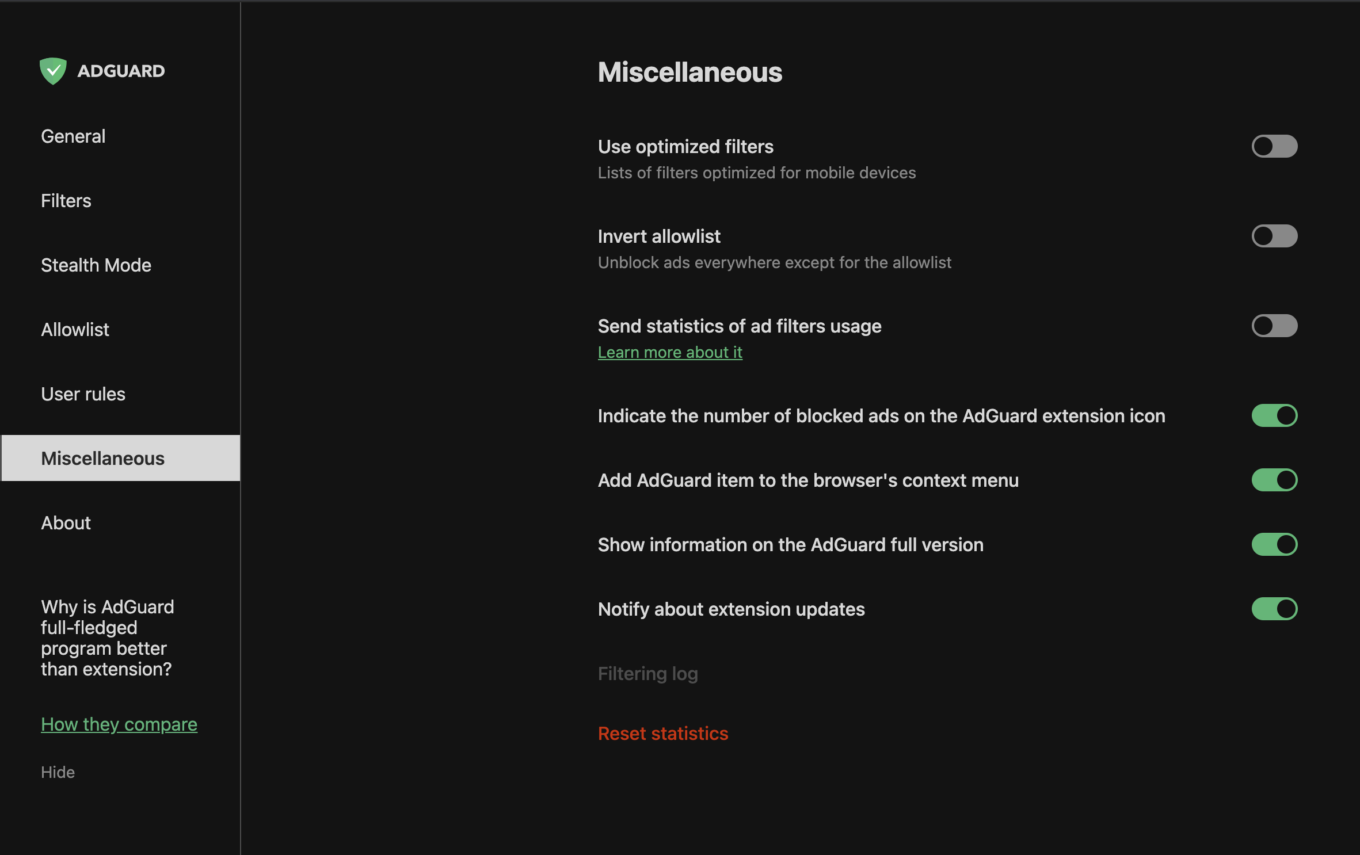
Miscellaneous settings
Here you can activate optimized filters, enable notifications about extension updates, etc.
Also, from the Miscellaneous settings tab you can open the Filtering log, see the most recent Сhangelog and reset blocked ads statistics by clicking the Reset statistics button.
About
Among the rest of AdGuard settings tabs there is the About section where you can get some additional information (for example, what extension version you’re using). Here you will also find the links to the legal documents such as End User License Agreement and Privacy policy, and to our GitHub bug tracker.
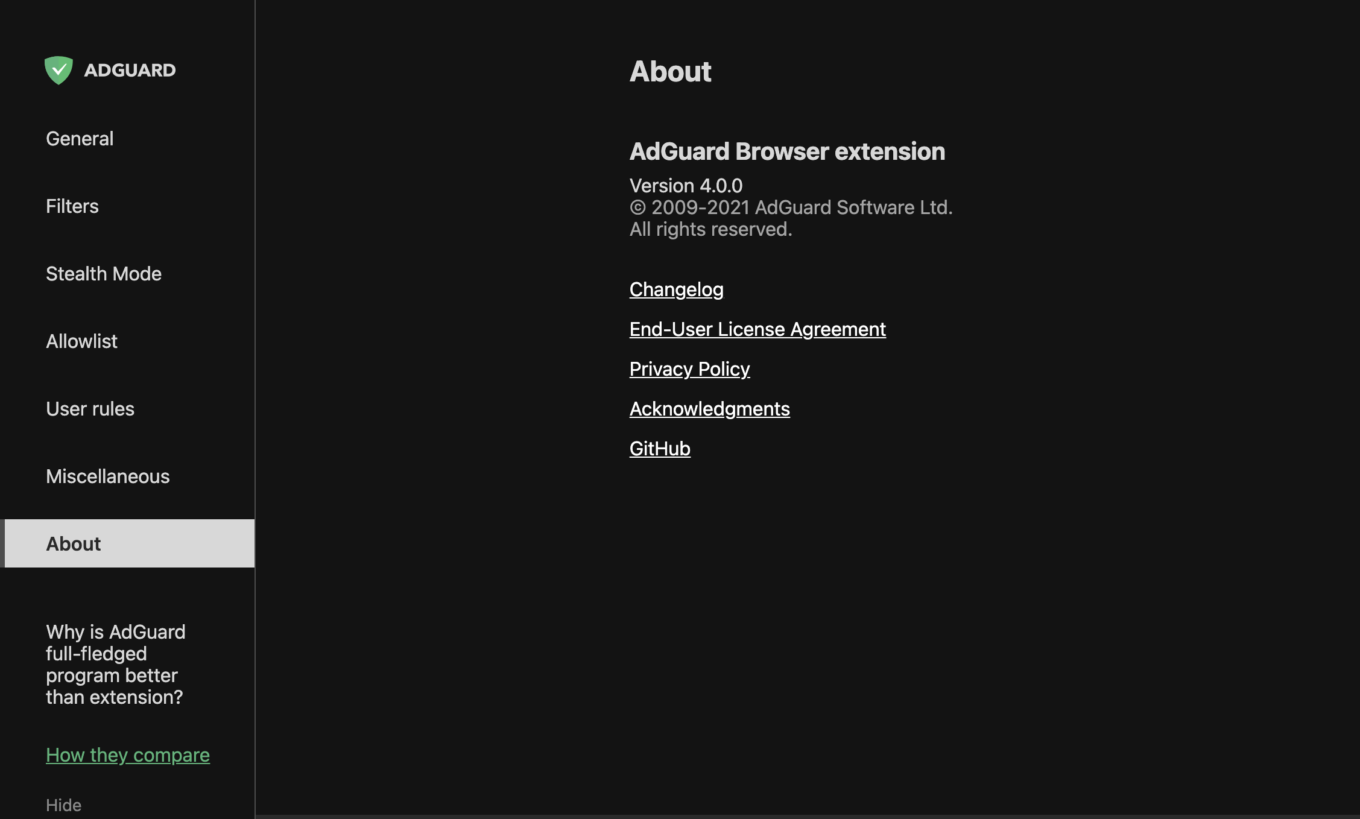
About screen
Extension’s main menu
Now let's get back to the very beginning and have a look at the interface of the extension itself. You can summon it at any time by clicking on the extension's icon on any web page.
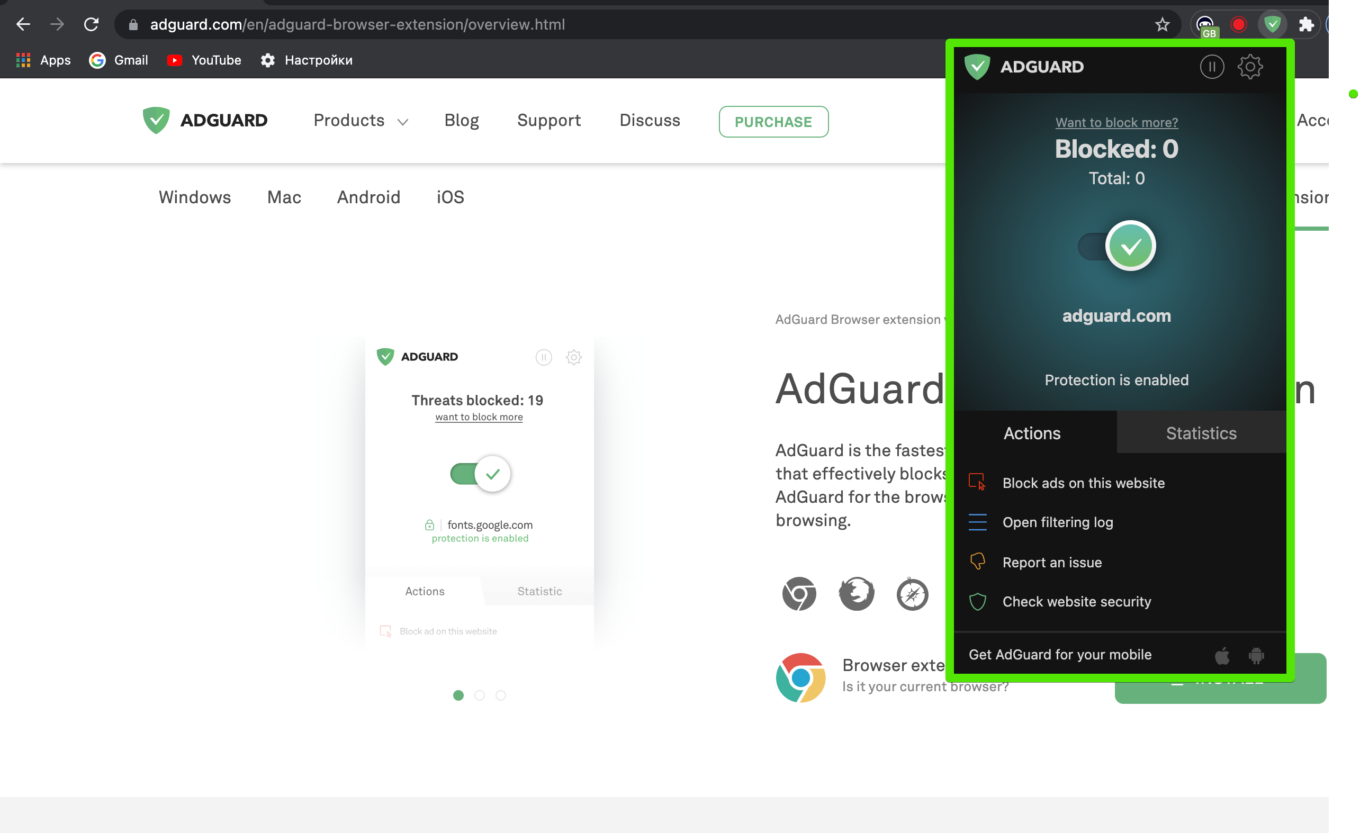
Extension's main menu
It provides several options. You can hide any element on any page manually (corresponding rule will be added to Use rules), open Filtering log to view the comlete information about your browser's traffic, or look at a website’s security report. Besides, you can submit a complaint about any website (for example, if there are missed ads on the page — our filter engineers will review the report and fix the problem) and see the statistics on blocked ads.
By clicking the icons in the top right corner of the screen you can open extension settings or stop protection by clicking the respective button.
AdGuard Browser extension — Availability
The AdGuard browser extension is accessible for every major browser: Google Chrome, Mozilla Firefox, Microsoft Edge, Opera, Yandex and such. You can easily find it in your browser’s online store or on our official website.
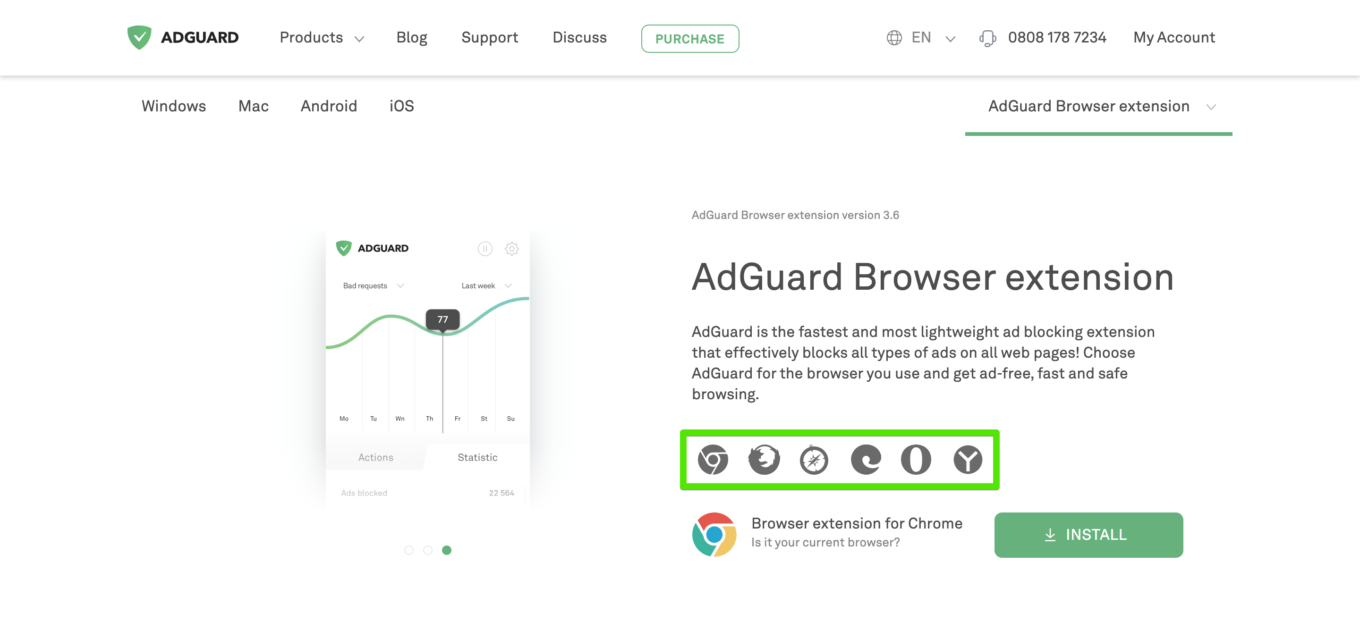
AdGuard is available for every browser
By the way, we also have a standalone extension for Safari. You probably know that since the release of Safari 13 most of the ad blocking extensions have experienced huge issues and many of them simply stopped working. That's why we had to develop a separate extension for Safari and we’ve successfully done it. The current Safari extension has some differences in comparison with the extension described in this article. If you want to learn more, please read this blog post.
Using an ad blocking extension is a very useful and convenient thing. You don’t have to spend time and money on its installation. Once installed, it will filter ads and fight online threats as effectively as possible in your browser. But do not forget that the functionality of each extension is strictly limited by browser’s capabilities. So if you want to get a full-fledged protection, you'd better turn your gaze towards a standalone program for your computer. And we’ll explain why.
AdGuard browser extension vs. AdGuard standalone apps
The main advantage of AdGuard standalone programs is that they can block ads in every browser and in almost all apps. You may use different browsers at the same time, the app will filter ads and online threats in all of them equally well.
The second significant difference is that the possibilities of extension-based ad blockers are strictly limited by what browsers allow and don't allow them to do. They are also intrinsically less powerful as they, for example, don't support some types of filtering rules that are available to standalone apps. Not to mention that some browsers have policies that restriсt ad blocking, and AdGuard for Windows or Mac couldn't care less about that. The apps are not limited by anything — when you choose the app, you choose the better filtering quality.
To better understand the differences between AdGuard browser extension and our standalone program, let’s look at the comparative table we’ve prepared for you.
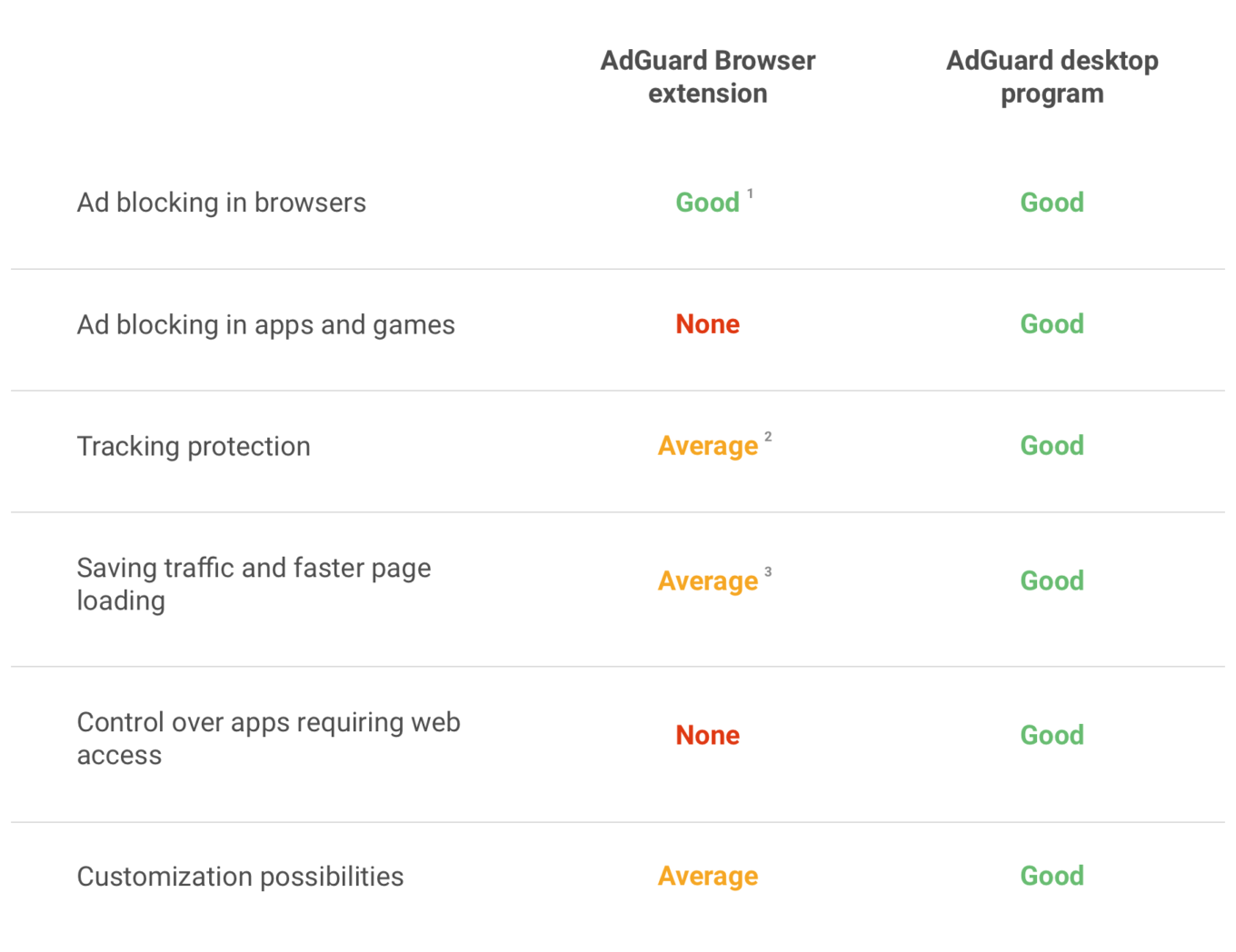
AdGuard Browser extension vs. AdGuard application
1 – within browser restrictions and only in the browser where it is installed;
2 – the extension is unable to detect requests from other extensions. So if some other, malicious or tracking extension wants to send a request to its server to show you ads or track your activity, the extension will not be able to block that request;
3 – not all types of ads and threats can be blocked by browser extensions because of certain browser restrictions. It means that some elements may get to the page and slow down the loading process. Besides, unlike browser ad blockers, AdGuard app blocks ads before they are loaded to the browser. This saves traffic and speeds up page loading.
We hope that this table will help you choose the most appropriate way to fight against online advertising.
Learn more about other AdGuard products on our website.