Even your PlayStation screen isn’t safe from smart TV ads anymore
Imagine hooking your game console up to that massive OLED smart TV you bought specifically for gaming, sitting down to disappear into a world far removed from reality, signing into your PlayStation account — and getting greeted by a pizza or refrigerator ad popping up in the corner of the screen. Not inside a streaming app or a menu, but directly over the HDMI input connected to your console. You cannot immediately dismiss it, and the last time you used the TV, it was not even there!
As frustrating as it sounds, this is increasingly becoming the reality of modern high-end smart TVs.
What happened
That exact scenario recently played out for the owner of an LG OLED TV who shared a screenshot on Reddit showing a promotional banner appearing in the bottom-left corner of the screen during a PlayStation 5 startup sequence. The ad, promoting “pizza and movie-night favorites,” appeared directly over the console feed delivered through HDMI rather than within LG’s own smart TV interface. According to the user, the banner only started appearing after a recent firmware update.
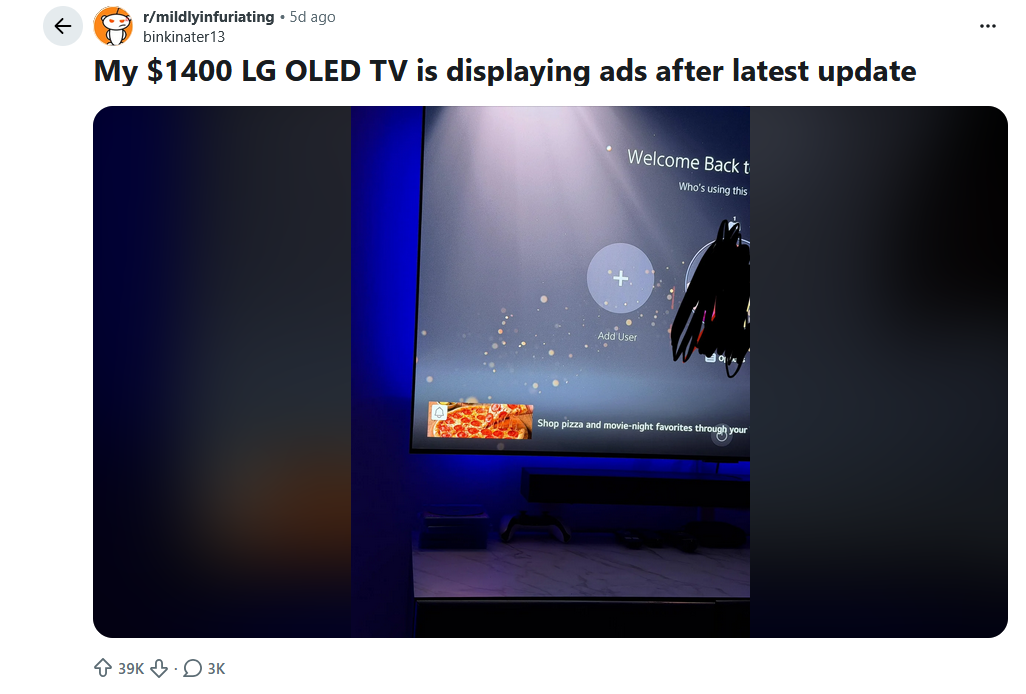
The incident also does not appear to be isolated. Around the same time, another LG OLED owner posted on Reddit complaining about “pop up Instacart ordering ads” appearing on their $1,500 TV while using a PS5. The user explained that they had already gone through the settings and disabled advertising features when they first bought the TV, only for the ads to seemingly return later anyway.
“I had to dig in settings to turn it off, at least I thought I did, but I turned my TV on, booted up my PS5 and another popped up. Buy a flagship TV and I get fed ads. Unreal. Not buying LG again, and if every other manufacturer is doing this then I just won't buy a TV. I'm heated.”
Another commenter in the same thread described a nearly identical experience, saying they had disabled all ads as soon as they purchased the TV, only to later encounter another promotional overlay while using their console:
“Yesterday I turned it on along with my PS5, and had some sort of ad pop up on the bottom of the screen… Pissed me off immensely.”
Why it feels especially unfair
What makes this different from the usual smart TV clutter is where the ad appears. This is not an ad inside Netflix, YouTube, or LG’s home screen. It is being overlaid on top of content coming from an external device the user already paid for.
We have already been conditioned to tolerate ads and recommendations inside streaming apps and smart TV menus, but advertising layered over a console input arguably feels significantly more invasive. At that point you are no longer interacting with LG’s platform or a streaming service, you are simply using your PlayStation. That is precisely what makes the whole thing feel so intrusive, and a little depressing.
Another particularly frustrating aspect is that these changes apparently arrived through a firmware update, meaning owners did not originally buy the TV in this state. They purchased one product, and over time software updates quietly transformed it — or rather degraded it — into something else entirely. A premium TV is no longer behaving like a static product that fully belongs to the person who bought it, but increasingly like a remotely controlled advertising platform whose behavior, features, and level of intrusiveness can be altered at the manufacturer’s discretion long after the purchase has already been made.
Crossing the line
The problem is not simply that ads exist on smart TVs. That battle was largely lost years ago. Home screens filled with sponsored content, autoplay trailers, recommendations, and streaming promotions have already become a staple across most major TV platforms. The problem is that manufacturers are no longer limiting advertising to their own software ecosystems.
Displaying ads over HDMI inputs fundamentally changes the relationship between the user and the device. If someone is using a PlayStation, Xbox, Apple TV, Blu-ray player, or PC, the TV is supposed to function as a display, not as an active advertising layer sitting between the user and their own hardware. At least that is what still intuitively feels right, even if the boundaries of what is considered “acceptable” on smart TVs have been steadily eroding for years.
But in many ways, we saw it coming. A few years back, we wrote about Roku filing a patent describing technology that would display ads over devices connected through HDMI inputs, including game consoles, streaming boxes, and media players. The system outlined in the patent would essentially allow the TV to detect pauses or certain moments during external content playback and temporarily inject advertisements directly onto the screen, even if the user was not interacting with Roku’s own software ecosystem at all. At the time, many people dismissed it as just another speculative patent filing, but it reflected a much broader direction the smart TV industry has been moving toward for years: treating every possible surface, including HDMI inputs traditionally considered “safe” from platform interference, as monetizable advertising space. What is now happening on LG TVs shows that this future is no longer hypothetical.
LG being one of the pioneers of turning TVs into ad platforms
This did not happen overnight. LG has been steadily expanding advertising and viewer monetization across its smart TV ecosystem for years.
Back in 2021, it was reported that LG OLED TVs had started autoplaying video ads with sound inside the company’s app store while users were simply updating applications. At the time, the experience was dubbed as surprisingly aggressive even by smart TV standards.
In 2024, reports emerged that some LG TVs had started displaying ads during idle screensaver mode. More recently, LG went even further by integrating AI-driven advertising technology capable of analyzing viewer behavior and emotional engagement in order to personalize ads. The idea that a television is not only tracking what people watch, but also attempting to infer how they emotionally respond to content in order to serve more effective advertising, pushes smart TVs into territory that feels less like consumer electronics and more like invasive surveillance infrastructure embedded directly into the living room.
LG’s forays into the ad industry are indicative of a much larger industry shift that has been happening over the past decade. Television manufacturers increasingly stopped treating smart TV software as a secondary feature and started treating it as a long-term advertising business. Roku became one of the clearest examples of this transition, openly positioning itself as an advertising company built around television engagement data. Samsung, Vizio, Amazon, Google TV, and LG all followed similar paths.
Regardless of what these companies say, the real long-term value for them increasingly comes from collecting behavioral data, serving ads, tracking engagement, and monetizing viewers long after the TV leaves the store. Some manufacturers are no longer even trying to hide this shift. In 2023, a company named Telly began offering consumers “free” 55-inch 4K TVs built entirely around constant advertising and data collection, with a second built-in display permanently dedicated to news tickers, sponsored content, and ads. At least in that case the tradeoff is explicit from the beginning. At the same time, you might still subconsciously expect premium products to remain somewhat exempt from these practices. While aggressive monetization on cheap budget hardware may seem fair, hardly anyone expects a flagship OLED TV costing well over $1,000 to behave like a digital billboard that increasingly turns into an ad vending machine after purchase.
What powers smart TV ads
The reason smart TVs can do this at all comes down to the amount of data they collect about users and their viewing habits. Modern smart TVs rely heavily on a technology called Automatic Content Recognition, or ACR. This system allows televisions to identify and analyze content playing on the screen regardless of where it comes from: streaming apps, cable boxes, live TV, media players, and even devices connected through HDMI.
According to LG’s own privacy policy, the company may collect:
- Information about viewed channels and programs
- Streaming services and apps used
- Viewing duration
- Playback actions such as play, pause, stop, and clicks
- Input methods, including HDMI devices
- Information related to gaming consoles and media players
- Ad exposure data
- Subscription activations and cancellations
- Voice command interactions
- Device identifiers and behavioral analytics
LG explicitly states that its ACR technology can identify content “regardless of the source,” including gaming consoles, set-top boxes, and external media devices connected through HDMI.

Its advertising business, LG Ad Solutions, openly markets this capability to advertisers. The company promotes targeting based on gaming behavior, app usage, viewing habits, streaming preferences, subscription activity, and even exposure to specific ads.
Among the targeting categories promoted by LG are:
- Gamers using specific consoles and gaming platforms
- Viewers of particular streaming services and genres
- Users exposed to competitor advertisements
- Heavy or light TV viewers
- Subscription activations and cancellations
- Regional and location-based targeting
LG describes this information as “deterministic viewership data” collected “at the glass level.”
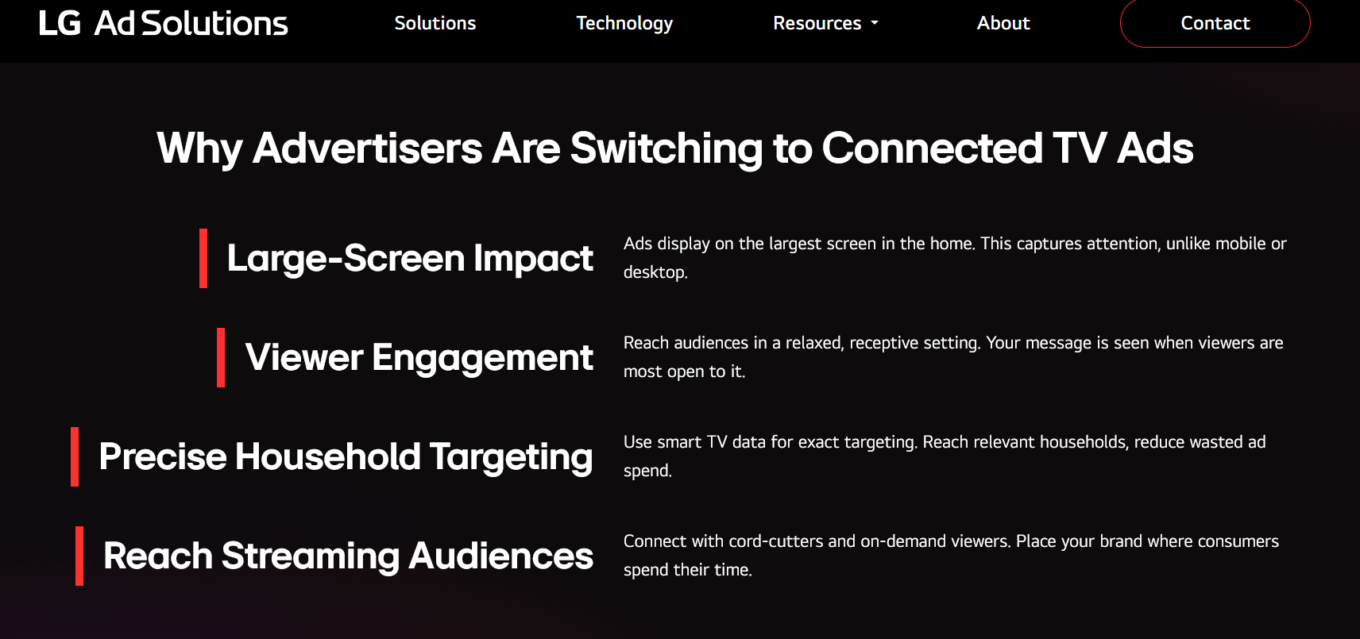
All in all, this incessant collection of granular data is what makes modern smart TVs fundamentally different from older televisions. They are not passive displays anymore. They are connected analytics platforms constantly collecting behavioral data to optimize advertising, recommendations, and viewer targeting.
How to get rid of smart TV ads
The most effective way to limit smart TV ads, tracking, and unwanted promotions is to disconnect the TV from the internet entirely and use it purely as a display paired with external devices like Apple TV, Chromecast, gaming consoles, or streaming boxes. Without internet access, the TV loses much of its ability to download new advertising modules, fetch promotional content, transmit analytics, and silently introduce additional features through firmware updates. Of course, this is also a massive tradeoff and in many ways defeats the entire purpose of buying a “smart” TV in the first place.
If you want to keep your TVs connected, you can still try disabling some of LG’s advertising and recommendation features manually. On LG TVs, this can usually be done by opening the Settings menu, navigating to General > System > Additional Settings > Home Settings, and turning off options like “Home Promotion” and “Content Recommendations.” The problem is that firmware updates have repeatedly been accused of re-enabling promotional systems or quietly introducing new advertising behavior later on. It’s worth noting that even with ACR disabled, your smart TV will still be able to collect some data about you, potentially including information about your location and the apps that you use.
Another option is blocking ads and trackers at the network level by changing the TV’s DNS server. Since LG TVs run WebOS, users cannot simply install traditional ad-blocking apps or browser extensions directly onto the device, which makes DNS filtering one of the few practical ways to limit ads on TV. DNS filtering works by stopping the TV from connecting to known advertising, analytics, telemetry, and tracking domains in the first place.
However, it is not a perfect fix. Some ads and promotional elements may already be built directly into the TV’s software and can still appear even without contacting external servers. DNS filtering also cannot block ads delivered through the same domains as legitimate TV services or apps, since blocking those domains entirely would also break the services themselves.
Services like AdGuard DNS let users apply this kind of filtering simply by changing the TV’s DNS server. Users who want more control can also use Private AdGuard DNS or tools like AdGuard Home or Pi-hole to set up their own private DNS server with customizable filtering, analytics, blocklists, and rules tailored specifically for smart TVs and other connected devices.




















































