From banners to AI: How web threats evolved over 17 years
A few days ago AdGuard celebrated its 17th birthday. Is 17 years a long time for an ad blocker? How can you even answer that question? Everything becomes clearer when looked at in relation to other things, so why don’t we look at what AdGuard had to fight against over these seventeen years? This is a look back at the evolution of web threats since 2009 and until today — let’s go.
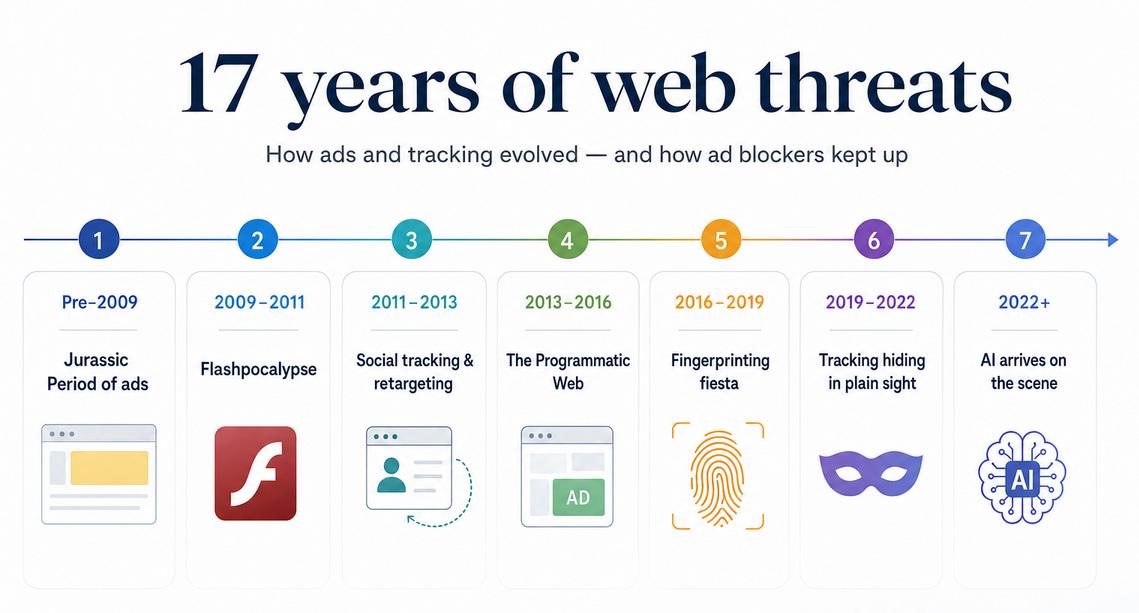
Pre-2009: The Jurassic Period of ads
🦕 Era overview
- Main threat: Banners, popups, simple ad servers
- How blockers responded: Hosts files, early URL blocking, popup blockers, cosmetic hiding
- Also worth mentioning: Scam ads, fake download buttons, browser toolbars, early adware
AdGuard was first created in 2009, and it was designed — you guessed it — to block ads. Specifically, it was designed to block ads that existed in 2009. By that time, the internet had already evolved past its first early stages of the 90s, but compared to what it looks like today, the web was still a very different beast. And the ads were very different too.
If you were around at that time, you know what we mean: it was the era of ‘fair’ ads, at least by modern standards. You type a URL into your browser’s address bar, you press Enter, the website loads. On those websites, there may be banners advertising this thing or that thing; if you click on them, they take you to the advertised website, end of story. What you see is what you get, with the occasional scam ad here and there, but probably not on big, popular sites.
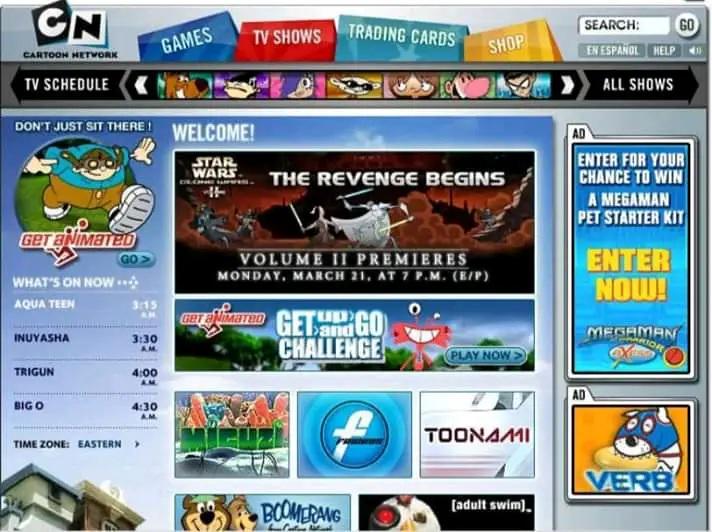
Cartoon Network’s website in 2000s
Visually, these banners could be anything, from static pictures and ‘download’ buttons to animated GIFs and popups. The ads of that era were many things, but they were not subtle or sophisticated. And, as a reflection of them, the ad blockers of the time were pretty simple as well. By 2009, ‘hosts’ files were still a popular way to combat ads. HOSTS.TXT is basically a plain text file that maps domain names to IP addresses, and it overrules whatever the DNS server tells it. This method was popular because it worked well: list all the ‘bad’ domains associated with ads and route them all to a 0.0.0.0 ‘black hole,’ and you’ve successfully blocked a lion’s share of ad banners.
The ad blockers of that time were not too different in that regard. They were more powerful than hosts files, of course, as they could do more advanced things like some cosmetic filtering or distinguishing page context, but the practical difference was not hugely noticeable for an average user.
And this is what the ad landscape looked like by the time the first AdGuard version saw the light of day. Ad blocking was on the rise, but still a very niche thing for those ‘in the know.’ Andrey Meshkov, one of the founders of AdGuard, wrote it all by himself, and this is how our story began.
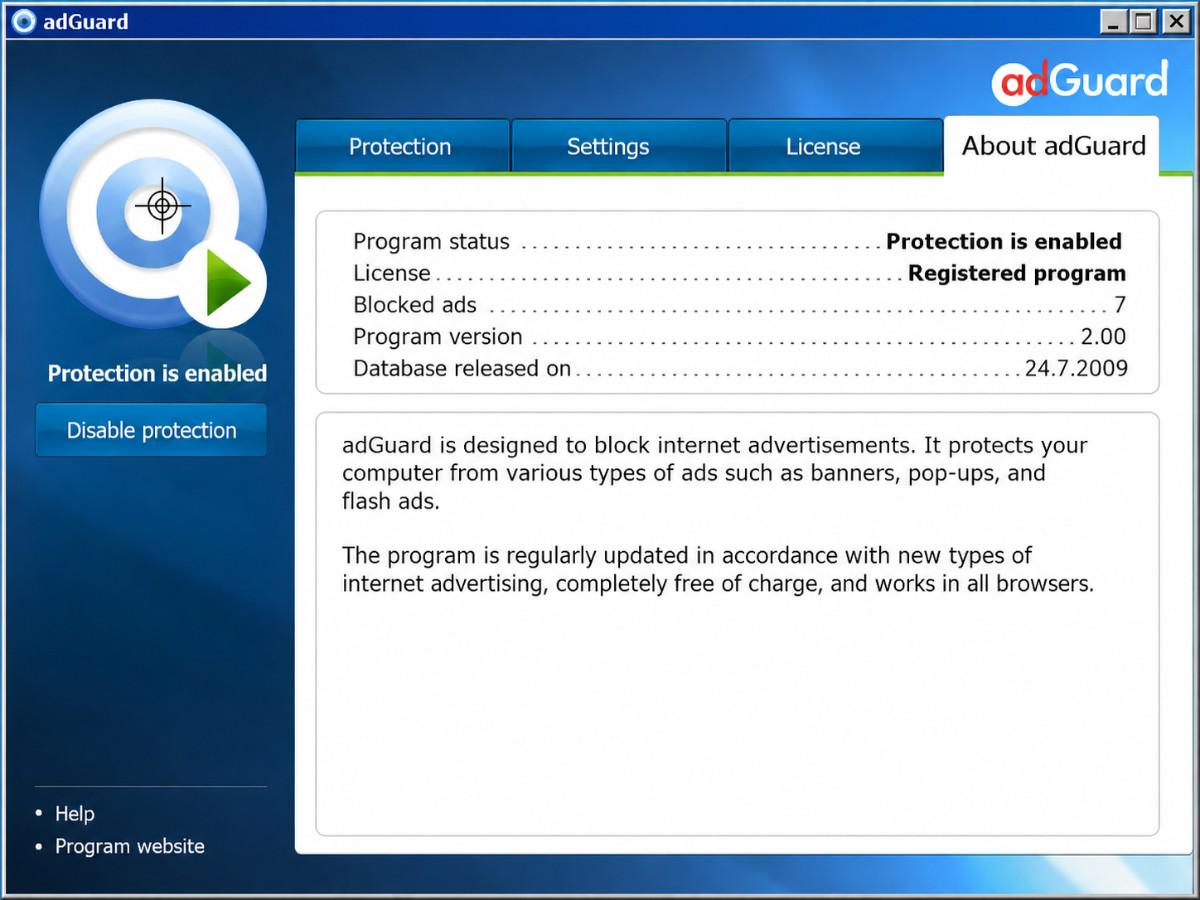
A screenshot of one of the oldest AdGuard versions
2009–2011: The Flashpocalypse
⚡Era overview
- Main threat: Flash cookies and plugin-based tracking
- Why it was new: Tracking could survive browser cookie deletion and hide behind Flash content
- How blockers responded: Flash blocking, NoScript/Flashblock-style controls, anti-tracking filters
- Also worth mentioning: Behavioral advertising, early RTB, plugin exploits, malvertising through Flash
Not everyone may remember Flash now, but it used to be an insanely popular multimedia software platform, used to create animation, web applications, browser games, and many other things. And it’s not to say that there was no Flash before 2009, because Flash was already kind of old by that point, having existed for well over a decade. It had been extensively used to create animated ads, but 2009 marked an important shift. In terms of its role in the ad ecosystem, around this time, Flash started transitioning from “something used to display annoying banners and popups” to “a tool used to create tracking infrastructure and execute heavy third-party code.”
A ‘Flash player required’ message
Flash had something called Local Shared Objects, also commonly known as Flash cookies. The name isn’t a coincidence: they functioned very similarly to regular cookies. They could be used to store user preferences, save data from Flash games, or even track users’ Internet activity. Unlike cookies, they could store much more data, up to 100 kB, and could not be cleared just by deleting browser history. In 2009 a group of Berkeley researchers found that over half of the top 100 websites used Flash cookies, which would sometimes even restore the deleted HTTP cookies.
Earlier ad blocking was mostly about visual clutter: hide this huge banner, block that annoying popup. But this period in time is when the threat started to turn invisible, in no small part because of Flash with its hard-to-delete tracking. Blocking the visible graphics would not do anything to stop the underlying tracking layer. The problem was prominent enough that dedicated tools like NoScript and Flashblock became especially relevant: they replaced Flash content with placeholders and required a click to run it.
Ad blockers started to adapt too, with filtering rules aimed at blocking tracking scripts and features designed specifically to block or otherwise restrict Flash. As for AdGuard, even at the earliest stages of its life we were curating our own filters, and fighting tracking in general (and Flash tracking in particular) was part of it. A bit later we added a dedicated option to block Flash entirely, which you can still find inside Advanced Settings of AdGuard for Windows.
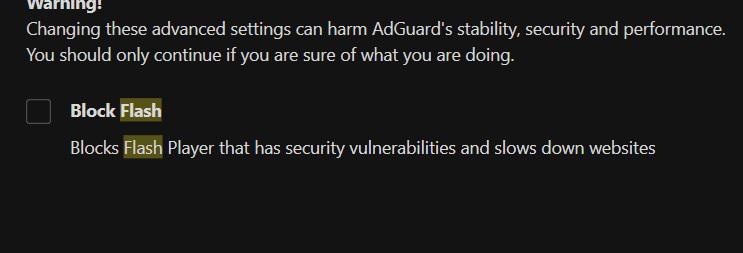
“Block Flash” option in AdGuard
Flash was not, of course, the only thing happening at that time. Behavioral advertising and real-time bidding already existed, for example, but we will get a better chance to talk about them in later chapters. Broadly speaking, this era was characterized by the growing role of tracking compared to pure advertising, and moving forward this distinction would become more and more obvious.
2011–2013: Social tracking and retargeting
🎯 Era overview
- Main threat: Retargeting and social widgets
- Why it was new: Tracking became visible to users: ads followed them around, and social buttons became tracking beacons
- How blockers responded: Tracking protection filters, social widget blocking, specialized privacy extensions
- Also worth mentioning: Do Not Track, third-party cookie debates, analytics tags, early tracker visualization tools
Some of the clearest examples of the rise of tracking in that era were social widget tracking and, especially, retargeting. The concept of ad retargeting is familiar to anyone now, even if the word itself is not: you browse the web and come across an electric toothbrush. Maybe you even entertain the thought and visit the seller’s website, but ultimately decide against buying it. But the machine has already started moving: now anywhere you go, the toothbrush follows you around, across news sites, blogs, even on Facebook — and this could go on for days. This is the point in time when previously invisible tracking became apparent to regular users, and it was an unfamiliar, spooky feeling.
Retargeting proved to be wildly effective, and so ad blockers had to react quickly. And they did — old filters were modified with trackers in mind and new ones emerged, designed specifically to block tracking. AdGuard also created a new separate filter for spyware and trackers around that time — it has evolved into the Tracking Protection filter that we still maintain today. As a response to the demands of the time, this period also saw tools that were not classic ad blockers at all, but were instead focused solely on detecting and controlling JavaScript tags, trackers, cookie-based tracking, and such.
Another boogeyman of this era was a different type of tracking — social widget tracking. ‘Like’ and ‘Share’ buttons, floating share bars, counters, and so on — they were everywhere, and they were tracking you. These widgets were not just buttons. They were third-party embeds that could tell Facebook, Twitter, Google, and others which pages a user loaded, often regardless of whether the user clicked the widget or not.
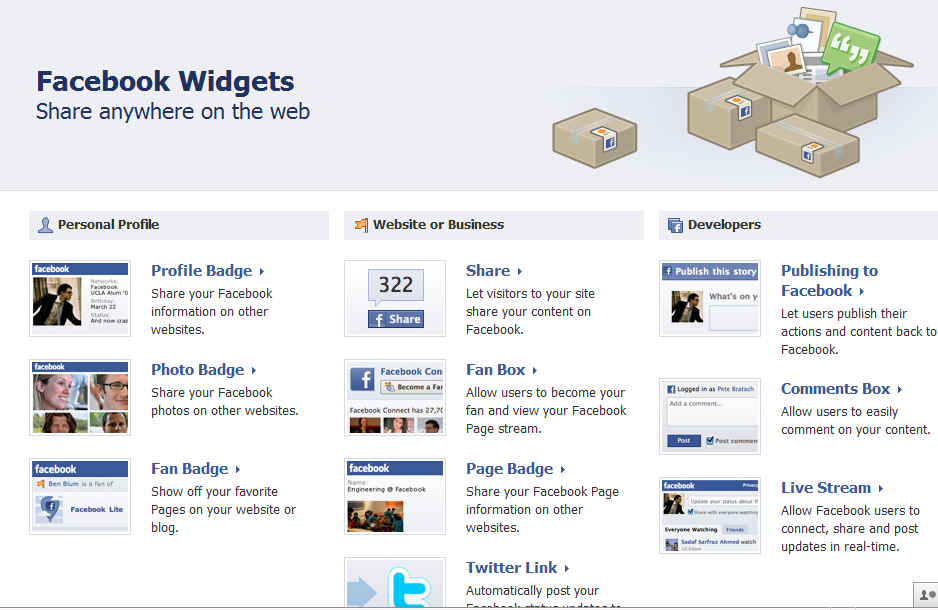
Plethora of Facebook widgets from 2012
As for ad blockers’ response, you could simply block the tracking behind these widgets, like any other trackers, by using anti-tracking filtering rules and filter lists. But for many users the widgets themselves got so tiresome that some opted to remove them altogether. And for these people AdGuard offered Social media filter that removed social media integrations, which is also still available today.
2013–2016: The Programmatic web
🖥️ Era overview
- Main threat: RTB and programmatic advertising
- Why it was new: Ad impressions became real-time auctions fueled by user profiles
- How blockers responded: More advanced filter syntax, anti-tracking lists, Stealth Mode / Tracking Protection module (AdGuard-specific)
- Also worth mentioning: Header bidding, Facebook Pixel, Universal Analytics, cookie syncing, mobile ad IDs, malvertising
Around that time, web advertising started being much less about manually placing ads on web pages and more about auctioning the ad space to the highest bidder to display the ‘perfect’ ad tailored to the specific user. User profiling became key and Real-Time Bidding (RTB), despite having first appeared much earlier, was scaling fast and became the defining factor for the adtech landscape of the time. It is still highly relevant, with an estimated total market value of USD 16.3 billion in 2024 and projected to reach USD 39.6 billion by 2030. So what exactly is RTB and how does it work?
RTB is a method of buying and selling ad space in real time to the advertiser with the highest bid. Imagine you visit a website, and the site owner (publisher) has an ad space on that website that they would like to sell, and so they initiate an auction. The publisher reaches out to the Ad Exchange — a place where the auction takes place — and sends over your profile. This profile may include your device ID, information about the device’s settings, its location, things like your age bracket, your likely interests — anything goes; the more, the better. The ad exchange then offers this information to advertisers who bid on how much they are willing to pay to show their ad to you. The highest bidder wins, and this is the ad you see on the website — more often than not, highly relevant and aimed specifically at you.
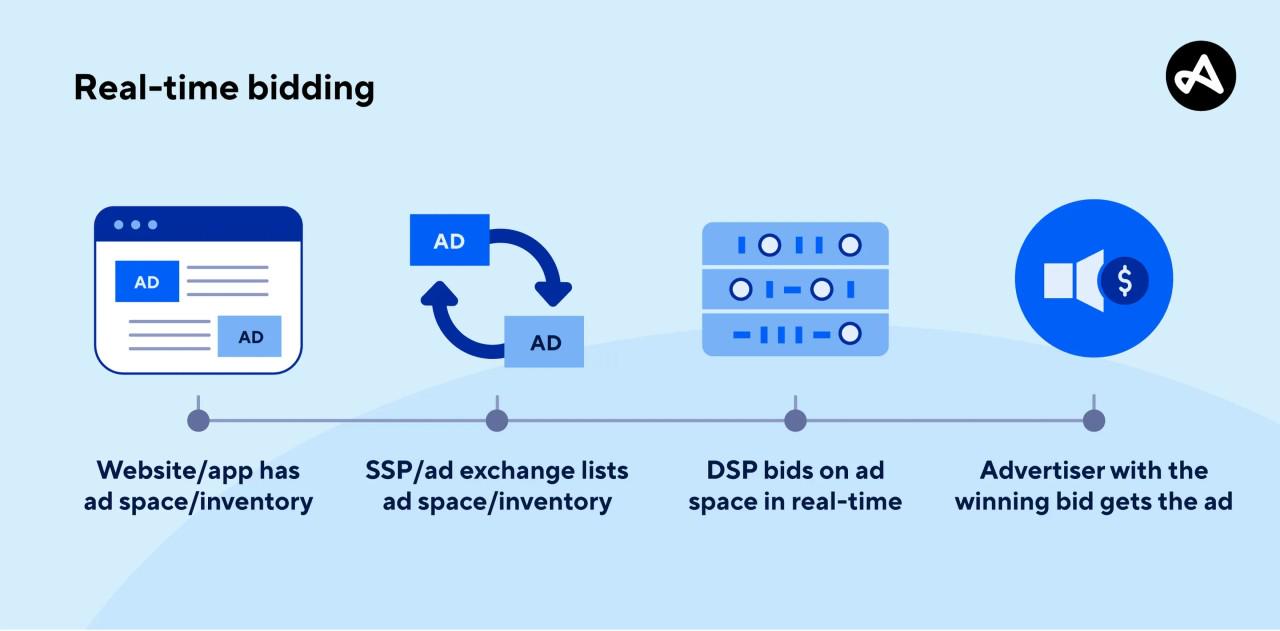
How real-time bidding works. Image credit: Adjust
In reality, it’s a fair bit more complicated than that: for example, both publishers and advertisers have their own ‘representatives,’ called Supply Side Platforms (SSPs) and Demand Side Platforms (DSPs), and they add a whole new layer to this scheme. But despite being so complex, this entire process is highly automated and takes mere fractions of a second from start to finish. And these auctions happen all the time. Just in Europe and the U.S., 178 trillion auctions take place every year.
RTB doesn’t operate in a vacuum — it feeds on, and in turn accelerates, the broader infrastructure of identity tracking built around it. One of the scariest things about all this is how easy it is to obtain information about any individual. Notice that in any RTB auction, in order for advertisers to be able to know how much they want to bid, the ad exchange shares with them all the information about you that it received from the publisher. If you’re an advertiser, you may receive valuable data even if you never win the auction. In 2017, the researchers from University of Washington conducted an experiment in which they were able to track the movements of a specific person by participating in RTB auctions — all they had to do was spend about $1000.
RTB went hand in hand with the expansion of analytics, tracking pixels, and identity infrastructure. The more an ad system could infer about a visitor — their interests, device, location, browsing history, or likelihood to convert — the more precisely that impression could be valued and bid on. This period was characterized by heavy cross-device and cross-channel measurement: Universal Analytics, the then-new version of Google Analytics, pushed it further toward a “multi-screen, multi-device” model, while Facebook’s tracking pixel, launched in 2015, turned ordinary websites into sources of conversion data, audience building, and retargeting. All in all, this was the period when today’s adtech landscape began to take shape — and in many ways, it still follows the same logic.
Unfortunately, it’s not easy to illustrate how ad blockers in general and AdGuard in particular reacted to the new challenges. Just as the threat itself was invisible to a user, the response was too. The advancement of ad blocking syntax, new filtering rules, new anti-tracking filters — unless you were a hardcore ad-blocking user who frequented specialized forums, you wouldn’t know much, if anything at all, about the constant struggle that was going on behind the scenes.
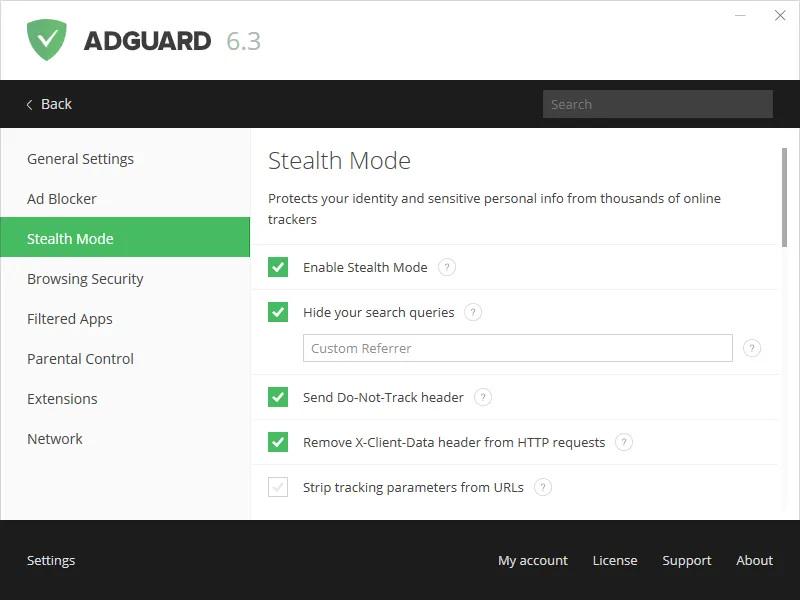
Stealth Mode module in one of the older AdGuard versions
A big step forward for AdGuard was the addition of Stealth Mode module in early 2016 — before it, the tracking protection filter was the only line of defense from tracking. Stealth Mode was designed to protect users’ privacy in various ways, including blocking third-party cookies, preventing WebRTC leaks, and many others. It is now known simply as the Tracking protection module and has accumulated dozens of new features over the last decade, some of which we will touch on later.
2016–2019: Fingerprinting fiesta
👉 Era overview
- Main threat: Browser and device fingerprinting
- Why it was new: Trackers could recognize users without storing obvious identifiers like cookies
- How blockers responded: Blocking known fingerprinting scripts, stricter privacy filters, script control, browser-level anti-fingerprinting
- Also worth mentioning: Anti-adblock scripts, cryptominers, native ads
For years, websites relied on cookies to collect information on internet users. But by that time, browsers and ad blockers had become pretty good at limiting or blocking cookies, and so trackers looked for ways to recognize people without storing anything obvious on their devices. This is where fingerprinting enters the stage. The naming is not random: just like you can identify a person by the unique pattern of their finger ridges, it is possible to identify a user by a unique combination of factors: time zone, language, browser settings, installed plugins, fonts, screen size, device characteristics — the list can go on and on. None of these signs are good enough to definitively identify a person, but combine enough of them into a single user profile, and you can reach a very high degree of certainty.
The idea of collecting information about users’ browsers and devices first appeared a long time ago, but it took some time for it to become widespread. For example, in 2013, out of Alexa top 10,000 websites only 40 were using fingerprinting scripts. It wasn’t long until this tracking method skyrocketed in popularity, though — and it remains popular even today, as it wasn’t affected by the increased cookie restrictions.
There are different types of fingerprinting, and the poster child is definitely Canvas fingerprinting. The idea is surprisingly simple: a website asks your browser to draw something invisibly, then reads the subtle rendering differences caused by the OS, GPU, drivers, fonts, and browser. It was so effective that, according to a study by Steven Englehardt and Arvind Narayanan of Princeton University, by 2016 nearly all prominent trackers stopped using canvas fingerprinting because the public backlash got so strong; the overall number of domains employing it, however, had increased considerably compared to 2014 (but its use was already shifting from behavioral tracking to fraud and bot detection).
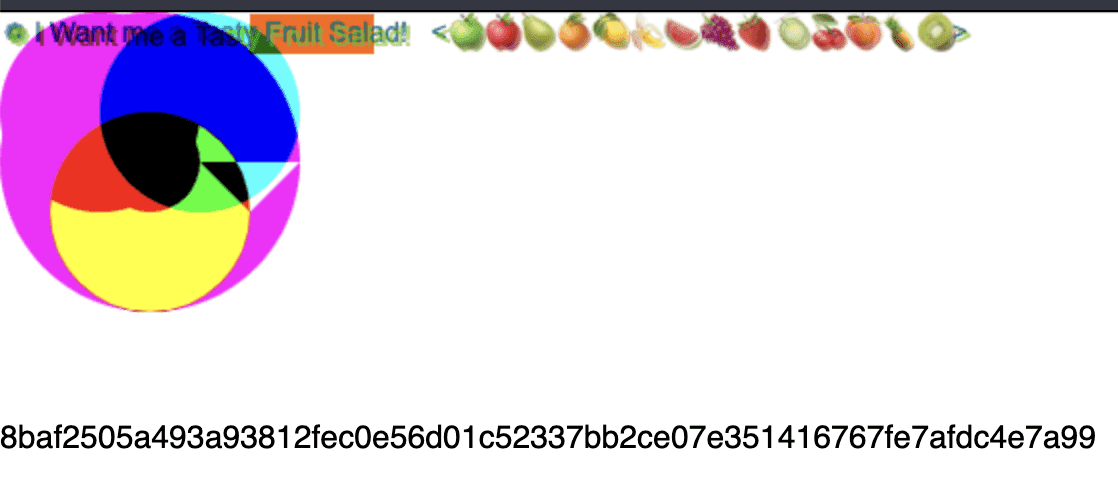
An example of an image generated for canvas fingerprinting
Fingerprinting is not just about making your browser draw invisible images and measuring the result. Canvas fingerprinting is only one example of a much broader technique: collecting small details about your browser, operating system, and device, then combining them into a profile that may be distinctive enough to recognize you later. We already mentioned a lot of parameters that can be measured, here are some more examples: your audio stack, screen resolution, touch support, battery status — these and countless other signals can all become pieces of the puzzle.
And as devices became more capable, the puzzle gained more pieces. Modern PCs, laptops, and especially smartphones exposed more sensors, APIs, rendering features, and hardware characteristics to websites. Each new capability was introduced for legitimate reasons — richer graphics, better media playback, responsive design, mobile-friendly interfaces — but many of them also gave fingerprinting scripts another field to fill in. Even the fact of using a specific ad blocker could become another line in your profile.
Speaking of, is it possible to fight fingerprinting with a trusty old ad blocker? Yes and no. When it comes to recognizable third-party fingerprinting scripts, it’s as easy as adding necessary rules to the filter list. But ad blockers struggle when fingerprinting is embedded into ordinary first-party code. It is possible to block script execution or limit JavaScript with an ad blocker — which would help against fingerprinting — but it could easily lead to site breakage, so it isn’t a solution for everyone.
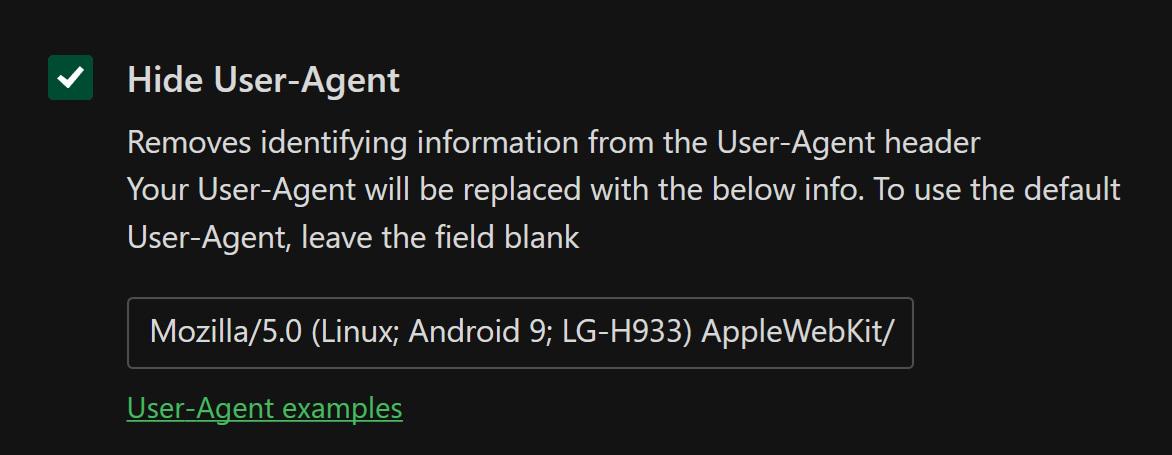
A random User Agent enforced via AdGuard’s Tracking protection module
As for AdGuard, the aforementioned Stealth Mode/Tracking protection module offered (and still offers) a number of settings, like Custom User-Agent, that could mitigate fingerprinting in theory, but truth be told, this is one area where browsers are much more well-equipped for the fight, just by their nature. They could much more easily implement things like fingerprint randomization — this is a good illustration of why you should treat ad blockers as one of the tools in your privacy-protection suite, and not as an be-all and end-all solution for all problems.
2019–2022: Tracking hiding in plain sight
🕵️ Era overview
- Main threat: CNAME cloaking and first-party disguise
- Why it was new: Trackers could hide behind first-party-looking subdomains
- How blockers responded: DNS-level protection, CNAME-aware filtering, network-level blockers, advanced rules
- Also worth mentioning: Server-side tracking, mobile tracking IDs, Apple ATT, connected TV/app tracking
By this point, more and more users were becoming aware of the dangers of tracking. Having an ad blocker extension installed in your browser became the norm. More privacy-oriented apps and extensions were popping up, and even historically ‘privacy-neutral’ software like browsers shifted more and more toward adding privacy protection features. Trackers were facing serious pushback and had to adapt to the new reality. One of the ways of doing so was making third-party tracking look like first-party traffic by using techniques like CNAME Cloaking.
To understand how CNAME cloaking works, you need to know what first-party and third-party mean in the context of browsers. Normally, browsers treat subdomains of the same site as belonging to the same party. For example, if you visit www.company.example, a request to stats.company.example still looks like a first-party request. It can receive the site’s cookies and may even set cookies that belong to company.example.
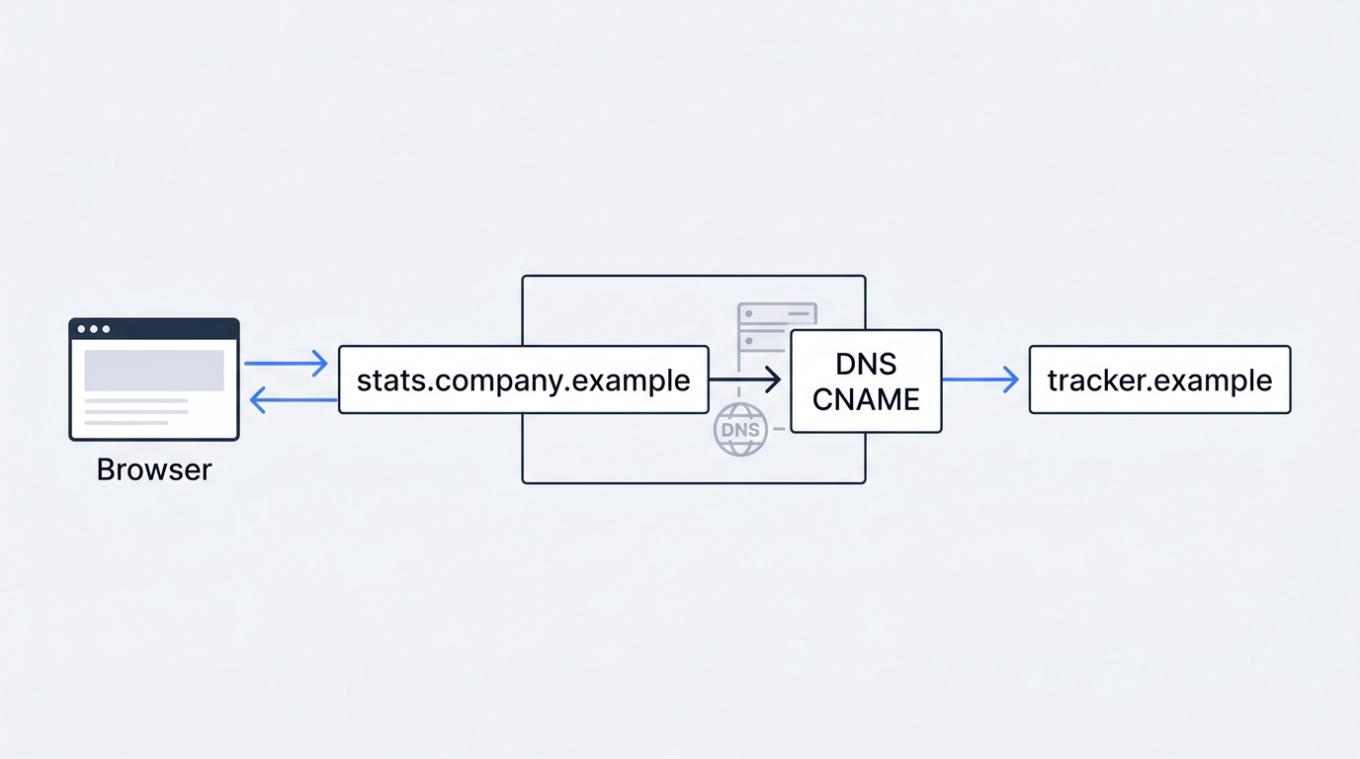
A diagram of how CNAME cloaking works
CNAME cloaking (CNAME stands for canonical name) abuses this trust. A website owner can configure a subdomain, such as stats.company.example, so that behind the scenes it actually points to a third-party tracking service. To the browser (and to the ad blocker), the request still appears to go to the original website. But in reality, the tracker is hiding behind a first-party-looking subdomain, gaining many of the privileges that browsers normally reserve for the site itself.
CNAME cloaking wasn’t dangerous because it invented some new breakthrough way of data collection. It was dangerous because it blurred the line between the site you visit and the third parties attached to it, and this distinction was one of the core ideas that privacy tools like ad blockers relied on. For example, first-party cookies are often necessary for websites’ proper functioning, and messing with them can be dangerous. Even if you open AdGuard’s Tracking protection module, you will find “Not recommended” in bright red letters next to the Delete first-party cookies setting — nothing like that next to the same setting for third-party cookies.
Another prime example of tracking moving beyond traditional methods is server-side tracking. Instead of loading every tracker directly in the browser, a website collects data through its own first-party endpoint and passes it along behind the scenes. In fact, this endpoint can be used for something completely legitimate, like loading image or video assets, and so blocking it entirely would effectively render the website useless for the visitor.
By 2020, ad blockers and advertisers were firmly caught in a never-ending arms race. As you can see, these new, inventive ways of tracking users and showing ads were nothing like naive banners of the 2000s, and simply installing a browser extension wasn’t cutting it anymore. This is when DNS filtering moved to the forefront of the battle against trackers. It could see domain resolution, including CNAME chains, and it could protect devices like smart TVs and routers that were impossible to shield with regular ad blockers. AdGuard DNS was officially released in late 2018, and by 2020 it was integrated with all AdGuard apps.
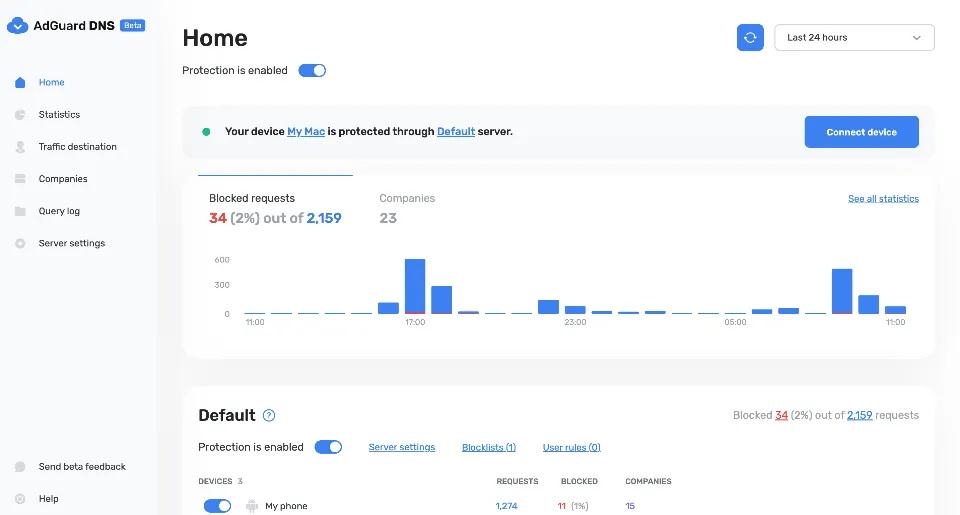
AdGuard DNS dashboard
Advanced filter rules also played their part — they were not just blocking ad URLs, but identifying trackers hidden behind first-party-looking domains. But it became clearer than ever that filtering rules alone were not sufficient for all-round protection; your ad blocker had to cover all fronts. This was also the time when network-level blockers like AdGuard Home rose in popularity, as users became much more knowledgeable and technically competent and wanted full control over their network, rather than delegate it to someone else.
2022 onwards: AI arrives on the scene
🤖 Era overview
- Main threat: AI-powered targeting and generated ads
- Why it was new: AI made prediction, profiling, and ad generation more scalable and precise
- How blockers responded: Filter lists still matter, but AI-assisted detection may help with native/generated ads
- Also worth mentioning: Chatbot ads, synthetic ad creatives, cross-platform profiling
AI took the internet by storm and quickly spread into every corner of the web, including advertising and tracking. However, AI didn’t suddenly allow advertisers to discover a new way to follow users. Instead, it gave them better tools to interpret, predict, generate, and optimize around the data they were already collecting.
Remember retargeting and how the same ads followed you around the web based on what you’ve already seen and what you clicked? AI elevated this to the next level with predictive targeting. Instead of showing you the same ads over and over based on what interests are listed in your profile, AI analyzes signals such as browsing history, clicks, purchases, and looks for patterns in that data. Then, based on these patterns, the AI predicts the likelihood of you responding to an ad and even tailors the ad personally for you. This includes not just how the ad looks, but also its timing and the specific offer. To put it briefly, the targeting now is not about what you’ve done, but about what you are likely to do next.
Another boon that AI gives to advertisers is that they don’t have to know that much about you to achieve the same (or even better) precision. Whatever they don’t know, they can now predict with a high degree of certainty. Trackers use cross-platform profiling to build a better picture of you, meaning they connect your activity across different apps and websites by using logins, device signals, ad identifiers, and browsing patterns to decide which signals belong to the same person. AI makes this method more powerful because it can link weak signals across different sources and infer hidden traits from patterns that may look unrelated at first glance. Now it’s much more valuable to have many weaker signals than very few strong ones, and so platforms with logged-in ecosystems have a natural advantage.
In that sense, AI didn’t change very much about how ad blockers deal with the ads and trackers themselves: filter lists remain the foundation for ad blocking, DNS and network filtering still matter, cosmetic filtering still matters. What became far more important than before is how much personal data you leak in the first place. Every website login, every permission request approved, every bit of information about yourself that you make available online now feeds the machine. Privacy tools can help here, too, but the onus is more and more on the users themselves to be vigilant and very conservative about how they interact with the web — although it is not an easy task at all in our hyper-digital age.
AI also opened up one potential ‘new frontier’ for ad blocking: ads being woven into chatbot conversations. As of now, almost all ads associated with chatbots are separate from the responses and labeled as sponsored, but this may become an issue in the future.
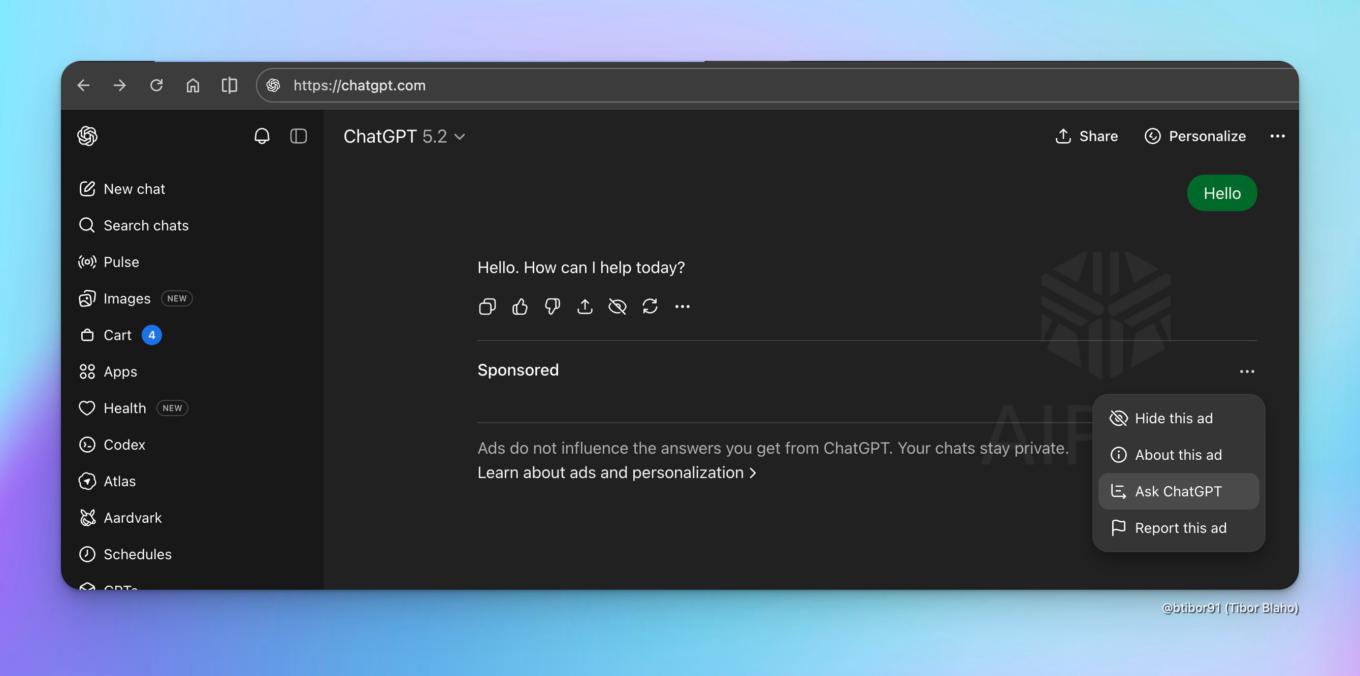
Screenshot of ChatGPT ‘Sponsored’ tag by Tibor Blaho on X
Functionally, they are not very different from any other ad you may encounter on a news website, for instance, so blocking them is a matter of promptly updating the filter list. But it is technically very possible to incorporate an ad into the very text of the chatbot’s response. Unless you already know the bot is trying to advertise something to you, there would be no way of knowing if some recommendation is genuine or was forced into the answer for advertising purposes only. Luckily, for now it seems that AI companies value their public image and fear the backlash enough to avoid this tactic, but it’s not out of the question that it will become reality at some point. You would think that this is where ad blockers will throw a white flag, but not necessarily. It will require a completely new approach, though — ironically, involving the use of AI as well. Ad blockers will have to move from understanding code to understanding meaning. Even as far back as three years ago we wrote about possible ways of dealing with this issue, so ad blocker developers keep their finger on the pulse: this may become a real threat sooner than you might think.
But AI is not a net negative for ad blocking. Far from it, in fact: the use of AI in content filtering was one of the main topics of last year’s Ad-Filtering Dev Summit. The devs discussed how AI can be recruited to automate blocking cookie popups, how it can help with quality assurance, and even how AI can assist in actual identification and blocking of the ads. Maxim Topciu, Browser Extensions Team Lead at AdGuard, created and showcased several working prototypes that used different methods to distinguish the ad content on the page and block it. It is absolutely clear that AI will remain one of the main points of discussion at the next Summit, and, to be honest, probably at every Summit going forward.
It is impossible to fit 17 years of web threats into one blog article, even if you stretch it a bit, and it wasn’t the goal anyway. The goal was to demonstrate how different the challenges were that the ad blockers had to face over time, how it wasn’t straightforward at all to bring you the best tools for protection against ads and trackers, but how we tried our very best at every point in time. We hope that you were happy with AdGuard no matter how long you’ve been using it, whether it’s just a year, or maybe five, or, who knows, all seventeen.
We can’t wait to see what the next seventeen years will bring! One thing will remain certain: we will continue doing whatever it takes to keep up with any threats of the future and to protect you.




















































