Bye, Internet Explorer, you won’t be missed: Once omnipresent browser king retires in exile
We all knew that this would happen, and finally, the day has come: Microsoft officially ended support for its first-born but long estranged browser, Internet Explorer 11, on June 15, 2022 for Windows 10.
From king to outcast
Don't expect an outpouring of condolences, long mourning processions and weepers huddling over the famous blue "e" orbited by a golden ring. Internet Explorer that took the internet by storm after its launch in 1995 and was first toppled by Chrome as the world's most used browser exactly 10 years ago has since long fallen out of favor with both users and web security advocates.
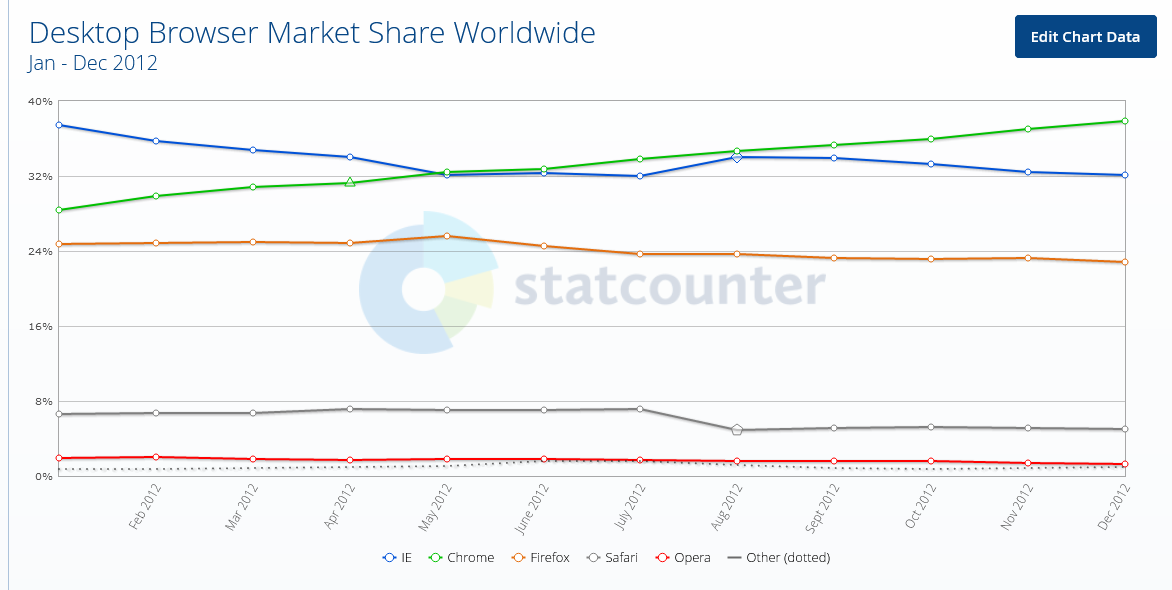
Internet Explorer has become the butt of a joke for its torturously slow speed: sites would crash, your screen would freeze or the page you wanted to open wouldn't download at all due to the compatibility issues — all of which were partially the consequences of Microsoft putting the IE updates on the backburner and the fact that the technology the IE was based on was over 25 years old.

Microsoft's neglect for its first but somewhat dimwit browser-child was in the open. The tech giant would fully focus on developing and promoting its much more competitive Microsoft Edge, launched in 2015, relegating Internet Explorer to the role of "a legacy browser" that was "architecturally outdated and unable to meet the security challenges of the modern web'.
The release of Windows 11 in October 2021 marked the first time Microsoft had not bundled Internet Explorer with its operating system, making Chromium-powered Edge the only default browser.
Not as useless as it seems
The most of the world has turned its back on the user-unfriendly browser that was continuously plagued by various security issues: according to Statcounter, Internet Explorer's market share among desktop browsers amounts to mere 1.65% and it's a safe bet that it continues to plummet in the years to come. However, while regular consumers — like me and you — have overwhelmingly ditched IE in favor of faster and more reliable alternatives, Internet Explorer still remains a popular solution for many enterprises, among them government-run websites.
And we are not talking about some woebegone remote place that has yet to reap the fruits of digital progress. High-tech wonderland Japan, of all countries, stands to take a major hit from Microsoft's decision to put a final nail in IE's coffin. Bloomberg has cited a March survey indicating that 49 percent of companies in Japan still use Internet Explorer, including for accounting, data exchange and attendance management. Some 20 percent of the respondents were yet to figure out how to switch to other browsers safely. Among the most affected are reportedly government agencies, manufacturing and logistics companies that need IE to access websites that are not compatible with modern browsers.
Twilight years
In order to not leave businesses and government to their own devices, Microsoft had proactively integrated an IE mode inside Edge, so that users could still access IE-dependent "legacy websites" if they absolutely needed to while also experiencing the benefits of modern-day browsing.
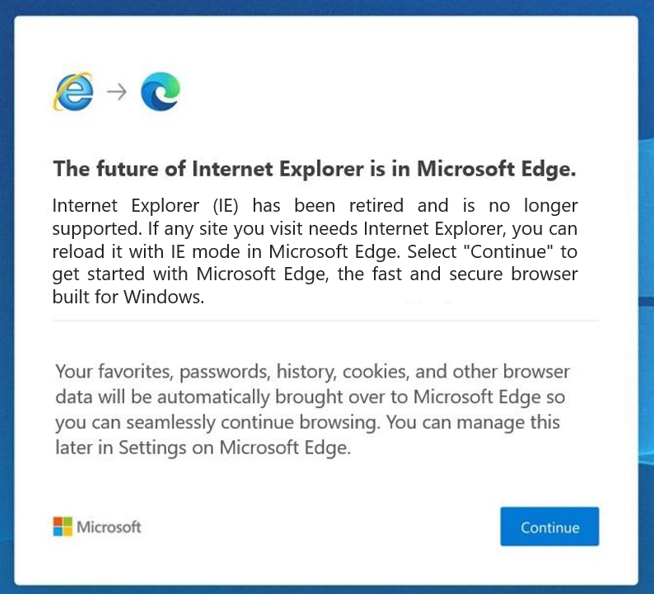
Once they have opened Internet Explorer, users will be redirected to Microsoft Edge with an in-built IE mode, the company announced in a blog post on Internet Explorer retirement:
"Users will still see the Internet Explorer icon on their devices (such as on the taskbar or in the Start menu) but if they click to open Internet Explorer, Microsoft Edge will open instead with easy access to IE mode. Eventually, Internet Explorer will be disabled permanently as part of a future Windows Update, at which point the Internet Explorer icons on users’ devices will be removed"
Microsoft made it clear that the IE mode is only a stopgap measure, that would also be retired in its due time. For now, the company said that it plans to support the dual mode at least through 2029, and will give a year's notice before sending it to the dustbin of internet history as well.
While the June 15 marks the day Internet Explorer died for most users, the desktop application will still, for the time being, be running on older versions of Windows, including Windows 8.1, Windows 7 Extended Security Updates as well as some limited versions of Windows 10, most notably, Windows 10 China Government Edition.
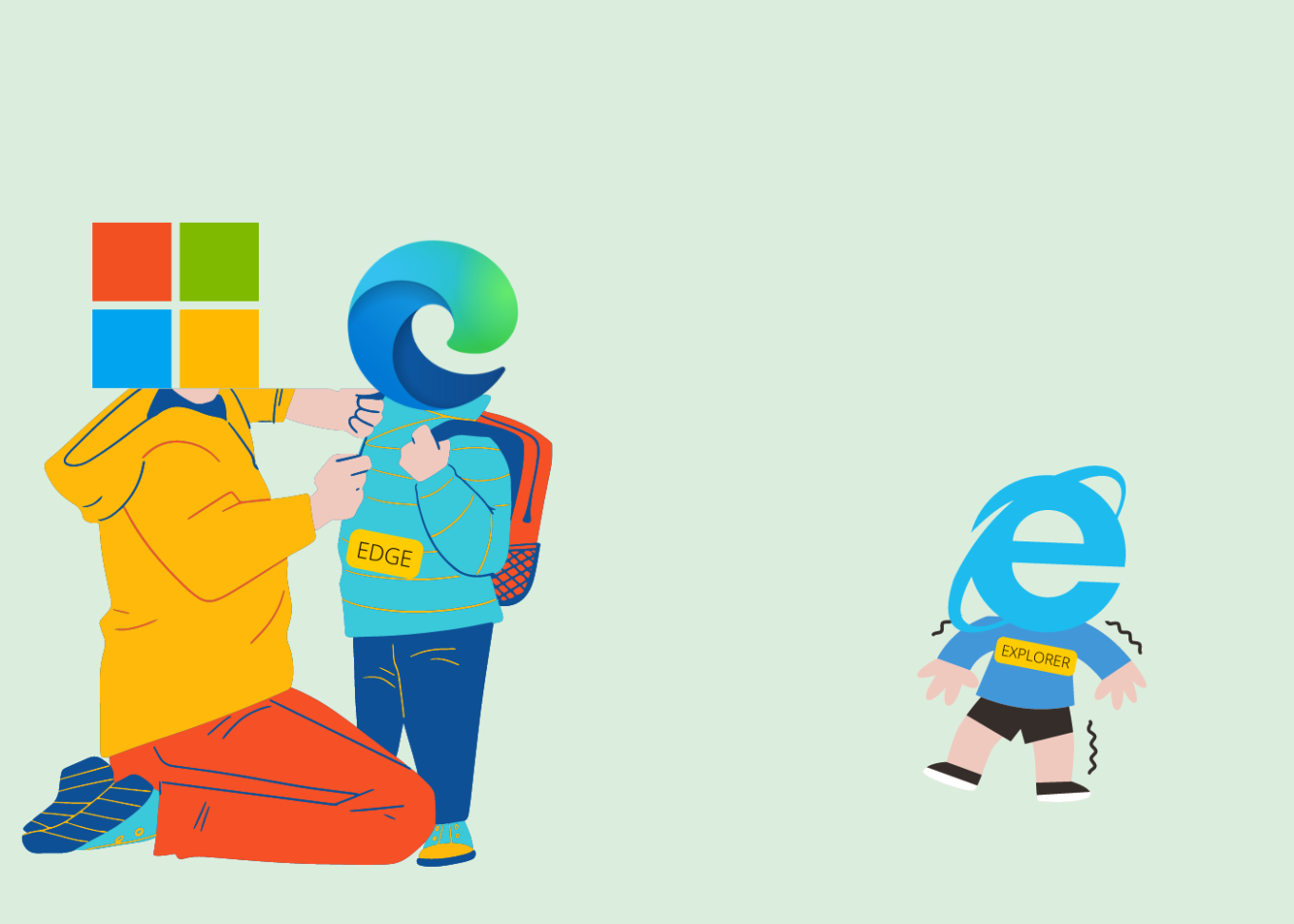
All fun and memes, but we could not possibly overlook the role Internet Explorer played in revolutionizing the web. And while many of us may still have fond memories of the times that the blue 'e' served as our only portal to the online world, Internet Explorer has aged beyond its years, and as we know: Internet is no country for old menbrowsers.
Challenge for ad blockers
Although it might be considered bad taste to speak ill of the dead, we cannot but mention that Internet Explorer not only made life difficult for its users, but also resisted attempts by third party developers to make users' lives easier through plug-ins and extensions. This fully applies to ad blocking. Developers had to go to great lengths to come up with a viable solution for IE since it has a very specific mechanism of working with plug-ins. Perhaps unsurprisingly, the very first ad blocker was a plug-in for Netscape browser, which was the most widely used browser before being vanquished by Internet Explorer in the First Browser War in the late 1990s.
And while Netscape was already a pile of smoking ruins by 2008, Internet Explorer had yet to give its users some tools to fend off increasingly noisy adverts and trackers. It was not until 2009 that InPrivate filtering was first introduced in Internet Explorer 8, which allowed users to block third-party content, but had to be turned on manually every time. A feature called Tracking Protection was added to Internet Explorer 9 which was released in 2011. Users were finally able to create Tracking Protection Lists (TPLs) themselves — that were the lists of sites they wanted to block — or download ready-made lists provided by third-party maintainers.
At the time Internet Explorer was making its first timid steps towards giving users more control over their browsing experience, users of other browsers were already making the most of various plug-ins, extensions, add-ons, and cosmetic filtering provided by full-fledged ad blockers. Yes, Internet Explorer users were able to block certain web requests, but the result was far from picture perfect: some images were broken, while blocked ads left unremovable blank spaces that littered the screen.
And while Internet Explorer might have proved resilient to changes, ad blockers were becoming ever more sophisticated. It was a rise of system-wide blockers that became a game-changer with Internet Explorer. One of the oldest such tools is Ad Muncher which has been around since the early 2000s. While currently lagging behind its competitors, Ad Muncher's popularity at the time was largely due to the rigidity of Internet Explorer.
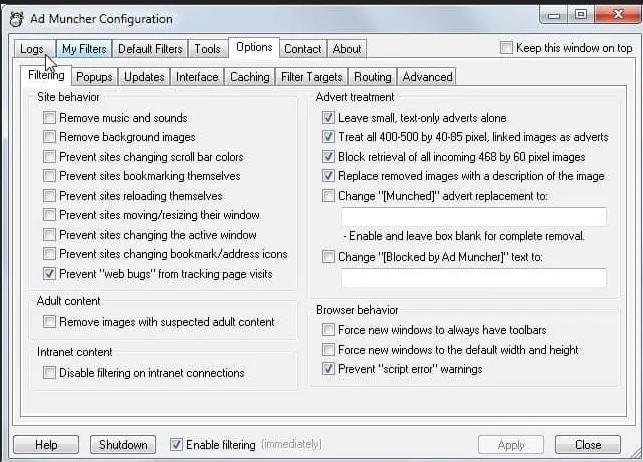
Some system-wide tools, such as Ad Muncher and AdGuard, can block ads and trackers on network level and use cosmetic filtering rules that not only prevent ads from appearing on your screen, but also understand the structure of the page, which allows them to avoid leaving whitespaces and ad leftovers.

Keeping in step with the times, AdGuard offered a comprehensive ad-blocking tool for Windows of its own, which can also be used in Internet Explorer. AdGuard ad blocker works at the system level and therefore is not constrained by browser limitations.
We may not have seen the last of Internet Explorer yet — if anything, it will still live on in its twilight years as part of Microsoft Edge, and its memory is forever ingrained in our minds. However, it is unlikely that most users will miss the browser and wish for its return. We, certainly, will not.