TechTok #14. Nine things you do every day that endanger your personal data
If you are reading this article, you are probably already much more privacy-conscious than an average web user. That means you know that in the eyes of many corporations and tech giants your data is a product, and they go out of their way to get to it. And the methods they employ are endless: some are well-known, some are less obvious. What many of these methods have in common is how easy it is to overlook them and spill your data. You do something mundane, like installing an app or scanning a QR code, and already your privacy is at risk. In today’s TechTok we answer this question:
What are the most common privacy traps? What things are you doing nearly every day that can endanger your personal information?
When you post personal details on a public platform or fill in an online form with your real name or address, it’s pretty obvious that your privacy is taking a hit. These are scenarios where common sense will get you through: don’t feed your credentials to shady websites or tweet your social security number for everyone to see. But what about other, less clear cases? We collected nine scenarios that you might easily find yourself in, where you risk leaking your personal information without even realizing.
1. Scanning a QR code
QR codes are a staple of everyday life, they are the links between the physical and digital worlds. We scan them to pay for things, to download a menu at a restaurant, to share contact details. The more we do it, the less we think about what actually happens behind the camera pointed at the checkered pattern. And what happens is usually your phone opens a URL, either in a browser or in an in-app web view. The moment that page loads, your device sends a request to the server hosting it. That request automatically includes some information, and the page can also collect more through scripts running on it, depending on how it is built and what protections you use. Here’s the kind of information that can be collected:
- Your IP address. This indirectly leads to knowing your rough location, internet provider, whether you are on Wi-Fi or on mobile.
- Your browser and device information. Device type, operating system, language preferences, sometimes even browser version and device model.
- Language and region hints. If the website isn’t sure about your location or language judging from other data, it may get some additional hints here.
And these are only those things that the server gets automatically. After the page loads, it can run some JavaScript in the browser to get more:
- Screen size and display characteristics. Screen resolution, device orientation, pixel ratio, color depth — all these little details help fingerprint your device and contribute to your profile.
- Time of access. Pretty obvious, but the website can learn about your local time and time zone, it can also record how long you stayed on the page.
- Interaction signals. If the website wants, it can track which buttons you clicked, whether you copied something, how long you spent reading, and so on.
So, basically, treat QR codes as if they were links. We don’t click just any link we see in spam emails, so we should be similarly selective about which QR codes we scan. Only scan those that you see in legitimate places; thus scanning a random QR code on a sticker stamped onto a street light is a bad idea.
Also keep in mind that, after all, QR codes are physical objects linked to physical spaces. Once you scan one, you’re potentially revealing that you were in a specific place at a specific time. It can help link your offline behavior to online tracking or profiling.
2. Allowing push notifications
Another prime example of something so deeply ingrained in our lives that we often use it without any second thought. Push notifications are convenient because it’s the easiest way for an app to reach you and notify you about something important, but that’s exactly why they are dangerous. They give an app a direct, persistent channel to your device — one that can reveal a lot about your behavior, interests, and habits over time.
Over-the-shoulder onlookers. Level zero of why push notifications may be a threat to your privacy is that they may expose sensitive content on your lock screen. No invisible ‘tracking magic,’ it’s simply about someone else glancing at your screen at an inopportune moment and seeing your message previews, banking details, order alerts.
And remember that these notifications can arrive quite literally at any time, that’s their whole point, so be very picky about which apps you allow to send push notifications. Once you give the permission, it’s very easy to forget about it, so it’s best to prevent the potential disaster at the earliest stage possible.
Profiling your daily schedule. Every time an app reaches your phone with a push, it learns that your device is online. By studying when you engage with which pushes it’s relatively easy to learn your daily patterns: when you sleep, when you commute or take breaks, when you’re most accessible. All of this may not feel as privacy-threatening as leaking your email or phone number, but it does help build your digital profile and manipulate your behavior.
Not always good for your mental. It’s not about privacy per se, but feels right to mention it here — push notifications can easily mess with your daily rhythm and your routines. Getting constantly bombarded with pushes disturbs your peace of mind and elevates anxiety. Take a look at which apps on your phone have push notification permissions — we bet if you disable half of them, you wouldn’t miss anything of real importance, but would save yourself some nerves.
3. Handing out unnecessary permissions
Piggybacking on the previous point, in general, do not give apps on your phone more permissions than they need to function properly. When your maps app asks for location permission, it’s a legitimate request. When a sudoku app does the same, you can probably deny it without losing any functionality.
Most people can use common sense to judge whether an app really needs a certain permission. The problem lies elsewhere. So many of us are in a constant hurry: a friend shows you a cool app, and you rush to the store to download it. Once the download is complete, you tap the icon, and instead of the main screen you see an annoying permission popup. If you’ve never been in this situation, impatiently tapping ‘Allow’ without stopping for a second and giving it a read, you are a much more patient person than most.
Make it a habit to slow down every time you install a new app and to think for a moment about which permissions the app actually needs. If you want to take things a step further, consider reading the privacy policy. It may not be easy, though, as many unscrupulous developers make the privacy policies for their apps and browser extensions intentionally obscure or hard to find. But this is the next level — shutting down any attempts of getting unnecessary permissions is a good starting point for anyone looking to up their privacy game.
4. Installing free apps and extensions
This one is with an obvious caveat. Not all free services and apps are bad, claiming that would be taking it too far. But the simple truth is, people rarely give anything out for free. When you are about to install a free app on your device, ask yourself: why is it free? Sometimes there is a legitimate reason for that, like when a free version of an app also offers a paid pro plan, or it’s a freemium game that hopes you will later purchase in-game objects, or perhaps it’s someone’s passion project.
But in many cases, a free app comes at the cost of extensive tracking. Smaller developers often include analytics and ad SDKs (Software Developer Kits) into their apps for monetization purposes, and these SDKs collect stuff like your behavioral data, device info, and usage patterns. And in the worst cases, free apps serve as gateways for viruses and various phishing scams. It doesn’t mean that you should stop using any and all free apps right this moment, but think twice every time you’re installing a free app. Ask yourself if you really need it, and if the answer is ‘yes,’ arm yourself with your trusty ad blocker and stay alert to signs of phishing and other foul play: missing or rudimentary privacy policy, unknown developer, lack of reviews, low installation count.
5. Clicking through cookie consent popups
Cookies have earned themselves a bad reputation among privacy experts and users who care about the safety of their data. And for a reason — they can be easily abused to track you across websites, build your digital dossier, and in many countries, especially in the EU, websites are required to ask for your consent before storing any information about you inside cookies. You know what we mean — those ‘We value your privacy’ banners that pop up when you navigate through a link to read an article or browse an online shop. They usually have a highlighted Accept All button that begs to be pressed, while other buttons like Customize or Reject All take a back seat, trying to be as invisible as possible.
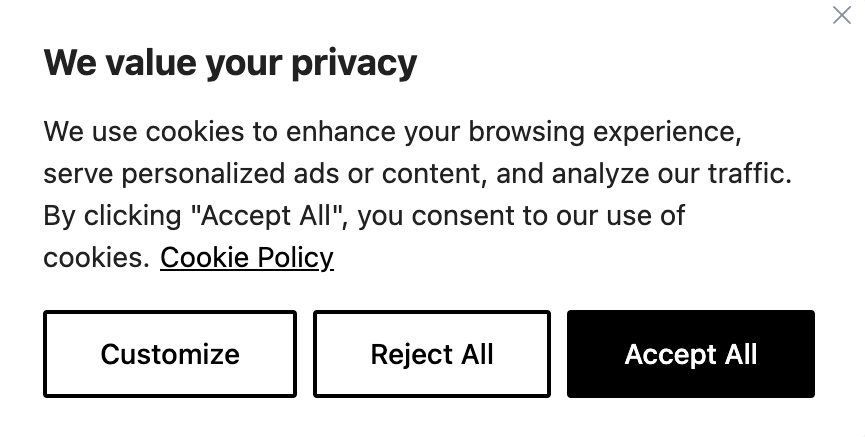
A typical example of a cookie consent popup with the ‘Accept All’ button highlighted. Source: Webtoffee
This is all by design, of course. Websites need to abide by the law, but they also want to track you if they can get away with it. So they present the choice in such a way that pushes you towards making the choice you otherwise wouldn’t. When you really want to read that article, you are much more likely to click on the first thing that draws your attention to make the banner go away. Instead, take a second to find a more appropriate option than ‘Accept All.’ Even in the most severe cases it doesn’t take longer than half a minute to avoid consenting to something you don’t want to, and usually all it takes is literally a second or two to avoid the initial impulse and click the less flashy button next to it.
6. Signing in with Google/Apple/etc.
On the list of things that feel way more annoying than they really are, signing up for a new service has to be close to the top. Typing in your email address and password, opening your inbox, maybe waiting for a minute or so and clicking the confirmation link — if we’re being honest, it’s not too hard or too long, but given the option, we’d rather not do it. And how convenient is it that there’s a “Sign in with Google” button right next to the Sign Up one! Why wouldn’t you select this option and bypass all that fuss?
An example of social login buttons designed by @nelsonic
But when you start thinking about it, the drawbacks become apparent. Every time you use a social login, the app or website may receive a stable account identifier from Google/Apple/Facebook that makes it easier to link your activity across services. Think of it as if you’re using the same master key to enter many different buildings — which is convenient, except you are letting a company like Google or Apple hold that master key for you. This company now knows where you go, and if the key is lost or stolen, your access to a lot of places will be affected at once.
This isn’t just about convenience or even about access. Once the website has that stable identifier, it can start treating you as the same person every time you come back, even if you’re using a different browser or device. That makes it much easier to tie together what you do on that one service: what pages you visit, what you buy, what you click, how often you return, and how long you stay. In other words, the site may not know your whole life story, but it can still build a pretty detailed one inside its own database. But from the website’s point of view, that’s not very different from the case where you sign in ‘the regular way’ by creating an account.
The real difference is that now there’s the company holding the ‘master key.’ Whether it is Google, Apple, or Facebook, it can see that the same account is being used to sign into different services, which means your activity can be linked across the web at a much larger scale. So now it’s not just one website knowing you’re a repeat visitor — it’s one big company potentially seeing that you show up at many different doors, over and over again. That’s where privacy starts to shrink: not because every site suddenly learns everything about you, but because one identity layer makes it much easier to connect the dots.
The solution is pretty simple — try avoiding using the social login feature. Creating an account doesn’t take that much effort or time, and, as a bonus, you can use an alias or a temporary mail service like AdGuard Mail to further strengthen your privacy.
7. Using Google and other non-private search engines
We use search constantly, dozens of times a day. It comes so naturally that we don’t even think about it — your mind is still thinking, but the fingers have already started typing the query. It feels quick, and it feels private: it’s just you and the search bar. If we feel like we are searching for something sensitive, we might switch to incognito mode (which hardly offers any privacy, by the way), but usually that’s about it.
And when we google something, most of us use, well, Google. It hasn’t become the synonym to online search by accident — it still holds over 90% of the search engine market share. And whenever you use Google or another non-private search engine, like Bing, Baidu, Yahoo, or Yandex, it may store your queries, tie them to your account or device, and later use this information for personalization and advertising. Fortunately, it is easy to avoid this issue — just switch to a privacy-oriented search engine like DuckDuckGo or Brave Search. They are designed not to associate your searches with you personally in the same way mainstream search engines do.
Another, maybe less obvious privacy issue tied to search engines is shoulder surfing. Even if you are aware that someone is standing next to you and cognizant of what you type, autofill makes it easy to display something that you wouldn’t want to become public. Start typing ‘how many…’ into the search bar, and it will automatically suggest you something like ‘how many countries are there in the world.’ This is a very innocent example, but in reality suggestions are based on your location, language, and past searches, and it’s very easy to conjure a scenario where autofill could leak something private about you. It is another example of the compromise between convenience and privacy, and you can make this choice for yourself, just be aware that there is a choice.
8. Talking to AI chatbots
In the previous TechTok issue we already talked about how AI chatbots can or can’t use your data for training and other purposes. Long story short — it depends on which AI you are using, but the rule of thumb is that if you say something to a chatbot, more often than not it can be used for whatever purpose the company behind it sees fit. You can opt for models that collect less information about you and look for settings that disable or restrict tracking.
Key takeaways from the last TechTok article:
- Among the popular conversational AI models, Claude is the only one that doesn’t collect your data for AI training by default
- Perplexity and Gemini have options to disable future data retention, but turning it off will not affect past interactions
- ChatGPT has an opt-out option in settings, but some data retention will continue in any case
- Ad blockers can stop third-party trackers that may run on chatbot websites. However, most major platforms rely heavily on first-party tracking that can’t be easily dealt with
- Best privacy protection when talking to chatbots is caution: choose your AI carefully and do not share personal details without a good reason
9. Using a public Wi-Fi
We will finish the list off with, possibly, the biggest privacy no-no that you can commit: connecting to an unprotected Wi-Fi network without a VPN and other digital protection tools. Everyone knows that it’s dangerous, everyone knows that you shouldn’t do it, and yet some people do it anyway. A quick reminder why exactly it’s dangerous:
- It gives anyone with technical knowledge and an ill intent an attack angle. They can potentially see which websites you visit, which requests your browser sends — this can include sensitive info like payment details.
- Public Wi-Fi can be used for man-in-the-middle attacks. A malicious actor may position themselves between your device and the internet connection so they can monitor, modify, or redirect traffic. That can be used to steal login details or push you to fake websites.
- It’s easy to trick someone with a fake hotspot. Attackers can set up a Wi‑Fi network with a name that looks legitimate, like “CoffeeShop_Free_WiFi,” and lure people into connecting to it. Once you’re on the wrong network, they may be able to intercept your data or redirect you to malicious pages.
These are just some of the reasons. There are plenty more, but the point remains: do not connect to public, unprotected networks, unless you are protected by a VPN. It doesn’t mean that the second you connect to the airport hotspot all your credit card information will be stolen, but every time you do that, you are tempting fate for no good reason at all.
The list is, of course, non-exhaustive, and there are more threats to your privacy out there. It should, however, help you shore up some of the weaknesses in your digital habits that you might have, and also set your mind on the right course. If there is one underlying thought to all of these nine examples, it’s “treat your privacy with respect.” Don’t choose a slightly more convenient option automatically just because it might save you a couple of seconds; stay vigilant, stay critical, and good things will happen to you — or, at least, less bad things will.




















































