AdGuard Home: In-depth overview
Introduction
Ways to set up
Features
- General settings
- DNS settings
- Encryption settings
- Client settings
- DHCP settings
- Filters
- Query log
In conclusion
Introduction
AdGuard Home is a network-wide, open source software for blocking ads & tracking and for gaining control over all traffic in your home network. Unlike traditional ad blockers that work on a specific device or even in a specific browser, AdGuard Home, once you set it up, will cover ALL devices in your home Wi-Fi network, and you won't need to install any client-side software on each and every device for that. And aside from blocking ads and trackers AdGuard Home can (and was specifically designed to) perform many, many other tasks like encrypting your traffic, for example.
AdGuard Home provides a user-friendly web interface that allows you to easily manage the traffic, even from a smartphone.
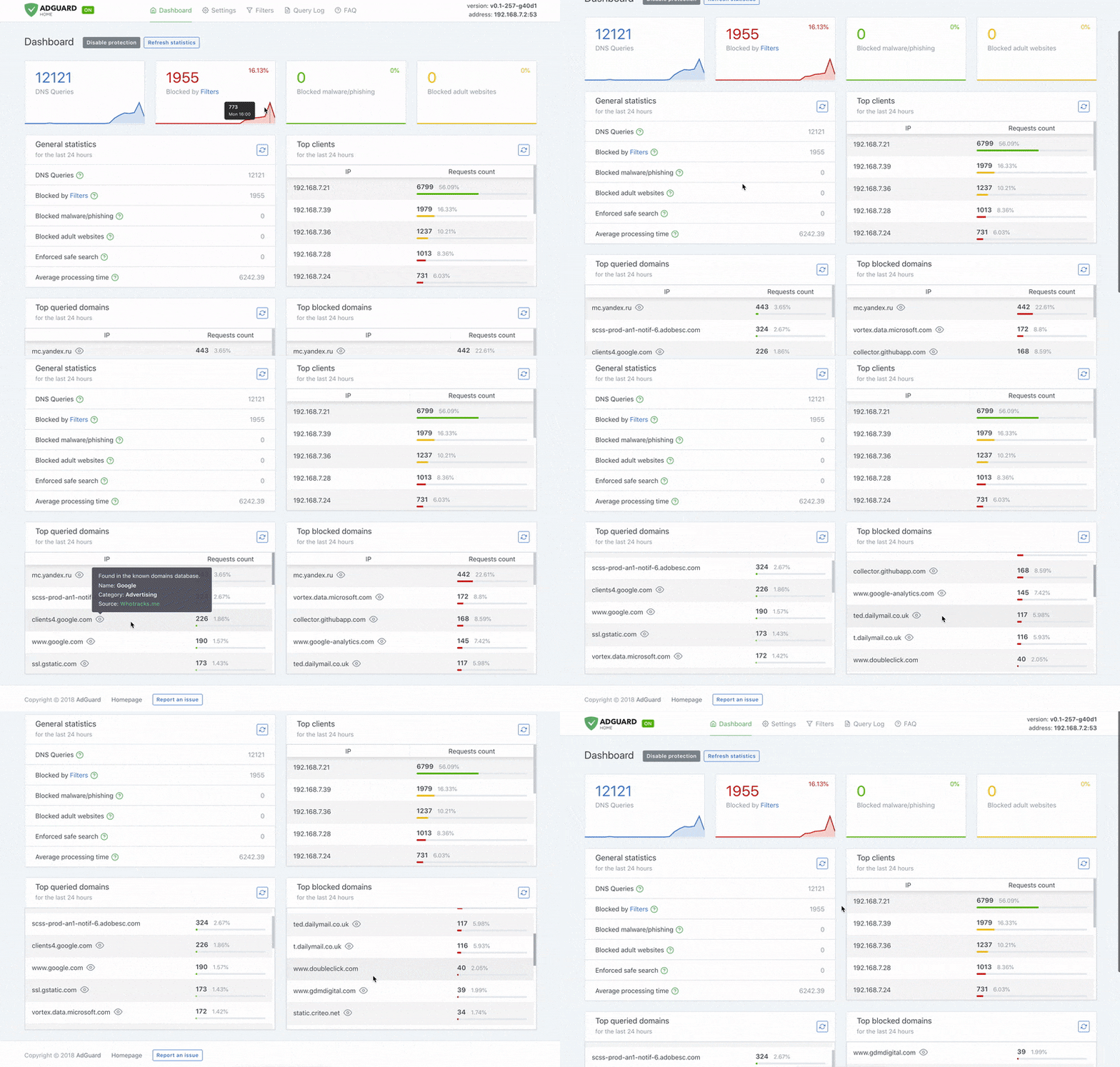
But how does AdGuard Home work? To put it simply, it operates as a DNS server that redirects ad and tracking domains to a "black hole", thus preventing your devices from connecting to those servers. It's based on software we use for our tested and trusted public AdGuard DNS servers — both share a lot of common code. Because of its nature, AdGuard Home can be used to control traffic of literally any device that goes online, including smart TVs, smart fridges, and even smart light bulbs.
Ways to set up
Spoiler: Not an easy thing to do.
While AdGuard Home will offer you many options that no other software could, there’s the other side of the coin. It’s not trivial to set up, you’d need at least some level of technical knowledge and familiarity with some core concepts to get it going. However, we believe in you! Let’s check what options you have.
There are several ways to set up AdGuard Home: on your router, on a VPS or on a Raspberry Pi as an appliance. The most straightforward one is to install it on your home Wi-Fi router. Normally, your router uses a DNS server provided by your ISP (Internet Service Provider), but once you configure AdGuard Home there, it will take over and put you in charge.
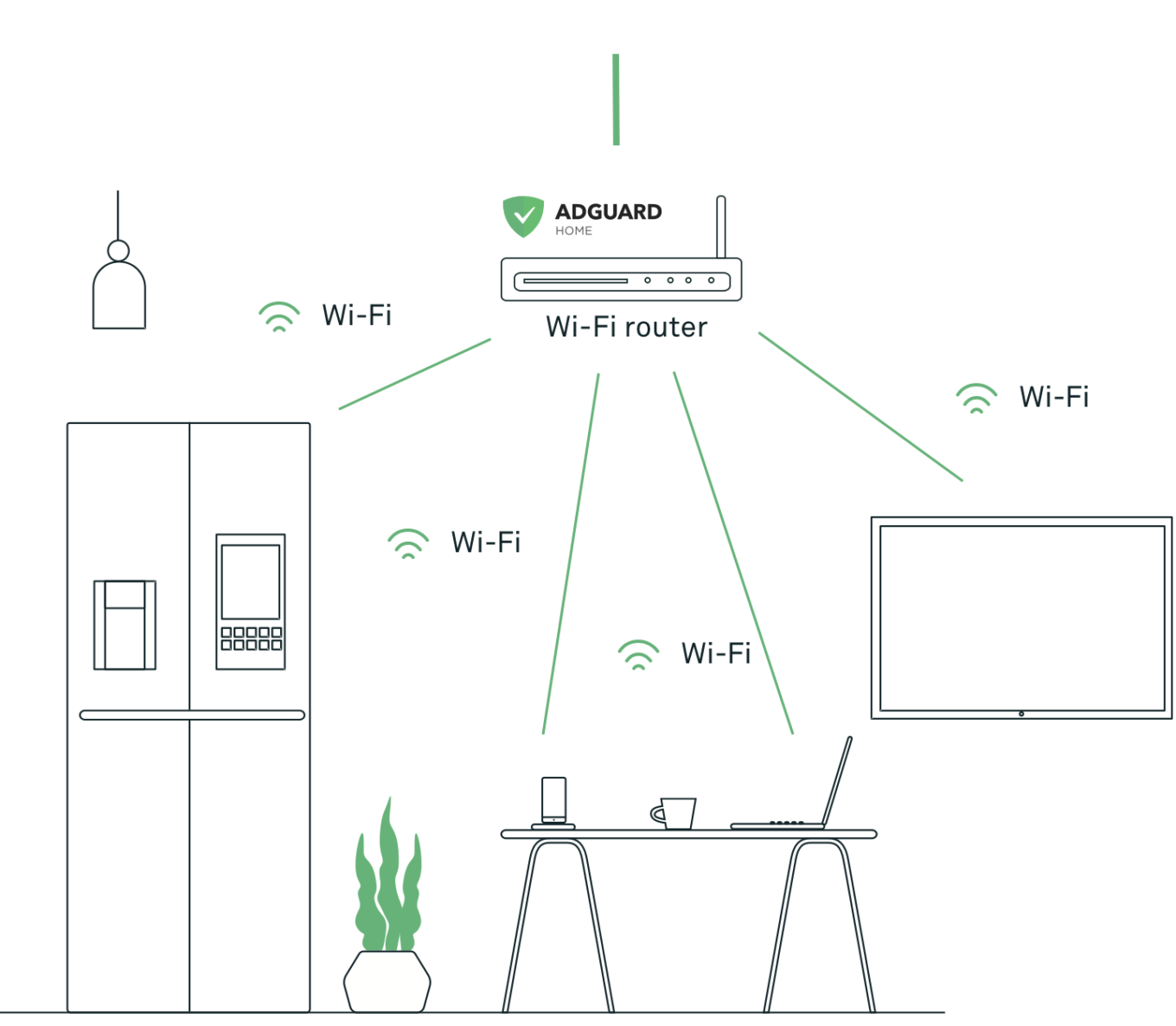
All devices in your home network will send their DNS traffic through AdGuard Home, and nobody but you will be able to see it and decide what to do with it. Feel free to select a DNS server you trust, enable tracking and malware protection and do a lot of other great things (check out the Features section for more details).
The process of installing AdGuard Home on a router may vary significantly depending on the make. This is where your technical proficiency will play a big role. Follow this link to kick things off.
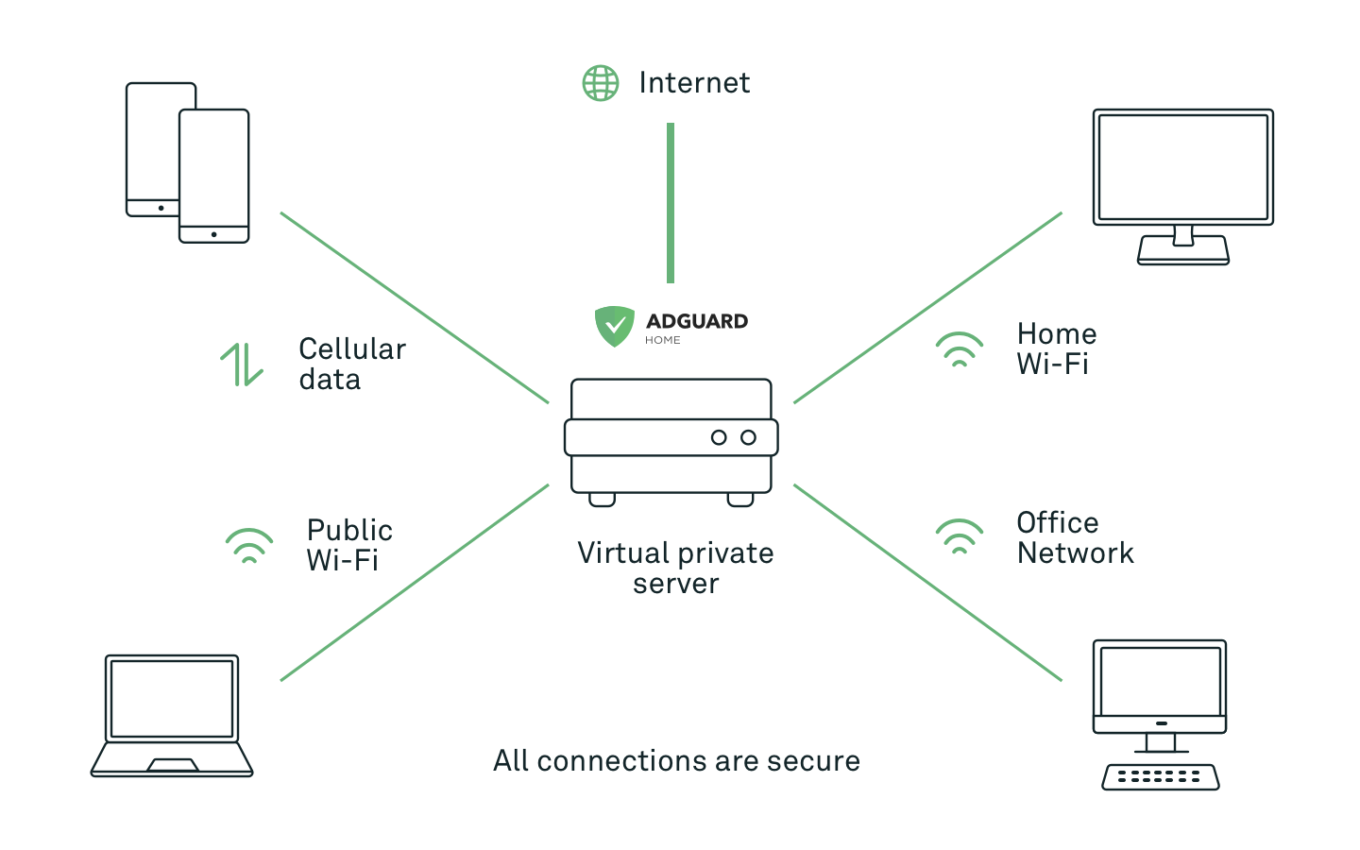
Another possible option is to install AdGuard Home on a VPS (Virtual Private Server — a remote cloud server). This setup method is arguably a bit easier.
Now, nothing prevents you from making your router use AdGuard Home that's installed on a VPS, effectively getting the same configuration as in the previous setup. However, the real potential of this method unfolds when you directly tell your devices to use AdGuard Home as a DNS resolver. Now all your smartphones, tablets, and laptops will be protected no matter what network they are currently connected to: home network, work network, or even a public Wi-Fi. It's a great choice for when you are always on the go and switch networks often. Notice that if you choose this method, it's extremely important to encrypt your DNS traffic. Luckily, AdGuard Home provides such option.
To learn how to install AdGuard Home on a VPS, follow this link.
There are more ways to install AdGuard Home:
As an Ubuntu appliance on Raspberry Pi
For example, AdGuard Home is offered as an appliance on ubuntu.com, the largest online resource about Ubuntu OS and related topics from the publisher (Canonical) itself. Canonical sets a high bar for their featured appliances (i.e. official system images which blend a single application with Ubuntu Core), and we're proud that they chose AdGuard Home as one of the approved ones. They provide an exhaustive, step-by-step setup tutorial that'll teach you how to create an AdGuard Home Ubuntu appliance, set AdGuard Home up on your network and start using it. It's perfect for Raspberry Pi owners.
From Snap Store
If you're a Linux user, another easy way to obtain AdGuard Home is to get it from Snap Store.
Features
General settings
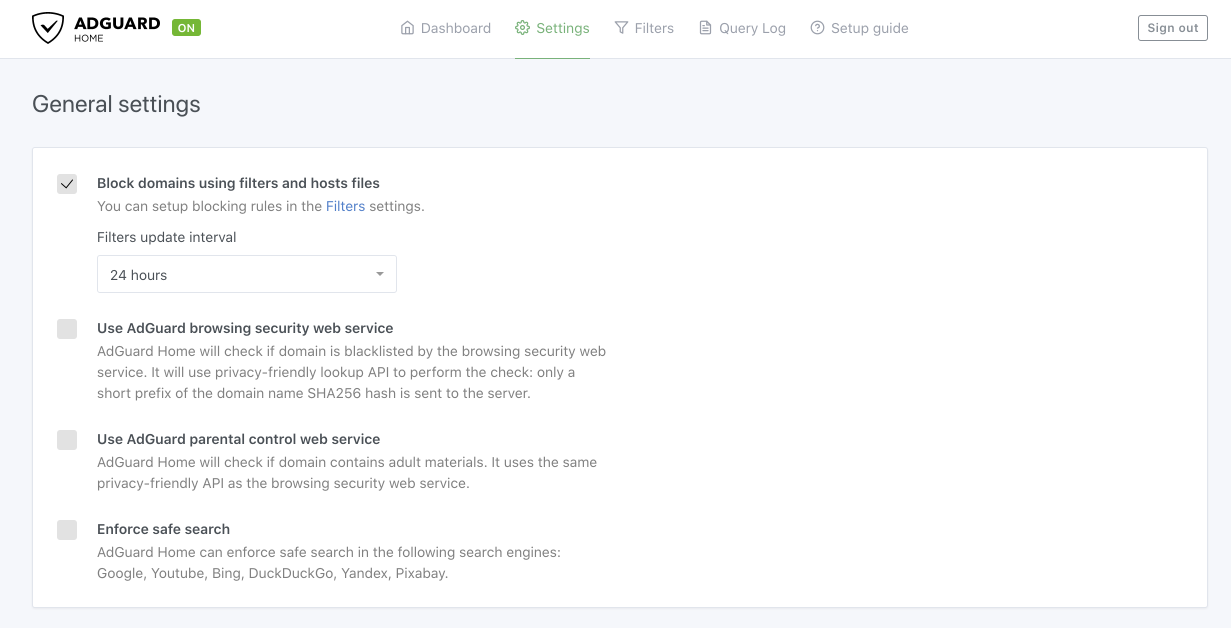
Let’s start with the first group of configuration options, namely General settings, which, if chosen, will be applied to all devices in your network.
Please note that they will be overridden by Client settings if you add any for some specific devices.
So what exactly can we configure here?
Block domains using filters and hosts files
Enables applying of the blocking rules. You can configure them in the Filters tab.Browsing security web service
Checks requests against the lists of known hazardous domains. Blocks malicious and phishing ones.Parental control
Checks whether requests contain domains of adult websites and blocks them.Safe search
Removes obscene materials from search results in search engines.
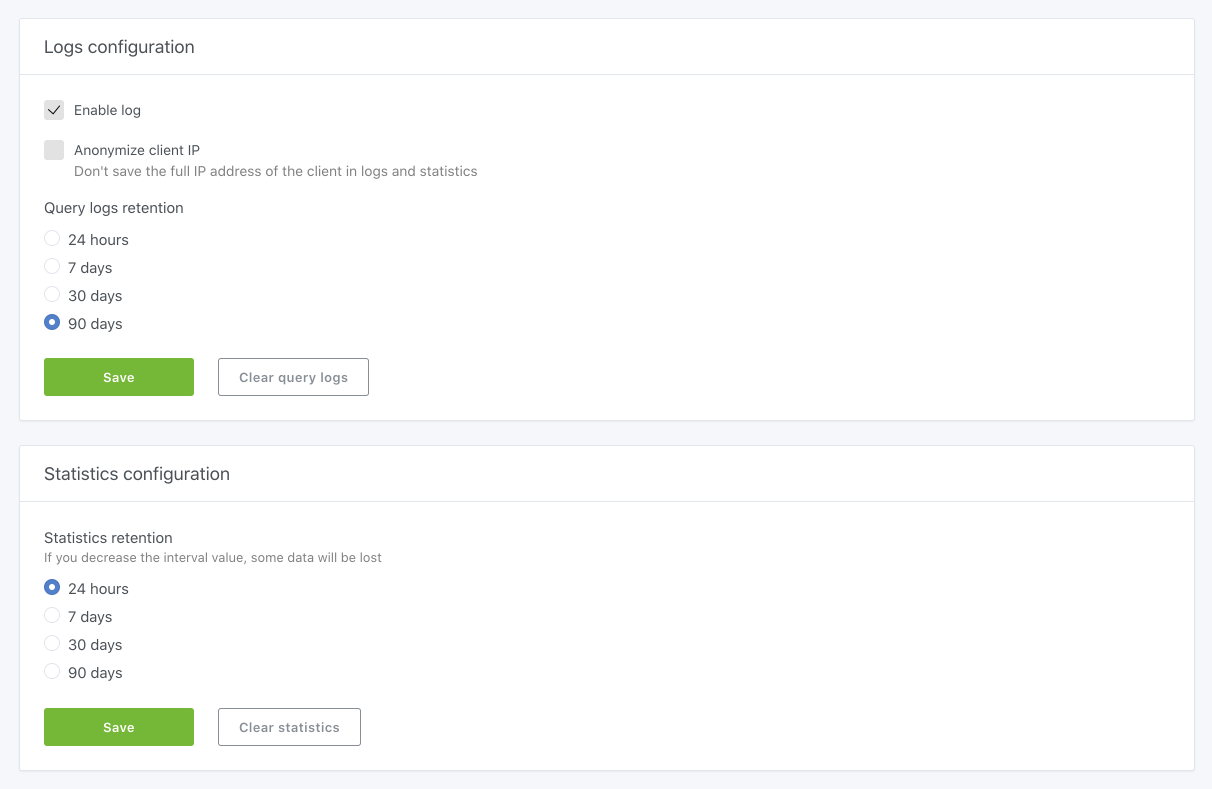
Logs configuration
Basically the setting for Query log. You can change the logs retention, anonymize IP addresses which connect via AdGuard Home, clear the log or simply disable it (but this will kill all the fun).Statistics configuration
Manages all that statistics on the Dashboard: you can choose a new value of reporting period or clear all the stats.
DNS settings
Let's start with the first thing you can set here, and namely upstream DNS servers.
AdGuard Home is basically a DNS proxy that sends your DNS queries to the upstream servers. You can specify multiple upstream servers in AdGuard Home settings, or you can even specify a DNS server that will be used to resolve specific domains.
If you keep this field empty, AdGuard Home will use Quad9 by default. But you may switch to any other server you like.
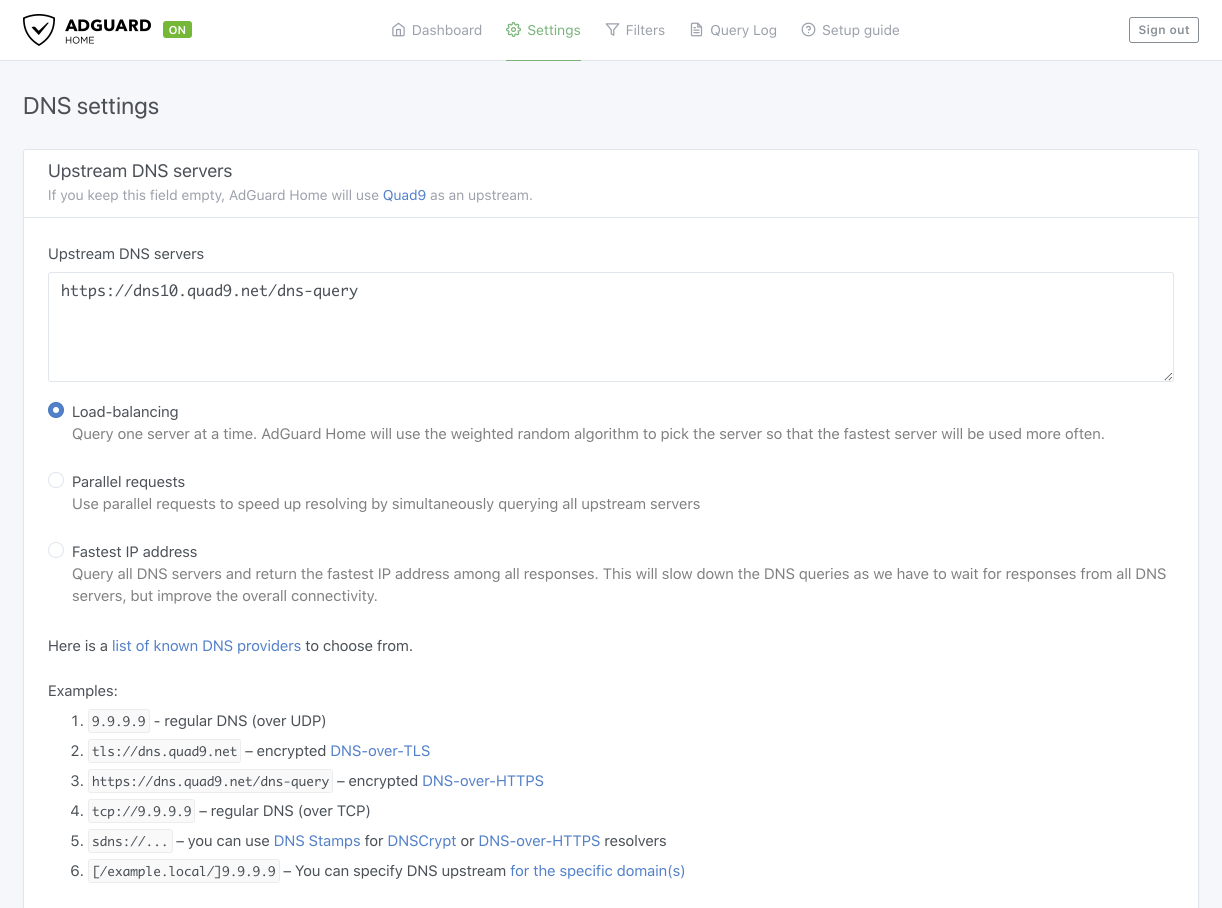
And a few words on the options that you have here:
Load balancing — keep it as is if you have fast and stable Internet connection.
Parallel requests — it is your choice if you have an unstable Internet or use several unstable DNS servers at a time.
Fastest IP address — makes sense to switch to, if your country practices IP blockings (e.g: The Great Firewall of China, Russian Roskomnadzor blockings, etc.). In this case it will help find not just the fastest but actually available address. But please note that a DNS is not a VPN, it may turn out that no IP would be available.
Encryption settings
It’s kind of obvious, but we will mention it anyway: it only makes sense to configure encryption settings if you are using AdGuard Home on a VPS (Virtual private server) to make connection secure and data safe. In this case your DNS resolver (AdGuard Home) resides outside your network, and your DNS requests have better be protected from the third parties.
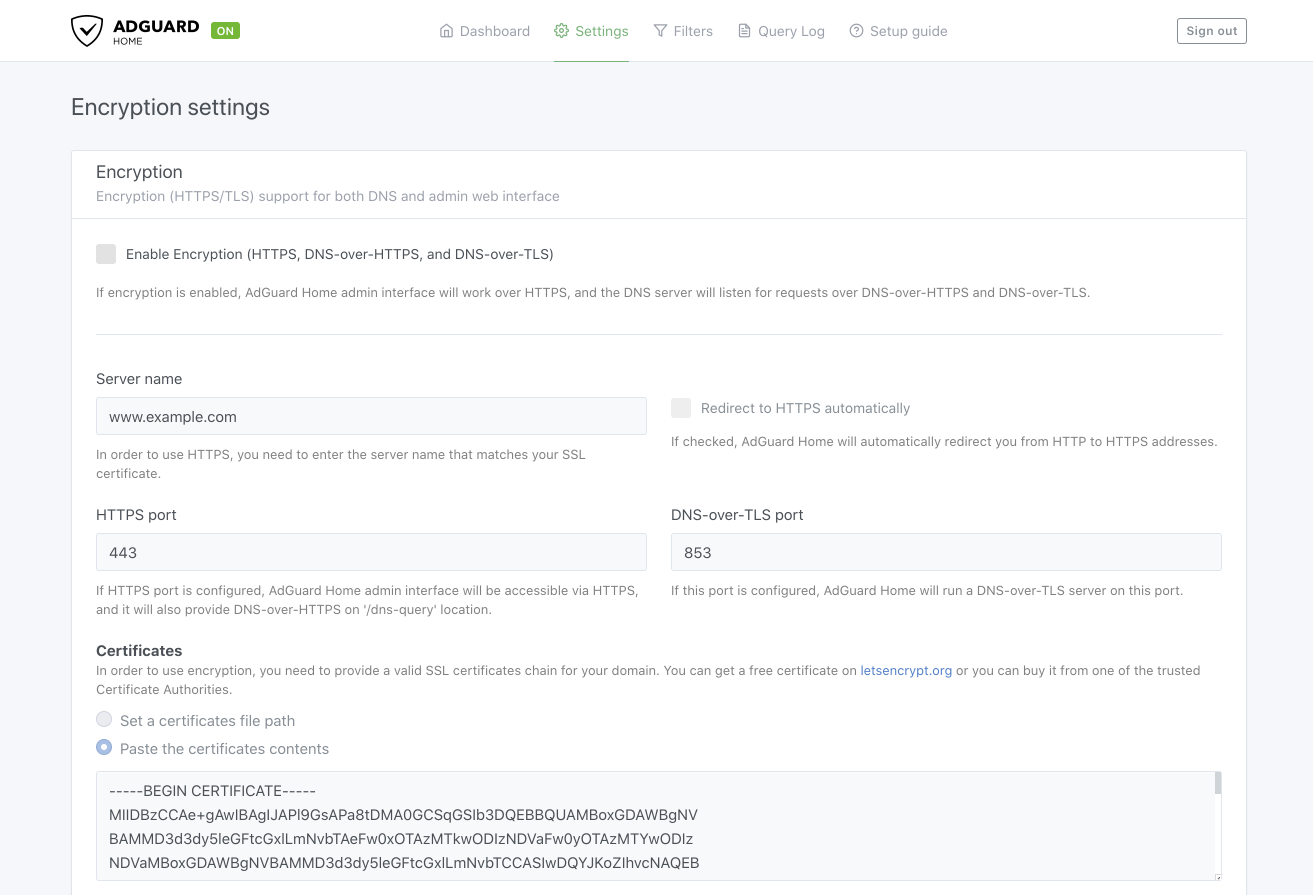
It is disabled by default because a user needs to have a valid SSL certificate (purchased or generated) to use encryption. You can get a free certificate on letsencrypt.org or buy it from one of the trusted Certificate Authorities.
Then you can enable encryption in the settings and configure DNS-over-HTTPS or DNS-over-TLS.
Client settings
This is one of the essential features of AdGuard Home when it comes to network-level filtering.
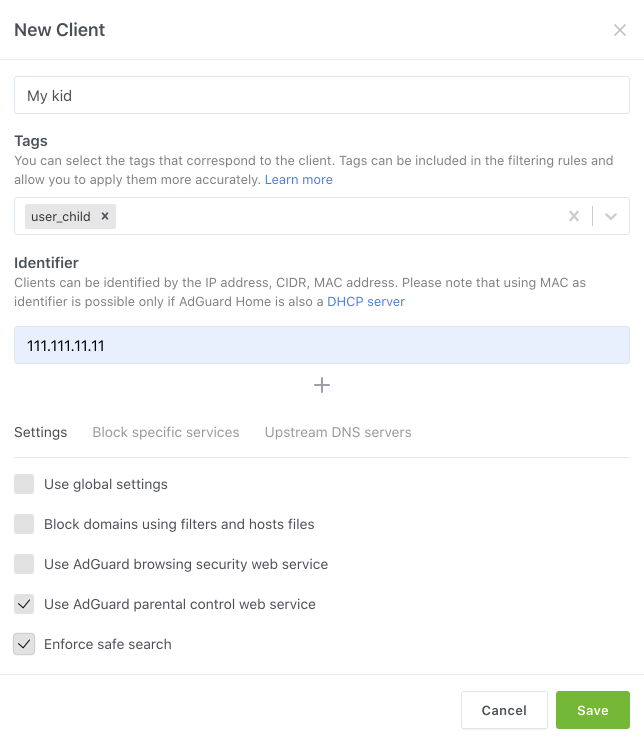
Basically Client means a device in your network, and with AdGuard Home you can set different settings for each Client separately.
For example, configure your kids’ phones by enabling Parental control or setting some other upstream DNS server (like AdGuard DNS Family or Cloudflare). You can even block some specific services for their devices (like TikTok, Twitch and so on).
Create Clients and set their names to see right away which device is sending requests. Specify tags (type of device, OS or any other) and identifiers (IP or MAC address) to help configure different filtering rules for different devices at home.
DHCP settings
Dynamic Host Configuration Protocol (DHCP) is a network management protocol used to automate the process of configuring devices on IP networks.
Each time you connect to Wi-Fi, a DHCP server automatically gives your device an address inside the network (in most cases, this job is done by your router).
Now, you can replace default DHCP server with the built-in AdGuard DHCP server. And in this case all devices will immediately be configured for AdGuard Home, and will be visible in the DHCP settings dashboard right away. And this makes configuring Clients much easier.
Apart from dynamic IP addresses, each device also has a MAC address (the one that doesn’t change, also called a “hardware address”). You can specify the MAC address as an identifier and AdGuard Home will understand what Client it is. Thus, you can easily filter any specific device.
Filters
If you are familiar with other AdGuard products, you already know the concept of Filters. Those are sets of rules to do the filtering by. And this is how it is implemented in AdGuard Home:
Blocklists
You can choose from a list of some popular filters: regional, security, general, etc., the ones we recommend.
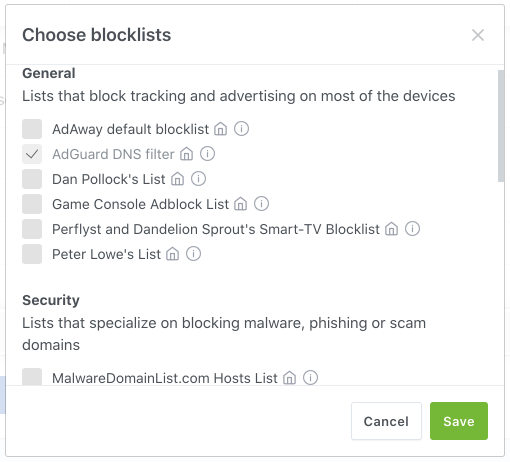
Or you can add a custom list (both local files and URLs are supported) and it will also be updated automatically. Please note, by default we only use our own AdGuard DNS filter.
Allowlist
Similar to Blocklist in terms of functionality, but does the opposite: unblocks domains.
If the same domain appears in both Blocklist and Allowlist, the rules of Allowlist will be given priority. One of the main use cases: you can block a range of subdomains *.example.com with a blocklist or a custom filtering rule and then add a specific subdomain like good.example.com to the allowlist to unblock it.
Rewrite
This is a bit more advanced tool to manage DNS requests. It allows you to redirect specific DNS requests (say, requests to example.org and its subdomains) to a specific domain or IP address. Click on the ‘Add DNS rewrite’ button to view some examples and syntax hints.
Blocked services
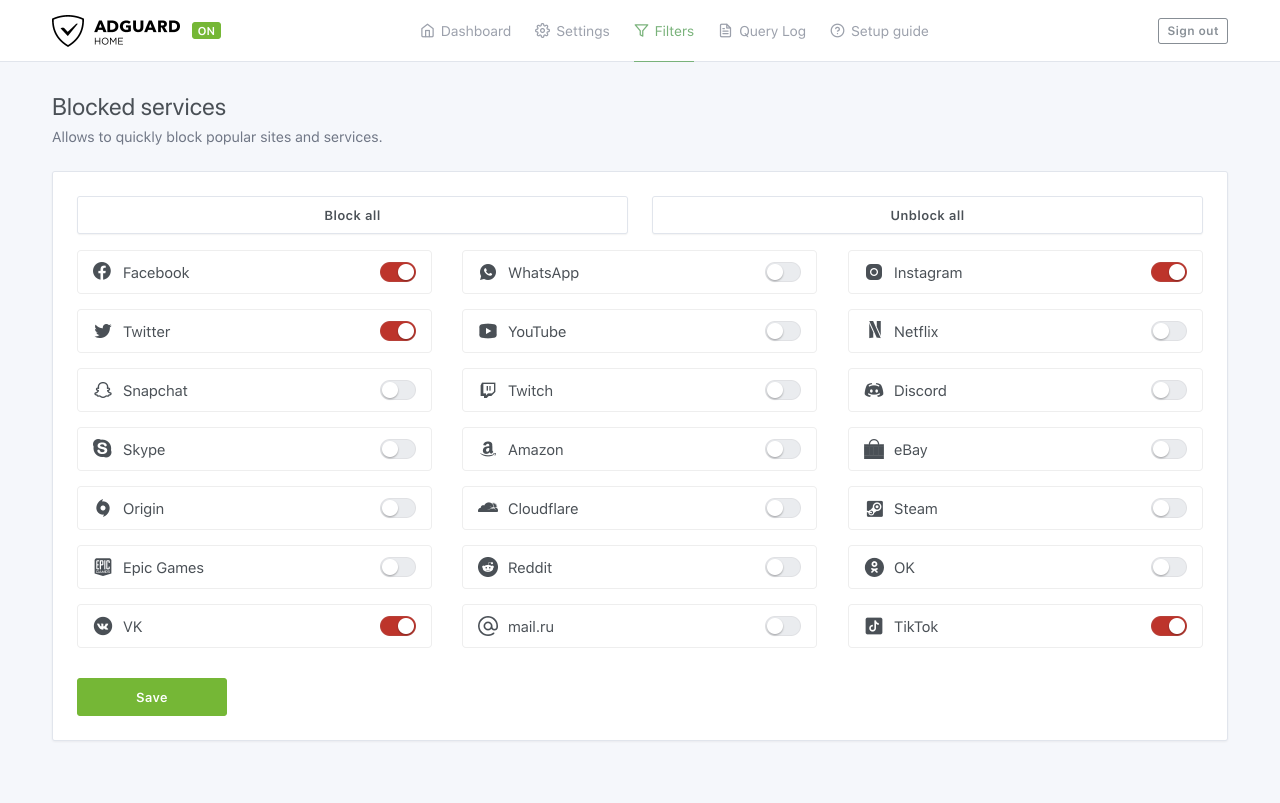
We have already mentioned it when speaking about the Clients settings. This feature allows you to quickly and easily block particular popular sites and services. And while it can be configured for a specific device with Clients setting, here in the Filters tab you can apply this setting for all devices in the network at once.
Please note, that the individual Client settings will get priority over the general Blocked services settings.
Custom filtering rules
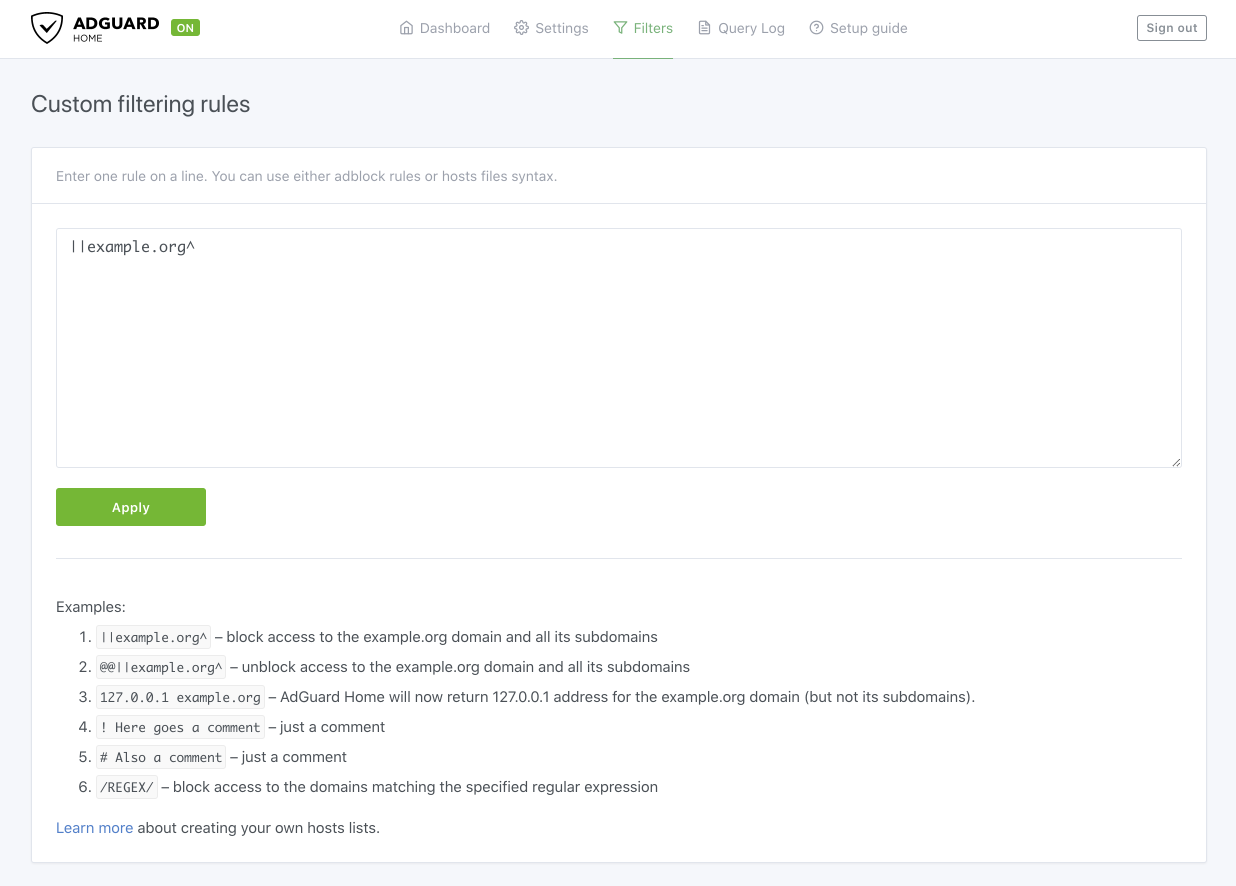
In addition to blocklists/allowlists, you can further customize DNS filtering by adding more complex custom rules. They should follow special DNS syntax, and by employing it you can block or unblock all domains that match certain regular expressions, for example. Basic ‘hosts’ syntax is also supported.
Query Log
Perhaps the most entertaining feature of AdGuard Home, Query Log, is your very own mission control desk which shows DNS requests that are being sent in your home network.
What your kid is trying to watch right now, where your smart fridge is trying to transmit some data, what tracking requests your own laptop is processing — all domains that all your devices (Clients) connect to in one place.
We use a combined database of Whotracks.me and our own list of known trackers to show you more detailed information on tracking requests.
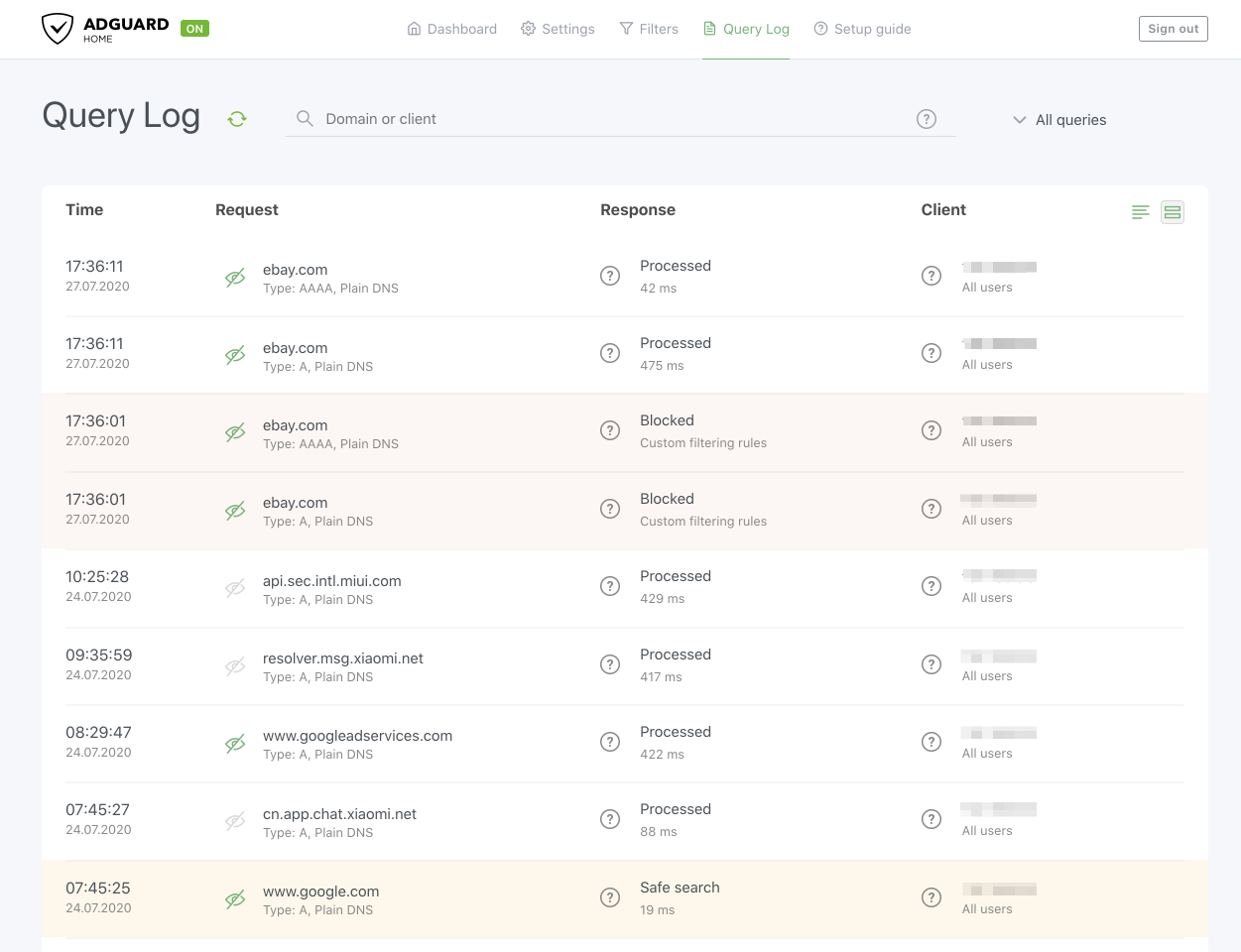
You can manually block/unblock requests, thus automatically creating a new filtering rule (in the Filters — Custom filtering rules tab).
In conclusion
Current trends of ad blocking and tracking protection industry show us that network-level solutions like AdGuard Home are undoubtedly the future. They don't simply spoon-feed users with a filtered content, but rather give all necessary tools to shape the Internet to your liking with your own hands. In a world where every corporation and government is yearning for your personal data, there's no better protector for it than yourself.
We understand that in its current form AdGuard Home is not easy to install and set up, that it suits more for advanced users and requires some serious levels of tech knowledge (although there are super comprehensive guides like this one out there). It's only the first step, and making AdGuard Home more approachable for an average user is one of our priorities.
And if you're just a tiny bit of a geek, we're sure you will fully appreciate the beauty of such centralized solution as AdGuard Home.