TechTok #7. Jumping into the deep end of privacy & security pool
In this edition of our regular TechTok column, we’re unpacking questions about battery usage in relation to quantum-resistant protocols, breaking down the difference between DoH and DoQ, and exploring what digital certificates are — and how they interact with tools like AdGuard. Fasten your seatbelts, we’re taking off.
Big Mekk asks us:
I noticed your newsletter says that AdGuard will support the Kyber/Quantum computing resistant protocol in the VPN. Does this require more battery usage if I enable this? I mean for processing and such on a mobile device mainly.
For those who haven’t yet caught up on the news: AdGuard VPN has rolled out support for Kyber — an algorithm designed to protect against threats posed by post-quantum computers — across both its desktop and mobile apps. Now, to answer your question, let’s take a closer look at how we’re implementing it. On both mobile and desktop, we use a hybrid approach that combines the classic X25519 elliptic-curve algorithm with Kyber768-based ML-KEM768.
When a connection is being established between your mobile device and the AdGuard VPN, both these algorithms are used in parallel. Your device sends two public keys — one for X25519 and one for Kyber768 — and the server does the same in response. Each side then derives shared secrets from both algorithms and combines them securely into a single encryption key that protects the VPN session. This is a dual exchange, and yes, it requires more data than a traditional handshake. While a “normal” handshake requires about 32 bytes in each direction, the hybrid handshake requires about 1.2 KB.
When it comes to the impact on the battery, the extra computation is indeed slightly more demanding on your device’s CPU. If you use an older and slower device, establishing a connection with the Kyber algorithm enabled will take up to 0.1 seconds longer than usual. This can result in a slight increase in battery usage, but only during the initial connection phase. The effect is imperceptible and negligible — especially when compared to everyday actions like turning on your screen or opening an app. Once the VPN connection is established, the session runs on traditional symmetric encryption, meaning that the battery usage remains exactly the same as before.
Let’s put it this way: unless your VPN connection drops multiple times during a session and you have to reconnect each time, enabling the Kyber algorithm won’t affect your battery life in any meaningful way.
What DNS protocol is more private, DOH or DOQ?
This is a tricky question, thank you, Álvaro, for asking! Before we go any further, we need to clarify what DoH (DNS over HTTPS) and DoQ (DNS over QUIC) stand for, and how exactly they transport your data — because this is what both of them do. For that, we’ll need to take a quick look at how DNS (Domain Name System) works.
When your browser wants to access a website, it needs to know the site’s IP address. That’s where a DNS server comes in: it translates (or “resolves”) the human-readable domain name you type into the address bar into a numerical IP address that computers use to locate websites.
Originally, in the times long gone, this process was done entirely in plain text — with no encryption at all. That meant your DNS queries, including the websites you were visiting were there for your ISP to see. It also left your DNS traffic vulnerable to eavesdropping, tampering with, or spoofing. That was the state of DNS before encrypted protocols like DoT (DNS over TLS) — and later DoH (DNS over HTTPS) — came into play. DoT was the first major step toward securing DNS traffic. It works by wrapping DNS traffic inside the TLS (Transport Layer Security) protocol. It uses a dedicated port — port 853 — specifically reserved for encrypted DNS traffic. The fact that it uses a separate port makes network administrators’ job easier, but it also makes DoT traffic easier to detect and, in some cases, easier to block by firewalls or censors.
Unlike DoT, DNS over HTTPS (DoH) sends queries over HTTPS, blending in with regular web traffic on port 443 — the same port used when visiting secure websites. This is a double-edged sword: on one hand, it makes DoH traffic harder to detect or block, improving privacy. On the other hand, because DoH often shares the same HTTPS connection as the websites you're visiting (especially in browsers), it can unintentionally reveal patterns — like which DNS queries are linked to which websites or sessions. In its essence, HTTP and, by extension, HTTPS, is not a transport layer protocol. Let’s remember this for later.
So, how does DoH send your data? It uses HTTP/2 or HTTP/3 at the application layer — the part of the network responsible for defining standards and procedures for exchanging information — running over encrypted transport protocols like TCP (for HTTP/2) or QUIC (for HTTP/3). When using HTTP/2, multiple DNS queries can be sent simultaneously over a single connection thanks to a feature called multiplexing, which allows many requests and responses to share the same connection without waiting for one another to complete. However, since HTTP/2 runs over a single TCP connection, all data packets share the same transport layer. This leads to the problem known as head-of-line blocking. If just one packet is lost or delayed in transmission, all subsequent packets — even if they belong to different queries — must wait until the missing packet is retransmitted and received. This delays the entire stream of responses, even if the other data was ready to go. This problem is not unique to DoH, and affects every other protocol that is running over TCP.
With DoQ, each DNS query/response is isolated in its own stream, eliminating the head of line blocking issue described above.
Now, let’s go back to the issue at hand: what does all this mean for your privacy?
When DNS queries are sent over a single shared stream — as they are with DoH with HTTP/2 — their timing becomes linked. If one query is delayed, it can affect the timing of others, creating visible patterns in the traffic. Even though the content is encrypted, an observer such as a network administrator, ISP, or censor could still analyze these patterns to guess which sites you're visiting, when you’re visiting them, and how often.
Another advantage of DoQ over DoH when it comes to privacy is how it handles traffic. DoQ is built on top of UDP and uses the QUIC protocol. Unlike DoH, which blends DNS queries with regular web traffic, DoQ keeps DNS traffic separate — similar to how DoT does, but without the head-of-line blocking issue. This separation means there’s no mixing with other HTTPS content, making it harder for outside observers to link DNS activity to specific browsing behavior, even though it’s easier to distinguish this traffic from other web traffic.
However, you might be wondering — what about HTTP/3, the latest version of the HTTP protocol that also uses QUIC as its transport layer? It’s a good question. In fact, over 95% of major browsers, including Chrome, Firefox, and Safari, now support HTTP/3. But here’s the thing: while HTTP/3 uses QUIC under the hood, HTTP itself is not a transport protocol. And while it can serve as a substitute for a proper transport protocol, this would raise a lot of unnecessary risks. Specifically in the privacy area, using HTTP-based traffic often includes things such as cookies, authentication headers, User-Agent strings, and other metadata. These can be used for tracking, fingerprinting, or even profiling users — things you really don’t want mixed in with something as sensitive as DNS traffic.
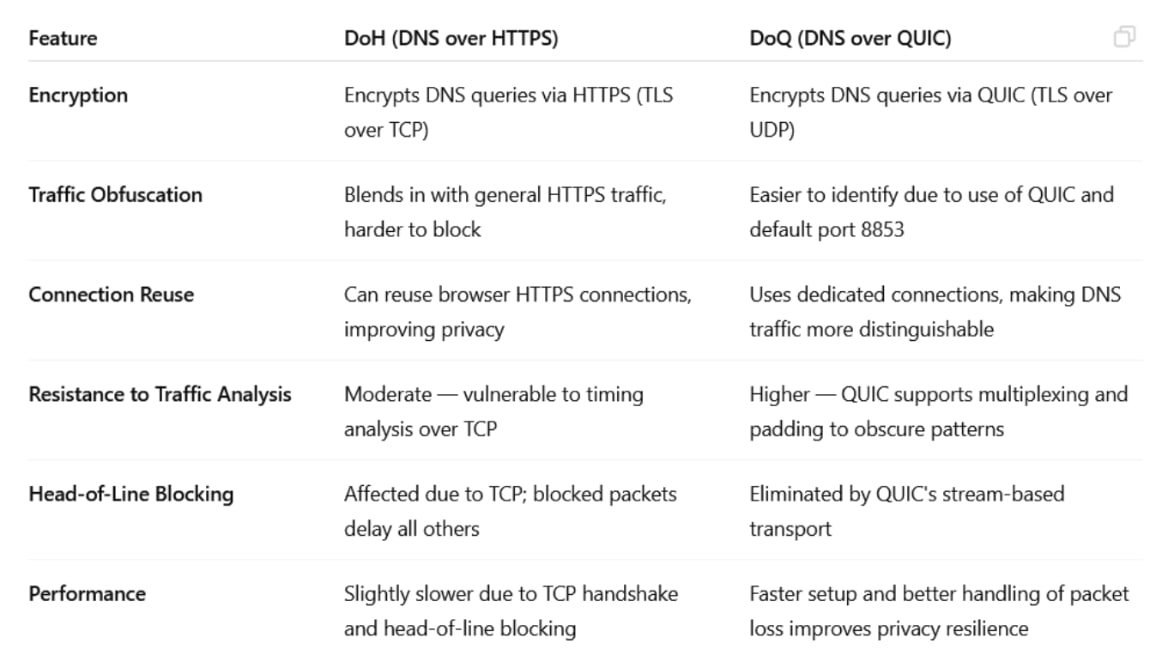
So, bottom line, while DoH does offer strong privacy by blending in with regular web traffic (making it harder to detect or block), DoQ avoids head-of-line blocking, keeps DNS traffic separate from other web activity, and reduces the chances of leaking identifying information. In terms of privacy, DoQ is a better option.
This takes us to the last question, inspired by an anonymous user:
Public key certificates have become essential in modern networks. AdGuard deploys a certificate on your local device — how does it protect data? Does installing it do more harm than good, or the other way around?
Before we go any further and dive deeper into the topic, we need to establish what digital certificates are. The simplest way to think about them is to imagine digital certificates as IDs that all websites, web services, and APIs need to present to prove that they really are what they appear to be. In general, if anything is ‘facing online’ — is accessible over the internet and interacts with users or other systems remotely — it needs a certificate to prove its authenticity. Yes, your traffic may be encrypted with HTTPS and safe in transit, but without digital certificates you wouldn’t be able to tell if the website you’re connecting to is real or if someone is pretending to be that site, potentially to steal your information.
But if a scammer is ready to go as far as to create a website just to steal your sensitive data, what would stop them from faking a certificate too? Thankfully, it is not that easy to do. Whenever your browser connects to a website, the website sends its certificate, along with any intermediate certificates forming a chain up to a trusted root certificate authority (CA) that the browser already trusts. The browser then uses public-key cryptography to verify the digital signature on each certificate in the chain, and if everything is OK, it gives a green light to establish the connection. This way, it is practically impossible to fake a certificate without compromising or impersonating the CA. This is not impossible, but highly unlikely — the last major incident with a CA getting compromised happened back in 2017. Browsers and operating systems already come with a list of trusted root CA certificates, and vendors update their trusted CA lists regularly, removing compromised or untrustworthy CAs and adding new ones. Users can also manually add CAs to the list of trusted ones, but should obviously do it with extreme caution.
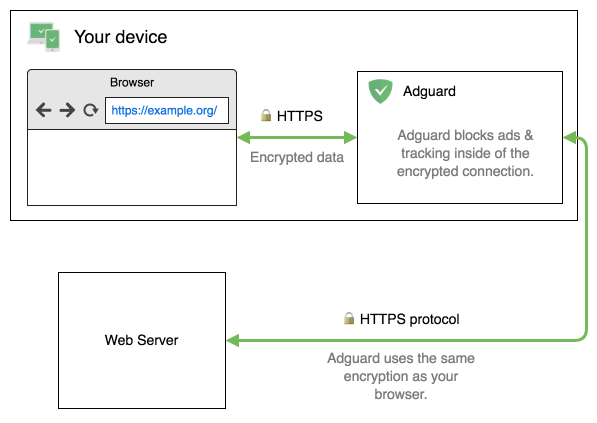
Now back to how AdGuard is involved in this. Let’s say you have installed an AdGuard application for Windows, Mac, or Android (browser extensions and iOS apps work differently), and your browser wants to connect to a web server. AdGuard positions itself “between” the browser and the server so that the browser’s traffic goes through AdGuard first. But just like your browser needs to trust the server when it connects to a website directly, the browser needs to trust AdGuard in our case, otherwise there would not be any way for AdGuard to decrypt HTTPS traffic. And, as we already know, you need a trusted certificate for that. That’s why upon installation AdGuard generates a special root certificate and installs it into your system.
We mentioned earlier that users shouldn’t add custom certificates lightly, and we stand by that. There is a reason why you should be cautious — if you trust someone you shouldn’t, the consequences may be rather dire. But we take the matters of security very seriously. In public-key cryptography, it is extremely important to keep your private key safe, and AdGuard generates its private key locally on your device. This key is encrypted and stored locally; it is never shared with anyone, and nobody knows it, not even us.
And of course, your outgoing traffic remains secure with AdGuard. After decrypting the HTTPS traffic and blocking all ads and trackers found there, it re-encrypts everything. AdGuard will verify the authenticity of the web server by checking its certificate, just like your browser would. We have taken some additional security measures, you can read more about them in the Knowledge base article.
Ultimately, AdGuard doesn’t enhance your connection’s security per se, but it also doesn’t introduce additional risks. You can install an AdGuard app on your device and be sure your traffic will be free of ads and trackers while remaining safe.





















































