AdGuard for Android: an updated in-depth overview
AdGuard for Android is always on the move. In tune with our user's needs, we are constantly striving to upgrade and refine our products. Recently, the app underwent a substantial update in version 4.0, where we introduced new AdGuard for Android features, revamped existing settings, and streamlined or removed some. That's why we felt it was high time to refresh our guide to the app.
This article won't dissect every AdGuard setting — you can find an in-depth, technical exposition in our Knowledge base. Instead, we'll spotlight key features beneficial to a wide range of users and provide a walkthrough to optimize their use.
A swift overview on the main screen
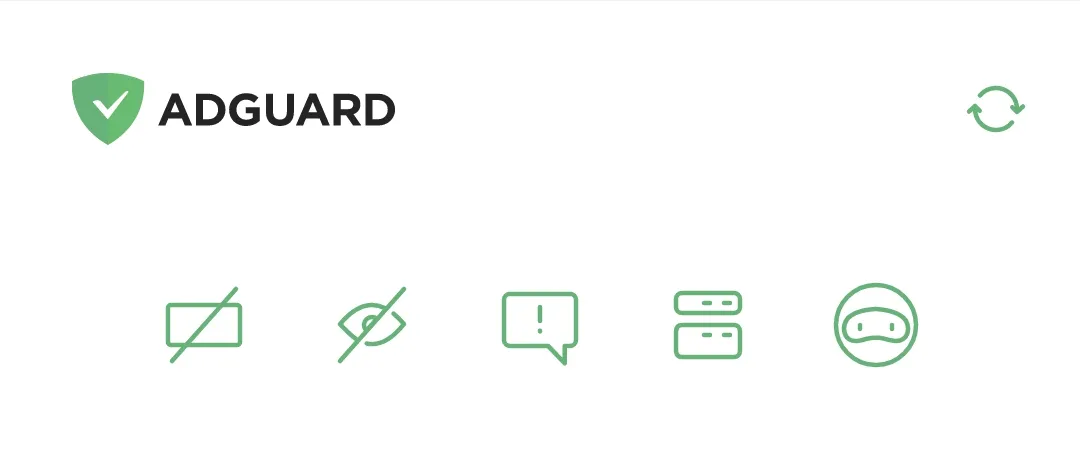
When we dreamt up the main screen for AdGuard v4.0 for Android, our goal was to push core features to the front and center. So, there you have it, five icons topping the screen, symbolizing Ad blocking, Tracking protection, Annoyance blocking, DNS protection, and AdGuard VPN from left to right. Tap any of these icons to toggle the corresponding protective layer.
Protection at your fingertips
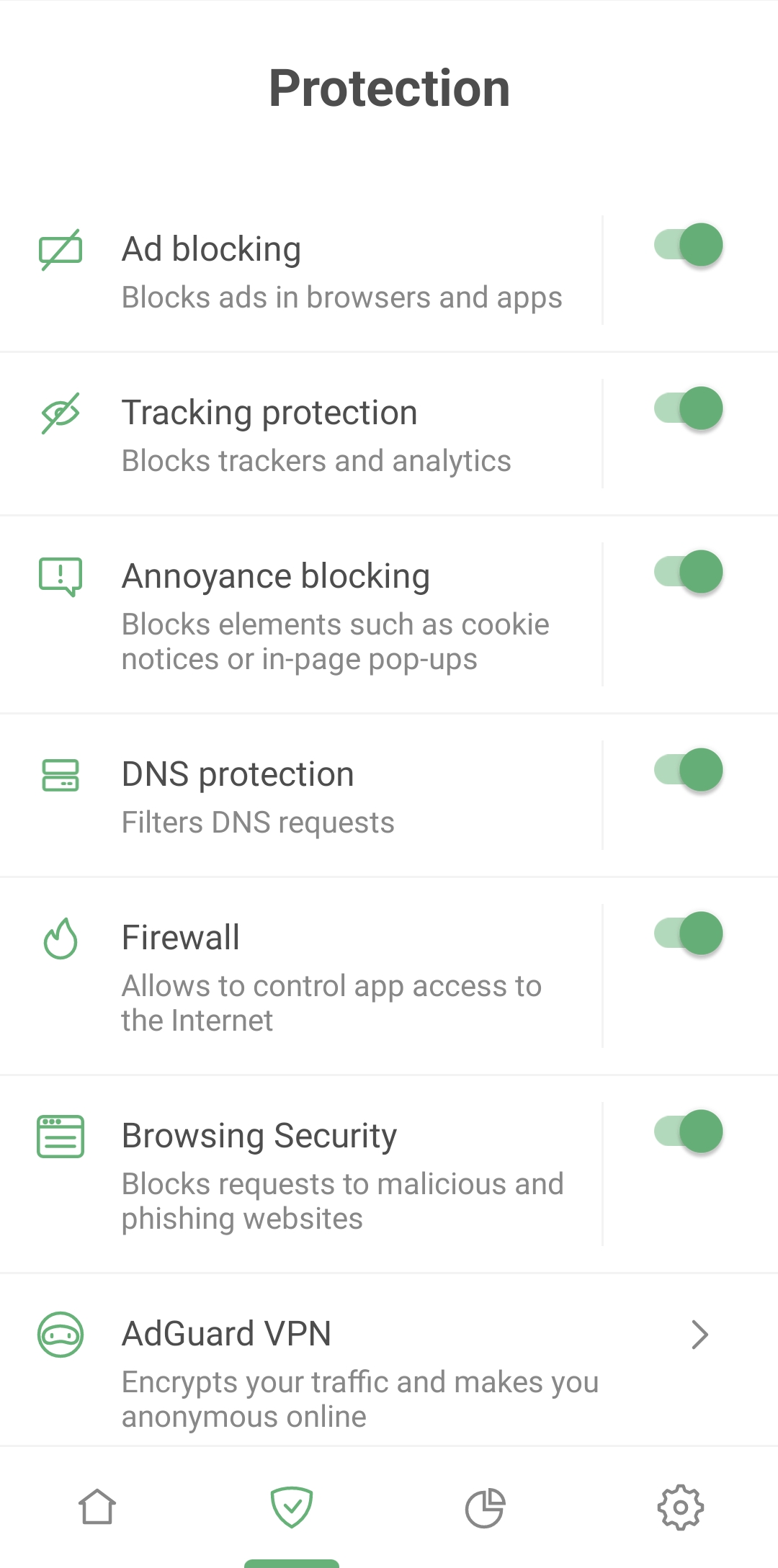
AdGuard for Android goes far beyond ad blocking. Besides erasing pesky banners and video ads, it shields you from being tracked by websites and apps, blocks pop-ups and cookie notifications, and alerts you when you're about to enter a phishing or malware website. In short, it ensures your browsing remains safe.
Control all major protective functions from a single Protection screen. We've made feature names and descriptions crystal clear and simple to manage. Enabling a feature is a mere two taps away and configuring it requires only one extra tap.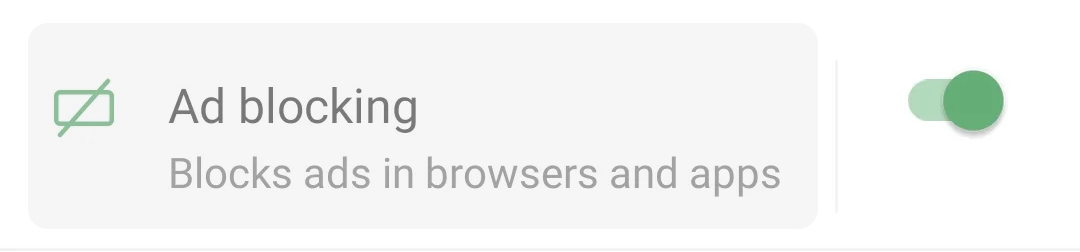
Tap the area around a feature name to open its settings
Ad blocking
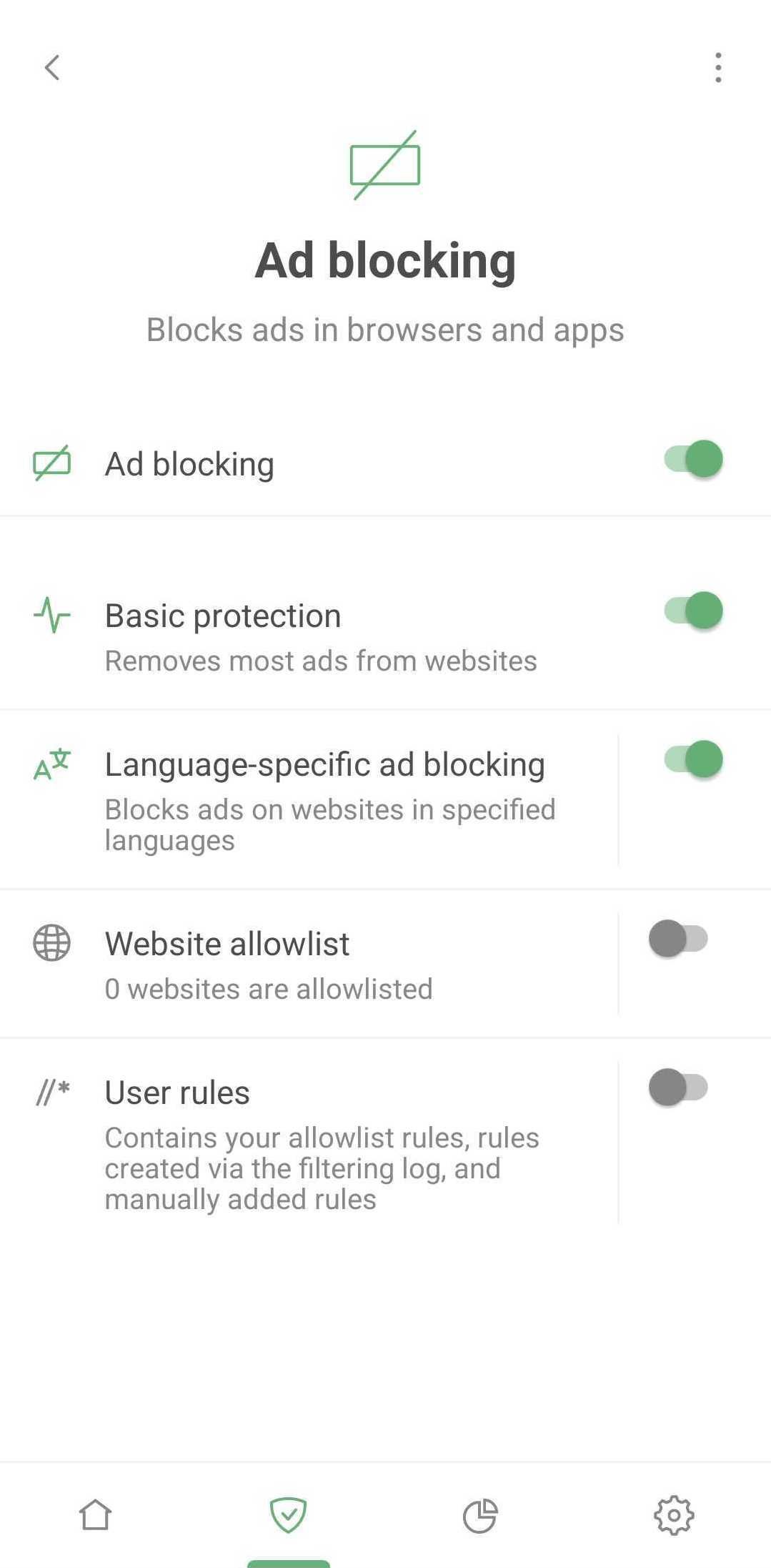
AdGuard serves as a comprehensive filter, sifting through your apps traffic and deciding how to handle each web request. These decisions are based on sets of special rules called filters. According to those rules AdGuard performs actions on web traffic: blocks specific elements, alters web pages in certain ways, etc. However, you won't find any mention of filters on the Protection screen – we purposely kept it simple to avoid overwhelming new AdGuard users with unfamiliar terms.
Simply activate Basic protection to remove ads from most websites. If you prefer a custom approach, adjust the filtering process to your liking:
- Enable appropriate language-specific filter which will block ads on websites in selected language
- Add your favorite websites to allowlist – sites on this list will bypass AdGuard's ad filter
- Create your own user rules. AdGuard will apply these rules on specified websites. If you're unsure how to go about this, here's a helpful guide on how to create user rules. Your custom, ad-free online experience begins here!
Tracking protection
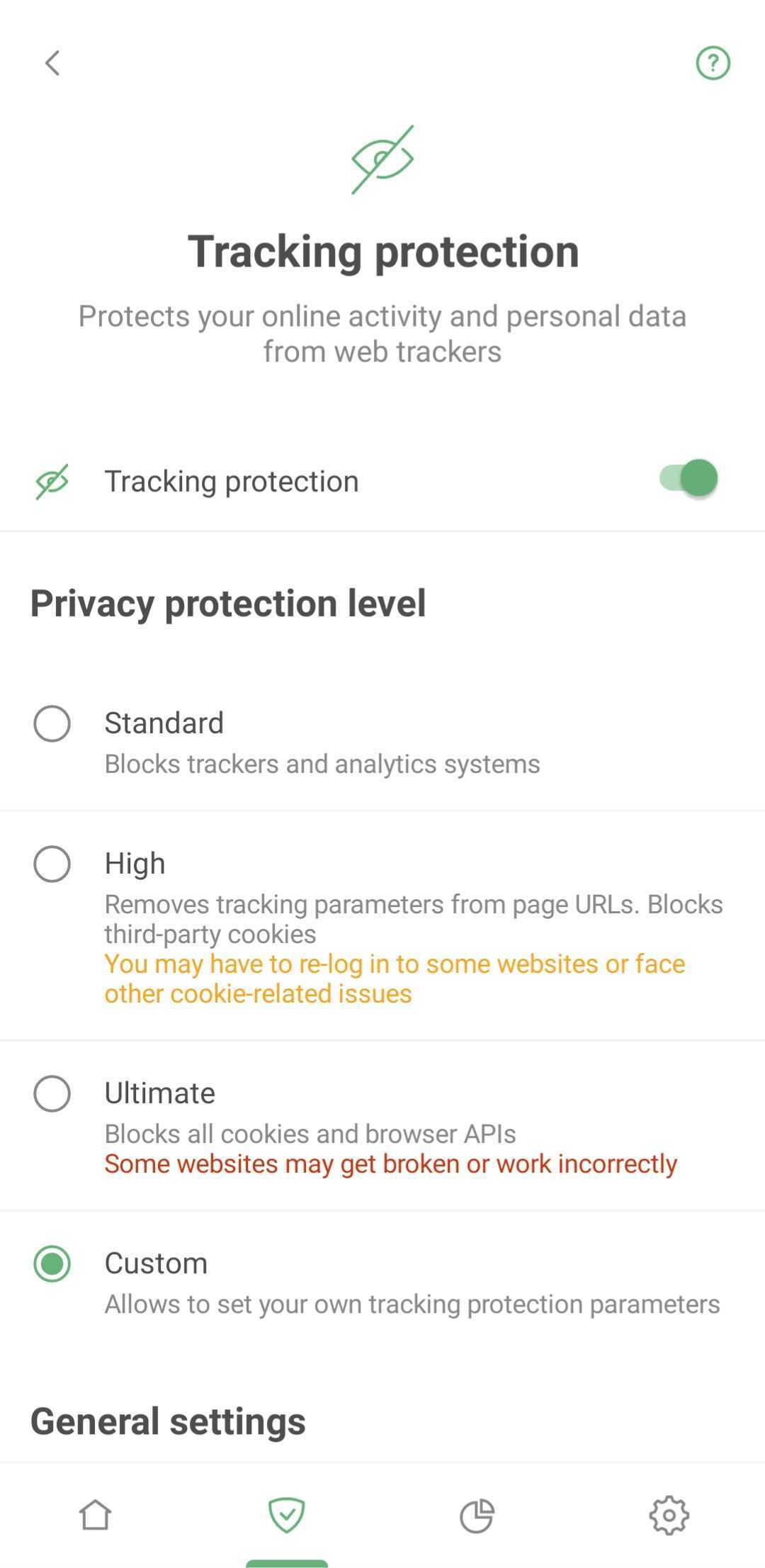
Tracking protection thwarts websites from gathering your details, like your IP addresses, browser information, operating system, screen resolution, and the page you came to the website from. It can also block cookies that websites use to mark your browser, save your personal settings, user preferences, and recognize you upon your next visit.
Annoyance blocking
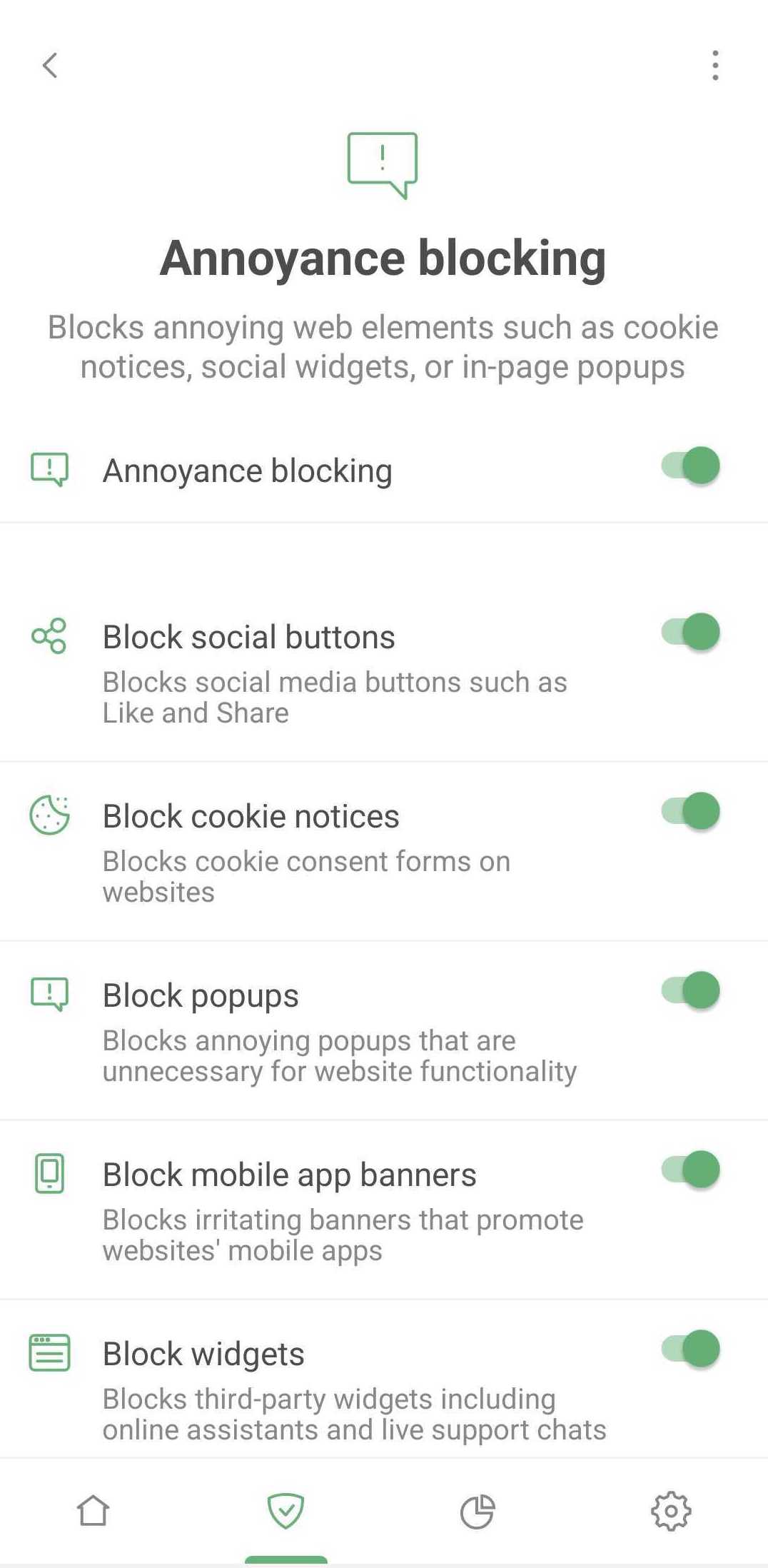
This feature lets you block pop-ups, online assistant windows, cookie notifications, prompts to download mobile apps, and similar annoyances. Nothing complex here: just tick what you want to block and enjoy a cleaner Internet.
DNS protection
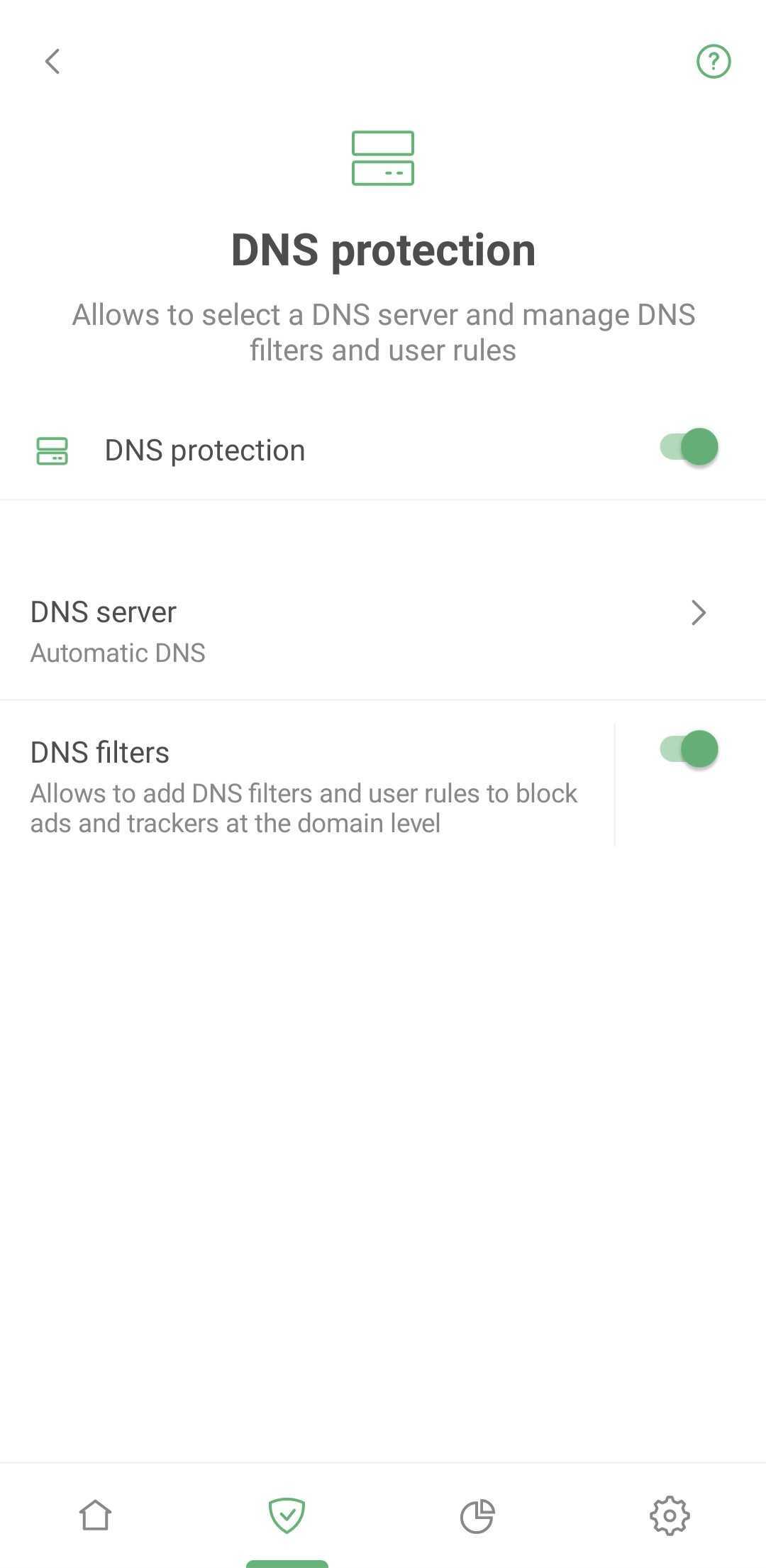
Here you can set up an extra protective layer by choosing a custom DNS server instead of your ISP's default offering. This stops your ISP from tracking your online activity as they won't have access to your DNS request history.
There are more reasons to set up a custom DNS server: some servers are faster, some offer ad blocking, malware protection, traffic encryption, or parental control solutions, etc. Choosing a DNS server from a reputable provider is essential to safeguard your DNS traffic. Protected DNS traffic enhances your privacy and security, making it harder for eavesdropping and manipulation of DNS data via man-in-the-middle attacks (MITMs).
In addition to DNS servers, AdGuard uses a DNS filter. If your device sends a request to a dangerous or ad domain, the filter will block it. Rest assured you're protected even if you're using a system DNS server.
Firewall
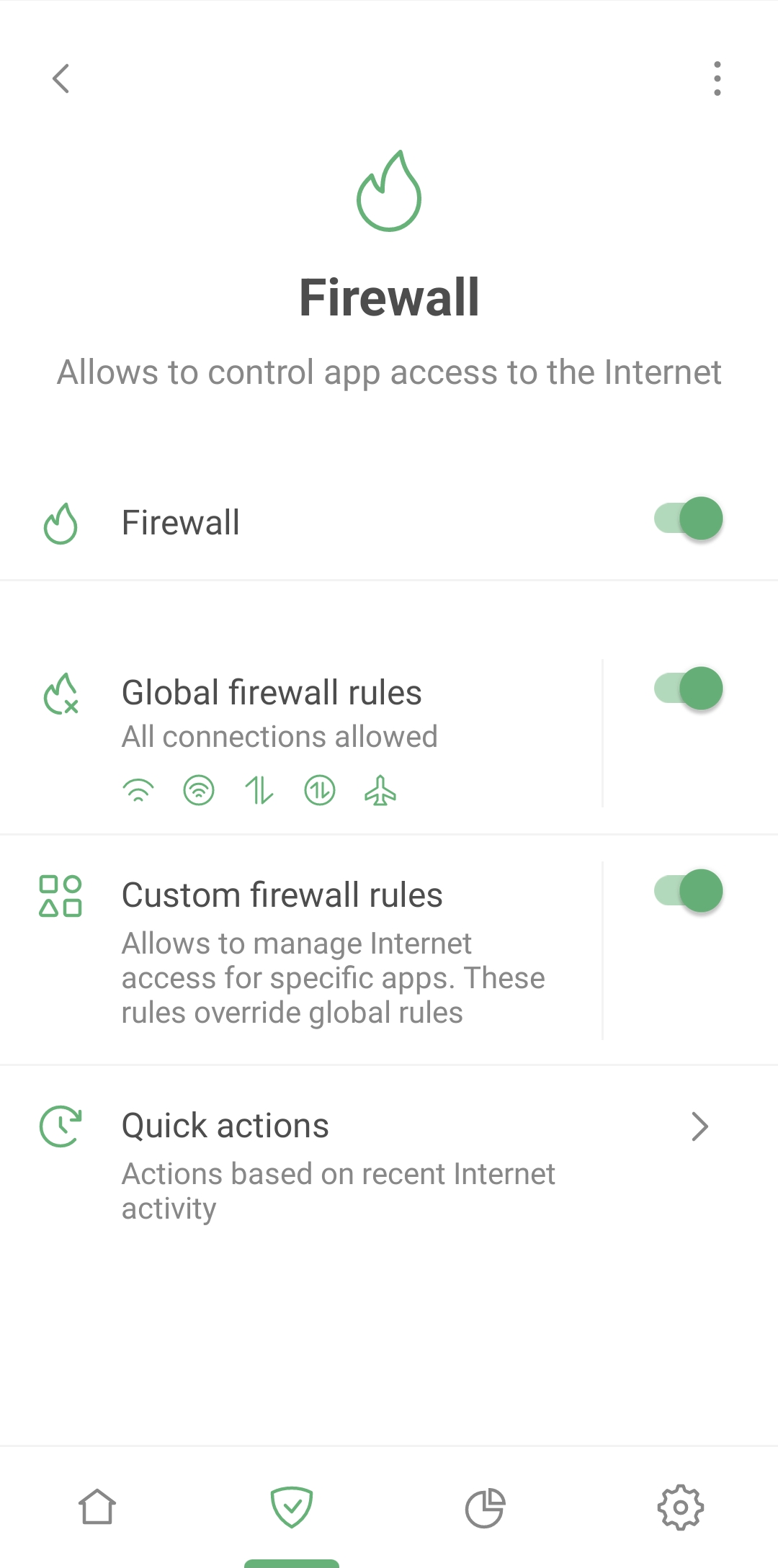
One of the most captivating features on the Protection screen is Firewall – a tool to oversee your apps’ Internet access. Why is this useful? It can happen that a flood of spam calls and targeted ads can rain down on you because apps installed on your smartphone are leaking your data. That's where the Firewall comes into play.
Navigate to Protection → Firewall → Quick actions to check which apps recently connected to the Internet. If you spot an app that shouldn't be using the Internet at all or an app you haven't used lately – block its access on the fly.
Go to Protection → Firewall → Custom firewall rules to set up permissions for each app separately. You can prohibit the suspicious app from using Wi-Fi, mobile or roaming data. Or control the entire device's Internet access via Protection → Firewall → Global firewall rules.
Browsing Security
The Internet can be a perilous place where your device can be attacked by viruses and your personal or financial information can be stolen. Luckily, AdGuard's Browsing Security prevents you from visiting phishing and malicious websites.
At the same time, your personal data is never transferred anywhere, and AdGuard does not know which websites you visit, because the security check is performed not against the open web address (URL) but through hash prefixes (hash is a certain data structure that yields a unique result for each address added to the base).
You can learn more about AdGuard's phishing and malware protection in the dedicated article.
Tracking the trackers: AdGuard's Statistics
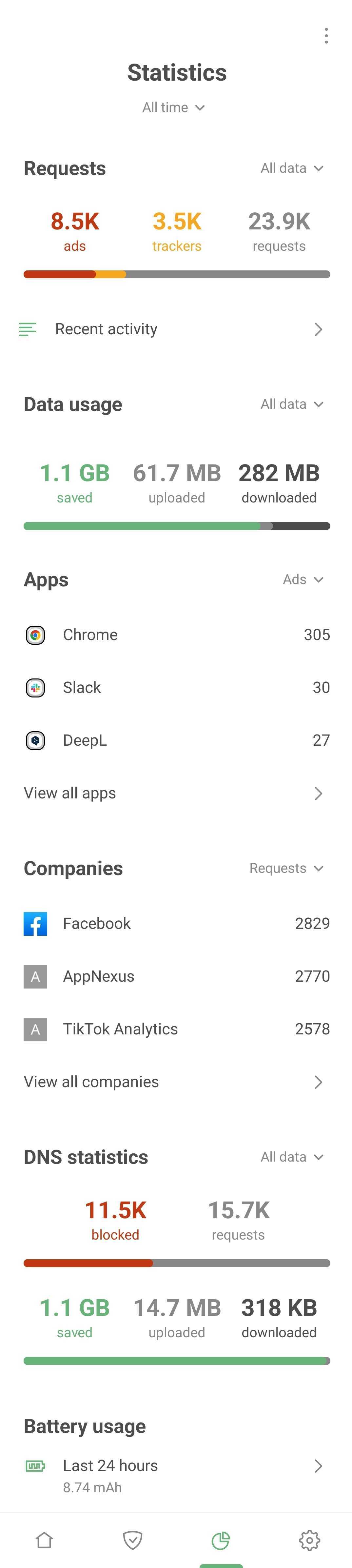
In the Statistics tab, you'll find detailed insights on all apps, companies, and domains. Curious about which company's requests are blocked most often? Which apps are trying to send your data, and where is it going? This is your one-stop-shop to identify and block anything suspicious.
Dive into individual app insights
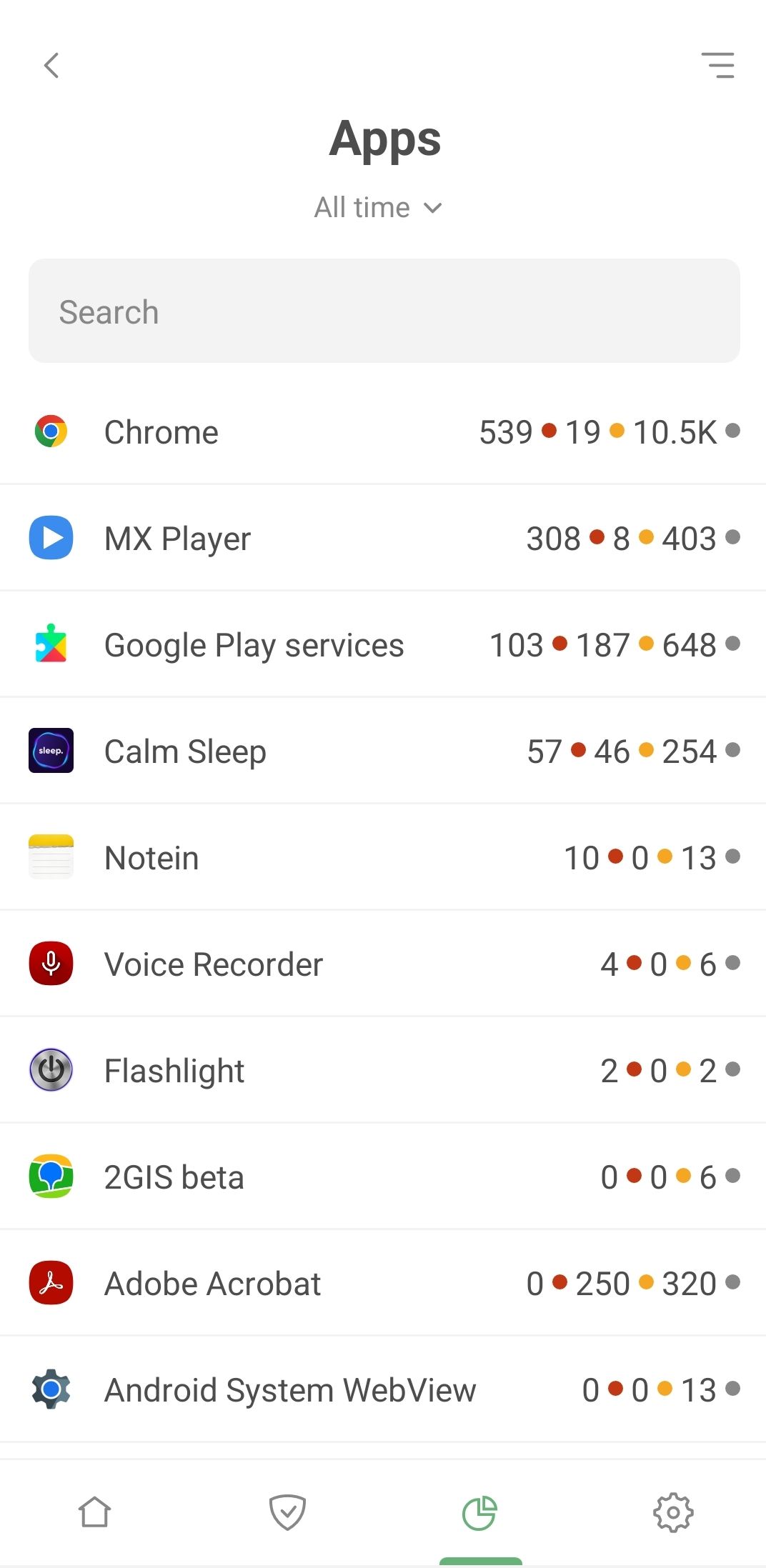
Now let's take a detailed look at every app installed on your Android device. Hit View all apps to uncover which ones are most keen to track your activity and barrage you with ads. Spoiler alert: Chrome might top that list.
Tap any app from the list for a deep dive. This is where the plot thickens – revealing the companies and domains your apps are connecting to.
Consider Adobe Acrobat, a widely-used app for managing PDF files. What do we find? A significant number of blocked requests to the omtrdc.net domain, where Adobe collects personal data.
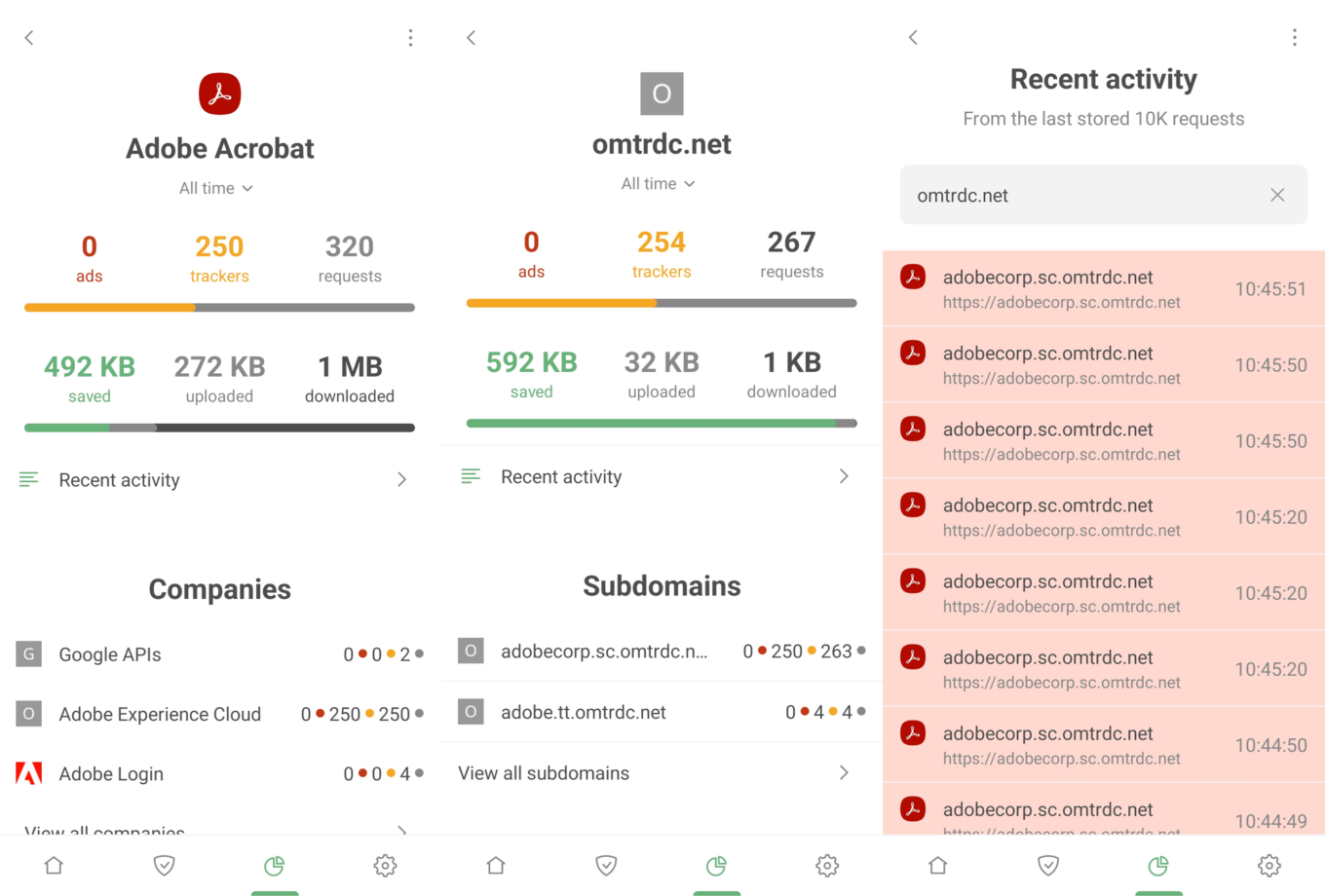
Next steps are up to you. If you're uncomfortable with the volume of requests an app is making to dubious companies, consider uninstalling it and seeking alternatives. Or head to Recent activity, spot a particularly shady request, and establish a blocking rule instantly.
A peek into corporate connections
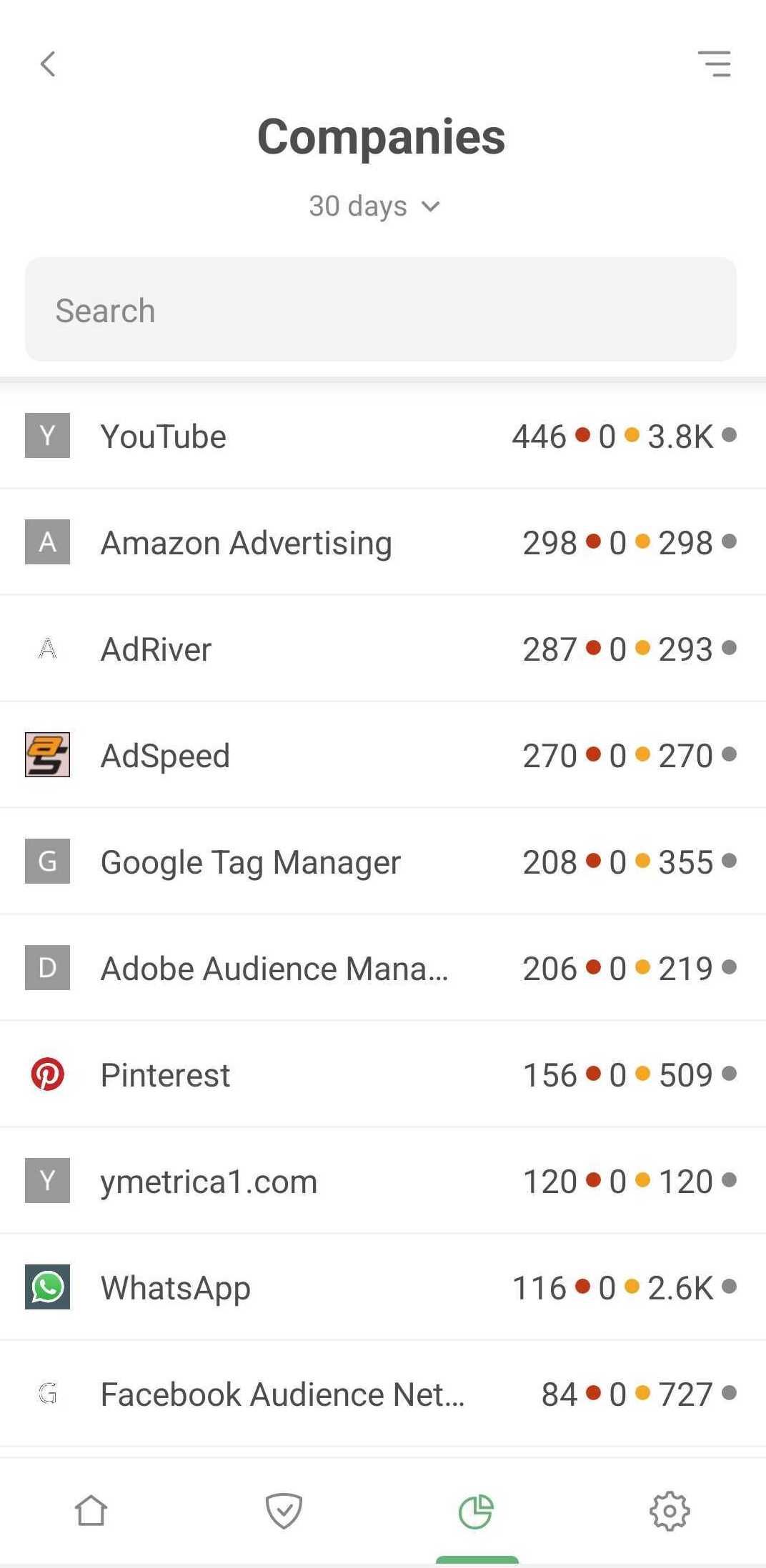
The Companies section delivers a unique view of your data. Here, you'll see all companies that received requests from your device. Simply tap View all companies to explore the full list, complete with the number of ads and trackers blocked per company, and total request counts.
But there's more. Tap any company for a wealth of information. Discover which domains requests are headed to, how many are blocked, and which apps sent them – all contributing to a comprehensive overview of your device's backstage activity.
Get more control over each app
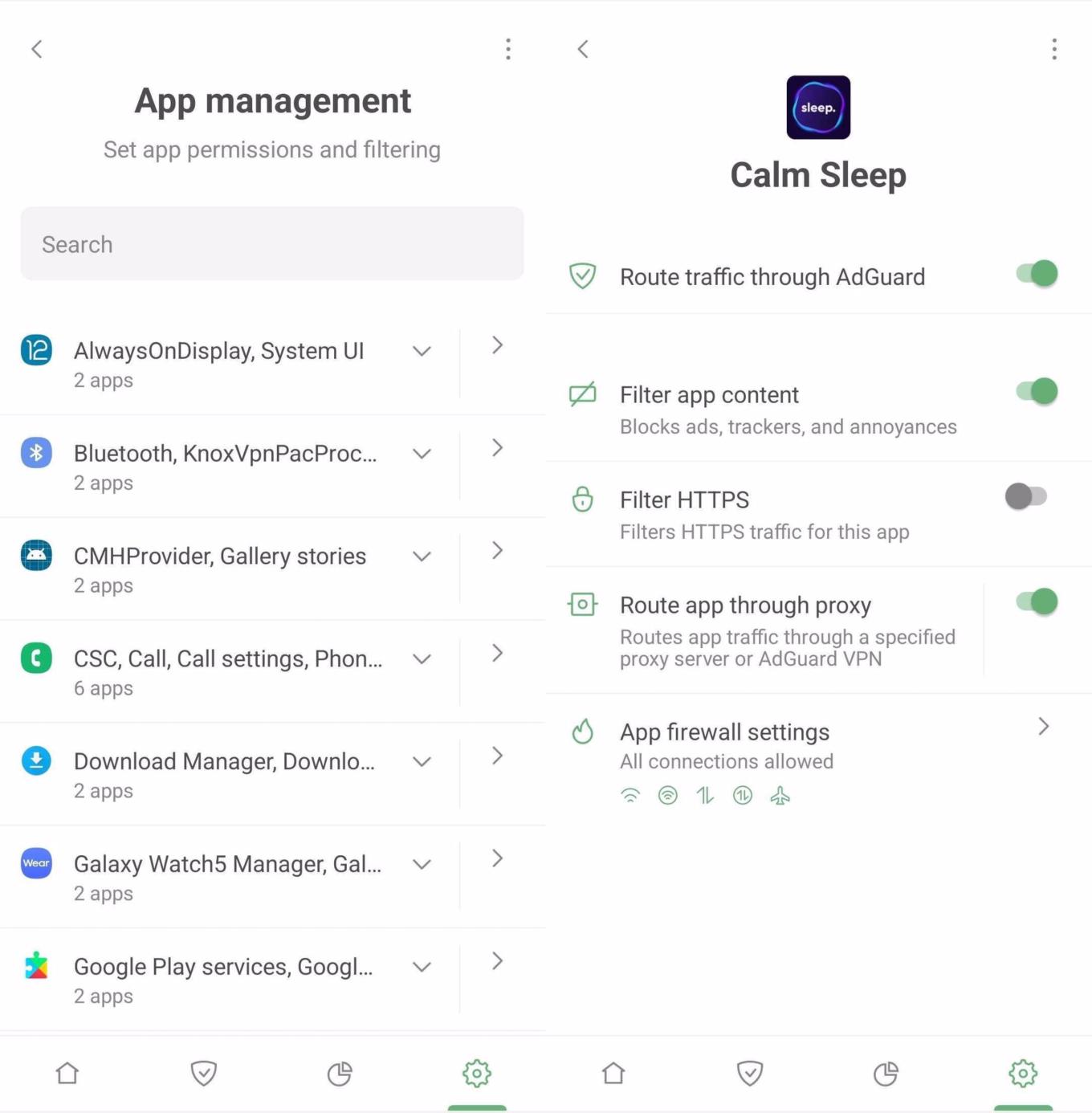
The dedicated App management section is your control hub for each and every app on your device. Here, on an app-by-app basis, you can activate or deactivate traffic routing through AdGuard, content filtering, HTTPS filtering, or even direct traffic through a proxy server or AdGuard VPN. Plus, you can swiftly jump to the Firewall settings. For global actions, options like Route all through AdGuard or Stop routing for all are readily available.
Wrapping up
We've touched on just a fraction of AdGuard for Android's capabilities – the basic features that are easily accessible. They're enough to ensure a clean, ad-free, and secure online experience. However, if you're eager to delve into more sophisticated settings, check out the Knowledge base for additional insights.
Want new features?
Well, there are some options you can try!
- You can file bug reports or feature requests to our open bug tracker on Github. You can also leave your reactions on feature requests. That’ll help us find out what most people are interested in. To leave your reaction, select the feature request you like and use an emoji to support its implementation.
- Check out our public Telegram group where you can discuss AdGuard with developers in real time.