TechTok #5. Can I trust this?
We’re continuing our TechTok series, where we answer your questions about ad blocking, VPNs, and technology in general. In the first four issues we’ve answered a bunch of questions about ad blocking, VPNs, and DNS. Today we will focus on something perhaps a little more ephemeral and less concrete, but very important nonetheless: the matters of trust. What do we mean by that? We interact with the Web via countless applications, programs, and browser extensions. We use messengers to send private texts and browsers to surf around the web, we enter our financial information to make purchases in various apps. How can we be sure that they all can be trusted?
Arguably the most important tool in your digital arsenal is your browser, as it serves as a gateway for most of your online interactions. You need to be sure that you can trust it, or at least know about the potential dangers to your privacy before you entrust it with your personal information. This question comes from someone who introduced themselves as AdGuard lover, and there is absolutely zero nepotism involved with this choice 👀:
Chrome browser doesn’t have any trackers, how do they track users? And people say that Firefox is private but it has 4 trackers, found even in Firefox forks. How come?
We need to preface our answer with the notion that the numbers present in the question are somewhat misleading. We can only guess that they came from a service similar to Exodus that analyzes Android apps for trackers. Indeed, Exodus displays 0 trackers for Chrome Mobile and 3 tracking scripts for the Android version of Firefox. However, these numbers shouldn’t be taken as gospel. First of all, they only reflect the mobile apps, but this isn’t the main reason at all why they aren’t representative of the real state of things. Exodus looks at third-party scripts only, which Chrome Mobile indeed doesn’t have (or, at least, doesn’t have any scripts known to Exodus). Instead Chrome relies on its own first-party tracking mechanisms. It collects user data directly and sends it to Google servers, thus bypassing Exodus detection algorithms. So how much exactly do Chrome, Firefox, and other browsers track you, and which ones deserve your trust the most?
Third-party cookies
Let’s start by talking about 3rd-party cookies. Despite dying out and gradually getting replaced by other tracking methods, they still remain relevant today. Not least thanks to Chrome, which backed down on its plans to deprecate cookies and still keeps them on by default. Edge, which often follows Chrome's lead in privacy-related matters, does the same. More or less all other browsers, including such as Firefox, Safari, and Brave, block third-party cookies by default, so they all get a point here.
First-party tracking
Now let’s move on to first-party tracking integrated into browsers. Chrome takes the helm here once again: Privacy Sandbox, its headliner initiative designed to supersede cookies, may be privacy-friendly on paper but is nothing like that in reality. When you dig deeper into such technologies as Topics API and Protected Audience API, two integral parts of Privacy Sandbox, it becomes evident that they are ridden with flaws and is of little benefit to the user. Microsoft Edge’s solution to cookies, Ad Selection API, is eerily similar to Privacy Sandbox, and it is concerning in and of itself. Both browsers make it difficult, if not impossible, to opt out of all tracking completely, which makes them a poor choice for a privacy-oriented person.
Firefox and Safari are traditionally seen as more private and trustworthy alternatives to Chrome, and for a good reason. They have not been caught blatantly tracking their users and both have tools that block third-party tracking by default. However, we need to mention that in recent months Mozilla, the company behind Firefox browser, has been sending mixed signals. For example, Mozilla’s recent update to the Privacy FAQ removed the long-standing promise to “never sell users’ data,” and their purchase of an ad metrics firm Acronym back in November had a lot of eyebrows raised. Mozilla has built a big enough ‘trust cushion’ over the years for us not to jump to any conclusions just yet, but the winds are changing in the orange fox country.
Finally, there are browsers that have been from the very start positioning themselves as privacy-oriented — the likes of Brave and DuckDuckGo browser. And they have been walking the walk, too. Both don’t allow third-party cookies, block trackers by default, and offer a range of additional privacy-oriented features.
In the end, only you can decide which browsers deserve your trust and which don’t, but whichever one you end up with, it is a good idea to check your settings against our guide to make sure you are maximizing your privacy.
Time to move on to the next question, which comes from a user named PR:
How can you assure your credibility and trustworthiness as a closed source program? AdGuard for Windows or Android can see nearly all my internet traffic, even encrypted HTTPS traffic.
Another question from a user who preferred to remain unnamed echoes it:
When I enable HTTPS filtering, it means that AdGuard (e.g. Adguard for Mac) can read everything. Why should I trust you? How should I know that AdGuard doesn’t send some of the information to your servers?
Both these questions address AdGuard directly, so we’ll divide the answer in two parts. In the first part, we will try to do our best explaining why with AdGuard your data is safe, and then we’ll talk a little more about how to distinguish between trustworthy and non-trustworthy apps and browser extensions in general.
So, what happens when you install and launch AdGuard on your device? It is true that standalone AdGuard Ad Blocker apps for Windows, Mac, and Android (as opposed to the browser extensions and to the iOS app to some extent) work on network level. Of course, there are differences between them, but the core underlying principle is similar. To filter your internet traffic, AdGuard first passes it through itself, checking if there are any ad or tracking requests there. The most important part about it is that the filtering process happens entirely on your device. AdGuard never sends any information about which websites you visit to its servers. Occasionally we may send such information as your OS version or app language. We do that to check for updates, check license status, send a crash report — cases like these. You can view everything AdGuard sends in every possible case in the Privacy Notice for your operating system: Windows, Mac, Android (links to the rest of the Privacy notices are available at the bottom of the page).
A few words about how AdGuard manages to filter HTTPS and keeps everything secure. Normally, when a browser attempts to connect to a website, that website presents a security certificate as a proof that is really who it claims to be. It is important that the certificate a website uses is issued by a certificate authority (CA) trusted by your browser. Such a CA guarantees that the SSL certificate is, indeed, issued to the website’s owner. Now let’s add AdGuard to the picture. For each web request by the browser, AdGuard establishes two secure connections: one with the browser and the other with the website you’re connecting to. But the browser must trust AdGuard just like it trusts websites in the regular scenario, and for that purpose AdGuard generates its own certificate and installs it into the system.
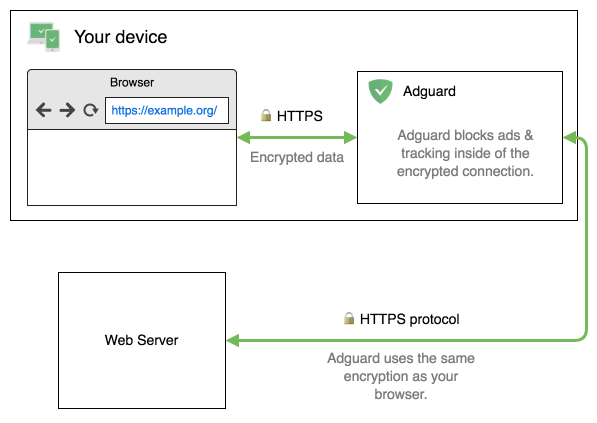
Of course, your connection remains secure. After checking the web request’s contents for ads and trackers, AdGuard encrypts it back before forwarding it to the web server. Because the browser can no longer view the website’s certificate and verify its validity, AdGuard performs that check itself, and we take additional security measures. You can read more about how HTTPS filtering is done in our Knowledge base.
And now it’s time to answer the other question that any privacy-mindful person would ask: how can I trust all of that? How can I be sure that your (or any other) app doesn’t steal my data while putting up a pretty facade? The truth is, there is no surefire way to do so. With every app you install there’s a risk that it could be malicious, steal your data or infect your device with viruses. There are enough examples when even the most credibly-looking apps turned out to perform rather shady business behind the curtains. But here’s what you should pay attention to in order to increase your chances of detecting a potentially dangerous software:
- Check if the app/extension is open source. The app being open source does not automatically mean that it’s trustworthy, but it greatly improves the chances. Having an open GitHub repository, for example, is a big boon to the app’s trust factor and often even allows you to follow the development process.
- Research the developer. Check the developer’s website, see if they have other reputable apps. Look them up on the web. Be aware of developers with a single app/extension and with basic websites with no contact info.
- Check the app’s permissions. This may sound silly and obvious, but you really need to pay attention to which permissions you had out during the installation. If you suspect that the app requests more than it needs, do the research before accepting the request and err on the side of caution.
- Analyze the privacy policy. A big red flag is when there is no privacy policy at all — it’s best to avoid such apps altogether. It’s not much better when the privacy policy is a single-page pdf. But even when it looks credible, spend 5 minutes to scan through it, sometimes you’d be surprised by the stuff you can find in there.
- Use network-monitoring software (for advanced users), for example, WireShark for PC or NetGuard for Android. With the help of these tools you can see if the freshly installed app sends requests to suspicious domains.
As you can see, there is no magic button that will tell you if you can trust the app or not, not even with AdGuard. But if you do your research and don’t skimp on privacy checks, you can greatly reduce the risks of getting your personal data stolen or something worse.
We'll definitely come back with more answers soon — send us more of your questions about any technology-related topic over through this form, and you might see them featured already in the next TechTok edition!




















































