AdGuard and AdGuard Pro for iOS: an in-depth overview
Why two apps, but only one review
Safari Content Blocking
- First launch
- Content blockers
- Filter-related features
DNS protection
- DNS servers
- Network settings
- DNS filtering
- Activity
Other features
AdGuard has almost a dozen products for various major operating systems. To help users better understand possibilities of our apps (and differencies between them), we started a series of articles with in-depth reviews. We've already covered AdGuard apps for Windows, Android, Mac and Safari, as well as AdGuard browser extensions. Now it's time for our iOS apps.
Wait, apps? Like in 'more than one app'? Correct, we have two of them, despite they are almost identical. Let us explain why.
Why two apps, but only one review
From the very beginning, we had a plan to have two apps: a free one and a paid Pro one. But at one point Apple changed their AppStore review guidelines, and according to the new edition we couldn't update our Pro app anymore without losing some vital ad blocking capabilities. Naturally, we froze its development and switched our focus to the free version. Our goal was to make it as functional as possible under the new restrictions.
We made quite some progress, and started offering a Premium subscription of the free app. It included some features not even present in the Pro app, but also lacked some others that the Pro app had access to. When some time later Apple reverted their guidelines back, there was a lot to untangle — especially considering there were paying customers in both AdGuard and AdGuard Pro, so we couldn't just ditch one of the two apps. So we decided to update them alongside each other. Today they are basically interchangeable and you can choose whichever you prefer (and you really don't need both).
Ok, now that the history lesson is over, let's get to the gist. What actually AdGuard for iOS and AdGuard Pro for iOS can do?
Safari Content Blocking
One of the cornerstones of our iOS apps is the module to block ads and tracking in Safari. Safari browser is the only place where Apple allows to use a designated ad blocking API (a set of tools for building ad blocking apps). This is why content blocking in Safari stands out and deserves to be discussed separately.
First launch
First of all, to make Safari content blocking operational you'll need to enable all six Content blockers (more about them in a moment). To do so:
- Open your device's Settings
- Tap on Safari and choose the Content blockers menu item
- Switch on all AdGuard content blockers and return to the app
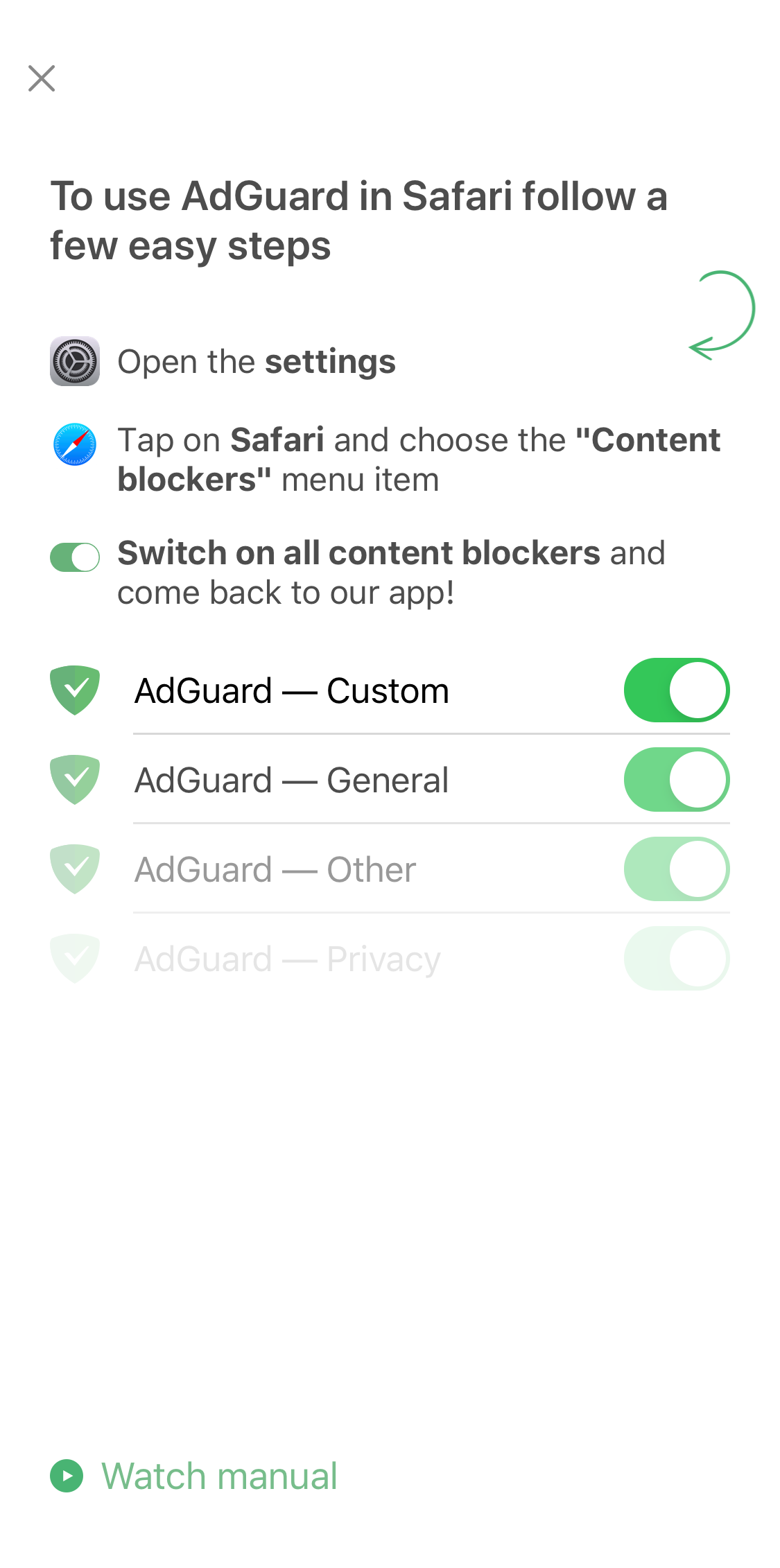
Follow the instruction to enable all AdGuard content blockers
If some of the content blockers are disabled, you'll see a notification on the app's home screen. Tap on it to watch a tutorial and refresh these steps in your memory.
We've been throwing the term 'Content blockers' around for a while now, but what does it mean exactly?
Content blockers
This is, in fact, rather simple. Imagine content blockers as 'containers' that don't necessarily do anything by themselves, but store filtering rules that do the actual job of blocking ads and tracking. Why are there six of them? Apple in its infinite wisdom allows only 50,000 filtering rules per one content blocker, and this amount is very small (don't get fooled by a seemingly large number). Six content blockers means six times more filtering rules, adding up to 300,000, which is a much more reasonable amount.
You can find the current status of content blockers on the respective screen in Advanced settings (we'll get to it shortly).
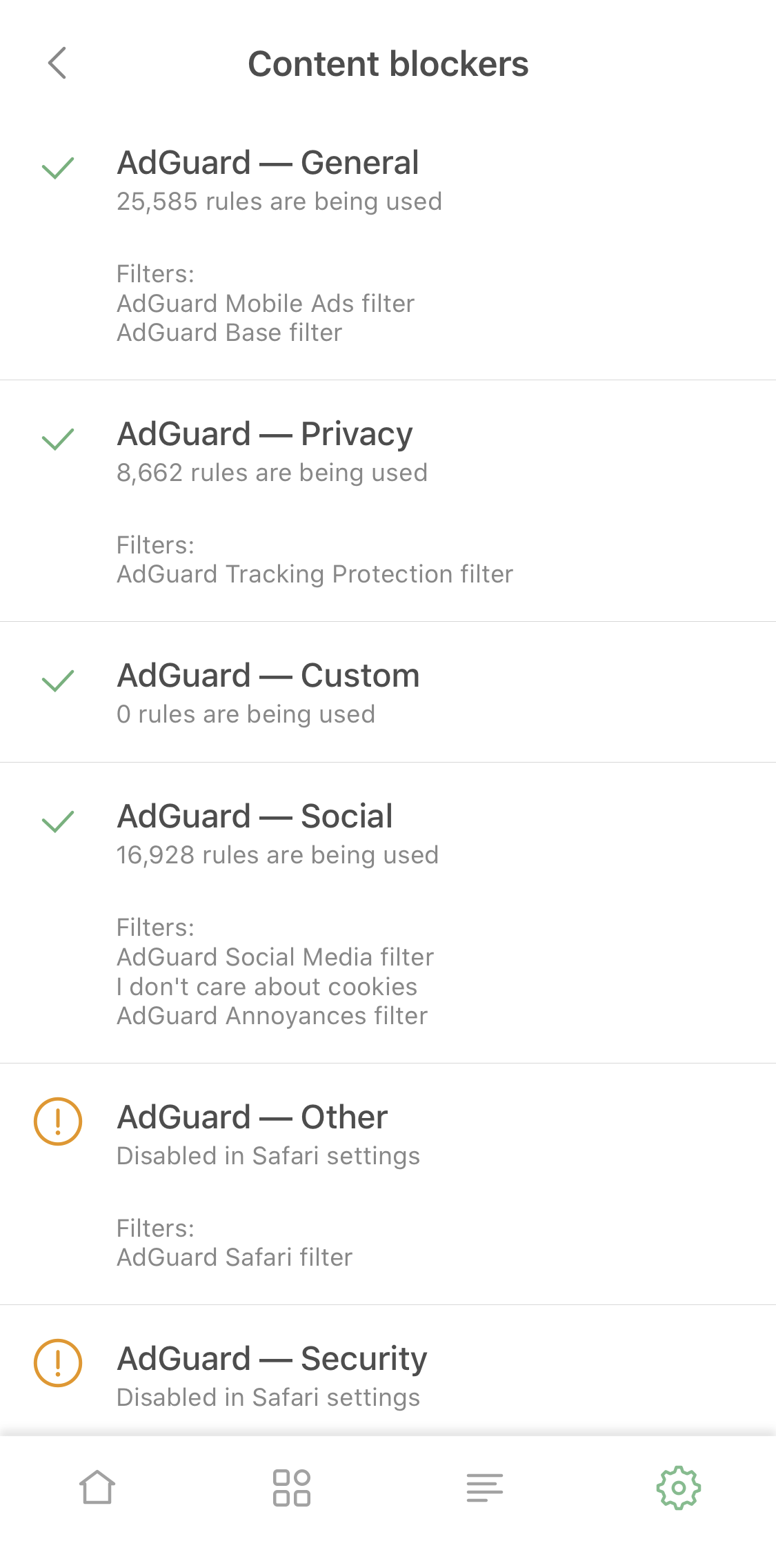
View the current state of content blockers and enabled filters
We strongly recommend keeping all content blockers enabled at all times for the best filtering quality.
How filtering in Safari works: filters and rules
The process of ad blocking is described in detail in one of our past blog articles. But if you don't want to dive too deep, here's a quick summary:
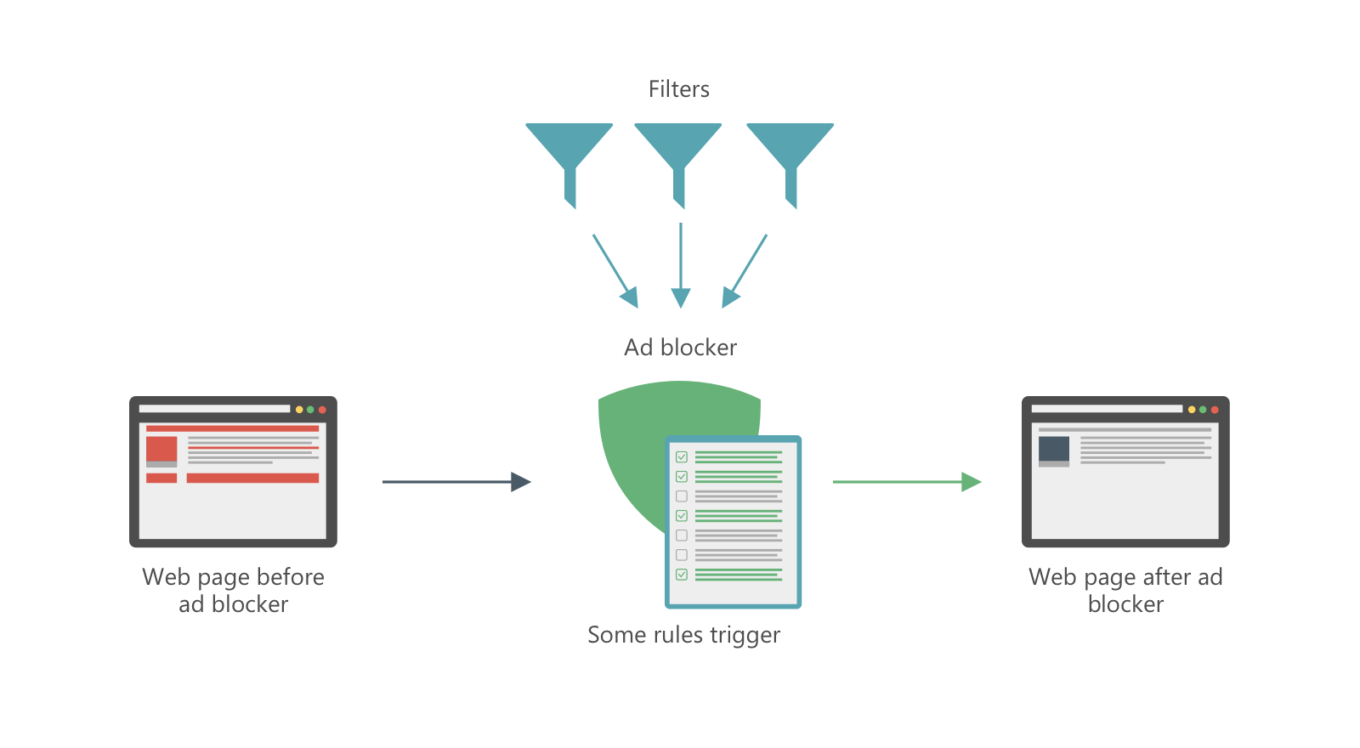
How Safari content blocking works
Ad blockers' work is based on filters (also sometimes referred to as filter lists). Each filter is a list of filtering rules. When you browse online, ad blocker constantly checks the pages you visit and elements on them against these filtering rules, and blocks anything that matches. Obviously, rules are constructed in such manner as to block trackers and ads and give 'normal' content like videos and text the green light. Content blocking in Safari works the same way.
Filters
If you go to app's Settings > Safari protection > Filters, you'll see a list of filter categories (not to be confused with content blockers!).
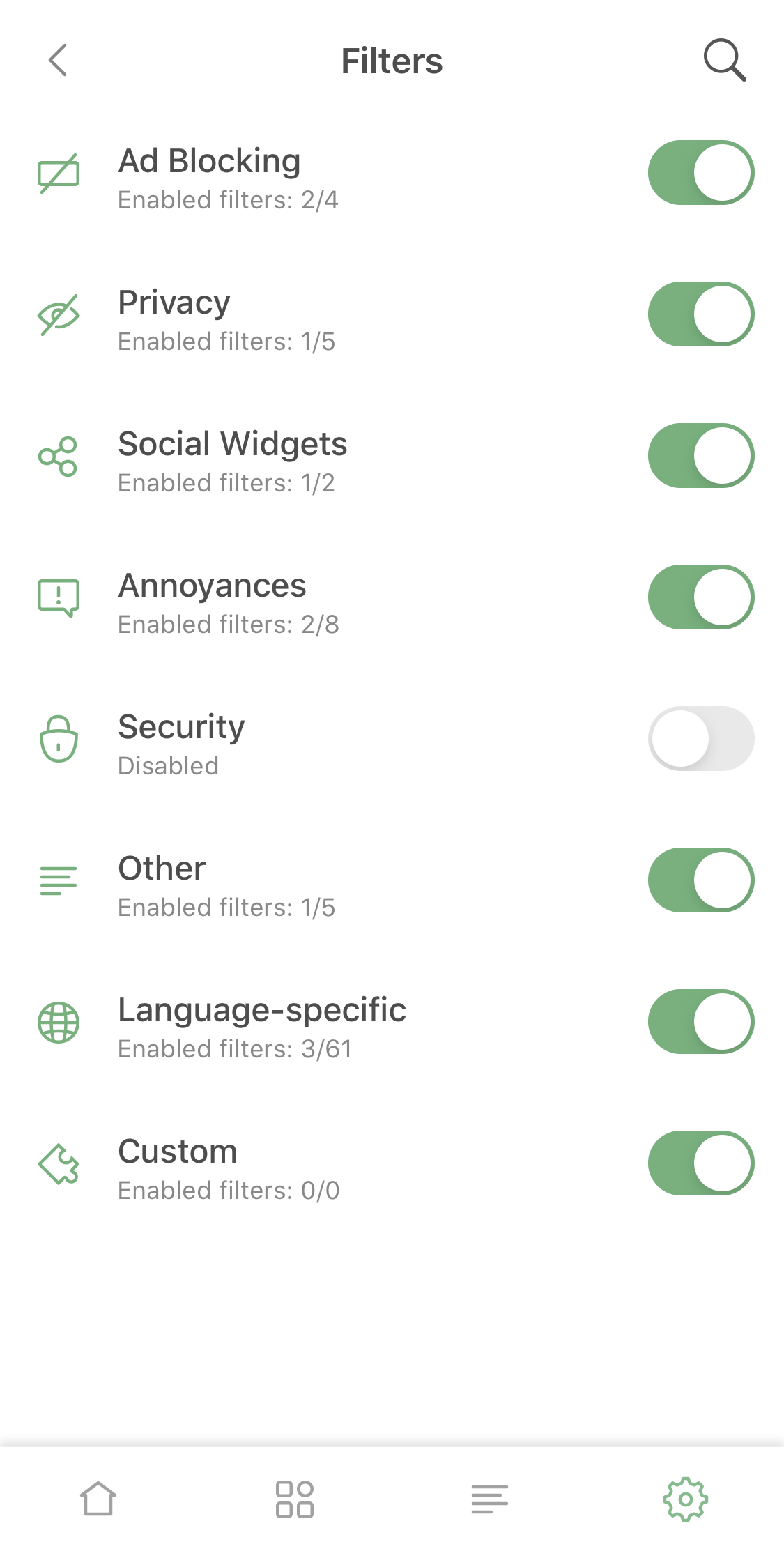
Tap on any filter category to view active filters and manage them individually
There are such categories as Ad Blocking, Privacy, Social Widgets, Annoyances, Security — each unites several filters that serve more or less the same purpose. You can look around, read filters' descriptions and find the ones that appeal to you. Our labels system will help you with this.
One unique category is Custom filters. It's empty by default but you can add any filter lists by URL. It's easy to find some thematic filters on the Internet (or you can even try and create your own).
User rules
Speaking of your own filtering rules. You can customize Safari filtering without adding an entire new filter list. On the Safari protection screen there's a User rules section.
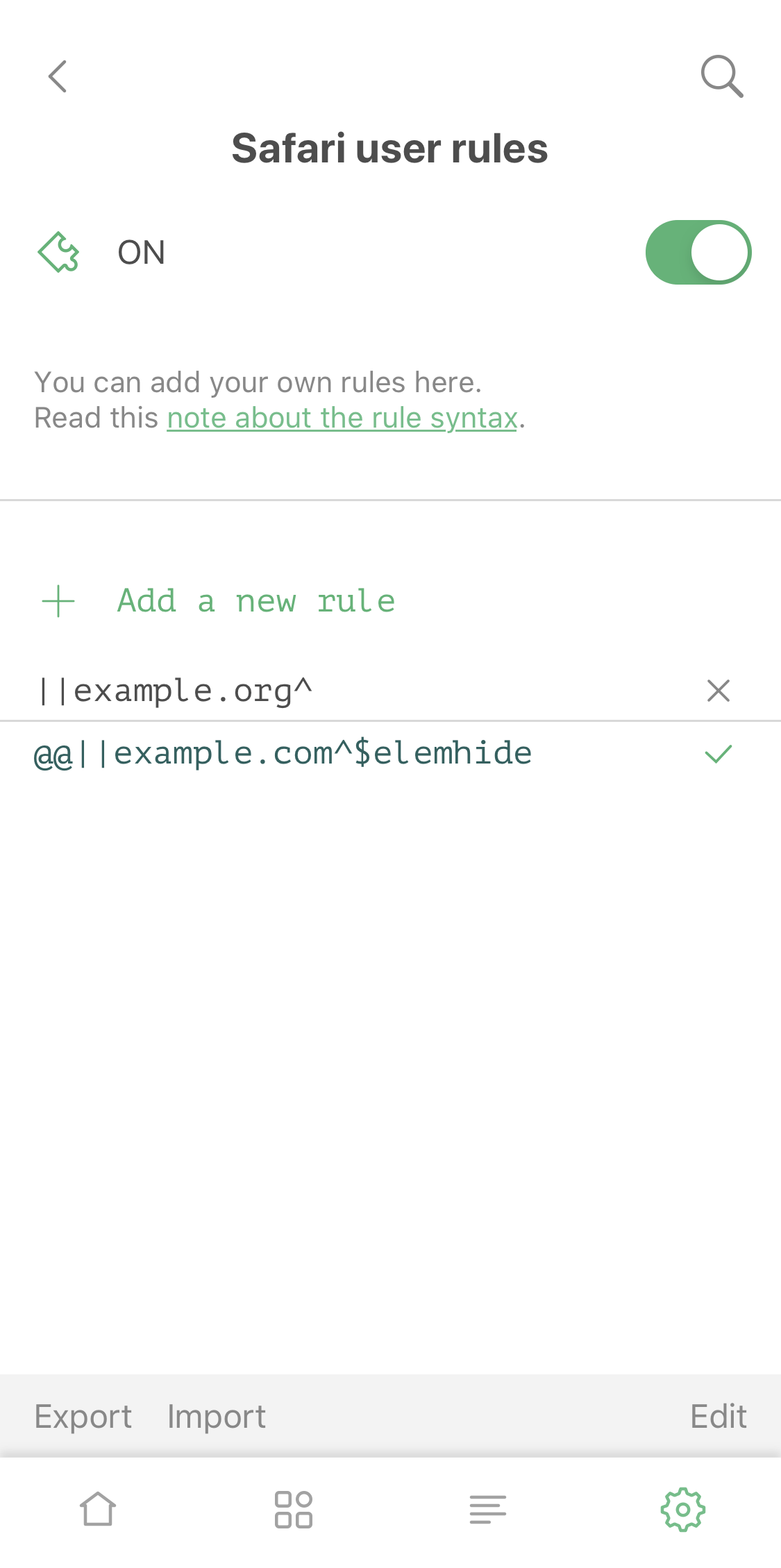
Add custom rules to further customize Safari filtering
It allows to add individual rules, either by entering them manually or by using the Action extension manual blocking tool (the Assistant).
Allowlist
Also accessible from the Safari protection screen, Allowlist allows you (pun not intended) to add certain domains to exclusions. Want to support your favorite website and disable ad blocking there? Simply add its domain name to the allowlist. Use Export/Import buttons at the bottom to manage the entire lists (e.g., to transfer them between the devices).
Assistant
Assistant is a tool that helps you manage filtering right from Safari without switching back to the app. Open your browser, tap on the arrow-in-a-box symbol, scroll down to AdGuard/AdGuard Pro (depending on the app you use) and tap it to fetch a window with several options.
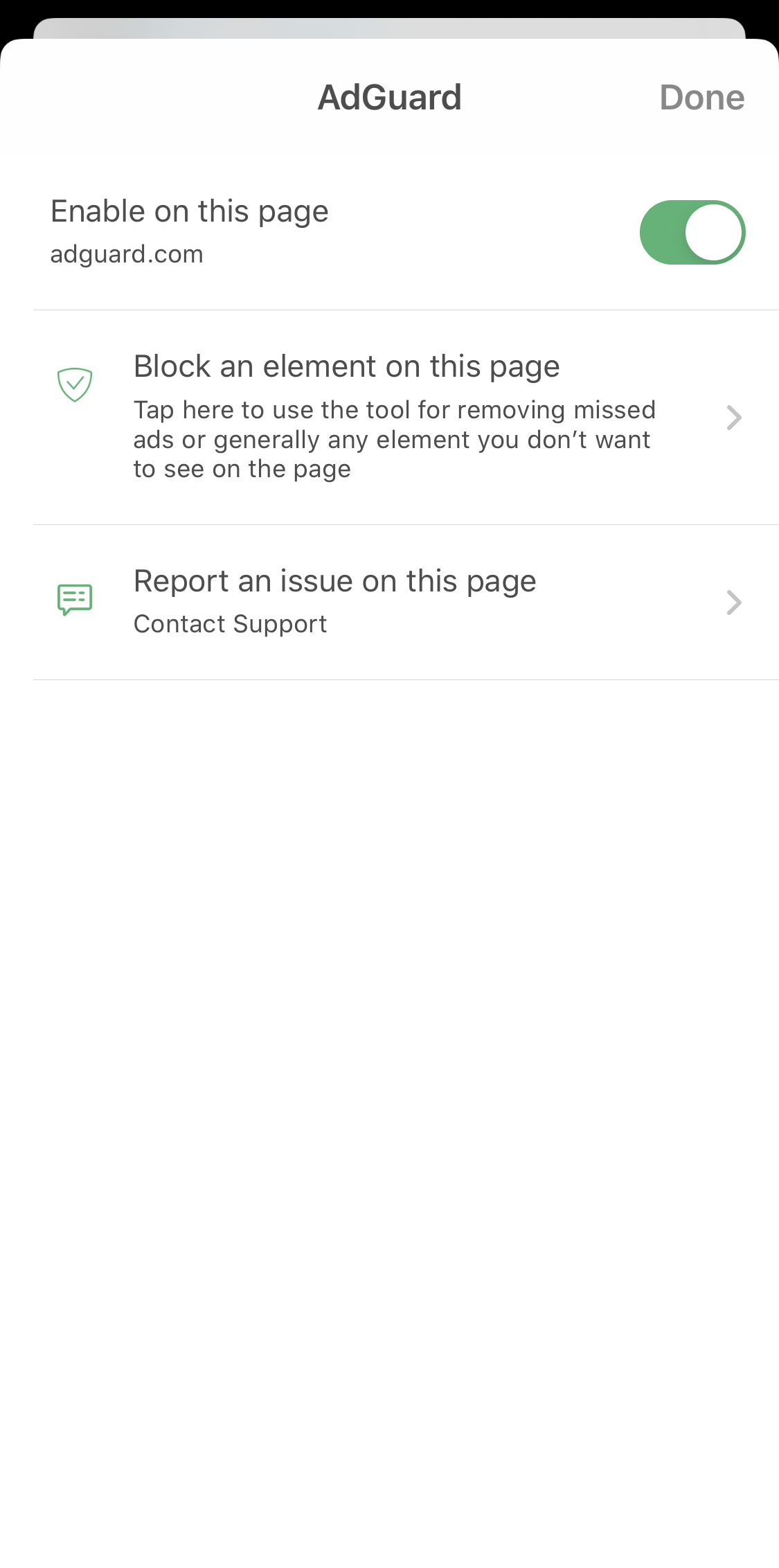
Assistant provides quick access to some commonly used options
- Enable on this page. Turn the switch off to add the current domain to the Allowlist.
- Block an element on this page. Tap it to enter the 'Element blocking' mode: choose any element on the page, adjust the size by tapping 'plus' or 'minus', preview if necessary and then tap the checkmark icon to confirm. The selected element will be hidden from the page and a corresponding rule will be added to User rules. Remove or disable it there to revert the change.
- Report an issue on this page. Opens a web reporting tool that will help you send a report to our support team in just a few clicks. Use it if you noticed a missed ad or an incorrect blocking on the page.
This covers up the Safari content blocking part of AdGuard/AdGuard Pro. Let's move to the next major module: DNS protection.
DNS protection
DNS protection module enhances your privacy by encrypting your DNS traffic. Unlike with Safari content blocking, DNS protection works for the entire device. You have to enable this module before you're able to use it. It can be done either from the home screen or from Settings > DNS protection.
To be able to manage DNS settings, AdGuard apps require establishing a local VPN. It will not route your traffic through any remote servers. Nevertheless, the system will ask you to confirm permission access.
DNS servers
The first option you'll see on the DNS Protection screen is DNS server. It shows the currently selected DNS server and encryption type. To change either, tap on the button to enter the DNS server screen.
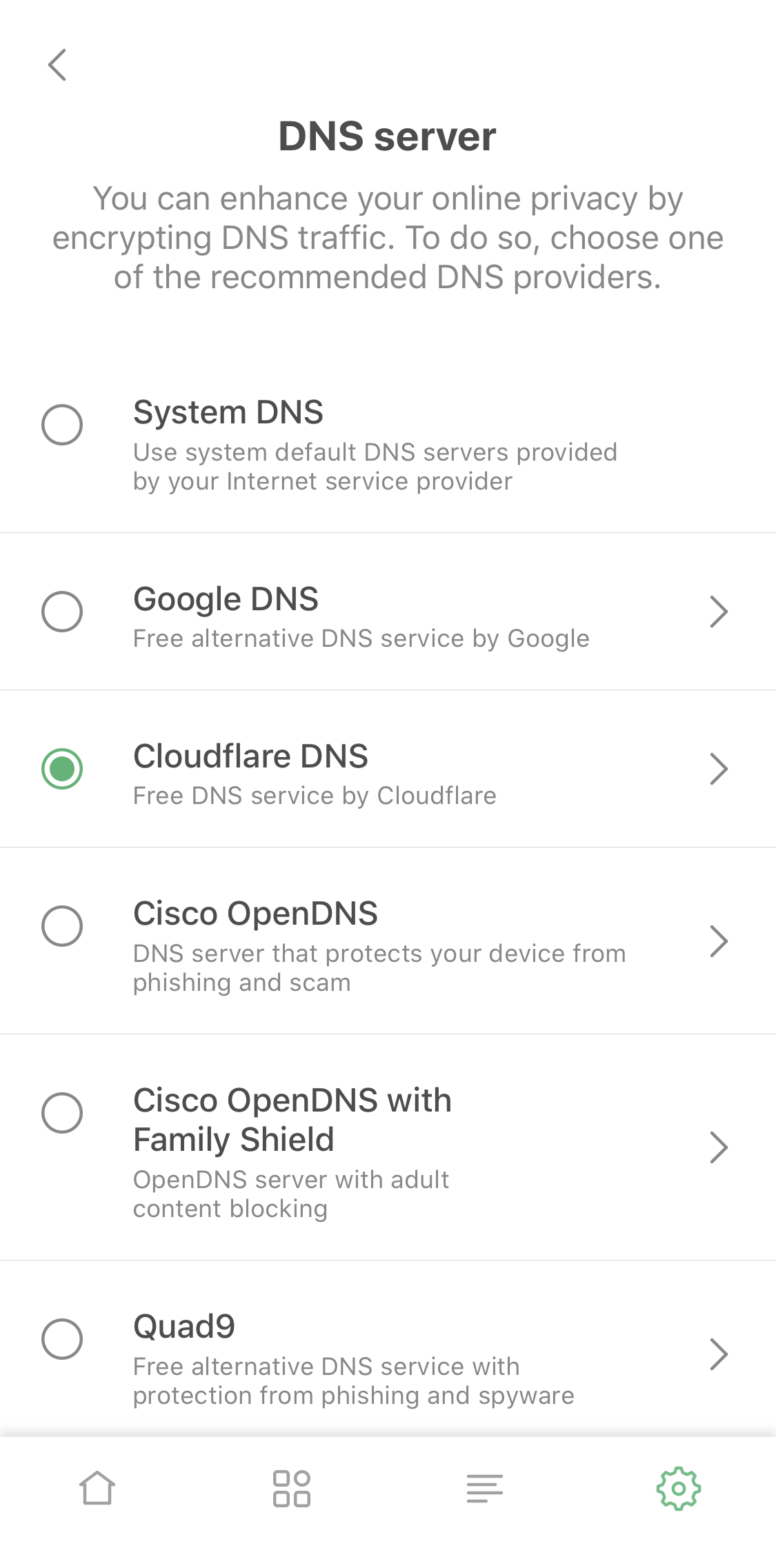
Select a DNS server that suits your needs best
Servers differ by their speed, employed protocol, trustworthiness, logging policy, etc. By default, AdGuard will suggest several DNS servers from among the most popular ones (including AdGuard DNS). Tap on any to change the encryption type (if such option is provided by the server's owner) or to view the server's homepage. We added labels such as 'No logging policy', 'Ad blocking', 'Security' to help you make a choice.
In addition, at the bottom of the screen there is an option to add a custom DNS server. It supports regular, DNSCrypt, DNS-over-HTTPS and DNS-over-TLS servers.
Network settings
On the Network settings screen you can manage your DNS protection in other ways.
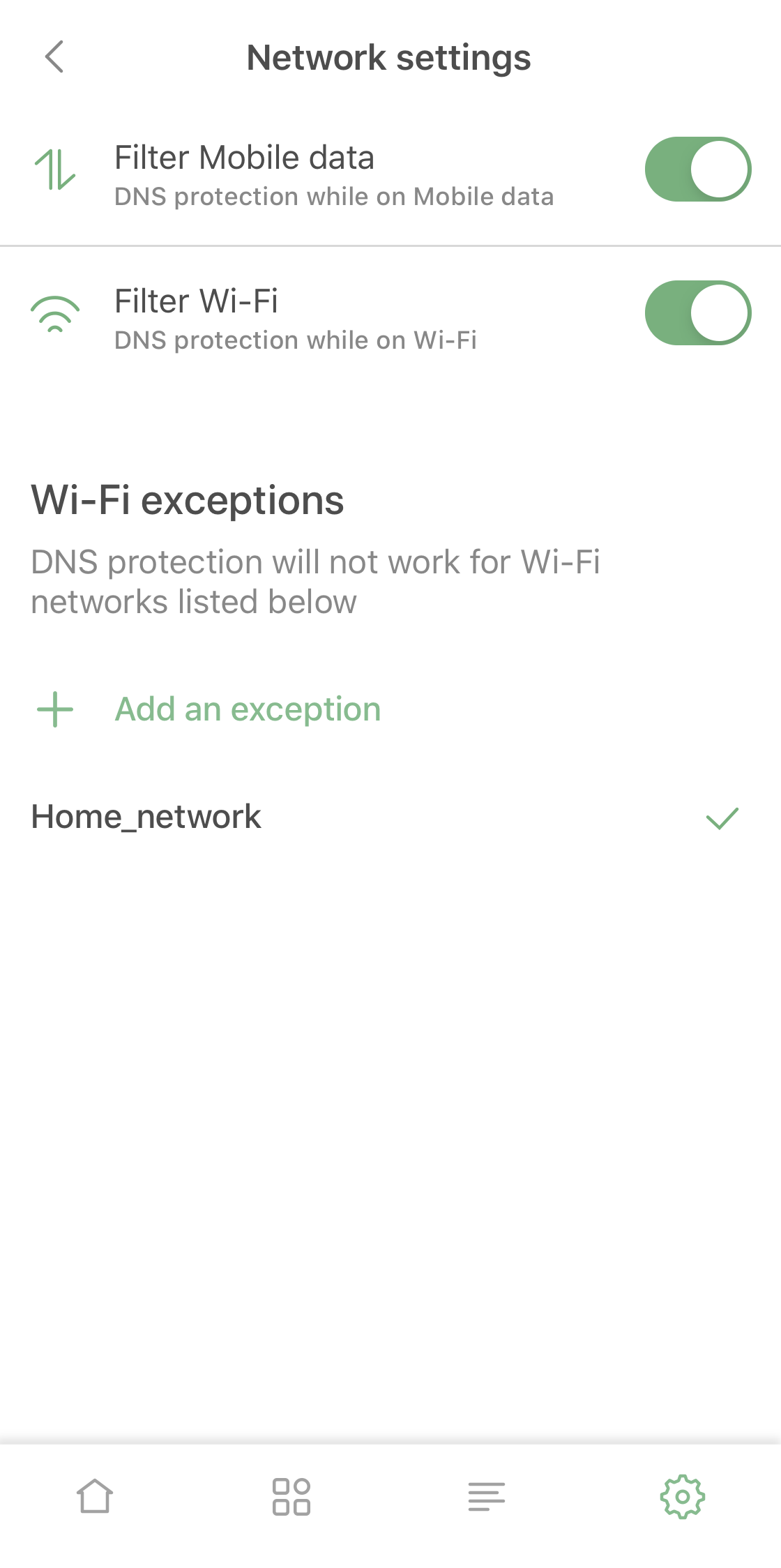
Additional DNS protection settings
Filter mobile data and Filter Wi-Fi enable or disable DNS protection for respective network types. Further down, at Wi-Fi exceptions, you can exclude particular Wi-Fi networks from DNS protection (for example, you might want to exclude your home network if you use AdGuard Home).
DNS filtering
To get access to DNS filtering, first enable Advanced mode from the General settings screen. After that, a new button will appear on the DNS protection screen. Tap it to customize your DNS traffic by applying own rules.
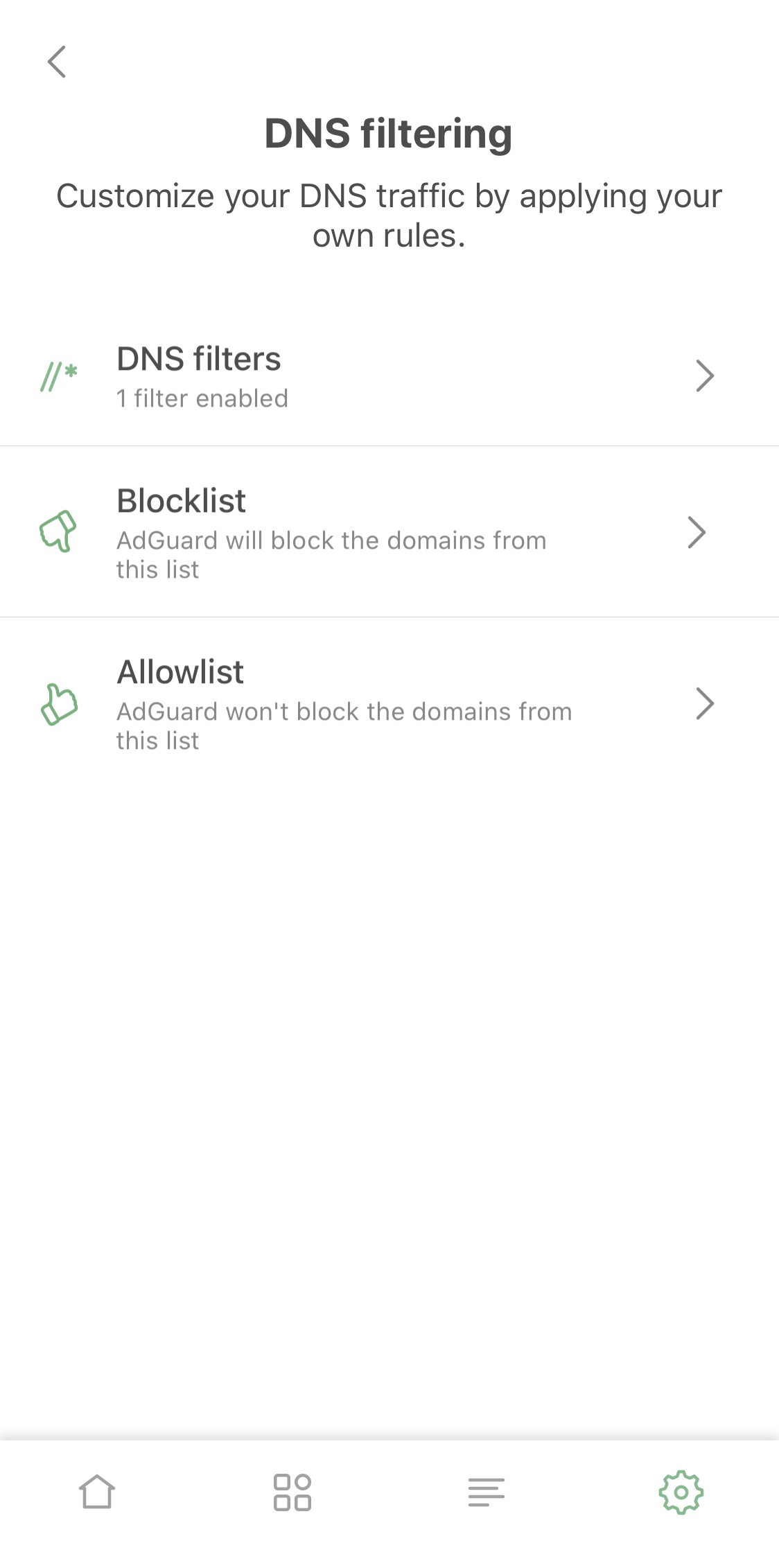
The place to manage DNS filtering
DNS filters
Similar to filters that work in Safari, DNS filters are sets of rules written according to special syntax. AdGuard will monitor your DNS traffic and block requests that match one or more rules. You can use filters such as AdGuard DNS filter or add hosts files as filters. An exhaustive manual can be found in our Knowledge base. You can add more than one simultaneously.
Allowlist/Blocklist
On top of DNS filters, you can have targeted impact on DNS filtering by adding single domains to Blocklist or to Allowlist. Blocklist even supports the same DNS syntax, and both of them can be imported and exported, just like Allowlist in Safari content blocking.
Activity
This is the 'information hub' of AdGuard's DNS protection suite. You can quickswitch to it by tapping the third icon in the row at the screen bottom.
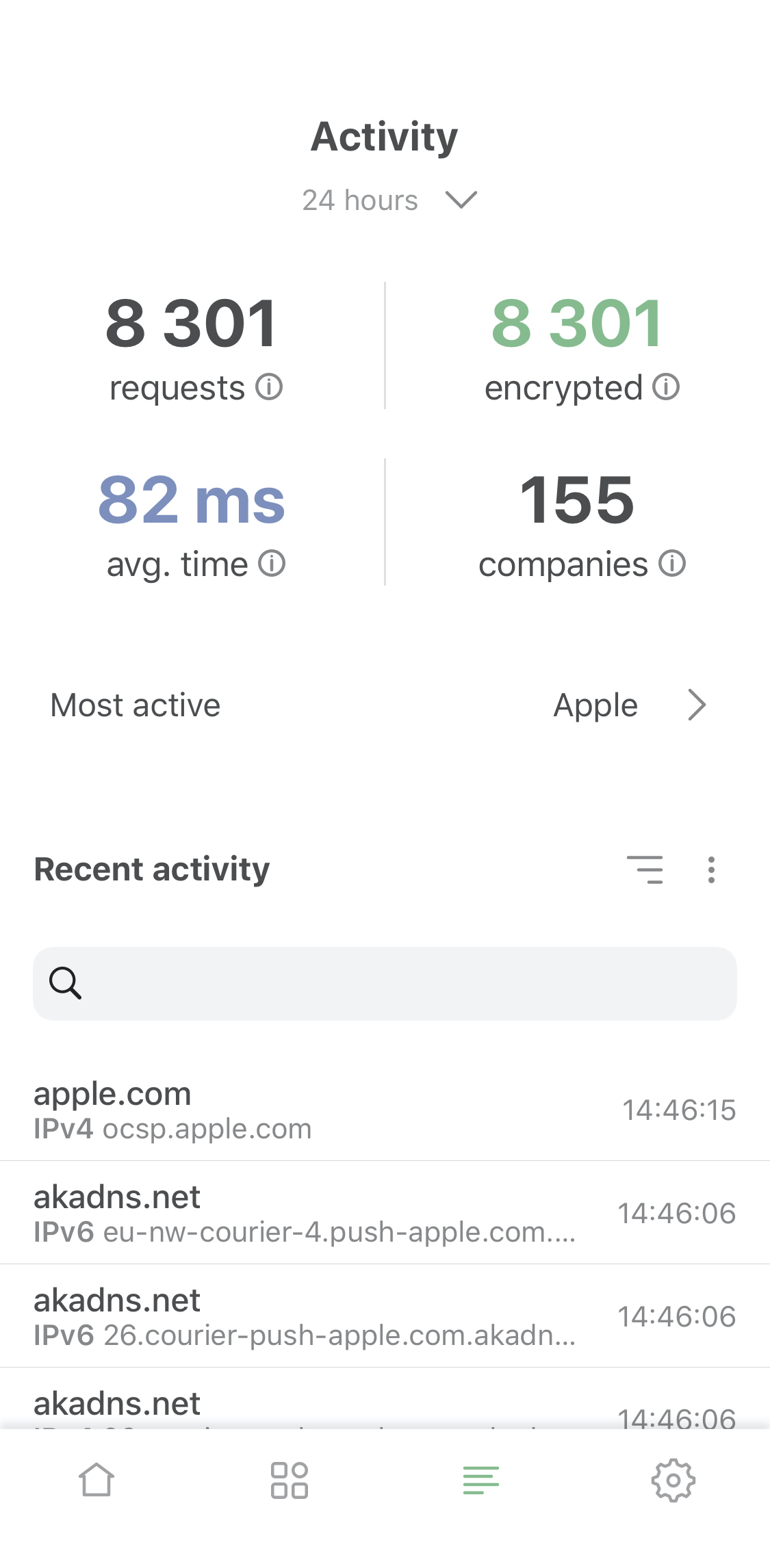
All stats in one place
Here AdGuard displays stats about your device's DNS requests, such as total number, number of encrypted requests and average processing time. AdGuard can display the stats for a day, a week,
a month, or in total.
Below is the Recent activity feed. AdGuard stores the last 1500 DNS requests that have originated on your device and shows their attributes such as protocol type and target domain.
AdGuard does not send this information anywhere. It is 100% local and does not leave your device.
Tap on any request to view more details. There will also be buttons to add the request to Bloclist/Allowlist in one tap.
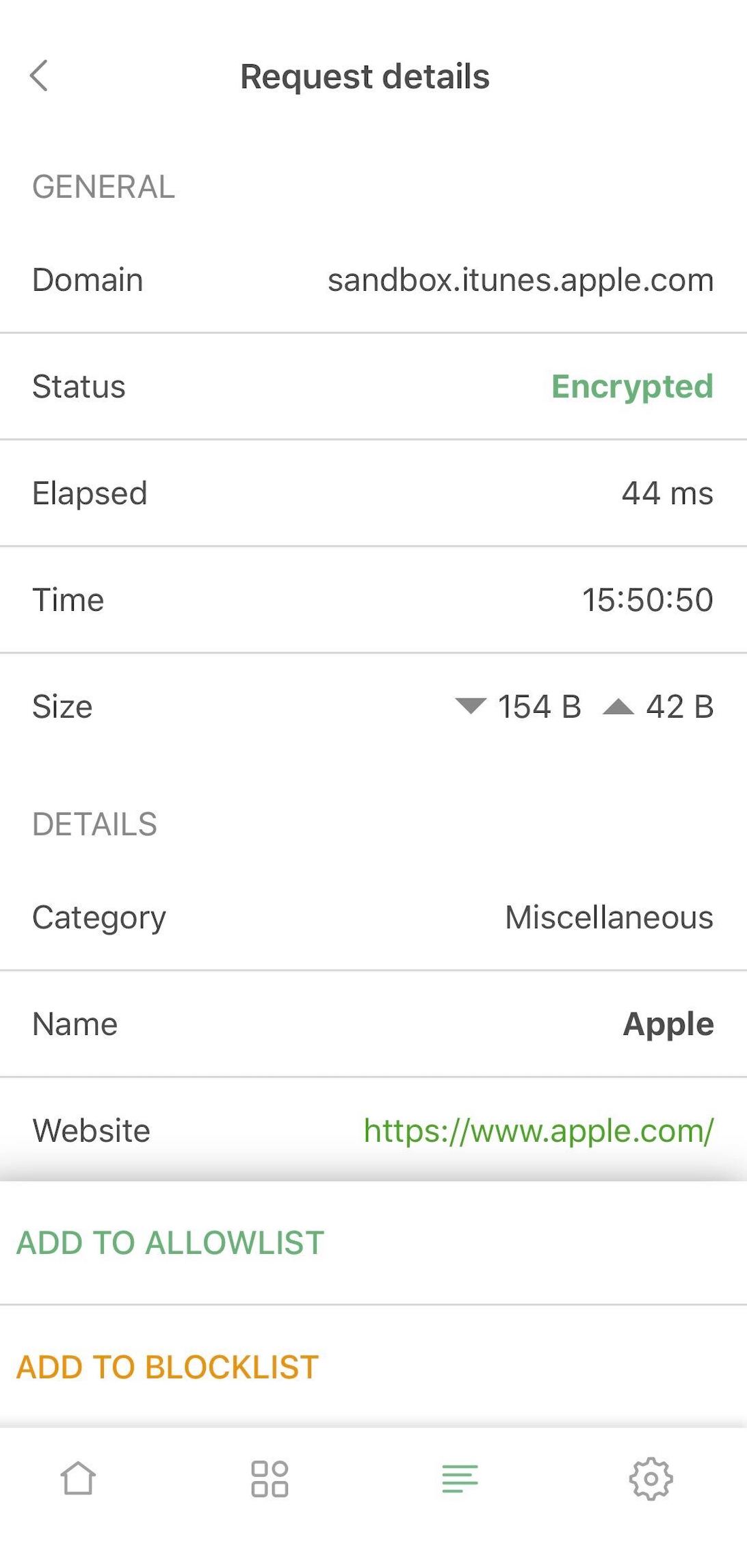
Exhaustive details about each DNS request
Above the activity feed, there's a Most active companies button. It shows aggregated data on the last 1500 requests, specifically which companies sent the most amount.
Statistics
Aside from the Activity screen, you can find global statistics on the home screen and on widgets.
Other features
While Safari content blocking and DNS protection are indisputably two major modules of AdGuard/AdGuard Pro, there are some other minor features that don't fall into either of them directly but still can be useful and worth knowing about.
- Dark theme
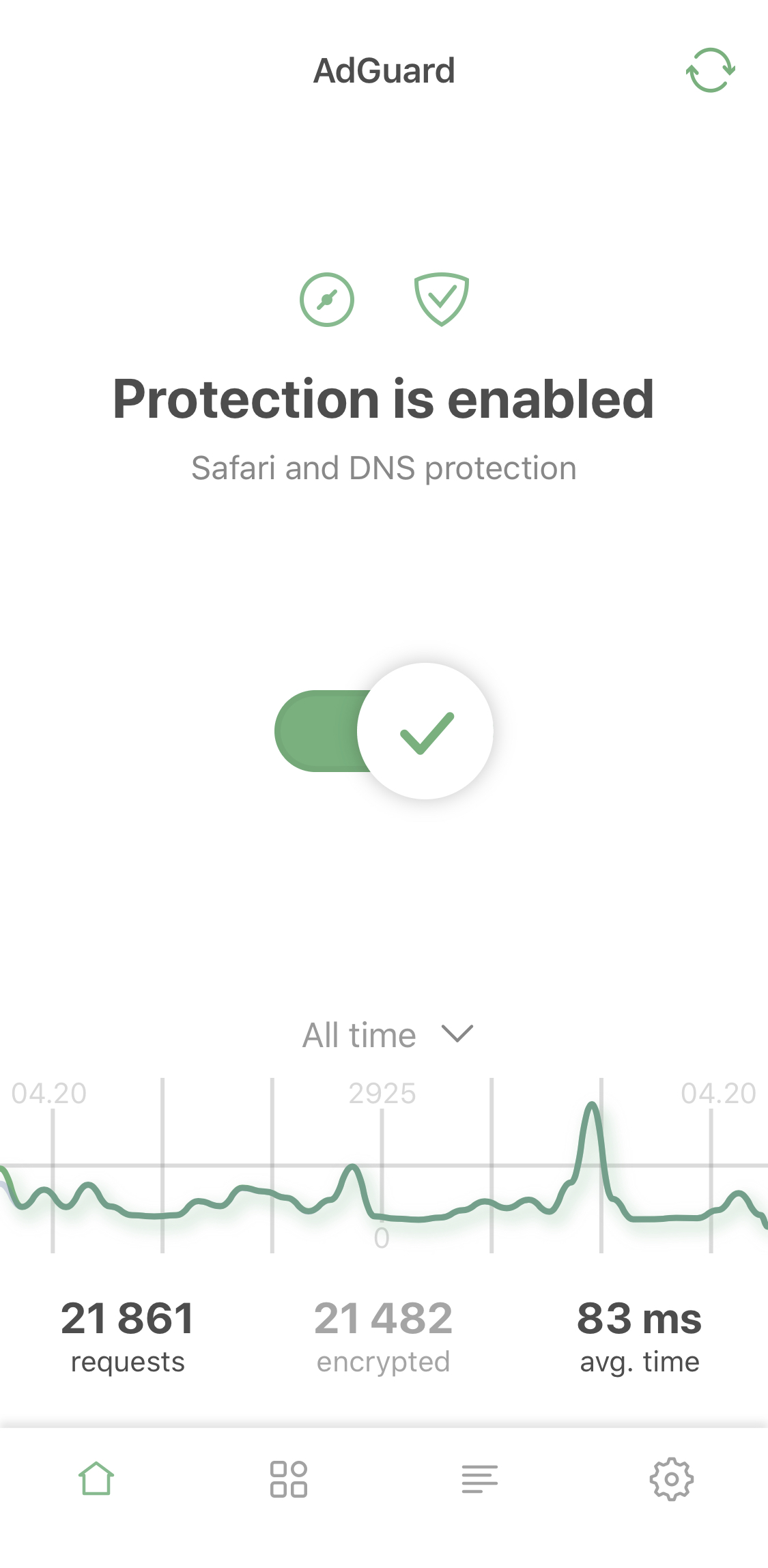
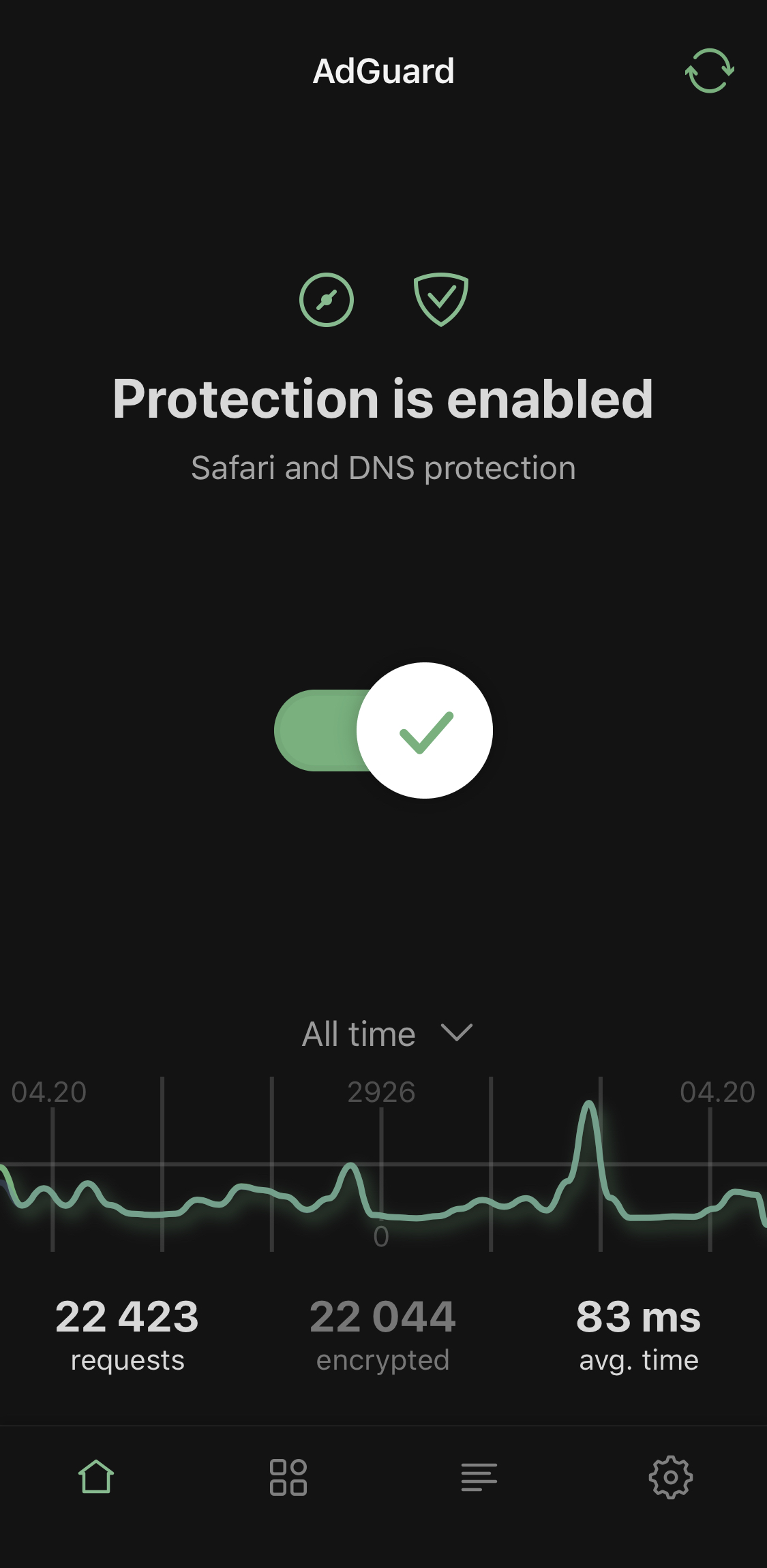
Light and dark themes
Residing right at the top of Settings > General screen, this setting allows you to switch between dark and light themes.
- Widgets
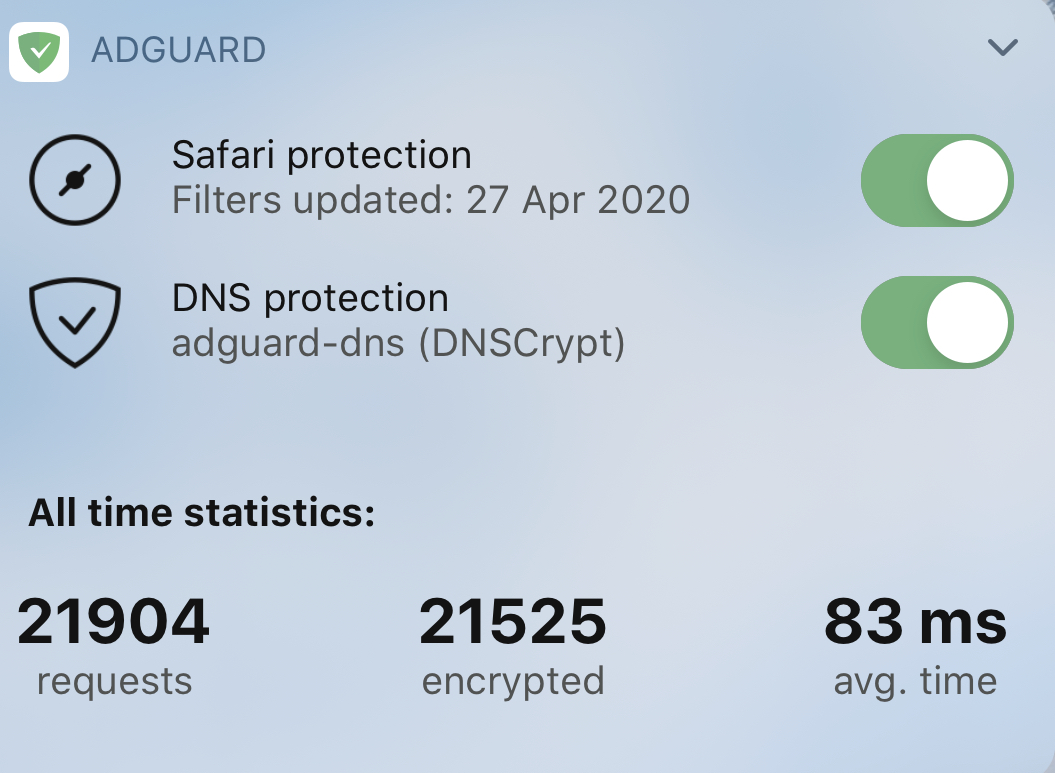
AdGuard widgets: minimalistic yet informative
AdGuard supports widgets that provide quick access to Safari content blocking and DNS protection switches, and also show global requests stats.
- Invert the Allowlist
An alternative mode for Safari filtering, it unblocks ads everywhere except for the specified websites from the list. Disabled by default.
- Reset statistics
Clears all statistical data, such as number of requests, etc.
- Advanced mode
Aside from unlocking DNS filtering, it grants access to Advanced settings. We don't recommend messing with those, unless you know what you're doing or you have consulted with technical support first.
- Send feedback
No matter how hard you try, sometimes things go off the rails. Use this option to contact support, report a missed ad (although we advise to use the Assistant for your own convenience), export logs or to make a feature request.
- About
Contains the current version of the app and an assortment of rarely needed options and links.
And we're done! Hopefully, this article answered all questions that you had about AdGuard and AdGuard Pro for iOS. If there are any left, feel free to ask them in the comment section or in social media. We're always looking forward for your feedback!