7 things you need to do on Data Privacy Day
Last time I checked, the year was 2019, and it is hard to overestimate how important information is today. It is being collected, stored, purchased, sold and stolen. And the most valuable information is information about you: the person. Companies go out of their way in attempts to build extensive profiles about online users, and other companies pay them a pretty penny for these profiles.
Today is the international Data Privacy Day, and it presents a great opportunity to talk about ways to protect yourself online. People usually don't like being a product, and probably neither do you. After all, you wouldn't let random weirdos stalk you while you eat, go shopping or watch TV. How are your online actions any different? Sadly, most people just don't know what to do about it.
In this article we will look at 7 ways to shield yourself from omnipresent surveillance, and in the end I promise a small but pleasant surprise.
1. Read privacy policies
Or at least check if there is any when you install a new mobile app or browser extension. This sounds silly, but it is true! Sometimes apps and extensions have no privacy policy, or even worse, it just tells you in plain text that they are going to grab all your personal data and then sell it.
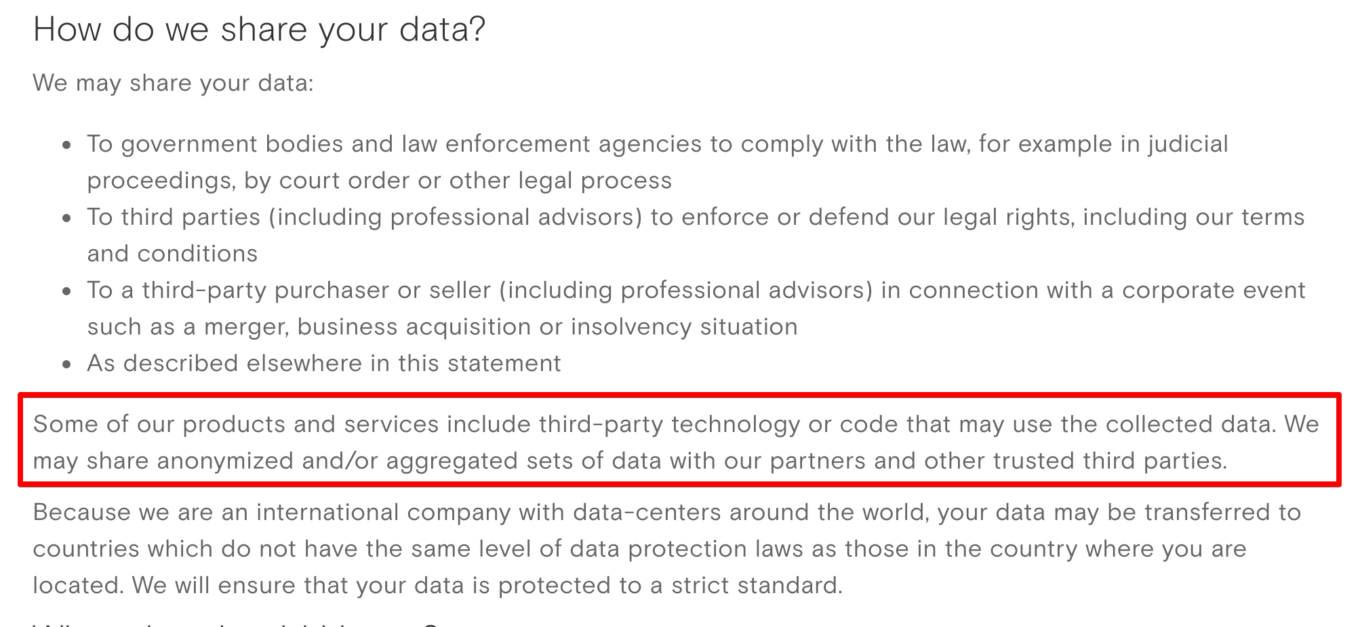
Just look at the OperaVPN privacy policy
Now, I don't say you have to read the wall of text that every privacy policy ever usually is. But even glancing over it for a minute or two to spot any obvious discrepancies will go a long way.
2. Pay attention to permissions you give your apps
Want to install this cool new game on your smartphone? Remind me, why does it need access to camera and microphone? Exactly. It doesn't. Treat every new app on your devices as a potential enemy to your privacy. Think twice about sharing information about yourself, even with applications and services by legitimate and respected companies — there are enough examples of massivedatabreaches.
3. Turn off location services on your phone
Geolocation is one of the most delicious types of data that analytics companies can put their hands on. By having access to someone's location history one can potentially find out almost everything about this person's tastes, hobbies, social and financial status etc. Restrict location services for apps that clearly don't need it, and consider disabling it completely if you don't need them at the moment.
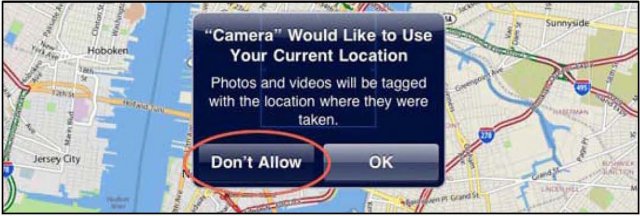
On iOS, go to Settings - Privacy - Location Services to configure permissions for each app or disable it completely.
On Android, it is much more complicated. As it turned out, simply disabling Location History in phone settings will not be sufficient to stop some apps from tracking. You need to go to your Google Account and find Web & App Activity setting. Finding it is not easy, so use one of the guides available online.
4. Clear cookies
Whenever someone writes about cookies, they usually start with a brief explanation of what they are. Cookies are small files sent by websites and stored on your PC or mobile device. They usually contain some information about your activity on this website, like shopping cart contents in an online store. But cookies are also one of the primary mechanisms for websites to track you. Consider clearing them once in a while, and when on mobile make it a rule to restart your browser from time to time.

"You want to delete what?!"
Clearing cookies often comes with a cost, as your experience with some websites may not be as smooth. For example, you'd need to log in manually more often. So find your own balance between privacy and convenience, but whatever you do don't say we didn't warn you!
Oh, and if you think that using incognito mode somehow helps keep your privacy — it doesn't.
5. Install an ad blocker
Hey, we are an ad blocking company, so install an ad blocker, alright? wink wink But in all seriousness, by far the most efficient way to fight online tracking is to use a dedicated software. Be it a tracker blocker, or an ad blocker with anti-tracking filter lists, they all do the same: monitor your traffic and block any attempts to send information to tracking domains.
If you decide to choose AdGuard, know that all of our products offer special Spyware filter that blocks all known trackers and analytics. You will probably want to enable it in settings. AdGuard for Windows app also provides access to Stealth Mode — a whole module devoted to privacy protection, and soon it will be implemented to other AdGuard products, too.
6. Use encrypted DNS
Whoa, whoa! This one is not like the others! Indeed, many people have a very vague idea about DNS or haven't heard about it at all. We explain DNS in our Knowledge Base, but to save time let's just say that while unencrypted, DNS traffic can be exploited by your ISP or potential attackers to steal your personal data and even uniquely identify you. The worst part is that using regular ad blockers and taking other measures described above will do nothing about it.
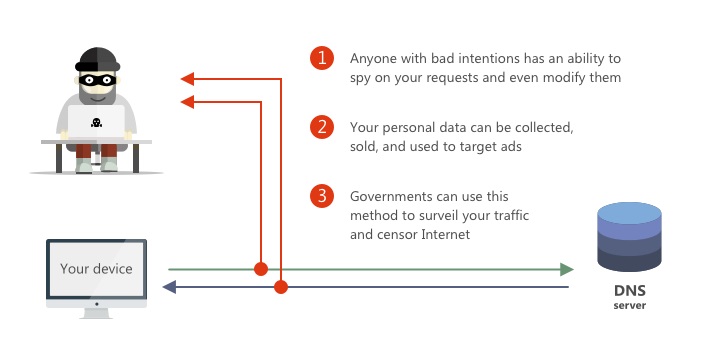
DNS privacy concerns
In order to protect yourself on the DNS front, you have to use one of the encrypted DNS protocols and switch to trustworthy DNS servers over the default ones. One of the simplest ways to achieve this is to choose AdGuard DNS. It is easy to set up, can be used on literally any device and will even block ads and trackers along the way. For the advanced users we can suggest AdGuard Home, which offers a lot of other options on top of AdGuard DNS, is highly customizable, but requires some skills to get going.
7. Use VPN or proxy
I put this in the end intentionally, not because using it is ineffective, but because it requires more setup, and to be honest, best VPN services are not free. VPNs and proxies are essentially servers that stand between you and the website you are trying to reach, and to that website it appears like the request is made by the server, and not by you.

So why not just use VPN all the time? Some do, but you need to understand the tradeoffs before you dive in. Depending on what service you choose and on your location, you may experience a drop in connection speed. Also let's not forget that once you commit to using a VPN, you trust its owner with all your data, so choose carefully.
There are countless examples of "fake" VPN providers (mostly among the free ones) that hardly provide you with anonymity but instead collect your personal data themselves. Without doing any advertising, I would recommend selecting one of the well-known and trustworthy VPN services, even if it will cost you several bucks a month. After all, you didn't come here to save on privacy.
Conclusion & promised surprise
Protecting your online privacy is not an easy task. Following these pieces of advice will be a major step towards safety, but all this won't work if you don't make privacy a priority. Think twice next time you are about to tag your location on a photo or blindly a new mobile app access to everything on your phone. Remember that you're the one who is responsible for your privacy.
And to assist you and your friends&family in this fight for privacy, we offer a 33% discount on any AdGuard license key for 3 devices. The offer goes on until January, 31st.
Happy Data Privacy Day!