Filters
This article is about AdGuard Browser Extension, which safeguards only your browser. To protect your entire device, download the AdGuard app
Blocking ads is the core functionality of any ad blocker, and AdGuard Browser Extension is no exception. Ad blocking is based on filters — sets of rules written in a special language. These rules define which page elements should be blocked and which should not. AdGuard interprets these rules and modifies web requests accordingly. As a result, you stop seeing ads on your webpages.
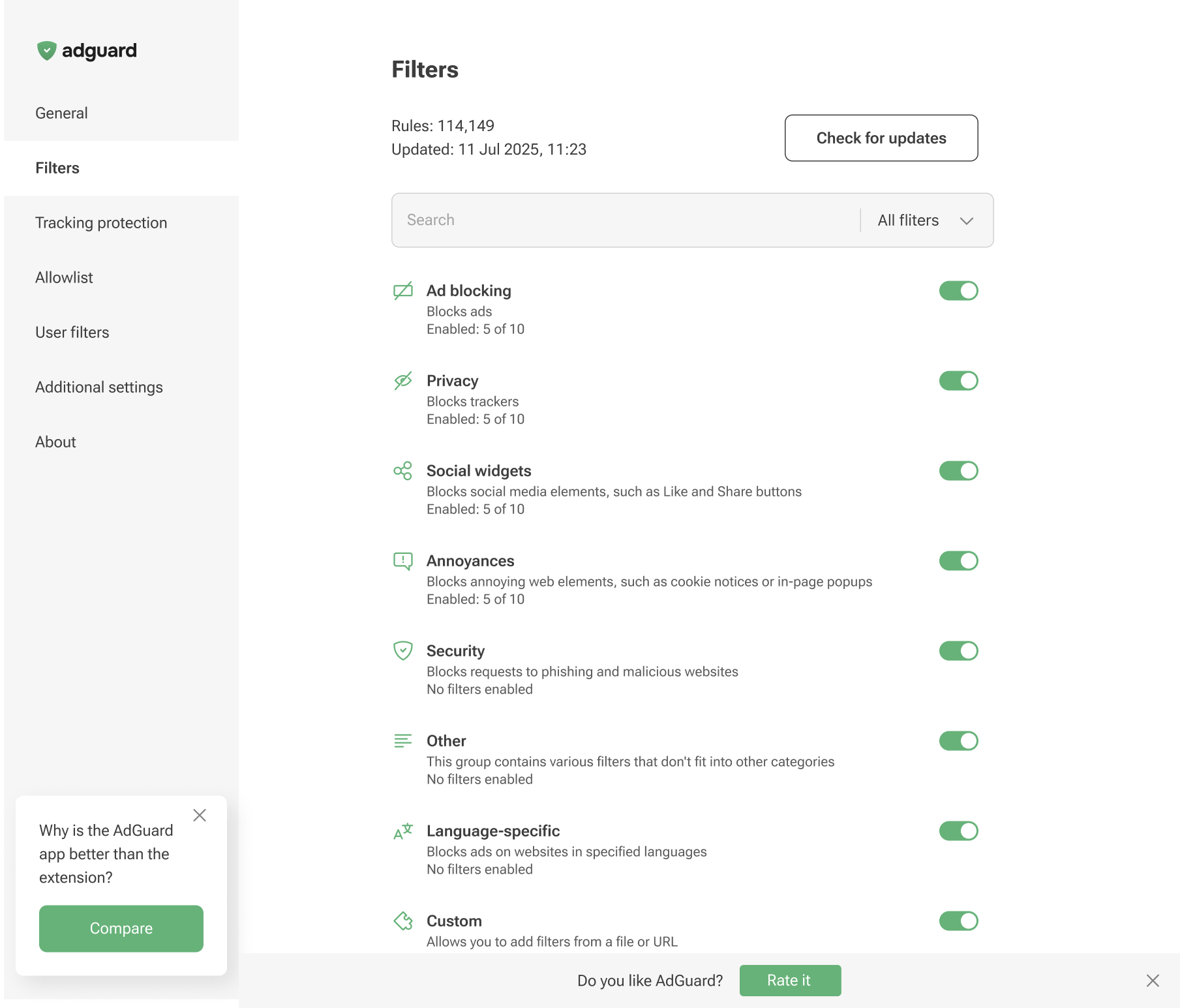
All filters are grouped by category based on their role:
- Ad blocking: Block various types of advertisements
- Privacy: Block online trackers and analytical systems to protect your data
- Social widgets: Block social media elements like Like and Share buttons
- Annoyances: Block irritating web elements, such as cookie notices, third-party widgets, or in-page popups
- Security: Block requests to phishing and malicious websites
- Other: Contain miscellaneous filters that do not fit into the main categories
- Language-specific: Block ads on websites in specific languages
- Custom: Allow you to add your own filters from a local file or URL
You can enable either individual filters or entire groups at once.
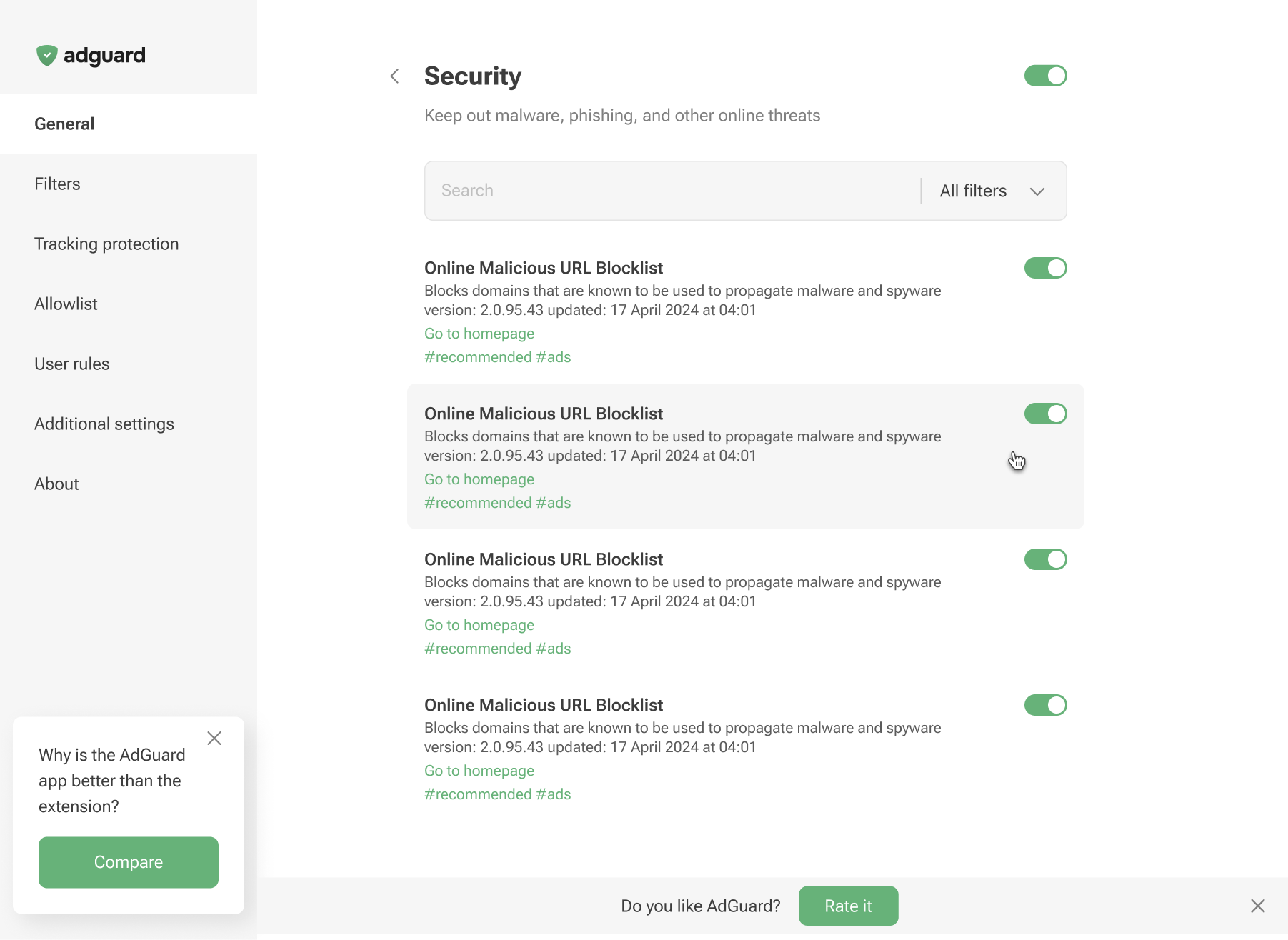
Custom filters
While the features of other filter groups are more or less self-explanatory, there is a group called Custom that may raise additional questions.
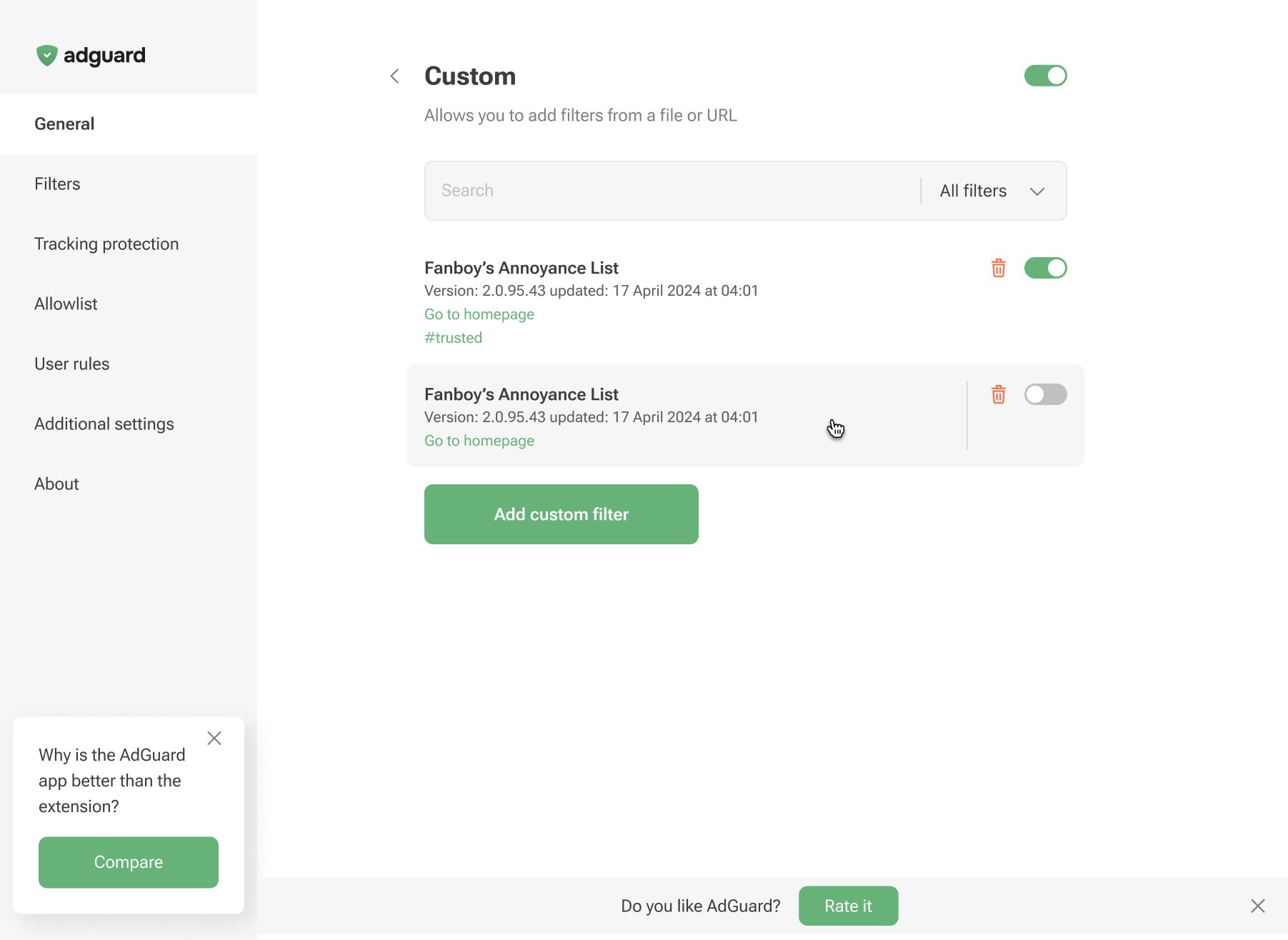
In this tab, you can add filters that are not included in the extension by default. There are plenty of publicly available filters on the Internet. Moreover, you can create and add your own filters. In fact, you can build any set of filters and customize ad blocking the way you like.
To add a filter, just click Add custom filter, enter the URL or the file path of the filter you want to be added and click Next.
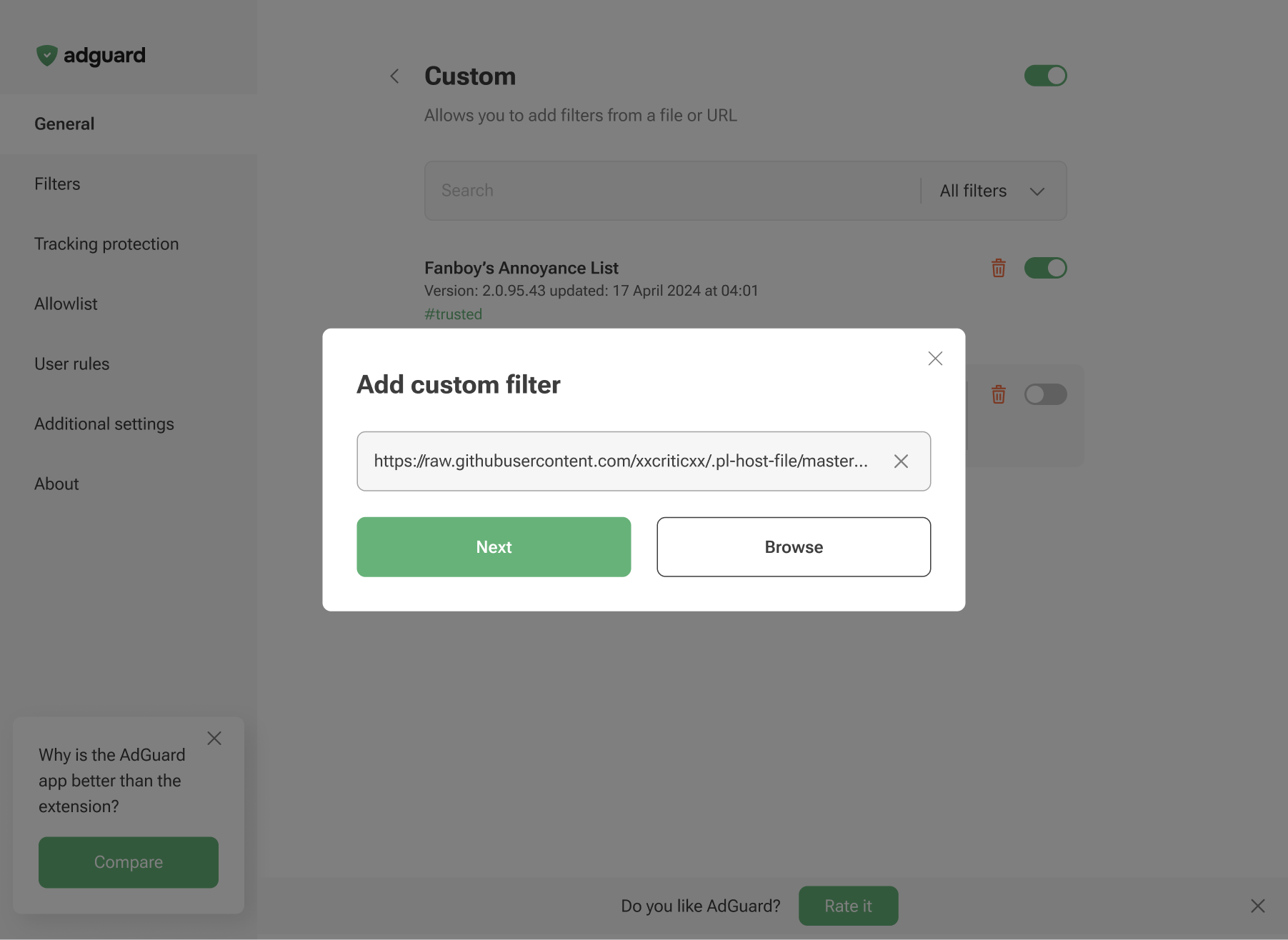
Custom filters update independently, keeping your protection effective and up to date without requiring extension updates.
User rules
User rules is another tool that helps you customize the blocking of ads.
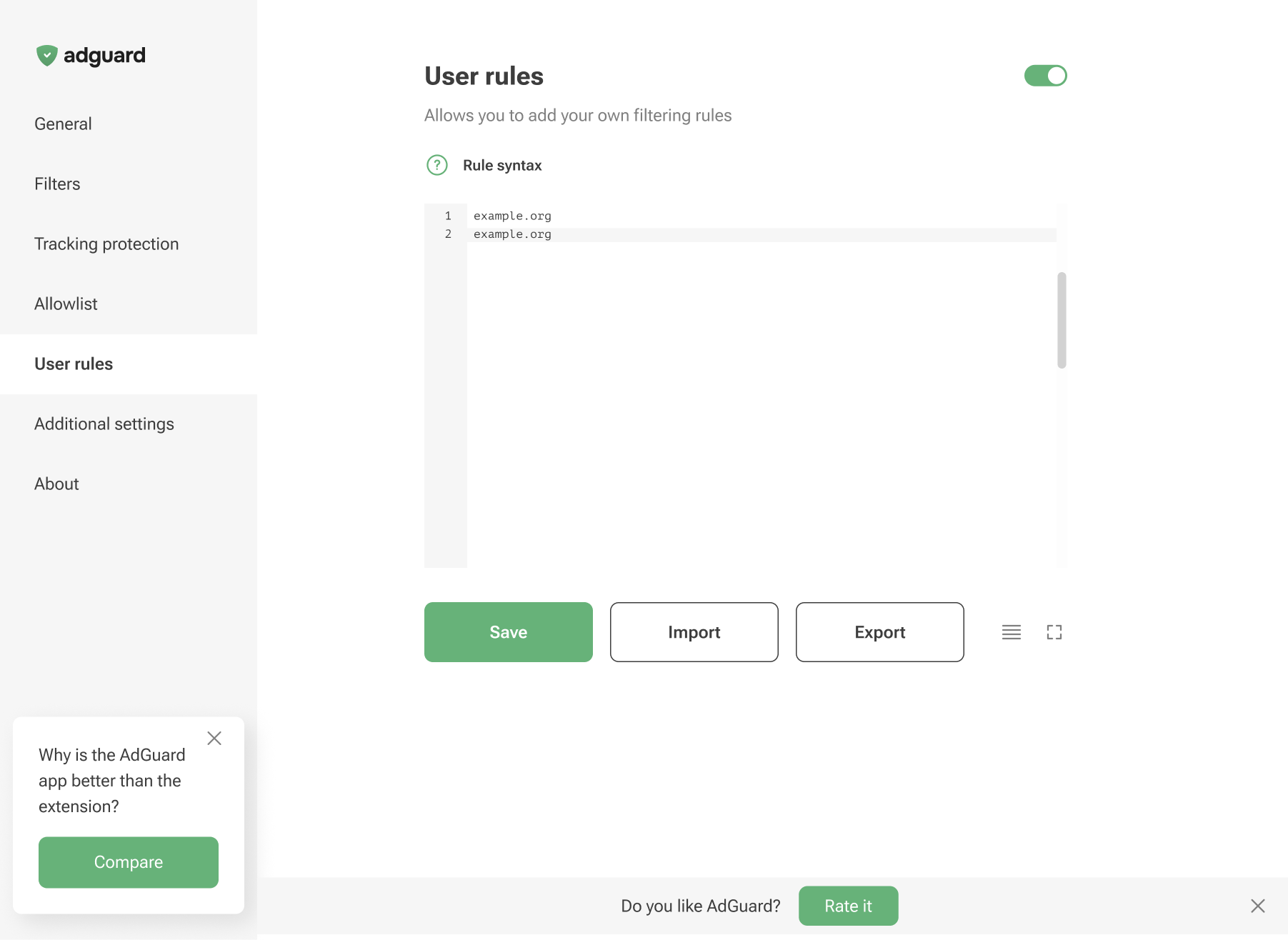
There are several ways to add new rules. The most straightforward is to just type a rule in, but it requires some knowledge of the rule syntax.
You can import a ready-to-use filter list from a text file as well. Make sure that different rules are separated by line breaks.
Importing a ready-to-use filter list is better done in the Custom filters tab.
You can export your own filtering rules. This option is good for transferring your list of rules between browsers or devices.
When you add a website to Allowlist or use the Assistant tool to hide an element on a page, the corresponding rule is automatically saved in User rules.
Allowlist
Allowlist is used to exclude specific websites from filtering. None of the blocking rules will apply to the websites on this list.
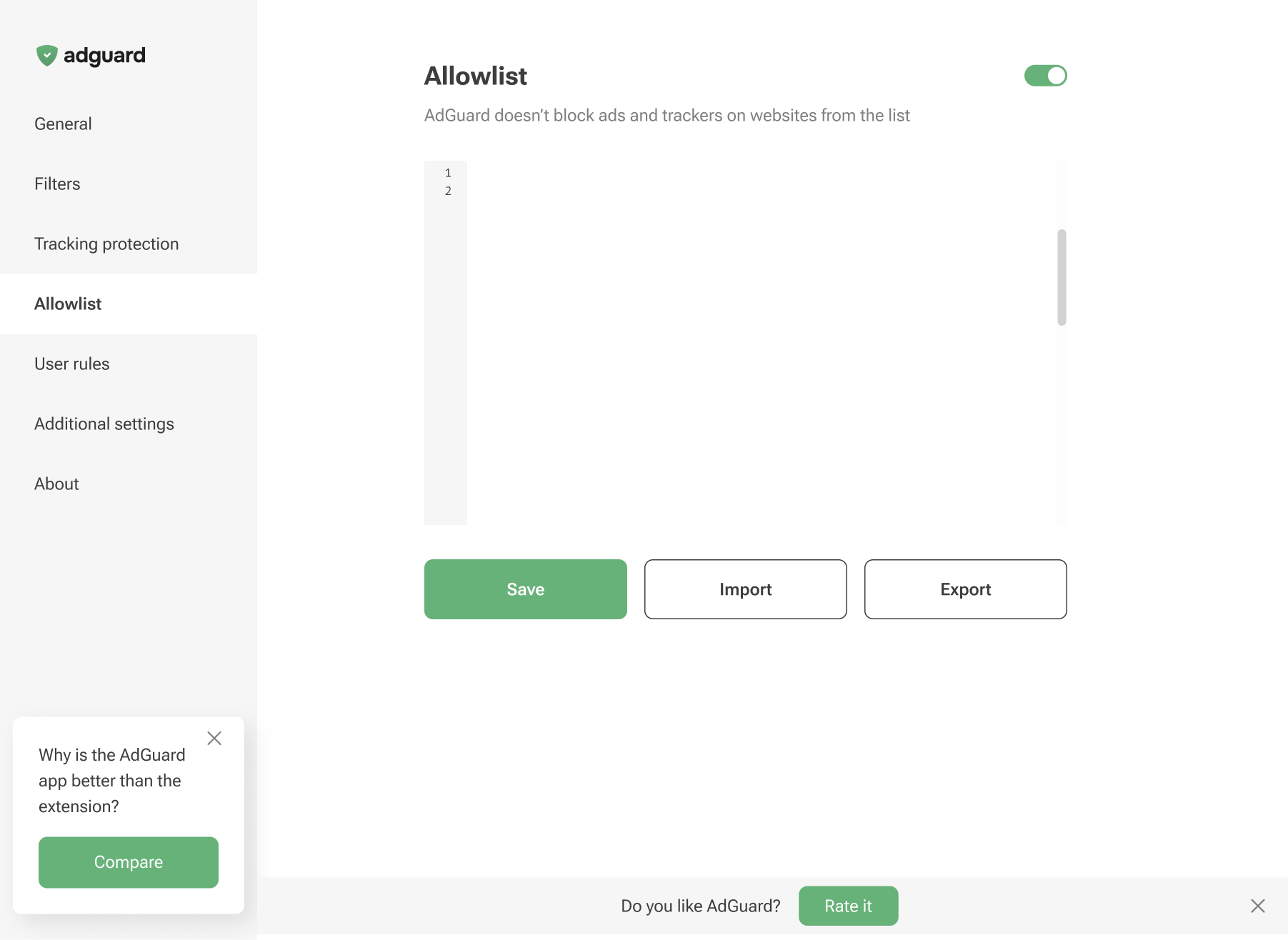
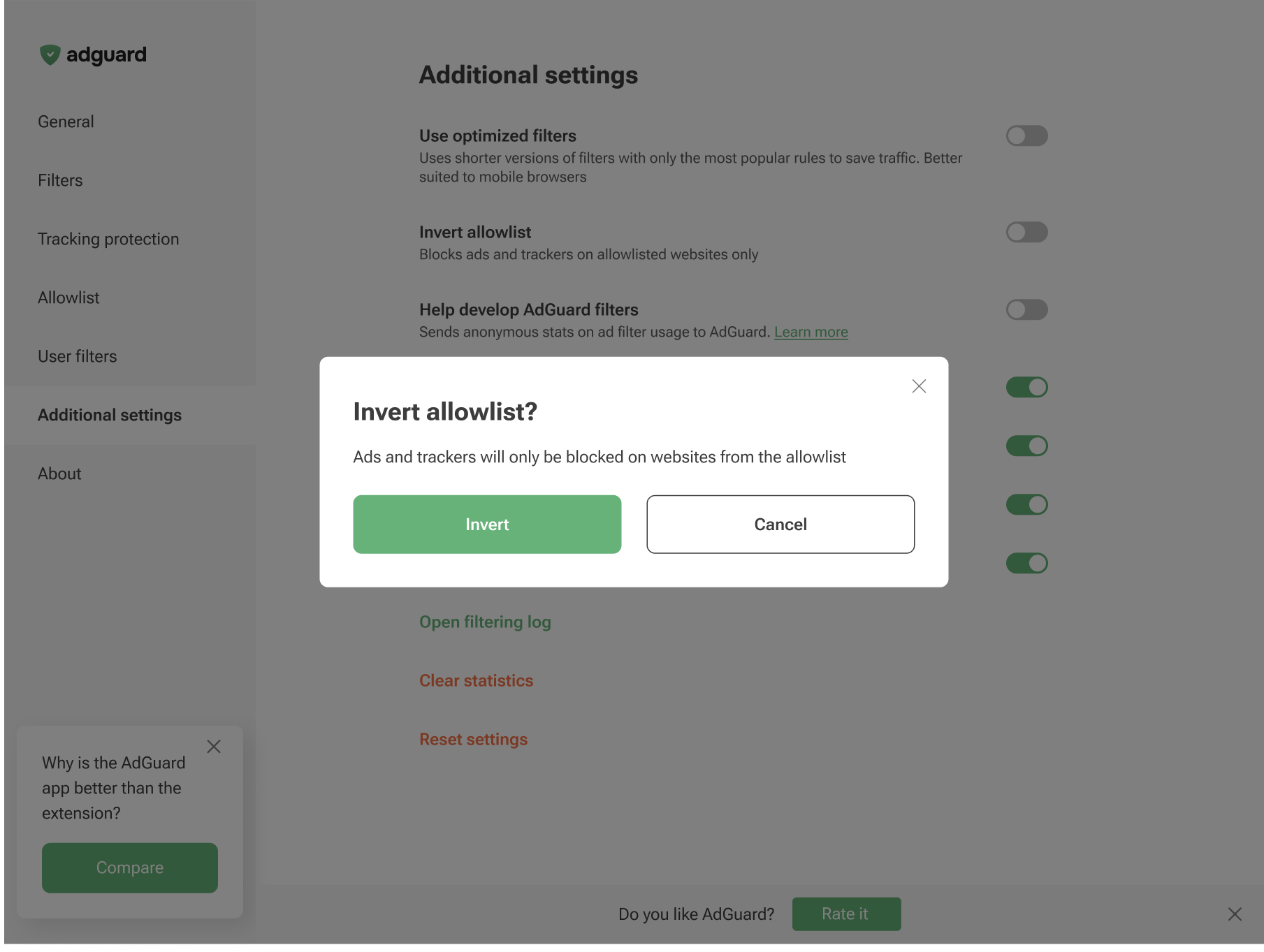
Allowlist can also be inverted, allowing you to unblock ads everywhere except on the websites added to this list. To do this, go to Additional settings and enable Invert Allowlist. Before it activates, a confirmation dialog will appear to explain how it works and prevent accidental activation.
You can also import and export existing allowlists. It is useful if you want to apply the same rules across all your browsers.