网络设置
This article describes AdGuard for Windows v8.0, a comprehensive ad blocker that protects your device at the system level. This is a beta release that is still under development. To try it, download the beta version of AdGuard for Windows.
This section lets you manage how AdGuard filters your Internet traffic and provides additional tools to control network-related features.
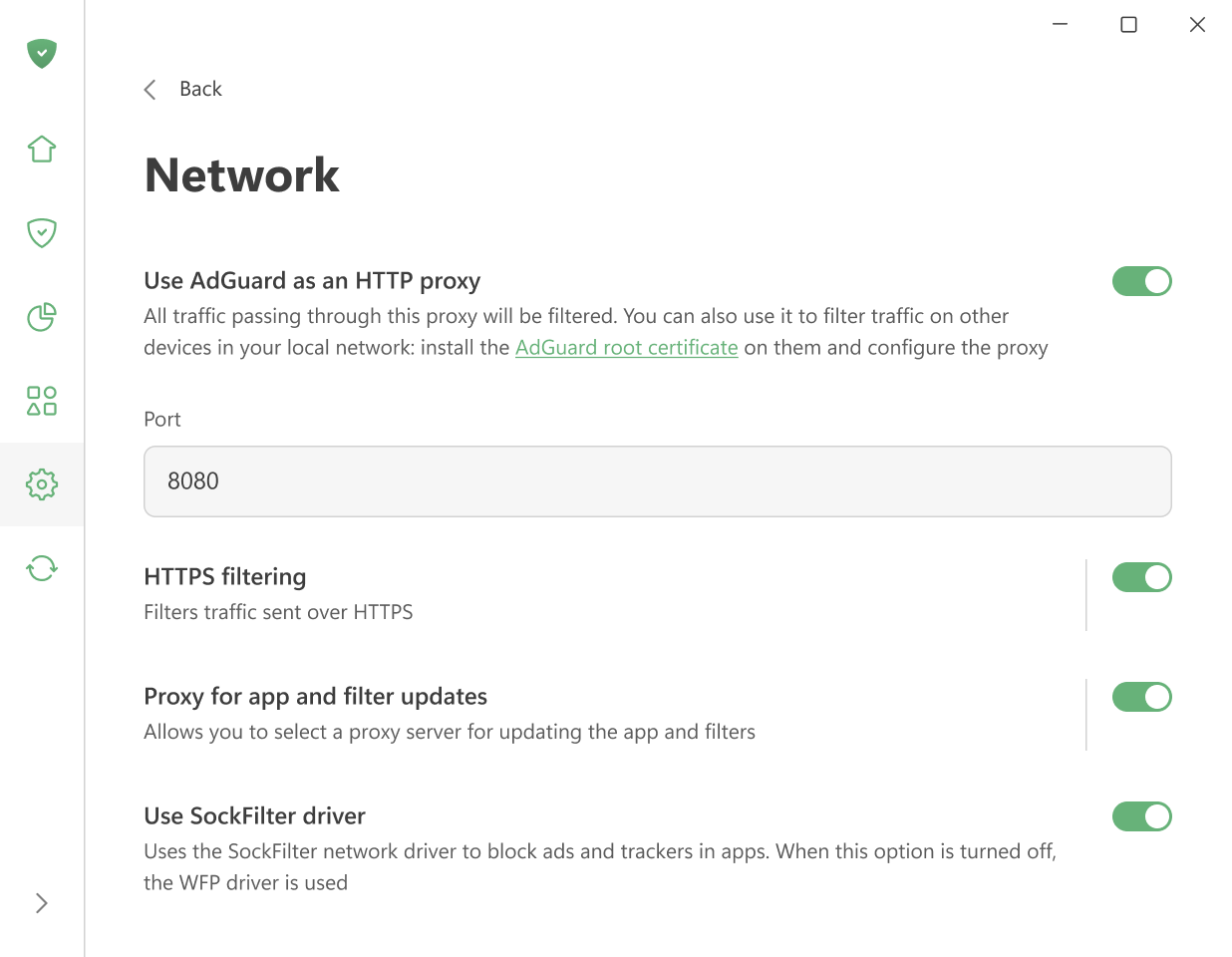
Use AdGuard as an HTTP proxy
Enable this option to make AdGuard work as an HTTP proxy. All traffic passing through it will be filtered — not only on your computer but also on other devices in your home network.
To filter traffic on other devices, install AdGuard’s root certificate on them and set up the proxy manually.
Other settings are enabled by default.
HTTPS 过滤
Most websites use HTTPS encryption today. Without HTTPS filtering, AdGuard cannot block ads on websites like YouTube, Facebook, or X (Twitter).
We recommend keeping the Filter HTTPS option turned on unless you have a specific reason to turn it off.
With this option, you can:
Reinstall or download the AdGuard certificate
Add websites to a list that won’t be filtered
Choose whether to filter websites with EV (Extended Validation) certificates
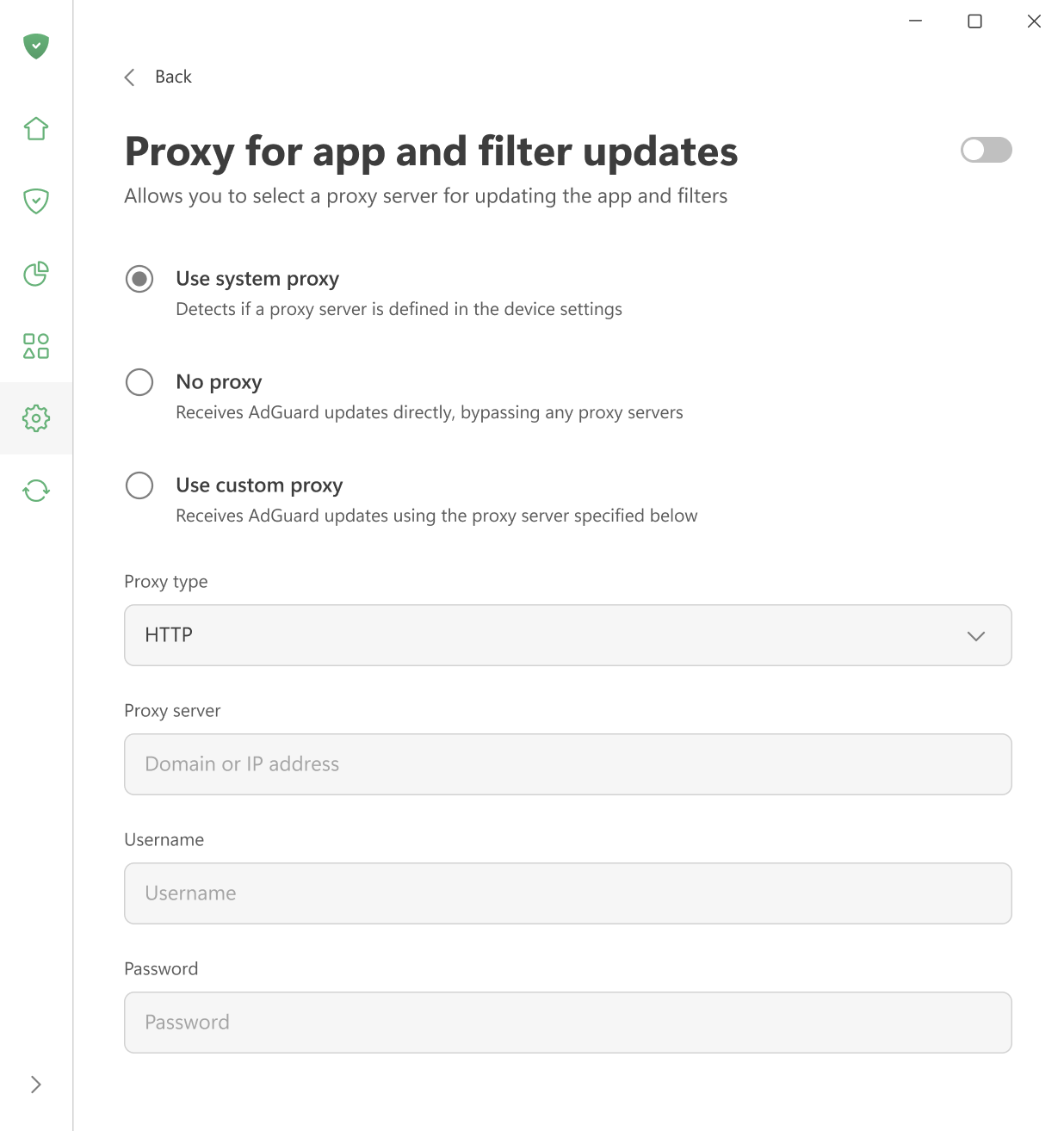
Proxy for app and filter updates
Here you can choose which proxy AdGuard should use to download filter updates or new app versions — the system proxy, a custom proxy, or no proxy at all.
Use SockFilter driver
Enable this option to use the SockFilter driver, which helps block ads and trackers in apps on Windows 8 and later.
If this option is disabled, AdGuard will switch to the older WFP driver instead.