How to export logs from the background page
Exporting logs from the background page in the extension
Chrome
-
Open AdGuard Browser Extension and, if possible, repeat the actions that led to the error. Note the exact time when the error occurred.
-
Navigate to
chrome://extensions. -
Enable Developer mode.
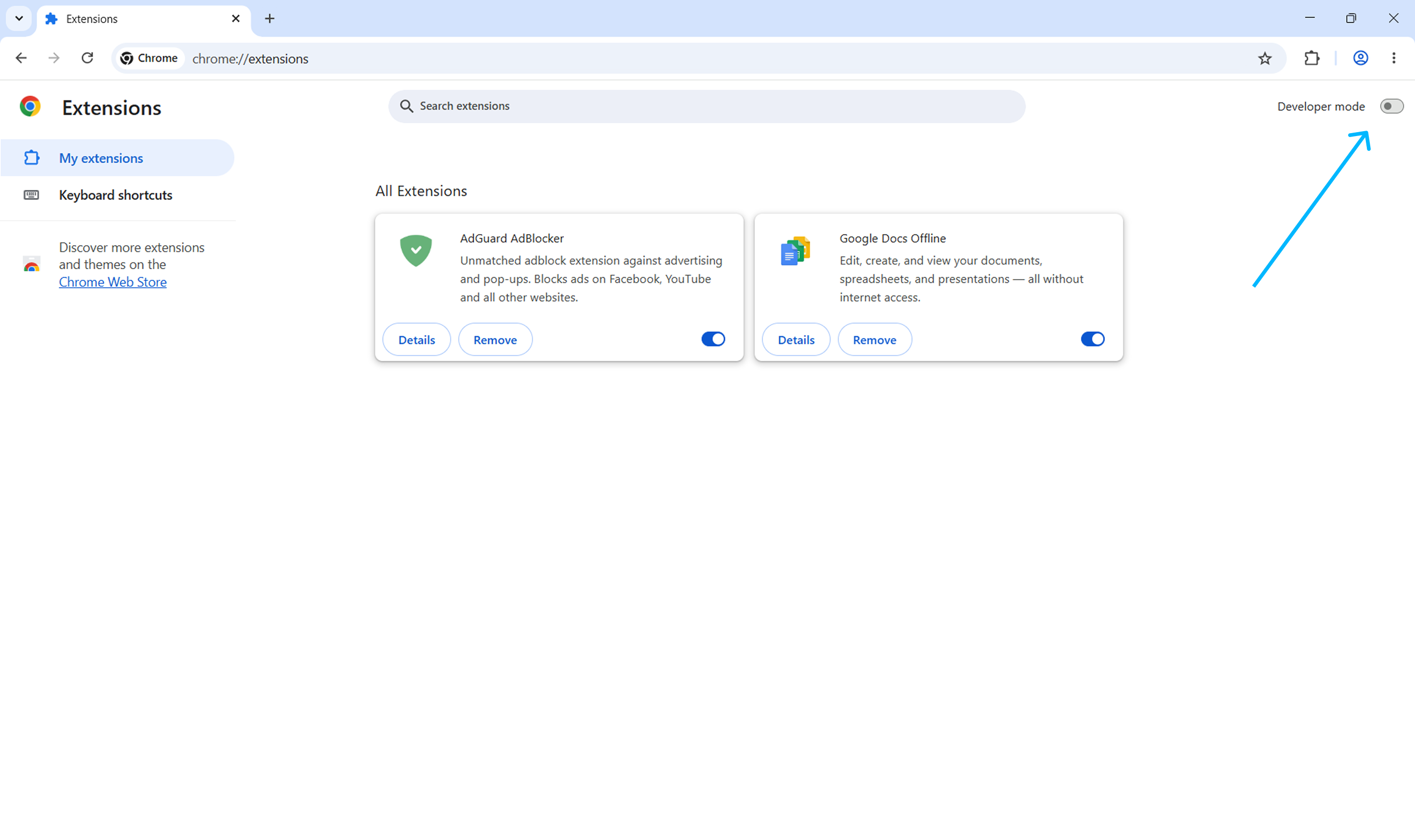
-
Find AdGuard Browser Extension and click
service worker.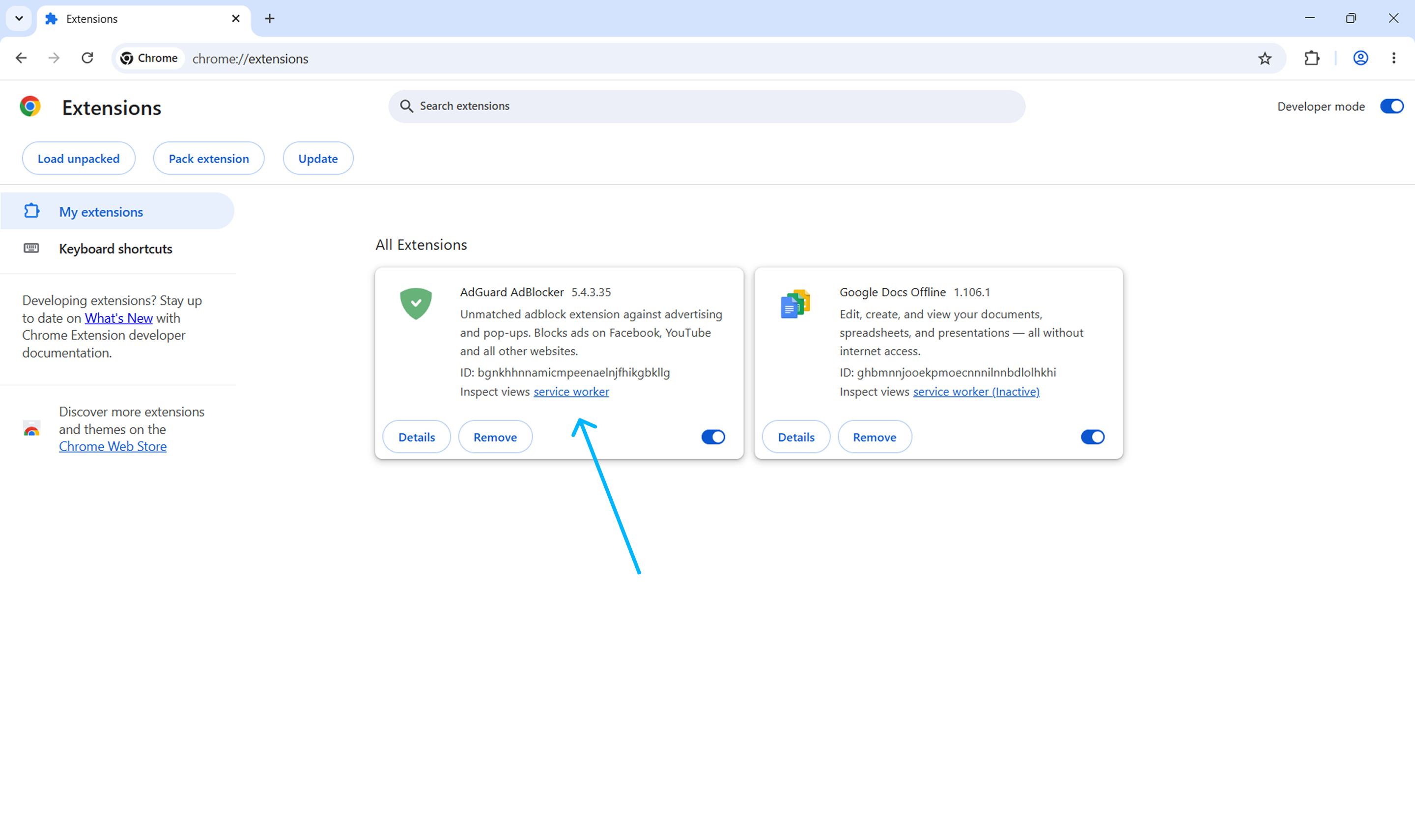
-
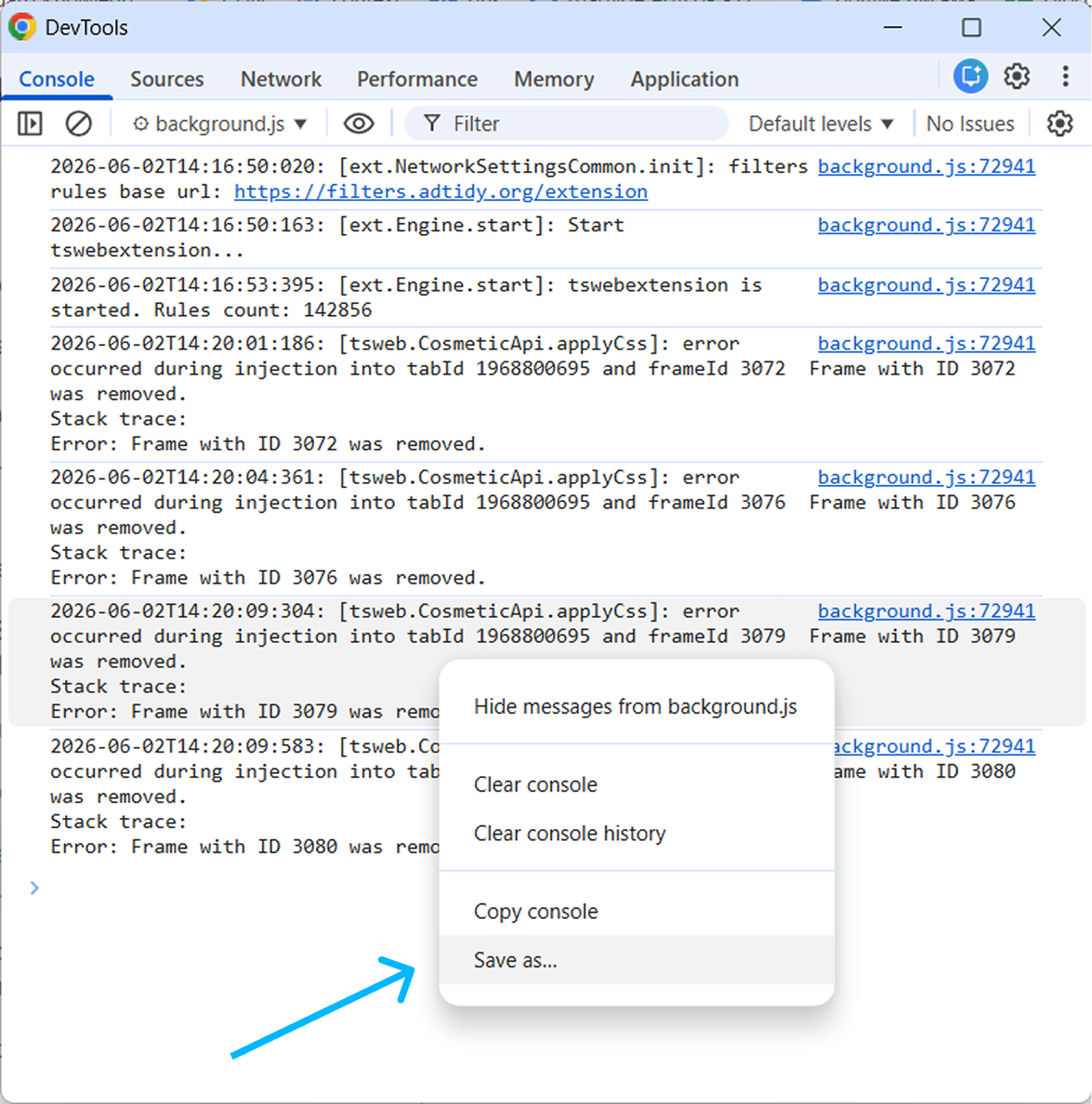
Open the tab Console, right-click anywhere inside the console area, and select Save as….
Firefox
-
Open AdGuard Browser Extension and, if possible, repeat the actions that led to the error. Note the exact time when the error occurred.
-
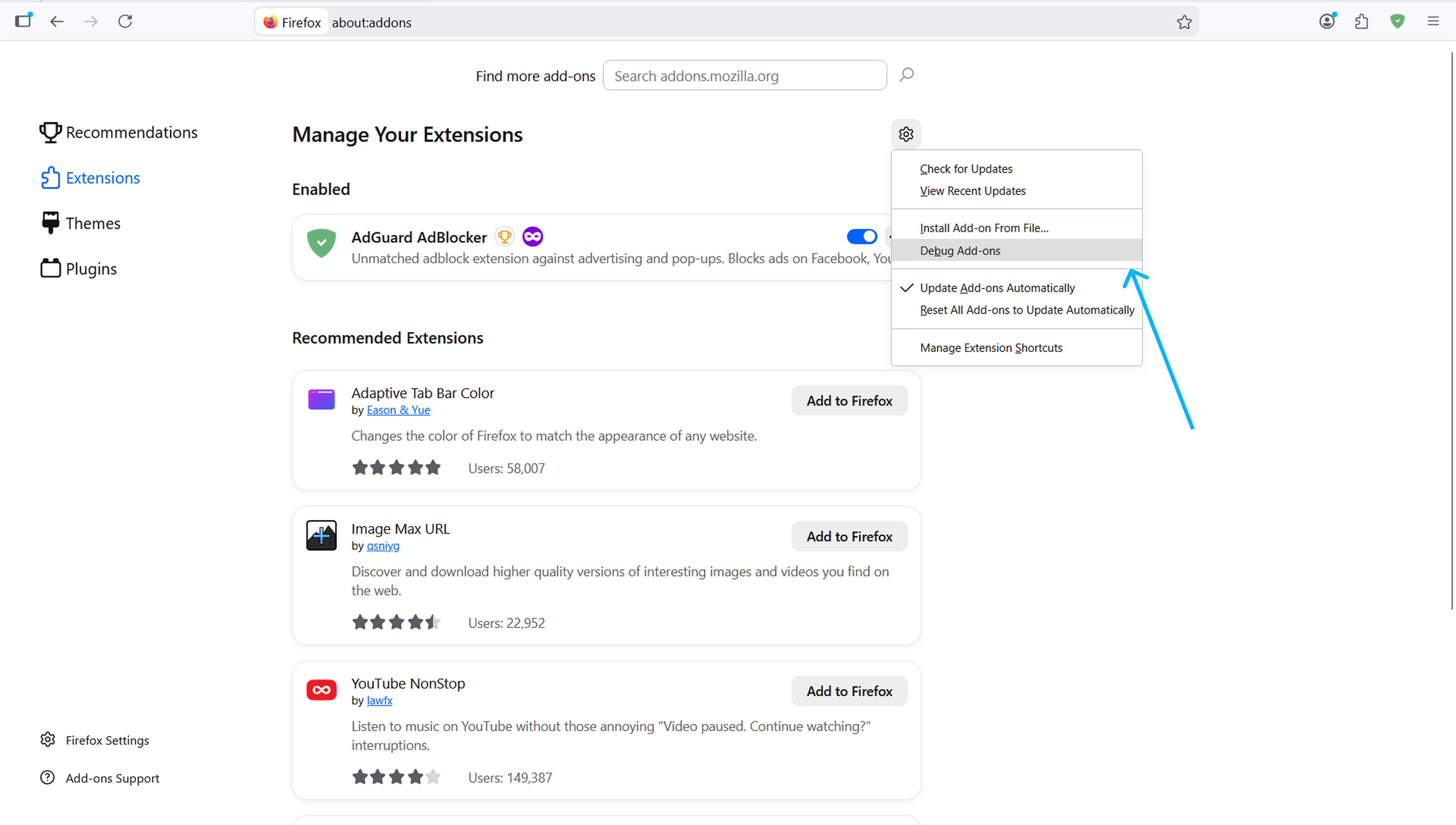
Navigate to
about:addons. -
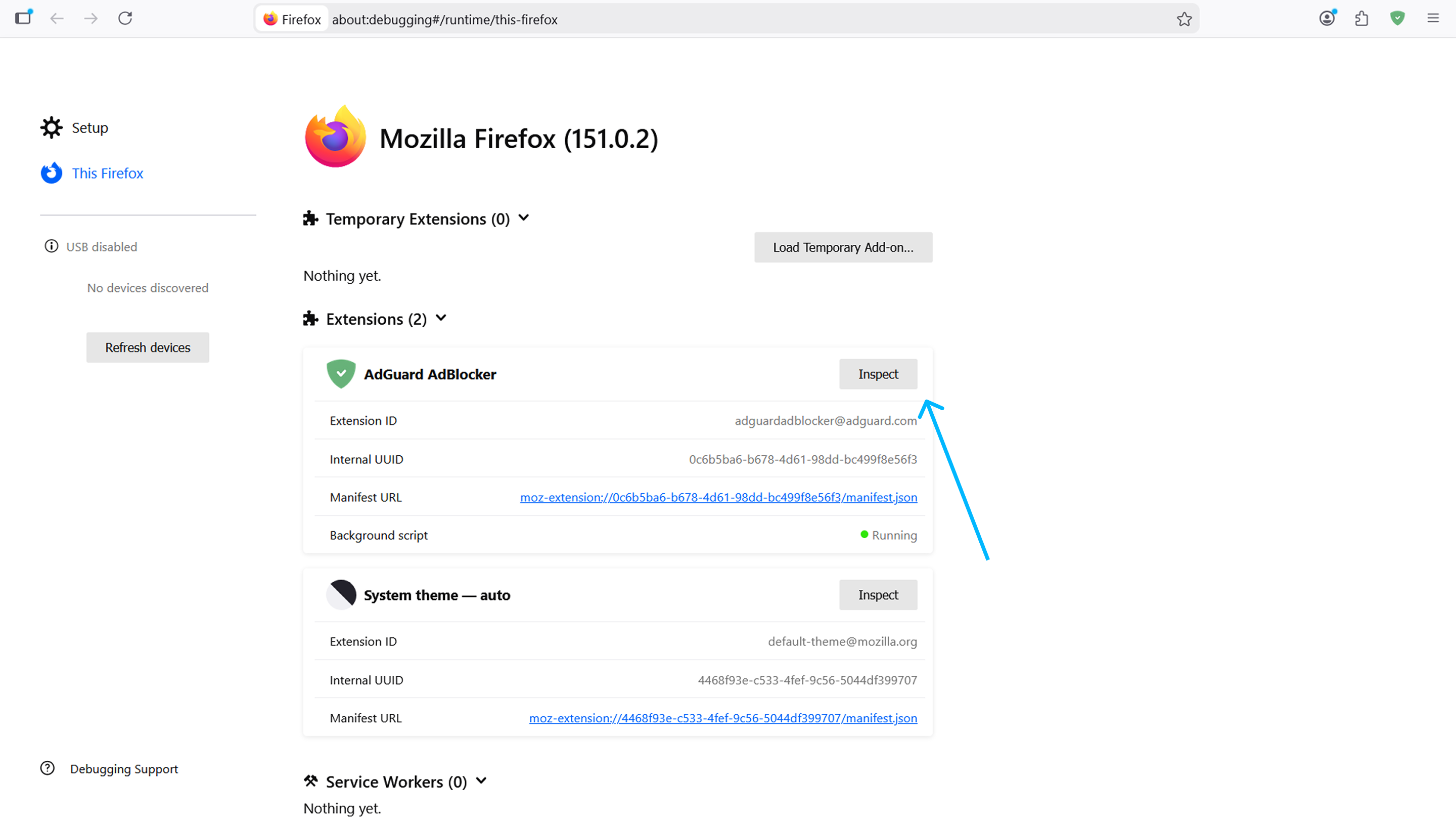
Click the gear icon and select Debug Add-ons.
-
Click Inspect.
-
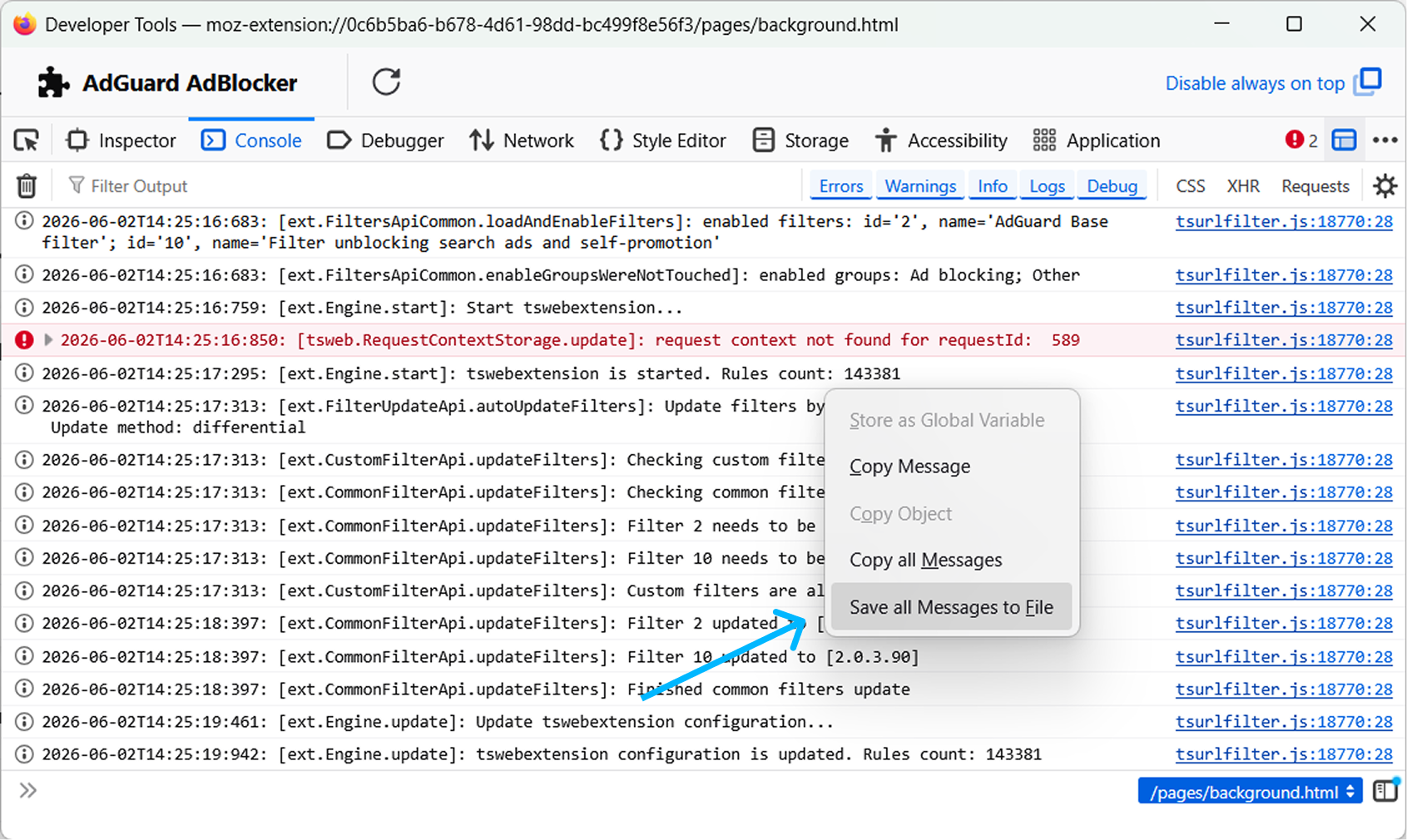
In the tab Console tab, right-click anywhere inside the console area and select Save all Messages to File.
Sending logs
AdGuard is committed to protecting your privacy. We strictly follow our Privacy Policy and do not collect any private information about users. Before sending your logs to the support team, please review the file as it may contain additional information that you don’t want to share. If it contains such personal information, we recommend that you delete it first.
Now that you have collected the logs, please follow these steps to submit them to our development team:
- Report the bug on GitHub.
- Send your archive with logs and playback time to
devteam@adguard.comand add a link to your GitHub issue. You can also upload the archive to Google Drive and add the link to it instead of attaching the file.