7 simple privacy habits for studying with AI
Whether you’re studying for a degree, developing professionally, or simply taking a course to keep your brain from turning to mush, chances are AI will be part of the process. Yes, letting AI serve up answers on a silver platter can undermine learning and critical thinking, especially since a confident-sounding answer can still be wrong. But used as a tutor, AI can genuinely help you learn, and refusing to use it altogether is already becoming a disadvantage.
But making AI work for you comes with a catch: once you share something with an AI service, you may not be able to fully take it back. A single study prompt, screenshot, or document can reveal your identity, private conversations, unpublished research, and sometimes other people’s sensitive data too. These seven habits will help you use AI without sharing more than you intended.
Jump to:
1. Files and screenshots · 2. Work and research data · 3. Group chats · 4. Personal essays · 5. Managed and shared devices · 6. AI data settings · 7. Sharing AI chats
1. Send the relevant excerpt, not the whole file or screen
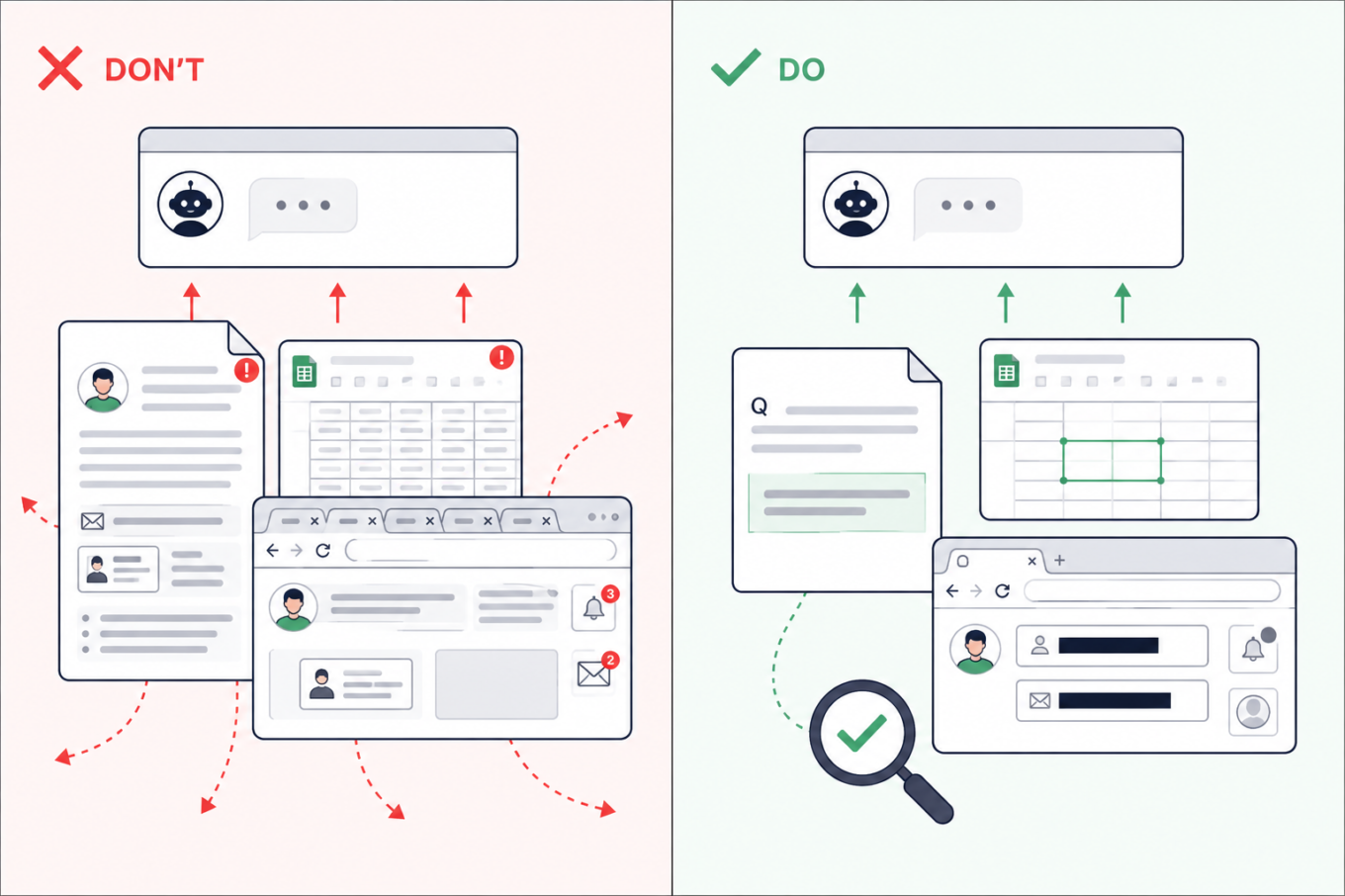
The situation: You ask an AI assistant to review an assignment and upload the file with your name, email, class, and your tutor’s comments. For statistics homework, you send it the spreadsheet your group has been working in, complete with your classmates’ names, email addresses, and study year. Or you take a quick screenshot of something on your learning platform, forgetting that the browser window also shows your pinned tabs, open chats, account name, and notifications.
What are the risks: Once those details are uploaded, they are no longer sitting only on your device. They may be saved alongside the conversation and become part of AI training material. And if someone gets into your account or the AI service suffers a data breach, a quick request for study help could expose your personal information, your classmates’ details, or both. It is surprisingly easy to share too much. One university official wrote on Reddit that they had uploaded photos of sign-up sheets to Gemini, only to realize to their horror afterward that the images contained around 200 students’ email addresses. In Australia, a government employee uploaded a spreadsheet to ChatGPT containing names, contact details, addresses, dates of birth, sensitive health information, and financial commentary. The incident was classified as a data breach affecting over 2,000 people.
What to do: Give AI only what it needs, not everything you have. Paste the relevant passage and take a few seconds to check files and screenshots for names, email addresses, IDs, notifications, or anything else you did not mean to share.
2. Check which AI tools are approved before using work or research data
The situation: Many of us juggle work and study, so material from one easily finds its way into the other. Sometimes that is not carelessness: real company data may be part of the learning process. While working on an assignment in your personal AI account, you might ask the AI assistant about code from work, upload a company spreadsheet for data-analysis practice, or request feedback on an unpublished dissertation chapter.
What are the risks: A personal AI account may not have the protections or defaults required by your employer or university. Uploading confidential material could break an NDA or internal policy — and if the account or service is compromised, that information could be exposed. This has already caught people out. Samsung restricted generative AI after employees reportedly shared confidential source code and meeting information with ChatGPT. A PhD student also claimed on Reddit that findings from uploaded dissertation chapters later appeared in answers generated for a friend.
What to do: Use an AI service approved by your employer or university and remove details the tool does not need. If there is no approved service, keep company files, client information, unpublished findings, and anything covered by an NDA out of AI. You can still describe the problem in general terms without pasting the confidential material itself.
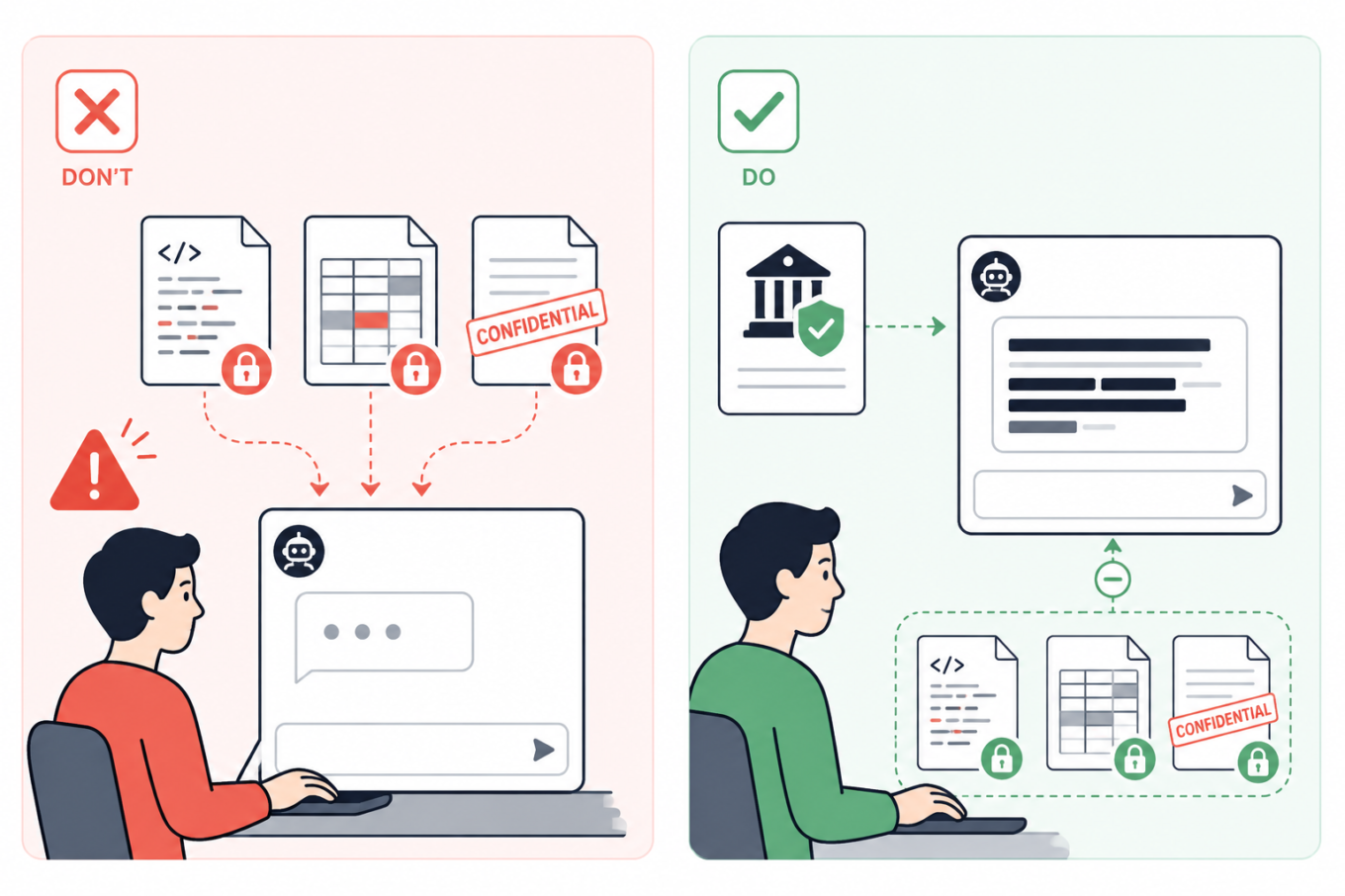
3. Summarize group chats yourself — or remove every name first
The situation: Your class or project chat has hundreds of messages, so you ask AI to summarize the decisions, deadlines, and tasks. But the screenshots or exported chat may also bring along people’s names, phone numbers, profile photos, personal comments, and arguments that have nothing to do with the assignment.
What are the risks: A group chat can reveal much more than expected: who people are, how to contact them, and what they discuss. Once sent to an AI service, those details may be stored with the conversation. If your account or the service is compromised, they could be exposed and help scammers create much more convincing phishing messages.
What to do: If possible, write a quick summary yourself and ask AI to turn it into a task list, meeting notes, or a study plan. That way, the assistant gets the information it needs without seeing the original conversation. If you do need to paste messages, remove names, usernames, phone numbers, profile photos, and other identifying details. Where the speakers matter, replace their names with labels such as Student A and Student B.
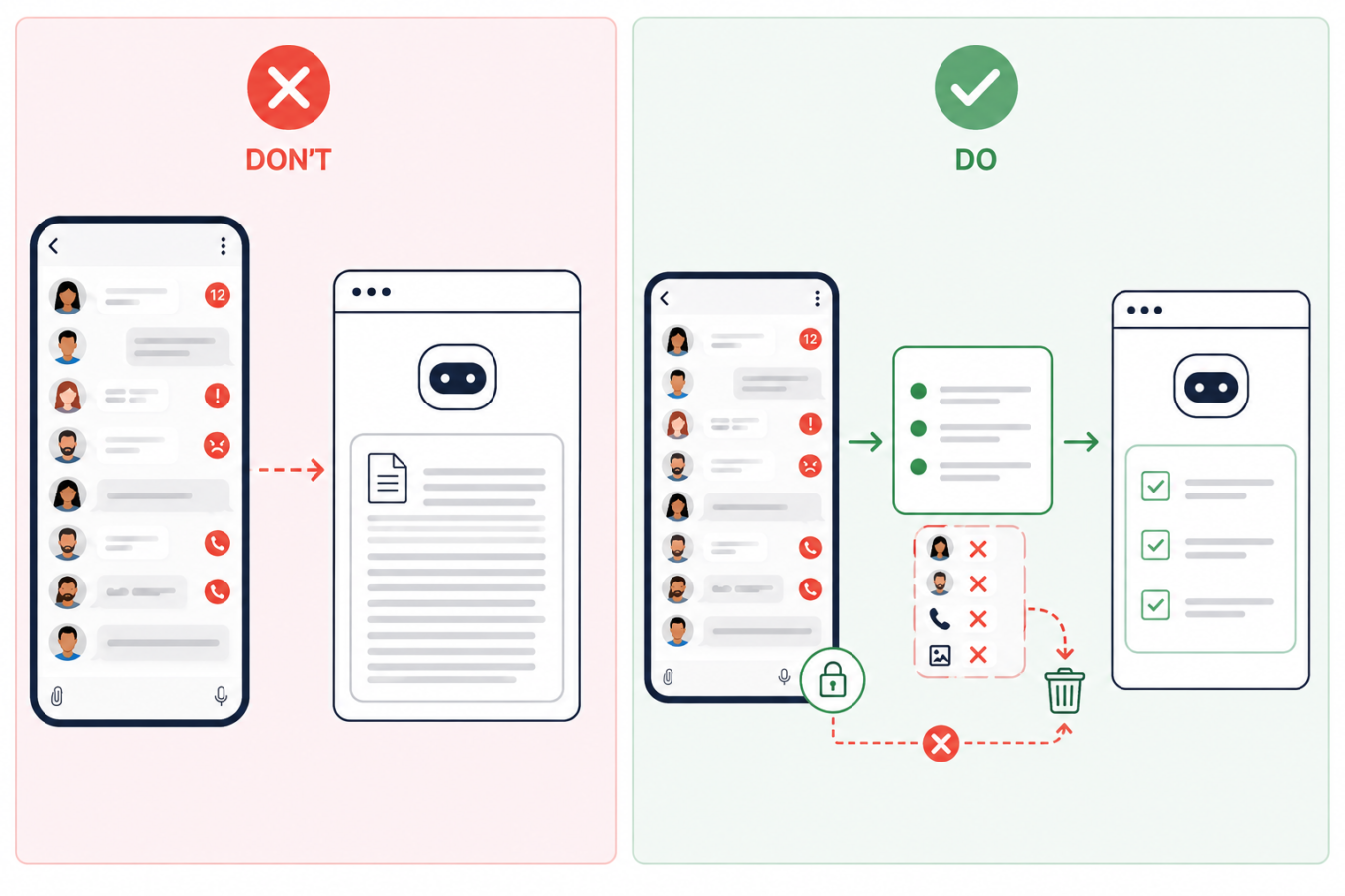
4. Remove identifying details from personal essays
The situation: You ask AI to edit a course application, scholarship form, résumé, cover letter, or a piece about your personal experience. Because more context often produces a better answer, it may be tempting to share a lot about your work, location, finances, health, or family.
What are the risks: A prompt does not need to contain your name to identify you. A distinctive combination of places, dates, institutions, and life events may be enough — and once the conversation has been stored, shared, or exposed, those details are difficult to take back.
What to do: Keep the context AI genuinely needs, but remove names, contact details, student numbers, exact dates and locations, and unnecessary references to a specific school or employer. A good rule of thumb is to write sensitive prompts as though the conversation could eventually become public.
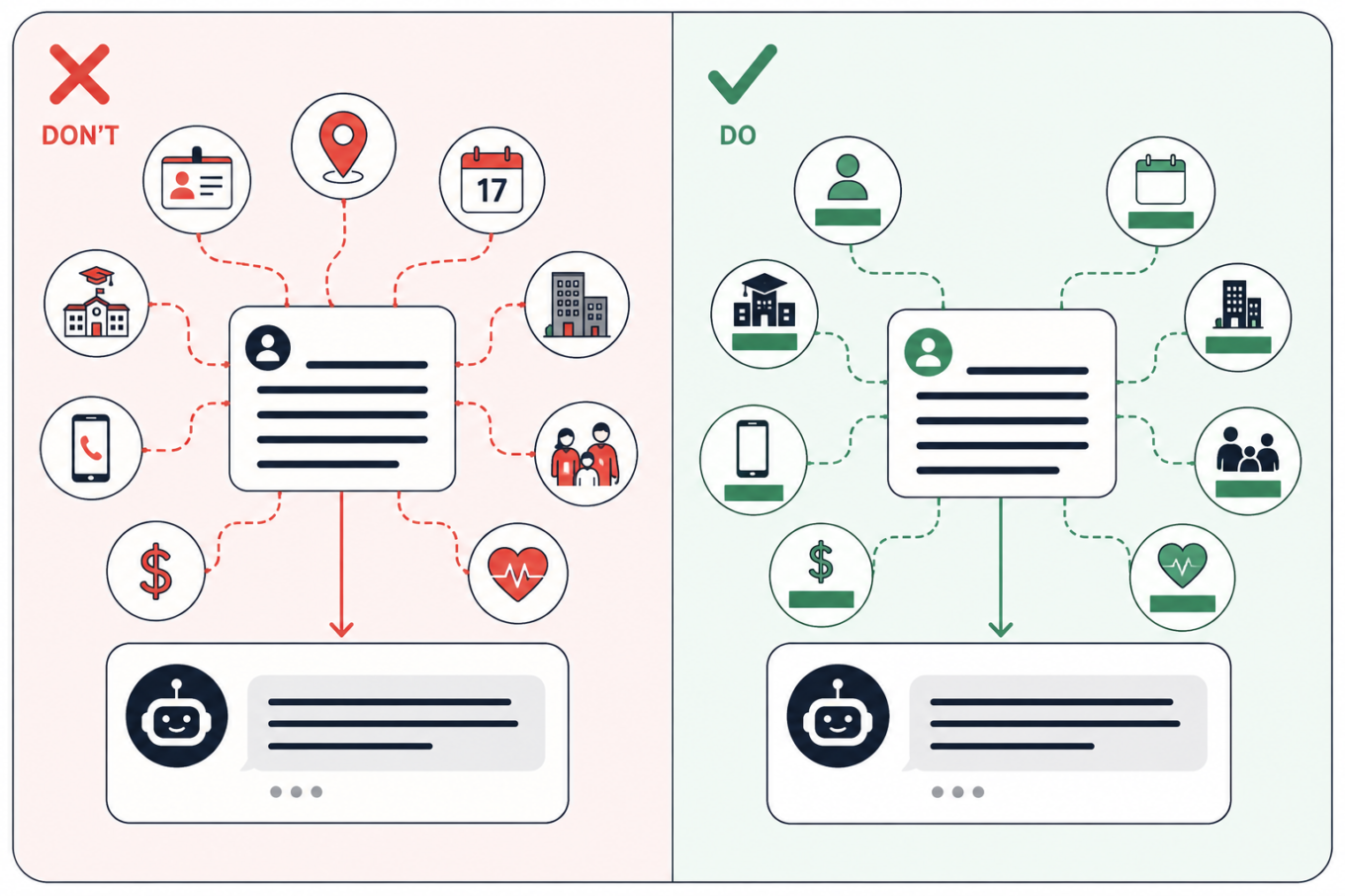
5. Keep personal searches off managed and shared devices
The situation: You open an AI assistant on a school or work laptop, or on a shared computer in a library. You start with a study question, but because the conversation feels private, you gradually drift into personal topics.
What are the risks: The device or account other than your own or created by you may be monitored — and if you forget to log out of a shared computer, someone else could read your chats. Monitoring tools can scan messages, documents, and searches for signs of violence, self-harm, or other concerning behavior. They do not always understand context. In one case reported by the Associated Press, software flagged a joke written by a 13-year-old in a monitored school chat. She was arrested, interrogated, strip-searched, spent a night in jail, and was later placed under house arrest. That case is extreme, but the same privacy risk applies to shared computers in libraries, coworking spaces, and other public places too.
What to do: Assume that activity on a managed device or account may be visible to the institution. Keep personal conversations, private writing, and sensitive searches on your own device and account. Incognito mode may hide local browser history, but it does not stop monitoring built into the device or school system.
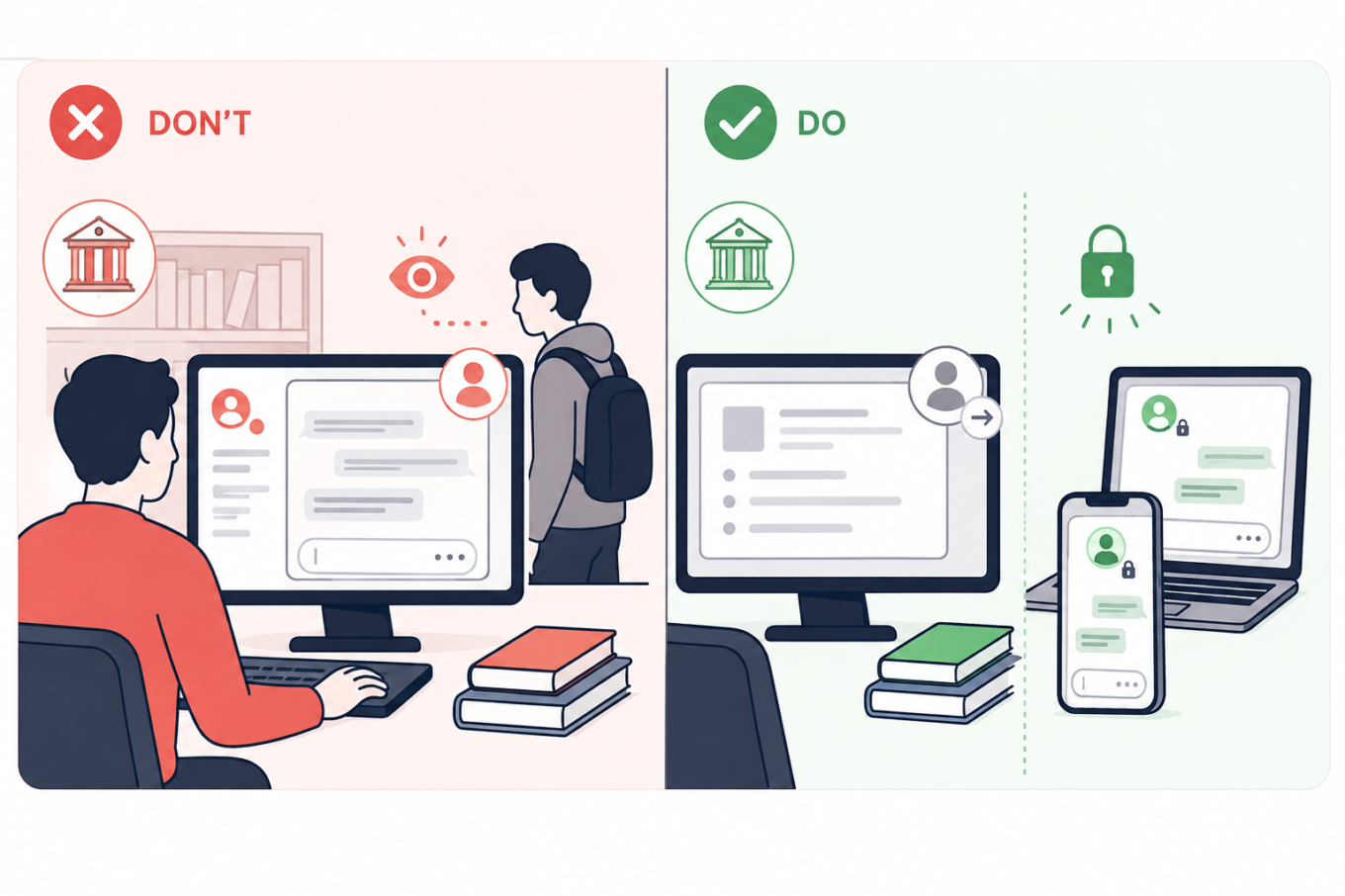
6. Turn off model training and use temporary chats for one-off questions
The situation: You use AI to summarize notes, check an assignment, or turn course materials into practice questions.
What are the risks: Depending on the service and settings, your prompts, replies, and uploaded files may remain in your chat history; details may carry into future chats; human reviewers may read some exchanges; and your content may be used to train AI models. Turning off memory does not necessarily stop training or delete past chats. In ChatGPT, regular chats remain in your history even if you turn off model training. Temporary chats are not saved to history and not used for training, but OpenAI may still retain them for up to 30 days, during which they may be reviewed. With regular Claude chats, content allowed for training may remain in de-identified training systems for up to five years, while deleted chats are normally removed from the back end within 30 days. Gemini warns that human reviewers may read some of the data it collects.
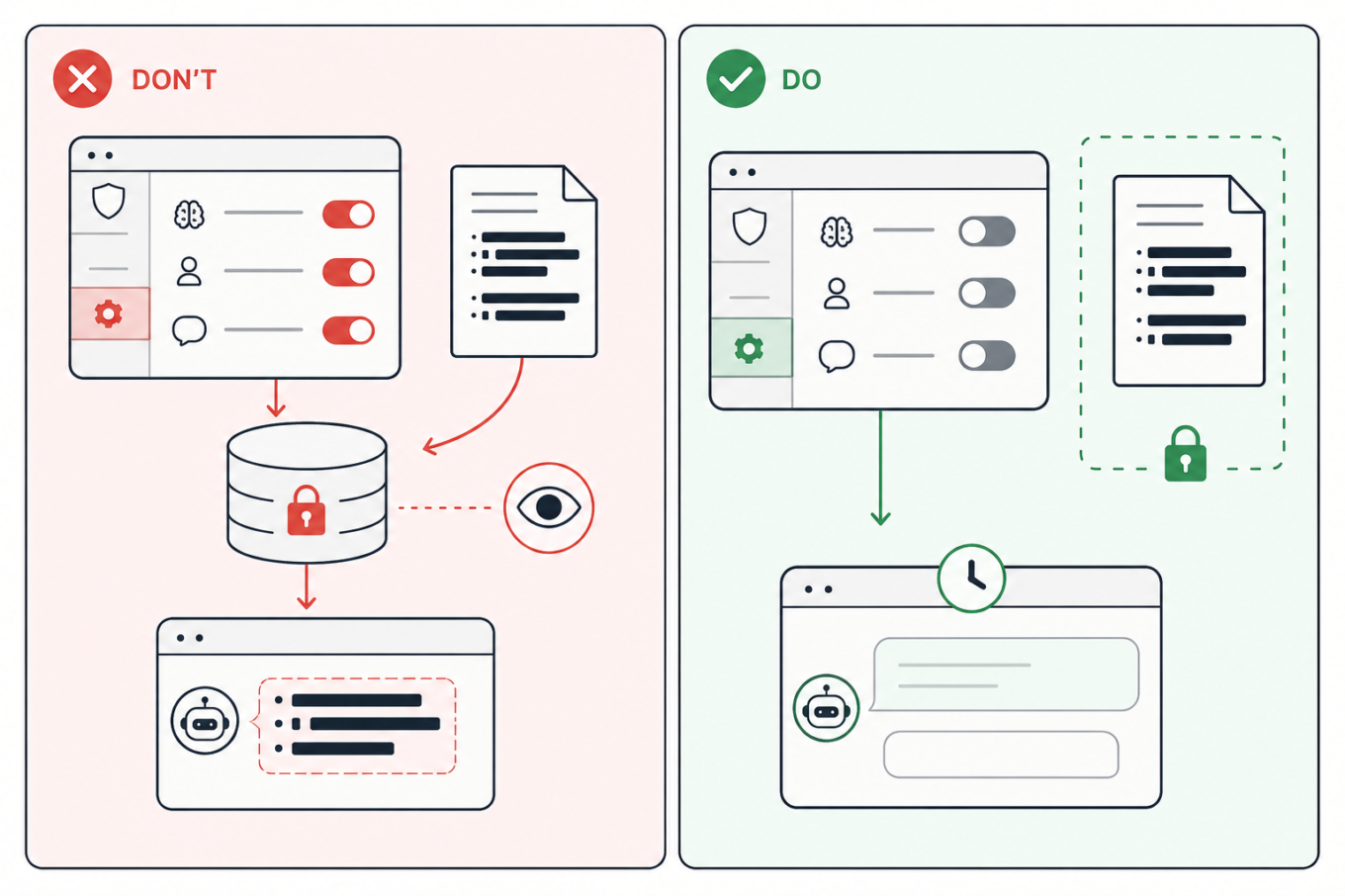
What to do: Check the service’s Privacy, Data Controls, Activity, or Model Improvement settings. Turn off optional training and use a temporary or incognito chat when you do not need to keep the conversation. Still, leave sensitive information out: the service has to process anything you send and may keep a copy for some time.
7. Move the answer to a clean chat before sharing it
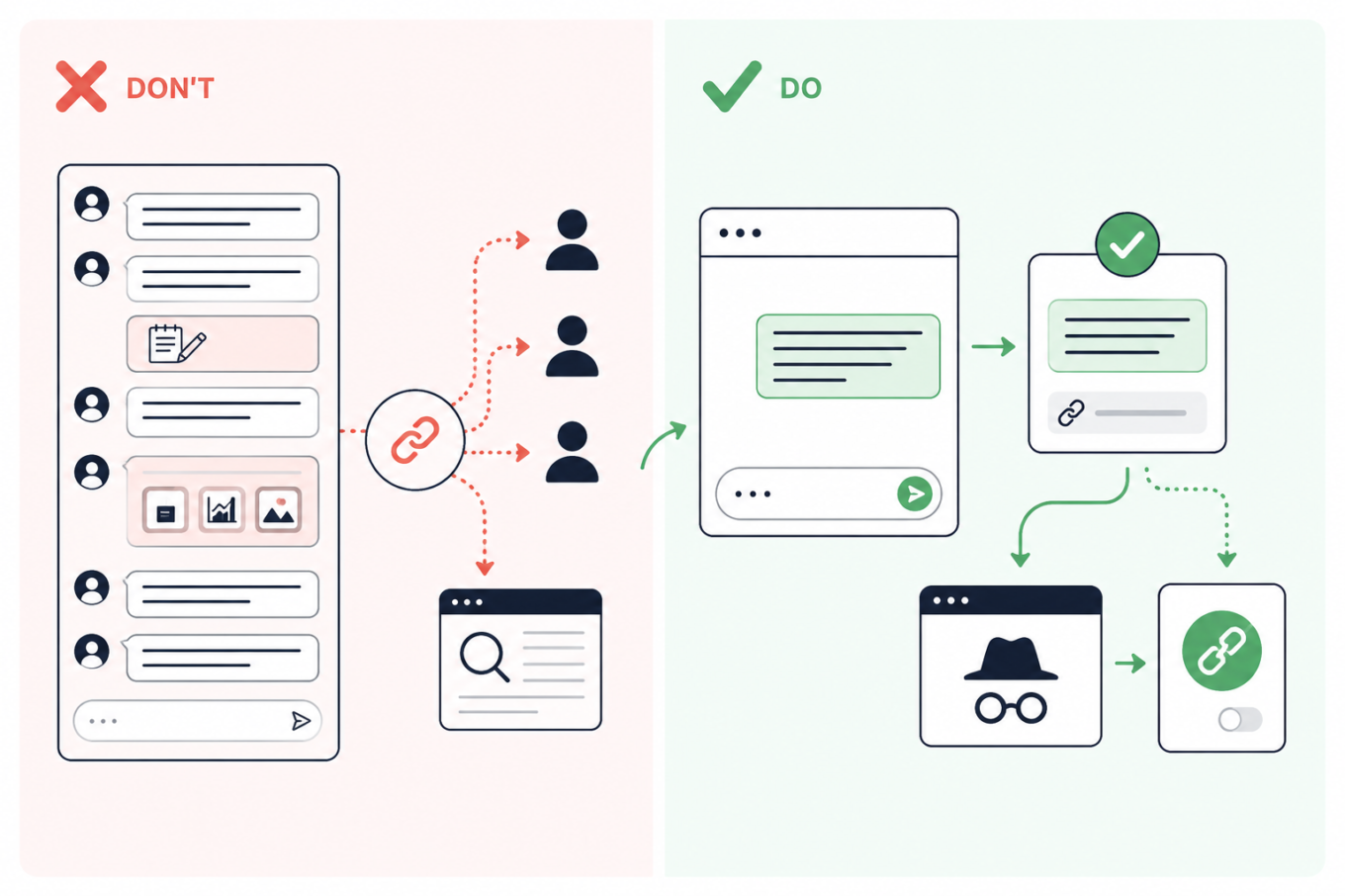
The situation: You ask AI to help with an assignment, gradually adding notes, files, and personal context. Once the useful answer is ready, you create a link to send it to a classmate or someone else.
What are the risks: A share link may reveal the whole conversation, not just the answer you meant to send. Anyone who opens it could also see earlier prompts, then forward or save them. Some public links may also appear in search results, either directly or after being posted elsewhere. This has already happened on a large scale: one researcher collected nearly 100,000 publicly shared ChatGPT conversations, while more than 370,000 Grok chats reportedly appeared in search results, some containing personal information, business files, and a password. Public Claude links reportedly exposed health records, internal documents, and children’s contact details too.
What to do: Avoid sharing the original study chat. The safest option is to copy only the answer you need into a separate document and share that. But if you want others to see that it came from AI, ask the same question again in a clean chat, and check the full sharing preview. Open the link in a private browser window to see what others will see. Delete the shared link when it is no longer needed but remember that this cannot erase copies someone has already saved.