Ad blockers don’t just block ads — they save time and bandwidth. AdGuard Web Performance Report 2025
There’s no mystery behind why people block ads — they’re intrusive, loud, exhausting… The list could go on and on. But there’s another reason why you would want to nip ads in the bud, and it doesn’t have anything to do with emotions they invoke in you.
For ads to show up on your device, they have to be loaded first, and loading them consumes traffic and time. By blocking ads, you not only spare your nervous system from another assault, but also save time and data. Trackers aren’t much better in that regard. They are usually less traffic-consuming than high-res banners and lengthy video ads, but there are a lot of them, and it adds up.
So we thought: how heavily ads and trackers tax your connection? How much bandwidth do you spend on loading ads that frustrate you and tracking scripts that spy on you? How much faster would webpages load when not burdened by unnecessary clutter? To find answer to all these (and some other) questions, we conducted a research, and in this article we’d like to share with you our findings.
What we measured
Before we do that, here is a little more detail about how exactly we went about doing the research. We took the list of top 100 U.S. news sites and publishers (by search visibility) from the NewzDash portal and combined it with a similar top 100 news websites list by FeedSpot. This yielded 173 unique domains, reduced to 119 after excluding the domains unsuitable for our measurements.
With the final list of test domains on hand, we wrote a script that with the help of the Puppeteer JavaScript library would load every website on the list three times and measure the following:
- The average number of requests your browser sends when you visit the page
- The average amount of traffic consumed to load the page
- The average time it takes to load the page
Every time before loading the page the script would also clear the browser cache and delete all cookies to ensure the purity of the experiment.
We repeated the entire process three times, first to obtain baseline data without any interference, and then to measure how two different types of ad blocking affect the results: ‘regular’ web filtering and DNS filtering. For the tests we used the latest available versions of Chrome browser, AdGuard Ad Blocker Chrome browser extension, and AdGuard DNS (at the time of conducting the research, March 13th 2025).
Whenever we use the term ‘ad blocker’ in relation to the research further down the text, we refer to the AdGuard Ad Blocker browser extension. Note that standalone AdGuard Ad Blocker desktop apps would likely provide very similar results.
Saving (your) private bandwidth
To successfully display a page, your browser needs to load a bunch of elements: text, fonts, images, just to name a few. Some elements demand more bandwidth to load than others. For example, a video will probably cost you far more than some JavaScript file. But there are elements that don’t contribute much towards your surfing experience or are outright harmful — ad banners and videos, scripts that track your online behavior. In many cases you can safely block the loading of these elements to save traffic with no negative consequences, and our research will help put those savings into numbers.
Without ad blocking it took us 689.05 MB to load all 119 websites, or about 5.79 MB per one website on average. This might not sound like too much by modern standards, considering we go around streaming videos and uploading high-res photos. But keep in mind that this is just for one website — and we haven’t done anything yet beyond simply loading the page. Furthermore, 14 out of 119 websites demanded over 10 MB of data to load, and 3 of them — over 15 MB. The portal abc13.com took the cake with 15.85 MB.
When we introduce ad blocking, the numbers immediately plummet, which is best illustrated by this graph:
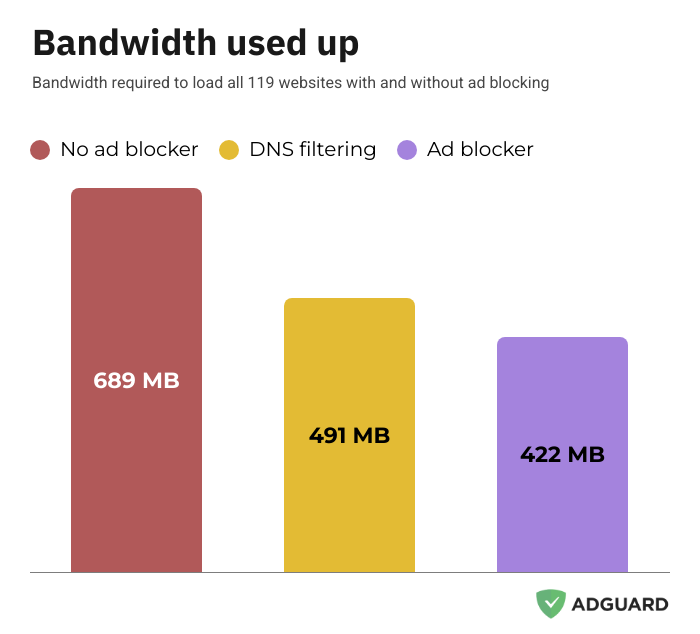
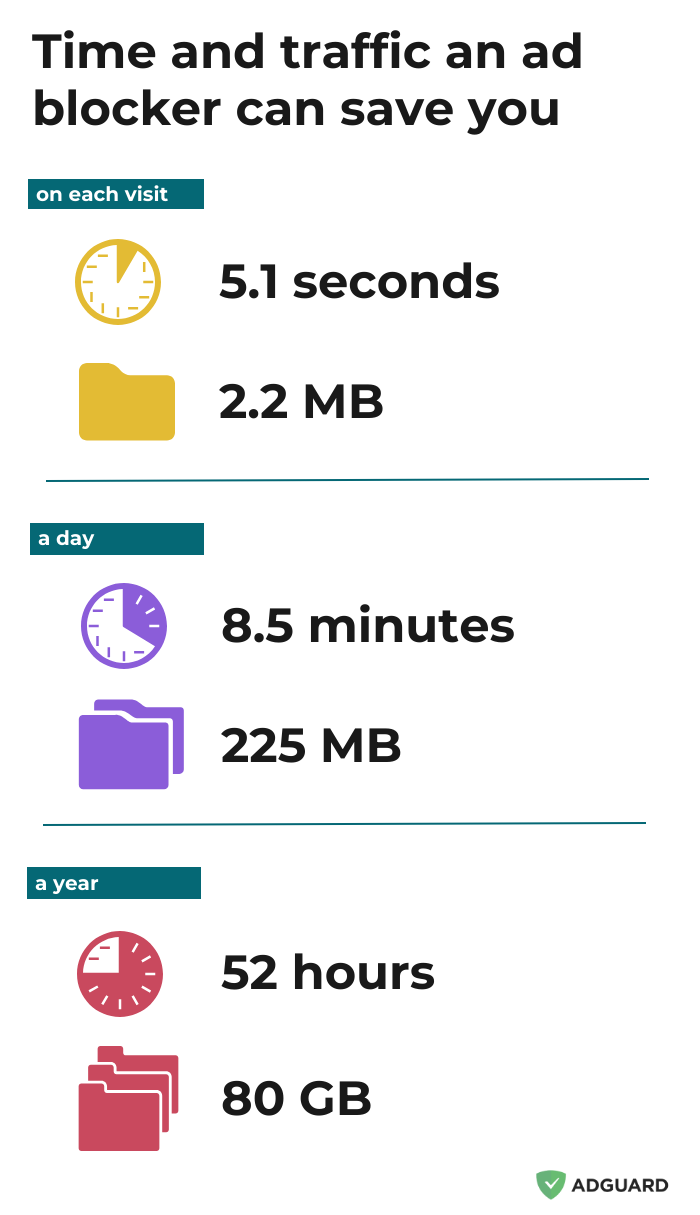
With AdGuard enabled, we saved a total of 267.42 MB across all 119 websites from the list. That’s over 2.2 MB shaved off the bandwidth required to load a single website on average. Looking at some of them in particular, we can see a truly mindblowing difference: we managed to save 11.48 MB when loading phillyvoice.com with an ad blocker. Using DNS filtering instead of a regular full-featured ad blocker was certainly much better than nothing, although not as effective. Total savings amounted to 198.52 MB (1.67 MB per single website on average).
As we have already mentioned, when loading a page, the consumed bandwidth often closely correlates with the amount of requests sent by your browser. Our research data confirms this:
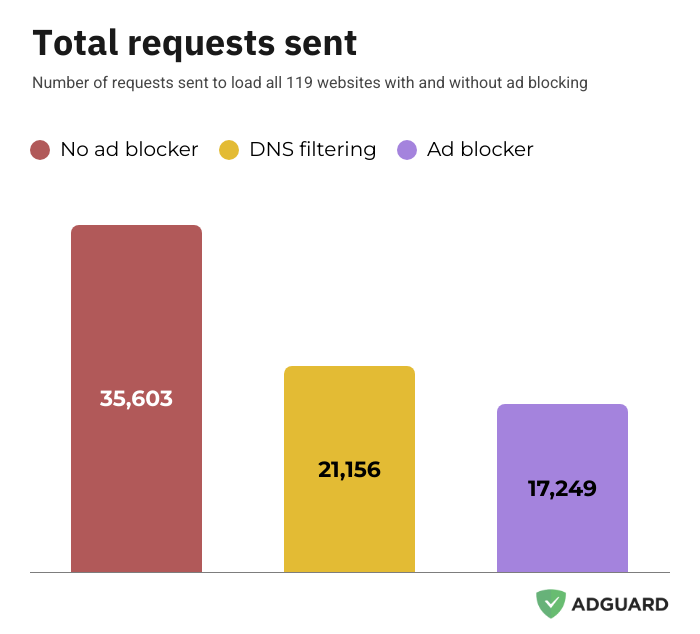
The impact of ad blocking is even more pronounced when you compare the average amount of requests required to load a website: 299 without an ad blocker vs. 145 with it — more than twice as many! Keep in mind that all those ‘disappeared’ requests would become additional ads and trackers that you invite into your browser.
Time is money, friend
Aside from requests and bandwidth, we also measured how much time it takes to load a website. There isn’t much reason to compare individual load times — roughly speaking, the more bandwidth was consumed to load a website, the longer it took — but it’s interesting to have a look at the averages.
To load an average page in our research it took the script over 11 seconds. To load all 119 of them it took our script a little over 22 minutes. Quite a lot, isn’t it? Let’s see if arming yourself with an ad blocker changes anything.
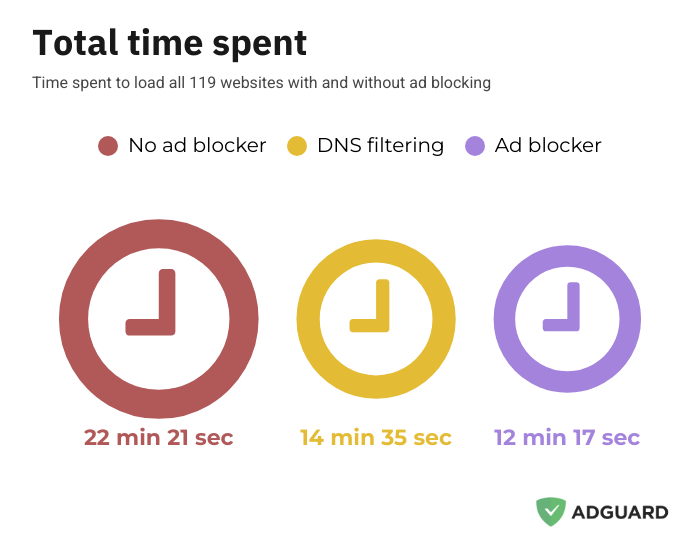
It does, and the average loading time per website lowers dramatically as soon as you add an ad blocker to the mix, from 11.3 to 6.2 seconds. DNS filtering once again tracks behind regular ad blocking but still saves you a lot of time compared to no filtering at all: it took the script 7.4 seconds on average to load a website with the help of AdGuard DNS.
Speaking of savings, here’s a funny little thought experiment. According to some estimations, an average person can visit as many as 100 websites every day. Now that we know how much time and bandwidth an ad blocker saves you each time you load a page, we can estimate your total savings over a day — about 8.5 minutes and 225 MB.
Let’s go one step further! Building on the same logic, we can estimate that every year ads and trackers cost you roughly 80GB of bandwidth and 52 hours of your time. That’s more than 2 entire days!
Here are some ideas on how to better spend 80GB and 52 hours than watching ads:
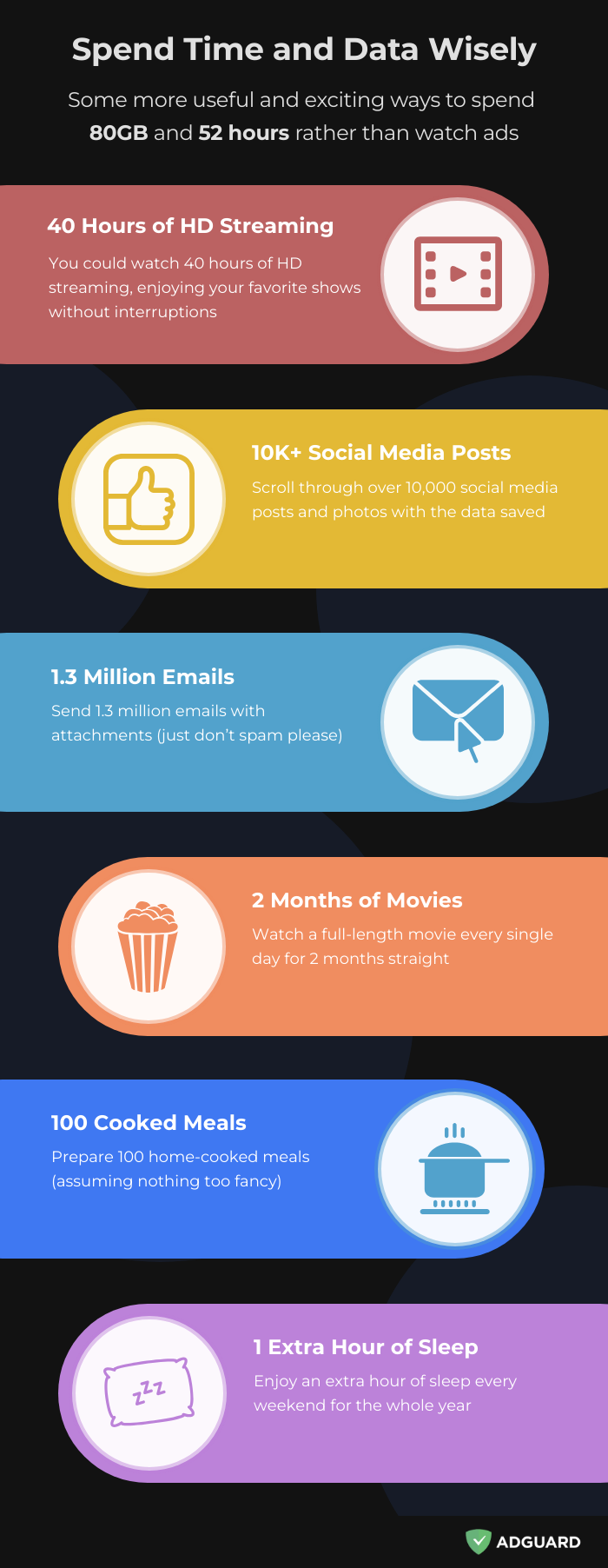
Yes, this is sort of napkin math and a little tongue-in-cheek, but the truth isn’t far off. The bottom line is, if you don’t use an ad blocker, you are wasting time and traffic for no good reason at all. And we are not talking about some elaborate setups, it can be as simple as installing a free ad-blocking browser extension.
Dissecting the trackers
The script we ran to measure ads and trackers on all those websites wasn’t simply counting them up. We also tasked it with identifying every potential tracker: what kind of tracker it was, what domain the website was trying to connect to, and which company owned this domain.
Our script tallied up all requests that looked like they may have been related to tracking in some way. Not every single one of them was, but as you will see, you could say that about a large share of them. Just as with the first part of the research, we counted trackers (we will call all these tools and scripts ‘trackers’ for short and clarify if they are actually harmless only when relevant) separately in all three iterations: without any interference (baseline), with AdGuard DNS, and with the AdGuard Ad Blocker browser extension.
Let’s start with the big picture. Across the same 119 websites, we detected 276 unique trackers that belonged to 233 companies. This should give an idea about just how big the data broking industry is. Mind you, it is not as simple as “every tracker equals one tracking request.” Tracking scripts usually try to connect to multiple domains, to share the data they collected about you or for some other reason, usually equally bad. In our research, the websites made requests to 829 distinct tracking domains. But, of course, there is a lot of overlap: the same trackers, especially the popular ones, can be found on many different websites, and tracking requests sent by those websites are reaching the same domains.
Now let’s get to some specifics. The most frequently seen tracker — you guessed it! — was related to Google. Google Marketing was present on 108 of 119 websites (or 91%).
This doesn’t mean that the rest 9% were free of Google’s presence. The next three most popular trackers were Google Tag Manager (88%), Google itself (84%), and Google Syndication (82%), finally followed by Rubicon (a popular tracker currently owned by Magnite Inc) in 5th place with a significant website share drop (69%).
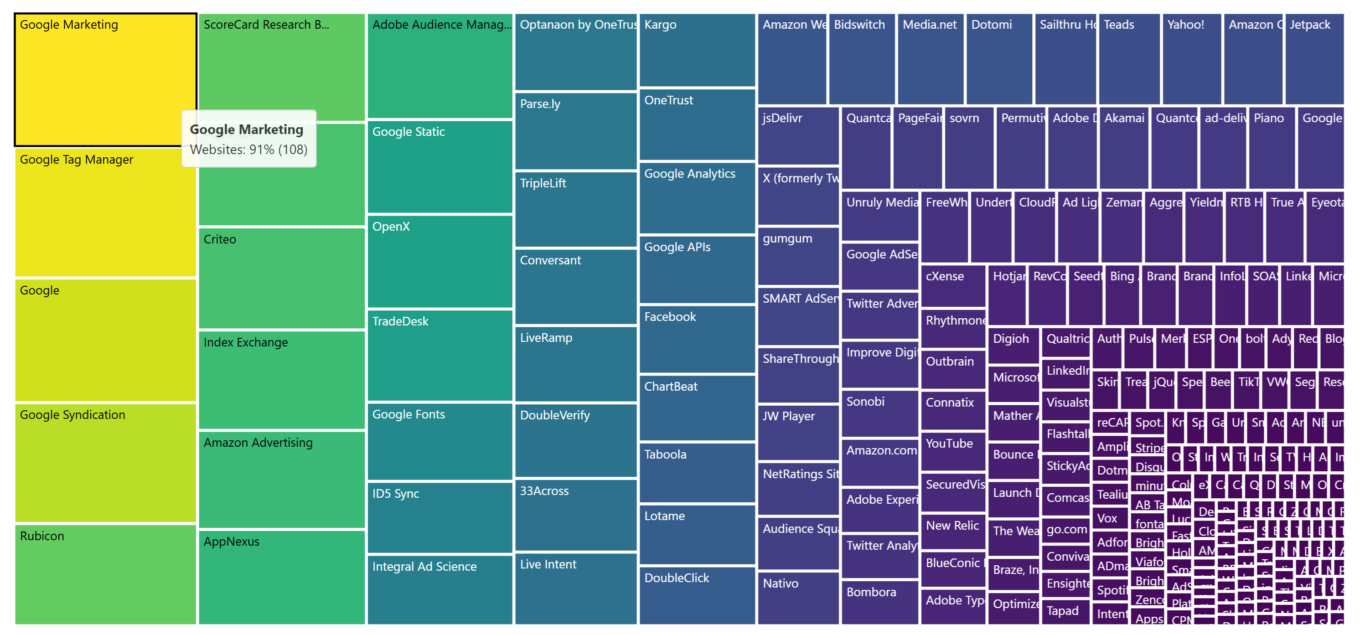
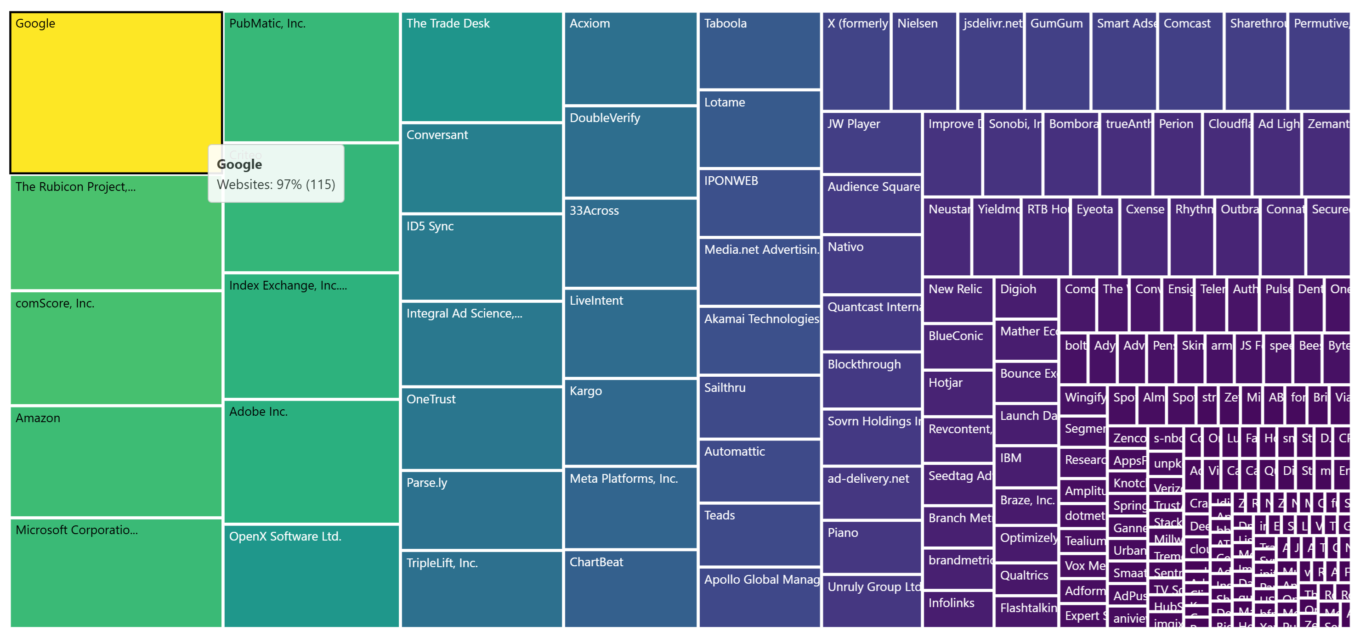
This highlights just how prevalent Google is in the data collecting market. And if you thought this was some kind of a fluke, here’s another bit of statistics: 115 of 119 websites (or 97%) connected to at least one tracker owned by Google. For scale, the second place is occupied by The Rubicon Project, again with 69% of websites. The trackers owned by Amazon, Microsoft, and a few others are present on ~60% of all websites, with the majority of companies failing to clear the 50% mark. This shows just how badly the market is dominated by big players.
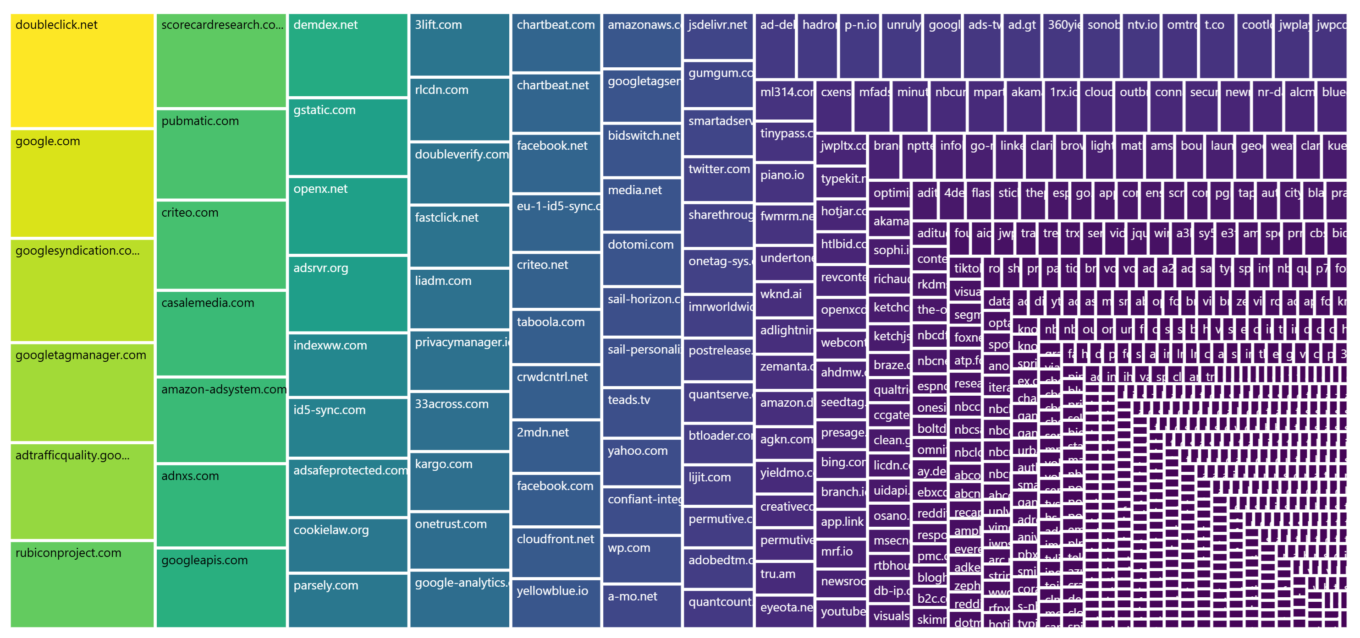
And to drive our point home, here’s another layer of stats. When ranking all the 829 tracking domains that the websites connected to by how commonly they were seen, not only will we see Google at the top again with doubleclick.net popping up on 91% of all websites; all top 5 domains are owned by Google. Besides Doubleclick, they are google.com, googlesyndication.com, googletagmanger.com and adtrafficquality.google. The first non-google domain on the list is, yet again, rubiconproject.com.
Using DNS filtering to block trackers
Remember how we said that not everything we call ‘trackers’ here is, in fact, trackers? Time to turn on DNS filtering and look at the resulting picture again.
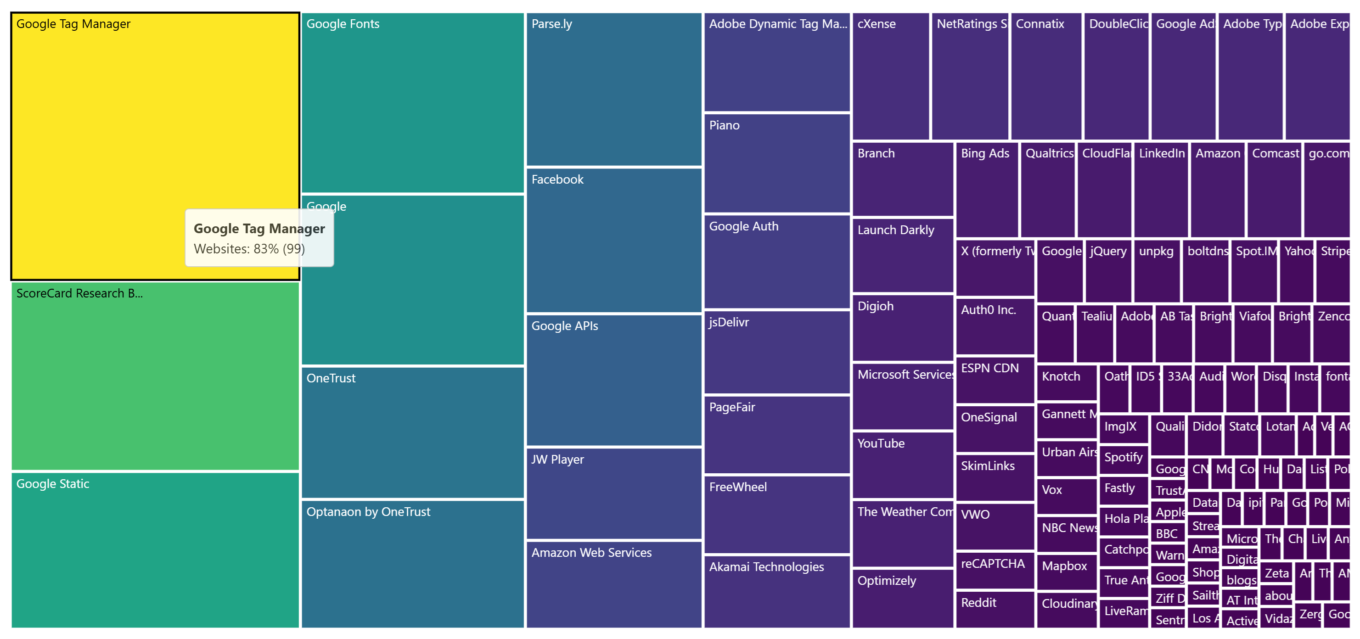
As we already know, DNS filtering will seriously help with tracking. This is evident by the fact that out of 276 unique trackers only 136 remain when you turn on DNS filtering. Google is still ahead of the pack, but the numbers differ. Google Tag Manager is now at the top, seen on 83% of all websites — not that big of a loss in comparison to its baseline 88%. But let’s take Google itself: from being present on 84% of all websites, it is now only left on 41%. A lot of other trackers suffer similar fate, but not all. Take Facebook, for example. We initially detected it on 30% of websites without any tools, and after enabling DNS protection it was still present on 28% of them. We would argue that it’s not because this tracker is harmless, but because the limitations of the DNS approach often prevent you from safely blocking it.
When we move on to companies that websites connect to, we see that their number drops from 233 to 107. It’s safe to assume that at least 126 companies, or 54%, had no business on those websites other than tracking you. In reality this number is even higher, just DNS filtering is not capable of shutting them all down without messing up the websites’ functionality. We still see many big names near the top, spearheaded by Google, of course, but interestingly Microsoft’s share plummets from 66% to 17%.
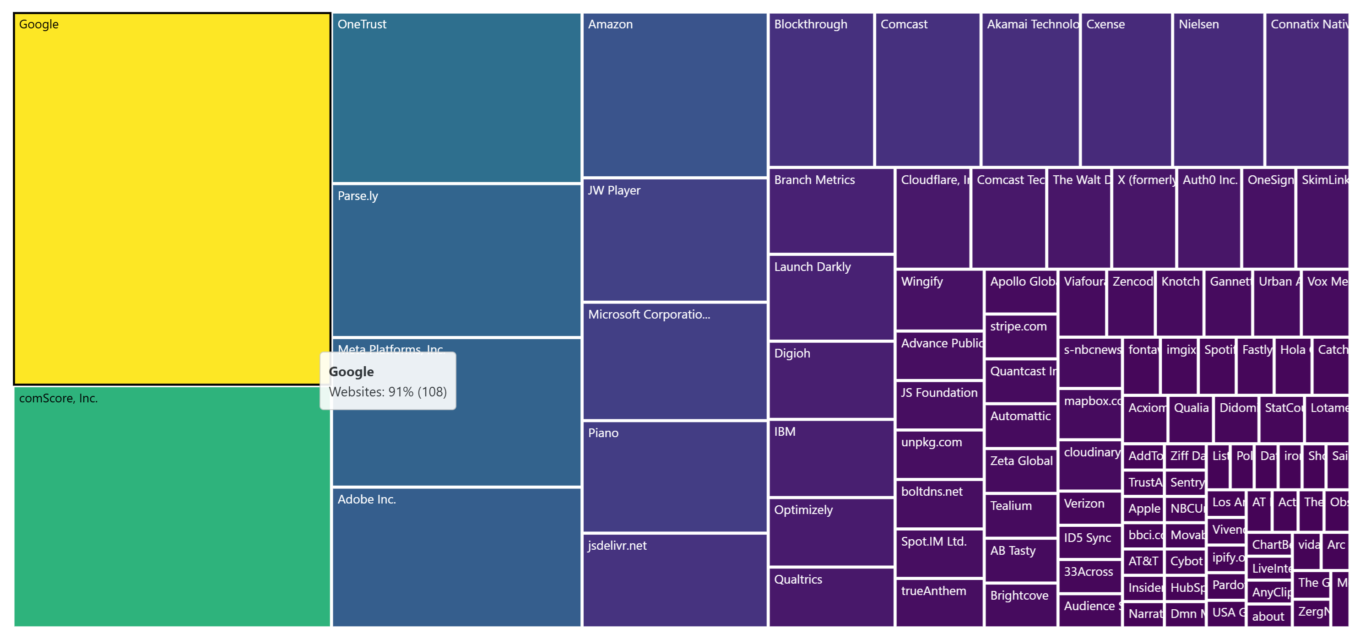
The amount of tracking domains that show up on the radar after you enable DNS filtering almost halves, from 829 to 489. Less, but still a lot. Thankfully, this can be further remedied by switching to web filtering.
Blocking trackers with standard ad blocker
At last, the cavalry arrives. With an ad blocking browser extension on our side, we can finally see what is very close to the ‘clean’ picture — what the internet would have looked like without all the tracking that’s not essential to websites’ functionality. When we look at the chart, we see at the top Google Static with 35% websites (Google’s map API) and Google Fonts with 30%. These are actually useful tools and scripts that you probably wouldn’t want to block. A drastic change of scenery from the baseline chart, where the top crawled with trackers like Google Marketing and Google Tag Manager, their numbers north of the 80% mark.
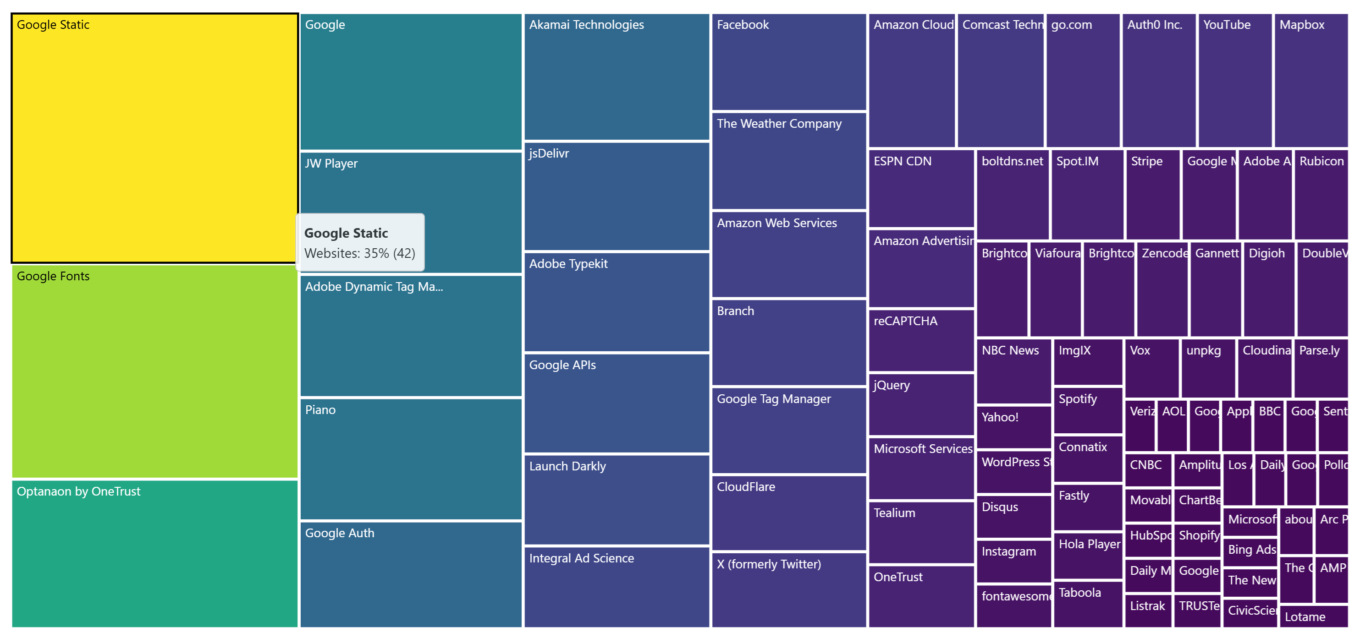
It is easy to see from this chart how many services the websites you visit connect to are simply trackers:
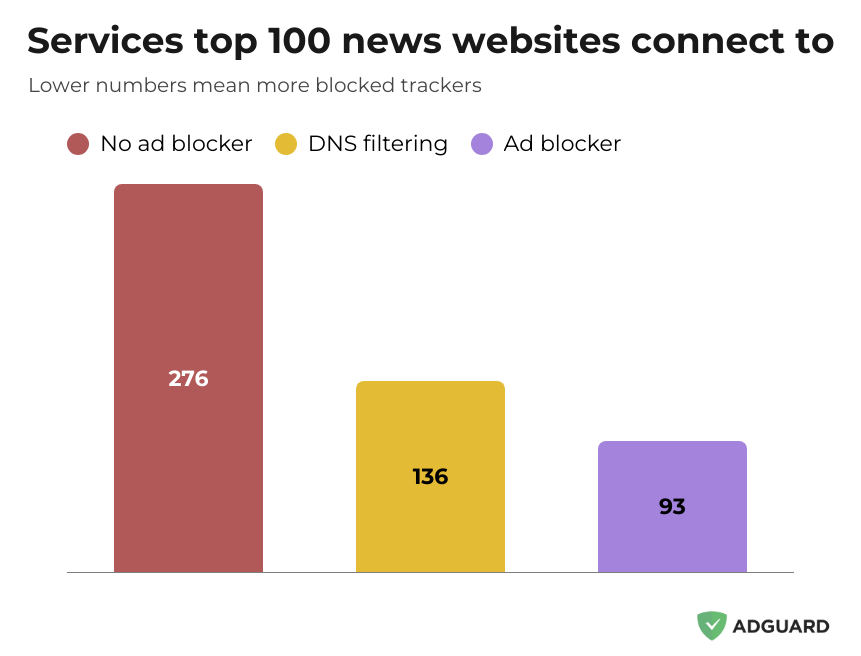
Companies-wise, only 73 remain on the chart now, down from the original 233. Remember how we estimated, based on the DNS chart, that 54% of all companies were doing nothing but tracking you? Make that 69% now. Google still leads, being present in one form or another on 53% of all websites, but is nowhere near its mindblowing 97% share with zero filtering applied. It is almost sad how the mighty fall: Meta goes from 31% to just 8%, and Microsoft crashes into the ground face first, having only measly 4% website share to its name after displaying 66% in the baseline chart.
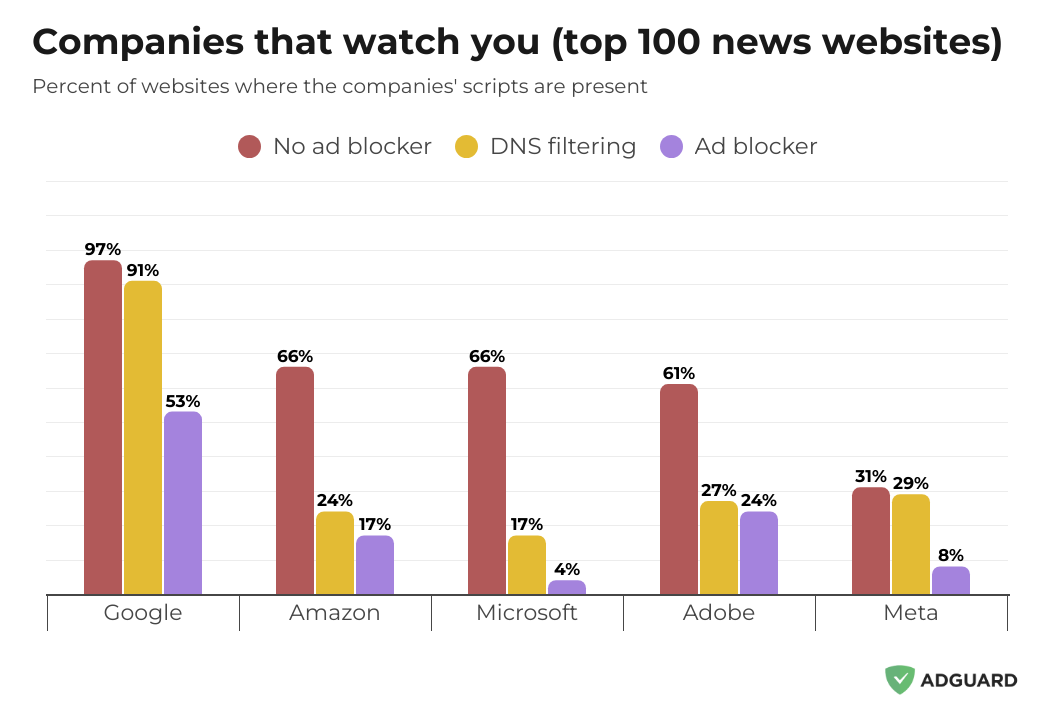
The chart above highlights how different types of web filtering affect the amount of scripts by some of the more prominent companies that you see on websites.
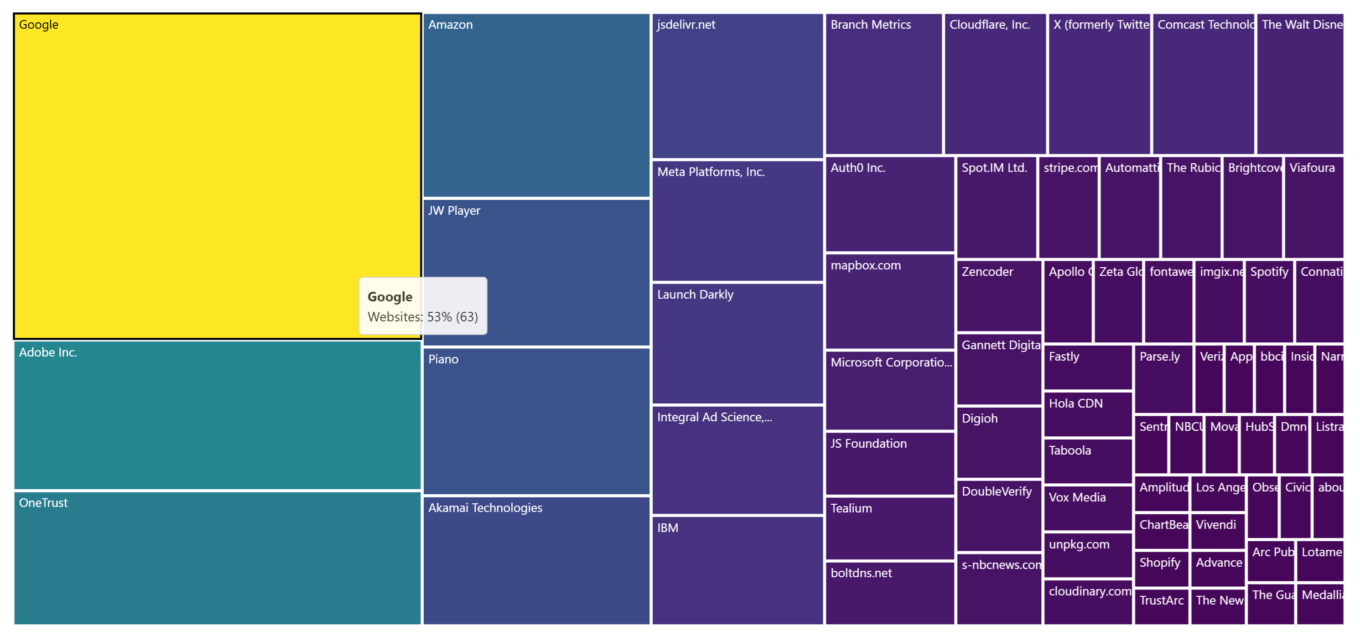
Finally, looking at domains, we can see that only 364 are left after the ad blocker weeds out the other 465. High up on the chart are gstatic.com with 35% of websites (checks out with the trackers chart), googleapis.com with 33%, and google.com with 25%. Not even close to the pre-filtering numbers shown by various Google’s tracking domains like doubleclick.com and its 91%.
Which ad-blocking method is better?
After we’ve seen the numbers, it is rather obvious that traditional web filtering — and by that we mean using an ad-blocking extension or app — generally delivers better results than DNS filtering. And this comes as no surprise. DNS filtering is a much less refined tool for blocking ads and stopping trackers. It can only block entire domains, and in a lot of cases blocking a domain that serves to deliver ads or trackers would mess up the website’s layout or functionality. Web filtering allows to create and utilize more complex filtering rules that can not only very selectively target ads and trackers without screwing up the page, but also ‘beautify’ it by concealing ad leftovers and white spaces that were left behind.
Just how much better an ad-blocking extension is at stopping ads than a DNS filtering solution is well illustrated by this graph. For each website, we calculated the difference between bandwidth used to load it with DNS filtering and with browser extension. Then we mapped them all on a graph, from the largest amount saved on the left to the lowest on the right. Whenever the graph goes below the zero mark, it means that for that website DNS filtering turned out to be more efficient and actually less traffic was spent to load it than with web filtering.
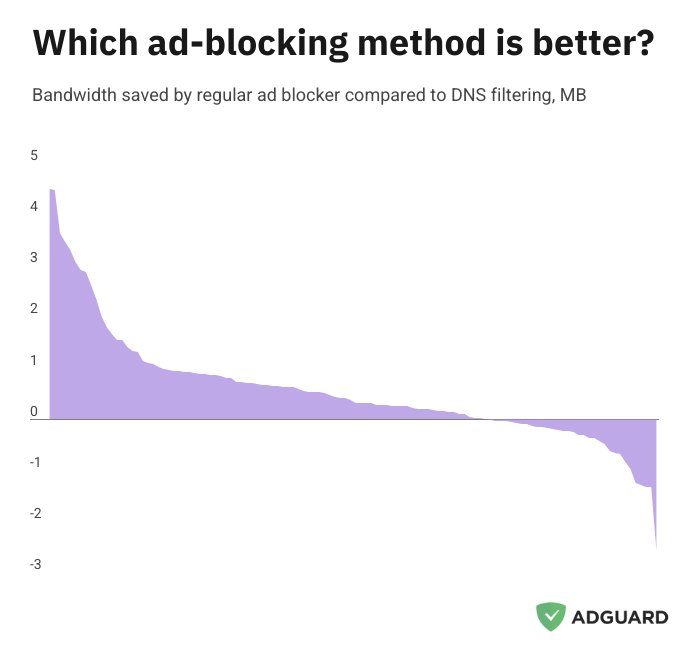
We can see that for most pages a browser extension does a better job of blocking unwanted requests than a DNS filter, as fewer requests go through, and only for a handful of websites DNS filtering was for choice.
It is also telling that pages load 16% faster on average when you enable an ad-blocking browser extension compared to just DNS filtering. No matter what metric you choose, the extension-based approach consistently demonstrates better results.
This is not to say that DNS filtering is strictly inferior. We can see that in certain cases it can perform even better than regular filtering, for one reason or another. But more importantly, DNS filtering occupies its own niche, stepping in to protect your devices where web filtering is difficult or impossible (for example, on smart TVs or routers). Still, whenever possible it is best to opt for traditional filtering, be it a browser extension or a standalone ad blocker. This is not to say that DNS protection doesn’t have its role even on devices that support regular ad blockers — there are some threats to your privacy against which only DNS-based protection can help. But this is an entirely different topic to cover.
Conclusion
We tried to structure our research in a way that would simulate how a normal person uses the internet. The goal was to put into numbers how different ad-blocking approaches help not only block ads and trackers, but also save very tangible time and data. And the numbers did talk: ad blocking proved its worth by saving around 30-40% bandwidth and 45% time when loading websites. The ad blocker removed the lion’s share of trackers, making your surfing safe. Web filtering in particular demonstrated quite impressive results, outpacing DNS filtering in every metric.
If you care about your privacy and peace of mind, installing an ad blocker can be a simple but meaningful step in protecting your personal data and browsing experience. Just make sure that you choose a good ad blocker by a reputable developer, and not one of those numerous fake ad blockers that will only make things worse for you.
All the numbers used in this report are available online at this link. More information on the script used to gather the data can be found on GitHub.