How desktop apps watch you: A network analysis of popular Windows software
Most users assume that online tracking happens in the browser. We install extensions to block ads on websites, and we consider ourselves protected. But the browser is only a small part of your digital life.
Desktop applications — music players, messengers, game launchers, and PDF readers — also connect to the Internet constantly. And just like websites, many of them send data about your actions. The difference is that you cannot see this traffic without filtering your entire system.
This is why system-wide filtering is enabled by default in AdGuard for Windows v8.0. It provides the only reliable way to protect your privacy across all applications without breaking their functionality.
To see the actual scope of tracking happening on PC and how just browser protection is not enough, we conducted research.
What we measured
We selected a diverse set of widely used Windows desktop apps across several categories, including office tools, messengers, media players, code editors, game launchers, and AI assistants.
Using AdGuard for Windows v8.0, we logged and analyzed all outbound web requests made by these apps during active use and idle background states. We ran each app for approximately 3.5 minutes. Even in this short window, the data was revealing. We categorized every endpoint to determine whether it served core software features, user telemetry, advertising, or remote configuration.
A note on methodology
This was a single run on one machine with one user. The duration and usage scenarios varied slightly between apps, so we cannot directly compare one app to another. We also anonymized the names of the companies to keep the focus on the technical patterns rather than specific brands. The goal was to identify how tracking works in desktop environments, not to create a ranking.
What we found
Across 18 applications, our testing revealed 1,965 unique server endpoints generating 4,945 individual web requests.
AdGuard intercepted and cleaned requests to 1,780 of these endpoints, removing invasive headers rather than blocking the connections completely. Additionally, AdGuard blocked outbound calls outright when their sole purpose was tracking or ad delivery — entire request batches to known telemetry endpoints were rejected before they ever reached the network, not just stripped of headers.
While functional requests make up a substantial part of the total traffic volume, AdGuard’s Stealth mode still had to clean invasive headers on almost 90% of all endpoints — including plenty of ordinary, purely functional requests, not just tracking ones. What’s genuinely striking: 15 of the 18 apps we tested (83%) made at least one request we classified as tracking or advertising. Small telemetry payloads fire rapidly in the background, building a detailed profile of your behavior over time.
What desktop tracking looks like in practice
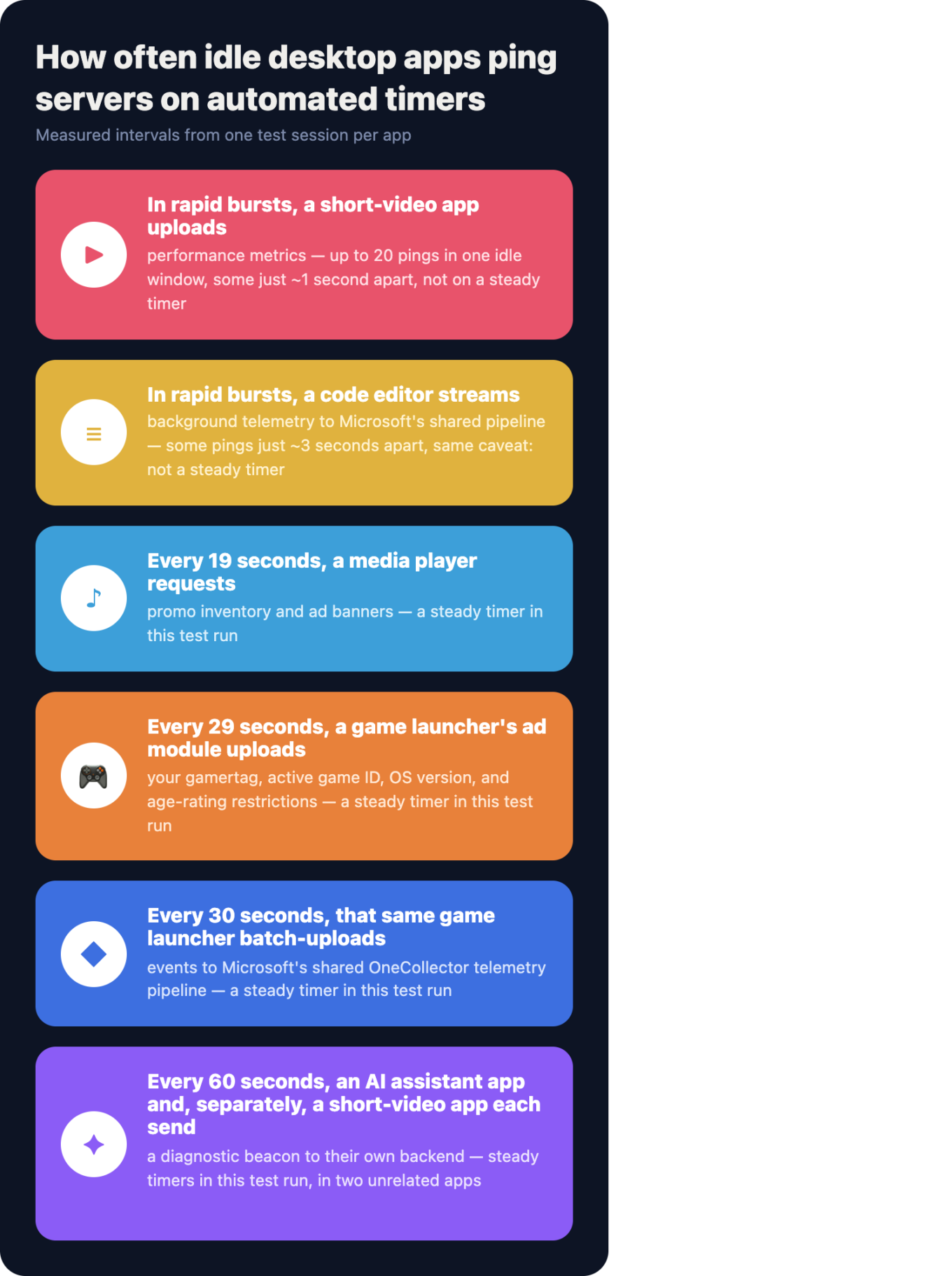
Abstract statistics can feel distant. In practice, desktop applications translate your everyday actions into detailed network requests. An online game store tracks cursor movement and your account ID when you hover over a game card. A gaming console app sends your gamertag and device ID every 29 seconds, while a short-video platform’s browser engine sends a diagnostic beacon to its own servers every 60 seconds, tagged with a persistent device identifier — regardless of what’s on the screen.
Even a standard PDF reader logs button clicks, sending a separate request when you cancel a sign-in. A music streaming service uploads playback events every four seconds, including the exact track position, laptop model, and audio output details. A video platform’s request reveals your viewer profile in plain, unobfuscated query parameters — including membership status and region — visible once the connection is inspected locally.
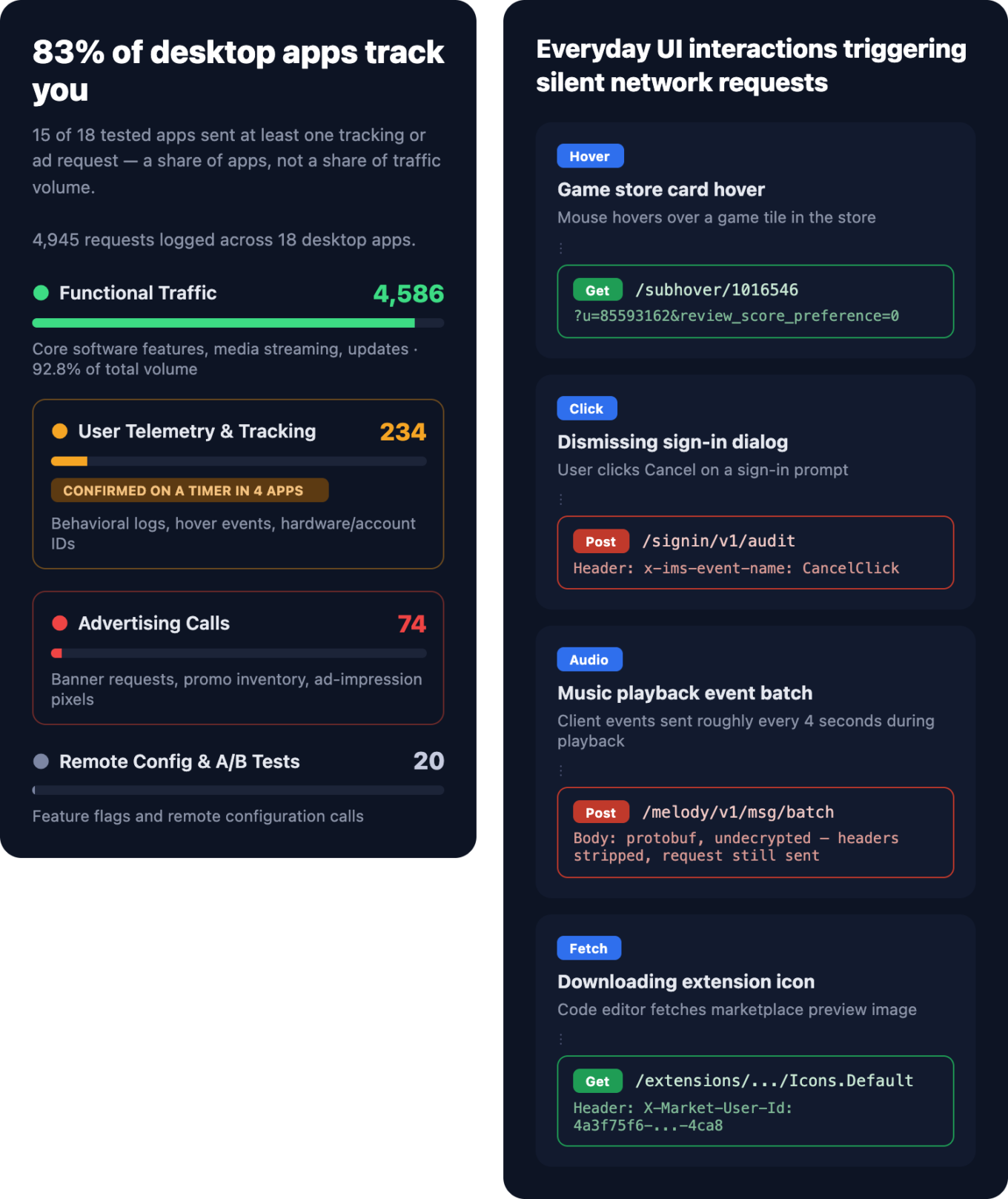
You might think: “So what if an app logs a button click or my laptop model?”
Individually, these data points seem harmless. But together, they build a detailed profile of your behavior. Companies use this profile to track you across apps, adjust prices based on your device, and target you with ads. It also means your history is permanently tied to your identity and is at risk if the vendor’s servers are ever compromised.
The same receivers everywhere
We expected different companies to use different tracking tools. Instead, we found the same receivers appearing across unrelated applications.
A single Microsoft client ID appeared in four completely different apps: a messenger, a gaming console app, a music player, and a torrent client. This happens because many desktop apps are built using a web-view technology that includes browser telemetry by default.
We also found standard web analytics tools like Google Analytics and Google Tag Manager running inside desktop processes, not just in browsers.
Most importantly, the majority of tracking traffic did not go to third parties. It went directly to the servers of the app developer. This is not necessarily worse than third-party tracking, but it makes it harder to block. You cannot simply cut off the developer without losing access to the app itself.
Silent background chatter
One of the most surprising findings was the frequency of background activity. Desktop apps do not wait for you to click buttons to start sending data.
Over 20% of the apps we tested send telemetry on automated timers without any user interaction. You can open an application, step away from your desk, and return to find dozens of outbound pings logged while your PC sat completely idle.
These background pings range from high-frequency performance logs uploaded every single second to periodic system state reports sent on fixed background timers.
Why blocking domains is not enough
If tracking is this prevalent, the obvious question is: why not just block the domains that serve tracking purposes?
The problem is that desktop tracking rarely lives on separate “bad” domains. Instead, it usually resides on the same servers that power the app itself. In our tests, nearly 1 in 6 applications (17%) sent tracking or advertising data from the exact same hosts used for core functionality.
Imagine a music streaming service. It might use a single server domain to handle your account login, the music stream, and the telemetry data. If you block that domain to stop the tracking, you also stop the music.
This is why simple domain blocking fails. To stop this tracking without breaking your apps, we need a more precise tool that can distinguish between a functional request and a tracking request on the same server.
Our solution: system-wide filtering with HTTPS inspection
AdGuard for Windows solves this using path-level filtering.
Standard network filters can only see the destination server, but modern apps encrypt the rest of the connection. By decrypting traffic locally on your device, we can inspect the full URL path and request headers. This visibility allows us to clean invasive data and block specific tracking paths while letting functional requests pass through.
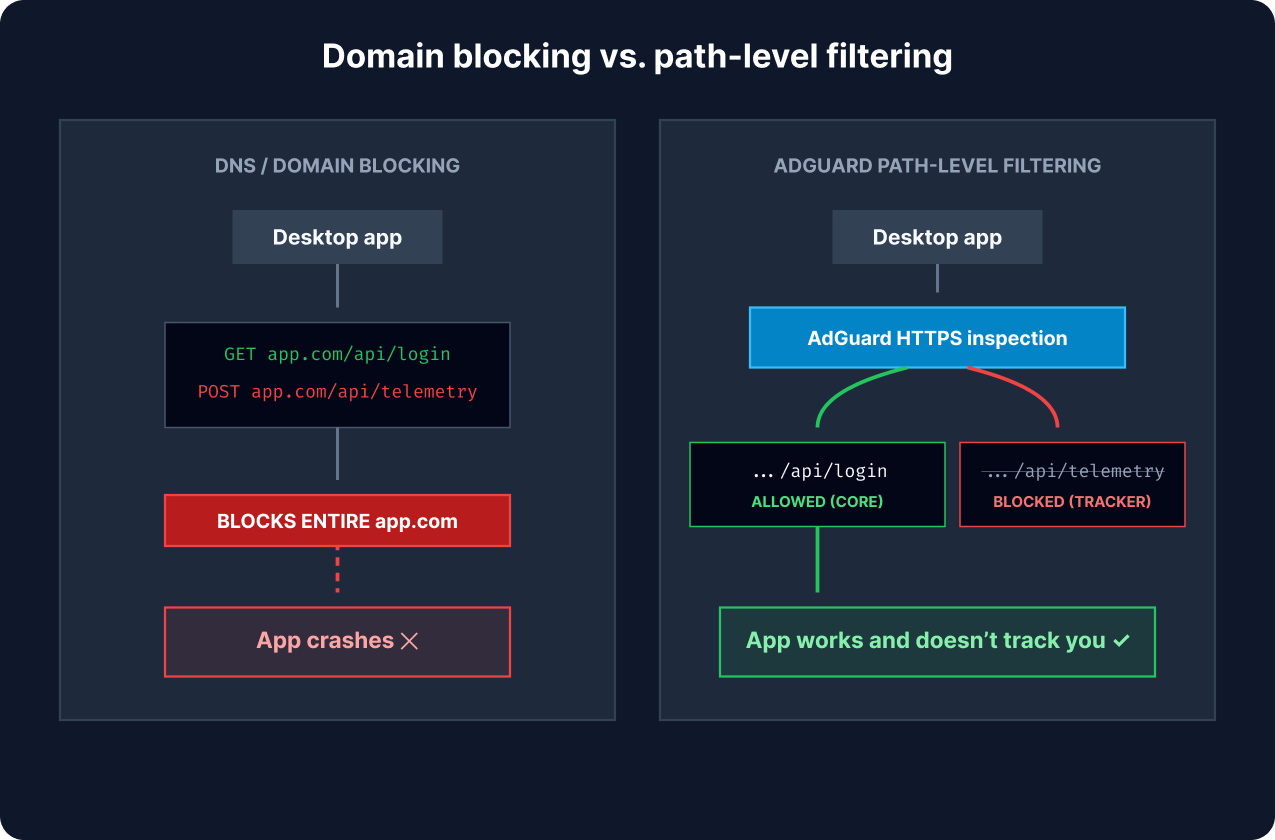
Domain blocking disables entire servers. Path-level HTTPS filtering inspects individual URLs to remove telemetry while keeping core app features running
We balance protection and stability with a smart system. We enable full HTTPS filtering for trusted apps like browsers. We exclude sensitive apps, such as banking apps, to keep your data secure. For other apps, we filter basic traffic but leave HTTPS filtering off. You can turn it on manually in App management if you want deeper protection. This lets you stop hidden tracking without breaking your apps.
Why it’s safe
All processing happens on your computer. Filtering with HTTPS inspection happens entirely on your device — the local component briefly decrypts a request to check its path and headers, the same way it does to clean invasive data.
What it does not do: store that content, or send it anywhere.
Every check is a local comparison against the blocklist, and the decrypted data is discarded immediately after the filtering decision. Your traffic never leaves your device for this purpose. The process is fast, designed not to impact your CPU or Internet speed.
Comparison of tracking protection methods
| Method | Scope | Tracking protection |
|---|---|---|
| AdGuard Browser extension | Browser only | High |
| DNS filtering | System-wide | Moderate (domain level only — can’t separate tracking from functional traffic on a shared host) |
| VPN | System-wide | None by default (encryption only — blocking requires a built-in DNS filter, e.g. AdGuard VPN’s optional AdGuard DNS) |
| AdGuard desktop app | System-wide | Maximum (once HTTPS filtering is enabled per app — on by default for browsers, opt-in for everything else) |
Conclusion
Desktop applications are no longer isolated from the web. They rely on complex networks of servers to function. These networks often carry hidden tracking data along with your work files. Traditional tools struggle to stop this tracking because they cannot see inside the encrypted connections of desktop apps.
AdGuard for Windows provides a better solution. By using path-level filtering, we can clean specific tracking requests while keeping your apps fully functional. This means your privacy stays in your hands without breaking the software you depend on.
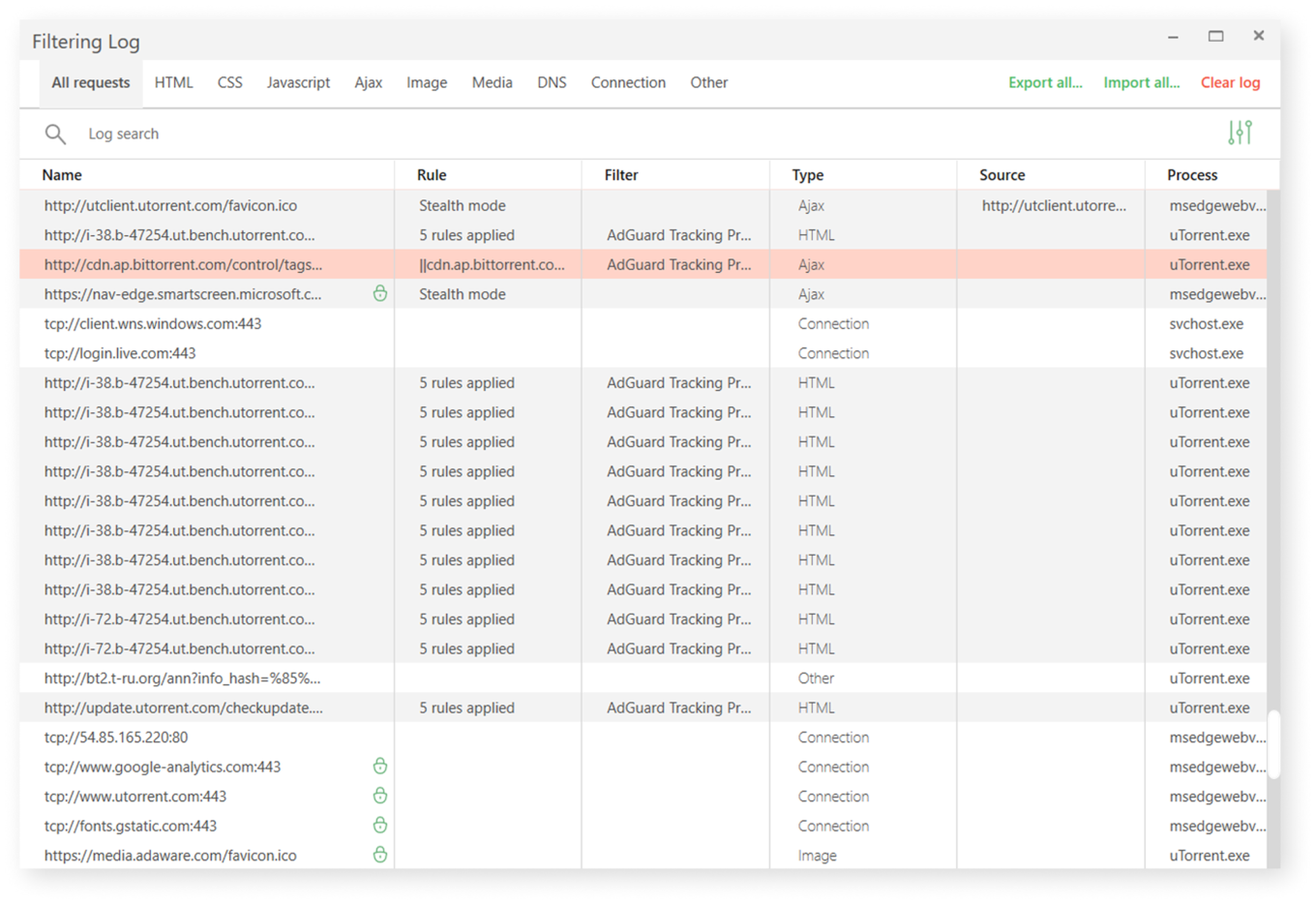
Want to see it yourself?
Download AdGuard for Windows v8.0 and open the Filtering log. You can watch us block tracking requests from your desktop apps in real time.