We’ve grown used to blocking ads online — but what about the ones we encounter in the real world? Can they be blocked, how would that work, and should they be?
AdGuard for Android v4.10 makes the app more intuitive for new users: setting up the HTTPS certificate is now easier for everyone, regardless of their technical background.
AdGuard Mail v1.0 brings the features you’ve asked for — email replies and more alias domains. Unlock these and other advanced features with a subscription.
The new version now uses post-quantum encryption to keep you protected against future threats. It also brings some other handy updates — read the post to find out more.
What if, despite all the in-built protections, platforms could still access unique user identifiers and reliably tie them to the user browsing history? That’s exactly what Meta and Yandex discovered they could do.
All done!
Something went wrong
Subscribe to our news
You’ve successfully subscribed to AdGuard news. Emails will be sent to ${subscribeSlotProps.email}
You can also subscribe using a different email address
Please try again. If it doesn’t help, please contact support
Be the first to get the latest news about online privacy and ad blocking, AdGuard product releases, upcoming sales, giveaways, and more
Invalid captcha
Captcha is required
Downloading AdGuard
To install AdGuard, click the file indicated by the arrow
Select "Open" and click "OK", then wait for the file to be downloaded. In the opened window, drag the AdGuard icon to the "Applications" folder. Thank you for choosing AdGuard!
Select "Open" and click "OK", then wait for the file to be downloaded. In the opened window, click "Install". Thank you for choosing AdGuard!
Install AdGuard on your mobile device
Installation
AdGuard for Android is available in the following app stores:
AdGuard can’t be published on Google Play. For more details, check out our blog. If you’re using Google Play, follow these instructions to manually install AdGuard for Android.
1. Allow downloading
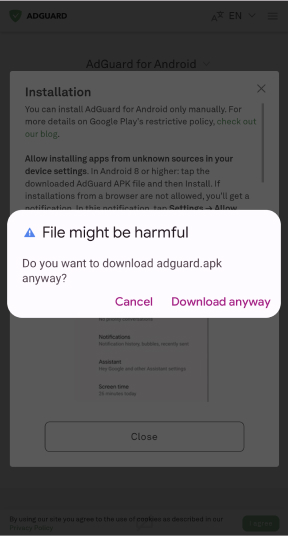
If your browser displays a warning, allow downloading adguard.apk.
Installation permissions
If installations from your browser are not allowed, you’ll get a notification. In this notification, tap Settings → Allow from this source.
Note for Samsung users with One UI 6 (Android 14) and newer
On some Samsung devices, the Auto Blocker feature may prevent APK installations. To install the app:
Open your device settings.
Go to Security and privacy.
Scroll down and tap Auto Blocker.
Disable the setting.
You can re-enable this feature after the installation.
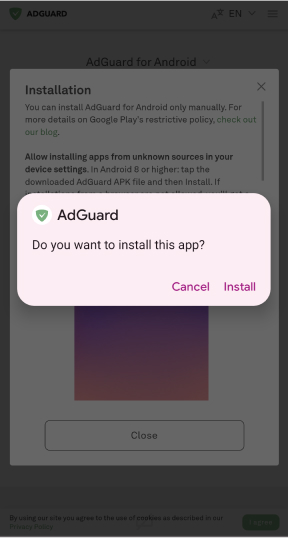
2. Install the app
In the pop-up dialog, tap Install.
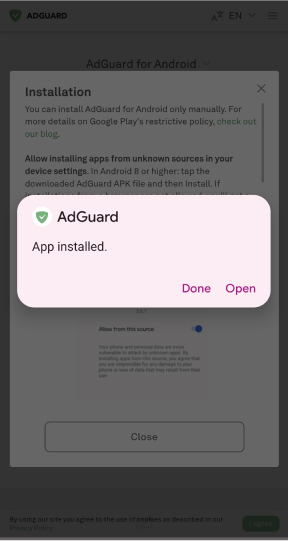
3. Launch the app
Wait for the installation to complete and tap Open. All done!
Scan to download
Use any QR-code reader available on your device
Scan to download
Use any QR-code reader available on your device
Download an older AdGuard version?
This OS version isn’t supported. You can use an older version of AdGuard, but it won't receive updates
By downloading the program you accept the terms of the License agreement