More than ad blocking: Using AdGuard for parental controls
An ad blocker might not be the first tool that comes to mind when you think about children’s online safety. But AdGuard does more than remove banners: it can block adult content, enforce Safe Search, and filter traffic — making it a useful, if not perfect, part of a parental-control setup.
We’ve already covered how to set up Parental control in AdGuard for Windows and AdGuard DNS. Those products have dedicated parental-control tools, including protection levels, blocklists and allowlists, and password protection for settings. It’s the most straightforward option: turn on one feature, and the basics are covered.
AdGuard for iOS, Android, and Mac works a little differently — and gives you more room to fine-tune the setup. There’s no single Parental control switch, but you can combine DNS protection, allowlists, filtering rules, and, on Android, Firewall. Configure them together and you can build protection that fits your family: for example, block adult websites across the device, restore access to a site caught by mistake, or stop a specific app such as TikTok from connecting to the Internet.
Let’s look at each tool, what it does, where it falls short, and how to set it up on your device.
AdGuard DNS Family protection
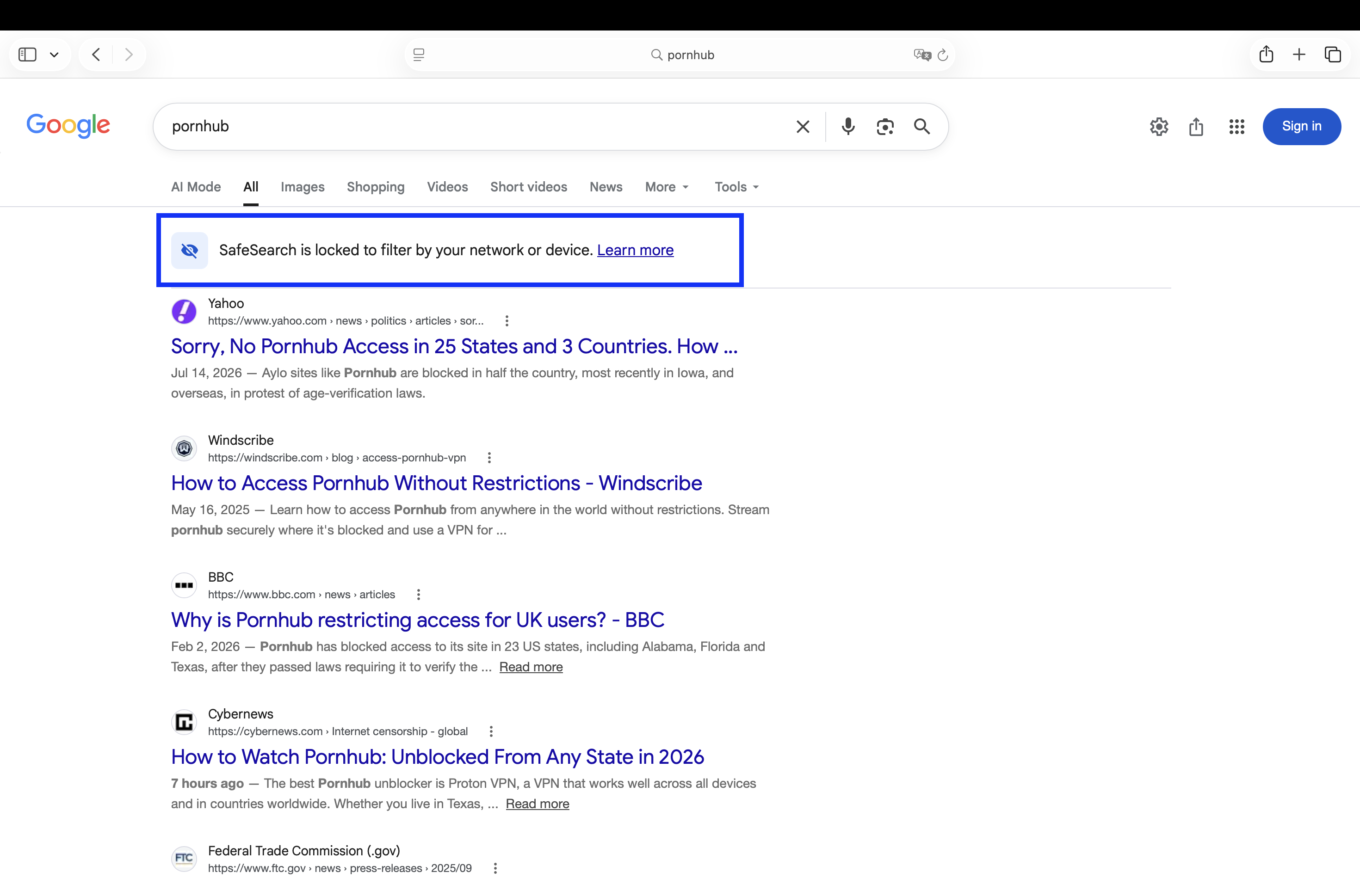
AdGuard DNS Family protection is a ready-to-use DNS server that blocks adult websites and enables Safe Search in Google, Bing, and Yandex. There’s no need to create filters or maintain a list of domains yourself: the protection is already built in. Once enabled, it works across apps on your device, not just in one browser.
How to set it up
iOS
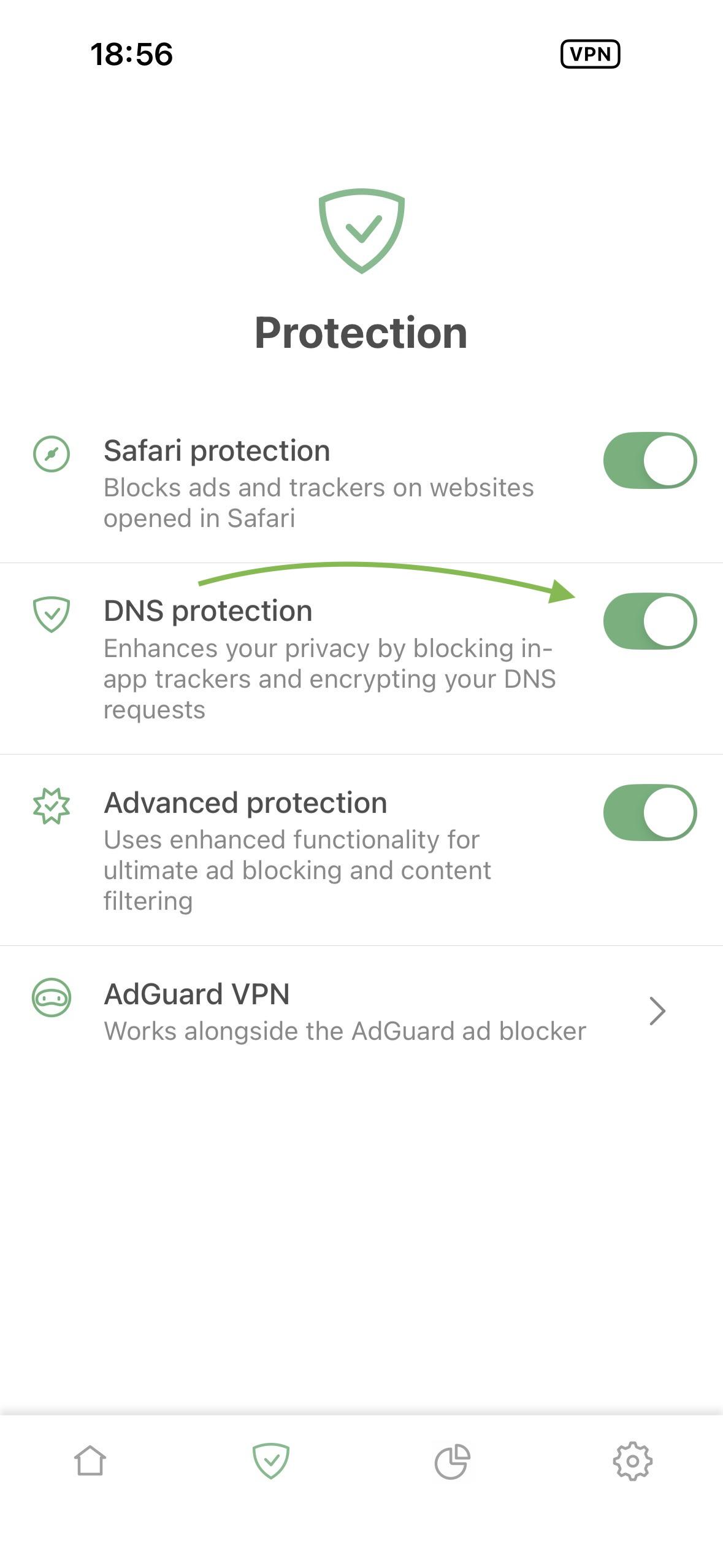
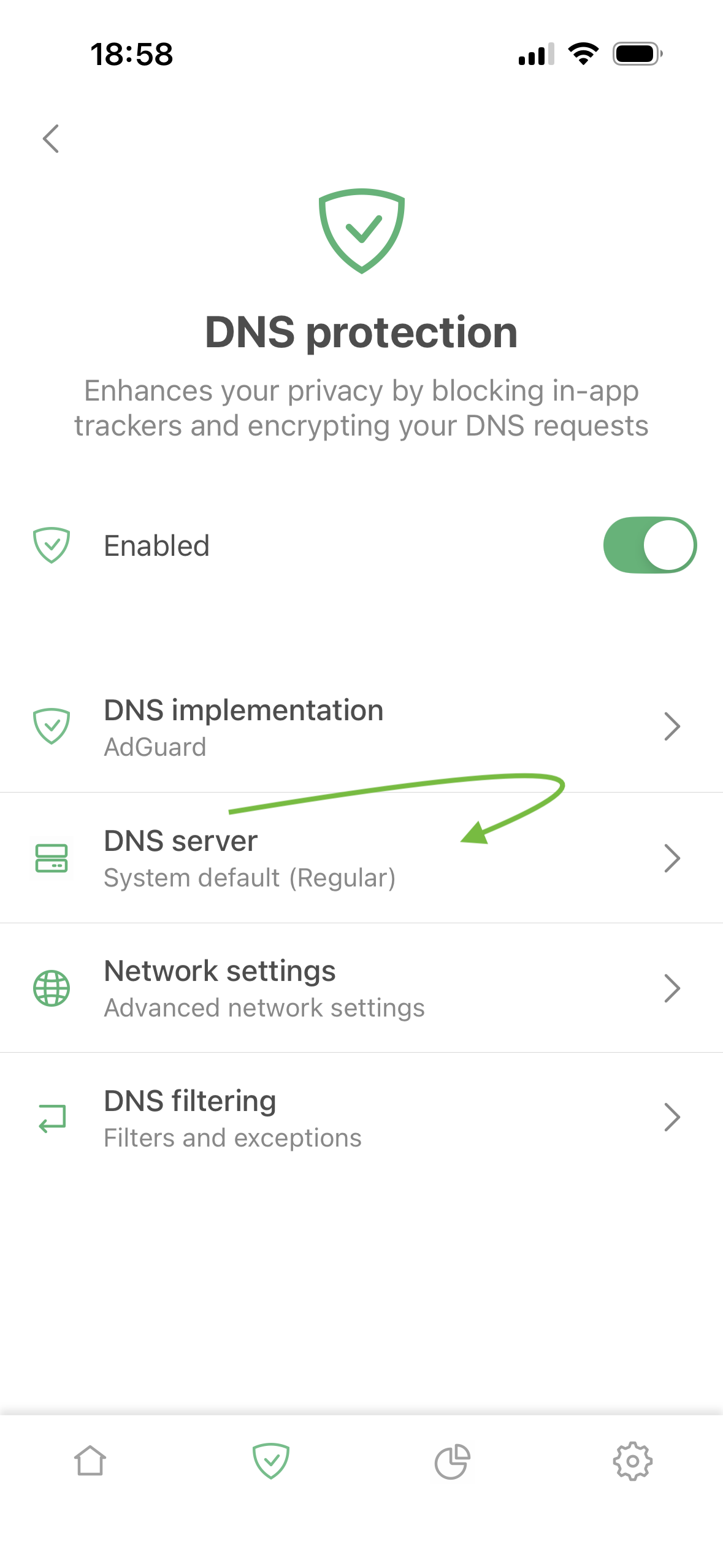
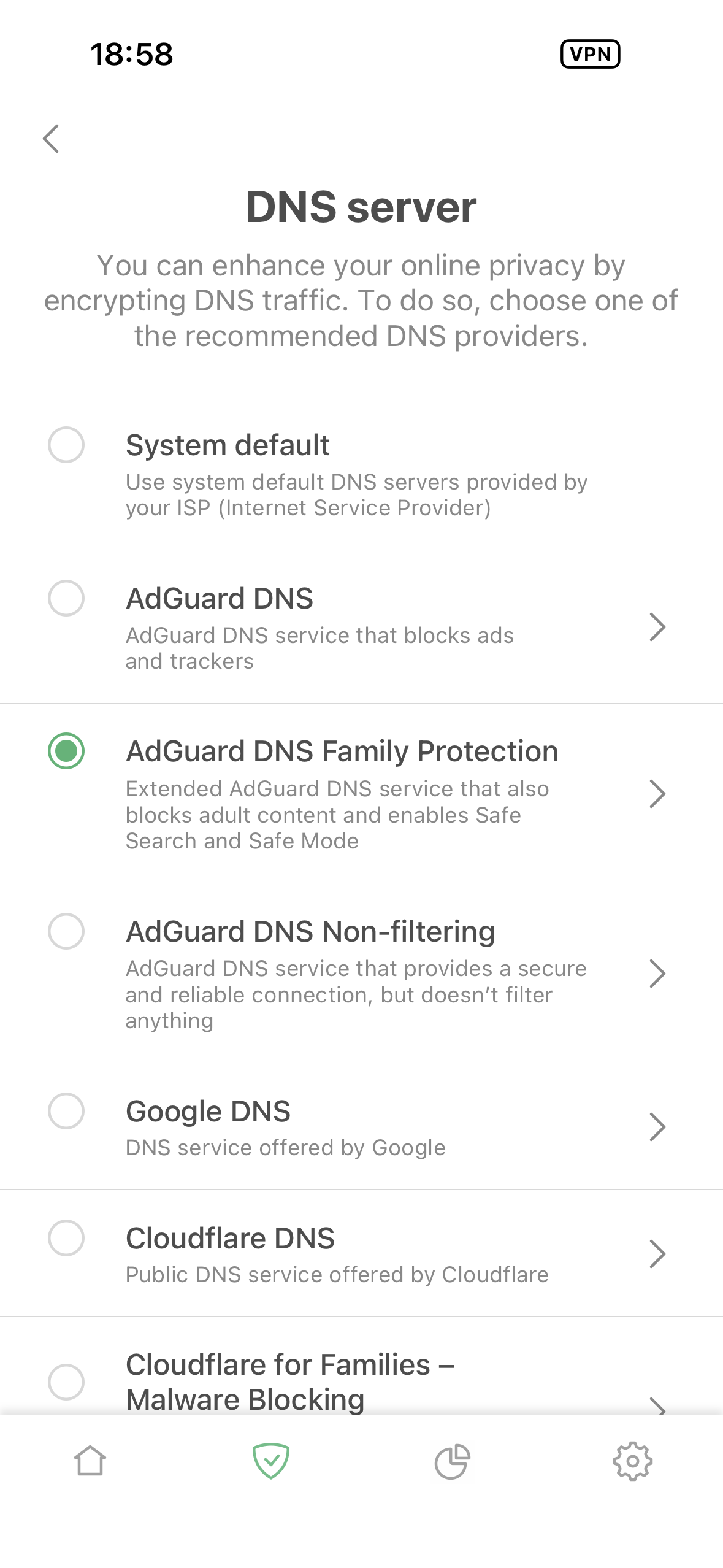
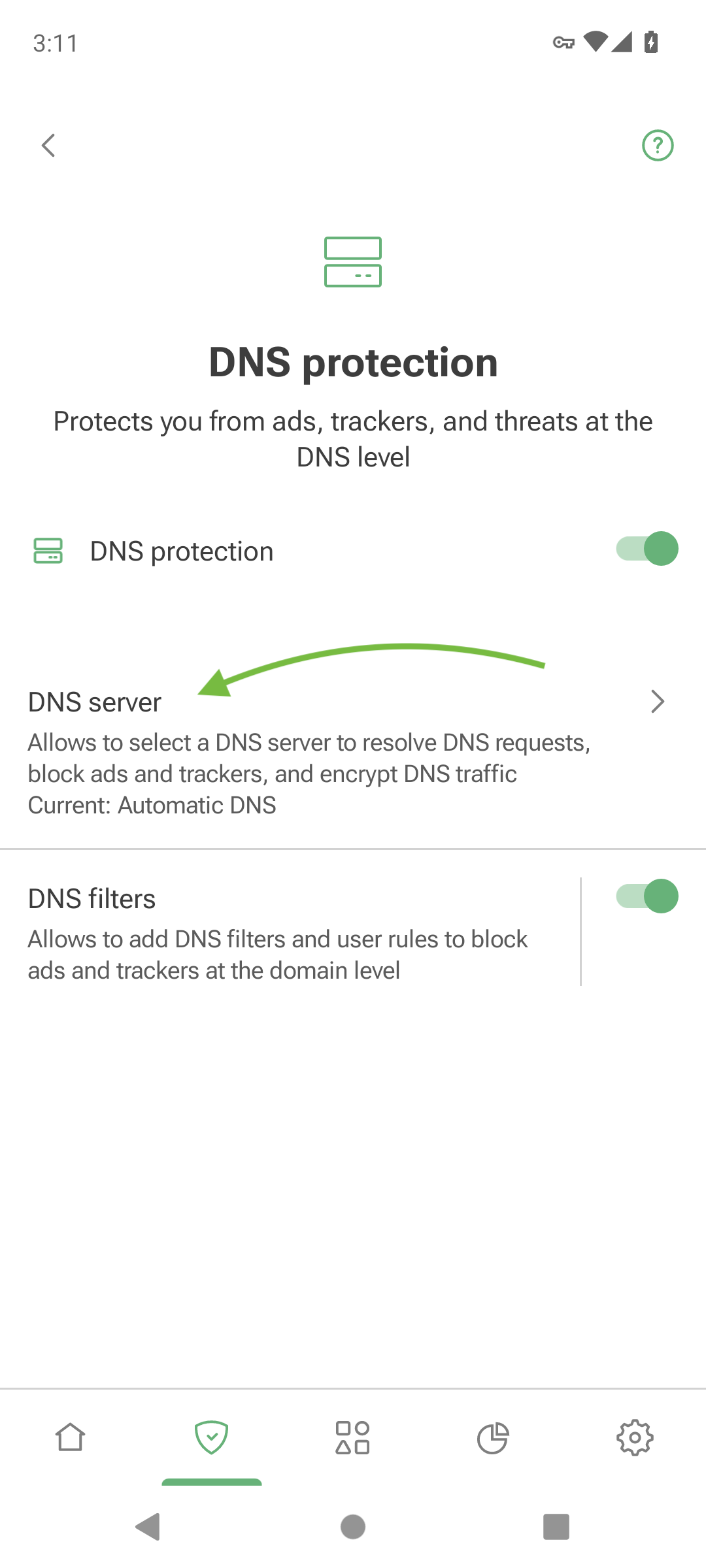
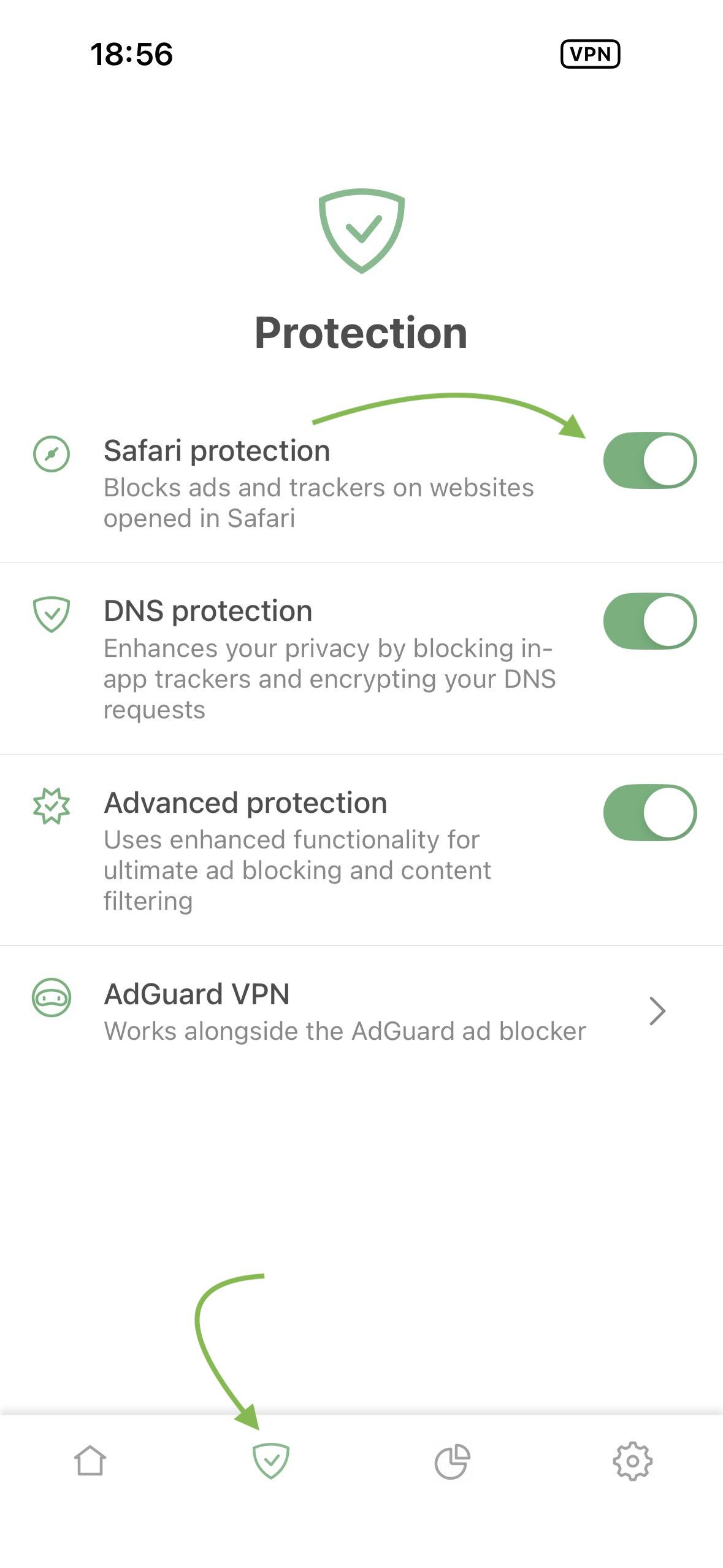
Open the app and go to Protection (the shield icon in the bottom menu) → DNS protection → DNS server.
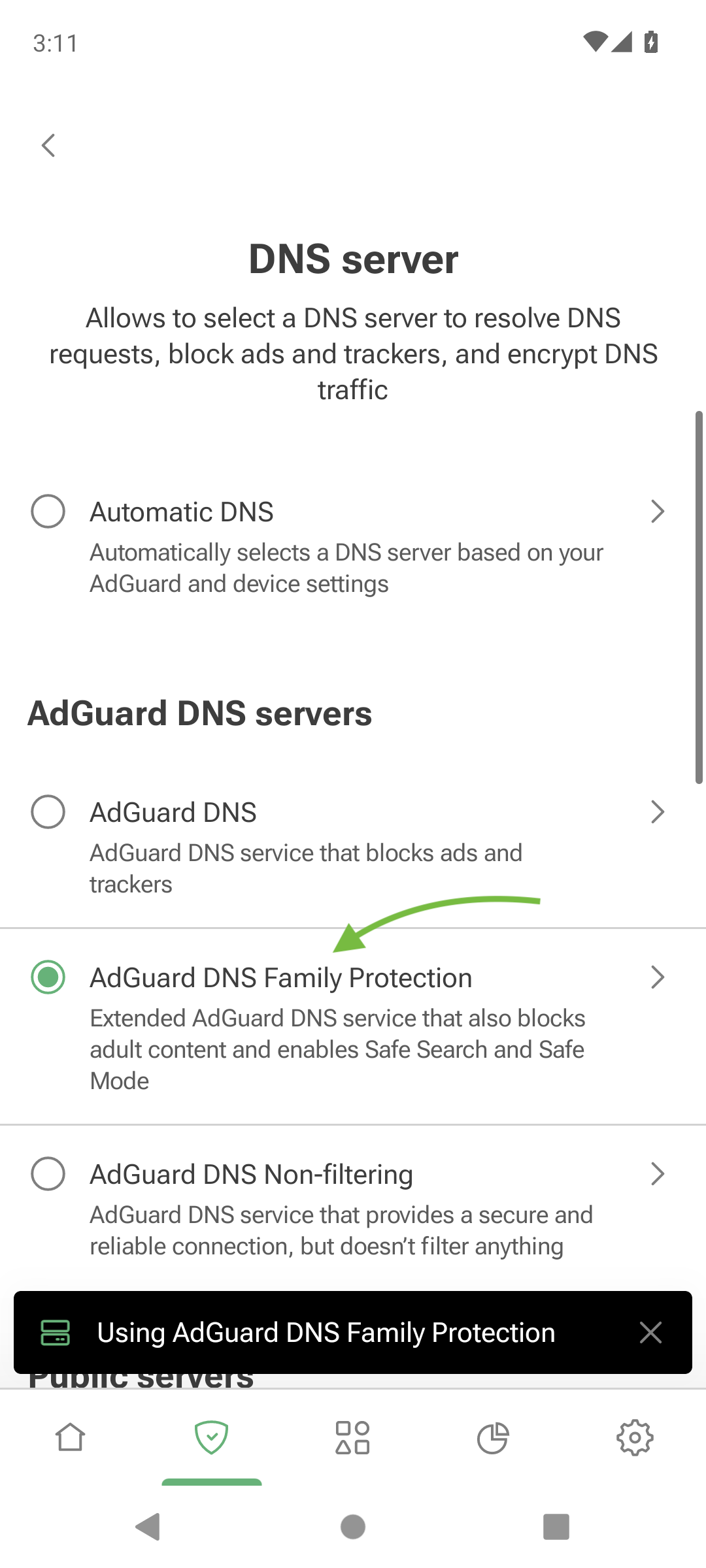
Select AdGuard DNS Family protection from the list.
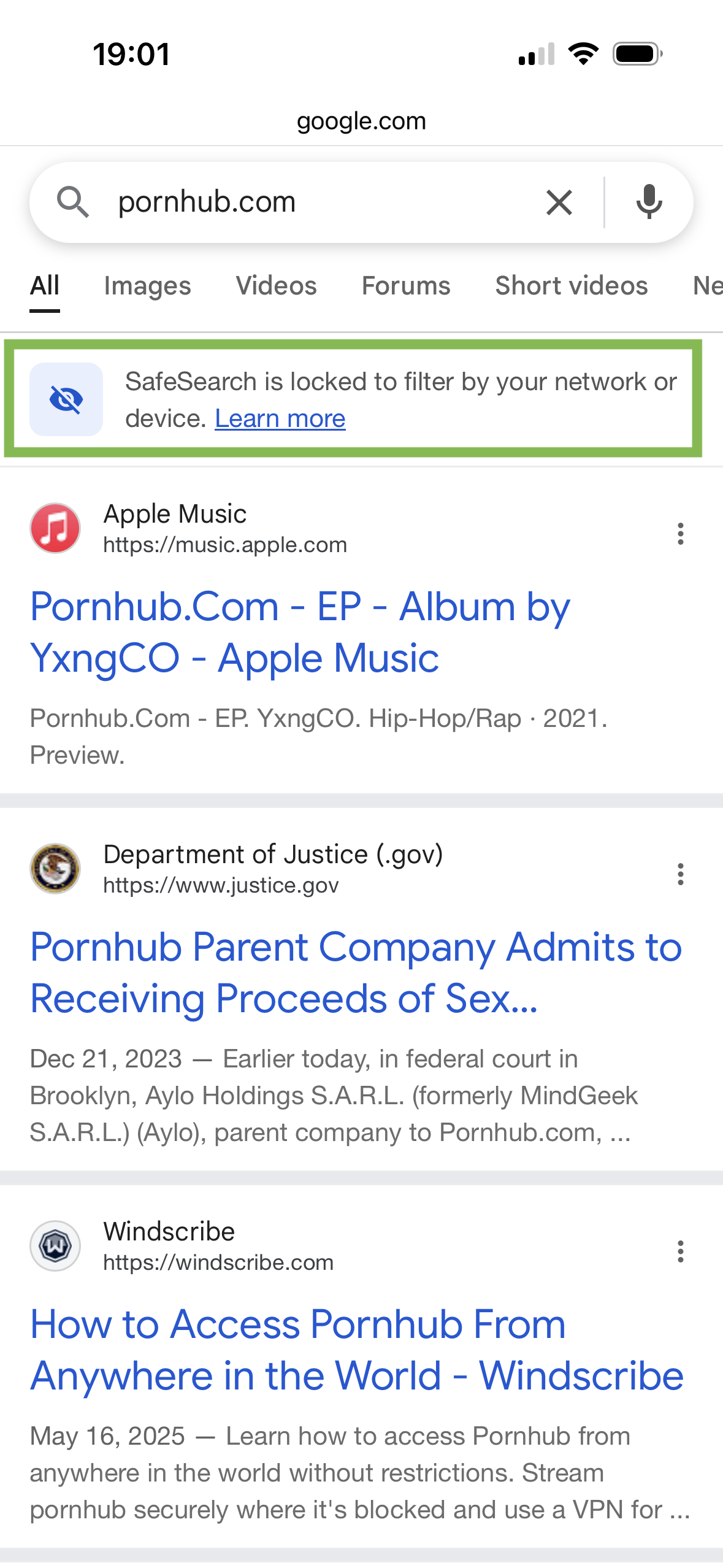
Test the setup by opening a blocked website. You should see a DNS block page or a warning.
Android
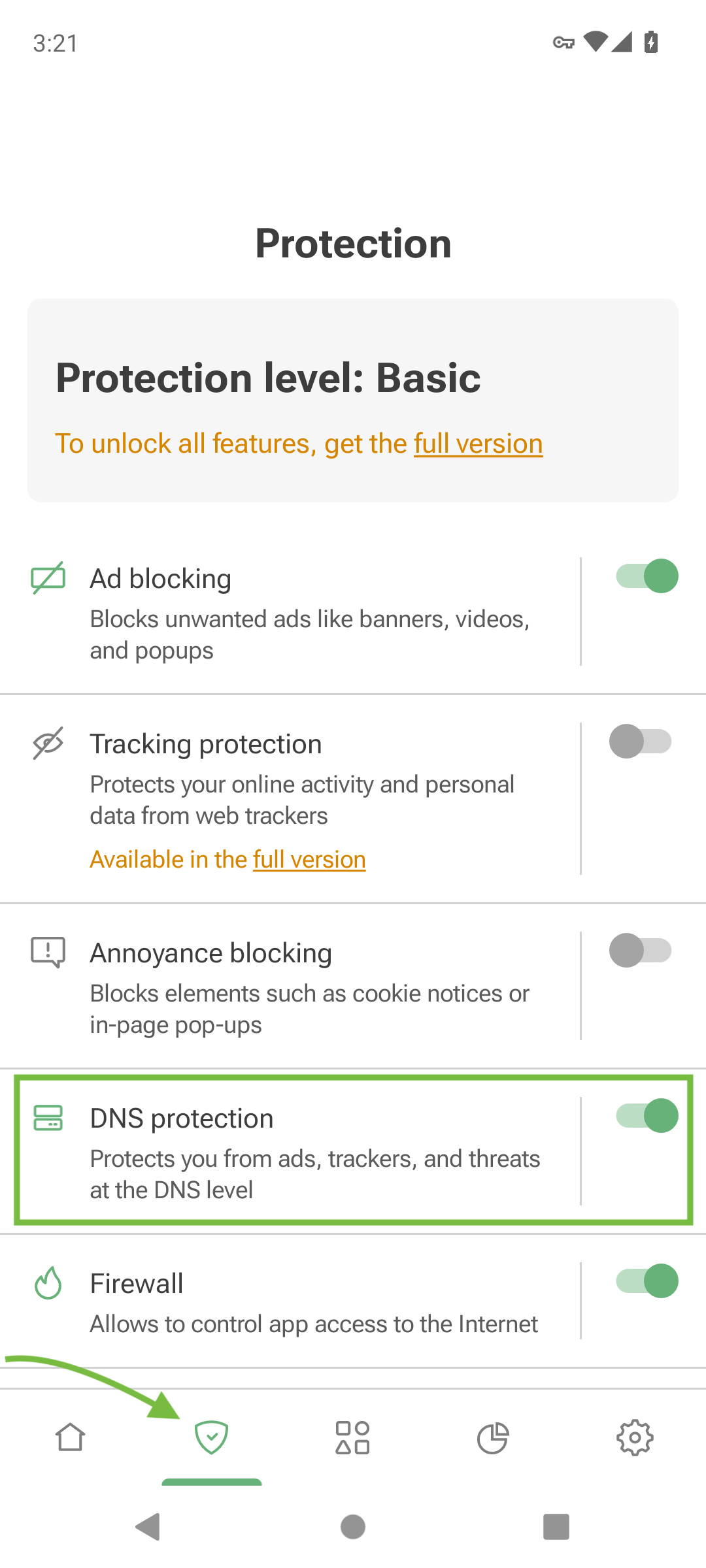
- Open the app and go to Protection (the shield icon) → DNS protection → DNS server.
- Select AdGuard DNS Family protection.
- Test the setup by searching for adult content or opening a restricted website.
Mac
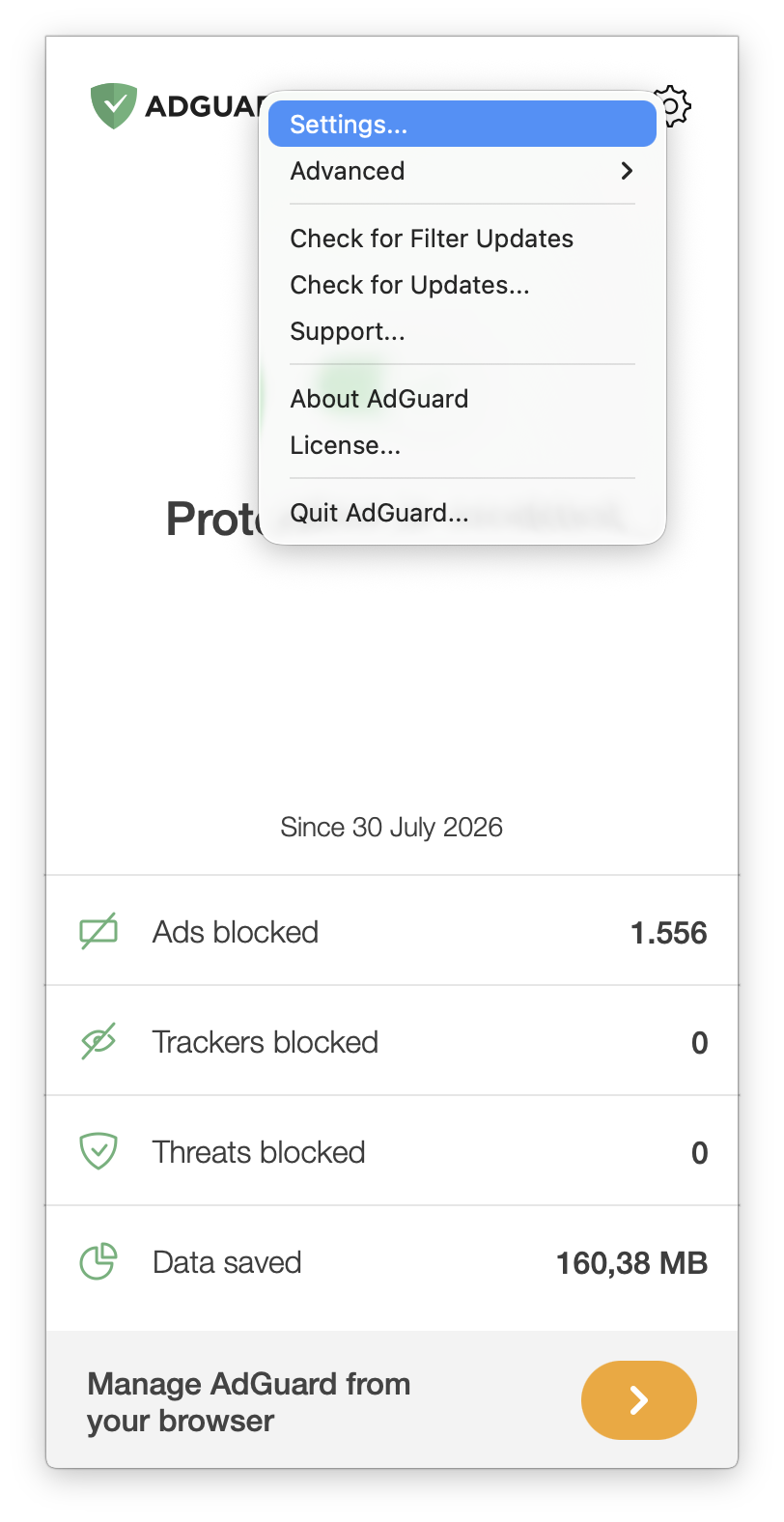
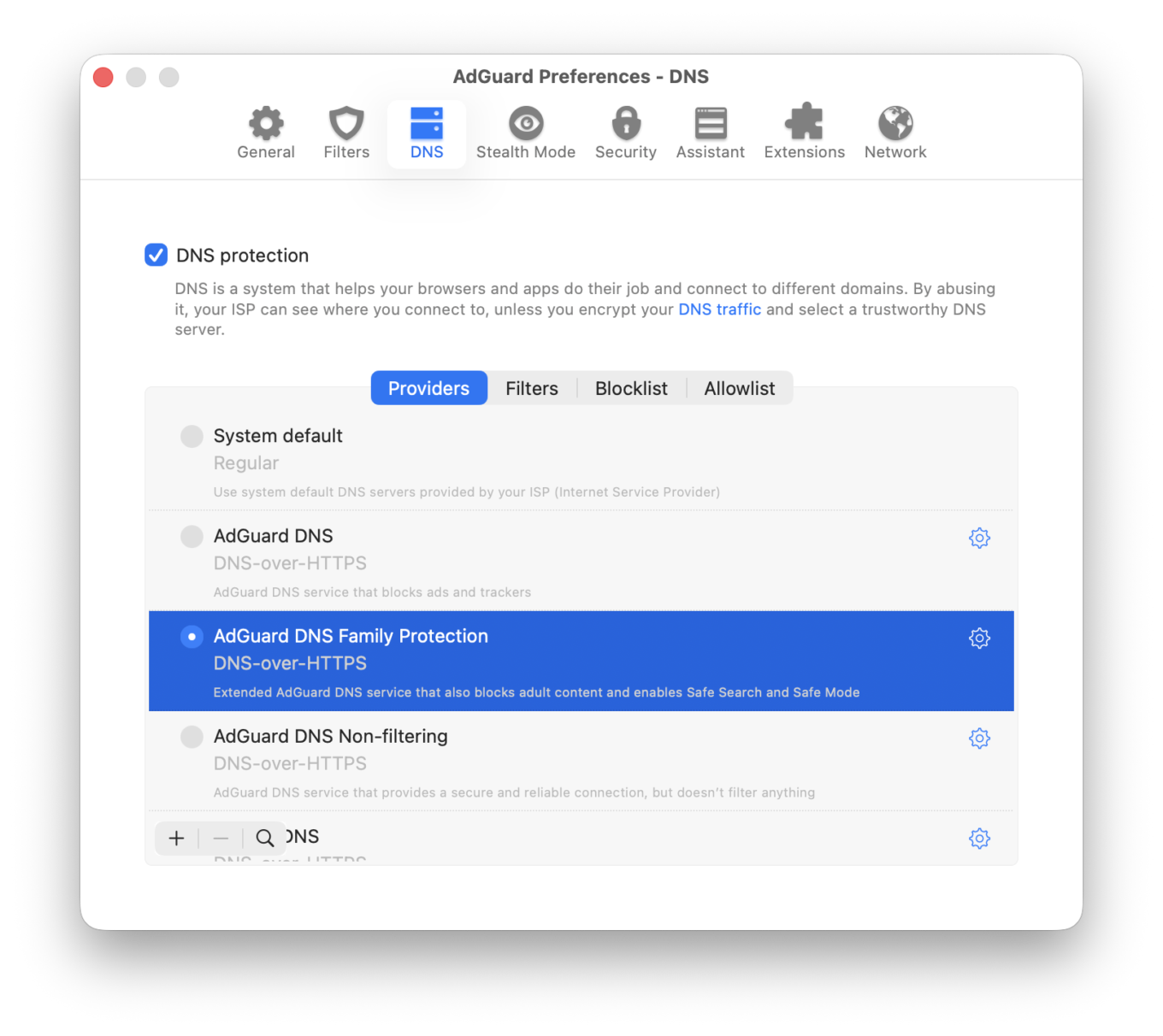
Open AdGuard settings and select the DNS tab.
Under Providers, select AdGuard DNS Family Protection.
Test the setup by searching for adult content or opening a restricted website.
Allowlist
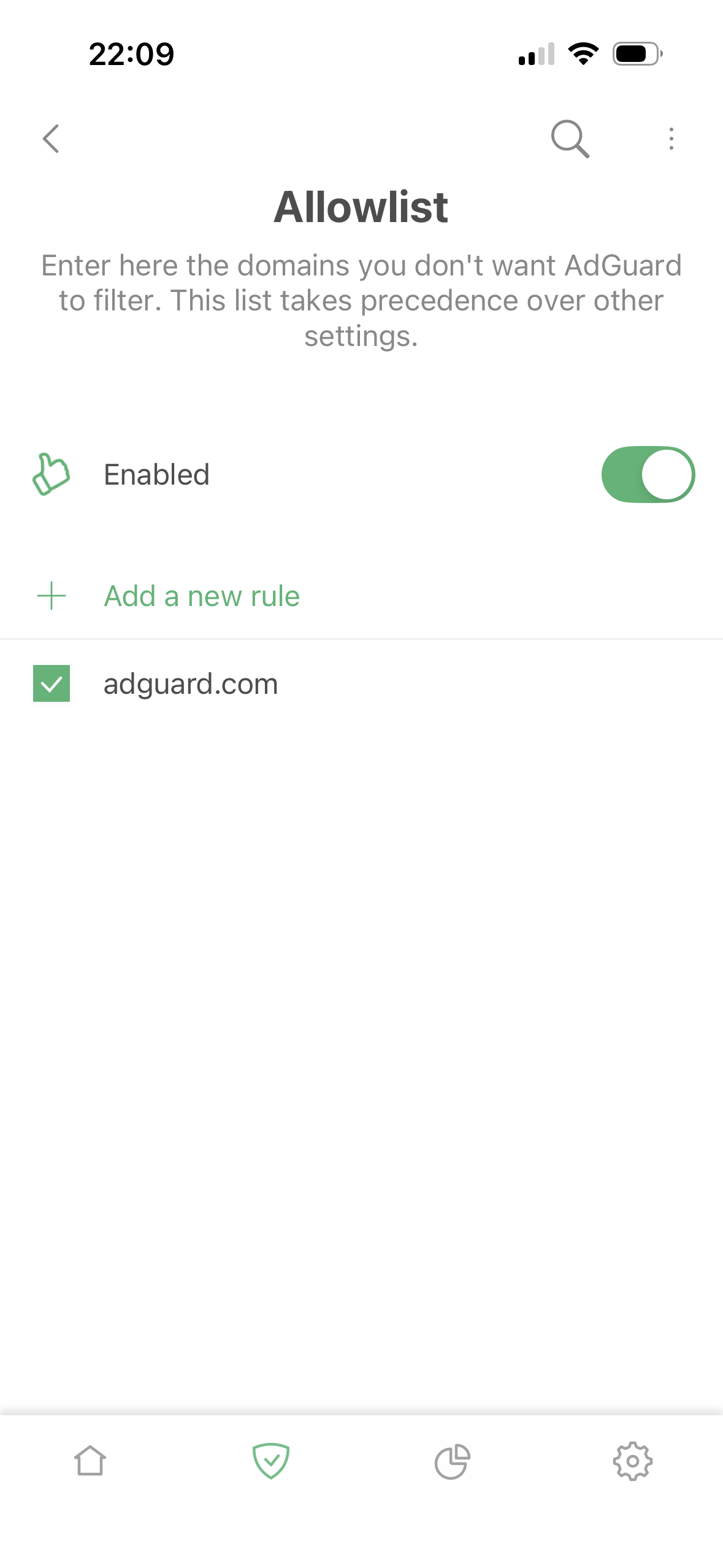
Allowlist does not block anything on its own. Instead, it gives you a way to correct overblocking.
Family protection may occasionally block a harmless website because its domain looks suspicious. Adding that domain to Allowlist restores access to it without turning off protection for everything else.
How to set it up
iOS
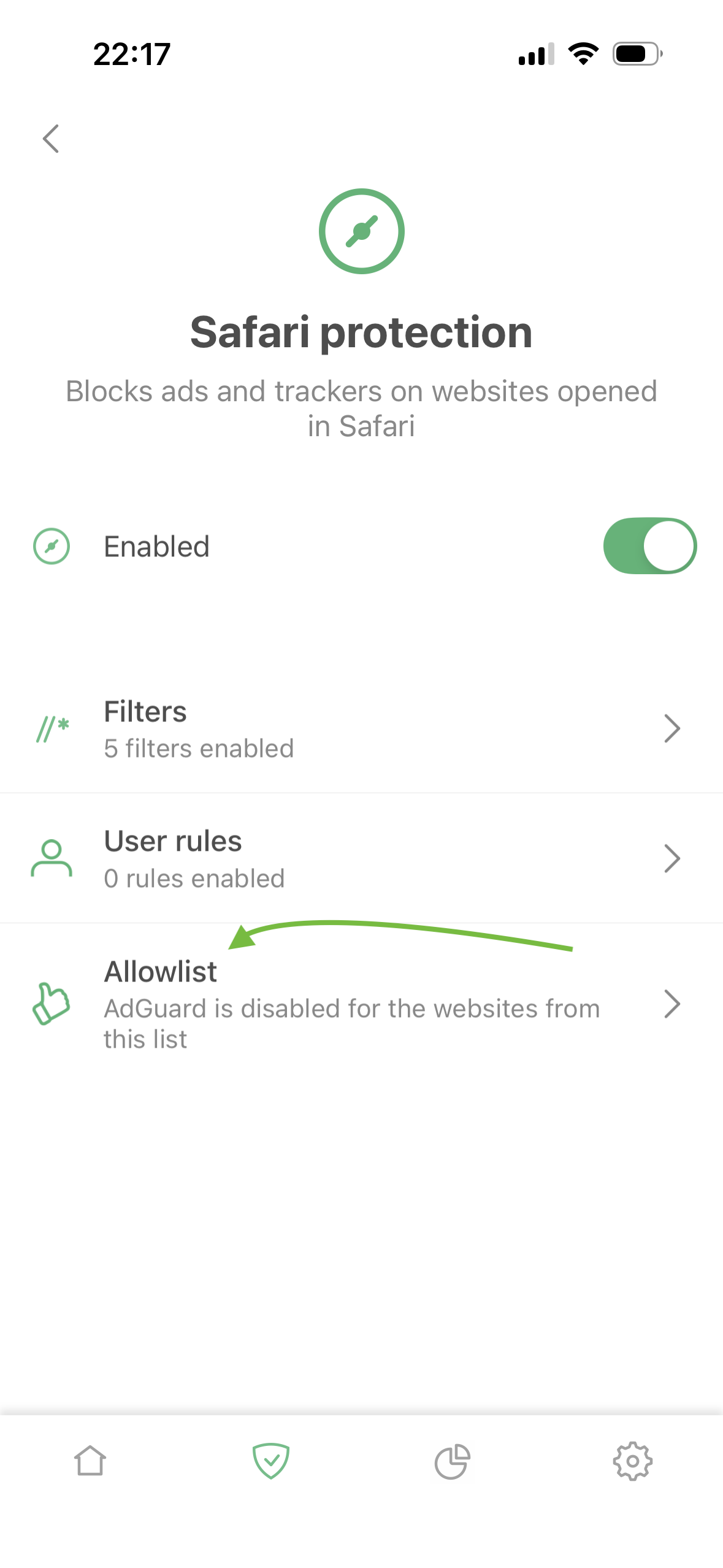
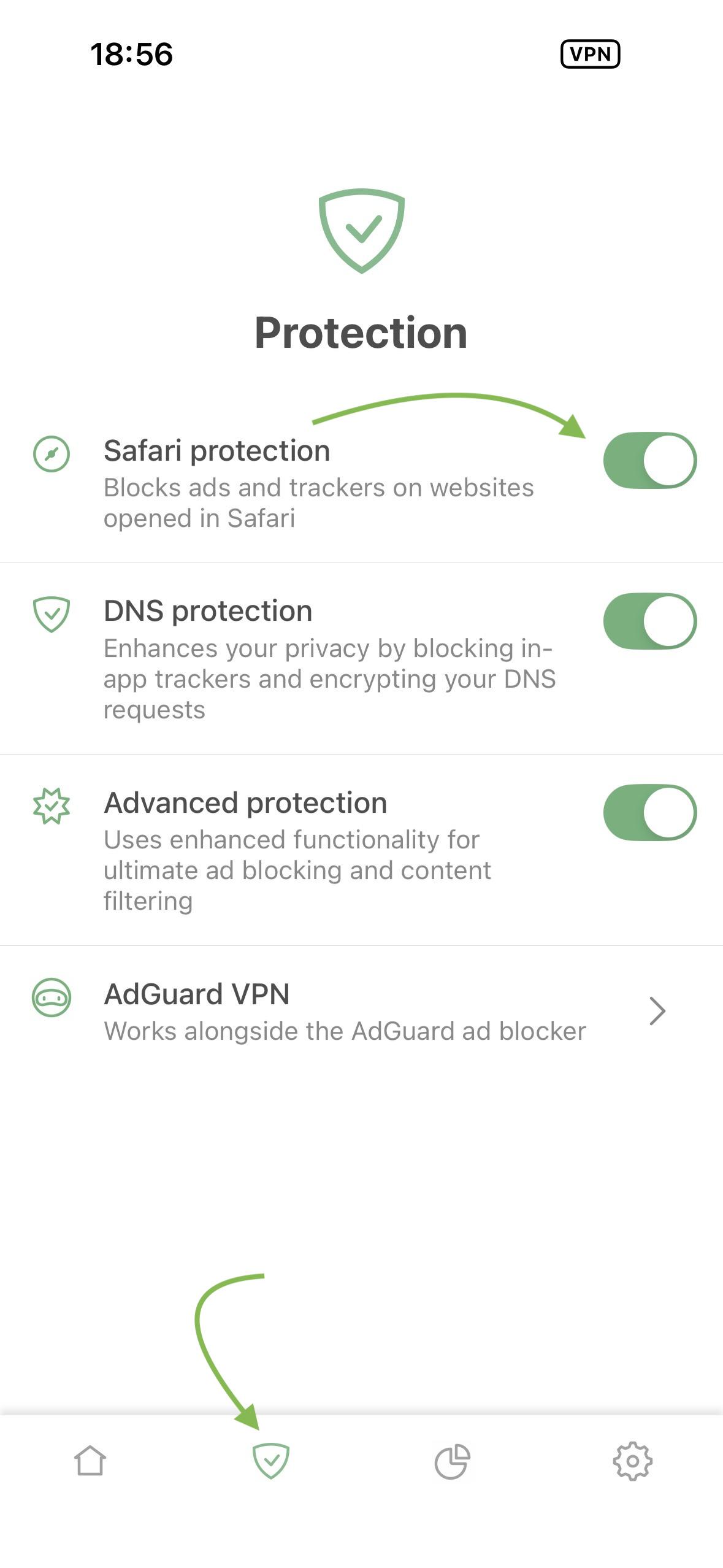
Go to Protection (the shield icon) → Safari protection → Allowlist, then add the domain you want to allow.
Android
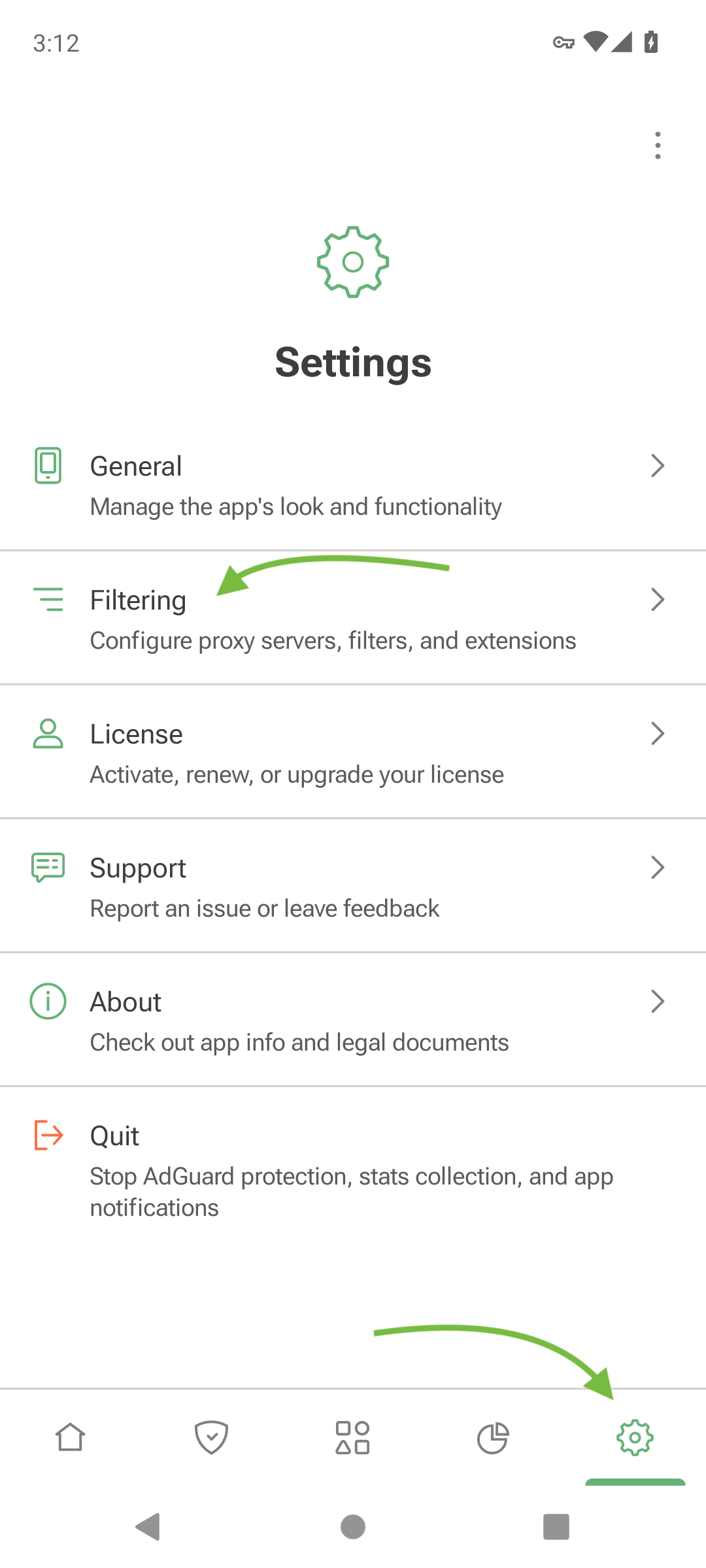
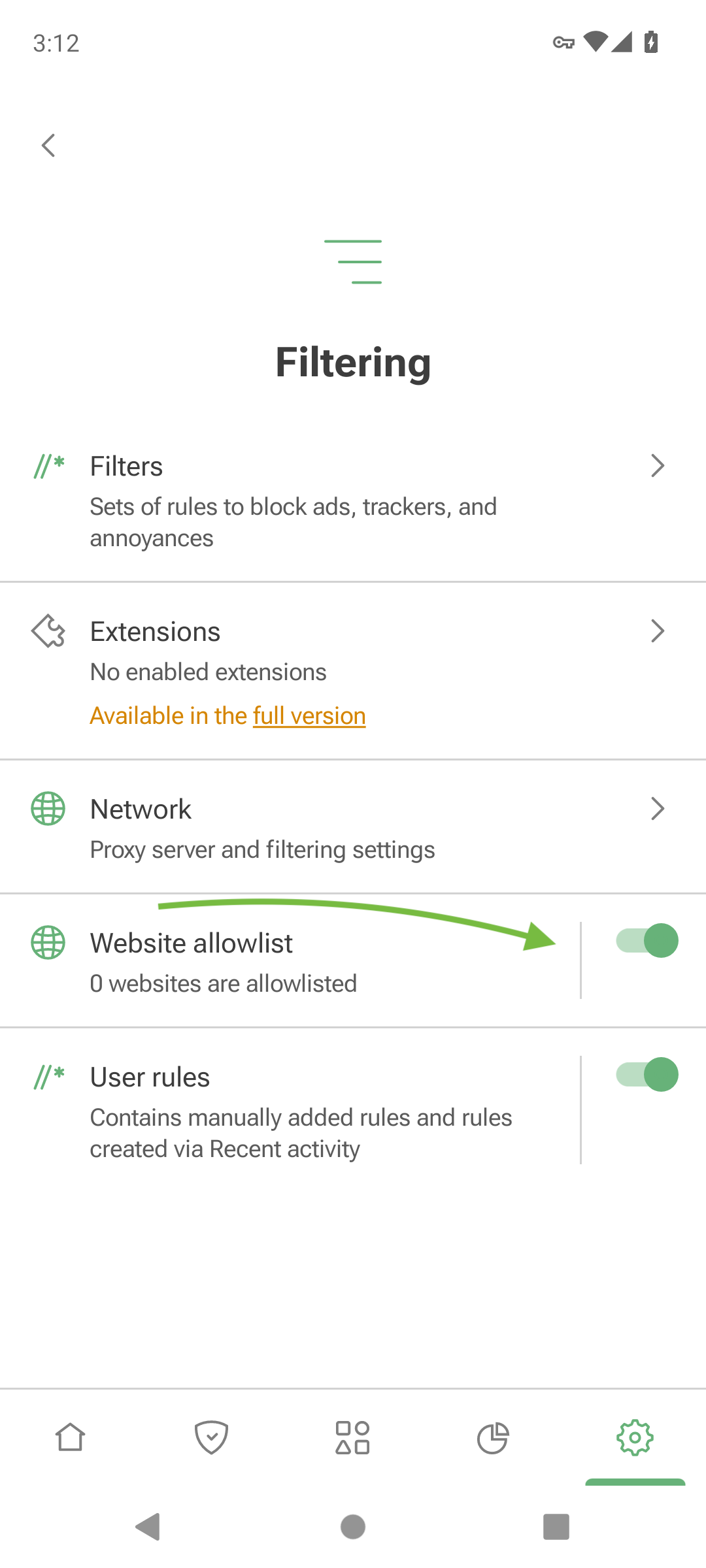
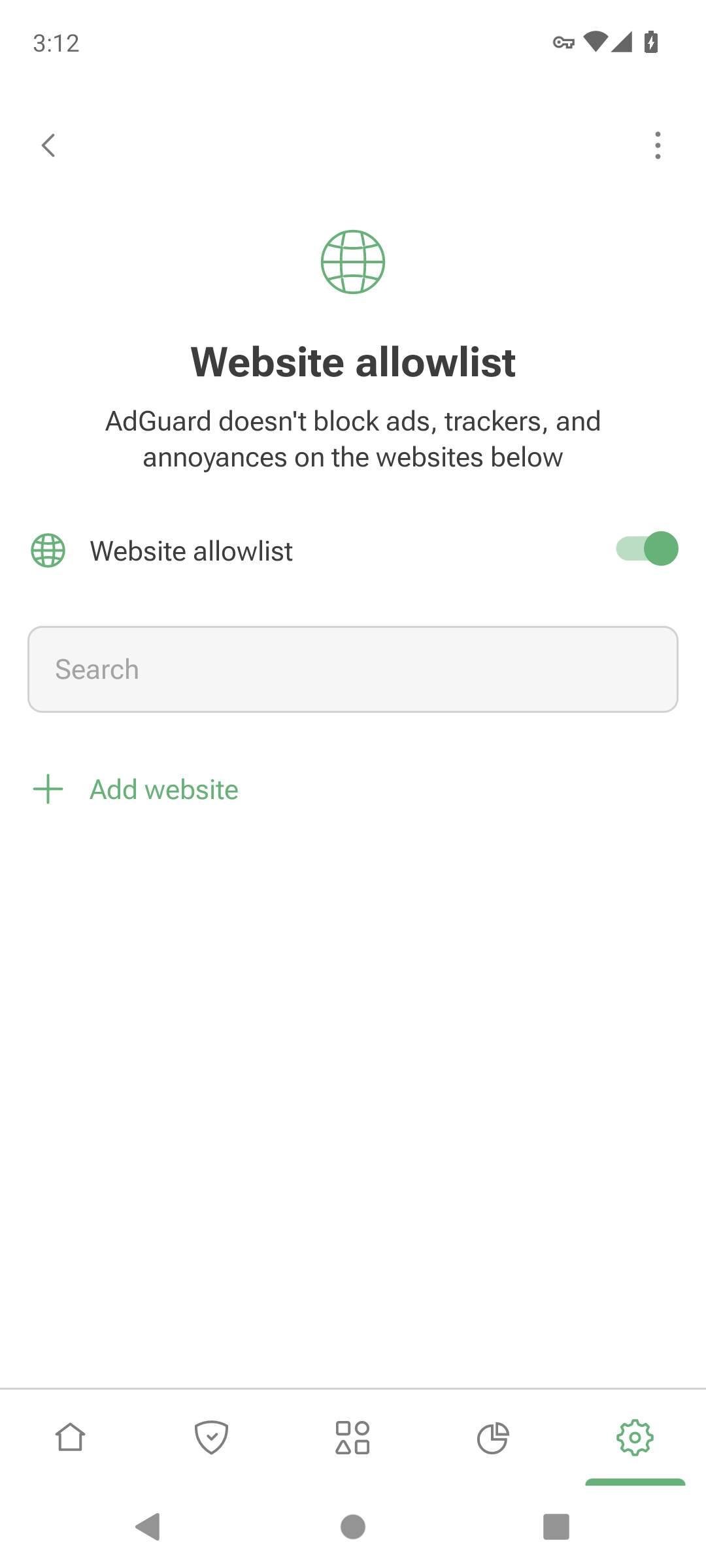
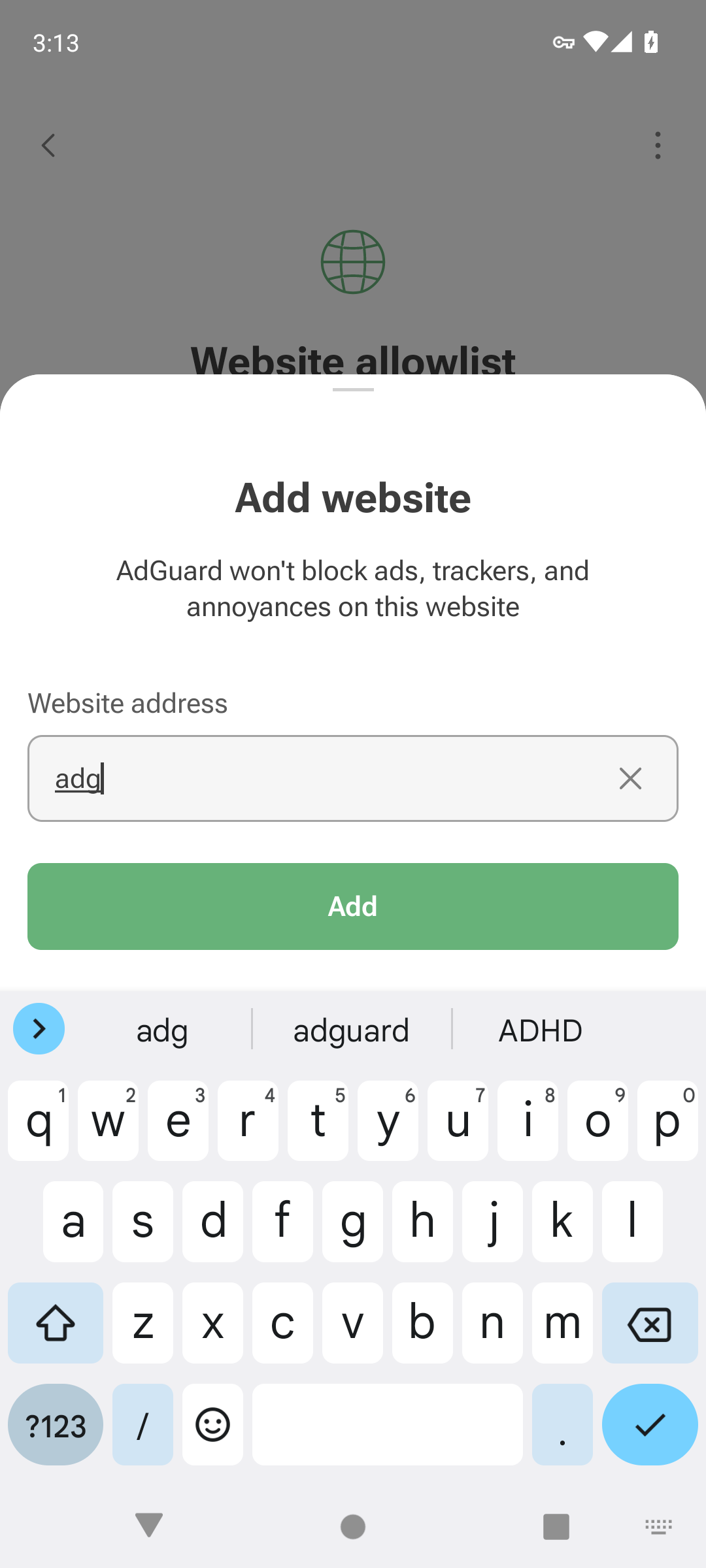
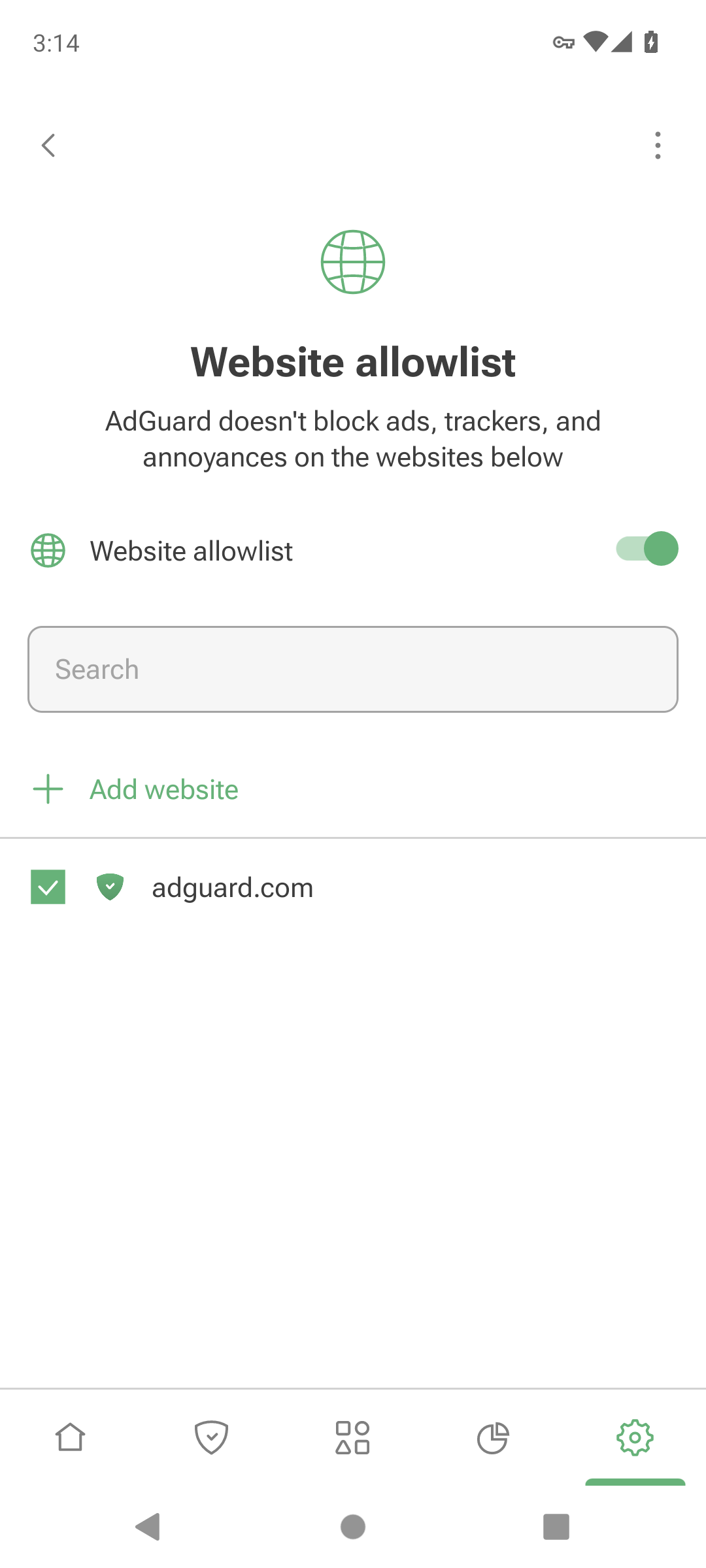
Open Settings → Filtering → Website Allowlist, then add the required domain.
Mac
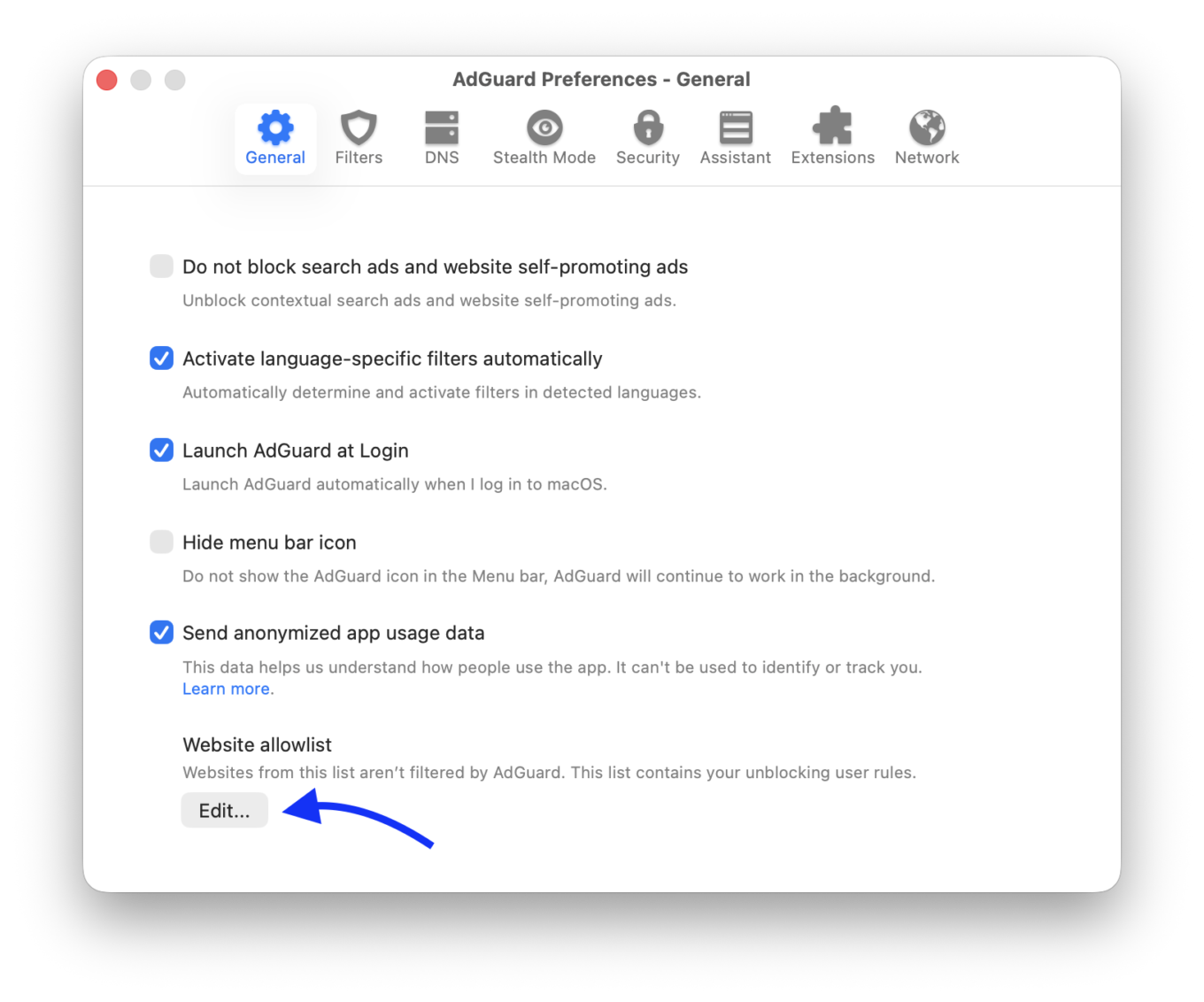
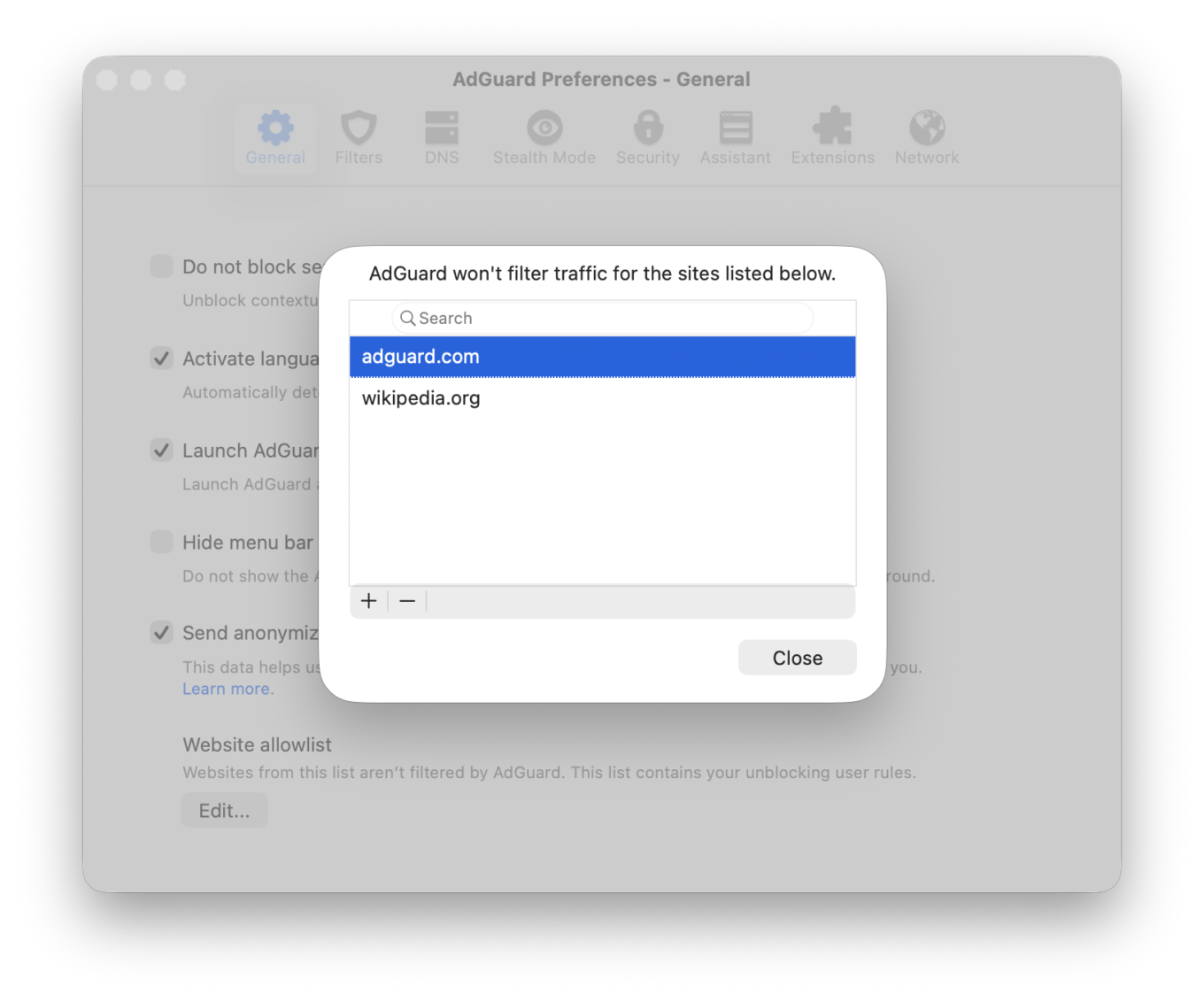
Open Settings → General → Edit Allowlist, then add the required domain.
User rules
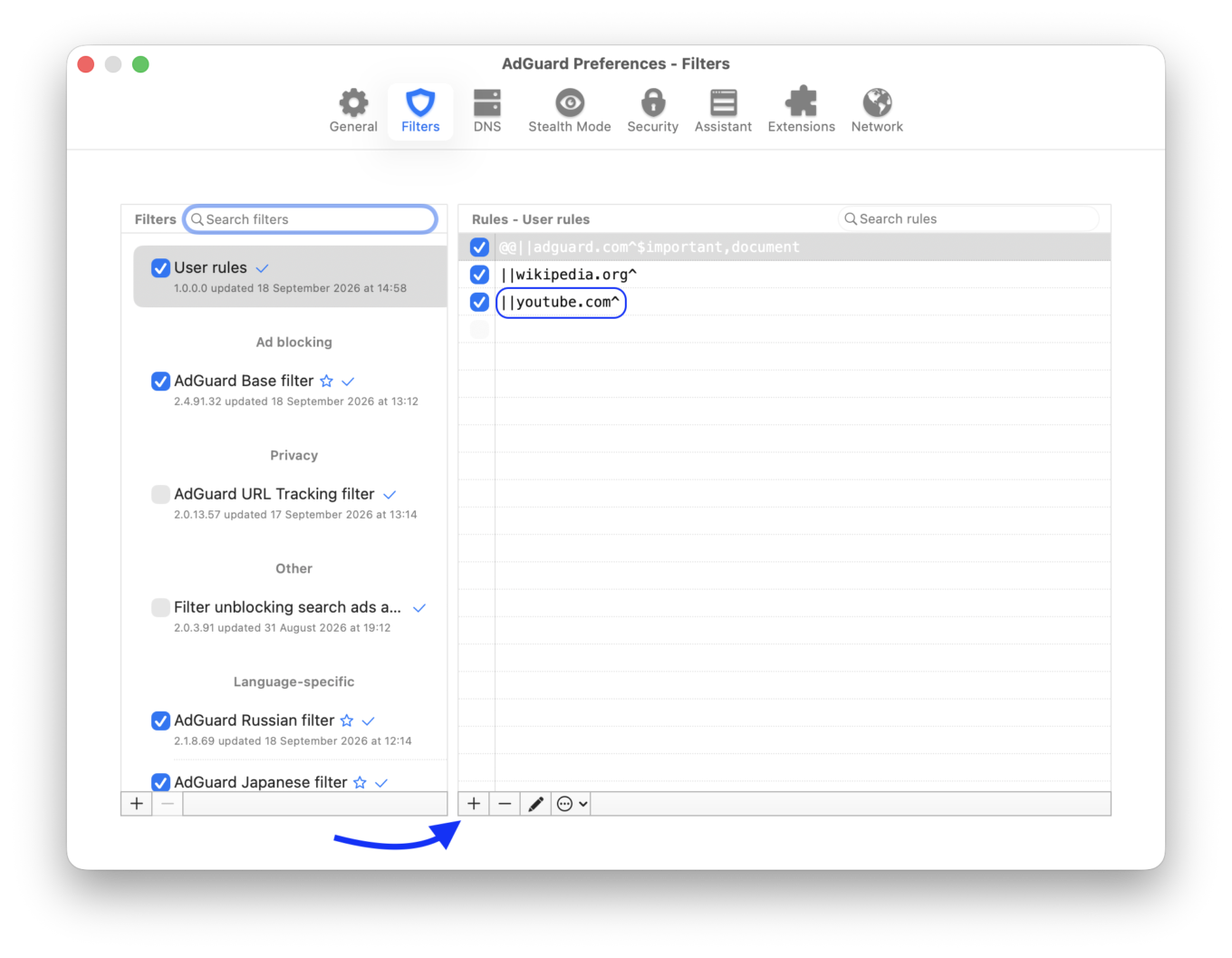
If you need to block a specific website or service that Family protection does not block (for example, TikTok or Roblox), use User rules. You can block any website or service manually with a single rule.
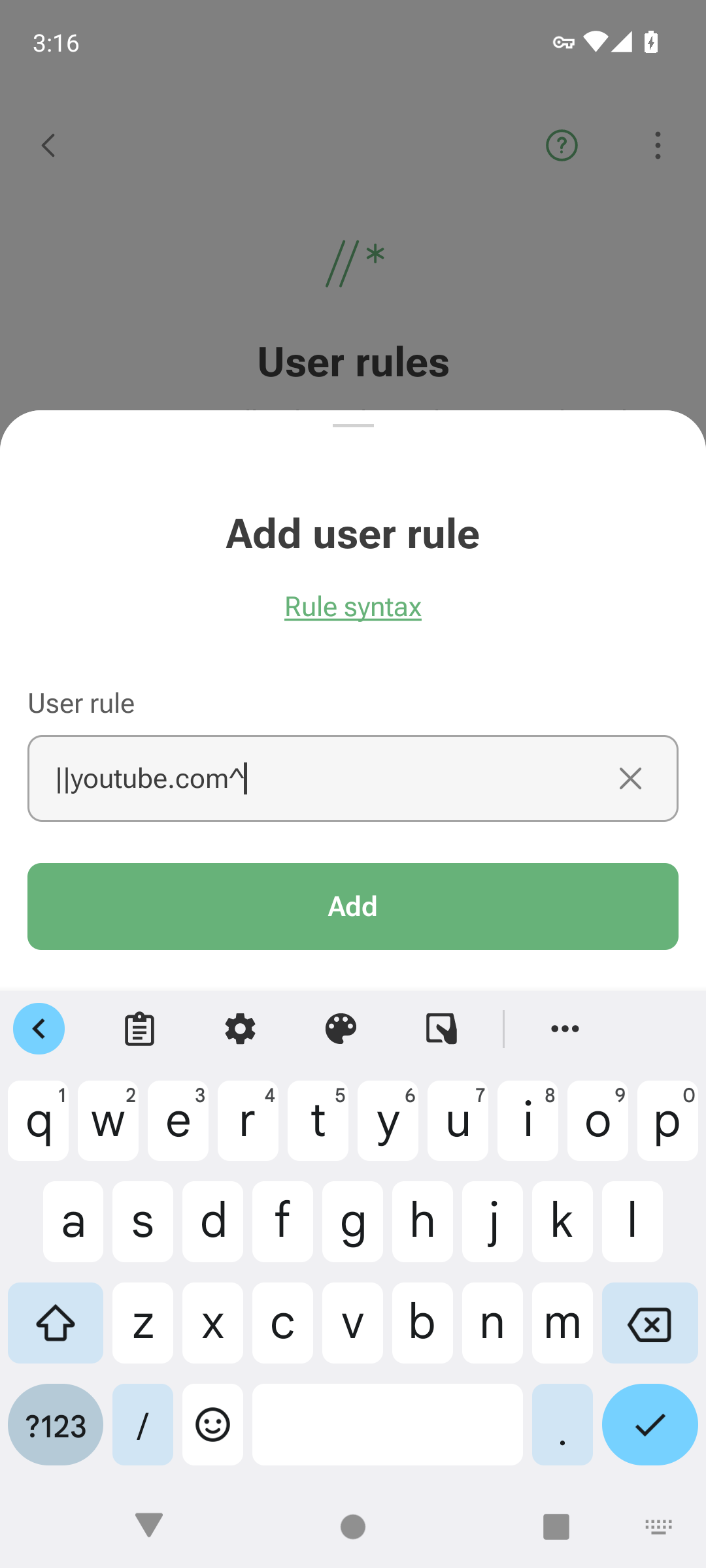
A rule like ||tiktok.com^ blocks TikTok completely, regardless of the DNS server you use. For the full syntax, see our guide on creating your own ad filters.
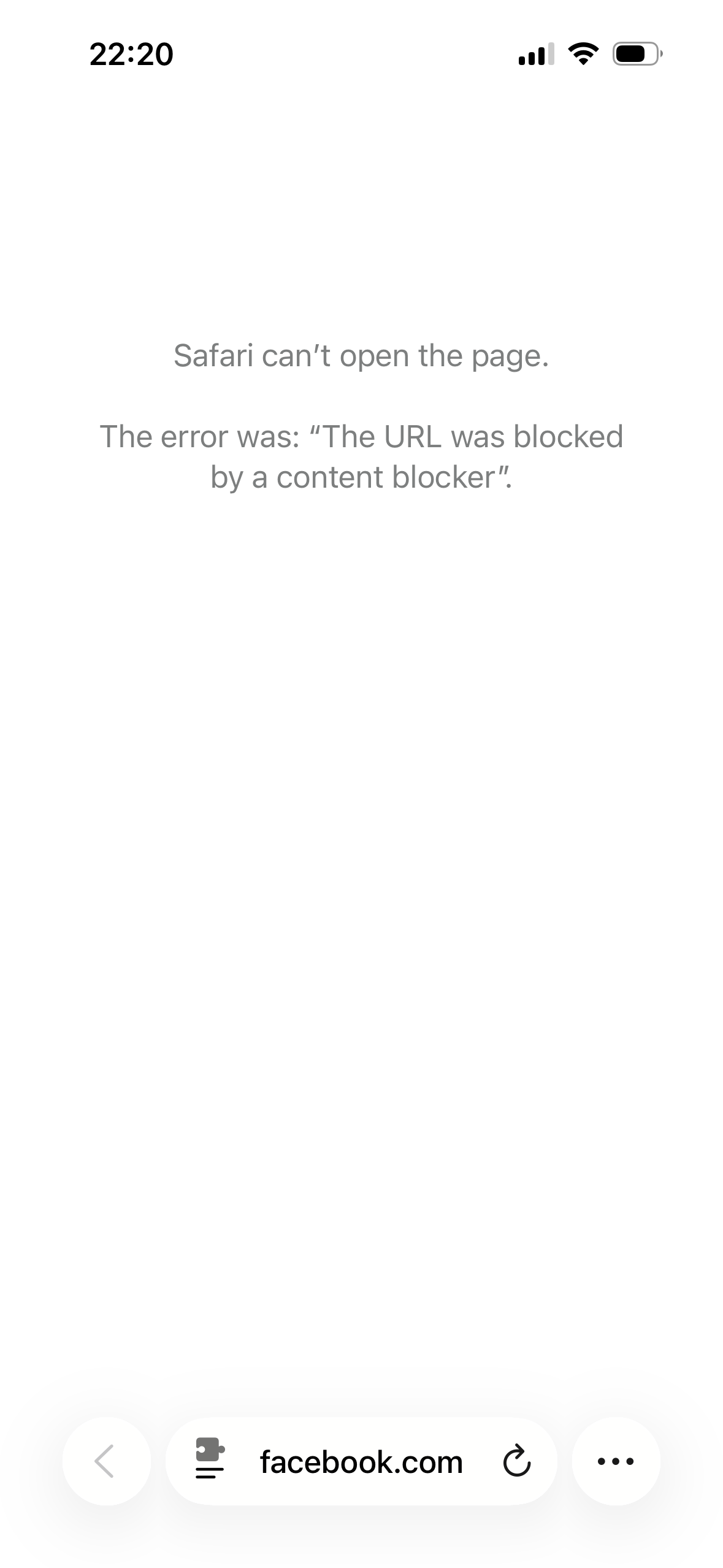
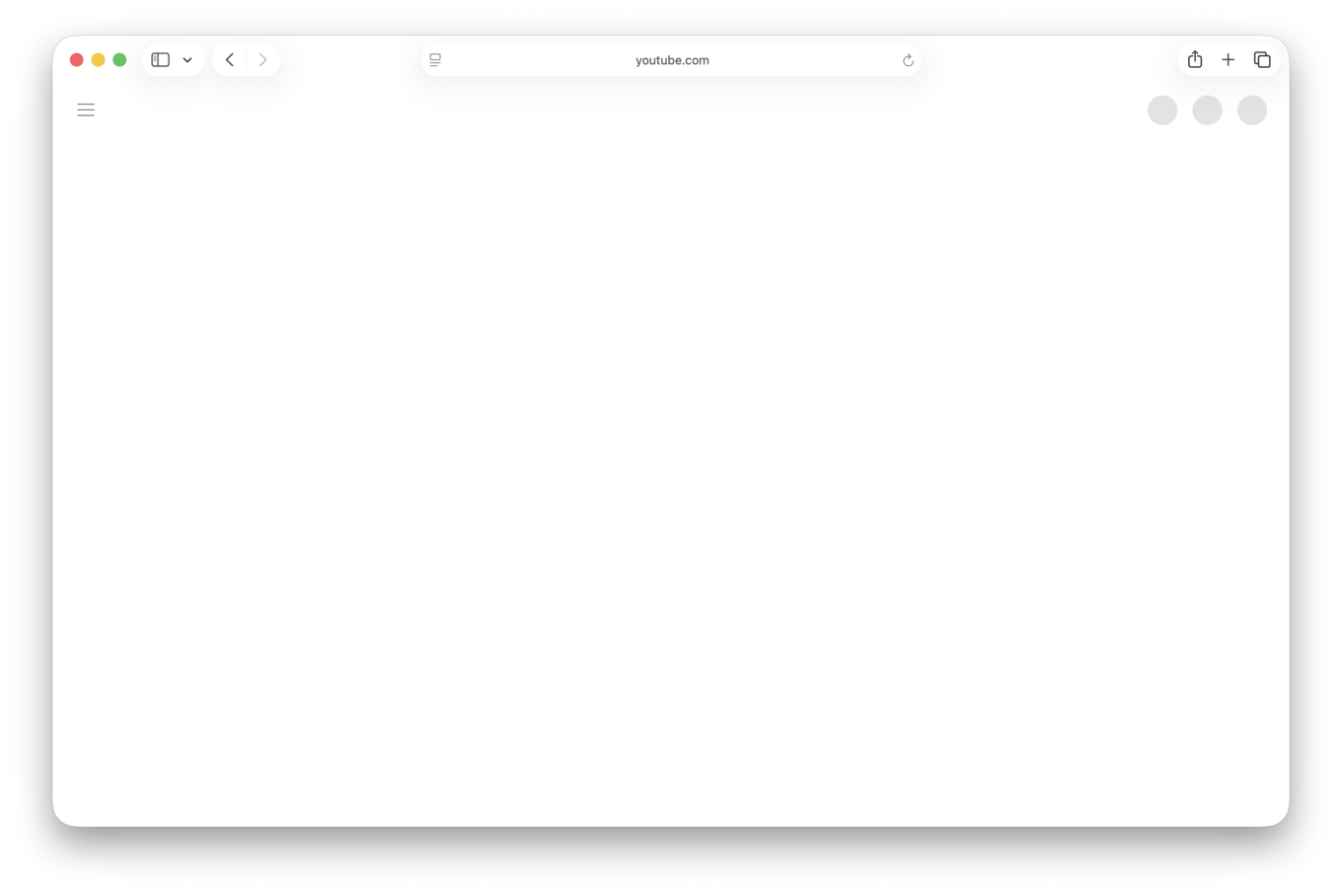
Unlike a DNS block page that says a website has been blocked, User rules simply prevent the website from loading. To a child, this may look like a regular connection issue rather than an intentional restriction.
How to set it up
iOS
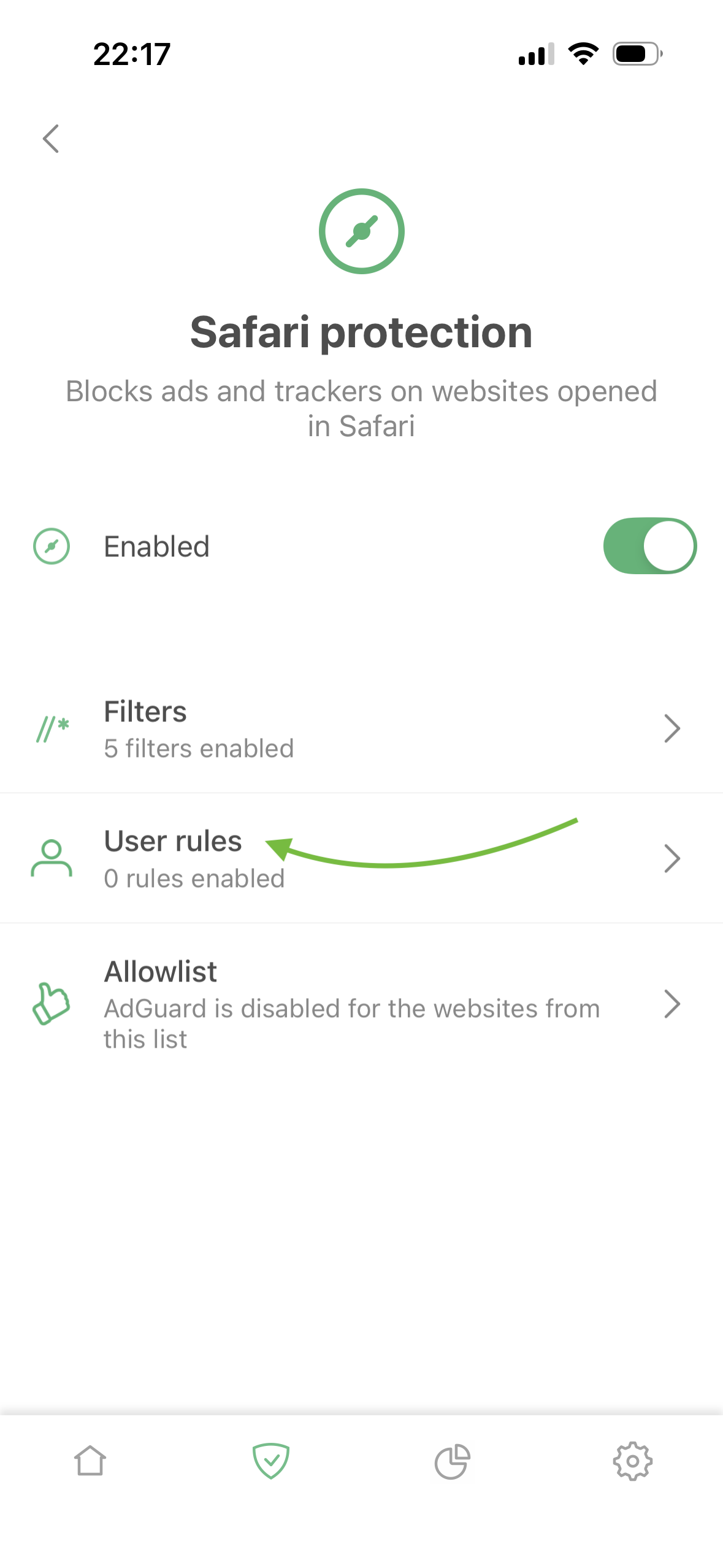
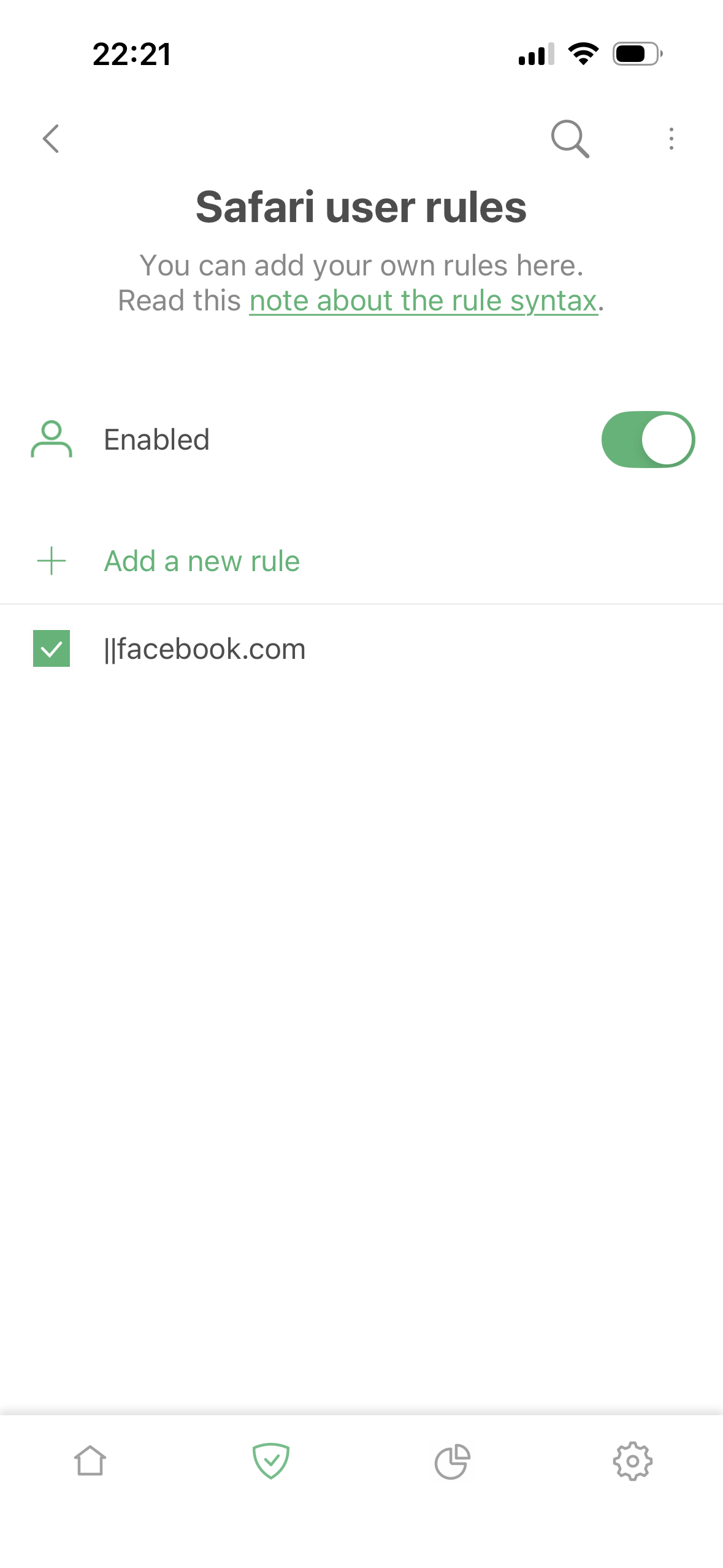
Go to Protection (the shield icon) → Safari protection → User rules and add a rule such as ||website.com^.
Android
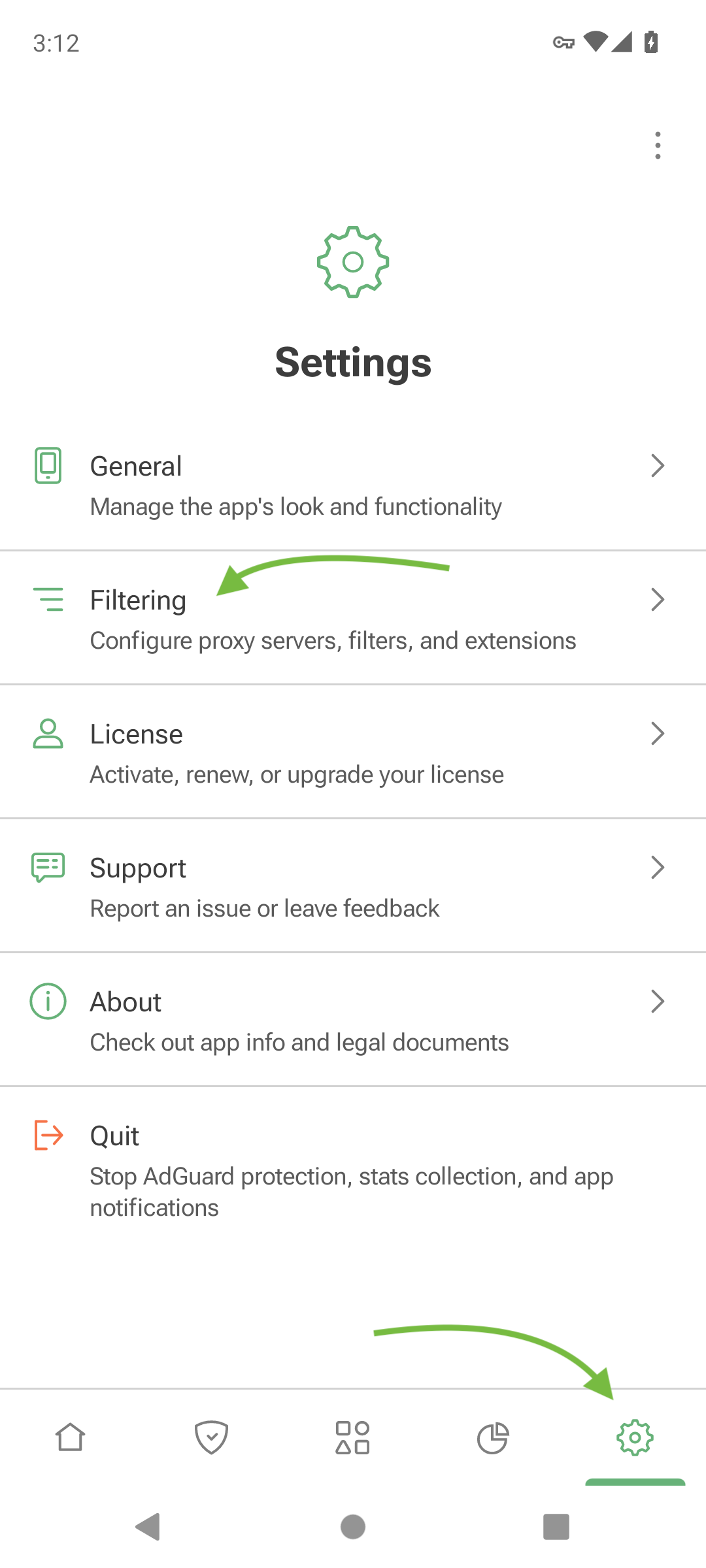
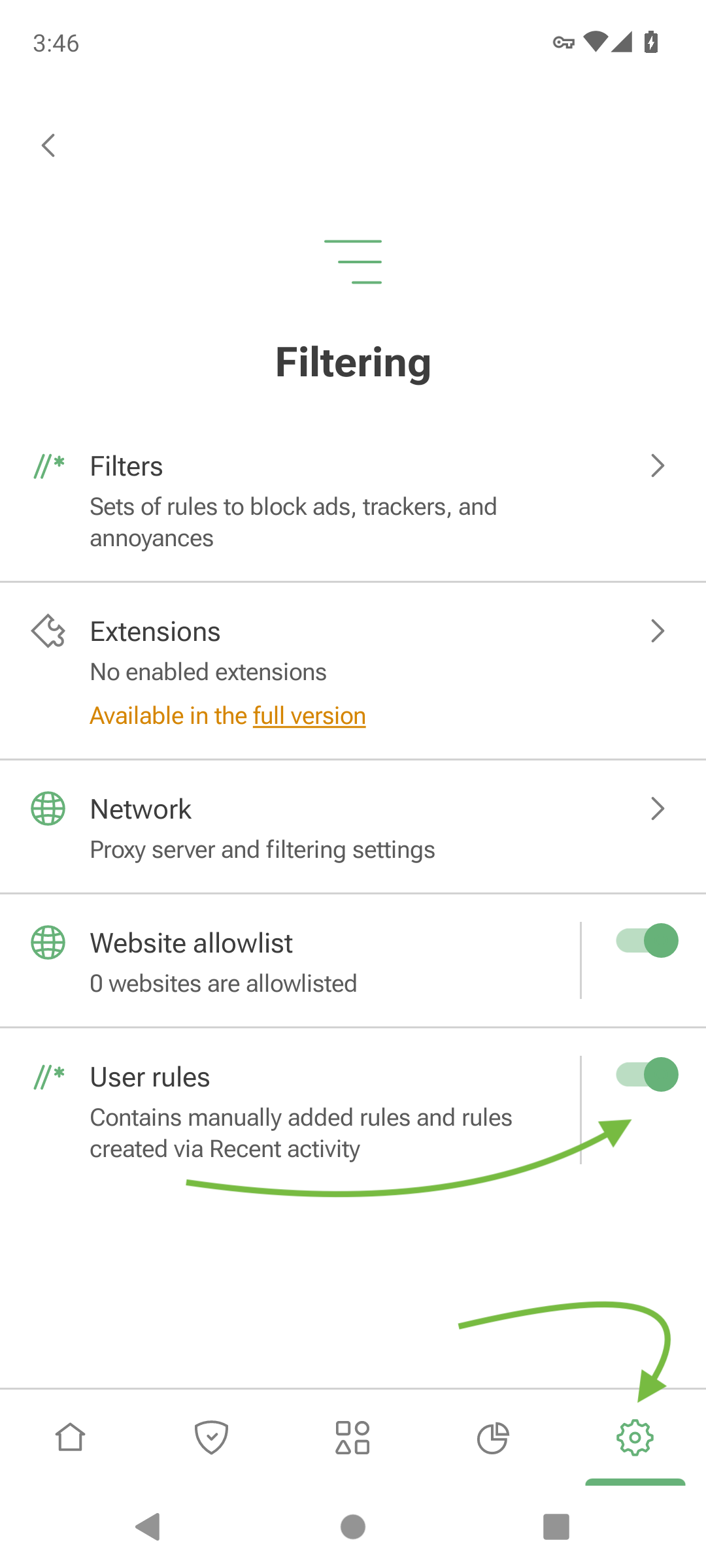
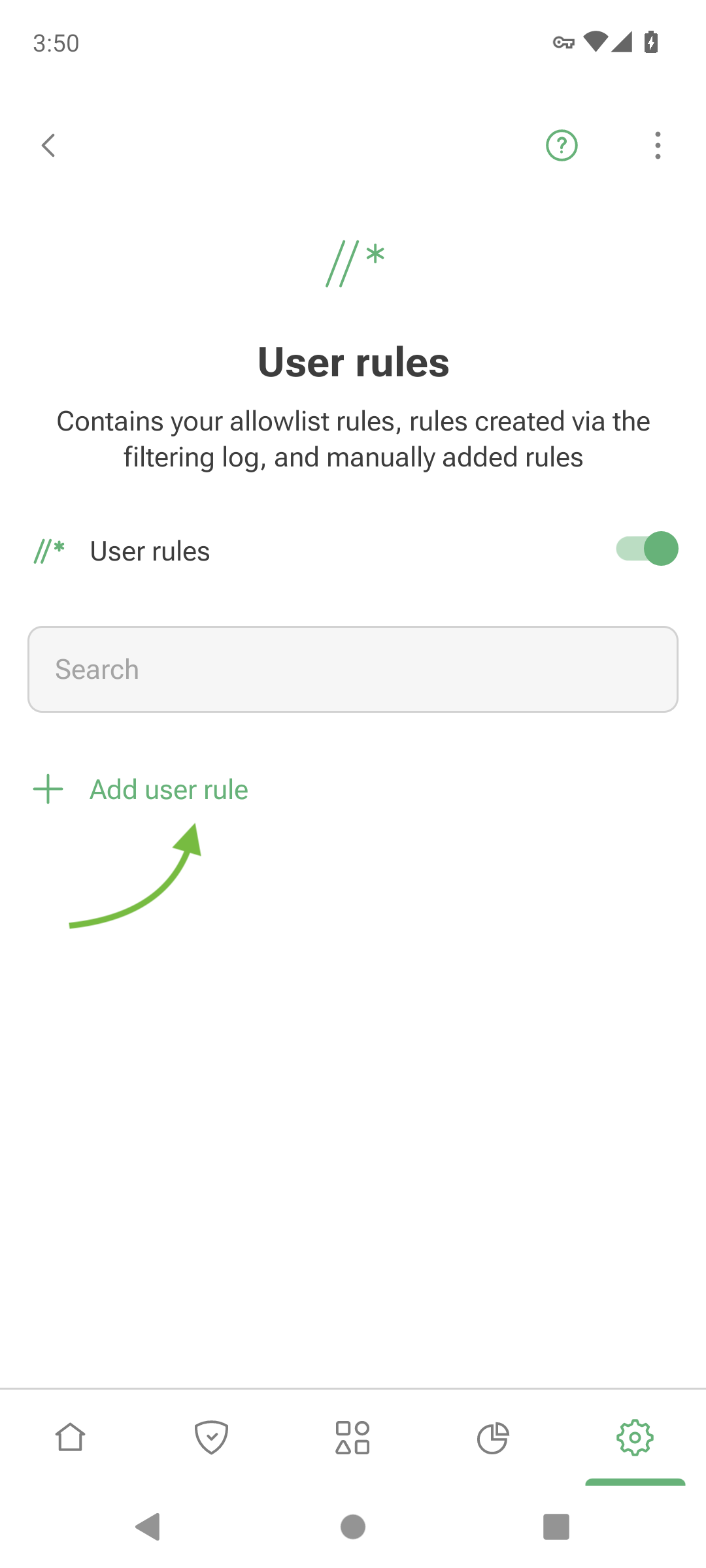
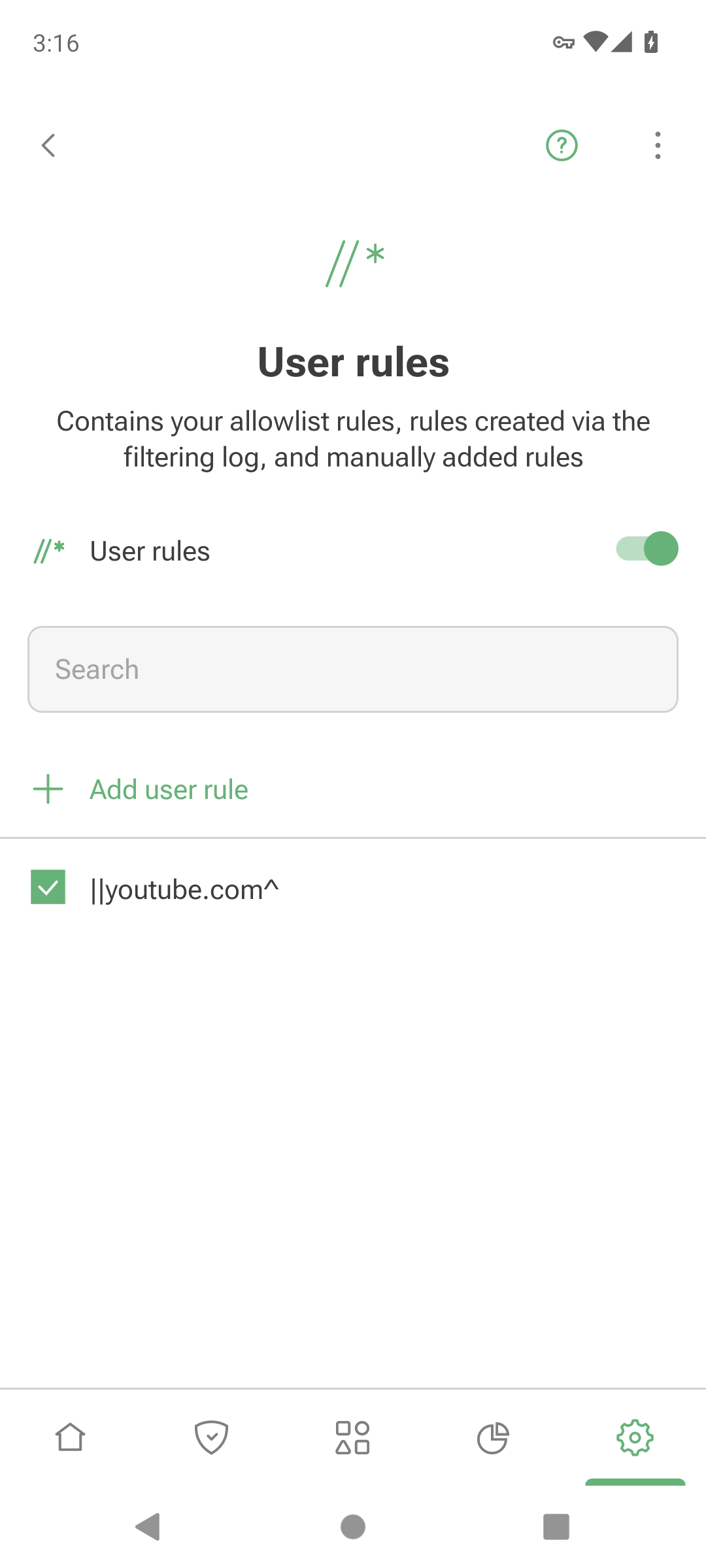
Open Settings → Filtering → User rules and add a rule such as ||website.com^.
Mac
Open AdGuard settings → Filters → User rules and add a rule such as ||website.com^.
Firewall
Android has one more useful tool for cases where domain-based blocking is not enough.
Some apps use many different servers and domains, so blocking them one by one with User rules can quickly become impractical. Or perhaps you simply want to stop a particular app from accessing the Internet during homework, bedtime, or school hours while leaving everything else connected.
Firewall lets you control Internet access for individual apps. Instead of filtering websites inside an app, it can prevent the app from connecting altogether.
How to set it up
Android
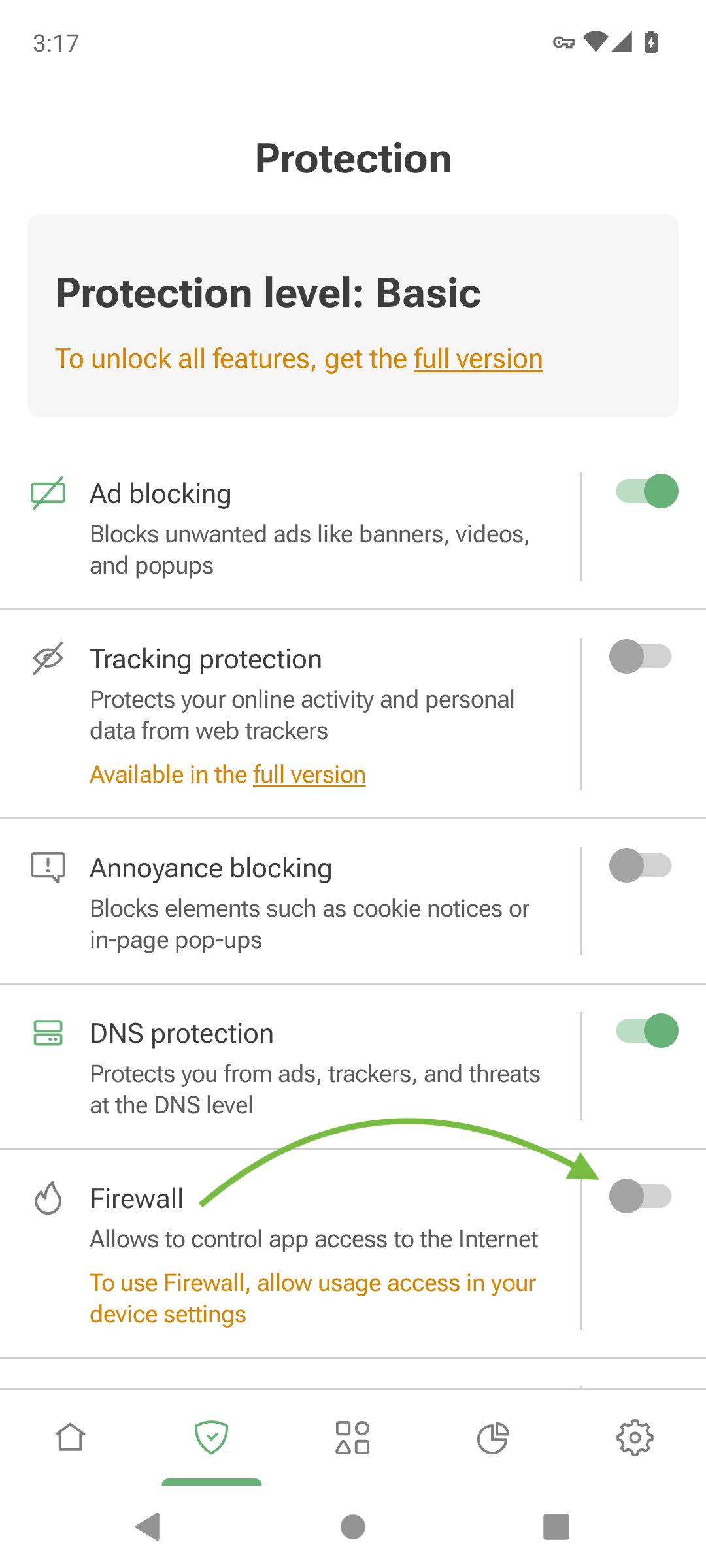
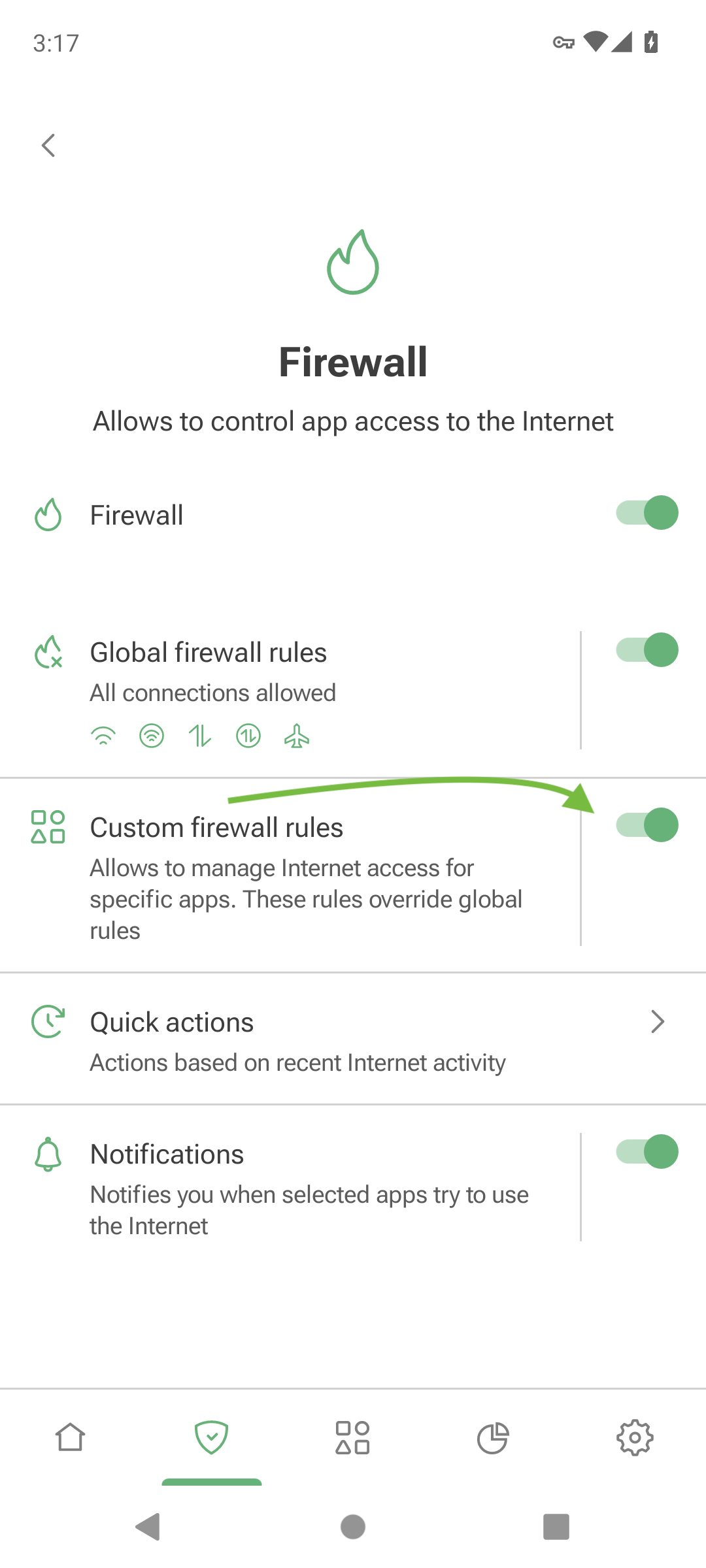
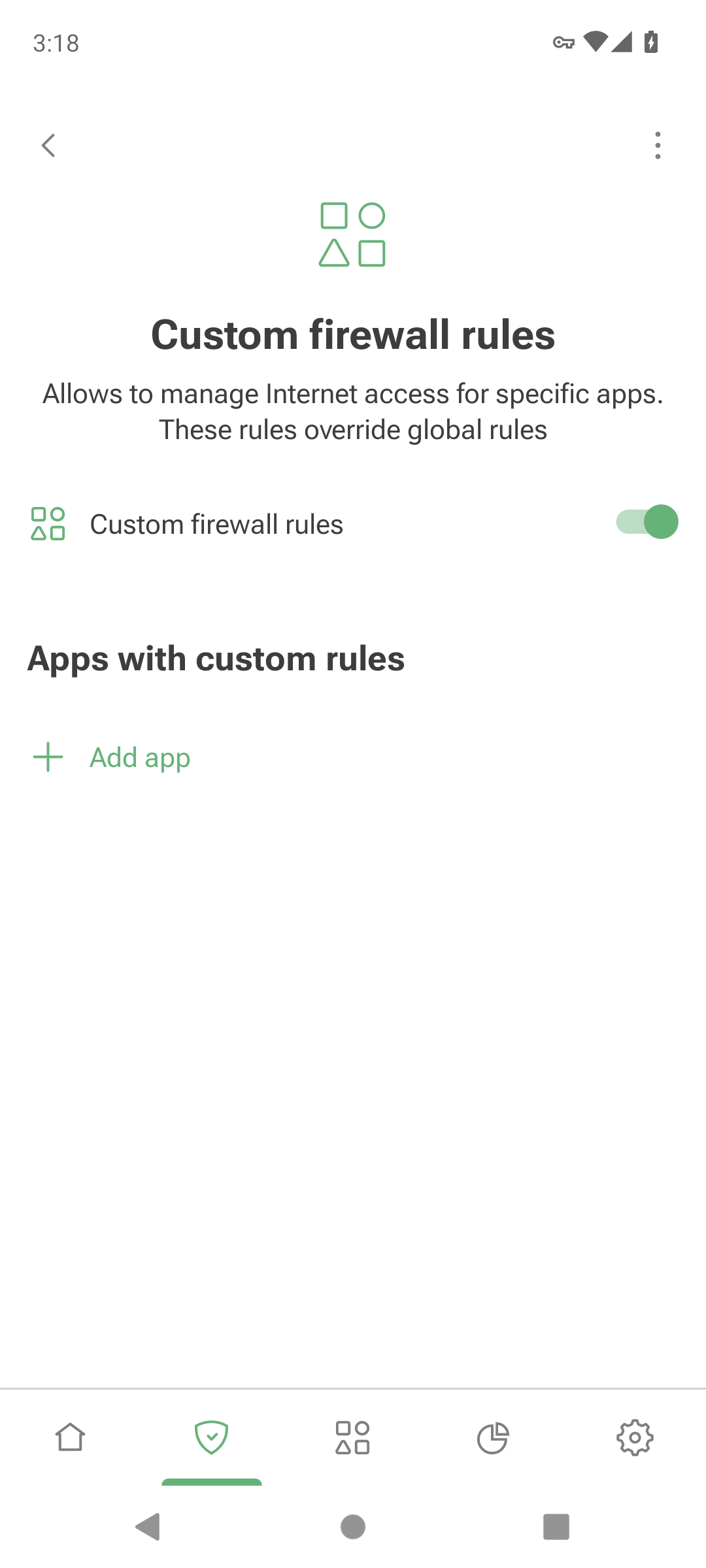
Open Protection → Firewall → Custom firewall rules.
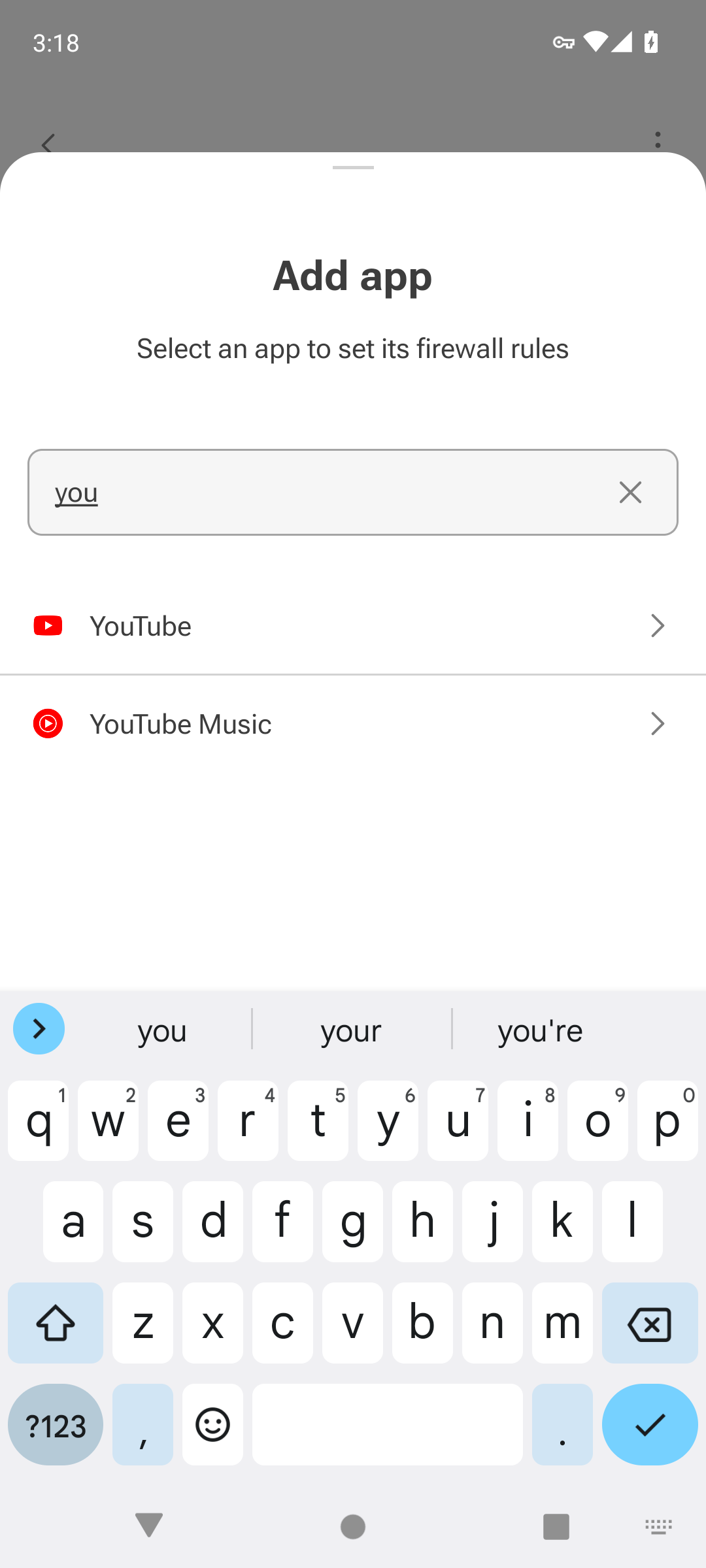
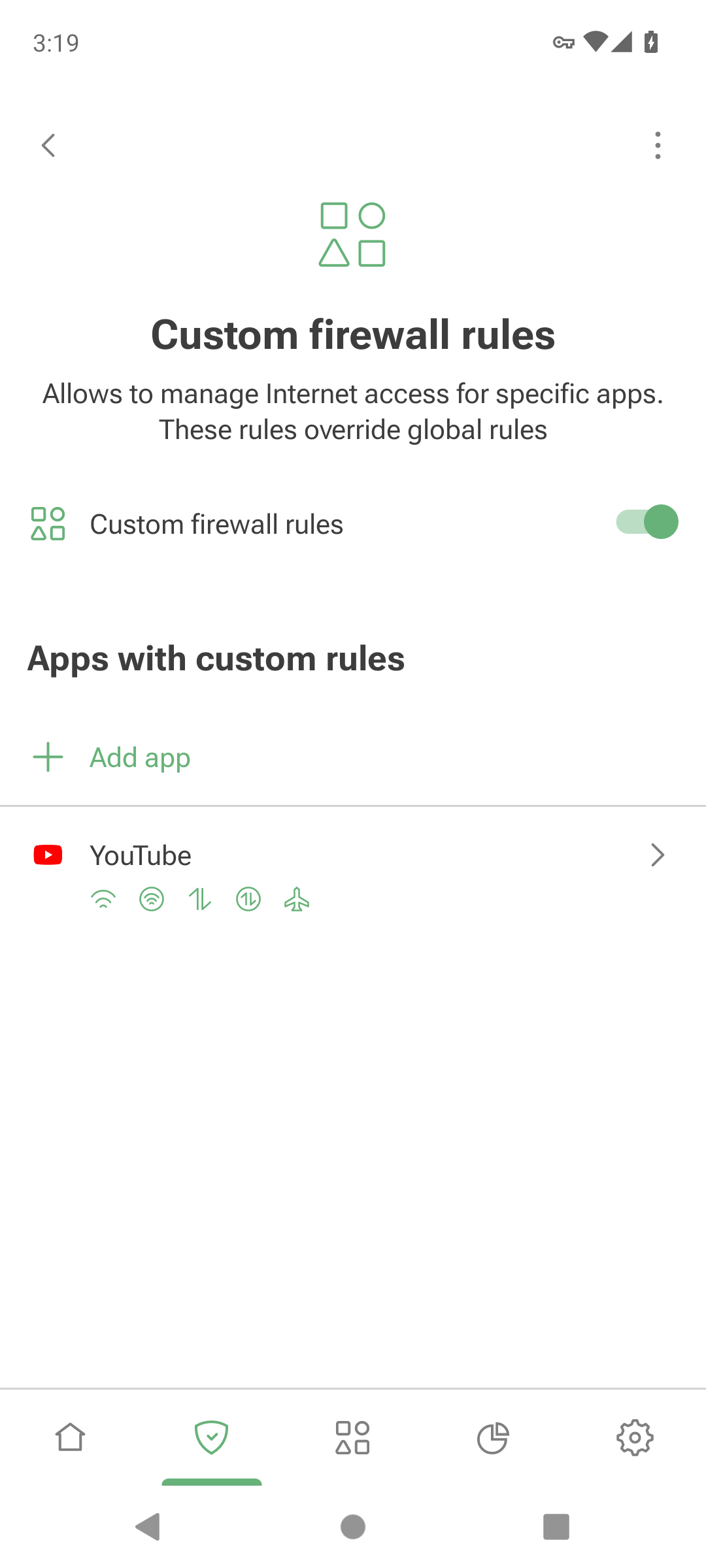
Tap Add app and select or type the app you want to restrict.
Add and enable the connection restrictions you need.
A few things to keep in mind
A setup like this can reduce accidental — and not-so-accidental — encounters with inappropriate content. But technical restrictions are only one part of online safety. No filter can replace a conversation with your child about why these boundaries exist.
A blocked website can be bypassed with another phone, another network, or enough determination. Trust, clear expectations, and shared rules are harder to work around.